<?xml version="1.0" encoding="UTF-8"?>
<?xml-stylesheet type="text/xsl" media="screen" href="/~files/atom-premium.xsl"?>
                                                                                                                                                                                                                                                                                                                                                                                                                                                                                                                                             
<feed xmlns="http://www.w3.org/2005/Atom" xmlns:feedpress="https://feed.press/xmlns" xmlns:media="http://search.yahoo.com/mrss/" xmlns:podcast="https://podcastindex.org/namespace/1.0">
  <feedpress:locale>en</feedpress:locale>
  <feedpress:newsletterId>telerik-blogs-mobile</feedpress:newsletterId>
  <link rel="hub" href="https://feedpress.superfeedr.com/"/>
  <logo>https://static.feedpress.com/logo/telerik-blogs--mobile-5ab52ba67db9a.jpg</logo>
  <title type="text">Telerik Blogs | Mobile</title>
  <subtitle type="text">The official blog of Progress Telerik - expert articles and tutorials for developers.</subtitle>
  <id>uuid:c1ba3a33-c567-4094-91e5-ea15699bb290;id=3270</id>
  <updated>2026-10-17T00:04:36Z</updated>
  <link rel="alternate" href="https://www.telerik.com/"/>
  <link rel="self" type="application/atom+xml" href="https://feeds.telerik.com/blogs/mobile"/>
  <entry>
    <id>urn:uuid:47ac6a3c-cdbf-49c3-baf9-8acb0f106edb</id>
    <title type="text">Getting Started with the .NET MAUI Map Control</title>
    <summary type="text">See how the Telerik UI for .NET MAUI Map control lets you display maps, labels and regions to add things like world maps or seating charts to your apps.</summary>
    <published>2026-10-13T16:07:29Z</published>
    <updated>2026-10-17T00:04:36Z</updated>
    <author>
      <name>Héctor Pérez </name>
    </author>
    <link rel="alternate" href="https://www.telerik.com/blogs/getting-started-net-maui-map-control"/>
    <content type="text"><![CDATA[<p><span class="featured">See how the Telerik UI for .NET MAUI Map control lets you display maps, labels and regions to add things like world maps or seating charts to your apps.</span></p><p>In the world of web development, there are applications for displaying geographic information. Although there are ways to embed Google Maps or similar options, customizing them isn&rsquo;t so easy when you need to highlight geographic areas or respond to user selection. Fortunately, the Progress Telerik UI library has a <a target="_blank" href="https://www.telerik.com/maui-ui/map">.NET MAUI Map</a> control, which we will examine throughout this article. Let&rsquo;s get started!</p><h2 id="what-is-the-telerik-ui-for-.net-maui-map-control">What Is the Telerik UI for .NET MAUI Map Control?</h2><p>The Telerik .NET MAUI Map control is a powerful control for displaying maps in your .NET MAUI applications, with a lot of flexible styling options. It also supports multiple layers, pan and zoom, and many other features.</p><p>The control works with <strong>ESRI shapefiles</strong>, which are a standard vector format in geographic information systems or GIS. According to the <a target="_blank" href="https://www.telerik.com/maui-ui/map">MAUI Map documentation</a>, these files consist of geometric objects such as lines, polylines and polygons. This makes it possible to display different types of objects like floor plans and seat distribution, up to parts of country maps, roads, rivers, etc.</p><p>It&rsquo;s important to note that an ESRI shapefile is composed of two files:</p><ul><li>A <code>.shp</code> file, which contains the polygons that draw something on the map, such as a country, a region or a custom shape</li><li>A <code>.dbf</code> file, which contains the attributes associated with each geometry, such as the country&rsquo;s name or its population</li></ul><p>The control uses SkiaSharp to render the shapefile geometries, allowing fast and consistent rendering across platforms.</p><p>Finally, you should know that the .NET MAUI Map control is based on the use of layers, where each layer represents a data source that overlays the map. Let&rsquo;s see how to integrate this control into a .NET MAUI app.</p><h2 id="integrating-the-telerik-.net-maui-map-control-into-.net-maui-apps">Integrating the Telerik .NET MAUI Map Control into .NET MAUI Apps</h2><p>To see the control&rsquo;s features in action, we&rsquo;ll create a new project selecting the <strong>.NET MAUI App</strong> template, making sure not to include the sample code. Once the project is created, you can follow the <a target="_blank" href="https://www.telerik.com/maui-ui/documentation/get-started/quickstart">installation guide for Telerik controls in .NET MAUI projects</a>, which will allow you to use Telerik controls in your project.</p><p>Next, we will install the following NuGet package in the project:</p><pre class=" language-text"><code class="prism  language-text">CommunityToolkit.Mvvm
</code></pre><p>This package will help reduce repetitive code in view models. With this, we are ready to integrate a map into our application.</p><h2 id="downloading-the-map-data">Downloading the Map Data</h2><p>As I mentioned earlier, the map control needs a shapefile to be able to draw the map. To simplify this guide, we will download the files <code>world.shp</code> and <code>world.dbf</code> that Progress Telerik has made available to us in the <a target="_blank" href="https://github.com/telerik/maui-samples/tree/main/Samples/SdkBrowser/Examples/MapControl">examples repository</a>.</p><p>To be able to use the downloaded files, let&rsquo;s create a new folder in <code>Resources/Maps</code>, where we will add the files <code>.shp</code> and <code>.dbf</code>. In addition, we must mark the files as embedded resources, which we will achieve by modifying your project file <code>.csproj</code> as follows:</p><pre class=" language-xml"><code class="prism  language-xml"><span class="token tag"><span class="token tag"><span class="token punctuation">&lt;</span>ItemGroup</span><span class="token punctuation">&gt;</span></span>
    <span class="token tag"><span class="token tag"><span class="token punctuation">&lt;</span>EmbeddedResource</span> <span class="token attr-name">Include</span><span class="token attr-value"><span class="token punctuation">=</span><span class="token punctuation">"</span>Resources\Maps\*.shp<span class="token punctuation">"</span></span> <span class="token punctuation">/&gt;</span></span>
    <span class="token tag"><span class="token tag"><span class="token punctuation">&lt;</span>EmbeddedResource</span> <span class="token attr-name">Include</span><span class="token attr-value"><span class="token punctuation">=</span><span class="token punctuation">"</span>Resources\Maps\*.dbf<span class="token punctuation">"</span></span> <span class="token punctuation">/&gt;</span></span>
<span class="token tag"><span class="token tag"><span class="token punctuation">&lt;/</span>ItemGroup</span><span class="token punctuation">&gt;</span></span>
</code></pre><p>With the above, we will be able to use future additional map files without configuring each file as embedded. Also, we mark them as <code>EmbeddedResource</code> so that they are packaged inside the app assembly, which will allow us to read them later.</p><h2 id="creating-a-demo-view-model">Creating a Demo View Model</h2><p>With the map files added, the next step will be to create a view model that allows storing information about a country selected by the user. For this, we will define a file <code>MainViewModel.cs</code> with the following code:</p><pre class=" language-csharp"><code class="prism  language-csharp"><span class="token keyword">public</span> <span class="token keyword">partial</span> <span class="token keyword">class</span> <span class="token class-name">MainViewModel</span> <span class="token punctuation">:</span> ObservableObject
<span class="token punctuation">{</span>
    <span class="token punctuation">[</span>ObservableProperty<span class="token punctuation">]</span>
    <span class="token punctuation">[</span><span class="token function">NotifyPropertyChangedFor</span><span class="token punctuation">(</span><span class="token function">nameof</span><span class="token punctuation">(</span>HasNoSelection<span class="token punctuation">)</span><span class="token punctuation">)</span><span class="token punctuation">]</span>
    <span class="token keyword">private</span> <span class="token keyword">bool</span> hasSelection<span class="token punctuation">;</span>

    <span class="token punctuation">[</span>ObservableProperty<span class="token punctuation">]</span>
    <span class="token keyword">private</span> <span class="token keyword">string</span> selectedCountry <span class="token operator">=</span> <span class="token keyword">string</span><span class="token punctuation">.</span>Empty<span class="token punctuation">;</span>

    <span class="token punctuation">[</span>ObservableProperty<span class="token punctuation">]</span>
    <span class="token keyword">private</span> <span class="token keyword">string</span> selectedPopulation <span class="token operator">=</span> <span class="token keyword">string</span><span class="token punctuation">.</span>Empty<span class="token punctuation">;</span>

    <span class="token keyword">public</span> <span class="token keyword">bool</span> HasNoSelection <span class="token operator">=</span><span class="token operator">&gt;</span> <span class="token operator">!</span>HasSelection<span class="token punctuation">;</span>
<span class="token punctuation">}</span>
</code></pre><p>The above code defines properties to determine if there is a selection, a selected country and a selected population. The property <code>HasNoSelection</code> will allow showing a message when no country has been selected yet.</p><h2 id="displaying-the-map-in-a-contentpage">Displaying the Map in a ContentPage</h2><p>The time has come to display the map in the application. To do this, we will open the <code>ContentPage</code> file where we want to show the map, and replace its content with the following:</p><pre class=" language-xml"><code class="prism  language-xml"><span class="token tag"><span class="token tag"><span class="token punctuation">&lt;</span>ContentPage</span> <span class="token attr-name">...</span>
    <span class="token attr-name"><span class="token namespace">xmlns:</span>telerik</span><span class="token attr-value"><span class="token punctuation">=</span><span class="token punctuation">"</span>http://schemas.telerik.com/2022/xaml/maui<span class="token punctuation">"</span></span><span class="token punctuation">&gt;</span></span>

    <span class="token tag"><span class="token tag"><span class="token punctuation">&lt;</span>Grid</span> <span class="token attr-name">RowDefinitions</span><span class="token attr-value"><span class="token punctuation">=</span><span class="token punctuation">"</span>*,Auto<span class="token punctuation">"</span></span><span class="token punctuation">&gt;</span></span>
    
        <span class="token tag"><span class="token tag"><span class="token punctuation">&lt;</span><span class="token namespace">telerik:</span>RadMap</span>
            <span class="token attr-name"><span class="token namespace">x:</span>Name</span><span class="token attr-value"><span class="token punctuation">=</span><span class="token punctuation">"</span>map<span class="token punctuation">"</span></span>
            <span class="token attr-name">Grid.Row</span><span class="token attr-value"><span class="token punctuation">=</span><span class="token punctuation">"</span>0<span class="token punctuation">"</span></span>
            <span class="token attr-name">InteractionMode</span><span class="token attr-value"><span class="token punctuation">=</span><span class="token punctuation">"</span>PanAndZoom<span class="token punctuation">"</span></span>
            <span class="token attr-name">MaxZoomLevel</span><span class="token attr-value"><span class="token punctuation">=</span><span class="token punctuation">"</span>15<span class="token punctuation">"</span></span>
            <span class="token attr-name">MinZoomLevel</span><span class="token attr-value"><span class="token punctuation">=</span><span class="token punctuation">"</span>1<span class="token punctuation">"</span></span><span class="token punctuation">&gt;</span></span>
            <span class="token tag"><span class="token tag"><span class="token punctuation">&lt;</span><span class="token namespace">telerik:</span>RadMap.Layers</span><span class="token punctuation">&gt;</span></span>
                <span class="token tag"><span class="token tag"><span class="token punctuation">&lt;</span><span class="token namespace">telerik:</span>MapShapefileLayer</span> <span class="token attr-name"><span class="token namespace">x:</span>Name</span><span class="token attr-value"><span class="token punctuation">=</span><span class="token punctuation">"</span>shapeLayer<span class="token punctuation">"</span></span><span class="token punctuation">&gt;</span></span>
                    <span class="token tag"><span class="token tag"><span class="token punctuation">&lt;</span><span class="token namespace">telerik:</span>MapShapefileLayer.Reader</span><span class="token punctuation">&gt;</span></span>
                        <span class="token tag"><span class="token tag"><span class="token punctuation">&lt;</span><span class="token namespace">telerik:</span>MapShapeReader</span> <span class="token attr-name"><span class="token namespace">x:</span>Name</span><span class="token attr-value"><span class="token punctuation">=</span><span class="token punctuation">"</span>reader<span class="token punctuation">"</span></span> <span class="token punctuation">/&gt;</span></span>
                    <span class="token tag"><span class="token tag"><span class="token punctuation">&lt;/</span><span class="token namespace">telerik:</span>MapShapefileLayer.Reader</span><span class="token punctuation">&gt;</span></span>
                <span class="token tag"><span class="token tag"><span class="token punctuation">&lt;/</span><span class="token namespace">telerik:</span>MapShapefileLayer</span><span class="token punctuation">&gt;</span></span>
            <span class="token tag"><span class="token tag"><span class="token punctuation">&lt;/</span><span class="token namespace">telerik:</span>RadMap.Layers</span><span class="token punctuation">&gt;</span></span>
        <span class="token tag"><span class="token tag"><span class="token punctuation">&lt;/</span><span class="token namespace">telerik:</span>RadMap</span><span class="token punctuation">&gt;</span></span>

    <span class="token tag"><span class="token tag"><span class="token punctuation">&lt;/</span>Grid</span><span class="token punctuation">&gt;</span></span>
<span class="token tag"><span class="token tag"><span class="token punctuation">&lt;/</span>ContentPage</span><span class="token punctuation">&gt;</span></span>
</code></pre><p>In the above code, you can see that we use properties of the map control, such as <code>MinZoomLevel</code> and <code>MaxZoomLevel</code> to limit the zoom range, in addition to <code>InteractionMode</code> to enable panning and zoom with gestures.</p><p>Additionally, we use the <code>RadMap.Layers</code> tag to add a <code>MapShapefileLayer</code> type, which will read the shapefile. We also use a <code>MapShapeReader</code> type named <code>reader</code>, which will be responsible for loading the files <code>.shp</code> and <code>.dbf</code>.</p><p>Now, we must load the files from the code behind of the page where we defined the map, as follows:</p><pre class=" language-csharp"><code class="prism  language-csharp"><span class="token keyword">public</span> <span class="token keyword">partial</span> <span class="token keyword">class</span> <span class="token class-name">MainPage</span> <span class="token punctuation">:</span> ContentPage
<span class="token punctuation">{</span>
    <span class="token keyword">private</span> <span class="token keyword">readonly</span> MainViewModel viewModel<span class="token punctuation">;</span>
    <span class="token keyword">public</span> <span class="token function">MainPage</span><span class="token punctuation">(</span>MainViewModel viewModel<span class="token punctuation">)</span>
    <span class="token punctuation">{</span>
        <span class="token function">InitializeComponent</span><span class="token punctuation">(</span><span class="token punctuation">)</span><span class="token punctuation">;</span>

        <span class="token keyword">this</span><span class="token punctuation">.</span>viewModel <span class="token operator">=</span> viewModel<span class="token punctuation">;</span>
        BindingContext <span class="token operator">=</span> viewModel<span class="token punctuation">;</span>

        <span class="token keyword">var</span> assembly <span class="token operator">=</span> <span class="token function">GetType</span><span class="token punctuation">(</span><span class="token punctuation">)</span><span class="token punctuation">.</span>Assembly<span class="token punctuation">;</span>

        reader<span class="token punctuation">.</span>ReadCompleted <span class="token operator">+</span><span class="token operator">=</span> OnReadCompleted<span class="token punctuation">;</span>
        reader<span class="token punctuation">.</span>DataSource <span class="token operator">=</span> MapSource<span class="token punctuation">.</span><span class="token function">FromResource</span><span class="token punctuation">(</span><span class="token string">"TelerikMapDemo.Resources.Maps.world.dbf"</span><span class="token punctuation">,</span> assembly<span class="token punctuation">)</span><span class="token punctuation">;</span>
        reader<span class="token punctuation">.</span>Source <span class="token operator">=</span> MapSource<span class="token punctuation">.</span><span class="token function">FromResource</span><span class="token punctuation">(</span><span class="token string">"TelerikMapDemo.Resources.Maps.world.shp"</span><span class="token punctuation">,</span> assembly<span class="token punctuation">)</span><span class="token punctuation">;</span>
    <span class="token punctuation">}</span>
    <span class="token keyword">private</span> <span class="token keyword">void</span> <span class="token function">OnReadCompleted</span><span class="token punctuation">(</span><span class="token keyword">object</span><span class="token operator">?</span> sender<span class="token punctuation">,</span> EventArgs e<span class="token punctuation">)</span>
    <span class="token punctuation">{</span>
        reader<span class="token punctuation">.</span>ReadCompleted <span class="token operator">-</span><span class="token operator">=</span> OnReadCompleted<span class="token punctuation">;</span>
        Dispatcher<span class="token punctuation">.</span><span class="token function">Dispatch</span><span class="token punctuation">(</span><span class="token punctuation">(</span><span class="token punctuation">)</span> <span class="token operator">=</span><span class="token operator">&gt;</span> map<span class="token punctuation">.</span><span class="token function">SetView</span><span class="token punctuation">(</span>shapeLayer<span class="token punctuation">.</span><span class="token function">GetBestView</span><span class="token punctuation">(</span><span class="token punctuation">)</span><span class="token punctuation">)</span><span class="token punctuation">)</span><span class="token punctuation">;</span>
    <span class="token punctuation">}</span>
<span class="token punctuation">}</span>
</code></pre><p>In the above code, there are a few elements worth analyzing:</p><ul><li>We access the map information through a special class called <code>MapSource</code>, with which we load the map resources. Make sure to modify the namespace according to your project&rsquo;s name.</li><li>We subscribe to the <code>ReadCompleted</code> event before any map reading, so that the handler runs when the reading of the files finishes.</li><li>We use the properties <code>DataSource</code> and <code>Source</code> to load both the map and the geometries.</li><li>In the <code>OnReadCompleted</code> handler, we unsubscribe from the read event so that it only executes once, and also use the methods <code>SetView</code> and <code>GetBestView</code> to calculate the region with the best fit for all the geometries.</li></ul><p>Before running the application, we must go back to the <code>MauiProgram.cs</code> file and add to the dependency container the references for the content page and its view model</p><pre class=" language-csharp"><code class="prism  language-csharp"><span class="token keyword">public</span> <span class="token keyword">static</span> <span class="token keyword">class</span> <span class="token class-name">MauiProgram</span>
<span class="token punctuation">{</span>
    <span class="token keyword">public</span> <span class="token keyword">static</span> MauiApp <span class="token function">CreateMauiApp</span><span class="token punctuation">(</span><span class="token punctuation">)</span>
    <span class="token punctuation">{</span>
        <span class="token keyword">var</span> builder <span class="token operator">=</span> MauiApp<span class="token punctuation">.</span><span class="token function">CreateBuilder</span><span class="token punctuation">(</span><span class="token punctuation">)</span><span class="token punctuation">;</span>
        <span class="token punctuation">.</span><span class="token punctuation">.</span><span class="token punctuation">.</span>
        builder<span class="token punctuation">.</span>Services<span class="token punctuation">.</span><span class="token generic-method function">AddSingleton<span class="token punctuation">&lt;</span>MainViewModel<span class="token punctuation">&gt;</span></span><span class="token punctuation">(</span><span class="token punctuation">)</span><span class="token punctuation">;</span>
        builder<span class="token punctuation">.</span>Services<span class="token punctuation">.</span><span class="token generic-method function">AddSingleton<span class="token punctuation">&lt;</span>MainPage<span class="token punctuation">&gt;</span></span><span class="token punctuation">(</span><span class="token punctuation">)</span><span class="token punctuation">;</span>
<span class="token punctuation">.</span><span class="token punctuation">.</span><span class="token punctuation">.</span>
    <span class="token punctuation">}</span>
<span class="token punctuation">}</span>
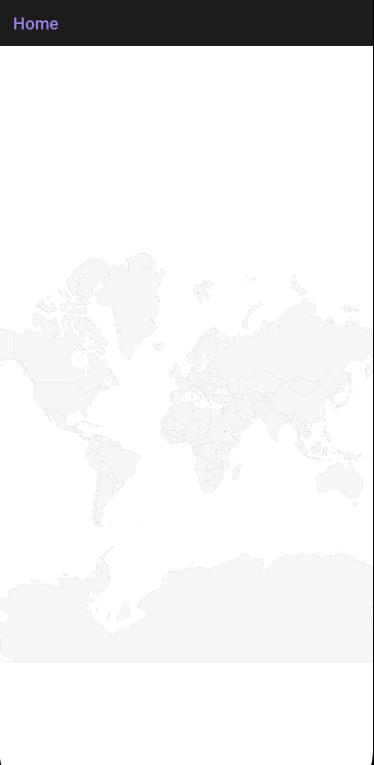
</code></pre><p>Now, when running the application, we will be able to see the map control rendered correctly:</p><p><img src="https://www.telerik.com/sfimages/default-source/blogs/2026/2026-08/telerik-maui-map-control.png?sfvrsn=4eddf316_2" alt="Telerik .NET MAUI map control displaying map view" /></p><h2 id="adding-labels-to-the-map">Adding Labels to the Map</h2><p>We have successfully added the map to our app. However, it doesn&rsquo;t display any information, which is not very useful.</p><p>The file <code>.dbf</code> contains information we can use to add additional data to the map, such as country names. To do this, we&rsquo;ll use an attribute called <code>CNTRY_NAME</code>, modifying the layer <code>MapShapefileLayer</code> to include the layer <code>LabelAttributeName</code>:</p><pre class=" language-xml"><code class="prism  language-xml"><span class="token tag"><span class="token tag"><span class="token punctuation">&lt;</span><span class="token namespace">telerik:</span>MapShapefileLayer</span> <span class="token attr-name"><span class="token namespace">x:</span>Name</span><span class="token attr-value"><span class="token punctuation">=</span><span class="token punctuation">"</span>shapeLayer<span class="token punctuation">"</span></span> <span class="token attr-name">LabelAttributeName</span><span class="token attr-value"><span class="token punctuation">=</span><span class="token punctuation">"</span>CNTRY_NAME<span class="token punctuation">"</span></span><span class="token punctuation">&gt;</span></span>
    ...
<span class="token tag"><span class="token tag"><span class="token punctuation">&lt;/</span><span class="token namespace">telerik:</span>MapShapefileLayer</span><span class="token punctuation">&gt;</span></span>
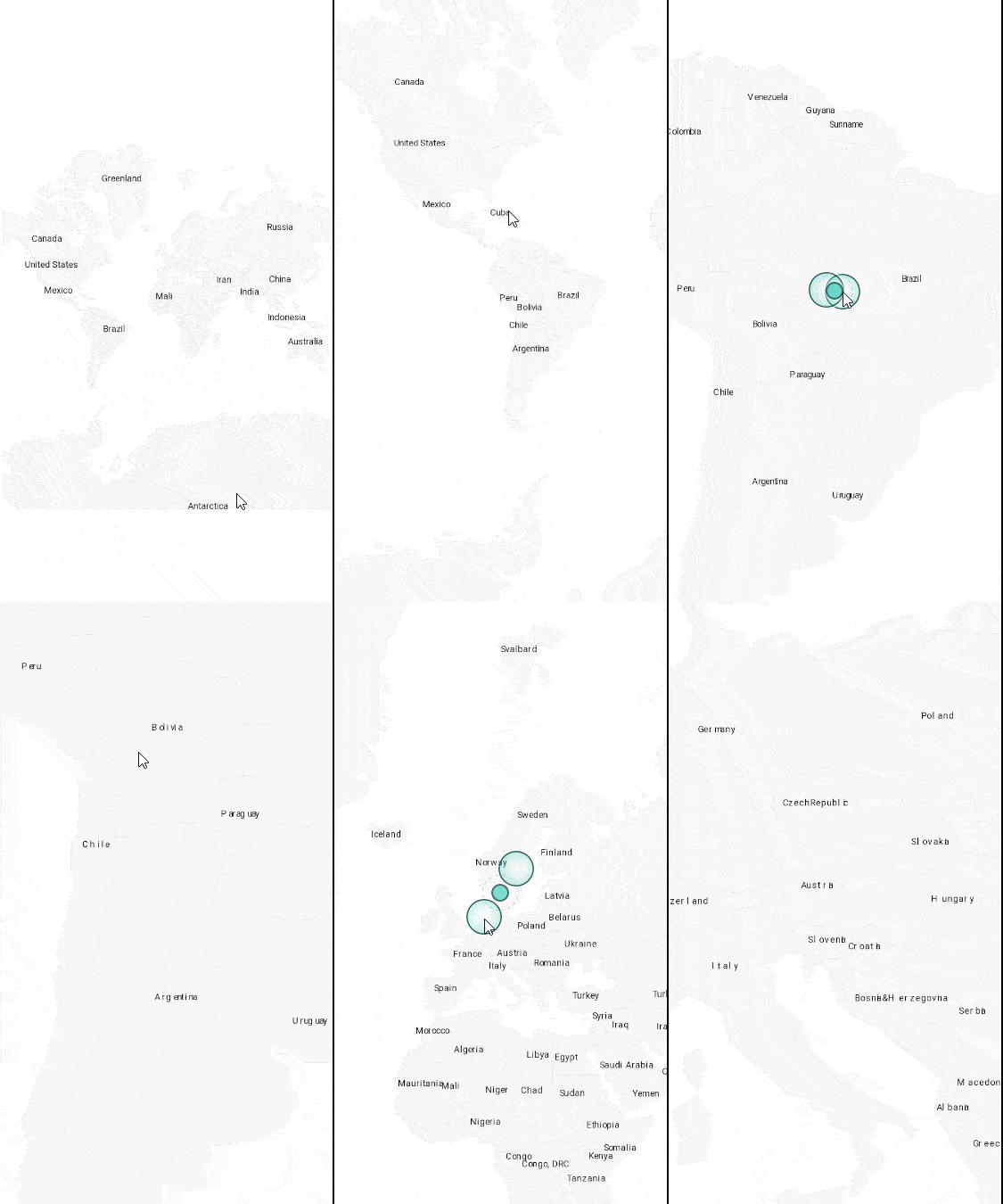
</code></pre><p>In the code above, the property <code>LabelAttributeName</code> allows adding a label for each shape in a <code>MapShapefileLayer</code>. When running the app, we can see the names on the map as shown below:</p><p><img src="https://www.telerik.com/sfimages/default-source/blogs/2026/2026-08/sample-map-labels-demo.gif?sfvrsn=21ab2f93_2" alt="Close-up of sample labels displayed on a map control" /></p><p>In the demo above, you can see how when zooming the country labels gradually appear, allowing for a pleasant user experience.</p><h2 id="customizing-the-map">Customizing the Map</h2><p>So far, we have used the map&rsquo;s default style; however, in real apps you&rsquo;ll likely want to add colors for sections of your map. This is possible thanks to the use of <code>MapShapeStyleSelector</code>, which is a style selector that we can use to decide what colors to use for each region on the map.</p><p>In our example, we&rsquo;ll compare the population of each country to determine its color. To do this, we&rsquo;ll create a new class called<br /><code>PopulationShapeStyleSelector</code>, which will be defined as follows:</p><pre class=" language-csharp"><code class="prism  language-csharp"><span class="token punctuation">.</span><span class="token punctuation">.</span><span class="token punctuation">.</span>
<span class="token keyword">using</span> IShape <span class="token operator">=</span> Telerik<span class="token punctuation">.</span>Maui<span class="token punctuation">.</span>Controls<span class="token punctuation">.</span>ShapefileReader<span class="token punctuation">.</span>IShape<span class="token punctuation">;</span>

<span class="token keyword">public</span> <span class="token keyword">class</span> <span class="token class-name">PopulationShapeStyleSelector</span> <span class="token punctuation">:</span> MapShapeStyleSelector
<span class="token punctuation">{</span>
    <span class="token keyword">public</span> MapShapeStyle HighPopulationStyle <span class="token punctuation">{</span> <span class="token keyword">get</span><span class="token punctuation">;</span> <span class="token keyword">set</span><span class="token punctuation">;</span> <span class="token punctuation">}</span> <span class="token operator">=</span> <span class="token keyword">new</span><span class="token punctuation">(</span><span class="token punctuation">)</span><span class="token punctuation">;</span>
    <span class="token keyword">public</span> MapShapeStyle MediumPopulationStyle <span class="token punctuation">{</span> <span class="token keyword">get</span><span class="token punctuation">;</span> <span class="token keyword">set</span><span class="token punctuation">;</span> <span class="token punctuation">}</span> <span class="token operator">=</span> <span class="token keyword">new</span><span class="token punctuation">(</span><span class="token punctuation">)</span><span class="token punctuation">;</span>
    <span class="token keyword">public</span> MapShapeStyle LowPopulationStyle <span class="token punctuation">{</span> <span class="token keyword">get</span><span class="token punctuation">;</span> <span class="token keyword">set</span><span class="token punctuation">;</span> <span class="token punctuation">}</span> <span class="token operator">=</span> <span class="token keyword">new</span><span class="token punctuation">(</span><span class="token punctuation">)</span><span class="token punctuation">;</span>

    <span class="token keyword">public</span> <span class="token keyword">override</span> MapShapeStyle <span class="token function">SelectStyle</span><span class="token punctuation">(</span><span class="token keyword">object</span> shape<span class="token punctuation">,</span> BindableObject container<span class="token punctuation">)</span>
    <span class="token punctuation">{</span>
        <span class="token keyword">if</span> <span class="token punctuation">(</span>shape <span class="token keyword">is</span> fileReader<span class="token punctuation">.</span>IShape mapShape <span class="token operator">&amp;&amp;</span>
            <span class="token keyword">double</span><span class="token punctuation">.</span><span class="token function">TryParse</span><span class="token punctuation">(</span>mapShape<span class="token punctuation">.</span><span class="token function">GetAttribute</span><span class="token punctuation">(</span><span class="token string">"POP_CNTRY"</span><span class="token punctuation">)</span><span class="token operator">?</span><span class="token punctuation">.</span><span class="token function">ToString</span><span class="token punctuation">(</span><span class="token punctuation">)</span><span class="token punctuation">,</span> <span class="token keyword">out</span> <span class="token keyword">var</span> population<span class="token punctuation">)</span><span class="token punctuation">)</span>
        <span class="token punctuation">{</span>
            <span class="token keyword">if</span> <span class="token punctuation">(</span>population <span class="token operator">&gt;</span> 50_000_000<span class="token punctuation">)</span>
            <span class="token punctuation">{</span>
                <span class="token keyword">return</span> HighPopulationStyle<span class="token punctuation">;</span>
            <span class="token punctuation">}</span>

            <span class="token keyword">if</span> <span class="token punctuation">(</span>population <span class="token operator">&lt;</span> 5_000_000<span class="token punctuation">)</span>
            <span class="token punctuation">{</span>
                <span class="token keyword">return</span> LowPopulationStyle<span class="token punctuation">;</span>
            <span class="token punctuation">}</span>

            <span class="token keyword">return</span> MediumPopulationStyle<span class="token punctuation">;</span>
        <span class="token punctuation">}</span>

        <span class="token keyword">return</span> LowPopulationStyle<span class="token punctuation">;</span>
    <span class="token punctuation">}</span>
<span class="token punctuation">}</span>
</code></pre><p>The operation is similar to a common .NET MAUI Style Selector, that is, we define style references as part of the class, in this case <code>HighPopulationStyle</code>, <code>MediumPopulationStyle</code> and <code>LowPopulationStyle</code>.</p><p>Next, the attribute <code>POP_CNTRY</code> is obtained from each mapShape, which is evaluated to determine the style that will be applied.</p><p>With the selector defined, we still need to create the styles to be applied. We can do this from the <code>ContentPage</code> where we&rsquo;ve implemented the map control, as follows:</p><pre class=" language-xml"><code class="prism  language-xml"><span class="token tag"><span class="token tag"><span class="token punctuation">&lt;</span>ContentPage</span> <span class="token attr-name">...</span>    
    <span class="token attr-name"><span class="token namespace">xmlns:</span>styling</span><span class="token attr-value"><span class="token punctuation">=</span><span class="token punctuation">"</span>clr-namespace:TelerikMapDemo.Styling<span class="token punctuation">"</span></span><span class="token punctuation">&gt;</span></span>

    <span class="token tag"><span class="token tag"><span class="token punctuation">&lt;</span>ContentPage.Resources</span><span class="token punctuation">&gt;</span></span>
        <span class="token tag"><span class="token tag"><span class="token punctuation">&lt;</span><span class="token namespace">styling:</span>PopulationShapeStyleSelector</span> <span class="token attr-name"><span class="token namespace">x:</span>Key</span><span class="token attr-value"><span class="token punctuation">=</span><span class="token punctuation">"</span>PopulationStyleSelector<span class="token punctuation">"</span></span><span class="token punctuation">&gt;</span></span>
            <span class="token tag"><span class="token tag"><span class="token punctuation">&lt;</span><span class="token namespace">styling:</span>PopulationShapeStyleSelector.HighPopulationStyle</span><span class="token punctuation">&gt;</span></span>
                <span class="token tag"><span class="token tag"><span class="token punctuation">&lt;</span><span class="token namespace">telerik:</span>MapShapeStyle</span>
                    <span class="token attr-name">FillColor</span><span class="token attr-value"><span class="token punctuation">=</span><span class="token punctuation">"</span>#1E4C5C<span class="token punctuation">"</span></span>
                    <span class="token attr-name">StrokeColor</span><span class="token attr-value"><span class="token punctuation">=</span><span class="token punctuation">"</span>#CFE8F2<span class="token punctuation">"</span></span>
                    <span class="token attr-name">StrokeWidth</span><span class="token attr-value"><span class="token punctuation">=</span><span class="token punctuation">"</span>1<span class="token punctuation">"</span></span> <span class="token punctuation">/&gt;</span></span>
            <span class="token tag"><span class="token tag"><span class="token punctuation">&lt;/</span><span class="token namespace">styling:</span>PopulationShapeStyleSelector.HighPopulationStyle</span><span class="token punctuation">&gt;</span></span>
            <span class="token tag"><span class="token tag"><span class="token punctuation">&lt;</span><span class="token namespace">styling:</span>PopulationShapeStyleSelector.MediumPopulationStyle</span><span class="token punctuation">&gt;</span></span>
                <span class="token tag"><span class="token tag"><span class="token punctuation">&lt;</span><span class="token namespace">telerik:</span>MapShapeStyle</span>
                    <span class="token attr-name">FillColor</span><span class="token attr-value"><span class="token punctuation">=</span><span class="token punctuation">"</span>#3C99B7<span class="token punctuation">"</span></span>
                    <span class="token attr-name">StrokeColor</span><span class="token attr-value"><span class="token punctuation">=</span><span class="token punctuation">"</span>#CFE8F2<span class="token punctuation">"</span></span>
                    <span class="token attr-name">StrokeWidth</span><span class="token attr-value"><span class="token punctuation">=</span><span class="token punctuation">"</span>1<span class="token punctuation">"</span></span> <span class="token punctuation">/&gt;</span></span>
            <span class="token tag"><span class="token tag"><span class="token punctuation">&lt;/</span><span class="token namespace">styling:</span>PopulationShapeStyleSelector.MediumPopulationStyle</span><span class="token punctuation">&gt;</span></span>
            <span class="token tag"><span class="token tag"><span class="token punctuation">&lt;</span><span class="token namespace">styling:</span>PopulationShapeStyleSelector.LowPopulationStyle</span><span class="token punctuation">&gt;</span></span>
                <span class="token tag"><span class="token tag"><span class="token punctuation">&lt;</span><span class="token namespace">telerik:</span>MapShapeStyle</span>
                    <span class="token attr-name">FillColor</span><span class="token attr-value"><span class="token punctuation">=</span><span class="token punctuation">"</span>#95D3E8<span class="token punctuation">"</span></span>
                    <span class="token attr-name">StrokeColor</span><span class="token attr-value"><span class="token punctuation">=</span><span class="token punctuation">"</span>#CFE8F2<span class="token punctuation">"</span></span>
                    <span class="token attr-name">StrokeWidth</span><span class="token attr-value"><span class="token punctuation">=</span><span class="token punctuation">"</span>1<span class="token punctuation">"</span></span> <span class="token punctuation">/&gt;</span></span>
            <span class="token tag"><span class="token tag"><span class="token punctuation">&lt;/</span><span class="token namespace">styling:</span>PopulationShapeStyleSelector.LowPopulationStyle</span><span class="token punctuation">&gt;</span></span>
        <span class="token tag"><span class="token tag"><span class="token punctuation">&lt;/</span><span class="token namespace">styling:</span>PopulationShapeStyleSelector</span><span class="token punctuation">&gt;</span></span>
    <span class="token tag"><span class="token tag"><span class="token punctuation">&lt;/</span>ContentPage.Resources</span><span class="token punctuation">&gt;</span></span>
    ...
<span class="token tag"><span class="token tag"><span class="token punctuation">&lt;/</span>ContentPage</span><span class="token punctuation">&gt;</span></span>    
</code></pre><p>You can see that we create an instance of <code>PopulationShapeStyleSelector</code>, within which we assign to each property of the selector a <code>MapShapeStyle</code>, which will allow customizing each defined selector.</p><p>The last step is to indicate that we want to use the selector we just created in <code>MapShapefileLayer</code>:</p><pre class=" language-xml"><code class="prism  language-xml"><span class="token tag"><span class="token tag"><span class="token punctuation">&lt;</span><span class="token namespace">telerik:</span>MapShapefileLayer</span>
    <span class="token attr-name"><span class="token namespace">x:</span>Name</span><span class="token attr-value"><span class="token punctuation">=</span><span class="token punctuation">"</span>shapeLayer<span class="token punctuation">"</span></span>
    <span class="token attr-name">LabelAttributeName</span><span class="token attr-value"><span class="token punctuation">=</span><span class="token punctuation">"</span>CNTRY_NAME<span class="token punctuation">"</span></span>
    <span class="token attr-name">ShapeStyleSelector</span><span class="token attr-value"><span class="token punctuation">=</span><span class="token punctuation">"</span>{StaticResource PopulationStyleSelector}<span class="token punctuation">"</span></span><span class="token punctuation">&gt;</span></span>
   ...
<span class="token tag"><span class="token tag"><span class="token punctuation">&lt;/</span><span class="token namespace">telerik:</span>MapShapefileLayer</span><span class="token punctuation">&gt;</span></span>
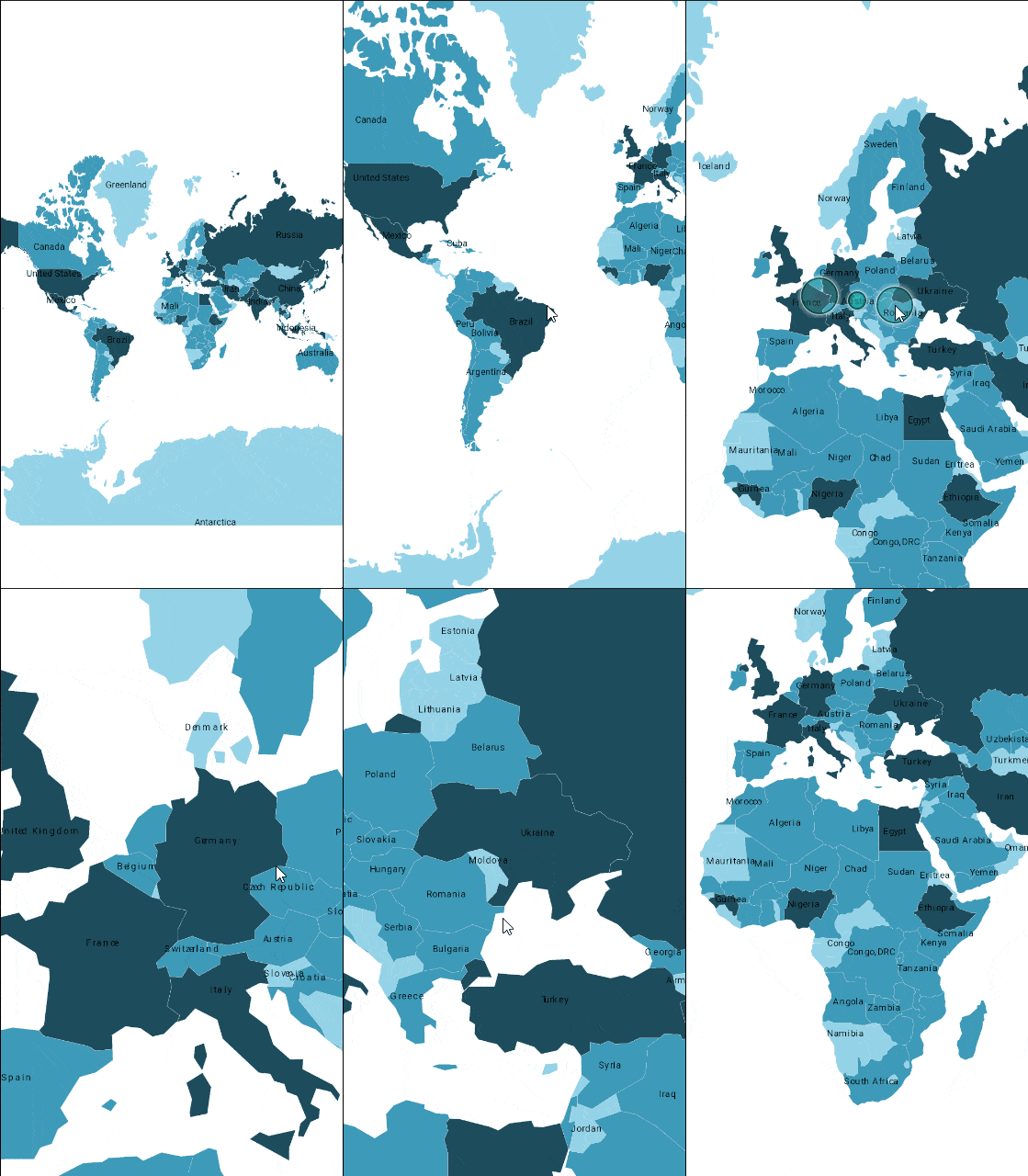
</code></pre><p>The result of running it is as follows:</p><p><img src="https://www.telerik.com/sfimages/default-source/blogs/2026/2026-08/map-control-region-coloring-demo.gif?sfvrsn=9c355e78_2" alt="Map control displaying colored regions" /></p><p>In the image above, you can see how the countries appear colored according to their population. Now, let&rsquo;s see how to select regions on a map.</p><h2 id="enabling-country-selection">Enabling Country Selection</h2><p>To make the map fully functional, we will allow users to select a country to view its information in detail. We&rsquo;ll do this by adding the use of the property <code>SelectionMode</code> in the <code>MapShapefileLayer</code>:</p><pre class=" language-xml"><code class="prism  language-xml"><span class="token tag"><span class="token tag"><span class="token punctuation">&lt;</span><span class="token namespace">telerik:</span>MapShapefileLayer</span> <span class="token attr-name">...</span>   
    <span class="token attr-name">SelectionMode</span><span class="token attr-value"><span class="token punctuation">=</span><span class="token punctuation">"</span>Single<span class="token punctuation">"</span></span><span class="token punctuation">&gt;</span></span>
   ...
    <span class="token tag"><span class="token tag"><span class="token punctuation">&lt;</span><span class="token namespace">telerik:</span>MapShapefileLayer.SelectedShapeStyle</span><span class="token punctuation">&gt;</span></span>
        <span class="token tag"><span class="token tag"><span class="token punctuation">&lt;</span><span class="token namespace">telerik:</span>MapShapeStyle</span> <span class="token attr-name">FillColor</span><span class="token attr-value"><span class="token punctuation">=</span><span class="token punctuation">"</span>#F4B400<span class="token punctuation">"</span></span>
                               <span class="token attr-name">StrokeColor</span><span class="token attr-value"><span class="token punctuation">=</span><span class="token punctuation">"</span>#8A6D00<span class="token punctuation">"</span></span>
                               <span class="token attr-name">StrokeWidth</span><span class="token attr-value"><span class="token punctuation">=</span><span class="token punctuation">"</span>1.5<span class="token punctuation">"</span></span> <span class="token punctuation">/&gt;</span></span>
    <span class="token tag"><span class="token tag"><span class="token punctuation">&lt;/</span><span class="token namespace">telerik:</span>MapShapefileLayer.SelectedShapeStyle</span><span class="token punctuation">&gt;</span></span>
<span class="token tag"><span class="token tag"><span class="token punctuation">&lt;/</span><span class="token namespace">telerik:</span>MapShapefileLayer</span><span class="token punctuation">&gt;</span></span>
</code></pre><p>In the code above we have indicated that only one country can be selected at a time, although you could also use the value <code>Multiple</code> if you need the user to select more than one country. Likewise, we have defined a <code>MapShapeStyle</code> section, which is used to specify the characteristics of the selected region.</p><p>We will also complete the <code>ContentPage</code> of our app, adding a Telerik container <code>RadBorder</code> in the second row of the main grid, which will serve to display the selected country&rsquo;s information using standard controls and Telerik buttons:</p><pre class=" language-xml"><code class="prism  language-xml"><span class="token tag"><span class="token tag"><span class="token punctuation">&lt;</span><span class="token namespace">telerik:</span>RadBorder</span>
    <span class="token attr-name">Grid.Row</span><span class="token attr-value"><span class="token punctuation">=</span><span class="token punctuation">"</span>1<span class="token punctuation">"</span></span>
    <span class="token attr-name">Padding</span><span class="token attr-value"><span class="token punctuation">=</span><span class="token punctuation">"</span>20<span class="token punctuation">"</span></span>
    <span class="token attr-name">Background</span><span class="token attr-value"><span class="token punctuation">=</span><span class="token punctuation">"</span>White<span class="token punctuation">"</span></span>
    <span class="token attr-name">BorderColor</span><span class="token attr-value"><span class="token punctuation">=</span><span class="token punctuation">"</span>#E0E0E0<span class="token punctuation">"</span></span>
    <span class="token attr-name">BorderThickness</span><span class="token attr-value"><span class="token punctuation">=</span><span class="token punctuation">"</span>1<span class="token punctuation">"</span></span>
    <span class="token attr-name">CornerRadius</span><span class="token attr-value"><span class="token punctuation">=</span><span class="token punctuation">"</span>16,16,0,0<span class="token punctuation">"</span></span><span class="token punctuation">&gt;</span></span>
    <span class="token tag"><span class="token tag"><span class="token punctuation">&lt;</span>VerticalStackLayout</span> <span class="token attr-name">Spacing</span><span class="token attr-value"><span class="token punctuation">=</span><span class="token punctuation">"</span>12<span class="token punctuation">"</span></span><span class="token punctuation">&gt;</span></span>

        <span class="token tag"><span class="token tag"><span class="token punctuation">&lt;</span>Label</span>
            <span class="token attr-name">FontAttributes</span><span class="token attr-value"><span class="token punctuation">=</span><span class="token punctuation">"</span>Bold<span class="token punctuation">"</span></span>
            <span class="token attr-name">FontSize</span><span class="token attr-value"><span class="token punctuation">=</span><span class="token punctuation">"</span>14<span class="token punctuation">"</span></span>
            <span class="token attr-name">Text</span><span class="token attr-value"><span class="token punctuation">=</span><span class="token punctuation">"</span>Selected country<span class="token punctuation">"</span></span>
            <span class="token attr-name">TextColor</span><span class="token attr-value"><span class="token punctuation">=</span><span class="token punctuation">"</span>#607D8B<span class="token punctuation">"</span></span> <span class="token punctuation">/&gt;</span></span>

        <span class="token tag"><span class="token tag"><span class="token punctuation">&lt;</span>Label</span>
            <span class="token attr-name">FontSize</span><span class="token attr-value"><span class="token punctuation">=</span><span class="token punctuation">"</span>15<span class="token punctuation">"</span></span>
            <span class="token attr-name">IsVisible</span><span class="token attr-value"><span class="token punctuation">=</span><span class="token punctuation">"</span>{Binding HasNoSelection}<span class="token punctuation">"</span></span>
            <span class="token attr-name">Text</span><span class="token attr-value"><span class="token punctuation">=</span><span class="token punctuation">"</span>Tap a country on the map to view its information.<span class="token punctuation">"</span></span>
            <span class="token attr-name">TextColor</span><span class="token attr-value"><span class="token punctuation">=</span><span class="token punctuation">"</span>#90A4AE<span class="token punctuation">"</span></span> <span class="token punctuation">/&gt;</span></span>

        <span class="token tag"><span class="token tag"><span class="token punctuation">&lt;</span>VerticalStackLayout</span> <span class="token attr-name">IsVisible</span><span class="token attr-value"><span class="token punctuation">=</span><span class="token punctuation">"</span>{Binding HasSelection}<span class="token punctuation">"</span></span> <span class="token attr-name">Spacing</span><span class="token attr-value"><span class="token punctuation">=</span><span class="token punctuation">"</span>4<span class="token punctuation">"</span></span><span class="token punctuation">&gt;</span></span>
            <span class="token tag"><span class="token tag"><span class="token punctuation">&lt;</span>Label</span>
                <span class="token attr-name">FontAttributes</span><span class="token attr-value"><span class="token punctuation">=</span><span class="token punctuation">"</span>Bold<span class="token punctuation">"</span></span>
                <span class="token attr-name">FontSize</span><span class="token attr-value"><span class="token punctuation">=</span><span class="token punctuation">"</span>22<span class="token punctuation">"</span></span>
                <span class="token attr-name">Text</span><span class="token attr-value"><span class="token punctuation">=</span><span class="token punctuation">"</span>{Binding SelectedCountry}<span class="token punctuation">"</span></span>
                <span class="token attr-name">TextColor</span><span class="token attr-value"><span class="token punctuation">=</span><span class="token punctuation">"</span>#102A43<span class="token punctuation">"</span></span> <span class="token punctuation">/&gt;</span></span>
            <span class="token tag"><span class="token tag"><span class="token punctuation">&lt;</span>Label</span>
                <span class="token attr-name">FontSize</span><span class="token attr-value"><span class="token punctuation">=</span><span class="token punctuation">"</span>14<span class="token punctuation">"</span></span>
                <span class="token attr-name">Text</span><span class="token attr-value"><span class="token punctuation">=</span><span class="token punctuation">"</span>{Binding SelectedPopulation}<span class="token punctuation">"</span></span>
                <span class="token attr-name">TextColor</span><span class="token attr-value"><span class="token punctuation">=</span><span class="token punctuation">"</span>#455A64<span class="token punctuation">"</span></span> <span class="token punctuation">/&gt;</span></span>
        <span class="token tag"><span class="token tag"><span class="token punctuation">&lt;/</span>VerticalStackLayout</span><span class="token punctuation">&gt;</span></span>

        <span class="token tag"><span class="token tag"><span class="token punctuation">&lt;</span>HorizontalStackLayout</span> <span class="token attr-name">Spacing</span><span class="token attr-value"><span class="token punctuation">=</span><span class="token punctuation">"</span>12<span class="token punctuation">"</span></span><span class="token punctuation">&gt;</span></span>
            <span class="token tag"><span class="token tag"><span class="token punctuation">&lt;</span><span class="token namespace">telerik:</span>RadButton</span>
                <span class="token attr-name">Padding</span><span class="token attr-value"><span class="token punctuation">=</span><span class="token punctuation">"</span>16,10<span class="token punctuation">"</span></span>
                <span class="token attr-name">Background</span><span class="token attr-value"><span class="token punctuation">=</span><span class="token punctuation">"</span>#1E4C5C<span class="token punctuation">"</span></span>
                <span class="token attr-name">Clicked</span><span class="token attr-value"><span class="token punctuation">=</span><span class="token punctuation">"</span>OnResetViewClicked<span class="token punctuation">"</span></span>
                <span class="token attr-name">CornerRadius</span><span class="token attr-value"><span class="token punctuation">=</span><span class="token punctuation">"</span>8<span class="token punctuation">"</span></span>
                <span class="token attr-name">Text</span><span class="token attr-value"><span class="token punctuation">=</span><span class="token punctuation">"</span>Overview<span class="token punctuation">"</span></span>
                <span class="token attr-name">TextColor</span><span class="token attr-value"><span class="token punctuation">=</span><span class="token punctuation">"</span>White<span class="token punctuation">"</span></span> <span class="token punctuation">/&gt;</span></span>
            <span class="token tag"><span class="token tag"><span class="token punctuation">&lt;</span><span class="token namespace">telerik:</span>RadButton</span>
                <span class="token attr-name">Padding</span><span class="token attr-value"><span class="token punctuation">=</span><span class="token punctuation">"</span>16,10<span class="token punctuation">"</span></span>
                <span class="token attr-name">Background</span><span class="token attr-value"><span class="token punctuation">=</span><span class="token punctuation">"</span>#E3F2F8<span class="token punctuation">"</span></span>
                <span class="token attr-name">Clicked</span><span class="token attr-value"><span class="token punctuation">=</span><span class="token punctuation">"</span>OnClearSelectionClicked<span class="token punctuation">"</span></span>
                <span class="token attr-name">CornerRadius</span><span class="token attr-value"><span class="token punctuation">=</span><span class="token punctuation">"</span>8<span class="token punctuation">"</span></span>
                <span class="token attr-name">Text</span><span class="token attr-value"><span class="token punctuation">=</span><span class="token punctuation">"</span>Clear selection<span class="token punctuation">"</span></span>
                <span class="token attr-name">TextColor</span><span class="token attr-value"><span class="token punctuation">=</span><span class="token punctuation">"</span>#1E4C5C<span class="token punctuation">"</span></span> <span class="token punctuation">/&gt;</span></span>
        <span class="token tag"><span class="token tag"><span class="token punctuation">&lt;/</span>HorizontalStackLayout</span><span class="token punctuation">&gt;</span></span>

    <span class="token tag"><span class="token tag"><span class="token punctuation">&lt;/</span>VerticalStackLayout</span><span class="token punctuation">&gt;</span></span>
<span class="token tag"><span class="token tag"><span class="token punctuation">&lt;/</span><span class="token namespace">telerik:</span>RadBorder</span><span class="token punctuation">&gt;</span></span>
</code></pre><p>You also need to complete the code behind of the <code>ContentPage</code> to react to selection changes, as well as handle button actions:</p><pre class=" language-csharp"><code class="prism  language-csharp"><span class="token keyword">public</span> <span class="token keyword">partial</span> <span class="token keyword">class</span> <span class="token class-name">MainPage</span> <span class="token punctuation">:</span> ContentPage
<span class="token punctuation">{</span>
    <span class="token keyword">private</span> <span class="token keyword">readonly</span> MainViewModel viewModel<span class="token punctuation">;</span>
    
    <span class="token keyword">public</span> <span class="token function">MainPage</span><span class="token punctuation">(</span><span class="token punctuation">)</span>
    <span class="token punctuation">{</span>
        <span class="token function">InitializeComponent</span><span class="token punctuation">(</span><span class="token punctuation">)</span><span class="token punctuation">;</span>

        <span class="token punctuation">.</span><span class="token punctuation">.</span><span class="token punctuation">.</span>
        shapeLayer<span class="token punctuation">.</span>SelectedShapes<span class="token punctuation">.</span>CollectionChanged <span class="token operator">+</span><span class="token operator">=</span> OnSelectedShapesChanged<span class="token punctuation">;</span>
        
        reader<span class="token punctuation">.</span>DataSource <span class="token operator">=</span> MapSource<span class="token punctuation">.</span><span class="token function">FromResource</span><span class="token punctuation">(</span><span class="token string">"TelerikMapDemo.Resources.Maps.world.dbf"</span><span class="token punctuation">,</span> assembly<span class="token punctuation">)</span><span class="token punctuation">;</span>
reader<span class="token punctuation">.</span>Source <span class="token operator">=</span> MapSource<span class="token punctuation">.</span><span class="token function">FromResource</span><span class="token punctuation">(</span><span class="token string">"TelerikMapDemo.Resources.Maps.world.shp"</span><span class="token punctuation">,</span> assembly<span class="token punctuation">)</span><span class="token punctuation">;</span>
    <span class="token punctuation">}</span>
    
    <span class="token punctuation">.</span><span class="token punctuation">.</span><span class="token punctuation">.</span>

    <span class="token keyword">private</span> <span class="token keyword">void</span> <span class="token function">OnSelectedShapesChanged</span><span class="token punctuation">(</span><span class="token keyword">object</span><span class="token operator">?</span> sender<span class="token punctuation">,</span> NotifyCollectionChangedEventArgs e<span class="token punctuation">)</span>
    <span class="token punctuation">{</span>            
        <span class="token keyword">if</span> <span class="token punctuation">(</span>shapeLayer<span class="token punctuation">.</span>SelectedShapes<span class="token punctuation">.</span>Count <span class="token operator">==</span> <span class="token number">0</span><span class="token punctuation">)</span>
        <span class="token punctuation">{</span>
            viewModel<span class="token punctuation">.</span>HasSelection <span class="token operator">=</span> <span class="token keyword">false</span><span class="token punctuation">;</span>
            viewModel<span class="token punctuation">.</span>SelectedCountry <span class="token operator">=</span> <span class="token keyword">string</span><span class="token punctuation">.</span>Empty<span class="token punctuation">;</span>
            viewModel<span class="token punctuation">.</span>SelectedPopulation <span class="token operator">=</span> <span class="token keyword">string</span><span class="token punctuation">.</span>Empty<span class="token punctuation">;</span>
            <span class="token keyword">return</span><span class="token punctuation">;</span>
        <span class="token punctuation">}</span>

        <span class="token keyword">var</span> shape <span class="token operator">=</span> shapeLayer<span class="token punctuation">.</span>SelectedShapes<span class="token punctuation">[</span><span class="token number">0</span><span class="token punctuation">]</span><span class="token punctuation">;</span>

        viewModel<span class="token punctuation">.</span>SelectedCountry <span class="token operator">=</span> shape<span class="token punctuation">.</span><span class="token function">GetAttribute</span><span class="token punctuation">(</span><span class="token string">"CNTRY_NAME"</span><span class="token punctuation">)</span><span class="token operator">?</span><span class="token punctuation">.</span><span class="token function">ToString</span><span class="token punctuation">(</span><span class="token punctuation">)</span> <span class="token operator">?</span><span class="token operator">?</span> <span class="token string">"Unknown"</span><span class="token punctuation">;</span>

        <span class="token keyword">var</span> populationText <span class="token operator">=</span> shape<span class="token punctuation">.</span><span class="token function">GetAttribute</span><span class="token punctuation">(</span><span class="token string">"POP_CNTRY"</span><span class="token punctuation">)</span><span class="token operator">?</span><span class="token punctuation">.</span><span class="token function">ToString</span><span class="token punctuation">(</span><span class="token punctuation">)</span><span class="token punctuation">;</span>
        viewModel<span class="token punctuation">.</span>SelectedPopulation <span class="token operator">=</span> <span class="token keyword">double</span><span class="token punctuation">.</span><span class="token function">TryParse</span><span class="token punctuation">(</span>populationText<span class="token punctuation">,</span> <span class="token keyword">out</span> <span class="token keyword">var</span> population<span class="token punctuation">)</span>
            <span class="token operator">?</span> $<span class="token string">"Approximate population: {population:N0} inhabitants"</span>
            <span class="token punctuation">:</span> <span class="token string">"Population not available"</span><span class="token punctuation">;</span>

        viewModel<span class="token punctuation">.</span>HasSelection <span class="token operator">=</span> <span class="token keyword">true</span><span class="token punctuation">;</span>
    <span class="token punctuation">}</span>

    <span class="token keyword">private</span> <span class="token keyword">void</span> <span class="token function">OnResetViewClicked</span><span class="token punctuation">(</span><span class="token keyword">object</span><span class="token operator">?</span> sender<span class="token punctuation">,</span> EventArgs e<span class="token punctuation">)</span>
    <span class="token punctuation">{</span>
        map<span class="token punctuation">.</span><span class="token function">SetView</span><span class="token punctuation">(</span>shapeLayer<span class="token punctuation">.</span><span class="token function">GetBestView</span><span class="token punctuation">(</span><span class="token punctuation">)</span><span class="token punctuation">)</span><span class="token punctuation">;</span>
    <span class="token punctuation">}</span>

    <span class="token keyword">private</span> <span class="token keyword">void</span> <span class="token function">OnClearSelectionClicked</span><span class="token punctuation">(</span><span class="token keyword">object</span><span class="token operator">?</span> sender<span class="token punctuation">,</span> EventArgs e<span class="token punctuation">)</span>
    <span class="token punctuation">{</span>
        shapeLayer<span class="token punctuation">.</span>SelectedShapes<span class="token punctuation">.</span><span class="token function">Clear</span><span class="token punctuation">(</span><span class="token punctuation">)</span><span class="token punctuation">;</span>
    <span class="token punctuation">}</span>

<span class="token punctuation">}</span>
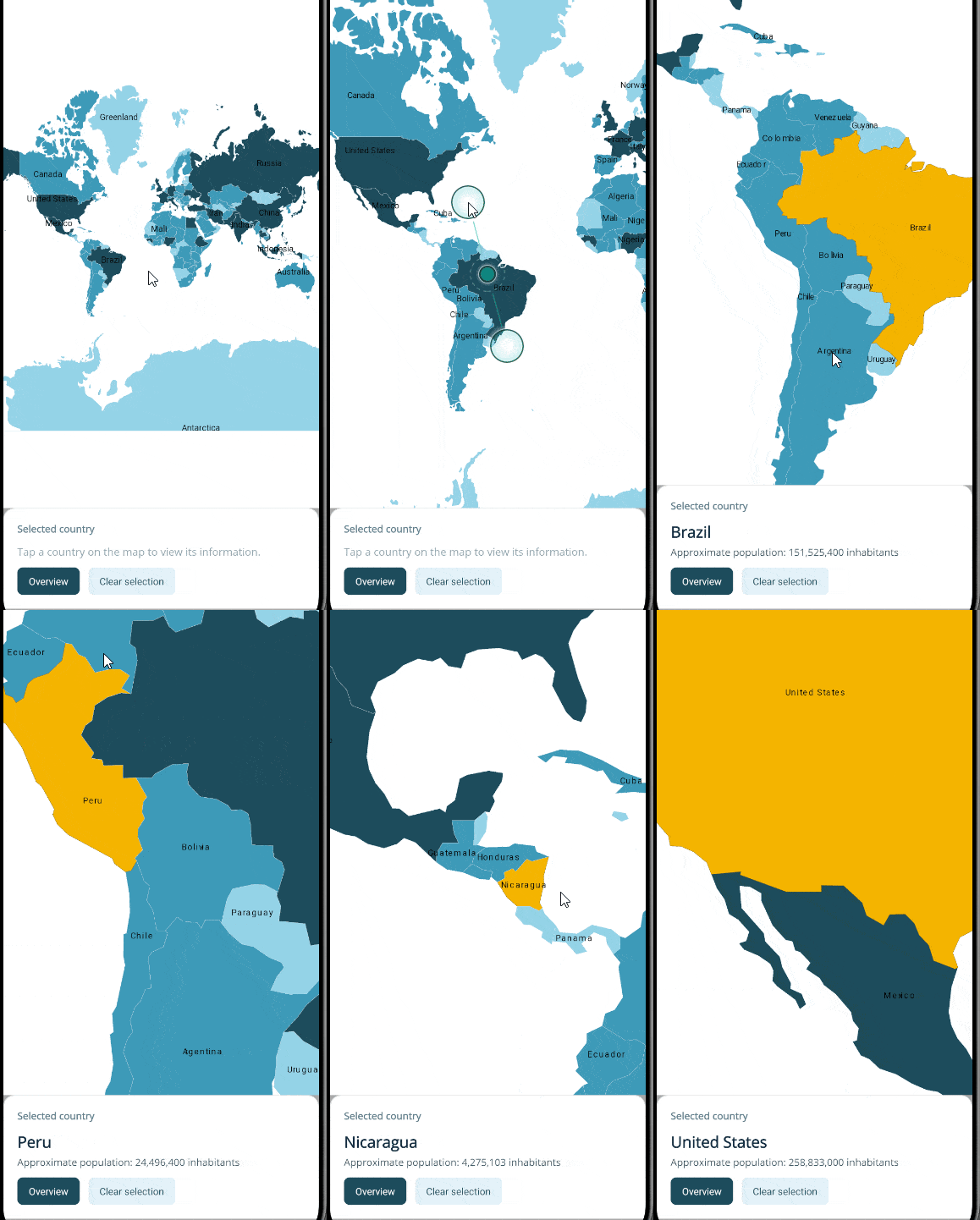
</code></pre><p>In the code above we subscribed to the <code>CollectionChanged</code> event, which will be fired when a user selects or deselects a country. In the event handler <code>OnSelectedShapesChanged</code> we validate whether there are selected shapes; if not, the graphical elements that display information about each country are cleared.</p><p>If a country has been selected, the attributes <code>CNTRY_NAME</code> and <code>POP_CNTRY</code> are read and the values in the view model are updated.</p><p>Finally, we also create the event handlers <code>OnResetViewClicked</code> for a button that allows recentering the entire map using the method <code>GetBestView()</code> again. We have also defined the method <code>OnClearSelectionClicked</code>, which will be used to clear the <code>SelectedShapes</code> collection, to deselect any selected country and reset the data in the UI:</p><p><img src="https://www.telerik.com/sfimages/default-source/blogs/2026/2026-08/dotnet-maui-map-country-selection.gif?sfvrsn=c0d1b5f5_2" alt="Map control with country selection enabled" /></p><p>In the image above we can see how, when selecting a country on the map, its information is correctly displayed at the bottom.</p><h2 id="conclusion">Conclusion</h2><p>In this article you got to know the Telerik UI Map control for .NET MAUI, which is an excellent option for displaying maps, labels and regions reliably and quickly. We saw step by step how to read ESRI shapefiles as well as render them.</p><p>We also learned how to color different regions using a style selector and how to allow users to select specific regions on the map.</p><p>Now it&rsquo;s your turn to create unique experiences using this powerful control. The whole Telerik UI for .NET MAUI suite comes with a free 30-day trial so you can explore it yourself.</p><p><a href="https://www.telerik.com/try/ui-for-maui" target="_blank" class="Btn">Try Now</a></p>]]></content>
  </entry>
  <entry>
    <id>urn:uuid:269bcaca-43ab-495e-a3f4-e0cf0b825c37</id>
    <title type="text">Creating an Account UI in .NET MAUI</title>
    <summary type="text">See how to bring a user interface design for an account screen to life in a .NET MAUI application.</summary>
    <published>2026-09-28T20:43:49Z</published>
    <updated>2026-10-17T00:04:36Z</updated>
    <author>
      <name>Leomaris Reyes </name>
    </author>
    <link rel="alternate" href="https://www.telerik.com/blogs/creating-account-ui-net-maui"/>
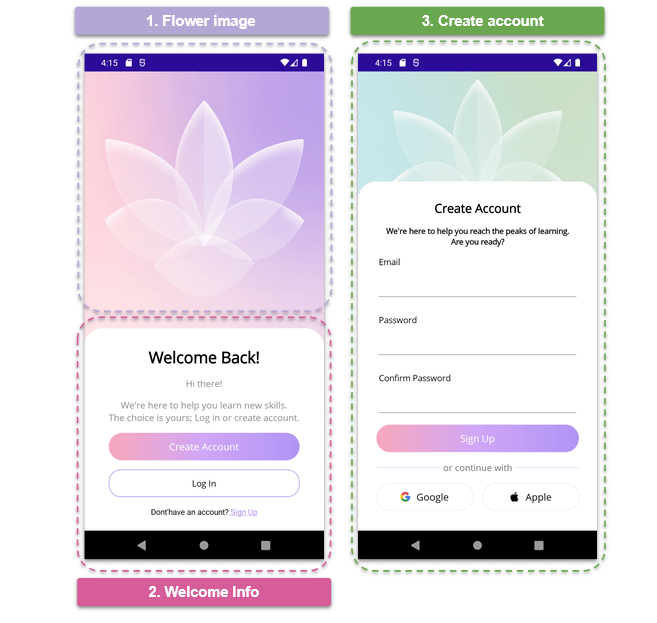
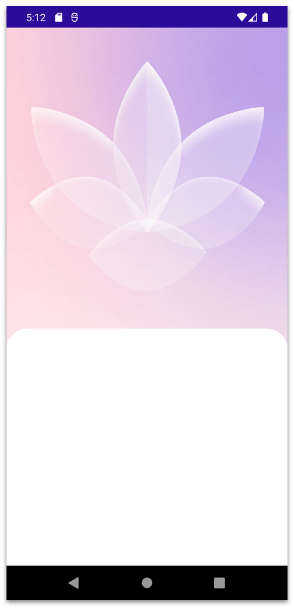
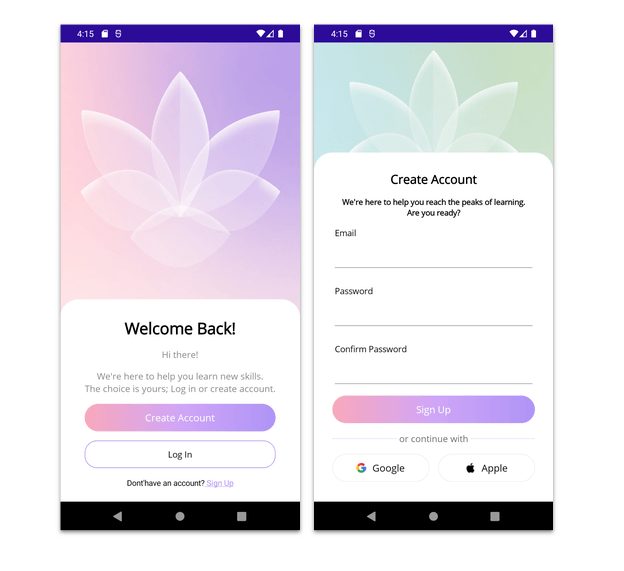
    <content type="text"><![CDATA[<p><span class="featured">See how to bring a user interface design for an account screen to life in a .NET MAUI application. </span></p><p>How many times a month do you create a new account? Probably more often than you remember. And while it may seem like a simple process, that first interaction can shape a user&rsquo;s perception of the entire app.</p><p>As developers, it&rsquo;s important to pay attention to every detail when transforming a design into code. Our goal isn&rsquo;t just to make the application work, but also to stay true to the original design and deliver a smooth, enjoyable user experience. That&rsquo;s why, in this article, we&rsquo;ll recreate two screens inspired by a <a target="_blank" href="https://dribbble.com/shots/27206083-Clean-Simple-Login-Register-Mobile-UI">Dribbble</a> design, bringing them to life step by step using .NET MAUI.</p><p>So grab a cup of coffee (or hot chocolate if you have a sweet tooth ☕), open Visual Studio or Visual Studio Code &hellip; <strong>and let&rsquo;s start coding! </strong></p><h2 id="how-will-the-explanation-work">How Will the Explanation Work?</h2><p>So you can understand everything 100%, I&rsquo;ll explain how the process will work:</p><p>➖ <strong>Visual diagram:</strong> Before we start, you&rsquo;ll see a diagram with a screenshot of the design we want to achieve. This design will be divided into blocks, each identified with a name and a color. Each one will be explained individually.</p><p>➖ <strong>Code explanation per block:</strong> In addition to the written explanation, each screen includes a set of blocks with the exact code snippets you need to implement and achieve the final result.</p><p>➖ <strong>Step-by-step visual progress:</strong> Each explanation will have its corresponding screenshot, so you can see the progress as we build the UI.</p><p>⚠️ For this design, we took inspiration from an original Dribbble UI, but made some adaptations and adjustments to align it with the goals of this article.</p><h2 id="-environment-setup"> Environment Setup</h2><p>You&rsquo;ll learn how to take advantage of some of the powerful Progress Telerik UI for .NET MAUI components in this post. If you don&rsquo;t have the .NET MAUI library installed yet, visit the <a target="_blank" href="https://www.telerik.com/maui-ui/documentation/get-started/quickstart">quick start page</a>, which explains step-by-step how to install Telerik UI for .NET MAUI, download the license key, configure the Telerik package source and install the Telerik MCP server (if needed).</p><h2 id="breaking-down-the-design">Breaking Down the Design</h2><p>To make this easier to follow, I&rsquo;ve divided the design into clear blocks. We&rsquo;ll build each part one at a time, in the order you see below.</p><p><img title="Visual structure" src="https://www.telerik.com/sfimages/default-source/blogs/2026/2026-09/01_create_account_structure.png?sfvrsn=5ad0128e_2" alt="Visual structure" /></p><h2 id="flower-image-step">1. Flower Image Step</h2><p>Let&rsquo;s start by creating the main page, which we&rsquo;ll call <strong>WelcomeBackPage.xaml.</strong> This one will contain the components from both Step 1 and Step 2. For the main layout, we&rsquo;ll use a Grid, divided into two rows.</p><pre class=" language-xml"><code class="prism  language-xml">&lt;Grid RowDefinitions="500,*"&gt;

    &lt;!-- Add blocks one and two here --&gt;

&lt;/Grid&gt;
</code></pre><p>This Grid is composed of the following elements:</p><p> <strong>Header image:</strong> In the first row, we&rsquo;ll add the background image using the <code>AspectFill</code> property, allowing it to fill the available width while maintaining an attractive appearance across different screen sizes.</p><pre class=" language-xml"><code class="prism  language-xml">&lt;Image Grid.Row="0" Source="bgroseflower.png" Aspect="AspectFill" /&gt;
</code></pre><p> <strong>Main container:</strong> In the second row, we&rsquo;ll add a Border control. In this case, we&rsquo;ll use the Telerik UI for <a target="_blank" href="https://www.telerik.com/maui-ui/border">.NET MAUI Border control</a>, so make sure to include the Telerik namespace in your page:</p><pre class=" language-xml"><code class="prism  language-xml">xmlns:telerik="http://schemas.telerik.com/2022/xaml/maui"
</code></pre><p>To create the overlapping effect, we only need to apply a negative top margin. This gives the impression that the white container is placed on top of the image. Finally, inside the Border, we&rsquo;ll add a <strong>VerticalStackLayout</strong>, which we&rsquo;ll use in the next steps to place the labels and buttons.</p><pre class=" language-xml"><code class="prism  language-xml">&lt;telerik:RadBorder 
    Grid.Row="1" 
    Margin="0,-80" 
    Padding="30" 
    BackgroundColor="White" 
    CornerRadius="30"&gt;
 
    &lt;VerticalStackLayout 
    Spacing="15" 
    VerticalOptions="Fill" 
    HorizontalOptions="Center"&gt; 
    &lt;!-- Add block two here --&gt; 
    &lt;/VerticalStackLayout&gt; 
&lt;/telerik:RadBorder&gt;
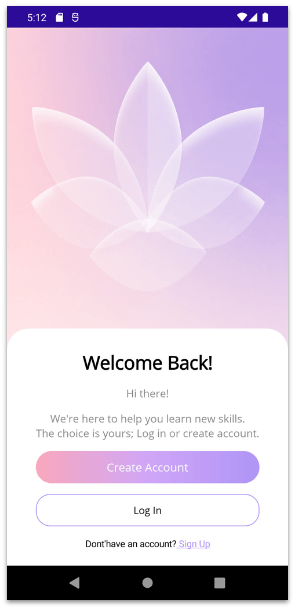
</code></pre><p>And you&rsquo;ll get a result like this:</p><p><img title="Flower Image step" src="https://www.telerik.com/sfimages/default-source/blogs/2026/2026-09/02_create_account_structure_step_01.png?sfvrsn=42bf878e_2" alt="1. Flower Image step" /></p><h2 id="welcome-info-step">2. Welcome Info Step</h2><p>For this second step, we already have the foundation in place from the previous section when we added the <strong>VerticalStackLayout.</strong> This means that all the controls we&rsquo;ll add from this point forward should be placed inside that layout.</p><p>Let&rsquo;s start by adding the first three Label controls:</p><pre class=" language-xml"><code class="prism  language-xml">&lt;Label 
    HorizontalTextAlignment="Center" 
    Text="Welcome Back!" 
    FontAttributes="Bold" 
    FontSize="26" 
    TextColor="Black" /&gt;
 
&lt;Label 
    HorizontalTextAlignment="Center" 
    Text="Hi there!" 
    FontSize="15" 
    TextColor="#8A8A8A" /&gt;
  
&lt;Label 
    HorizontalTextAlignment="Center" 
    FontSize="15" 
    TextColor="#8A8A8A" 
    Text="We're here to help you learn new skills.&amp;#10;The choice is yours; Log in or create account." /&gt;
</code></pre><h3 id="next-lets-add-the-buttons">Next, Let&rsquo;s Add the Buttons</h3><p>I have to admit, I absolutely <strong>love</strong> these buttons!  The soft gradient gives them a modern and elegant look that really makes the UI stand out.</p><p>To achieve this effect, we&rsquo;ll use .NET MAUI&rsquo;s <strong>LinearGradientBrush</strong> along with three gradient stops. This allows us to smoothly blend multiple colors and create the beautiful gradient shown in the design.</p><p>The implementation looks like this:</p><pre class=" language-xml"><code class="prism  language-xml">&lt;Button 
    Text="Create Account" 
    TextColor="White" 
    FontSize="16" 
    HeightRequest="45" 
    CornerRadius="25"&gt; 
    &lt;Button.Background&gt; 
    &lt;LinearGradientBrush 
    StartPoint="0,0.5" 
    EndPoint="1,0.5"&gt; 
    &lt;GradientStop Color="#F8A8BC" Offset="0.0"/&gt; 
    &lt;GradientStop Color="#D0A6F7" Offset="0.5"/&gt; 
    &lt;GradientStop Color="#AF95F6" Offset="1.0"/&gt; 
    &lt;/LinearGradientBrush&gt; 
    &lt;/Button.Background&gt; 
&lt;/Button&gt;
</code></pre><p>✍️ If you want to learn more about <a target="_blank" href="https://learn.microsoft.com/en-us/dotnet/maui/user-interface/brushes/lineargradient?view=net-maui-10.0"><strong>LinearGradientBrush</strong>, I recommend checking out this article</a>.</p><h3 id="the-login-button">The Login Button</h3><pre class=" language-xml"><code class="prism  language-xml">&lt;Button BorderColor="#AF95F6" 
    BackgroundColor="White" 
    BorderWidth="1" 
    CornerRadius="20" 
    Text="Log In" 
    HeightRequest="45" 
    TextColor="Black"/&gt;
</code></pre><p>Finally, let&rsquo;s add the label displayed for users who don&rsquo;t have an account yet. Notice that this text uses two different styles within the same label. Instead of creating two Label controls, we&rsquo;ll use a <strong>FormattedString</strong>, which allows us to apply multiple styles within a single Label.</p><pre class=" language-xml"><code class="prism  language-xml">&lt;Label FontSize="13" HorizontalTextAlignment="Center"&gt; 
    &lt;Label.FormattedText&gt; 
    &lt;FormattedString&gt; 
    &lt;Span Text="Dont'have an account?"/&gt; 
    &lt;Span Text=" Sign Up" TextDecorations="Underline" TextColor="#AF95F6"/&gt; 
    &lt;/FormattedString&gt; 
    &lt;/Label.FormattedText&gt; 
&lt;/Label&gt;
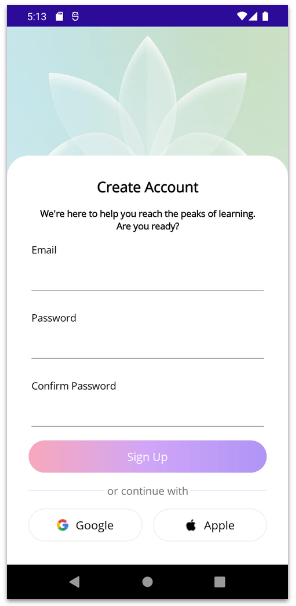
</code></pre><p>And you&rsquo;ll get a result like this:</p><p><img title="Welcome Info step" src="https://www.telerik.com/sfimages/default-source/blogs/2026/2026-09/03_create_account_structure_step_02.png?sfvrsn=a56aa292_2" alt="2. Welcome Info step" /></p><h2 id="create-account-step">3. Create Account Step</h2><p>We made it to the third step, yay! </p><p>For this step, we&rsquo;ll create a new page called <strong>CreateAccountPage.xaml</strong>, which will contain all the elements needed for the account creation screen.</p><p>Just like the previous page, this screen also includes a header image and a white content container with rounded top corners.</p><pre class=" language-xml"><code class="prism  language-xml">&lt;Grid RowDefinitions="260,*"&gt; 
    &lt;Image Grid.Row="0" Source="bggreenflower.png" Aspect="AspectFill" /&gt;
    
    &lt;telerik:RadBorder 
    Grid.Row="1" 
    Margin="0,-80" 
    Padding="30" 
    BackgroundColor="White" 
    CornerRadius="30"&gt;
     
    &lt;VerticalStackLayout 
    Spacing="15" 
    VerticalOptions="Fill" 
    HorizontalOptions="Center"&gt; 
    &lt;!-- Add block three here --&gt; 
    &lt;/VerticalStackLayout&gt; 
    &lt;/telerik:RadBorder&gt; 
&lt;/Grid&gt;
</code></pre><p>Now, let&rsquo;s add the title and description:</p><pre class=" language-xml"><code class="prism  language-xml">&lt;Label 
    HorizontalTextAlignment="Center" 
    Text="Create Account" 
    FontAttributes="Bold" 
    FontSize="20" 
    TextColor="Black" /&gt;

&lt;Label 
    HorizontalTextAlignment="Center" 
    FontSize="13" 
    FontAttributes="Bold" 
    Text="We're here to help you reach the peaks of learning.&amp;#10;Are you ready?" /&gt;
</code></pre><h3 id="let’s-add-the-form">Let&rsquo;s Add the Form</h3><p>For the form, we&rsquo;ll use <strong><a target="_blank" href="https://www.telerik.com/maui-ui/dataform">Telerik UI for .NET MAUI DataForm</a></strong>. This control works like magic and helps us save a lot of time when building forms! ✨</p><p>To use it in your XAML page, make sure to add the following namespace:</p><pre class=" language-xml"><code class="prism  language-xml">xmlns:telerik="clr-namespace:Telerik.Maui.Controls;assembly=Telerik.Maui.Controls"
</code></pre><h3 id="creating-the-model">Creating the Model</h3><p>The first step is to define a model that represents the data our form will collect. Each property includes attributes that describe how it should be displayed, whether it&rsquo;s required, and the type of data it accepts. The <strong>Telerik DataForm</strong> leverages these attributes to automatically generate the corresponding inputs and validation rules.</p><p>Our model should look like this:</p><pre class=" language-csharp"><code class="prism  language-csharp">public class SignUp : NotifyPropertyChangedBase 
{ 
    private string email; 
    private string password; 
    private string confirmPassword;
     
    [Required] 
    [Display(Name = "Email")] 
    public string Email 
    { 
    get =&gt; email; 
    set =&gt; UpdateValue(ref email, value); 
    }
     
    [Required] 
    [Display(Name = "Password")] 
    [DataType(DataType.Password)] 
    public string Password 
    { 
    get =&gt; password; 
    set =&gt; UpdateValue(ref password, value); 
    }
     
    [Required] 
    [Display(Name = "Confirm Password")] 
    [DataType(DataType.Password)] 
    public string ConfirmPassword 
    { 
    get =&gt; confirmPassword; 
    set =&gt; UpdateValue(ref confirmPassword, value); 
    } 
}
</code></pre><p>The next step is to assign our model to the page&rsquo;s <code>BindingContext</code>. To keep the sample simple, we&rsquo;ll create a new instance of the SignUp model directly in the page constructor.</p><pre class=" language-csharp"><code class="prism  language-csharp">public CreateAccountPage() 
{ 
    InitializeComponent(); 
    this.BindingContext = new Models.SignUp(); 
}
</code></pre><h3 id="adding-it-in-xaml">Adding It in XAML</h3><p>Finally, we can add it to our XAML. Simply include the <strong>RadDataForm</strong> like the following:</p><pre class=" language-xml"><code class="prism  language-xml">&lt;telerik:RadDataForm 
    x:Name="dataForm" 
    AutomationId="dataForm" /&gt;
</code></pre><p>That&rsquo;s it! Your dynamic form is now ready and fully integrated into your page. </p><h3 id="let’s-add-the-button">Let&rsquo;s Add the Button</h3><pre class=" language-xml"><code class="prism  language-xml">&lt;Button 
    Text="Sign Up" 
    TextColor="White" 
    FontSize="16" 
    HeightRequest="45" 
    CornerRadius="25"&gt; 
    &lt;Button.Background&gt; 
    &lt;LinearGradientBrush 
    StartPoint="0,0.5" 
    EndPoint="1,0.5"&gt; 
    &lt;GradientStop Color="#F8A8BC" Offset="0.0"/&gt; 
    &lt;GradientStop Color="#D0A6F7" Offset="0.5"/&gt; 
    &lt;GradientStop Color="#AF95F6" Offset="1.0"/&gt; 
    &lt;/LinearGradientBrush&gt; 
    &lt;/Button.Background&gt; 
&lt;/Button&gt;
</code></pre><h3 id="divider-and-text">Divider and Text</h3><pre class=" language-xml"><code class="prism  language-xml">&lt;Grid ColumnDefinitions="*,Auto,*"&gt; 

    &lt;BoxView 
    Grid.Column="0" 
    HeightRequest="0.2" 
    Color="#AF95F6"/&gt;
     
    &lt;Label 
    Grid.Column="1" 
    Text=" or continue with " 
    FontSize="15" 
    TextColor="#6E6E6E" /&gt;
     
    &lt;BoxView 
    Grid.Column="2" 
    HeightRequest="0.2" 
    Color="#AF95F6" /&gt; 
    
&lt;/Grid&gt;
</code></pre><h3 id="social-buttons">Social Buttons</h3><pre class=" language-xml"><code class="prism  language-xml">&lt;Grid 
    ColumnDefinitions="*,*" 
    ColumnSpacing="15" 
    HorizontalOptions="Fill"&gt; 
    &lt;Button 
    Grid.Column="0" 
    Text="Google" 
    ImageSource="googlecolor.png" 
    TextColor="Black" 
    FontSize="16" 
    HeightRequest="45" 
    CornerRadius="25" 
    BorderColor="LightGray" 
    BorderWidth="0.3" 
    HorizontalOptions="Fill" 
    BackgroundColor="White"/&gt;

    &lt;Button 
    Grid.Column="1" 
    Text="Apple" 
    ImageSource="apple.png" 
    TextColor="Black" 
    FontSize="16" 
    HeightRequest="45" 
    CornerRadius="25" 
    BorderColor="LightGray" 
    BorderWidth="0.3" 
    HorizontalOptions="Fill" 
    BackgroundColor="White"/&gt;

&lt;/Grid&gt;
</code></pre><p>And you&rsquo;ll get a result like this:</p><p><img title="Create account step" src="https://www.telerik.com/sfimages/default-source/blogs/2026/2026-09/04_create_account_structure_step_03.png?sfvrsn=a5ad3aa2_2" alt="3. Create account step" /></p><p>And that&rsquo;s it, we&rsquo;re all done!  Below, you can see the final result of both screens.</p><p><img src="https://www.telerik.com/sfimages/default-source/blogs/2026/2026-09/05_create_account_structure_complete.png?sfvrsn=e2494639_2" alt="Complete design structure" /></p><h2 id="conclusion">Conclusion</h2><p>And that&rsquo;s it! I hope this article helps you recreate beautiful UIs in .NET MAUI!</p><p>We built two account creation screens inspired by a Dribbble design. Along the way, we explored how to structure layouts with Grid, create overlapping effects, use gradients and customize the UI using Telerik UI for .NET MAUI RadBorder and DataForm.</p><p>As you can see, in just two screens we covered several tips that you can easily apply to your own applications.</p><p>I encourage you to keep exploring, experimenting and learning something new every day.  See you in the next article! &zwj;♀️</p>]]></content>
  </entry>
  <entry>
    <id>urn:uuid:c0b3f88d-3c34-43f4-a479-4d674f54a82f</id>
    <title type="text">Replicating a Room Sublet App UI with .NET MAUI</title>
    <summary type="text">Let’s build out a design of a room subletting app using the Progress Telerik UI for .NET MAUI Rating control, plus concepts like overlapping effects and FormattedText.</summary>
    <published>2026-09-18T16:14:29Z</published>
    <updated>2026-10-17T00:04:36Z</updated>
    <author>
      <name>Leomaris Reyes </name>
    </author>
    <link rel="alternate" href="https://www.telerik.com/blogs/replicating-room-sublet-app-ui-net-maui"/>
    <content type="text"><![CDATA[<p><span class="featured">Let&rsquo;s build out a design of a room subletting app using the Progress Telerik UI for .NET MAUI Rating control, plus concepts like overlapping effects and FormattedText.</span></p><p>I dare say that a large percentage of young people, when they go to university, look for a room to rent where they can become independent and, of course, one that&rsquo;s close to their campus!</p><p>And how cool would it be if, during that special moment, an app could help us find the perfect place. And if there isn&rsquo;t an app that does it? Even better, let&rsquo;s learn how to create one!</p><p>That&rsquo;s exactly what we&rsquo;re going to do in this article. We&rsquo;re going to replicate a room sublet screen using .NET MAUI controls and one of my favorite Progress Telerik UI for .NET MAUI components: the <a target="_blank" href="https://www.telerik.com/maui-ui/rating">MAUI Rating control</a>. This UI was inspired from a <a target="_blank" href="https://dribbble.com/shots/11284577-Room-Rent-App-Concept">Dribbble design</a>. So get comfortable, and let&rsquo;s start building this UI that I absolutely love!! </p><h2 id="how-will-the-explanation-work">How Will the Explanation Work?</h2><p>So you can understand everything 100%, I&rsquo;ll explain how the process will work:</p><p>➖ <strong>Visual diagram:</strong> Before we start, you&rsquo;ll see a diagram with a screenshot of the design we want to achieve. This design will be divided into blocks, each identified with a name and a color. Each one will be explained individually.</p><p>➖ <strong>Code explanation per block:</strong> In addition to the written explanation, each screen includes a set of blocks with the exact code snippets you need to implement and achieve the final result.</p><p>➖ <strong>Step-by-step visual progress:</strong> Each explanation will have its corresponding screenshot, so you can see the progress as we build the UI.</p><p>⚠️ For this design, we took inspiration from an original Dribbble UI, but made some adaptations and adjustments to align it with the goals of this article.</p><h3 id="-environment-setup"> Environment Setup</h3><p>You&rsquo;ll learn how to take advantage of some of the powerful Telerik UI for .NET MAUI components in this post. If you don&rsquo;t have the .NET MAUI library installed yet, visit the <a target="_blank" href="https://www.telerik.com/maui-ui/documentation/get-started/quickstart">quick start page</a>, which explains step-by-step how to install Telerik UI for .NET MAUI, download the license key, configure the Telerik package source and install the Telerik MCP server (if needed).</p><h2 id="breaking-down-the-design">Breaking Down the Design</h2><p>To make this easier to follow, I&rsquo;ve divided the design into clear blocks. We&rsquo;ll build each part one at a time, in the order you see below.</p><p><img src="https://www.telerik.com/sfimages/default-source/blogs/2026/2026-09/01_room_structure.png?sfvrsn=7352a505_2" width="450" alt="Visual structure: 1. Header and background. 2. Description. 3. Footer" /></p><h2 id="header-and-background">1. Header and Background</h2><p>Woohoo!!  Let&rsquo;s start with the first block. I love this one because it contains several interesting components, but before adding them, we need to create the layout that will hold the entire page.</p><h3 id="grid">Grid</h3><p>We&rsquo;ll start with a grid composed of a single column. This will help us create the overlay effect between the background image and the main content.</p><p>Inside the grid, we&rsquo;ll place two elements:</p><ul><li>The background image.</li><li>Another Grid that will contain all the UI components we&rsquo;ll build throughout this article. This grid will have two columns and nine rows.</li></ul><p>In code, it should look something like this:</p><pre class=" language-xml"><code class="prism  language-xml">&lt;Grid ColumnDefinitions="*"&gt; 

    &lt;Image Grid.Column="0" Source="room.png" Aspect="AspectFill"/&gt;
 
    &lt;Grid ColumnDefinitions="*,auto" RowDefinitions="auto,auto,*,auto,auto,auto,auto,auto,auto" 
    RowSpacing="13"&gt; 
    
    &lt;!-- Add all the remaining components here -- &gt;
     
    &lt;/Grid&gt; 
&lt;/Grid
</code></pre><h3 id="name-and-result-label">Name and Result Label</h3><p>Now, inside the second grid, we&rsquo;ll add two Labels to display the room name and its result, as shown below:</p><pre class=" language-xml"><code class="prism  language-xml">&lt;Label Grid.Row="0" Grid.Column="0" Text="Roomlette" FontSize="32" FontAttributes="Bold" TextColor="White" Margin="20,40,0,0"/&gt; 

&lt;Label Grid.Row="1" Grid.Column="0" Text="Results: 1 / 31" FontSize="18" FontAttributes="Bold" TextColor="White" Margin="20,0,0,0"/&gt;
</code></pre><p>And then, let&rsquo;s add the three action buttons on the right side of the screen, as shown below:</p><pre class=" language-xml"><code class="prism  language-xml">&lt;Button Grid.Row="0" Grid.Column="1" BackgroundColor="#0b0905" Opacity="0.8" HeightRequest="30" WidthRequest="30" CornerRadius="8" HorizontalOptions="Center" Margin="0,40,10,0" ImageSource="ellipsis.png"/&gt; 

&lt;Button Grid.Row="1" Grid.Column="1" BackgroundColor="#0b0905" Opacity="0.8" HeightRequest="30" WidthRequest="30" CornerRadius="8" HorizontalOptions="Center" Margin="0,10,10,0" ImageSource="stack.png"/&gt; 

&lt;Button Grid.Row="2" Grid.Column="1" BackgroundColor="#0b0905" Opacity="0.8" HeightRequest="30" WidthRequest="30" CornerRadius="8" HorizontalOptions="Center" Margin="0,10,10,0" ImageSource="save.png" VerticalOptions="Start"/&gt;
</code></pre><p>We&rsquo;ve finished building the first block! At this point, your result should look like this:</p><p><img src="https://www.telerik.com/sfimages/default-source/blogs/2026/2026-09/02_room_header_and_background.png?sfvrsn=d71dfca0_2" width="450" alt="Room header and background block. Image of room, Roomlette Result 1 of 31" /></p><h2 id="description">2. Description</h2><p>For this second block, we&rsquo;ll add the elements that make up the main description of the screen. Let&rsquo;s see how to build them:</p><h3 id="main-description-and-location">Main Description and Location</h3><pre class=" language-xml"><code class="prism  language-xml">&lt;Label Grid.Row="3" Grid.Column="0" Text="Room for student,&amp;#10;fully furnished,,&amp;#10;close to the university." FontSize="23" FontAttributes="Bold" TextColor="White" Margin="20,40,0,0"/&gt;
 
&lt;Label Grid.Row="4" Grid.Column="0" Text="Malasa&ntilde;a, Madrid, Spain" FontSize="16" FontAttributes="Bold" TextColor="White" Margin="20,0,0,0"/&gt;
</code></pre><h3 id="price">Price</h3><p>Take a look at this Label. Even though it&rsquo;s a single label, it has different styles: one part has a different size, and another part is bold.</p><p>There are two ways to achieve this:</p><ol><li>Create a separate Label for each text style.</li><li>Use FormattedText, which allows us to apply different properties within the same Label.</li></ol><p>For this example, we&rsquo;ll use the second option. Here&rsquo;s how you can do it:</p><pre class=" language-xml"><code class="prism  language-xml">&lt;Label Grid.Row="5" Grid.Column="0" Margin="20,0,0,0"&gt; 
    &lt;Label.FormattedText&gt; 
    &lt;FormattedString&gt; 
    &lt;Span Text="&euro;950 / " FontSize="18" FontAttributes="Bold" TextColor="White"/&gt; 
    &lt;Span Text=" Month" FontSize="16" TextColor="White"/&gt; 
    &lt;/FormattedString&gt; 
    &lt;/Label.FormattedText&gt; 
&lt;/Label&gt;
</code></pre><h3 id="telerik-rating-control">Telerik Rating Control</h3><p>Oh yeah!, we&rsquo;ve reached my favorite part! This screen includes a Rating control, and we&rsquo;ll use the Telerik one. It&rsquo;s super easy to use, and we can play with the shape of the items, the colors for the selected and unselected items and many other things. </p><p>First, add the namespace:</p><pre class=" language-xml"><code class="prism  language-xml">xmlns:telerik="http://schemas.telerik.com/2022/xaml/maui"
</code></pre><p>And now, in your .xaml file, add the following code:</p><pre class=" language-xml"><code class="prism  language-xml">&lt;telerik:RadShapeRating Grid.Row="6" Grid.Column="0" ItemFill="White" ItemStroke="#FFA500" AutomationId="radRating" Value="3" Margin="20,0,0,0"/&gt;
</code></pre><p>I also invite you to explore more about <a target="_blank" href="https://www.telerik.com/maui-ui/rating">Telerik Rating control in the official documentation</a>, which is really helpful!</p><h3 id="contact-button">Contact Button</h3><pre class=" language-xml"><code class="prism  language-xml">&lt;Button Grid.Row="7" Grid.Column="0" Grid.ColumnSpan="2" Text="Contact" BackgroundColor="#af4544" FontSize="18" HeightRequest="25" HorizontalOptions="Fill" CornerRadius="10" Margin="20,0"/&gt;
</code></pre><p>We&rsquo;ve finished building the second block! At this point, your result should look like this:</p><p><img src="https://www.telerik.com/sfimages/default-source/blogs/2026/2026-09/03_room_description.png?sfvrsn=99d5117c_2" width="450" alt="Room Description block with &#39;Room for student, fully furnished, close to the university. Malasana, Madrid, Spain. Price. Rating. Contact." /></p><h2 id="footer">3. Footer</h2><p>We&rsquo;re almost done! This footer block basically contains a <strong>Roulette</strong> button and three icons aligned horizontally at the end: <strong>Filter, Message</strong> and <strong>Save</strong>.</p><p>How does it look in code? Like this :</p><pre class=" language-xml"><code class="prism  language-xml">&lt;Button Grid.Row="8" Grid.Column="0" BackgroundColor="#0b0905" Padding="0" Text="Roulette" HeightRequest="18" WidthRequest="130" CornerRadius="8" Margin="20,10,20,20" ImageSource="roulette.png" HorizontalOptions="Start" /&gt;
 
&lt;HorizontalStackLayout Grid.Row="8" Grid.Column="1" Spacing="20" Margin="0,0,20,0"&gt; 
    &lt;Image Source="filtericon.png" HeightRequest="18" WidthRequest="18"/&gt; 
    &lt;Image Source="letter.png" HeightRequest="18" WidthRequest="18"/&gt; 
    &lt;Image Source="bookmark.png" HeightRequest="18" WidthRequest="18"/&gt; 
&lt;/HorizontalStackLayout&gt;
</code></pre><p>We&rsquo;ve finished building the third block! At this point, your result should look like this:</p><p><img src="https://www.telerik.com/sfimages/default-source/blogs/2026/2026-09/04_room_footer.png?sfvrsn=e6cd0d16_2" width="450" alt="Room Footer block with roulette, filter. message, save" /></p><h2 id="conclusion">Conclusion</h2><p>And that&rsquo;s all! I hope this article helps you recreate beautiful UIs in .NET MAUI! </p><p>With a single screen, we explored several interesting concepts, such as using the Telerik UI for .NET MAUI Rating control, leveraging grid layouts to create overlapping effects, applying different styles within the same text using FormattedText and more!</p><p>I hope these techniques help you not only recreate this UI, but also inspire and support the interfaces you build from now on in .NET MAUI. </p><p>See you in the next article! &zwj;♀️</p><hr /><blockquote><p>If you want to explore Telerik UI for .NET MAUI, download your free trial today!</p><br /><p><a href="https://www.telerik.com/try/ui-for-maui" target="_blank" class="Btn">Try Now</a></p></blockquote>]]></content>
  </entry>
  <entry>
    <id>urn:uuid:7919a134-7550-484d-83e4-af5b0a269419</id>
    <title type="text">DataGrids Are For... Managers and Administrators</title>
    <summary type="text">For administrators, the DataGrid provides tools for exploring data to develop strategy and assess results. Managers can both report on team progress and analyze that data.</summary>
    <published>2026-09-15T13:39:58Z</published>
    <updated>2026-10-17T00:04:36Z</updated>
    <author>
      <name>Peter Vogel </name>
    </author>
    <link rel="alternate" href="https://www.telerik.com/blogs/datagrids-are-for-managers-administrators"/>
    <content type="text"><![CDATA[<p><span class="featured">For administrators, the DataGrid provides tools for exploring data to develop strategy and assess results. Managers can both report on team progress and analyze that data.</span></p><p>While the terms &ldquo;manager&rdquo; and &ldquo;administrator&rdquo; are often used interchangeably, when used as job descriptions, those terms describe different responsibilities. &ldquo;Administrator&rdquo; job roles focus on &ldquo;what is to be done&rdquo;: setting goals, defining strategy to achieve those goals, establishing policies to control how strategy is executed and allocating resources. &ldquo;Manager&rdquo; job roles focus on &ldquo;how to achieve those goals&rdquo;: implementing plans, supervising staff and managing resources.</p><p>In real life, of course, that overlap is reflected in those two job roles. Because the <a target="_blank" href="https://www.telerik.com/home.aspx">Progress Telerik and Kendo UI</a> DataGrid provides the support that people in both of those roles need, it also supports the overlap between those two roles.</p><h2 id="administrators">Administrators</h2><p><img src="https://www.telerik.com/sfimages/default-source/blogs/2026/2026-09/grid-personas-managers-and-admins-01---data.png?sfvrsn=45743b8a_2" alt="A screenshot of the DataGrid, emphasizing rows of data" /></p><p>Initially, it might seem that &ldquo;strategy designers&rdquo; and &ldquo;policy makers&rdquo; wouldn&rsquo;t have much use for the DataGrid inside applications targeted toward &ldquo;administrators.&rdquo; That&rsquo;s probably true &hellip; except that both strategy and policy are (or should be) driven by data. And, as strategies are implemented and policies applied, administrators also need data that helps determine how successful those strategies and policies have been in meeting the organization&rsquo;s goals.</p><p>To support that, administrators do need applications that let them pull together and review key metrics, assess the impact of those metrics on the organization and then use that information to develop strategy. The Telerik DataGrid supports that kind of data analysis because the DataGrid allows users to:</p><ul><li>Pull from a wide variety of data sources (everything from Excel spreadsheets to databases and web services) and remains responsive even when working with large amounts of data</li><li>Highlight key issues through responsive formatting</li><li>Explore data by filtering on multiple criteria across multiple columns to get to the critical data</li><li>Define meaningful groups of data on the fly and generate key metrics</li><li>Organize data into high-level and detail-level displays to both review key data and then drive into the detail</li><li>Export data to be used in other tools (including all the data in the grid, or just data in a single page, and even selected data found in the grid)</li></ul><p>The DataGrid user interface is also supports multiple industry standards, so that the grid &ldquo;works the way users expect.&rdquo; In addition, the AI-enabled Assistants and Semantic Search capabilities allow administrators, by entering natural language requests, to both find key data and configure the grid to display that data without having to manipulate the grid controls (though, thanks to DataGrid shortcuts and navigation features, experienced users can move quickly through the grid).</p><h2 id="managers">Managers</h2><p><img src="https://www.telerik.com/sfimages/default-source/blogs/2026/2026-09/grid-personas-managers-and-admins-02----people.jpg?sfvrsn=c70f9c89_2" alt="A screenshot of the DataGrid, emphasizing pictures of people" /></p><p>As part of tracking activities and monitoring performance, managers require all of the data analysis tools that administrators need. However, unlike administrators, managers also need to be able to update that data, create new tasks, assign resources and report on their team&rsquo;s progress toward goals. For managers, the DataGrid update capabilities are equally as important as the grid&rsquo;s data analysis tools.</p><p>Managers can update data directly within the DataGrid either on a row-by-row basis or in a bulk update mode that allows managers to update multiple rows before saving their data. Where updating is more complex, the DataGrid supports opening customized popup forms for updating individual rows (or navigating to other screens for more complex data entry). The Grid shortcut keys and navigation features let experienced users enter data quickly without having to take their hands off the keyboard.</p><p>The DataGrid validation tools only allow valid changes to be made (including locking out columns so that no changes are made). Where the DataGrid&rsquo;s built-in validation doesn&rsquo;t handle special business cases, custom validation can be integrated into the grid, tied to the organization&rsquo;s specific needs.</p><p>For administrators, the DataGrid provides the tools needed to explore data to develop strategy and assess results. For managers, the ability to both explore and update data in the DataGrid is a powerful combination: Managers can both report on their team&rsquo;s progress and then switch to analyzing that data. Regardless of the job role&mdash;administrator or manager&mdash;the DataGrid supports what the person in the role needs.</p><hr /><p>Check out the <a target="_blank" href="https://www.telerik.com/devcraft">Telerik DevCraft</a> suite of products to learn about the DataGrid in your favorite .NET or JavaScript flavor, like the <a target="_blank" href="https://demos.telerik.com/blazor-ui/grid/overview">Blazor Grid</a>, the <a target="_blank" href="https://www.telerik.com/kendo-react-ui/components/grid">KendoReact DataGrid</a> or the <a target="_blank" href="https://www.telerik.com/kendo-angular-ui/components/grid">Angular Grid</a>.</p><p>Get your hands on the whole suite free for 30 days:</p><p><a target="_blank" href="https://www.telerik.com/try/devcraft-ultimate" class="Btn">Try Telerik DevCraft</a></p>]]></content>
  </entry>
  <entry>
    <id>urn:uuid:5890abe0-8c6a-4973-85a3-623de3e0b32f</id>
    <title type="text">Telerik Support by the Numbers: Response Times, Resolution Rates and Technical Expertise</title>
    <summary type="text">When a product or tool is a crucial part of your application, support is more than just a nice-to-have. Here’s how Progress Telerik support stacks up.</summary>
    <published>2026-09-09T14:31:35Z</published>
    <updated>2026-10-17T00:04:36Z</updated>
    <author>
      <name>Kathryn Grayson Nanz </name>
    </author>
    <link rel="alternate" href="https://www.telerik.com/blogs/telerik-support-response-times-resolution-rates-technical-expertise"/>
    <content type="text"><![CDATA[<p><span class="featured">When a product or tool is a crucial part of your application, support is more than just a nice-to-have. Here&rsquo;s how Progress Telerik support stacks up.</span></p><p>When a product or tool is a crucial part of your application, support is more than just a nice-to-have. For enterprise development teams, support issues could mean anything from a single blocked developer to an entire delayed release. The larger and more critical the application, the more important predictable access to technical expertise becomes.</p><p>So rather than simply saying Progress provides strong Telerik and Kendo UI support, here are the numbers behind it&mdash;customer satisfaction, response and resolution times, escalation rates and the technical resources available beyond a simple or individual support case.</p><h3>Support at a Glance</h3><ul><li><strong>98%+</strong> customer satisfaction on case closure</li><li><strong>95.5%+</strong> customer satisfaction per interaction</li><li><strong>24-hour</strong> response-time Service Level Agreement (SLA)</li><li><strong>50%+</strong> of cases resolved within 14 hours</li><li><strong>&lt;14 hours</strong> median time to first response</li><li><strong>~99.8%</strong> of tickets resolved without escalation</li><li><strong>New AI-powered chat </strong>embedded in ticket submission and documentation to provide instant answers</li></ul><h2>What Does Enterprise-Grade Support Mean?</h2><p>Enterprise-grade technical support combines predictable response commitments, access to technical expertise, efficient issue resolution and self-service resources that help teams resolve problems without creating prolonged development blockers.</p><h3>Technical Support from Technical Engineers</h3><p>We believe that good support is part of the product experience. Our technical support engineers bring hands-on expertise, helping teams get from problem to solution without unnecessary delays or layers of escalation. Telerik Technical Support Engineers are technical specialists with software development expertise, equipped to investigate implementation-level issues rather than simply triage and route them. Approximately 99.8% of support tickets are resolved within Technical Support without requiring escalation to product engineering.</p><h3>Fast Turnaround</h3><p>We also understand that when a project is blocked, timing is of the essence. That&rsquo;s why our support teams provide a <strong>24-hour response-time SLA</strong>&mdash;but most of the time, you won&rsquo;t even have to wait that long. Our <strong>median time to first response is under 14 hours</strong>. </p><p>In fact, over half of support cases are <em>resolved </em>within 14 hours, helping teams move from problem to solution quickly. Most issues also stay with the support organization rather than requiring engineering escalation. And by &ldquo;most,&rdquo; I mean &ldquo;very nearly all&rdquo;: approximately 99.8% of tickets are resolved without escalation.</p><h3>Exceptional Customer Satisfaction</h3><p>More than 98% of customers report satisfaction at case closure, and a 95.5%+ CSAT score (Customer Satisfaction) per interaction reflects high quality throughout the support experience.</p><h2>What About Support Beyond Tickets?</h2><p>Support is about more than just answering one-off tickets, though. That&rsquo;s why we offer a massive collection of technical knowledge that helps developers across the community&mdash;whether they&rsquo;re troubleshooting a problem, learning a feature, evaluating an API or looking for implementation examples. Those resources mean that developers may not even need to open a support ticket in the first place! The vast library of public technical knowledge empowers developers with the knowledge they need, saving direct technical support for unique and specific edge case instances.</p><h3>Available Public Technical Knowledge</h3><ul><li><strong>290K+ </strong>answered forum threads</li><li><strong>6.5K+</strong> knowledge base articles</li><li><strong>10K+ </strong>demos</li><li><strong>24K+ </strong>conceptual documentation articles</li><li><strong>29K+</strong> API reference articles.</li><li><strong>100+ </strong>answered community questions each month</li></ul><p>These resources are publicly searchable and indexable, which allows the impact of our excellent support to scale far beyond what could be offered via tickets alone. Developers can benefit from solutions documented through years of customer and community interactions, while organizations can build their own expertise on top of a large, accessible body of technical knowledge.</p><h2>What Our Customers Say</h2><p>The numbers are impressive, but what matters more to us is what our customers have to say about their support experiences. These are just a small sample of quotes from users who have worked with our support teams and had wonderfully positive experiences.</p><h3>Clear Instructions</h3><p><em>&ldquo;I&rsquo;m incredibly grateful for the technical assistance I received. The support was not only timely but also highly effective&mdash;resolving my issue quickly and professionally. The guidance was clear and spot-on, helping me identify the missing step and implement the correct solution without delay. Thanks to this help, everything is now working perfectly. I truly appreciate the responsiveness and expertise. This kind of support makes a huge difference!&rdquo;</em></p><h3>High-Quality Responses</h3><p><em>&ldquo;Your developer support is AWESOME! I can&rsquo;t imagine moving to another control suite. You guys are the best!&rdquo;</em> </p><h3>Fast and Detailed</h3><p><em>&ldquo;Prompt and on-point with all of our communications. I appreciate the detailed responses and explanations!&rdquo;</em></p><h3>Going the Extra Mile</h3><p><em>&ldquo;Spent extra time making sure I had the resources and information to fix my problem [&hellip;] created an example project and code snippets. Thank you so much!</em></p><h2>Better Support Means Better End Products</h2><p>Faster access to expert assistance can reduce delivery risk by helping developers resolve blockers before they become prolonged delays. Strong technical support and a comprehensive knowledge base also reduces engineering time spent troubleshooting, searching for answers, going in circles with AI chatbots or developing brittle workarounds&mdash;lowering the total cost of ownership over time. Support is, therefore, not simply a service attached to the product; it's part of the risk assessment that teams should evaluate when choosing a partner they expect to rely on for years.</p><p>Enterprise teams working with Telerik and Kendo UI can have confidence that when a problem arises, there&rsquo;s a reliable solution&mdash;and an experienced team behind the technology, just waiting to help.</p><h2>FAQ</h2><h3>How Quickly Does Telerik Technical Support Respond?</h3><p>Telerik Technical Support includes a 24-hour response-time Service Level Agreement (SLA), but our median time to first response is less than 14 hours.</p><h3>How Quickly Are Telerik Support Cases Resolved?</h3><p>Over half of cases are resolved within 14 hours, with less than 1% requiring escalation.</p><h3>Are Telerik Support Cases Handled by Technical Experts?</h3><p>Yes, Telerik Technical Support Engineers are technical specialists with software development expertise, equipped to investigate implementation-level issues rather than simply triage and route them.</p><h3>What Self-Service Support Resources Does Telerik Provide?</h3><p>Our library of self-support technical knowledge resources includes extensive community forums with over 290k answered threads, over 6.5k Knowledge Base articles, over 10k demos, over 24k conceptual documentation articles, over 29k API reference articles and more than 100 new community questions answered each month.</p><hr /><h2>Want to See for Yourself?</h2><p>Our 30-day free trials include access to support. The Telerik DevCraft suite lets you pick your favorite flavor, so check it out:</p><p><a class="Btn" target="_blank" href="https://www.telerik.com/devcraft">Try DevCraft</a></p>]]></content>
  </entry>
  <entry>
    <id>urn:uuid:e43d41a5-b849-45cc-a9d9-883473d1273b</id>
    <title type="text">DataGrids Are For... Legal Professionals</title>
    <summary type="text">As the legal profession changes, the applications that support legal professionals must also change. The Progress Telerik and Kendo UI DataGrid gives you the ability to support those evolving needs.</summary>
    <published>2026-09-08T19:54:58Z</published>
    <updated>2026-10-17T00:04:36Z</updated>
    <author>
      <name>Peter Vogel </name>
    </author>
    <link rel="alternate" href="https://www.telerik.com/blogs/datagrids-are-for-legal-professionals"/>
    <content type="text"><![CDATA[<p><span class="featured">As the legal profession changes, the applications that support legal professionals must also change. The DataGrid can help you evolve.</span></p><p>The legal profession is going through enormous changes, some driven by changes in the business (e.g., outsourcing) and some by technology (AI). As a result, applications created for legal professionals like lawyers and paralegals have to reflect and support those changes.</p><p>For example, thanks to outsourcing, AI and more sophisticated third-party software, the amount of time a legal professional spends on research (once a key skill in the field) is shrinking. In the same way, legal professionals are now spending less time drafting legal documents (another formerly critical skill) and more time reviewing/correcting the products of various software systems.</p><p>Many things in the profession have not changed, of course. Today&rsquo;s legal professionals still need to be able to understand their clients&rsquo; needs and analyze the issues each client faces. Legal professionals must provide solutions that are attainable while meeting their clients&rsquo; needs and be able to communicate the resulting courses of action (with their risks) both to their clients and the other parties involved.</p><hr /><blockquote><p>Actually, here&rsquo;s an interesting <a target="_blank" href="https://www.sharefile.com/resource/papers/state-of-legal">survey of legal professionals</a> that the Progress ShareFile team put together. Lawyers love the work they do&mdash;but many still face workflow friction that slows client service, delays intake and creates unnecessary complexity. Of the participating legal professionals surveyed:</p><br /><ul><li>97% say AI and automation will be important to the future of legal</li><li>84% say workflow inconsistencies impact efficiency</li><li>95% want tools that are simple and easy to use</li></ul></blockquote><hr /><p>When it comes to executing the selected actions, much remains the same: filing deadlines remain critical, as do keeping clients compliant with relevant laws and advocating for clients&rsquo; interests in criminal and civil cases.</p><p>While the business has changed, clients have also changed and are increasingly using self-serve and lower cost options (e.g., community legal workers). When working with legal professionals, clients are increasingly assessing their experience by how the client&rsquo;s interaction is personalized and customized to their needs. As a result, legal professionals are moving away from traditional hourly based billing toward value-based billing and are increasingly focused on efficiency.</p><p>The net result is an increased demand for &ldquo;legal services&rdquo; (contract life cycle management, for example) instead of &ldquo;legal advice&rdquo; like routine contract negotiation.</p><p>The Progress Telerik and Kendo UI <a target="_blank" href="https://www.telerik.com/devcraft#demo-tab-10">DataGrid</a> is an essential part of building applications that support those changing needs.</p><h2 id="retrieving-and-finding-documents">Retrieving and Finding Documents</h2><p>For example, a legal case still involves thousands of documents: client records, meeting notes, case files, pleadings, affidavits, court filings, expert reports and more. Most of those documents are now digital assets, stored in various repositories that can be accessed through the DataGrid. Using the DataGrid&rsquo;s virtualization features enables users to retrieve and review large numbers of documents quickly&mdash;essential in being responsive to clients&rsquo; needs.</p><p>The DataGrid offers multiple tools for filtering, sorting and searching for specific documents. Professionals can find documents by specific clauses, case IDs or document types, even across large repositories. The DataGrid AI-enabled Semantic Search even lets users find records just by typing in what they want (e.g., &ldquo;Show me all the active cases&rdquo;).</p><p>Once the relevant document is found, professionals can have multiple options in reviewing the document, depending on their needs. Documents can be viewed in the DataGrid, of course, but can also be reviewed in popup windows to show key information without leaving the current screen. Or users can navigate to a separate screen to view the document in full.</p><h2 id="organizing-documents-and-data">Organizing Documents and Data</h2><p>Given the variety of documents, the DataGrid&rsquo;s ability to organize those documents into groups is critical. The DataGrid can be configured to provide a predefined set of groups, and users can create their own groups as they need them by dragging and dropping columns in the grid.</p><p>Going beyond simple groups, the DataGrid can be configured as a hierarchy of document groups to organize documents by whatever criteria the user needs. Because the DataGrid has the ability to nest grids with different layouts within, for example, a document hierarchy, different document types can be displayed with different formats.</p><p>Some things remain constant, though. Even in the evolving world of legal professionals, time remains of the essence. While <em>nunc pro tunc</em> (&ldquo;now for then&rdquo;) can apply, it remains essential for filings to be made on time and correctly. DataGrid templates enable users, without leaving their current screen, to switch between a document-oriented view and a time-based view to see what&rsquo;s pending (and conditional formatting can be used to highlight filings that still need development).</p><p>The DataGrid&rsquo;s ability to organize any kind of data, in any order, to support any analysis is also essential to supporting the way the profession is evolving. Businesses now expect their legal departments to not only find ways to manage legal risk but also to provide strategic insights to improve revenues and decrease costs. Legal professionals increasingly need tools&mdash;like the DataGrid&mdash;that support exploring data to help them provide those insights.</p><p>For example, in the contract management area, clients now expect their legal representatives to be able analyze past performance of various terms in contracts to identify opportunities both for improving future contracts and renegotiating existing contracts (or identifying contracts that can&rsquo;t be improved and should be terminated).</p><h2 id="sharing-data">Sharing Data</h2><p>Client confidentiality remains a key concern in any interaction with a legal professional. The DataGrid&rsquo;s ability to integrate with code that authenticates and authorizes users to control access to data helps provide that. The DataGrid&rsquo;s UI supports hiding columns, hiding whole rows and formatting individual cells hide information, all driven by the user&rsquo;s authorized roles.</p><p>On the other hand, legal information often needs to be shared with others (courts, clients, other members of the office, opposing counsel). The DataGrid supports exporting selected rows or the whole grid in both Excel and PDF formats (these options can also be turned off to help prevent data from leaving the application&rsquo;s secure environment). Any hidden rows, columns and obfuscated data remain hidden during export and, where necessary, custom code can be inserted into the export process to further control the process.</p><h2 id="updating-information">Updating Information</h2><p>While reporting data is important, the DataGrid also provides excellent support for updating information efficiently. Users can update single rows, enter a &ldquo;bulk update&rdquo; mode that supports updating multiple rows, open popup windows for individual rows to improve the update experience or navigate from the DataGrid to full screen editing for any row.</p><p>The DataGrid also provides built-in validation to help prevent invalid data being entered and supports both synchronous validation (stopping the user from continuing until data is validated) and asynchronous validation (allowing the user to continue when validation is time-consuming but preventing updates when the user tries to save their data). Validation can be extended with custom code that can take advantage of the DataGrid&rsquo;s error-handling support (displaying error messages in tooltips, for example).</p><p>In addition to providing multiple shortcuts that enable experienced users to work efficiently, the DataGrid supports WCAG accessibility guidelines out of the box. For occasional users, the DataGrid&rsquo;s various assistants (AI Toolbar Assistant, AI Column Assistant, etc.), let users perform complex operations with natural language commands.</p><p>As the legal profession changes, the applications that support legal professionals must also change. The Telerik and Kendo UI DataGrid gives you the ability to support those evolving needs.</p><hr /><p>Check out the <a target="_blank" href="https://www.telerik.com/devcraft">Telerik DevCraft</a> suite of products to learn about the DataGrid in your favorite .NET or JavaScript flavor, like the <a target="_blank" href="https://demos.telerik.com/blazor-ui/grid/overview">Blazor Grid</a> or the <a target="_blank" href="https://www.telerik.com/kendo-angular-ui/components/grid">Angular Grid</a>.</p><p>Get your hands on the whole suite free for 30 days:</p><p><a target="_blank" href="https://www.telerik.com/try/devcraft-ultimate" class="Btn">Try Telerik DevCraft</a></p>]]></content>
  </entry>
  <entry>
    <id>urn:uuid:905a0827-91ae-4163-b112-3f31eb7c2249</id>
    <title type="text">Using the Camera in .NET MAUI with CameraView</title>
    <summary type="text">Learn how to use the .NET MAUI Community Toolkit CameraView control in your app, from initializing to creating the user interface.</summary>
    <published>2026-08-31T16:46:42Z</published>
    <updated>2026-10-17T00:04:36Z</updated>
    <author>
      <name>Héctor Pérez </name>
    </author>
    <link rel="alternate" href="https://www.telerik.com/blogs/using-camera-net-maui-cameraview"/>
    <content type="text"><![CDATA[<p><span class="featured">Learn how to use the .NET MAUI Community Toolkit CameraView control in your app, from initializing to creating the user interface.</span></p><p>A functionality that is common in mobile applications is the ability to work with the camera. Although the .NET MAUI framework includes classes and methods to use the camera, having a component that allows creating interfaces that offer additional functionality helps speed up application development. That is why in this article, we will examine the <a target="_blank" href="https://learn.microsoft.com/en-us/dotnet/communitytoolkit/maui/views/camera-view">CameraView</a> control of the .NET MAUI Community Toolkit.</p><h2 id="what-is-the-cameraview-control">What Is the CameraView Control</h2><p>CameraView is a control within the <code>CommunityToolkit.Maui.Camera</code> package that helps perform tasks beyond taking photos and videos, allowing control of features such as flash, zoom, saving files and even hooks for reacting to different events.</p><p>This allows you to create experiences within your application without needing to navigate to an external application, giving you full control of the buttons, visual state and destination of captured files.</p><h2 id="using-the-cameraview-control-in-your-.net-maui-applications">Using the CameraView Control in Your .NET MAUI Applications</h2><p>Let&rsquo;s demonstrate the CameraView control&rsquo;s potential. To do this, in your project open the NuGet package manager and install the following packages:</p><pre class=" language-text"><code class="prism  language-text">CommunityToolkit.Maui.Camera
CommunityToolkit.Mvvm
</code></pre><p>The first package is the one we need to use the control and the APIs, while the second will allow using the MVVM pattern more easily in the project.</p><p>Once you have installed the camera control package, you will see a <code>ReadMe.txt</code> file with the steps to follow to correctly configure the control. This file tells us that we must go to <code>MauiProgram.cs</code>, adding the <code>UseMauiCommunityToolkitCamera</code> method for the purpose of initializing the control:</p><pre class=" language-csharp"><code class="prism  language-csharp"><span class="token keyword">public</span> <span class="token keyword">static</span> <span class="token keyword">class</span> <span class="token class-name">MauiProgram</span>
<span class="token punctuation">{</span>
    <span class="token keyword">public</span> <span class="token keyword">static</span> MauiApp <span class="token function">CreateMauiApp</span><span class="token punctuation">(</span><span class="token punctuation">)</span>
    <span class="token punctuation">{</span>
        <span class="token keyword">var</span> builder <span class="token operator">=</span> MauiApp<span class="token punctuation">.</span><span class="token function">CreateBuilder</span><span class="token punctuation">(</span><span class="token punctuation">)</span><span class="token punctuation">;</span>
        builder
            <span class="token punctuation">.</span><span class="token generic-method function">UseMauiApp<span class="token punctuation">&lt;</span>App<span class="token punctuation">&gt;</span></span><span class="token punctuation">(</span><span class="token punctuation">)</span>
            <span class="token punctuation">.</span><span class="token function">UseMauiCommunityToolkitCamera</span><span class="token punctuation">(</span><span class="token punctuation">)</span>           
<span class="token punctuation">.</span><span class="token punctuation">.</span><span class="token punctuation">.</span>
    <span class="token punctuation">}</span>
<span class="token punctuation">}</span>
</code></pre><p>With the control registered, we are ready to try it.</p><h2 id="declaring-permissions-per-platform">Declaring Permissions Per Platform</h2><p>Although the readme doesn&rsquo;t specify it, it is well known that to use hardware features on physical devices you must request permission from the user to use them. In our case, it is necessary to request permissions to use the camera and the microphone, which must be configured differently on each platform.</p><p>For Android, you should open the file <code>Platforms/Android/AndroidManifest.xml</code>, adding:</p><pre class=" language-xml"><code class="prism  language-xml"><span class="token prolog">&lt;?xml version="1.0" encoding="utf-8"?&gt;</span>
<span class="token tag"><span class="token tag"><span class="token punctuation">&lt;</span>manifest</span> <span class="token attr-name"><span class="token namespace">xmlns:</span>android</span><span class="token attr-value"><span class="token punctuation">=</span><span class="token punctuation">"</span>http://schemas.android.com/apk/res/android<span class="token punctuation">"</span></span><span class="token punctuation">&gt;</span></span>
    <span class="token tag"><span class="token tag"><span class="token punctuation">&lt;</span>application</span> <span class="token attr-name"><span class="token namespace">android:</span>allowBackup</span><span class="token attr-value"><span class="token punctuation">=</span><span class="token punctuation">"</span>true<span class="token punctuation">"</span></span> <span class="token attr-name"><span class="token namespace">android:</span>icon</span><span class="token attr-value"><span class="token punctuation">=</span><span class="token punctuation">"</span>@mipmap/appicon<span class="token punctuation">"</span></span> <span class="token attr-name"><span class="token namespace">android:</span>roundIcon</span><span class="token attr-value"><span class="token punctuation">=</span><span class="token punctuation">"</span>@mipmap/appicon_round<span class="token punctuation">"</span></span> <span class="token attr-name"><span class="token namespace">android:</span>supportsRtl</span><span class="token attr-value"><span class="token punctuation">=</span><span class="token punctuation">"</span>true<span class="token punctuation">"</span></span> <span class="token punctuation">/&gt;</span></span>
...
    <span class="token tag"><span class="token tag"><span class="token punctuation">&lt;</span>uses-permission</span> <span class="token attr-name"><span class="token namespace">android:</span>name</span><span class="token attr-value"><span class="token punctuation">=</span><span class="token punctuation">"</span>android.permission.CAMERA<span class="token punctuation">"</span></span> <span class="token punctuation">/&gt;</span></span>

    <span class="token comment">&lt;!--Optional. Only for video recording--&gt;</span>
    <span class="token tag"><span class="token tag"><span class="token punctuation">&lt;</span>uses-permission</span> <span class="token attr-name"><span class="token namespace">android:</span>name</span><span class="token attr-value"><span class="token punctuation">=</span><span class="token punctuation">"</span>android.permission.RECORD_AUDIO<span class="token punctuation">"</span></span> <span class="token punctuation">/&gt;</span></span>

<span class="token tag"><span class="token tag"><span class="token punctuation">&lt;/</span>manifest</span><span class="token punctuation">&gt;</span></span>
</code></pre><p>For iOS, you should open the file <code>Platforms/iOS/Info.plist</code>, adding the following privacy descriptions:</p><pre class=" language-xml"><code class="prism  language-xml"><span class="token prolog">&lt;?xml version="1.0" encoding="UTF-8"?&gt;</span>
<span class="token doctype">&lt;!DOCTYPE plist PUBLIC "-//Apple//DTD PLIST 1.0//EN" "http://www.apple.com/DTDs/PropertyList-1.0.dtd"&gt;</span>
<span class="token tag"><span class="token tag"><span class="token punctuation">&lt;</span>plist</span> <span class="token attr-name">version</span><span class="token attr-value"><span class="token punctuation">=</span><span class="token punctuation">"</span>1.0<span class="token punctuation">"</span></span><span class="token punctuation">&gt;</span></span>
<span class="token tag"><span class="token tag"><span class="token punctuation">&lt;</span>dict</span><span class="token punctuation">&gt;</span></span>
    ...

    <span class="token tag"><span class="token tag"><span class="token punctuation">&lt;</span>key</span><span class="token punctuation">&gt;</span></span>NSCameraUsageDescription<span class="token tag"><span class="token tag"><span class="token punctuation">&lt;/</span>key</span><span class="token punctuation">&gt;</span></span>
    <span class="token tag"><span class="token tag"><span class="token punctuation">&lt;</span>string</span><span class="token punctuation">&gt;</span></span>PROVIDE YOUR REASON HERE<span class="token tag"><span class="token tag"><span class="token punctuation">&lt;/</span>string</span><span class="token punctuation">&gt;</span></span>

    <span class="token tag"><span class="token tag"><span class="token punctuation">&lt;</span>key</span><span class="token punctuation">&gt;</span></span>NSMicrophoneUsageDescription<span class="token tag"><span class="token tag"><span class="token punctuation">&lt;/</span>key</span><span class="token punctuation">&gt;</span></span>
    <span class="token tag"><span class="token tag"><span class="token punctuation">&lt;</span>string</span><span class="token punctuation">&gt;</span></span>PROVIDE YOUR REASON HERE<span class="token tag"><span class="token tag"><span class="token punctuation">&lt;/</span>string</span><span class="token punctuation">&gt;</span></span>
<span class="token tag"><span class="token tag"><span class="token punctuation">&lt;/</span>dict</span><span class="token punctuation">&gt;</span></span>
<span class="token tag"><span class="token tag"><span class="token punctuation">&lt;/</span>plist</span><span class="token punctuation">&gt;</span></span>
</code></pre><p>For Windows no additional action is required.</p><h2 id="creating-a-viewmodel-to-manage-the-control">Creating a ViewModel to Manage the Control</h2><p>Once we&rsquo;ve configured the project to request permissions from the user, let&rsquo;s create the view model, which will allow managing the state of the control. For this, I created a class called <code>MainViewModel</code> with the following content.</p><pre class=" language-csharp"><code class="prism  language-csharp"><span class="token keyword">public</span> <span class="token keyword">partial</span> <span class="token keyword">class</span> <span class="token class-name">MainViewModel</span> <span class="token punctuation">:</span> ObservableObject
<span class="token punctuation">{</span>
    <span class="token punctuation">[</span>ObservableProperty<span class="token punctuation">]</span>
    <span class="token keyword">string</span> statusMessage <span class="token operator">=</span> <span class="token string">"Grant permissions to start the camera."</span><span class="token punctuation">;</span>

    <span class="token punctuation">[</span>ObservableProperty<span class="token punctuation">]</span>
    <span class="token keyword">string</span> cameraName <span class="token operator">=</span> <span class="token string">"No camera selected"</span><span class="token punctuation">;</span>

    <span class="token punctuation">[</span>ObservableProperty<span class="token punctuation">]</span>
    <span class="token punctuation">[</span><span class="token function">NotifyPropertyChangedFor</span><span class="token punctuation">(</span><span class="token function">nameof</span><span class="token punctuation">(</span>HasPhoto<span class="token punctuation">)</span><span class="token punctuation">)</span><span class="token punctuation">]</span>
    <span class="token keyword">string</span><span class="token operator">?</span> lastPhotoPath<span class="token punctuation">;</span>

    <span class="token punctuation">[</span>ObservableProperty<span class="token punctuation">]</span>
    <span class="token keyword">string</span><span class="token operator">?</span> lastVideoPath<span class="token punctuation">;</span>

    <span class="token punctuation">[</span>ObservableProperty<span class="token punctuation">]</span>
    <span class="token punctuation">[</span><span class="token function">NotifyPropertyChangedFor</span><span class="token punctuation">(</span><span class="token function">nameof</span><span class="token punctuation">(</span>RecordButtonText<span class="token punctuation">)</span><span class="token punctuation">)</span><span class="token punctuation">]</span>
    <span class="token punctuation">[</span><span class="token function">NotifyPropertyChangedFor</span><span class="token punctuation">(</span><span class="token function">nameof</span><span class="token punctuation">(</span>RecordButtonColor<span class="token punctuation">)</span><span class="token punctuation">)</span><span class="token punctuation">]</span>
    <span class="token keyword">bool</span> isRecording<span class="token punctuation">;</span>

    <span class="token punctuation">[</span>ObservableProperty<span class="token punctuation">]</span>
    <span class="token keyword">bool</span> isTorchOn<span class="token punctuation">;</span>

    <span class="token punctuation">[</span>ObservableProperty<span class="token punctuation">]</span>
    <span class="token keyword">float</span> currentZoom <span class="token operator">=</span> <span class="token number">1.0f</span><span class="token punctuation">;</span>

    <span class="token punctuation">[</span>ObservableProperty<span class="token punctuation">]</span>
    <span class="token keyword">float</span> minimumZoom <span class="token operator">=</span> <span class="token number">1.0f</span><span class="token punctuation">;</span>

    <span class="token punctuation">[</span>ObservableProperty<span class="token punctuation">]</span>
    <span class="token keyword">float</span> maximumZoom <span class="token operator">=</span> <span class="token number">4.0f</span><span class="token punctuation">;</span>

    <span class="token punctuation">[</span>ObservableProperty<span class="token punctuation">]</span>
    CameraFlashMode selectedFlashMode <span class="token operator">=</span> CameraFlashMode<span class="token punctuation">.</span>Off<span class="token punctuation">;</span>

    <span class="token punctuation">[</span>ObservableProperty<span class="token punctuation">]</span>
    CameraInfo<span class="token operator">?</span> selectedCamera<span class="token punctuation">;</span>

    <span class="token keyword">public</span> IReadOnlyList<span class="token operator">&lt;</span>CameraFlashMode<span class="token operator">&gt;</span> FlashModes <span class="token punctuation">{</span> <span class="token keyword">get</span><span class="token punctuation">;</span> <span class="token punctuation">}</span> <span class="token operator">=</span> Enum<span class="token punctuation">.</span><span class="token generic-method function">GetValues<span class="token punctuation">&lt;</span>CameraFlashMode<span class="token punctuation">&gt;</span></span><span class="token punctuation">(</span><span class="token punctuation">)</span><span class="token punctuation">;</span>

    <span class="token keyword">public</span> <span class="token keyword">bool</span> HasPhoto <span class="token operator">=</span><span class="token operator">&gt;</span> <span class="token operator">!</span><span class="token keyword">string</span><span class="token punctuation">.</span><span class="token function">IsNullOrWhiteSpace</span><span class="token punctuation">(</span>LastPhotoPath<span class="token punctuation">)</span><span class="token punctuation">;</span>

    <span class="token keyword">public</span> <span class="token keyword">string</span> RecordButtonText <span class="token operator">=</span><span class="token operator">&gt;</span> IsRecording <span class="token operator">?</span> <span class="token string">"Stop video"</span> <span class="token punctuation">:</span> <span class="token string">"Record video"</span><span class="token punctuation">;</span>

    <span class="token keyword">public</span> Color RecordButtonColor <span class="token operator">=</span><span class="token operator">&gt;</span> IsRecording <span class="token operator">?</span> Colors<span class="token punctuation">.</span>Firebrick <span class="token punctuation">:</span> Colors<span class="token punctuation">.</span>DarkGreen<span class="token punctuation">;</span>

    <span class="token keyword">public</span> <span class="token keyword">void</span> <span class="token function">UpdateCameraInfo</span><span class="token punctuation">(</span><span class="token punctuation">)</span>
    <span class="token punctuation">{</span>
        <span class="token keyword">if</span> <span class="token punctuation">(</span>SelectedCamera <span class="token keyword">is</span> <span class="token keyword">null</span><span class="token punctuation">)</span>
        <span class="token punctuation">{</span>
            CameraName <span class="token operator">=</span> <span class="token string">"No camera selected"</span><span class="token punctuation">;</span>
            <span class="token keyword">return</span><span class="token punctuation">;</span>
        <span class="token punctuation">}</span>

        CameraName <span class="token operator">=</span> $<span class="token string">"{SelectedCamera.Name} ({SelectedCamera.Position})"</span><span class="token punctuation">;</span>
        MinimumZoom <span class="token operator">=</span> Math<span class="token punctuation">.</span><span class="token function">Max</span><span class="token punctuation">(</span><span class="token number">1.0f</span><span class="token punctuation">,</span> SelectedCamera<span class="token punctuation">.</span>MinimumZoomFactor<span class="token punctuation">)</span><span class="token punctuation">;</span>
        MaximumZoom <span class="token operator">=</span> Math<span class="token punctuation">.</span><span class="token function">Max</span><span class="token punctuation">(</span>MinimumZoom<span class="token punctuation">,</span> SelectedCamera<span class="token punctuation">.</span>MaximumZoomFactor<span class="token punctuation">)</span><span class="token punctuation">;</span>
        CurrentZoom <span class="token operator">=</span> MinimumZoom<span class="token punctuation">;</span>
    <span class="token punctuation">}</span>

    <span class="token keyword">partial</span> <span class="token keyword">void</span> <span class="token function">OnSelectedCameraChanged</span><span class="token punctuation">(</span>CameraInfo<span class="token operator">?</span> <span class="token keyword">value</span><span class="token punctuation">)</span>
    <span class="token punctuation">{</span>
        <span class="token function">UpdateCameraInfo</span><span class="token punctuation">(</span><span class="token punctuation">)</span><span class="token punctuation">;</span>
    <span class="token punctuation">}</span>
<span class="token punctuation">}</span>
</code></pre><p>In the previous code, I created some properties that can help us manage controls in the UI, for example:</p><ul><li><code>CameraName</code>: To indicate which camera is selected</li><li><code>LastPhotoPath</code> and <code>LastVideoPath</code>: To show the latest paths for photos and videos</li><li><code>IsRecording</code>: To maintain the recording state</li><li><code>CurrentZoom</code>, <code>MinimumZoom</code> and <code>MaximumZoom</code>: To control zoom values</li><li><code>OnSelectedCameraChanged(...)</code> and <code>UpdateCameraInfo()</code>: To update values when there is a camera change</li></ul><p>With the base viewmodel ready, it&rsquo;s time to create the graphical interface.</p><h2 id="creating-the-ui-for-the-application">Creating the UI for the Application</h2><p>It&rsquo;s time to create the graphical interface page for the application. We&rsquo;ll do this by creating a <code>ContentPage</code>, replacing the content with the following:</p><pre class=" language-xml"><code class="prism  language-xml"><span class="token prolog">&lt;?xml version="1.0" encoding="utf-8" ?&gt;</span>
<span class="token tag"><span class="token tag"><span class="token punctuation">&lt;</span>ContentPage</span> <span class="token attr-name">...</span>
             <span class="token attr-name"><span class="token namespace">xmlns:</span>toolkit</span><span class="token attr-value"><span class="token punctuation">=</span><span class="token punctuation">"</span>http://schemas.microsoft.com/dotnet/2022/maui/toolkit<span class="token punctuation">"</span></span><span class="token punctuation">&gt;</span></span>

    <span class="token tag"><span class="token tag"><span class="token punctuation">&lt;</span>Grid</span> <span class="token attr-name">RowDefinitions</span><span class="token attr-value"><span class="token punctuation">=</span><span class="token punctuation">"</span>*,Auto<span class="token punctuation">"</span></span> <span class="token attr-name">Padding</span><span class="token attr-value"><span class="token punctuation">=</span><span class="token punctuation">"</span>16<span class="token punctuation">"</span></span> <span class="token attr-name">RowSpacing</span><span class="token attr-value"><span class="token punctuation">=</span><span class="token punctuation">"</span>12<span class="token punctuation">"</span></span><span class="token punctuation">&gt;</span></span>
        <span class="token tag"><span class="token tag"><span class="token punctuation">&lt;</span>Border</span> <span class="token attr-name">Grid.Row</span><span class="token attr-value"><span class="token punctuation">=</span><span class="token punctuation">"</span>0<span class="token punctuation">"</span></span> <span class="token attr-name">StrokeThickness</span><span class="token attr-value"><span class="token punctuation">=</span><span class="token punctuation">"</span>0<span class="token punctuation">"</span></span> <span class="token attr-name">BackgroundColor</span><span class="token attr-value"><span class="token punctuation">=</span><span class="token punctuation">"</span>Black<span class="token punctuation">"</span></span><span class="token punctuation">&gt;</span></span>
            <span class="token tag"><span class="token tag"><span class="token punctuation">&lt;</span>Grid</span><span class="token punctuation">&gt;</span></span>
                <span class="token tag"><span class="token tag"><span class="token punctuation">&lt;</span><span class="token namespace">toolkit:</span>CameraView</span>
                    <span class="token attr-name"><span class="token namespace">x:</span>Name</span><span class="token attr-value"><span class="token punctuation">=</span><span class="token punctuation">"</span>Camera<span class="token punctuation">"</span></span>
                    <span class="token attr-name">CameraFlashMode</span><span class="token attr-value"><span class="token punctuation">=</span><span class="token punctuation">"</span>{Binding SelectedFlashMode}<span class="token punctuation">"</span></span>
                    <span class="token attr-name">IsTorchOn</span><span class="token attr-value"><span class="token punctuation">=</span><span class="token punctuation">"</span>{Binding IsTorchOn}<span class="token punctuation">"</span></span>
                    <span class="token attr-name">SelectedCamera</span><span class="token attr-value"><span class="token punctuation">=</span><span class="token punctuation">"</span>{Binding SelectedCamera}<span class="token punctuation">"</span></span>
                    <span class="token attr-name">ZoomFactor</span><span class="token attr-value"><span class="token punctuation">=</span><span class="token punctuation">"</span>{Binding CurrentZoom}<span class="token punctuation">"</span></span> <span class="token punctuation">/&gt;</span></span>

                <span class="token tag"><span class="token tag"><span class="token punctuation">&lt;</span>Border</span>
                    <span class="token attr-name">Margin</span><span class="token attr-value"><span class="token punctuation">=</span><span class="token punctuation">"</span>12<span class="token punctuation">"</span></span>
                    <span class="token attr-name">Padding</span><span class="token attr-value"><span class="token punctuation">=</span><span class="token punctuation">"</span>10,6<span class="token punctuation">"</span></span>
                    <span class="token attr-name">BackgroundColor</span><span class="token attr-value"><span class="token punctuation">=</span><span class="token punctuation">"</span>#99000000<span class="token punctuation">"</span></span>
                    <span class="token attr-name">StrokeThickness</span><span class="token attr-value"><span class="token punctuation">=</span><span class="token punctuation">"</span>0<span class="token punctuation">"</span></span>
                    <span class="token attr-name">HorizontalOptions</span><span class="token attr-value"><span class="token punctuation">=</span><span class="token punctuation">"</span>Start<span class="token punctuation">"</span></span>
                    <span class="token attr-name">VerticalOptions</span><span class="token attr-value"><span class="token punctuation">=</span><span class="token punctuation">"</span>Start<span class="token punctuation">"</span></span><span class="token punctuation">&gt;</span></span>
                    <span class="token tag"><span class="token tag"><span class="token punctuation">&lt;</span>Label</span> <span class="token attr-name">Text</span><span class="token attr-value"><span class="token punctuation">=</span><span class="token punctuation">"</span>{Binding CameraName}<span class="token punctuation">"</span></span> <span class="token attr-name">TextColor</span><span class="token attr-value"><span class="token punctuation">=</span><span class="token punctuation">"</span>White<span class="token punctuation">"</span></span> <span class="token attr-name">FontSize</span><span class="token attr-value"><span class="token punctuation">=</span><span class="token punctuation">"</span>12<span class="token punctuation">"</span></span> <span class="token punctuation">/&gt;</span></span>
                <span class="token tag"><span class="token tag"><span class="token punctuation">&lt;/</span>Border</span><span class="token punctuation">&gt;</span></span>
            <span class="token tag"><span class="token tag"><span class="token punctuation">&lt;/</span>Grid</span><span class="token punctuation">&gt;</span></span>
        <span class="token tag"><span class="token tag"><span class="token punctuation">&lt;/</span>Border</span><span class="token punctuation">&gt;</span></span>

        <span class="token tag"><span class="token tag"><span class="token punctuation">&lt;</span>ScrollView</span> <span class="token attr-name">Grid.Row</span><span class="token attr-value"><span class="token punctuation">=</span><span class="token punctuation">"</span>1<span class="token punctuation">"</span></span> <span class="token attr-name">MaximumHeightRequest</span><span class="token attr-value"><span class="token punctuation">=</span><span class="token punctuation">"</span>360<span class="token punctuation">"</span></span><span class="token punctuation">&gt;</span></span>
            <span class="token tag"><span class="token tag"><span class="token punctuation">&lt;</span>VerticalStackLayout</span> <span class="token attr-name">Spacing</span><span class="token attr-value"><span class="token punctuation">=</span><span class="token punctuation">"</span>14<span class="token punctuation">"</span></span><span class="token punctuation">&gt;</span></span>
                <span class="token tag"><span class="token tag"><span class="token punctuation">&lt;</span>Label</span> <span class="token attr-name">Text</span><span class="token attr-value"><span class="token punctuation">=</span><span class="token punctuation">"</span>CameraView media demo<span class="token punctuation">"</span></span> <span class="token attr-name">FontSize</span><span class="token attr-value"><span class="token punctuation">=</span><span class="token punctuation">"</span>22<span class="token punctuation">"</span></span> <span class="token attr-name">FontAttributes</span><span class="token attr-value"><span class="token punctuation">=</span><span class="token punctuation">"</span>Bold<span class="token punctuation">"</span></span> <span class="token punctuation">/&gt;</span></span>
                <span class="token tag"><span class="token tag"><span class="token punctuation">&lt;</span>Label</span> <span class="token attr-name">Text</span><span class="token attr-value"><span class="token punctuation">=</span><span class="token punctuation">"</span>{Binding StatusMessage}<span class="token punctuation">"</span></span> <span class="token punctuation">/&gt;</span></span>

                <span class="token tag"><span class="token tag"><span class="token punctuation">&lt;</span>Grid</span> <span class="token attr-name">ColumnDefinitions</span><span class="token attr-value"><span class="token punctuation">=</span><span class="token punctuation">"</span>*,*<span class="token punctuation">"</span></span> <span class="token attr-name">ColumnSpacing</span><span class="token attr-value"><span class="token punctuation">=</span><span class="token punctuation">"</span>12<span class="token punctuation">"</span></span><span class="token punctuation">&gt;</span></span>
                    <span class="token tag"><span class="token tag"><span class="token punctuation">&lt;</span>Button</span> <span class="token attr-name">Text</span><span class="token attr-value"><span class="token punctuation">=</span><span class="token punctuation">"</span>Take photo<span class="token punctuation">"</span></span> <span class="token attr-name">Clicked</span><span class="token attr-value"><span class="token punctuation">=</span><span class="token punctuation">"</span>OnTakePhotoClicked<span class="token punctuation">"</span></span> <span class="token punctuation">/&gt;</span></span>
                    <span class="token tag"><span class="token tag"><span class="token punctuation">&lt;</span>Button</span>
                        <span class="token attr-name">Grid.Column</span><span class="token attr-value"><span class="token punctuation">=</span><span class="token punctuation">"</span>1<span class="token punctuation">"</span></span>
                        <span class="token attr-name">Text</span><span class="token attr-value"><span class="token punctuation">=</span><span class="token punctuation">"</span>{Binding RecordButtonText}<span class="token punctuation">"</span></span>
                        <span class="token attr-name">Clicked</span><span class="token attr-value"><span class="token punctuation">=</span><span class="token punctuation">"</span>OnRecordVideoClicked<span class="token punctuation">"</span></span>
                        <span class="token attr-name">BackgroundColor</span><span class="token attr-value"><span class="token punctuation">=</span><span class="token punctuation">"</span>{Binding RecordButtonColor}<span class="token punctuation">"</span></span> <span class="token punctuation">/&gt;</span></span>
                <span class="token tag"><span class="token tag"><span class="token punctuation">&lt;/</span>Grid</span><span class="token punctuation">&gt;</span></span>

                <span class="token tag"><span class="token tag"><span class="token punctuation">&lt;</span>Grid</span> <span class="token attr-name">ColumnDefinitions</span><span class="token attr-value"><span class="token punctuation">=</span><span class="token punctuation">"</span>Auto,*<span class="token punctuation">"</span></span> <span class="token attr-name">ColumnSpacing</span><span class="token attr-value"><span class="token punctuation">=</span><span class="token punctuation">"</span>12<span class="token punctuation">"</span></span> <span class="token attr-name">RowDefinitions</span><span class="token attr-value"><span class="token punctuation">=</span><span class="token punctuation">"</span>Auto,Auto,Auto<span class="token punctuation">"</span></span><span class="token punctuation">&gt;</span></span>
                    <span class="token tag"><span class="token tag"><span class="token punctuation">&lt;</span>Label</span> <span class="token attr-name">Text</span><span class="token attr-value"><span class="token punctuation">=</span><span class="token punctuation">"</span>Zoom<span class="token punctuation">"</span></span> <span class="token attr-name">VerticalOptions</span><span class="token attr-value"><span class="token punctuation">=</span><span class="token punctuation">"</span>Center<span class="token punctuation">"</span></span> <span class="token punctuation">/&gt;</span></span>
                    <span class="token tag"><span class="token tag"><span class="token punctuation">&lt;</span>Slider</span>
                        <span class="token attr-name">Grid.Column</span><span class="token attr-value"><span class="token punctuation">=</span><span class="token punctuation">"</span>1<span class="token punctuation">"</span></span>
                        <span class="token attr-name">Minimum</span><span class="token attr-value"><span class="token punctuation">=</span><span class="token punctuation">"</span>{Binding MinimumZoom}<span class="token punctuation">"</span></span>
                        <span class="token attr-name">Maximum</span><span class="token attr-value"><span class="token punctuation">=</span><span class="token punctuation">"</span>{Binding MaximumZoom}<span class="token punctuation">"</span></span>
                        <span class="token attr-name">Value</span><span class="token attr-value"><span class="token punctuation">=</span><span class="token punctuation">"</span>{Binding CurrentZoom}<span class="token punctuation">"</span></span> <span class="token punctuation">/&gt;</span></span>

                    <span class="token tag"><span class="token tag"><span class="token punctuation">&lt;</span>Label</span> <span class="token attr-name">Grid.Row</span><span class="token attr-value"><span class="token punctuation">=</span><span class="token punctuation">"</span>1<span class="token punctuation">"</span></span> <span class="token attr-name">Text</span><span class="token attr-value"><span class="token punctuation">=</span><span class="token punctuation">"</span>Torch<span class="token punctuation">"</span></span> <span class="token attr-name">VerticalOptions</span><span class="token attr-value"><span class="token punctuation">=</span><span class="token punctuation">"</span>Center<span class="token punctuation">"</span></span> <span class="token punctuation">/&gt;</span></span>
                    <span class="token tag"><span class="token tag"><span class="token punctuation">&lt;</span>Switch</span> <span class="token attr-name">Grid.Row</span><span class="token attr-value"><span class="token punctuation">=</span><span class="token punctuation">"</span>1<span class="token punctuation">"</span></span> <span class="token attr-name">Grid.Column</span><span class="token attr-value"><span class="token punctuation">=</span><span class="token punctuation">"</span>1<span class="token punctuation">"</span></span> <span class="token attr-name">IsToggled</span><span class="token attr-value"><span class="token punctuation">=</span><span class="token punctuation">"</span>{Binding IsTorchOn}<span class="token punctuation">"</span></span> <span class="token attr-name">HorizontalOptions</span><span class="token attr-value"><span class="token punctuation">=</span><span class="token punctuation">"</span>Start<span class="token punctuation">"</span></span> <span class="token punctuation">/&gt;</span></span>

                    <span class="token tag"><span class="token tag"><span class="token punctuation">&lt;</span>Label</span> <span class="token attr-name">Grid.Row</span><span class="token attr-value"><span class="token punctuation">=</span><span class="token punctuation">"</span>2<span class="token punctuation">"</span></span> <span class="token attr-name">Text</span><span class="token attr-value"><span class="token punctuation">=</span><span class="token punctuation">"</span>Flash<span class="token punctuation">"</span></span> <span class="token attr-name">VerticalOptions</span><span class="token attr-value"><span class="token punctuation">=</span><span class="token punctuation">"</span>Center<span class="token punctuation">"</span></span> <span class="token punctuation">/&gt;</span></span>
                    <span class="token tag"><span class="token tag"><span class="token punctuation">&lt;</span>Picker</span>
                        <span class="token attr-name">Grid.Row</span><span class="token attr-value"><span class="token punctuation">=</span><span class="token punctuation">"</span>2<span class="token punctuation">"</span></span>
                        <span class="token attr-name">Grid.Column</span><span class="token attr-value"><span class="token punctuation">=</span><span class="token punctuation">"</span>1<span class="token punctuation">"</span></span>
                        <span class="token attr-name">ItemsSource</span><span class="token attr-value"><span class="token punctuation">=</span><span class="token punctuation">"</span>{Binding FlashModes}<span class="token punctuation">"</span></span>
                        <span class="token attr-name">SelectedItem</span><span class="token attr-value"><span class="token punctuation">=</span><span class="token punctuation">"</span>{Binding SelectedFlashMode}<span class="token punctuation">"</span></span> <span class="token punctuation">/&gt;</span></span>
                <span class="token tag"><span class="token tag"><span class="token punctuation">&lt;/</span>Grid</span><span class="token punctuation">&gt;</span></span>

                <span class="token tag"><span class="token tag"><span class="token punctuation">&lt;</span>Image</span>
                    <span class="token attr-name">Source</span><span class="token attr-value"><span class="token punctuation">=</span><span class="token punctuation">"</span>{Binding LastPhotoPath}<span class="token punctuation">"</span></span>                    
                    <span class="token attr-name">Aspect</span><span class="token attr-value"><span class="token punctuation">=</span><span class="token punctuation">"</span>AspectFill<span class="token punctuation">"</span></span>
                    <span class="token attr-name">IsVisible</span><span class="token attr-value"><span class="token punctuation">=</span><span class="token punctuation">"</span>{Binding HasPhoto}<span class="token punctuation">"</span></span> <span class="token punctuation">/&gt;</span></span>

                <span class="token tag"><span class="token tag"><span class="token punctuation">&lt;</span>Label</span> <span class="token attr-name">Text</span><span class="token attr-value"><span class="token punctuation">=</span><span class="token punctuation">"</span>{Binding LastPhotoPath}<span class="token punctuation">"</span></span> <span class="token attr-name">FontSize</span><span class="token attr-value"><span class="token punctuation">=</span><span class="token punctuation">"</span>12<span class="token punctuation">"</span></span> <span class="token attr-name">LineBreakMode</span><span class="token attr-value"><span class="token punctuation">=</span><span class="token punctuation">"</span>TailTruncation<span class="token punctuation">"</span></span> <span class="token punctuation">/&gt;</span></span>
                <span class="token tag"><span class="token tag"><span class="token punctuation">&lt;</span>Label</span> <span class="token attr-name">Text</span><span class="token attr-value"><span class="token punctuation">=</span><span class="token punctuation">"</span>{Binding LastVideoPath}<span class="token punctuation">"</span></span> <span class="token attr-name">FontSize</span><span class="token attr-value"><span class="token punctuation">=</span><span class="token punctuation">"</span>12<span class="token punctuation">"</span></span> <span class="token attr-name">LineBreakMode</span><span class="token attr-value"><span class="token punctuation">=</span><span class="token punctuation">"</span>TailTruncation<span class="token punctuation">"</span></span> <span class="token punctuation">/&gt;</span></span>
            <span class="token tag"><span class="token tag"><span class="token punctuation">&lt;/</span>VerticalStackLayout</span><span class="token punctuation">&gt;</span></span>
        <span class="token tag"><span class="token tag"><span class="token punctuation">&lt;/</span>ScrollView</span><span class="token punctuation">&gt;</span></span>
    <span class="token tag"><span class="token tag"><span class="token punctuation">&lt;/</span>Grid</span><span class="token punctuation">&gt;</span></span>

<span class="token tag"><span class="token tag"><span class="token punctuation">&lt;/</span>ContentPage</span><span class="token punctuation">&gt;</span></span>

</code></pre><p>In the previous code, we can highlight a few things:</p><ul><li>The namespace <code>xmlns:toolkit</code> is used so that the control can be used via <code>toolkit:CameraView</code>.</li><li>Properties such as <code>CameraFlashMode</code>, <code>IsTorchOn</code>, <code>SelectedCamera</code> and <code>ZoomFactor</code> are used, which will be connected to the viewmodel&rsquo;s properties.</li><li>We use events linked to the code behind <code>OnTakePhotoClicked</code> and <code>OnRecordVideoClicked</code>, because we work with capture APIs and streams.</li></ul><h2 id="connecting-the-content-page-with-the-viewmodel">Connecting the Content Page with the ViewModel</h2><p>Once we have created the XAML code for the graphical interface, it&rsquo;s time to connect it with the view model, as well as create the missing event handlers. To do this, replace the code behind of the XAML page with the following content:</p><pre class=" language-csharp"><code class="prism  language-csharp"><span class="token keyword">public</span> <span class="token keyword">partial</span> <span class="token keyword">class</span> <span class="token class-name">MainPage</span> <span class="token punctuation">:</span> ContentPage
<span class="token punctuation">{</span>
    <span class="token keyword">readonly</span> MainViewModel viewModel <span class="token operator">=</span> <span class="token keyword">new</span><span class="token punctuation">(</span><span class="token punctuation">)</span><span class="token punctuation">;</span>
    Stream recordingStream <span class="token operator">=</span> Stream<span class="token punctuation">.</span>Null<span class="token punctuation">;</span>

    <span class="token keyword">public</span> <span class="token function">MainPage</span><span class="token punctuation">(</span><span class="token punctuation">)</span>
    <span class="token punctuation">{</span>
        <span class="token function">InitializeComponent</span><span class="token punctuation">(</span><span class="token punctuation">)</span><span class="token punctuation">;</span>
        BindingContext <span class="token operator">=</span> viewModel<span class="token punctuation">;</span>

        Camera<span class="token punctuation">.</span>MediaCaptureFailed <span class="token operator">+</span><span class="token operator">=</span> OnMediaCaptureFailed<span class="token punctuation">;</span>
    <span class="token punctuation">}</span>

    <span class="token keyword">protected</span> <span class="token keyword">override</span> <span class="token keyword">async</span> <span class="token keyword">void</span> <span class="token function">OnAppearing</span><span class="token punctuation">(</span><span class="token punctuation">)</span>
    <span class="token punctuation">{</span>
        <span class="token keyword">base</span><span class="token punctuation">.</span><span class="token function">OnAppearing</span><span class="token punctuation">(</span><span class="token punctuation">)</span><span class="token punctuation">;</span>
        <span class="token keyword">await</span> <span class="token function">RequestCameraPermissions</span><span class="token punctuation">(</span><span class="token punctuation">)</span><span class="token punctuation">;</span>
        <span class="token keyword">await</span> <span class="token function">LoadCameras</span><span class="token punctuation">(</span><span class="token punctuation">)</span><span class="token punctuation">;</span>
    <span class="token punctuation">}</span>

    <span class="token keyword">protected</span> <span class="token keyword">override</span> <span class="token keyword">void</span> <span class="token function">OnDisappearing</span><span class="token punctuation">(</span><span class="token punctuation">)</span>
    <span class="token punctuation">{</span>
        <span class="token keyword">base</span><span class="token punctuation">.</span><span class="token function">OnDisappearing</span><span class="token punctuation">(</span><span class="token punctuation">)</span><span class="token punctuation">;</span>
        Camera<span class="token punctuation">.</span>MediaCaptureFailed <span class="token operator">-</span><span class="token operator">=</span> OnMediaCaptureFailed<span class="token punctuation">;</span>
        recordingStream<span class="token punctuation">.</span><span class="token function">Dispose</span><span class="token punctuation">(</span><span class="token punctuation">)</span><span class="token punctuation">;</span>
    <span class="token punctuation">}</span>

    <span class="token keyword">private</span> <span class="token keyword">async</span> Task <span class="token function">RequestCameraPermissions</span><span class="token punctuation">(</span><span class="token punctuation">)</span>
    <span class="token punctuation">{</span>
        <span class="token keyword">var</span> cameraStatus <span class="token operator">=</span> <span class="token keyword">await</span> Permissions<span class="token punctuation">.</span><span class="token generic-method function">RequestAsync<span class="token punctuation">&lt;</span>Permissions<span class="token punctuation">.</span>Camera<span class="token punctuation">&gt;</span></span><span class="token punctuation">(</span><span class="token punctuation">)</span><span class="token punctuation">;</span>
        <span class="token keyword">if</span> <span class="token punctuation">(</span>cameraStatus <span class="token keyword">is</span> not PermissionStatus<span class="token punctuation">.</span>Granted<span class="token punctuation">)</span>
        <span class="token punctuation">{</span>
            viewModel<span class="token punctuation">.</span>StatusMessage <span class="token operator">=</span> <span class="token string">"You need to grant camera permission."</span><span class="token punctuation">;</span>
            <span class="token keyword">return</span><span class="token punctuation">;</span>
        <span class="token punctuation">}</span>

        <span class="token keyword">try</span>
        <span class="token punctuation">{</span>
            <span class="token keyword">var</span> microphoneStatus <span class="token operator">=</span> <span class="token keyword">await</span> Permissions<span class="token punctuation">.</span><span class="token generic-method function">RequestAsync<span class="token punctuation">&lt;</span>Permissions<span class="token punctuation">.</span>Microphone<span class="token punctuation">&gt;</span></span><span class="token punctuation">(</span><span class="token punctuation">)</span><span class="token punctuation">;</span>
            <span class="token keyword">if</span> <span class="token punctuation">(</span>microphoneStatus <span class="token keyword">is</span> not PermissionStatus<span class="token punctuation">.</span>Granted<span class="token punctuation">)</span>
            <span class="token punctuation">{</span>
                viewModel<span class="token punctuation">.</span>StatusMessage <span class="token operator">=</span> <span class="token string">"You need to grant microphone permission to record video."</span><span class="token punctuation">;</span>
            <span class="token punctuation">}</span>
        <span class="token punctuation">}</span>
        <span class="token keyword">catch</span> <span class="token punctuation">(</span><span class="token class-name">FileNotFoundException</span><span class="token punctuation">)</span> <span class="token function">when</span> <span class="token punctuation">(</span>OperatingSystem<span class="token punctuation">.</span><span class="token function">IsWindows</span><span class="token punctuation">(</span><span class="token punctuation">)</span><span class="token punctuation">)</span>
        <span class="token punctuation">{</span>
            viewModel<span class="token punctuation">.</span>StatusMessage <span class="token operator">=</span> <span class="token string">"On unpackaged Windows apps, microphone permission may require a packaged app."</span><span class="token punctuation">;</span>
        <span class="token punctuation">}</span>
    <span class="token punctuation">}</span>

    <span class="token keyword">private</span> <span class="token keyword">async</span> Task <span class="token function">LoadCameras</span><span class="token punctuation">(</span><span class="token punctuation">)</span>
    <span class="token punctuation">{</span>
        <span class="token keyword">try</span>
        <span class="token punctuation">{</span>
            <span class="token keyword">var</span> cameras <span class="token operator">=</span> <span class="token keyword">await</span> Camera<span class="token punctuation">.</span><span class="token function">GetAvailableCameras</span><span class="token punctuation">(</span>CancellationToken<span class="token punctuation">.</span>None<span class="token punctuation">)</span><span class="token punctuation">;</span>
            viewModel<span class="token punctuation">.</span>SelectedCamera <span class="token operator">=</span> cameras<span class="token punctuation">.</span><span class="token function">FirstOrDefault</span><span class="token punctuation">(</span><span class="token punctuation">)</span><span class="token punctuation">;</span>
            viewModel<span class="token punctuation">.</span><span class="token function">UpdateCameraInfo</span><span class="token punctuation">(</span><span class="token punctuation">)</span><span class="token punctuation">;</span>
        <span class="token punctuation">}</span>
        <span class="token keyword">catch</span> <span class="token punctuation">(</span><span class="token class-name">Exception</span> ex<span class="token punctuation">)</span>
        <span class="token punctuation">{</span>
            viewModel<span class="token punctuation">.</span>StatusMessage <span class="token operator">=</span> $<span class="token string">"No cameras were found: {ex.Message}"</span><span class="token punctuation">;</span>
        <span class="token punctuation">}</span>
    <span class="token punctuation">}</span>

    <span class="token keyword">private</span> <span class="token keyword">void</span> <span class="token function">OnMediaCaptureFailed</span><span class="token punctuation">(</span><span class="token keyword">object</span><span class="token operator">?</span> sender<span class="token punctuation">,</span> MediaCaptureFailedEventArgs e<span class="token punctuation">)</span>
    <span class="token punctuation">{</span>
        viewModel<span class="token punctuation">.</span>StatusMessage <span class="token operator">=</span> $<span class="token string">"Capture error: {e.FailureReason}"</span><span class="token punctuation">;</span>
    <span class="token punctuation">}</span>
<span class="token punctuation">}</span>
</code></pre><p>In the previous code you can notice some interesting things:</p><ol><li>As indicated by the <a target="_blank" href="https://learn.microsoft.com/en-us/dotnet/communitytoolkit/maui/views/camera-view?tabs=android#request-permissions">CameraView documentation</a>, permissions must be requested manually from the user to use the camera and microphone, in addition to the per-platform configuration. We do this when the page starts through the method <code>RequestCameraPermissions()</code>.</li><li>It is possible to obtain the list of available cameras through <code>Camera.GetAvailableCameras</code>.</li><li>In case an error occurs, we use the event <code>OnMediaCaptureFailed</code> to handle it.</li></ol><p>This is just the beginning. Now, let&rsquo;s look at how to take a photo and a video.</p><h3 id="taking-a-photo-with-the-cameraview-control">Taking a Photo with the CameraView Control</h3><p>In the code-behind, we need a method that allows taking a photograph when pressing a button. To achieve this, we will do it through the following code:</p><pre class=" language-csharp"><code class="prism  language-csharp"><span class="token keyword">private</span> <span class="token keyword">async</span> <span class="token keyword">void</span> <span class="token function">OnTakePhotoClicked</span><span class="token punctuation">(</span><span class="token keyword">object</span><span class="token operator">?</span> sender<span class="token punctuation">,</span> EventArgs e<span class="token punctuation">)</span>
<span class="token punctuation">{</span>
    <span class="token keyword">try</span>
    <span class="token punctuation">{</span>
        <span class="token keyword">await</span> <span class="token keyword">using</span> <span class="token keyword">var</span> photoStream <span class="token operator">=</span> <span class="token keyword">await</span> Camera<span class="token punctuation">.</span><span class="token function">CaptureImage</span><span class="token punctuation">(</span>CancellationToken<span class="token punctuation">.</span>None<span class="token punctuation">)</span><span class="token punctuation">;</span>
        <span class="token keyword">var</span> photoPath <span class="token operator">=</span> Path<span class="token punctuation">.</span><span class="token function">Combine</span><span class="token punctuation">(</span>FileSystem<span class="token punctuation">.</span>AppDataDirectory<span class="token punctuation">,</span> $<span class="token string">"photo-{DateTime.Now:yyyyMMdd-HHmmss}.jpg"</span><span class="token punctuation">)</span><span class="token punctuation">;</span>

        <span class="token keyword">await</span> <span class="token keyword">using</span> <span class="token keyword">var</span> fileStream <span class="token operator">=</span> File<span class="token punctuation">.</span><span class="token function">Create</span><span class="token punctuation">(</span>photoPath<span class="token punctuation">)</span><span class="token punctuation">;</span>
        <span class="token keyword">await</span> photoStream<span class="token punctuation">.</span><span class="token function">CopyToAsync</span><span class="token punctuation">(</span>fileStream<span class="token punctuation">)</span><span class="token punctuation">;</span>

        viewModel<span class="token punctuation">.</span>LastPhotoPath <span class="token operator">=</span> photoPath<span class="token punctuation">;</span>
        viewModel<span class="token punctuation">.</span>StatusMessage <span class="token operator">=</span> <span class="token string">"Photo saved successfully."</span><span class="token punctuation">;</span>
    <span class="token punctuation">}</span>
    <span class="token keyword">catch</span> <span class="token punctuation">(</span><span class="token class-name">Exception</span> ex<span class="token punctuation">)</span>
    <span class="token punctuation">{</span>
        viewModel<span class="token punctuation">.</span>StatusMessage <span class="token operator">=</span> $<span class="token string">"Unable to take photo: {ex.Message}"</span><span class="token punctuation">;</span>
    <span class="token punctuation">}</span>
<span class="token punctuation">}</span>
</code></pre><p>In the previous method, we use <code>Camera.CaptureImage</code> to take a photograph, which returns a stream that we store locally. Next, we create a path using a safe location through <code>FileSystemAppDataDirectory</code>, which we use to save the stream with <code>File.Create</code> and <code>CopyToAsync</code>. Finally, we update the preview image and display the created path thanks to <code>LastPhotoPath</code> and <code>StatusMessage</code>.</p><h3 id="recording-a-video-with-cameraview">Recording a Video with CameraView</h3><p>To implement the recording process, we are going to create three methods. One controls the logic to know whether it is recording, starting or stopping the recording. The other two will allow starting and stopping the recording. The code looks as follows:</p><pre class=" language-csharp"><code class="prism  language-csharp"><span class="token keyword">private</span> <span class="token keyword">async</span> <span class="token keyword">void</span> <span class="token function">OnRecordVideoClicked</span><span class="token punctuation">(</span><span class="token keyword">object</span><span class="token operator">?</span> sender<span class="token punctuation">,</span> EventArgs e<span class="token punctuation">)</span>
<span class="token punctuation">{</span>
    <span class="token keyword">if</span> <span class="token punctuation">(</span>viewModel<span class="token punctuation">.</span>IsRecording<span class="token punctuation">)</span>
    <span class="token punctuation">{</span>
        <span class="token keyword">await</span> <span class="token function">StopRecording</span><span class="token punctuation">(</span><span class="token punctuation">)</span><span class="token punctuation">;</span>
        <span class="token keyword">return</span><span class="token punctuation">;</span>
    <span class="token punctuation">}</span>

    <span class="token keyword">await</span> <span class="token function">StartRecording</span><span class="token punctuation">(</span><span class="token punctuation">)</span><span class="token punctuation">;</span>
<span class="token punctuation">}</span>

<span class="token keyword">private</span> <span class="token keyword">async</span> Task <span class="token function">StartRecording</span><span class="token punctuation">(</span><span class="token punctuation">)</span>
<span class="token punctuation">{</span>
    <span class="token keyword">try</span>
    <span class="token punctuation">{</span>
        <span class="token keyword">var</span> videoPath <span class="token operator">=</span> Path<span class="token punctuation">.</span><span class="token function">Combine</span><span class="token punctuation">(</span>FileSystem<span class="token punctuation">.</span>AppDataDirectory<span class="token punctuation">,</span> $<span class="token string">"video-{DateTime.Now:yyyyMMdd-HHmmss}.mp4"</span><span class="token punctuation">)</span><span class="token punctuation">;</span>
        recordingStream <span class="token operator">=</span> File<span class="token punctuation">.</span><span class="token function">Create</span><span class="token punctuation">(</span>videoPath<span class="token punctuation">)</span><span class="token punctuation">;</span>

        <span class="token keyword">await</span> Camera<span class="token punctuation">.</span><span class="token function">StartVideoRecording</span><span class="token punctuation">(</span>recordingStream<span class="token punctuation">,</span> CancellationToken<span class="token punctuation">.</span>None<span class="token punctuation">)</span><span class="token punctuation">;</span>

        viewModel<span class="token punctuation">.</span>LastVideoPath <span class="token operator">=</span> videoPath<span class="token punctuation">;</span>
        viewModel<span class="token punctuation">.</span>IsRecording <span class="token operator">=</span> <span class="token keyword">true</span><span class="token punctuation">;</span>
        viewModel<span class="token punctuation">.</span>StatusMessage <span class="token operator">=</span> <span class="token string">"Recording video..."</span><span class="token punctuation">;</span>
    <span class="token punctuation">}</span>
    <span class="token keyword">catch</span> <span class="token punctuation">(</span><span class="token class-name">Exception</span> ex<span class="token punctuation">)</span>
    <span class="token punctuation">{</span>
        <span class="token keyword">await</span> recordingStream<span class="token punctuation">.</span><span class="token function">DisposeAsync</span><span class="token punctuation">(</span><span class="token punctuation">)</span><span class="token punctuation">;</span>
        recordingStream <span class="token operator">=</span> Stream<span class="token punctuation">.</span>Null<span class="token punctuation">;</span>
        viewModel<span class="token punctuation">.</span>StatusMessage <span class="token operator">=</span> $<span class="token string">"Unable to start video recording: {ex.Message}"</span><span class="token punctuation">;</span>
    <span class="token punctuation">}</span>
<span class="token punctuation">}</span>

<span class="token keyword">private</span> <span class="token keyword">async</span> Task <span class="token function">StopRecording</span><span class="token punctuation">(</span><span class="token punctuation">)</span>
<span class="token punctuation">{</span>
    <span class="token keyword">try</span>
    <span class="token punctuation">{</span>
        <span class="token keyword">await</span> Camera<span class="token punctuation">.</span><span class="token function">StopVideoRecording</span><span class="token punctuation">(</span>CancellationToken<span class="token punctuation">.</span>None<span class="token punctuation">)</span><span class="token punctuation">;</span>
        <span class="token keyword">await</span> recordingStream<span class="token punctuation">.</span><span class="token function">DisposeAsync</span><span class="token punctuation">(</span><span class="token punctuation">)</span><span class="token punctuation">;</span>

        recordingStream <span class="token operator">=</span> Stream<span class="token punctuation">.</span>Null<span class="token punctuation">;</span>
        viewModel<span class="token punctuation">.</span>IsRecording <span class="token operator">=</span> <span class="token keyword">false</span><span class="token punctuation">;</span>
        viewModel<span class="token punctuation">.</span>StatusMessage <span class="token operator">=</span> <span class="token string">"Video saved successfully."</span><span class="token punctuation">;</span>
    <span class="token punctuation">}</span>
    <span class="token keyword">catch</span> <span class="token punctuation">(</span><span class="token class-name">Exception</span> ex<span class="token punctuation">)</span>
    <span class="token punctuation">{</span>
        viewModel<span class="token punctuation">.</span>StatusMessage <span class="token operator">=</span> $<span class="token string">"Unable to stop video recording: {ex.Message}"</span><span class="token punctuation">;</span>
    <span class="token punctuation">}</span>
<span class="token punctuation">}</span>
</code></pre><p>In the previous code, the methods do the following:</p><ul><li><code>OnRecordVideoClicked(...)</code>: Through the property <code>IsRecording</code>, it determines which method should be invoked when the user presses the button in the UI.</li><li><code>StartVideoRecording()</code>: It obtains a path using the current time to name the file and creates a stream at that location. Then, it uses the method <code>Camera.StartVideoRecording</code> to start the recording. It is important to keep the stream open while the recording is active.</li><li><code>StopRecording</code>: This ends the capture using <code>Camera.StopVideoRecording</code>. After stopping the recording, the stream is closed to release the file.</li></ul><h3 id="testing-the-application">Testing the Application</h3><p>After adding all the previous code to the application, it&rsquo;s time to test the functionality. When running the application, we get the following result:</p><p><img src="https://www.telerik.com/sfimages/default-source/blogs/2026/2026-08/camera-view-live-preview.gif?sfvrsn=a9f799b0_2" alt="CameraView showing a live camera preview on screen" /></p><p>You can see that all features work correctly, and that it&rsquo;s possible to take photos and videos within the same application.</p><h2 id="conclusion">Conclusion</h2><p>In this article you have learned about the CameraView control from the Community Toolkit, and how to integrate it into your own .NET MAUI applications. We went step by step to initialize it, configure permissions, create the view model and the user interface. With what you&rsquo;ve learned, you can now create your own experiences using the control in more complex scenarios.</p><aside><hr data-sf-ec-immutable="" /><div class="row"><div class="col-4 u-normal-full u-small-mb0"><h4 class="u-fs20 u-fw5 u-lh125 u-mb0">Share Functionality in Your .NET MAUI Apps</h4></div><div class="col-8"><p class="u-fs16 u-mb0"><a target="_blank" href="https://www.telerik.com https://www.telerik.com/blogs/share-functionality-net-maui-apps">Learn how to add share functionality to your .NET MAUI app</a> whether in iOS, Android or Windows.</p></div></div></aside>]]></content>
  </entry>
  <entry>
    <id>urn:uuid:119310e1-d053-4714-b531-071f7c2c7c71</id>
    <title type="text">DataGrids Are For... Medical Professionals</title>
    <summary type="text">DataGrids are excellent for providing both expansive data and filtered specifics, all in a usable and familiar setup. Just what the medical industry demands.</summary>
    <published>2026-08-31T16:23:26Z</published>
    <updated>2026-10-17T00:04:36Z</updated>
    <author>
      <name>Peter Vogel </name>
    </author>
    <link rel="alternate" href="https://www.telerik.com/blogs/datagrids-are-for-medical-professionals"/>
    <content type="text"><![CDATA[<p><span class="featured">DataGrids are excellent for providing both expansive data and filtered specifics, all in a usable and familiar setup. Just what the medical industry demands.</span></p><p>If you&rsquo;re part of creating applications in the medical field, many (or most) of your users are going to be medical professionals: trained individuals who are licensed/certified to provide preventative, curative or rehabilitative healthcare to patients. This includes doctors, nurses, paramedics, dentists, their support staff (e.g., pharmacists) and other health professionals (e.g., physiotherapists).</p><p>Really, the group of users includes anyone who is certified to provide care (i.e., diagnosing, treating or managing) for either physical or mental illnesses. As broad as that group is, those professionals have a set of shared needs that your application will need to support.</p><p>For example, all medical professionals work in evidence-based environments where it&rsquo;s difficult to have &ldquo;too much&rdquo; information &hellip; but where it&rsquo;s essential to find the relevant details quickly. All these professionals (and the applications they use) must also adhere to various regulatory standards, including confidentiality and privacy requirements.</p><p>Many medical professionals are working in environments where time is critical and, as result, are environments best described as &ldquo;high stress&rdquo;: Too much to do, not enough time to do all of it, and frequent interruptions by new, high priority tasks. Speed and &ldquo;ease of use&rdquo; are essential here, but &ldquo;ease of use&rdquo; must also include flexibility to meet changing needs.</p><p>Finally, as that list of different people suggests, medical professionals work in highly collaborative environments, where they are constantly calling on other professionals in different specialties or departments to support their patients. The ability to share data is also critical.</p><p>You can support all those needs with the DataGrid component in your favorite Progress Telerik or Kendo UI library.</p><h2 id="reporting-the-data">Reporting the Data</h2><p>A medical professional will often need to handle large volumes of complex patient data, sometimes for multiple patients (doctor&rsquo;s offices, hospital wards) and sometimes for a single patient (reviewing patient history). Because of the time-critical nature of the field, medical professionals need to get to the data quickly either in real time or near real time.</p><p>You can leverage the DataGrid <code>OnRead</code> event and support for Observables to load initial data quickly and to respond to changes in the data as those changes happen.</p><p>Being able to find &ldquo;what matters&rdquo; in large amounts of is also going to be important to your users. Out of the box, the DataGrid allows users to reorder and pin columns, filter data and group data to pull together what matters to them right now.</p><p>See, for example, the <a target="_blank" href="https://www.telerik.com/kendo-react-ui/components/sample-applications/healthcare-management-system">React Healthcare Management sample app</a>, with a Progress <a target="_blank" href="https://www.telerik.com/kendo-react-ui/components/grid">KendoReact DataGrid</a> displaying a filterable <a target="_blank" href="https://telerik.github.io/kendo-react/react-health-app/#/patients">list of patients</a>.</p><p><img src="https://www.telerik.com/sfimages/default-source/blogs/2026/2026-08/react-healthcare-app-grid.png?sfvrsn=a5710d1d_2" alt="Patient list filtered by blood type A-" /></p><p>However, users will also want to be able quickly switch between DataGrid configurations they use frequently (grouping, column order, filters) rather than have to recreate those configurations from scratch: switching from viewing patient data grouped and sorted by patient or room to seeing the data grouped and organized by time (either historical dates or future activities). You can implement &ldquo;one-click&rdquo; switching between those settings by using DataGrid templates, or you can give users the ability to save DataGrid configurations that are useful to them.</p><p>Medical professionals are also going to value having key data highlighted as soon as that data is displayed. But you can also use the DataGrid conditional formatting (at the row or cell level) to highlight critical data. In addition, the DataGrid &ldquo;scroll to item&rdquo; option lets you programmatically put critical data on the screen for the user to review.</p><p>Much medical data is hierarchical in nature (for example, patients in a ward, patients attending a clinic in any time period, a single patient&rsquo;s medical history). Your users can take advantage of the DataGrid&rsquo;s ability to define new groups as needed by dragging and dropping columns.</p><p>And you can also leverage the DataGrid&rsquo;s ability to create nested hierarchies to allow your users to view the groups that matter to them as soon as the data is displayed. The DataGrid&rsquo;s hierarchical display then allows your users to expand those high-level groups to, for example, drill down to individual patients in a ward or to single events in a patient&rsquo;s medical history.</p><h2 id="regulatory-issues-sharing-data-and-privacy">Regulatory Issues, Sharing Data and Privacy</h2><p>Out of the box, the DataGrid (in addition to supporting assistive technologies like Jaws and ZoomText) is designed to be compliant with both the Web Content Accessibility Guidelines and the Americans with Disabilities Act accessibility guidelines. But you can also take advantage of the DataGrid&rsquo;s ability to dynamically hide columns and mask sensitive data to let you control what data is seen by users (based, for example, on the user&rsquo;s roles as retrieved from whatever authorization system their organization uses).</p><p>The DataGrid also integrates cleanly with server-side data processing, enabling you to decide what data you want to keep on the server and what you&rsquo;re willing to send to the client.</p><p>Because medical professionals are working collaboratively with other professionals to deliver patient care, exporting data is often essential. Out of the box, users can easily support export DataGrid data in either CSV or PDF format. Users can choose to export a single page from the DataGrid, export a filtered subset of the data or export all the data in the grid. The DataGrid also supports integrating your own custom code into the export process so that you can control what data is shared, helping to protect sensitive data from leaving the security parameters of your application.</p><p>Because of the nature of the data in medical applications, you&rsquo;ll also want to take advantage of DataGrid protection against Cross-Site Scripting attacks by using the <code>HtmlEncode</code> property to reduce the attack surface of your grid. When interacting with SQL data sources, using the DataGrid&rsquo;s <code>Parameter</code> elements can help protect your application&rsquo;s data from SQL injection attacks.</p><h2 id="updating-the-data">Updating the Data</h2><p>In the evidence-based environment that medical professionals work in, reporting data is important. Equally important is capturing and recording data quickly without losing accuracy.</p><p>Users can rapidly update data within the grid without, for example, having to open a separate form (though you can enable popup forms for individual rows or even navigate to another form in order provide a UI that supports more intensive data entry). The DataGrid supports row-by-row editing to enable updating a single entry in the grid (including locking out cells in a row to prevent inadvertent changes). The DataGrid also support bulk editing that allows the user to update multiple rows before saving their changes with a single button click.</p><p>The shortcuts and keyboard navigation built into the DataGrid allow experienced users to move quickly through the grid and update data without having to reach for the mouse. On top of that, the new &ldquo;smart&rdquo; AI features in the DataGrid let users enter natural language queries to find or highlight rows that meet the criteria that users provide. The DataGrid has various AI assistants (Chat, Column and Toolbar) to go further in letting users describe what they want the grid to do and have the grid respond without the user having to get involved in the detailed mouse movements.</p><p>In a medical environment verifying that only valid entries are made in patient data (including, for example, medication dosages) is essential. The DataGrid has built-in support for validating data entry, including integrating your own custom validation to support maintaining data integrity.</p><p>To put it another way: With the DataGrid, you can create applications that integrate with any clinical workflow and provide medical professionals with the tools they need to better meet the needs of their job.</p><hr /><p>You saw the KendoReact Grid above. Check out the <a target="_blank" href="https://www.telerik.com/devcraft">Telerik DevCraft</a> suite of products to learn about the DataGrid in your favorite .NET or JavaScript flavor, like the <a target="_blank" href="https://demos.telerik.com/blazor-ui/grid/overview">Blazor Grid</a> or the <a target="_blank" href="https://www.telerik.com/kendo-angular-ui/components/grid">Angular Grid</a>.</p><p>Get your hands on the whole suite free for 30 days:</p><p><a target="_blank" href="https://www.telerik.com/try/devcraft-ultimate" class="Btn">Try Telerik DevCraft</a></p>]]></content>
  </entry>
  <entry>
    <id>urn:uuid:e60e98a0-0744-48f5-8739-b3a848fd124b</id>
    <title type="text">DataGrids Are For... Financial Analysts</title>
    <summary type="text">As a financial analyst, you need the ability to explore your organization’s data—the DataGrid from Progress Telerik and Kendo UI gives you that ability.</summary>
    <published>2026-08-24T15:39:48Z</published>
    <updated>2026-10-17T00:04:36Z</updated>
    <author>
      <name>Peter Vogel </name>
    </author>
    <link rel="alternate" href="https://www.telerik.com/blogs/datagrids-are-for-financial-analysts"/>
    <content type="text"><![CDATA[<p><span class="featured">As a financial analyst, you need the ability to explore your organization&rsquo;s data&mdash;the DataGrid from Progress Telerik and Kendo UI gives you that ability.</span></p><p>If you are a financial analyst, your responsibility is to &ldquo;understand the numbers&rdquo;&mdash;not just in terms of what &ldquo;the numbers&rdquo; tell you about the past but what those numbers can tell you about the future. That understanding drives your ability both to make informed decisions yourself and to support others in making informed decisions.</p><p>As a financial analyst, you work with a variety of data from multiple sources, some of them external (market information, financial forecasts) and many of them internal (budgets, financial statements and other organization data). Essentially, you turn data into information so that information can drive decisions by becoming business intelligence.</p><p>Each of your organization&rsquo;s applications manages part of your organization&rsquo;s data and, as a result, can provide data that you need for that process. A data exploration tool, embedded in an application&rsquo;s user interface or as a standalone tool, can automatically bring together the information for any area of business. That commitment to a set of data can eliminate the time needed to extract, transform and load the data that a more general-purpose financial analysis tool (e.g., <a target="_blank" href="https://www.cubesoftware.com/">Cube</a>) requires. You just open the application and there&rsquo;s your data, ready for you to work with.</p><p>That&rsquo;s only useful to you, however, if the application&rsquo;s user interface goes beyond simple transaction management&mdash;if the application includes a tool that enables you to work with and explore the data embedded in the application. You need a tool that, among other things, can:</p><ul><li>Work with data from a wide variety of sources</li><li>Handle large amounts of data but remain responsive (you don&rsquo;t want to have to wait on your data being displayed so that you can work on it)</li><li>Format the data to highlight key issues</li><li>Give you the ability to change the data display as you&rsquo;re working with the data to support whatever analysis you need</li><li>Integrate support for Large Language Models to let you leverage AI analytics</li><li>Export the data so that you can use it in other tools</li><li>Support looking at the &ldquo;big picture&rdquo; while also letting you drill down into the essential detail</li></ul><p>And, critically, you need a tool that works &ldquo;the way you expect&rdquo; so you don&rsquo;t have to figure out how to use the tool and can concentrate on the data the grid delivers.</p><p>The Progress Telerik and Kendo UI DataGrid does all those things. (<a href="https://demos.telerik.com/blazor-ui/grid/overview" target="_blank">See the Blazor DataGrid Demo</a> for example.) Some of those features are available in any implementation of the grid (&ldquo;works the way you expect,&rdquo; for instance). Some features will require you to specify to the application&rsquo;s developers how you want the grid to work.</p><p>If, for example, you want the DataGrid to work with a data source that includes lot of rows, you&rsquo;ll want developers to enable the DataGrid&rsquo;s &ldquo;load on demand&rdquo; feature. Similarly, if you&rsquo;re going to be working with data that others will be updating, you&rsquo;ll want your grid to be implemented using observables that let you see those changes as early as possible.</p><h2 id="the-initial-display">The Initial Display</h2><p>Typically, for example, you&rsquo;ll want to have the DataGrid configured so that, as you open the application, the grid retrieves the data that you normally expect to work with. But if you&rsquo;ll need to look at several different data sources as part of analyzing the data, then you&rsquo;ll also want to have the DataGrid configured to allow you to dynamically switch to that other data.</p><p>For that initial display, you can also have your grid act as a dashboard that highlights cells (or whole rows) that signal key issues. If there are specific values that you want highlighted in the grid, you can have those values built in. But, if you want, you can also have the ability to change the values/thresholds used to highlight the data you&rsquo;re interested in.</p><p><img src="https://www.telerik.com/sfimages/default-source/blogs/2026/2026-08/grid-persona-financial-analyst-01---formatting.png?sfvrsn=33194d2f_2" alt="A Telerik DataGrid with rows and individual cells formatted in a variety of colors. Some columns are highlighted using a bar chart format by levering the cell’s background fill color; Other columns use icons to flag key numbers or changes." /></p><p>You can, of course, sort the grid&rsquo;s rows into the order you need. But you can also, at any time, reorder the grid&rsquo;s columns (or suppress columns) to pull together the data you&rsquo;re interested right now.</p><p>And, also by default, you can filter the grid to show just the rows you need for a particular analysis. You can filter by arbitrary values (e.g., &ldquo;variances greater than 5%&rdquo;) or have a checkbox option for specific columns that makes it easier to select the rows you want. The DataGrid&rsquo;s toolbar also includes a search textbox that you can use to find specific rows.</p><p><img src="https://www.telerik.com/sfimages/default-source/blogs/2026/2026-08/grid-persona-financial-analyst-02---filter-sort.png?sfvrsn=debc87a1_2" alt="A Telerik DataGrid showing the sort options for a column (ascending and descending) plus the checkbox option for filtering data by value" /></p><h2 id="supporting-multiple-configurations">Supporting Multiple Configurations</h2><p>That&rsquo;s already multiple options and, as a result, a lot of opportunities for you to dynamically reconfigure the DataGrid as you&rsquo;re working with it. Fortunately, you can also have the DataGrid save and restore your configuration settings so that you can quickly switch between different grid configurations as you need them.</p><h2 id="ai-support">AI Support</h2><p>In the modern world, you&rsquo;ll also want to decide how much of the grid&rsquo;s AI support you&rsquo;ll want to have enabled. The DataGrid gives you multiple ways to access AI processors:</p><ul><li>The AI Toolbar for Data Operations lets you use plain language commands to explore your data through filtering, grouping and sorting</li><li>The AI Toolbar for Highlighting lets you flag rows that meet complicated conditions</li><li>The AI Assistant adds a column to your table with a button that opens an AI prompt window to let you ask any question that makes sense</li></ul><p><img src="https://www.telerik.com/sfimages/default-source/blogs/2026/2026-08/grid-persona-financial-analyst-03---artificial-intelligence.gif?sfvrsn=6086b35_2" alt="An animated GIF of the Telerik DataGrid showing a user opening the grid’s AI Assistant from. The user then selects a “Sort by Salary” quick action to resort the grid" /></p><h2 id="grouping-and-aggregating-data">Grouping and Aggregating Data</h2><p>The DataGrid also lets you organize rows into meaningful groups. You can, as you&rsquo;re viewing the data, select the rows that you want to group or drag/drop columns or rows to create the groups you need. (See <a href="https://www.telerik.com/kendo-react-ui/components/grid/grouping" target="_blank">Grouping options for KendoReact Grid</a> as an example.)</p><p><img src="https://www.telerik.com/sfimages/default-source/blogs/2026/2026-08/grid-persona-financial-analyst-04---grouping.png?sfvrsn=416bbcd3_2" alt="An animated GIF of the Telerik DataGrid showing how columns can be dynamically dragged to form groups based on the data in columns" /></p><p>Once you create groups, you can include displays of aggregate values for those groups. But you don&rsquo;t have to create groups to get aggregate values. You can, as you&rsquo;re working with the grid, select the rows and columns you want to be included in your aggregated values.</p><p><img src="https://www.telerik.com/sfimages/default-source/blogs/2026/2026-08/grid-persona-financial-analyst-05---grouping-aggregrates.gif?sfvrsn=c22705fb_2" alt="An animated GIF of the Telerik DataGrid showing the user selecting rows and a set of aggregate values at the bottom of the grid" /></p><p>While the DataGrid supports the typical aggregate functions &ldquo;out of the box&rdquo; (e.g., count, sum, average, etc.), you can have more sophisticated aggregates integrated into your grids.</p><h2 id="drilling-down">Drilling Down</h2><p>You can also have the DataGrid configured as a hierarchy of high-level sections that you can drill down into to reveal nested, detailed data. You can have your data nested as many levels deep as you need, and each level can have its own, distinct set of columns and aggregates. Effectively, you can expand your high-level rows into a different grid of detail data that reflects your needs at each level.</p><p><img src="https://www.telerik.com/sfimages/default-source/blogs/2026/2026-08/grid-persona-financial-analyst-06---hierarchy-aggregate.png?sfvrsn=ebd98085_2" alt="The Telerik DataGrid organized as a hierarchy. As the top level of the hierarchy is expanded, it opens a new grid with its own aggregate values" /></p><h2 id="exporting-data">Exporting Data</h2><p>The DataGrid also supports exporting data in a variety of formats so you can integrate other tools into your analysis (or you can just copy grid data so you can paste into some other tool).</p><p>You&rsquo;re not limited to copying or exporting all the data in the grid. While you&rsquo;re working with the grid, you can select the rows and columns you want you want to export into another tool (or just share with others&mdash;the grid supports multiple export formats, including PDF). If your application is using the Telerik Chart control you can export your data straight into the chart for visualization.</p><p><img src="https://www.telerik.com/sfimages/default-source/blogs/2026/2026-08/grid-persona-financial-analyst-07---export.png?sfvrsn=bb05b579_2" alt="The Telerik DataGrid with two separate sets of rows selected and the export menu opened showing the Copy/Export options: (Copy, Copy with Headers, Export, Export with Headers, and Export to Chart)" /></p><p>And, if you are using the DataGrid to facilitate selecting the data to export into some other tool, the grid supports a &ldquo;high density&rdquo; mode that packs more data on the screen. (See the Kendo UI for <a href="https://www.telerik.com/kendo-angular-ui/components/grid/grouping/modes" target="_blank">Angular Grid Grouping Display Modes</a> page for example.)</p><p><img src="https://www.telerik.com/sfimages/default-source/blogs/2026/2026-08/grid-persona-financial-analyst-08---high-density.gif?sfvrsn=496c1720_2" alt="An animated GIF of the Telerik DataGrid control showing the grid shifting from a more readable view to a view with narrower columns and shorter rows to fit more data into less space" /></p><p>As an analyst, you can&rsquo;t really have too much data&mdash;provided, of course, your tools let you review and explore that data effectively. The Telerik DataGrid gives you a customizable window into the data for any application, turning the application itself into a tool for analyzing its own data. That enables you to create the business intelligence that drives better decisions, which is, after all, the purpose of being a financial analyst.</p><hr /><p>Check out the <a target="_blank" href="https://www.telerik.com/devcraft">Telerik DevCraft</a> suite of products to learn about the DataGrid in your favorite .NET or JavaScript flavor. And you can try out the whole suite free for 30 days.</p><p><a href="https://www.telerik.com/try/devcraft-ultimate" target="_blank" class="Btn">Try Telerik DevCraft</a></p>]]></content>
  </entry>
  <entry>
    <id>urn:uuid:11e0f437-8d92-4dc9-a2b6-a4030526b9ad</id>
    <title type="text">Skeleton in .NET MAUI: What It Is and How to Use It</title>
    <summary type="text">A skeleton allows us to indicate to users that an app or page is loading. This improves the user experience, providing feedback that the app isn’t broken.</summary>
    <published>2026-08-24T15:23:04Z</published>
    <updated>2026-10-17T00:04:36Z</updated>
    <author>
      <name>Leomaris Reyes </name>
    </author>
    <link rel="alternate" href="https://www.telerik.com/blogs/skeleton-net-maui-what-and-how-to-use-it"/>
    <content type="text"><![CDATA[<p><span class="featured">A skeleton allows us to indicate to users that an app or page is loading. This improves the user experience, providing feedback that the app isn&rsquo;t broken.</span></p><p>Let&rsquo;s face it: as users, we tend to be impatient when an application doesn&rsquo;t respond quickly. It&rsquo;s very easy to assume that the app has frozen or isn&rsquo;t working when it doesn&rsquo;t give us any kind of feedback.</p><p>Imagine you have an application with a menu that displays a list connected to a backend. If the backend takes time to respond and we don&rsquo;t indicate to the user that data is loading, they will most likely think: &ldquo;This app doesn&rsquo;t work.&rdquo;</p><p>As developers, it&rsquo;s important to prevent this from happening. There are different ways to visually communicate that data is loading, and one of my favorites is using skeletons. These allow us to gently indicate to the user that the app is performing an action, even if the content isn&rsquo;t ready yet.</p><p>In this article, we&rsquo;ll learn what a Skeleton is, in which scenarios it is most useful, and how to implement the Skeleton component designed by Progress Telerik UI for .NET MAUI.</p><h2 id="what-is-a-skeleton">What Is a Skeleton?</h2><p><img src="https://www.telerik.com/sfimages/default-source/blogs/2026/2026-08/00_skeleton_sample.png?sfvrsn=b89cf7f6_2" alt="Skeleton sample" /><br /><span style="font-size:11px;">Image generated using AI for illustrative purposes</span></p><p>A skeleton is a visual element used to indicate that content is loading. Basically, it appears on the screen as blocks (usually gray) placed in the same positions where the actual elements will be displayed once the data is available and the effect disappears.</p><p>Its purpose is to give users context while the information is loading by showing the structure that the content will have. It also typically includes a subtle animation that communicates the app is still working, even if all that&rsquo;s visible are gray blocks or rectangles.</p><p>This way, instead of showing empty spaces, a traditional loader or, even worse, nothing at all, a skeleton keeps the interface clear and lets the user know that the application is working fine.</p><h2 id="✅-when-should-you-use-skeletons">✅ When Should You Use Skeletons?</h2><p>It&rsquo;s important to see skeletons not just as a visual element to &ldquo;entertain&rdquo; users, but as a tool that allows your app to handle loading states in a smoother and more intentional way.</p><p>Let&rsquo;s look at some scenarios where skeletons are especially useful:</p><h3 id="when-waiting-for-api-responses">When Waiting for API Responses</h3><p>No matter how optimized your app is, it still depends on backend response times. Skeletons help bridge that gap by showing structure while data is loading. Ideally, you should display the skeleton only while the request is in progress and replace it immediately once the data is available.</p><h3 id="screens-with-heavy-images">Screens with Heavy Images</h3><p>When loading images that may take time, skeletons are extremely useful to indicate that content is coming, instead of leaving empty or broken-looking spaces.</p><h2 id="❌-when-are-skeletons-not-recommended">❌ When Are Skeletons NOT Recommended?</h2><h3 id="when-data-is-not-actually-loading">When Data Is Not Actually Loading</h3><p>Avoid using skeletons just for visual purposes. If there&rsquo;s no real loading happening, then you don&rsquo;t need them.</p><h3 id="for-instant-loads">For Instant Loads</h3><p>If the content appears immediately, adding a skeleton only adds unnecessary complexity and can even hurt the experience.</p><h3 id="very-simple-screens">Very Simple Screens</h3><p>On screens with minimal content, a skeleton might be overkill. A simple layout or even a simple loading indicator could be enough.</p><h2 id="meet-the-telerik-skeleton-">Meet the Telerik Skeleton </h2><p>Did you know that Progress Telerik provides a <strong><a href="https://www.telerik.com/maui-ui/skeleton">Skeleton component for .NET MAUI</a></strong>? Oh yeahh! </p><p>Now that you&rsquo;ve seen how powerful using one can be, let&rsquo;s quickly go through how to implement it and highlight some of its most important benefits.</p><p>Before we dive in, let&rsquo;s make sure your environment is ready. Just keep these two key points in mind:</p><ul><li><strong>Create a Telerik account</strong>: If you don&rsquo;t have a <a href="https://www.telerik.com/account/">Telerik account</a> yet, you can create one for free. You&rsquo;ll get access to a trial license that allows you to explore not only the Skeleton component, but the full set of UI controls available for .NET MAUI.</li><li><strong>Install Telerik UI for .NET MAUI</strong>: This is a one-time setup, so you won&rsquo;t need to repeat it for each component. If you haven&rsquo;t installed it yet, I&rsquo;ve included an article that walks you through the process step by step for both <a href="https://www.telerik.com/maui-ui/documentation/get-started/first-steps-vs">Visual Studio</a> and <a href="https://www.telerik.com/maui-ui/documentation/get-started/first-steps-vs-code">Visual Studio Code</a>.</li></ul><h3 id="adding-the-namespace">Adding the Namespace</h3><pre><code>xmlns:telerik="http://schemas.telerik.com/2022/xaml/maui"
</code></pre><h3 id="registering-the-component">Registering the Component</h3><p>Go to your <strong>MauiProgram.cs</strong> file and, inside the CreateMauiApp method, register the Telerik controls using the <strong>UseTelerik()</strong> extension method.</p><pre class=" language-csharp"><code class="prism  language-csharp">using Telerik.Maui.Controls.Compatibility;
public static class MauiProgram
{

    public static MauiApp CreateMauiApp()
    {
    var builder = MauiApp.CreateBuilder();
    builder
    .UseTelerik()
    .UseMauiApp&lt;App&gt;()
    .ConfigureFonts(fonts =&gt;
    {
    fonts.AddFont("OpenSans-Regular.ttf", "OpenSansRegular");
    });
    return builder.Build();
    
    }
}
</code></pre><h3 id="how-to-use-it">How to Use It?</h3><p>Using it is very simple. You just have to add a tag like the following:</p><pre class=" language-xml"><code class="prism  language-xml">&lt;telerik:RadSkeleton x:Name="skeleton"/&gt;
</code></pre><h3 id="skeleton-types-in-the-telerik-ui-for-.net-maui-library">Skeleton Types in the Telerik UI for .NET MAUI Library</h3><p>Typically, when creating a skeleton, you need to build the structure from scratch. However, the Telerik UI for .NET MAUI Skeleton component comes with predefined structures (anatomies), which helps you save both time and code. (Honestly, this is gold. A huge win!)</p><p>This control offers several built-in structures that you can use to represent different types of content:</p><p>➖ <strong>Article:</strong> Displays a layout with a small image placeholder on the left and multiple text lines on the right, simulating a title and description.</p><p><img src="https://www.telerik.com/sfimages/default-source/blogs/2026/2026-08/01_article_skeleton_type.png?sfvrsn=62c04b72_2" alt="Article skeleton sample" /></p><p>➖ <strong>Text:</strong> A simple text structure composed of multiple lines, typically used to represent titles and paragraphs.</p><p><img src="https://www.telerik.com/sfimages/default-source/blogs/2026/2026-08/02_text_skeleton_type.png?sfvrsn=844034a1_2" alt="Text skeleton sample" /></p><p>➖ <strong>PersonalCircle:</strong> Shows a circular avatar placeholder with text lines next to it, commonly used for user profiles or list items with avatars.</p><p><img src="https://www.telerik.com/sfimages/default-source/blogs/2026/2026-08/03_personalcircle_skeleton_type.png?sfvrsn=72d71c48_2" alt="Personal circle skeleton sample" /></p><p>➖ <strong>PersonaSquare:</strong> Similar to PersonaCircle, but uses a square (with rounded corners) instead of a circular avatar.</p><p><img src="https://www.telerik.com/sfimages/default-source/blogs/2026/2026-08/04_personasquare_skeleton_type.png?sfvrsn=7d7748ae_2" alt="Personal square skeleton sample" /></p><p>➖ <strong>Image:</strong> Represents a large media placeholder with a single text line below, ideal for image-focused layouts.</p><p><img src="https://www.telerik.com/sfimages/default-source/blogs/2026/2026-08/05_image_skeleton_type.png?sfvrsn=2bd148cc_2" alt="Personal square skeleton sample" /></p><p>➖ <strong>Video:</strong> Simulates a video layout with a small avatar and text at the top, followed by a large media area and additional text lines below.</p><p><img src="https://www.telerik.com/sfimages/default-source/blogs/2026/2026-08/06_video_skeleton_type.png?sfvrsn=dae0aadc_2" alt="Video skeleton sample" /></p><p>➖ <strong>Card:</strong> Displays a card-style layout with a title at the top, a large image placeholder and text lines at the bottom.</p><p><img src="https://www.telerik.com/sfimages/default-source/blogs/2026/2026-08/07_card_skeleton_type.png?sfvrsn=5d4d50e4_2" alt="Card skeleton sample" /></p><p>➖ <strong>ContentFeed:</strong> Mimics a feed-style layout with a header (avatar + one line), a large content block and text lines below, similar to social media posts.</p><p><img src="https://www.telerik.com/sfimages/default-source/blogs/2026/2026-08/08_contentfeed_skeleton_type.png?sfvrsn=222eb4d7_2" alt="Content feed sample" /><br /><span style="font-size:11px;">The images of the Skeleton types were generated using AI for better understanding</span></p><p>To use any of these types, you just need to use the SkeletonType property as shown below:</p><pre class=" language-xml"><code class="prism  language-xml">&lt;telerik:RadSkeleton SkeletonType="Article" /&gt;
</code></pre><h2 id="-custom-skeleton-view"> Custom Skeleton View</h2><p>But &hellip; what if you want to create your own skeleton anatomy? </p><p>You can do that too!  Although the predefined types help you save time and effort, they don&rsquo;t always fit your design. That&rsquo;s why Progress Telerik allows you to create a fully custom one.</p><p>The idea is very simple: you define your own layout (just like your real UI, but without data) and assign it to the <strong>RadSkeleton</strong> using the LoadingViewTemplate property.</p><h3 id="️-implementation">️ Implementation</h3><p>First, define your RadSkeleton and assign a custom template to it:</p><pre class=" language-xml"><code class="prism  language-xml">    &lt;telerik:RadSkeleton LoadingViewTemplate="{StaticResource CustomSkeletonView}"  
    Grid.Row="1" 
    x:Name="skeleton"&gt; 
    
    &lt;!-- Your real content goes here --&gt;
    
    &lt;/telerik:RadSkeleton&gt;
</code></pre><p>Then, create the DataTemplate that will represent your skeleton:</p><pre class=" language-xml"><code class="prism  language-xml">&lt;DataTemplate x:Key="CustomSkeletonView"&gt;
&lt;Grid RowDefinitions="40, 100, 200"
RowSpacing="10"
Padding="10"&gt;

    &lt;HorizontalStackLayout Spacing="10"&gt;
    &lt;BoxView WidthRequest="40" HeightRequest="40" CornerRadius="20"/&gt;
    &lt;BoxView WidthRequest="40" HeightRequest="40" CornerRadius="20"/&gt;
    &lt;BoxView WidthRequest="40" HeightRequest="40" CornerRadius="20"/&gt;
    &lt;BoxView WidthRequest="40" HeightRequest="40" CornerRadius="20"/&gt;
    &lt;/HorizontalStackLayout&gt;
    &lt;BoxView WidthRequest="200"
    HeightRequest="100"
    HorizontalOptions="Start"
    Grid.Row="1"
    CornerRadius="12"/&gt;
    
    &lt;Grid Grid.Row="2"
    ColumnDefinitions="40, *"
    ColumnSpacing="10"&gt;
    &lt;BoxView HeightRequest="40"
    WidthRequest="40"
    CornerRadius="20"
    Grid.Column="0"/&gt;
    
    &lt;VerticalStackLayout Spacing="10" Grid.Column="1"&gt;
    &lt;BoxView HeightRequest="20" WidthRequest="120" CornerRadius="6"/&gt;
    &lt;BoxView HeightRequest="20" WidthRequest="180" CornerRadius="6"/&gt;
    &lt;/VerticalStackLayout&gt;
    &lt;/Grid&gt;
&lt;/Grid&gt;
&lt;/DataTemplate&gt;
</code></pre><p>Done!!! We made it!  Did you like it?</p><h2 id="conclusion">Conclusion</h2><p>I hope this article helped you understand what a skeleton is and how it can improve the user experience in your .NET MAUI applications. </p><p>From understanding when to use it, to exploring the different types provided by Progress Telerik and finally implementing it in your UI, you&rsquo;re now ready to apply this knowledge in your own apps. I invite you to explore more about the Telerik Skeleton for .NET MAUI in the following articles:</p><ul><li><a href="https://www.telerik.com/maui-ui/skeleton">https://www.telerik.com/maui-ui/skeleton</a></li><li><a href="https://www.telerik.com/maui-ui/documentation/controls/skeleton/overview">https://www.telerik.com/maui-ui/documentation/controls/skeleton/overview</a></li></ul><p>If you have any questions or would like me to dive deeper into a specific part, feel free to leave a comment, I&rsquo;ll be happy to help!</p><p>See you in the next article! &zwj;♀️</p><h3>Ready to Try Telerik UI for .NET MAUI?</h3><p>Give the Skeleton component plus <a target="_blank" href="https://www.telerik.com/maui-ui">70 other .NET MAUI components</a> a try, free for 30 days.</p><p><a href="https://www.telerik.com/try/ui-for-maui" target="_blank" class="Btn">Try Telerik UI for .NET MAUI</a></p>]]></content>
  </entry>
  <entry>
    <id>urn:uuid:4696baea-52cd-4e5f-b14b-8051d7ccbea9</id>
    <title type="text">Build, Automate and Observe: What You Can Do with Telerik, Kendo UI and AI Engineering This August</title>
    <summary type="text">See what you can do with this August’s updates across Progress Telerik, Kendo UI, Telerik Reporting, Fiddler and AI Observability.</summary>
    <published>2026-08-19T17:28:37Z</published>
    <updated>2026-10-17T00:04:36Z</updated>
    <author>
      <name>Iva Borisova </name>
    </author>
    <link rel="alternate" href="https://www.telerik.com/blogs/build-automate-observe-august"/>
    <content type="text"><![CDATA[<p><span class="featured">See what you can do with this August&rsquo;s updates across Progress Telerik, Kendo UI, Telerik Reporting, Fiddler and AI Observability.</span></p><p>AI stopped being &ldquo;the thing that writes your code&rdquo; a while ago. At this point, it&rsquo;s showing up at nearly every stage of the job: helping you build the app, automate the parts nobody wants to do by hand and keep an eye on how AI-powered features actually behave once real users touch them.</p><p>This month&rsquo;s updates across Progress Telerik, Kendo UI, Telerik Reporting, Fiddler and Progress AI Observability are a good snapshot of that shift. Here&rsquo;s what&rsquo;s new and, more importantly, what it actually lets you do.</p><p>But before that &hellip; We&rsquo;re walking through everything below on <strong>Progress AI Monthly: Telerik, Kendo UI &amp; More livestream on August 28, 9 a.m. ET.</strong> No sign-up, just show up.</p><p><a target="_blank" href="https://www.youtube.com/watch?v=yAdEAoDZTAc">YouTube</a> &middot; <a target="_blank" href="https://www.linkedin.com/events/7495480741330386945/">LinkedIn</a> &middot; <a target="_blank" href="https://www.twitch.tv/codeitlive">Twitch</a></p><h2 id="build">Build</h2><h3 id="more-ai-fewer-tokens">More AI, Fewer Tokens</h3><p>Before getting to what&rsquo;s new, a word on what&rsquo;s gotten leaner: token consumption is down by up to 45% across our .NET products, with better output quality on top of that, so the same prompt now costs you less and gets you more. Alongside that, the Agentic UI Generator for Telerik UI for Blazor, KendoReact and Kendo UI for Angular is now available as an agent-native skill instead of an externally configured tool, which makes it noticeably easier to deploy in air-gapped and regulated environments.</p><p><a target="_blank" href="https://www.telerik.com/mcp-servers">See the MCP servers page.</a></p><h3 id="build-ui-with-a-prompt">Build UI with a Prompt</h3><p>The Agentic UI Generator now supports Telerik UI for ASP.NET Core. Describe what you need in plain language, and it generates real, framework-aware code that follows the patterns you&rsquo;d already be using: grids, forms, navigation, layout, the works. That means less time assembling scaffolding and more time on the parts of the app that actually need your judgment.</p><p>A few things people are already using it for: business applications, admin portals, customer-facing dashboards, analytics views and data-driven workflows.</p><p><a target="_blank" href="https://www.telerik.com/aspnet-core-ui/documentation/ai-core/agentic-ui-generator/overview">See how the ASP.NET Core UI Generator works.</a></p><h3 id="build-reports-with-natural-language">Build Reports with Natural Language</h3><p>The Telerik Reporting AI Report Generator in Web Report Designer has already been generating charts and gauges from a plain description of what you want to see. Now that same idea extends to structured report content: tables, lists, crosstabs, summary rows, headers and footers, and grouped structures.</p><p>Describe the table you need. For instance, grouped by region, with subtotals. And the Generator builds it, then hands you a preview to check before anything actually lands in the report.</p><p><a target="_blank" href="https://demos.telerik.com/reporting/ai-report-generator?mode=ai-table-generator">Explore AI-Generated Tables, Lists and Crosstabs.</a></p><h3 id="build-faster-with-new-components">Build Faster with New Components</h3><p>Not every update this month is AI-flavored. Some of it is just useful, new UI:</p><ul><li>Telerik UI for Blazor: <a target="_blank" href="https://demos.telerik.com/blazor-ui/expansionpanel/overview">Expansion Panel</a></li><li>KendoReact: <a target="_blank" href="https://www.telerik.com/kendo-react-ui/components/inputs/otpinput">OTP Input</a></li><li>Kendo UI for Vue: <a target="_blank" href="https://www.telerik.com/kendo-vue-ui/components/barcodes">Barcode</a>, <a target="_blank" href="https://www.telerik.com/kendo-vue-ui/components/pdfviewer">PDF Viewer</a></li><li>Telerik UI for .NET MAUI: <a target="_blank" href="https://www.telerik.com/maui-ui/documentation/controls/charts/overview">Charts (Preview)</a>, <a target="_blank" href="https://www.telerik.com/maui-ui/documentation/controls/circularslider/overview">Circular Slider</a></li><li>Telerik UI for WPF: <a target="_blank" href="https://www.telerik.com/products/wpf/documentation/controls/radbuttons/features/smart-paste-button">Smart Paste Button</a>, <a target="_blank" href="https://www.telerik.com/products/wpf/documentation/controls/radinlineaiassistant/overview">Inline AI Assistant</a></li><li>Telerik UI for WinForms: <a target="_blank" href="https://www.telerik.com/products/winforms/documentation/controls/smartpastebutton/overview">Smart Paste Button</a></li></ul><h3 id="build-ai-ready-experiences-with-the-llm-kit">Build AI-ready Experiences with the LLM Kit</h3><p>The LLM Kit isn&rsquo;t just something you bolt on after the fact to keep tabs on your agents. It&rsquo;s a set of components for building the AI-powered experience itself. Chat-style interfaces, multi-step agent workflows, tool-call displays, approval steps, citations, checkpoints: the pieces you&rsquo;d otherwise have to design and build from scratch are already there, ready to wire into your app.</p><p>It gives you a real head start on shipping AI features that feel considered rather than bolted on, and, as a side benefit, your users and your team can actually see what the AI is doing along the way.</p><p>It&rsquo;s available now for <a target="_blank" href="https://demos.telerik.com/blazor-ui/llmkit/overview">Telerik UI for Blazor</a>, <a target="_blank" href="https://demos.telerik.com/aspnet-core/llm-kit">UI for ASP.NET Core</a>, <a target="_blank" href="https://demos.telerik.com/aspnet-mvc/llm-kit">UI for MVC</a>, <a target="_blank" href="https://www.telerik.com/kendo-angular-ui/components/conversational-ui/llm-kit">Kendo UI for Angular</a>, <a target="_blank" href="https://demos.telerik.com/kendo-ui/llm-kit/index">UI for jQuery</a> and <a target="_blank" href="https://www.telerik.com/kendo-react-ui/components/conversationalui/llm-kit">KendoReact</a>.</p><h2 id="automate">Automate</h2><h3 id="automate-application-upgrades">Automate Application Upgrades</h3><p>Nobody enjoys upgrading a codebase, and it&rsquo;s rarely the highest-value use of anyone&rsquo;s afternoon. AI-assisted migration is now available for Telerik UI for ASP.NET Core, UI for MVC, UI for WPF, KendoReact and Kendo UI for jQuery through the Upgrade Assistant (part of the MCP engine). It handles the changes it already knows how to make on its own and walks you through the ones that need a human decision, so version bumps stop eating whole sprints.</p><h3 id="automate-reporting-operations-with-ai-agents">Automate Reporting Operations with AI Agents</h3><p>Telerik Report Server now ships with a native MCP Server, so assistants like Copilot, Claude, Cursor and Codex can work directly inside your reporting environment instead of going through a custom integration you&rsquo;d have to build and maintain. Once you&rsquo;ve set up a Personal Access Token, agents can:</p><ul><li>Generate reports</li><li>Manage data sources</li><li>Schedule reports</li><li>Handle general reporting-environment admin</li></ul><p><a target="_blank" href="https://www.telerik.com/report-server/documentation/dotnet-docs/mcp-server">See Report Server MCP docs.</a></p><h3 id="automate-debugging-with-fiddler-mcp">Automate Debugging with Fiddler MCP</h3><p>Debugging gets a lot more useful when your AI assistant can see what actually happened over the wire, not just what the code says should happen. Fiddler MCP connects your coding assistant to real traffic captured in Fiddler Everywhere, actual requests, responses, headers, status codes, so it&rsquo;s reasoning from evidence instead of guessing. Set it up with one click inside Fiddler Everywhere, then go from &ldquo;something&rsquo;s broken&rdquo; to a fix without leaving your IDE.</p><p><a target="_blank" href="https://www.telerik.com/fiddler/fiddler-everywhere/mcp">Explore Fiddler Everywhere MCP.</a></p><h3 id="automate-licensing-for-cicd">Automate Licensing for CI/CD</h3><p>Automation isn&rsquo;t only about what your agents do. It&rsquo;s also about what shouldn&rsquo;t need a human to manage. Deployment Keys give you a dedicated way to license automated builds and deployments: each key ties to a registered application and the exact Telerik or Kendo products it uses, so tracking, monitoring and reporting on product usage across your CI/CD environments gets a lot less manual.</p><h2 id="observe">Observe</h2><p>Building faster and automating more only gets you so far if you can&rsquo;t tell what your AI systems are actually doing once they&rsquo;re live. That&rsquo;s the part teams tend to underinvest in until something goes wrong.</p><h3 id="learn-why-ai-observability-matters">Learn Why AI Observability Matters</h3><p>If you want to go deeper on this, join Jeff Fritz and Progress Product Manager Lyubomir Atanasov on <strong>August 26</strong> for <strong>&ldquo;AI Observability: When AI Goes Off the Rails.&rdquo;</strong> They&rsquo;ll walk through some genuinely memorable public AI failures, then run a live Progress AI Observability demo covering agent tracing, drift and hallucination detection, and performance and cost monitoring.</p><p><a target="_blank" href="https://www.telerik.com/webinars/progress-telerik/when-ai-goes-off-the-rails">Register for the webinar.</a></p><h3 id="help-shape-the-future-of-agentic-development">Help Shape the Future of Agentic Development</h3><p>This is also the thinking behind the Progress Agent Harness Early Access Program: structured, auditable AI workflows, with early adopters getting a direct line to the roadmap. As agents take on more, being able to manage them predictably matters just as much as what they can build.</p><p><a target="_blank" href="https://www.telerik.com/agent-harness">Join the Agent Harness EAP.</a></p><h2 id="what’s-new-and-release-history">What&rsquo;s New and Release History</h2><p>To see everything that&rsquo; is new in August 2026 release edition, visit the <a target="_blank" href="https://www.telerik.com/support/whats-new">What&rsquo;s New in Telerik and Kendo UI page</a>. For a deeper dive into each product, follow the links below.</p><table><style>table, th, td {
  border: 1px;
  border-color: #bdbdba;
  border-style: dotted;
  border-collapse: collapse;
  margin-right: auto;
  padding:0in 5.4pt 0in 5.4pt;
  text-align :left;
}
</style>
<thead><tr><th><strong>Product</strong></th><th><strong>What&rsquo;s New</strong></th><th><strong>Release History</strong></th></tr></thead><tbody><tr><td>Kendo UI for Angular</td><td><a target="_blank" href="https://www.telerik.com/support/whats-new/kendo-angular-ui/2026-q3">What&rsquo;s New in Kendo UI for Angular</a></td><td><a target="_blank" href="https://www.telerik.com/kendo-angular-ui/components/changelogs/kendo-angular-ui#v25.1.0-develop.4">Kendo UI for Angular Release History</a></td></tr><tr><td>KendoReact</td><td><a target="_blank" href="https://www.telerik.com/support/whats-new/kendo-react-ui/2026-q3">What&rsquo;s New in KendoReact</a></td><td><a target="_blank" href="https://www.telerik.com/kendo-react-ui/components/changelogs/ui-for-react#v16.1.0-develop.2">KendoReact Release History</a></td></tr><tr><td>Kendo UI for Vue</td><td><a target="_blank" href="https://www.telerik.com/support/whats-new/kendo-vue-ui/2026-q3">What&rsquo;s New in Kendo UI for Vue</a></td><td><a target="_blank" href="https://www.telerik.com/kendo-vue-ui/components/changelogs/ui-for-vue#v9.2.0">Kendo UI for Vue Release History</a></td></tr><tr><td>Kendo UI for jQuery</td><td><a target="_blank" href="https://www.telerik.com/support/whats-new/kendo-jquery-ui/2026-q3">What&rsquo;s New in Kendo UI for jQuery</a></td><td><a target="_blank" href="https://www.telerik.com/support/whats-new/kendo-ui/release-history/kendo-ui-for-jquery-2026-3-811-(2026-q3)">Kendo UI for jQuery Release History</a></td></tr><tr><td>Telerik UI for Blazor</td><td><a target="_blank" href="https://www.telerik.com/support/whats-new/blazor-ui/2026-q3">What&rsquo;s New in Telerik UI for Blazor</a></td><td><a target="_blank" href="https://www.telerik.com/support/whats-new/blazor-ui/release-history/telerik-ui-for-blazor-15-0-0-(2026-q3)">Telerik UI for Blazor Release History</a></td></tr><tr><td>Telerik UI for ASP.NET Core</td><td><a target="_blank" href="https://www.telerik.com/support/whats-new/aspnet-core-ui/2026-q3">What&rsquo;s New in Telerik UI for ASP.NET Core</a></td><td><a target="_blank" href="https://www.telerik.com/support/whats-new/aspnet-core-ui/release-history/telerik-ui-for-asp-net-core-2026-3-811-(2026-q3)">Telerik UI for ASP.NET Core Release History</a></td></tr><tr><td>Telerik UI for ASP.NET MVC</td><td><a target="_blank" href="https://www.telerik.com/support/whats-new/aspnet-mvc/2026-q3">What&rsquo;s New in Telerik UI for ASP.NET MVC</a></td><td><a target="_blank" href="https://www.telerik.com/support/whats-new/aspnet-mvc/release-history/telerik-ui-for-asp-net-mvc-2026-3-811-(2026-q3)">Telerik UI for ASP.NET MVC Release History</a></td></tr><tr><td>Telerik UI for .NET MAUI</td><td><a target="_blank" href="https://www.telerik.com/support/whats-new/maui-ui/2026-q3">What&rsquo;s New in Telerik UI for .NET MAUI</a></td><td><a target="_blank" href="https://www.telerik.com/support/whats-new/maui-ui/release-history/telerik-ui-for-net-maui-15-0-0-(2026-q3)">Telerik UI for .NET MAUI Release History</a></td></tr><tr><td>Telerik UI for WPF</td><td><a target="_blank" href="https://www.telerik.com/support/whats-new/wpf/2026-q3">What&rsquo;s New in Telerik UI for WPF</a></td><td><a target="_blank" href="https://www.telerik.com/support/whats-new/wpf/release-history/telerik-ui-for-wpf-2026-3-812-(2026-q3)">Telerik UI for WPF Release History</a></td></tr><tr><td>Telerik UI for WinForms</td><td><a target="_blank" href="https://www.telerik.com/support/whats-new/winforms/2026-q3">What&rsquo;s New in Telerik UI for WinForms</a></td><td><a target="_blank" href="https://www.telerik.com/support/whats-new/winforms/release-history/telerik-ui-for-winforms-2026-3-812-(2026-q3)">Telerik UI for WinForms Release History</a></td></tr><tr><td>Telerik Reporting</td><td><a target="_blank" href="https://www.telerik.com/support/whats-new/reporting/2026-q3">What&rsquo;s New in Telerik Reporting</a></td><td><a target="_blank" href="https://www.telerik.com/support/whats-new/reporting/release-history/progress-telerik-reporting-2026-q3-(20-2-26-812)">Telerik Reporting Release History</a></td></tr><tr><td>Telerik Report Server</td><td><a target="_blank" href="https://www.telerik.com/support/whats-new/report-server/2026-q3">What&rsquo;s New in Telerik Report Server</a></td><td><a target="_blank" href="https://www.telerik.com/support/whats-new/report-server/release-history/progress-telerik-report-server-2026-q3-(12-2-26-812)">Telerik Report Server Release History</a></td></tr><tr><td>Telerik Document Processing</td><td><a target="_blank" href="https://www.telerik.com/document-processing-libraries">What&rsquo;s New in Telerik DPL</a></td><td><a target="_blank" href="https://www.telerik.com/support/whats-new/telerik-document-processing/release-history/progress-telerik-document-processing-2026-3-805">Telerik DPL Release History</a></td></tr></tbody></table>]]></content>
  </entry>
  <entry>
    <id>urn:uuid:0cad5621-adf3-4d3d-b318-ced20113c4f5</id>
    <title type="text">Building an Onboarding and Registration UI in .NET MAUI</title>
    <summary type="text">See how to use LinearGradientBrush and RadialGradientBrush, structure grid layouts and create a dynamic form using the Telerik DataForm in .NET MAUI.</summary>
    <published>2026-08-10T18:11:16Z</published>
    <updated>2026-10-17T00:04:36Z</updated>
    <author>
      <name>Leomaris Reyes </name>
    </author>
    <link rel="alternate" href="https://www.telerik.com/blogs/building-onboarding-registration-ui-net-maui"/>
    <content type="text"><![CDATA[<p><span class="featured">See how to use LinearGradientBrush and RadialGradientBrush, structure grid layouts and create a dynamic form using the Telerik DataForm in .NET MAUI.</span></p><p>Have you ever seen apps with super fresh screens with gradients that make you think: &ldquo;OMG, where do I get that image to use as a background in my apps?&rdquo; </p><p>Well, today you won&rsquo;t just see a UI like that &hellip; you&rsquo;ll learn how to create it from scratch. This UI is inspired by a design from <a target="_blank" href="https://dribbble.com/shots/22753453-Sign-In-Sign-Up-Form-Mobile-App">Dribbble</a>, and we&rsquo;ll recreate it step by step.</p><p>Here&rsquo;s where it gets interesting: we&rsquo;ll build that super modern gradient using <code>LinearGradientBrush</code> in .NET MAUI, without relying on external images, achieving that clean look directly from code.</p><p>From there, we&rsquo;ll put together the entire experience: an onboarding screen with a clean and modern design, along with a registration form using the Progress Telerik UI for <a target="_blank" href="https://www.telerik.com/maui-ui/dataform">.NET MAUI DataForm</a>.</p><p>The best part is that you&rsquo;ll understand every step of the process, from the background gradient to the structure of the form and how to use the components, so you can easily adapt it to your own projects.</p><p>So let&rsquo;s get started, and you&rsquo;ll see how simple and fast it&rsquo;s to build a UI like this. </p><h2 id="how-will-the-explanation-work">How Will the Explanation Work?</h2><p>So you can understand everything 100%, I&rsquo;ll explain how the process will work:</p><p>➖ <strong>Visual diagram:</strong> Before we start, you&rsquo;ll see a diagram with a screenshot of the design we want to achieve. This design will be divided into screens, each identified with a name and a color. Each one will be explained individually.</p><p>➖ <strong>Code explanation per block:</strong> In addition to the written explanation, each screen includes a set of blocks with the exact code snippets you need to implement and achieve the final result.</p><p>➖ <strong>Step-by-step visual progress:</strong> Each explanation will have its corresponding screenshot, so you can see the progress as we build the UI.</p><p>⚠️ For this design, we took inspiration from an original Dribbble UI, but made some adaptations and adjustments to align it with the goals of this article.</p><h2 id="-environment-setup"> Environment Setup</h2><p>You&rsquo;ll learn how to take advantage of some of the powerful Telerik UI for .NET MAUI components in this post. If you don&rsquo;t have the .NET MAUI library installed yet, visit the <a target="_blank" href="https://www.telerik.com/maui-ui/documentation/get-started/quickstart">quick start page</a>, which explains step-by-step how to install Telerik UI for .NET MAUI, download the license key, configure the Telerik package source and install the Telerik MCP server (if needed).</p><h2 id="breaking-down-the-design">Breaking Down the Design</h2><p>To make this easier to follow, I&rsquo;ve divided the design into clear blocks. We&rsquo;ll build each part one at a time, in the order you see below.</p><p><img sf-image-responsive="true" src="https://www.telerik.com/sfimages/default-source/blogs/2026/2026-08/01_visual_structure.png?sfvrsn=9e86635b_2" title="01_visual_structure" alt="Visual structure of 1. Onboarding and 2. Signup" sf-size="362110" /></p><h2 id="onboarding">1. Onboarding</h2><p>Oh yeahh! We&rsquo;ve reached the first screen!  This is an onboarding screen, and I really like it because it&rsquo;s perfect for practicing XAML while building a modern UI.</p><p>One of the highlights here is the gradient background. When we see something like this, it&rsquo;s easy to think we need an image to achieve it, but that&rsquo;s not the case. We&rsquo;ll build it from scratch using <code>LinearGradientBrush</code> from .NET MAUI, giving you full control to customize and experiment with gradients directly from code, without relying on external assets.</p><p>On top of that, this screen helps us structure a real layout by combining key UI elements: a centered image, a title with a description, and simple actions like a button and a &ldquo;Skip&rdquo; option.</p><h3 id="adding-the-gradient">Adding the Gradient</h3><p>To get started with the code, the first thing we&rsquo;ll create is the gradient that will be used as the background for the entire page. We&rsquo;ll assign it directly as the background of the <code>ContentPage</code>.</p><p>Using <code>LinearGradientBrush</code>, add the following code block right before defining the main layout. Keep in mind that you can tweak each variation of the gradient using <code>GradientStop</code>.</p><pre class=" language-xml"><code class="prism  language-xml">&lt;?xml version="1.0" encoding="utf-8" ?&gt; 
&lt;ContentPage xmlns="http://schemas.microsoft.com/dotnet/2021/maui" xmlns:x="http://schemas.microsoft.com/winfx/2009/xaml" 
x:Class="TicketSampleApp.Pages.FormsUI.FormIntroPage" 
Title="FormIntroPage"&gt; 
&lt;ContentPage.Background&gt; 
    &lt;LinearGradientBrush StartPoint="0,0" EndPoint="0.8,1"&gt; 
    &lt;GradientStop Color="#FFCFE8" Offset="0.00" /&gt; 
    &lt;GradientStop Color="#F7D5F3" Offset="0.28" /&gt; 
    &lt;GradientStop Color="#ECE1FF" Offset="0.55" /&gt; 
    &lt;GradientStop Color="#DDF0FF" Offset="0.82" /&gt; 
    &lt;GradientStop Color="#F7FCFF" Offset="1.00" /&gt; 
    &lt;/LinearGradientBrush&gt; 
    &lt;/ContentPage.Background&gt;
 
&lt;!-- Add your Grid here --&gt;
 
&lt;/ContentPage&gt;
</code></pre><p>✍️ If you want to learn more about <a target="_blank" href="https://learn.microsoft.com/en-us/dotnet/maui/user-interface/brushes/lineargradient?view=net-maui-10.0">LinearGradientBrush, I recommend checking out the MS Learn article</a>.</p><h3 id="main-layout">Main Layout</h3><p>Now let&rsquo;s continue with one of the most important components in a .xaml file: the main layout. For this screen, we&rsquo;ll add a <strong>Grid</strong> with two columns and five rows:</p><pre class=" language-xml"><code class="prism  language-xml">&lt;Grid 
    Padding="24" 
    RowDefinitions="420,Auto,Auto,*,Auto" 
    ColumnDefinitions="*,Auto"&gt; 
    &lt;!-- Add the remaining code here --&gt;  
&lt;/Grid&gt;
</code></pre><p>Keep in mind that this <strong>Grid</strong> will contain all the elements of your page, so it should be placed inside the <strong>ContentPage</strong>, exactly where the previous code block says: &ldquo;Add your Grid here.&rdquo;</p><h3 id="the-halo">The Halo</h3><p>As you may notice, the main image has a kind of &ldquo;halo&rdquo; behind it, almost like a soft circle. In this case, we enhanced that effect using a <strong>RadialGradientBrush</strong>. </p><p>This code block should be placed right at the beginning of the <strong>Grid</strong>, before adding the image and the rest of the elements.</p><pre class=" language-xml"><code class="prism  language-xml">&lt;!-- Halo --&gt; 
&lt;Ellipse 
    Grid.Row="0" 
    Grid.ColumnSpan="2" 
    WidthRequest="340" 
    HeightRequest="340" 
    HorizontalOptions="Center" 
    VerticalOptions="Center" 
    Opacity="0.65" 
    Margin="0,-40,0,0"&gt; 
    &lt;Ellipse.Fill&gt; 
    &lt;RadialGradientBrush Center="0.5,0.32" Radius="0.75"&gt; 
    &lt;GradientStop Color="#FFFFFF" Offset="0.0" /&gt; 
    &lt;GradientStop Color="#FFFFFF" Offset="0.2" /&gt; 
    &lt;GradientStop Color="#FFF6FB" Offset="0.4" /&gt; 
    &lt;GradientStop Color="#F3E3F8" Offset="0.65" /&gt; 
    &lt;GradientStop Color="Transparent" Offset="1.0" /&gt; 
    &lt;/RadialGradientBrush&gt; 
    &lt;/Ellipse.Fill&gt; 
&lt;/Ellipse&gt;
</code></pre><p>✍️ If you want to learn more about <a target="_blank" href="https://learn.microsoft.com/en-us/dotnet/maui/user-interface/brushes/radialgradient?view=net-maui-10.0">RadialGradientBrush, check out the MS Learn article</a>.</p><h3 id="main-images-labels-and-button">Main Images, Labels and Button</h3><p>Now we&rsquo;ll continue by adding the remaining elements of the screen: the main image, labels and the button.</p><pre class=" language-xml"><code class="prism  language-xml">&lt;!-- Image --&gt; 
&lt;Image 
    Grid.Row="0" 
    Grid.ColumnSpan="2" 
    Source="onboarding_cartoon" 
    HeightRequest="450" 
    Aspect="AspectFit" 
    HorizontalOptions="Center" 
    VerticalOptions="Center" /&gt;
 
&lt;!-- Title --&gt; 
&lt;Label 
    Grid.Row="1" 
    Grid.ColumnSpan="2" 
    Text="Get Detailed Analytics" 
    FontSize="24" 
    FontAttributes="Bold" 
    TextColor="#111111" 
    Margin="0,20,0,0" /&gt;
 
&lt;!-- Description --&gt; 
&lt;Label 
    Grid.Row="2" 
    Grid.ColumnSpan="2" 
    Text="Complete the quiz to get a detailed report&amp;#10;of your performance and challenge&amp;#10;yourself to achieve more." 
    FontSize="14" 
    FontAttributes="Bold" 
    TextColor="#333333" 
    LineHeight="1.3" 
    Margin="0,24,0,0" /&gt;
     
&lt;!-- Skip --&gt; 
&lt;Label 
    Grid.Row="4" 
    Grid.Column="0"  
    Text="Skip" 
    FontAttributes="Bold" 
    FontSize="15" 
    VerticalOptions="Center" 
    HorizontalOptions="Start" /&gt; 

&lt;!-- Button --&gt; 
&lt;Button 
    Grid.Row="4" 
    Grid.Column="1" 
    Text="Next" 
    FontSize="17" 
    FontAttributes="Bold" 
    TextColor="White" 
    BackgroundColor="#111111" 
    CornerRadius="10" 
    Padding="35,14" 
    HorizontalOptions="End" /&gt;
</code></pre><p>Once the layout and components are in place, the result should look like this:</p><p><img src="https://www.telerik.com/sfimages/default-source/blogs/2026/2026-08/02_onboarding_page.png?sfvrsn=cbc8612c_2" alt="1. Onboarding Page" /></p><h2 id="sign-up">2. Sign Up</h2><p>For our second screen, we&rsquo;ll also add a gradient. As you can see, it&rsquo;s not exactly the same as the one on the previous screen, so we&rsquo;ll create a new one with different color variations, applying it in the same way we did before, directly in the <strong>ContentPage.</strong></p><pre class=" language-xml"><code class="prism  language-xml">&lt;ContentPage xmlns="http://schemas.microsoft.com/dotnet/2021/maui"
xmlns:x="http://schemas.microsoft.com/winfx/2009/xaml"
x:Class="TicketSampleApp.Pages.FormsUI.SignUpPage"
xmlns:telerik="clr-namespace:Telerik.Maui.Controls;assembly=Telerik.Maui.Controls"
Title="SignUpPage"&gt; 
    &lt;ContentPage.Background&gt; 
    &lt;LinearGradientBrush StartPoint="0,0" EndPoint="1,1"&gt; 
    &lt;GradientStop Color="#F8F7FF" Offset="0.00" /&gt; 
    &lt;GradientStop Color="#FFFFFF" Offset="0.28" /&gt; 
    &lt;GradientStop Color="#F9FBFF" Offset="0.50" /&gt; 
    &lt;GradientStop Color="#EAF7FF" Offset="0.72" /&gt; 
    &lt;GradientStop Color="#F8DDF2" Offset="1.00" /&gt; 
    &lt;/LinearGradientBrush&gt; 
    &lt;/ContentPage.Background&gt; 

&lt;!-- Add your Grid here --&gt;  

&lt;/ContentPage&gt;
</code></pre><h3 id="main-layout-of-sign-up">Main Layout of Sign Up</h3><p>Just like in the previous page, we&rsquo;ll use a Grid. In this case, it will have eight rows and two columns. Inside this <strong>Grid</strong>, we&rsquo;ll add all the remaining elements.</p><pre class=" language-xml"><code class="prism  language-xml">&lt;Grid 
    Padding="26" RowDefinitions="Auto,Auto,Auto,Auto,Auto,Auto,Auto,Auto" 
    ColumnDefinitions="*,*" 
    ColumnSpacing="12" 
    VerticalOptions="Center" 
    RowSpacing="18"&gt; 

    &lt;!-- Add the remaining code here --&gt; 

&lt;/Grid&gt;
</code></pre><h3 id="title--description">Title &amp; Description</h3><pre class=" language-xml"><code class="prism  language-xml">&lt;Label 
Grid.Row="0" 
Grid.ColumnSpan="2" 
Text="Sign Up" 
FontSize="24" 
FontAttributes="Bold" /&gt;
 
&lt;Label 
Grid.Row="1" 
Grid.ColumnSpan="2" 
Text="Just a few quick things to get started" 
FontSize="14" /&gt;
</code></pre><h2 id="lets-add-the-form">Let&rsquo;s Add the Form!</h2><p>One of my favorite moments has arrived  (because yes, I absolutely love this component). For our form, we&rsquo;ll use the <strong>Telerik UI for .NET MAUI DataForm</strong>!</p><p>To use it, don&rsquo;t forget to follow the instructions in the <strong>&ldquo; Environment Setup&rdquo;</strong> section explained earlier. Additionally, you&rsquo;ll just need to add the following namespace to your XAML:</p><pre class=" language-xml"><code class="prism  language-xml">xmlns:telerik="clr-namespace:Telerik.Maui.Controls;assembly=Telerik.Maui.Controls"
</code></pre><h3 id="creating-the-model">Creating the Model</h3><p>To display the fields in our form, we&rsquo;ll create a model where we define everything we need, such as the email and password. This is also where we specify whether each field is required, its display name and the data type.</p><p>The data type is especially important, for example, for password fields. It masks the input, showing <code>***</code> as you type.</p><p>Additionally, the Telerik DataForm uses these attributes to automatically generate and validate the UI, which means we don&rsquo;t need to manually create each input field or handle basic validation logic.</p><p>Our model should look like this:</p><pre class=" language-csharp"><code class="prism  language-csharp">public class SignUp : NotifyPropertyChangedBase
{ 
    private string email; 
    private string password; 
    private string confirmPassword;
     
    [Required] 
    [Display(Name = "Email ID")] 
    public string Email 
    { 
    get =&gt; email; 
    set =&gt; UpdateValue(ref email, value); 
    }
     
    [Required] 
    [Display(Name = "New Password")] 
    [DataType(DataType.Password)]
     
    public string Password 
    { 
    get =&gt; password;  
    set =&gt; UpdateValue(ref password, value); 
    }
     
    [Required] 
    [Display(Name = "Confirm Password")] 
    [DataType(DataType.Password)]
     
    public string ConfirmPassword 
    { 
    get =&gt; confirmPassword; 
    set =&gt; UpdateValue(ref confirmPassword, value); 
    } 
}
</code></pre><p>Now, go to your XAML page and set the <code>BindingContext</code> from the code-behind. For this article, we&rsquo;ll keep the example simple and assign a new instance of our SignUp model directly in the page constructor:</p><pre class=" language-csharp"><code class="prism  language-csharp">public SignUpPage() 
{ 
    InitializeComponent(); 
    this.BindingContext = new Models.SignUp(); 
}
</code></pre><p>This allows the DataForm to read the model properties and generate the corresponding fields based on the attributes we defined earlier.</p><h3 id="adding-it-in-xaml">Adding It in XAML</h3><p>Finally, we can add it to our XAML. Simply include something like the following:</p><pre class=" language-xml"><code class="prism  language-xml">&lt;telerik:RadDataForm 
    Grid.Row="2" 
    Grid.ColumnSpan="2" 
    x:Name="dataForm" 
    AutomationId="dataForm" /&gt;
</code></pre><p>At this point, the DataForm will automatically generate the form fields based on the model we defined earlier.</p><h3 id="terms--conditions-and-button">Terms &amp; Conditions and Button</h3><pre class=" language-xml"><code class="prism  language-xml">&lt;CheckBox 
Grid.Row="3" 
Grid.Column="0" 
IsChecked="True" 
Color="#8A2BFF" 
HorizontalOptions="Start" 
VerticalOptions="Center" /&gt;
 
&lt;Label 
Grid.Row="3" 
Grid.ColumnSpan="2" 
Text="I Agree With The Terms And Conditions" 
FontSize="12" 
VerticalOptions="Center" 
Margin="28,0,0,0" /&gt; 

&lt;Button 
Grid.Row="4" 
Grid.ColumnSpan="2" 
Text="Sign Up" 
FontSize="16" 
FontAttributes="Bold" 
TextColor="White" 
BackgroundColor="#111111" 
CornerRadius="6"  
HeightRequest="52" /&gt;
</code></pre><h3 id="social-networks">Social Networks</h3><pre class=" language-xml"><code class="prism  language-xml">&lt;HorizontalStackLayout 
Grid.Row="5" 
Grid.ColumnSpan="2" 
Spacing="12" 
HorizontalOptions="Center" 
VerticalOptions="Center"&gt; 

    &lt;BoxView 
    HeightRequest="1" 
    WidthRequest="95" 
    Color="#D8D8D8" 
    VerticalOptions="Center" /&gt;
     
    &lt;Label 
    Text="Or with" 
    FontSize="12" 
    VerticalOptions="Center" /&gt;
     
    &lt;BoxView 
    HeightRequest="1" 
    WidthRequest="95" 
    Color="#D8D8D8" 
    VerticalOptions="Center" /&gt; 
    
&lt;/HorizontalStackLayout&gt; 

&lt;Button 
Grid.Row="6" 
Grid.Column="0" 
Text="Facebook" 
FontSize="12" 
TextColor="#111111" 
BackgroundColor="White" 
BorderColor="#DDDDDD" 
BorderWidth="1" 
CornerRadius="8" 
HeightRequest="48" 
ImageSource="facebook.png" 
ContentLayout="Left,10" /&gt; 

&lt;Button 
Grid.Row="6" 
Grid.Column="1" 
Text="Google" 
FontSize="12" 
TextColor="#111111" 
BackgroundColor="White" 
BorderColor="#DDDDDD" 
BorderWidth="1"  
CornerRadius="8" 
HeightRequest="48" 
ImageSource="google.png" 
ContentLayout="Left,10" /&gt;
 
&lt;Label 
Grid.Row="7" 
Grid.Column="0" 
Text="Already have an account?" 
FontSize="12" 
TextColor="#777777" 
HorizontalOptions="End" /&gt; 

&lt;Label 
Grid.Row="7" 
Grid.Column="1" 
Text="Sign In" 
FontSize="12" 
FontAttributes="Bold" 
TextColor="#111111" 
TextDecorations="Underline" 
HorizontalOptions="Start" 
Margin="4,0,0,0" /&gt;
</code></pre><p>Once the layout and components are in place, the result should look like this:</p><p><img sf-image-responsive="true" src="https://www.telerik.com/sfimages/default-source/blogs/2026/2026-08/03_-signup_screen.png?sfvrsn=9d87fe8f_2" title="03_ signup_screen" alt="2. SignUp Page" /></p><h2 id="conclusion">Conclusion</h2><p>I hope this article helps you understand how to recreate a modern UI from scratch using .NET MAUI.  From building custom gradients with <strong>LinearGradientBrush</strong> and <strong>RadialGradientBrush</strong>, to structuring layouts with Grid, and creating a dynamic form using the <strong>Telerik DataForm,</strong> you now have a solid foundation to build clean and modern interfaces.</p><p>The best part is that these are concepts you can easily reuse and adapt to your own projects to create more polished and visually appealing apps. </p><p>If you have any questions or would like me to dive deeper into a specific part, feel free to leave a comment. I&rsquo;ll be happy to help!</p><p>See you in the next article! &zwj;♀️</p><hr /><blockquote><p>Remember, you can try Telerik UI for .NET MAUI free for 30 days.</p><br /><p><a target="_blank" href="https://www.telerik.com/try/ui-for-maui" class="Btn">Try Now</a></p></blockquote>]]></content>
  </entry>
  <entry>
    <id>urn:uuid:159397c1-5f5f-46d3-bd06-07c7be55ec21</id>
    <title type="text">4 Rating Card UI Ideas in .NET MAUI</title>
    <summary type="text">Enable users to provide feedback rating with these four variations of rating cards for your .NET MAUI app.</summary>
    <published>2026-08-03T15:33:09Z</published>
    <updated>2026-10-17T00:04:36Z</updated>
    <author>
      <name>Leomaris Reyes </name>
    </author>
    <link rel="alternate" href="https://www.telerik.com/blogs/4-rating-card-ui-ideas-net-maui"/>
    <content type="text"><![CDATA[<p><span class="featured">Enable users to provide feedback rating with these four variations of rating cards for your .NET MAUI app.</span></p><p>When we talk about feedback, we often think of the negative kind, like critiques or complaints. It makes sense, since they&rsquo;re the ones that stand out the most, even if just one out of 1,000 is negative. But that&rsquo;s not the full story.</p><p>There are also users who are enjoying your app, who are having a great experience &hellip; but simply don&rsquo;t say it. And many times, it&rsquo;s not because they don&rsquo;t want to, but because they don&rsquo;t have a way to do it. We&rsquo;re not giving them the space or the tools to express how they feel.</p><p>That&rsquo;s why it&rsquo;s key to add touchpoints in our apps where users can rate what they use from a specific module to the entire app through a rating and even a comment.</p><p>So, in this article, I&rsquo;m bringing you four rating UI ideas that we&rsquo;ll be building in .NET MAUI. </p><h2 id="-environment-setup"> Environment Setup</h2><p>You&rsquo;ll learn how to take advantage of some of the powerful Progress Telerik UI for .NET MAUI components in this post. If you don&rsquo;t have the .NET MAUI library installed yet, visit the <a target="_blank" href="https://www.telerik.com/maui-ui/documentation/get-started/quickstart">quick start page</a>, which explains step-by-step how to install Telerik UI for .NET MAUI, download the license key, configure the Telerik package source and install the Telerik MCP server (if needed).</p><h2 id="let’s-start">Let&rsquo;s Start!</h2><p>Basically, we&rsquo;ll be building four different UI ideas, all focused on collecting user ratings. To achieve this, we&rsquo;ll use two key Telerik components: .NET MAUI Rating and .NET MAUI ProgressBar.</p><p>We&rsquo;ll create one .xaml page for each UI. After completing the Environment Setup in your project, remember that each .xaml page must include the required namespace for the Rating control and, when needed, the ProgressBar control. (Not all screens will use the ProgressBar.)</p><p>Your namespace should look like this:</p><pre class=" language-csharp"><code class="prism  language-csharp">xmlns:telerik="clr-namespace:Telerik.Maui.Controls;assembly=Telerik.Maui.Controls"
</code></pre><h2 id="creating-the-example-structure">Creating the Example Structure</h2><p>Each of the four cards we&rsquo;ll build can be implemented in different ways, such as a <strong>Popup</strong> or a <strong>BottomSheet</strong>, depending on what best fits your app&rsquo;s needs.</p><p>For this example, we&rsquo;ll define a reusable Border with shadows that will act as the base container for each card.</p><pre class=" language-xml"><code class="prism  language-xml">&lt;Border 
BackgroundColor="White" 
StrokeThickness="0" 
StrokeShape="RoundRectangle 28" 
VerticalOptions="Center" 
HorizontalOptions="Center" 
WidthRequest="360" 
HeightRequest="520"&gt;
  
&lt;Border.Shadow&gt; 
    &lt;Shadow 
    Brush="#000000" 
    Opacity="0.15" 
    Radius="20" 
    Offset="0,10" /&gt; 
&lt;/Border.Shadow&gt;
 
    &lt;!-- Add the layout here --&gt;

&lt;/Border&gt;
</code></pre><h2 id="friendly-star-ui">1. Friendly Star UI</h2><p>This design is inspired by a <a target="_blank" href="https://dribbble.com/shots/23169802-Rating-Dialog-UI">Dribbble</a> concept and has a friendly, soft and playful style. This first UI is perfect for apps that want to ask for feedback in a warm and simple way, without making the rating experience feel too formal or intrusive.</p><p><img title="Friendly Star UI" src="https://www.telerik.com/sfimages/default-source/blogs/2026/2026-07/1-friendlystarui.png?sfvrsn=14a6d635_2" width="350" /></p><h3 id="starting-with-the-code">Starting with the Code</h3><p>Inside the previously defined Border, we&rsquo;ll create a grid with five rows, as shown below:</p><pre class=" language-xml"><code class="prism  language-xml">&lt;Grid RowDefinitions="140,Auto,Auto,Auto,Auto,*"&gt;
 
    &lt;!-- Add all UI elements here --&gt; 

&lt;/Grid&gt;
</code></pre><h3 id="header-with-rounded-image">Header with Rounded Image</h3><pre class=" language-xml"><code class="prism  language-xml">&lt;Image 
    Grid.Row="0" 
    Source="yellowbg.png" 
    Aspect="Fill" 
    HorizontalOptions="Fill" 
    VerticalOptions="Fill" 
    HeightRequest="160" /&gt;
 
&lt;Image 
    Grid.Row="0" 
    Source="star.png" 
    WidthRequest="140" 
    HeightRequest="140" 
    HorizontalOptions="Center" 
    VerticalOptions="End" 
    TranslationY="70" /&gt;
</code></pre><h3 id="rating-side">Rating Side</h3><p>Next, we&rsquo;ll add a simple text that says &ldquo;How Would You Rate Our App Experience?&rdquo; Additionally, we&rsquo;ll use the Telerik <strong>.NET MAUI Rating control</strong>.</p><p>I really love this control because it allows you to fully customize the colors of selected and unselected items. It&rsquo;s also not limited to stars, you can use different shapes or elements to represent the rating. I definitely encourage you to explore the .<a target="_blank" href="https://www.telerik.com/maui-ui/rating">NET MAUI Rating control</a>. You&rsquo;re going to love it!</p><pre class=" language-xml"><code class="prism  language-xml">&lt;Label 
    Grid.Row="1" 
    Text="How Would You Rate Our&amp;#10;App Experience?" 
    FontSize="20" 
    TextColor="#313A45" 
    HorizontalTextAlignment="Center" 
    Margin="30,80,30,0" /&gt;
 
&lt;telerik:RadShapeRating 
    Grid.Row="2" 
    Value="3" 
    ItemsCount="5" 
    SelectedItemStroke="#FFC44C" 
    SelectedItemFill="#FFC44C" 
    ItemFill="#D1D3DB" 
    ItemStroke ="#D1D3DB" 
    HeightRequest="28" 
    HorizontalOptions="Center" 
    Margin="0,32,0,0" /&gt;
</code></pre><p><strong>Submit button and footer text</strong></p><pre class=" language-xml"><code class="prism  language-xml">&lt;Button 
    Grid.Row="3" 
    Text="Submit" 
    HeightRequest="35" 
    CornerRadius="29" 
    FontSize="15" 
    FontAttributes="Bold" 
    TextColor="White" 
    BackgroundColor="#0A8DF2" 
    Margin="38,54,38,0" /&gt;
 
&lt;Label 
    Grid.Row="4" 
    Text="No, Thanks!" 
    FontSize="15" 
    TextColor="#A7A7A7" 
    HorizontalOptions="Center" 
    Margin="0,24,0,0" /&gt;
</code></pre><h2 id="rating-summary-ui">2. Rating Summary UI</h2><p>Next, we&rsquo;ll continue with another <a target="_blank" href="https://dribbble.com/shots/12005607-Ratings-Card-UI-Design">Dribbble-inspired</a> UI. This one focuses on a <strong>rating summary</strong>, which is especially useful when you want to get a quick, overall view of what&rsquo;s happening with your app&rsquo;s feedback.</p><p><img src="https://www.telerik.com/sfimages/default-source/blogs/2026/2026-07/2-ratingsummaryui.png?sfvrsn=c17c58a6_2" title="Rating Summary UI" width="350" /></p><p>In addition to the Telerik Rating control, we&rsquo;ll also incorporate the <a target="_blank" href="https://www.telerik.com/maui-ui/progressbar">Telerik ProgressBar</a>, which will help us visually represent the distribution of ratings across each level.</p><p>To show different ways of building layouts and working with components, we&rsquo;ll use a slightly different approach compared to the previous example. This time, we&rsquo;ll start with a <strong>VerticalStackLayout</strong> as our main container.</p><pre class=" language-xml"><code class="prism  language-xml">&lt;VerticalStackLayout Spacing="18" VerticalOptions="Center" Margin="32"&gt; 
    &lt;! -- Add all the elements here -- &gt;  
&lt;/VerticalStackLayout&gt;
</code></pre><h3 id="customers-reviews-and-rounded-rating-bar">Customers Reviews and Rounded Rating Bar</h3><p>Along with the text, we&rsquo;ll use a HorizontalStackLayout to organize the elements, and we&rsquo;ll also add the RadShapeRating control.</p><pre class=" language-xml"><code class="prism  language-xml">&lt;Label 
    Text="Customer reviews" 
    FontSize="20" 
    FontAttributes="Bold" 
    HorizontalTextAlignment="Center" /&gt;
 
&lt;Border 
    BackgroundColor="#F8F9FF" 
    StrokeThickness="0" 
    StrokeShape="RoundRectangle 24" 
    Padding="18,12" 
    HorizontalOptions="Center"&gt;
 
    &lt;HorizontalStackLayout Spacing="18"&gt; 
    &lt;telerik:RadShapeRating 
    Value="5" 
    ItemsCount="5" 
    HeightRequest="20" 
    SelectedItemStroke="#FFC44C" 
    SelectedItemFill="#FFC44C" 
    ItemFill="#D1D3DB" 
    ItemStroke ="#D1D3DB" /&gt;
     
    &lt;Label 
    Text="4.7 out of 5" 
    FontSize="13" 
    VerticalOptions="Center" /&gt; 
    &lt;/HorizontalStackLayout&gt; 
&lt;/Border&gt;

&lt;Label Text="40 customer ratings" 
    FontSize="13" 
    TextColor="#7A7A85" 
    HorizontalTextAlignment="Center" 
    Margin="0,-16,0,20" /&gt;
</code></pre><h3 id="adding-the-rating-breakdown-by-star">Adding the Rating Breakdown by Star</h3><p>Now, we&rsquo;ll add the remaining elements of the screen, including the <strong>ProgressBar</strong> component from Progress Telerik for each rating level.</p><p>To make it easier to understand, especially if you&rsquo;re just getting started in .NET MAUI, I&rsquo;ve kept this example very simple. However, you can make it much cleaner and more reusable by using styles or by generating these items from a list.</p><pre class=" language-xml"><code class="prism  language-xml">&lt;Grid ColumnDefinitions="70,*,50" ColumnSpacing="12"&gt; 
    &lt;Label Text="5 star" FontSize="13" TextColor="#3478D9" /&gt; 
    &lt;telerik:RadLinearProgressBar 
    Grid.Column="1" 
    Value="84" 
    HeightRequest="10" 
    ProgressFill="#FFC83D" 
    ProgressCornerRadius="15" 
    TrackCornerRadius="15" 
    TrackFill="#F5F7FF" /&gt; 
    &lt;Label Grid.Column="2" Text="84%" FontSize="13"/&gt; 
&lt;/Grid&gt;

&lt;Grid ColumnDefinitions="70,*,50" ColumnSpacing="12"&gt; 
&lt;Label Text="4 star" FontSize="13" TextColor="#3478D9" /&gt; 
    &lt;telerik:RadLinearProgressBar 
    Grid.Column="1" 
    Value="9" 
    HeightRequest="10" 
    ProgressCornerRadius="15" 
    TrackCornerRadius="15" 
    ProgressFill="#FFC83D" 
    TrackFill="#F5F7FF" /&gt; 
&lt;Label Grid.Column="2" Text="9%" FontSize="13" /&gt; 
&lt;/Grid&gt;

&lt;Grid ColumnDefinitions="70,*,50" ColumnSpacing="12"&gt; 
&lt;Label Text="3 star" FontSize="13" TextColor="#3478D9" /&gt; 
    &lt;telerik:RadLinearProgressBar 
    Grid.Column="1" 
    Value="4" 
    HeightRequest="10" 
    ProgressCornerRadius="15" 
    TrackCornerRadius="15" 
    ProgressFill="#FFC83D" 
    TrackFill="#F5F7FF" /&gt; 
    &lt;Label Grid.Column="2" Text="4%" FontSize="13" /&gt; 
&lt;/Grid&gt; 
&lt;Grid ColumnDefinitions="70,*,50" ColumnSpacing="12"&gt; 
&lt;Label Text="2 star" FontSize="13" TextColor="#3478D9" /&gt; 
    &lt;telerik:RadLinearProgressBar 
    Grid.Column="1" 
    Value="2" 
    HeightRequest="10" 
    ProgressFill="#FFC83D" 
    ProgressCornerRadius="15" 
    TrackCornerRadius="15" 
    TrackFill="#F5F7FF" /&gt; 
&lt;Label Grid.Column="2" Text="2%" FontSize="13" /&gt; 
&lt;/Grid&gt; 
&lt;Grid ColumnDefinitions="70,*,50" ColumnSpacing="12"&gt; 

&lt;Label Text="1 star" FontSize="13" TextColor="#3478D9" /&gt; 
&lt;telerik:RadLinearProgressBar 
    Grid.Column="1" 
    Value="1" 
    HeightRequest="10" 
    ProgressFill="#FFC83D" 
    ProgressCornerRadius="15" 
    TrackCornerRadius="15" 
    TrackFill="#F5F7FF" /&gt; 
    &lt;Label Grid.Column="2" Text="1%" FontSize="13" /&gt; 
&lt;/Grid&gt;  
&lt;Label 
    Text="How do we calculate ratings?" 
    FontSize="13" 
    TextColor="#3478D9" 
    HorizontalTextAlignment="Center" 
    Margin="0,18,0,0" /&gt;
</code></pre><h2 id="detailed-feedback-ui">3. Detailed Feedback UI</h2><p>Our third screen is a rating UI that also asks users to leave a comment about their score. It was inspired by a <a target="_blank" href="https://dribbble.com/shots/25493936-Ratings-Review-UI-Modal">Dribbble design</a>, and for this example, we modified it slightly.</p><p><img src="https://www.telerik.com/sfimages/default-source/blogs/2026/2026-07/3-detailedfeedbackui.png?sfvrsn=7b728b3e_2" title="Detailed Feedback UI" width="350" /></p><p>For this card, our main layout will be a <strong>Grid</strong>:</p><pre class=" language-xml"><code class="prism  language-xml">&lt;Grid RowDefinitions="Auto,Auto,Auto,Auto,150,Auto" ColumnDefinitions="*,*" RowSpacing="20" ColumnSpacing="12" Padding="32"&gt; 
    &lt;! -- Add all the elements here -- &gt; 
&lt;/Grid&gt;
</code></pre><p>Adding the Label and <strong>Telerik Rating Control:</strong></p><pre class=" language-xml"><code class="prism  language-xml">&lt;Label
    Grid.Row="0"
    Grid.Column="0"
    Grid.ColumnSpan="2"
    Text="Rate Our App!"
    FontSize="20"
    FontAttributes="Bold" /&gt;

&lt;Label 
    Grid.Row="1" 
    Grid.ColumnSpan="2" 
    Text="Help us improve our tool to best suit your needs by rating us here!" 
    FontSize="14"/&gt;
 
&lt;telerik:RadShapeRating 
    Grid.Row="2" 
    Grid.ColumnSpan="2" 
    Value="3" 
    ItemsCount="5" 
    HeightRequest="30" 
    ItemsSpacing="30" 
    SelectedItemStroke="#FFC44C" 
    SelectedItemFill="#FFC44C" 
    ItemStroke ="#2a2f39"
    HorizontalOptions="Center" /&gt;
    
&lt;Label 
    Grid.Row="3" 
    Grid.ColumnSpan="2" 
    Text="Can you tell us more?" 
    FontSize="12" 
    FontAttributes="Bold" /&gt;
 
&lt;Editor 
    Grid.Row="4" 
    Grid.ColumnSpan="2" 
    Placeholder="Fast and easy to use tool." 
    FontSize="15"
    BackgroundColor="White" /&gt;

&lt;Button 
    Grid.Row="5" 
    Grid.Column="0" 
    Text="Cancel" 
    FontAttributes="Bold" 
    HeightRequest="50" 
    CornerRadius="8" 
    BackgroundColor="White" 
    TextColor="#111827" 
    BorderColor="#E5E7EB" 
    BorderWidth="1" /&gt; 
    
&lt;Button 
    Grid.Row="5" 
    Grid.Column="1" 
    Text="Submit" 
    HeightRequest="50" 
    CornerRadius="8" 
    BackgroundColor="#651FFF" 
    TextColor="White" /&gt;
</code></pre><h2 id="multi-criteria-rating-ui">4. Multi-Criteria Rating UI</h2><p>We&rsquo;ve reached our final UI!!  And I&rsquo;m sure you&rsquo;ve learned a lot along the way!</p><p>This final design takes things a step further by allowing users to rate multiple criteria or categories, along with leaving a comment. Just like the previous examples, it was inspired by a <a target="_blank" href="https://dribbble.com/shots/25938656-Feedback-Ratings-Card-UI">Dribbble</a> design.</p><p><img src="https://www.telerik.com/sfimages/default-source/blogs/2026/2026-07/4-multicriteriaratingui.png?sfvrsn=c3ad3f6b_2" title="Multi-Criteria Rating UI" width="350" /></p><p>For this card, our main layout will also be a <strong>Grid</strong>:</p><pre class=" language-xml"><code class="prism  language-xml">&lt;Grid RowDefinitions="Auto,Auto,Auto,Auto,Auto,Auto,Auto,Auto,Auto,Auto,Auto,80,Auto" 
    ColumnDefinitions="*,*" 
    RowSpacing="14" 
    Padding="15" 
    ColumnSpacing="14"&gt;
 
    &lt;! -- Add all the elements here -- &gt; 

&lt;/Grid&gt;
</code></pre><p>And let&rsquo;s add all the remaining elements:</p><pre class=" language-xml"><code class="prism  language-xml">&lt;Label
    Grid.Row="0"
    Grid.Column="0"
    Grid.ColumnSpan="2"
    Text="Rate Our App!"
    FontSize="22"
    FontAttributes="Bold" /&gt;

&lt;Label
    Grid.Row="1"
    Grid.ColumnSpan="2"
    Text="How was the reliability and quality of work?"
    FontSize="15"
    Margin="0,6,0,10" /&gt;
    
&lt;Label
    Grid.Row="2"
    Grid.ColumnSpan="2"
    Text="Communication"
    FontSize="13"
    FontAttributes="Bold" /&gt;

&lt;telerik:RadShapeRating
    Grid.Row="3"
    Grid.ColumnSpan="2"
    Value="4"
    ItemsCount="5"
    HeightRequest="20"
    SelectedItemStroke="#FFC44C"
    SelectedItemFill="#FFC44C"
    HorizontalOptions="Start" /&gt;

&lt;Label
Grid.Row="4"
Grid.ColumnSpan="2"
Text="Punctuality"
FontSize="13"
FontAttributes="Bold" /&gt;

&lt;telerik:RadShapeRating
Grid.Row="5"
Grid.ColumnSpan="2" 
Value="3"
ItemsCount="5"
HeightRequest="20"
SelectedItemStroke="#FFC44C"
SelectedItemFill="#FFC44C"
HorizontalOptions="Start" /&gt;

&lt;Label
    Grid.Row="6"
    Grid.ColumnSpan="2"
    Text="Eye for Detail"
    FontSize="13"
    FontAttributes="Bold" /&gt;
    
&lt;telerik:RadShapeRating
    Grid.Row="7"
    Grid.ColumnSpan="2"
    Value="2"
    ItemsCount="5"
    HeightRequest="20"
    SelectedItemStroke="#FFC44C"
    SelectedItemFill="#FFC44C"
    HorizontalOptions="Start" /&gt;
    
&lt;Label
    Grid.Row="8"
    Grid.ColumnSpan="2"
    Text="Efficiency"
    FontSize="13"
    FontAttributes="Bold" /&gt;

&lt;telerik:RadShapeRating
    Grid.Row="9"
    Grid.ColumnSpan="2"
    Value="4"
    ItemsCount="5"
    HeightRequest="20"
    SelectedItemStroke="#FFC44C"
    SelectedItemFill="#FFC44C"
    HorizontalOptions="Start" /&gt;

&lt;Label
    Grid.Row="10"
    Grid.ColumnSpan="2"
    Text="Can you tell us more?"
    FontSize="14"
    FontAttributes="Bold" /&gt;

&lt;Editor 
Grid.Row="11"
Grid.ColumnSpan="2"
Placeholder="Add feedback"
FontSize="13"
PlaceholderColor="#9CA3AF"
BackgroundColor="White" /&gt;

&lt;Button
    Grid.Row="12"
    Grid.Column="0"
    Text="Cancel"
    HeightRequest="20"
    CornerRadius="8" 
    FontSize="16"
    FontAttributes="Bold"
    BackgroundColor="White"
    TextColor="#111827"
    BorderColor="#E5E7EB"
    BorderWidth="1" /&gt;

&lt;Button
    Grid.Row="12"
    Grid.Column="1"
    Text="Submit"
    HeightRequest="20"
    CornerRadius="8"
    FontSize="16"
    FontAttributes="Bold"
    BackgroundColor="#651FFF"
    TextColor="White" /&gt;
</code></pre><p>✍️ If you want to make it even more engaging, you can use a list to avoid repeating each category with its rating and even add some styling!</p><h2 id="conclusion">Conclusion</h2><p>All set!  We&rsquo;ve now built all four rating UI interfaces. Below, you can see how each one looks:</p><p><img src="https://www.telerik.com/sfimages/default-source/blogs/2026/2026-07/5-alluiexamples.png?sfvrsn=4d64b92_2" title="Multi-Criteria Rating UI" /></p><p>I hope these four rating UI ideas inspire you to create more interactive and useful feedback experiences in your .NET MAUI apps! </p><p>Remember, ratings are not only about collecting numbers. They&rsquo;re also a great way to understand how users feel and what you can keep improving.</p><p>If you have any questions or would like me to explain any part in more detail, feel free to leave a comment, I&rsquo;ll be happy to help!  See you in the next article! &zwj;♀️</p><p>Remember, Telerik UI for .NET MAUI comes with a free 30-day trial, so you can experiment with these examples yourself!</p><p><a href="https://www.telerik.com/try/ui-for-maui" target="_blank" class="Btn">Try Now</a></p>]]></content>
  </entry>
  <entry>
    <id>urn:uuid:0b4fd80d-abe7-433e-9d53-bda4cd0e9961</id>
    <title type="text">Top Common Handlers in .NET MAUI</title>
    <summary type="text">Connect your .NET MAUI cross-platform controls with corresponding platform-specific controls using handlers. Here are some example use cases where handlers are most useful.</summary>
    <published>2026-07-27T15:52:15Z</published>
    <updated>2026-10-17T00:04:36Z</updated>
    <author>
      <name>Héctor Pérez </name>
    </author>
    <link rel="alternate" href="https://www.telerik.com/blogs/top-common-handlers-net-maui"/>
    <content type="text"><![CDATA[<p><span class="featured">Connect your .NET MAUI cross-platform controls with corresponding platform-specific controls using handlers. Here are some example use cases where handlers are most useful.</span></p><p>Handlers in .NET MAUI are the way to connect cross-platform controls with their native views on each platform. They offer a clean, decoupled and high-performance design. In this article we will analyze some scenarios where they are especially useful to solve certain problems. Let&rsquo;s go!</p><h2 id="understanding-handlers-in-.net-maui">Understanding Handlers in .NET MAUI</h2><p>A handler in .NET MAUI is a special class that maps a cross-platform control to its native control. When we create the user interface in XAML, we use these cross-platform controls to build interfaces inside content pages, which are translated to native controls. For example, a .NET MAUI <code>Entry</code> control is mapped to an Android <code>AppCompatEditText</code> control, an iOS / Mac Catalyst <code>UITextField</code> control and a <code>TextBox</code> control on Windows.</p><p>At this point, you may wonder about the usefulness of handlers in your projects. The answer is that you can use them to customize controls and solve a range of problems: changing the default appearance of controls that cannot be done from XAML controls, accessing the properties of each native control, allowing you to change behavior to perform validations, etc.</p><p>Handlers can be used to:</p><ul><li>Remove or modify elements of a control (like an underline, border, etc.)</li><li>Add functionality to a control (such as search capabilities)</li><li>Create custom controls</li></ul><p>Knowing about handlers is going a step further in your technical skills in .NET MAUI, so I highly recommend learning about them in depth.</p><h3 id="ways-to-customize-handlers-in-.net-maui">Ways to Customize Handlers in .NET MAUI</h3><p>In .NET MAUI, there are several ways to customize a handler, including:</p><ul><li><code>Mapper.AppendToMapping()</code>: To perform customizations after the default mapping</li><li><code>CommandMapper.AppendToMapping()</code>: To intercept actions</li><li><code>HandlerChanged</code>: For a specific instance</li></ul><p>In the above list you may have noticed the term <strong>Mapping</strong>, which refers to a dictionary of configurations that define how a control is rendered.</p><p>The way we connect to the handler will define which instances in the application we will affect through the handler. Let&rsquo;s do some practical exercises to better understand them, solving common but simple problems in customizing native controls.</p><p>For these demonstrations, I created a new project using the <strong>.NET MAUI App</strong> template without sample content. Next, I created a folder called <code>Handlers</code> and inside a static class called <code>HandlerCustomizations</code>:</p><pre class=" language-csharp"><code class="prism  language-csharp"><span class="token keyword">public</span> <span class="token keyword">static</span> <span class="token keyword">class</span> <span class="token class-name">HandlerCustomizations</span>
<span class="token punctuation">{</span>
    <span class="token keyword">public</span> <span class="token keyword">static</span> <span class="token keyword">void</span> <span class="token function">RegisterHandlers</span><span class="token punctuation">(</span><span class="token punctuation">)</span>
    <span class="token punctuation">{</span>
        
    <span class="token punctuation">}</span>
<span class="token punctuation">}</span>
</code></pre><p>Finally, you need to register the new class in <code>Program.cs</code> as follows:</p><pre class=" language-csharp"><code class="prism  language-csharp"><span class="token keyword">public</span> <span class="token keyword">static</span> <span class="token keyword">class</span> <span class="token class-name">MauiProgram</span>
<span class="token punctuation">{</span>
    <span class="token keyword">public</span> <span class="token keyword">static</span> MauiApp <span class="token function">CreateMauiApp</span><span class="token punctuation">(</span><span class="token punctuation">)</span>
    <span class="token punctuation">{</span>
        <span class="token keyword">var</span> builder <span class="token operator">=</span> MauiApp<span class="token punctuation">.</span><span class="token function">CreateBuilder</span><span class="token punctuation">(</span><span class="token punctuation">)</span><span class="token punctuation">;</span>
        builder
            <span class="token punctuation">.</span><span class="token generic-method function">UseMauiApp<span class="token punctuation">&lt;</span>App<span class="token punctuation">&gt;</span></span><span class="token punctuation">(</span><span class="token punctuation">)</span>
            <span class="token punctuation">.</span><span class="token function">ConfigureMauiHandlers</span><span class="token punctuation">(</span>_ <span class="token operator">=</span><span class="token operator">&gt;</span>
            <span class="token punctuation">{</span>                
                HandlerCustomizations<span class="token punctuation">.</span><span class="token function">RegisterHandlers</span><span class="token punctuation">(</span><span class="token punctuation">)</span><span class="token punctuation">;</span>
            <span class="token punctuation">}</span><span class="token punctuation">)</span>
            <span class="token punctuation">.</span><span class="token punctuation">.</span><span class="token punctuation">.</span>
    <span class="token punctuation">}</span>
<span class="token punctuation">}</span>
</code></pre><p>With the above ready, we are now prepared to analyze common use cases for handlers.</p><h3 id="removing-underline-or-border-from-an-entry">Removing Underline or Border from an Entry</h3><p>Let&rsquo;s start with the most used handler across the .NET MAUI ecosystem. The problem is that .NET MAUI does not currently expose a property that allows removing the default lines on each native platform. For example, on Android a line appears under the text, on iOS a gray rectangle is shown and on Windows a border.</p><p>The handler code looks like the following:</p><pre class=" language-csharp"><code class="prism  language-csharp">        Microsoft<span class="token punctuation">.</span>Maui<span class="token punctuation">.</span>Handlers<span class="token punctuation">.</span>EntryHandler<span class="token punctuation">.</span>Mapper<span class="token punctuation">.</span><span class="token function">AppendToMapping</span><span class="token punctuation">(</span><span class="token string">"BorderlessEntry"</span><span class="token punctuation">,</span> <span class="token punctuation">(</span>handler<span class="token punctuation">,</span> view<span class="token punctuation">)</span> <span class="token operator">=</span><span class="token operator">&gt;</span>
        <span class="token punctuation">{</span>
<span class="token preprocessor property">#<span class="token directive keyword">if</span> ANDROID</span>
            handler<span class="token punctuation">.</span>PlatformView<span class="token punctuation">.</span>BackgroundTintList <span class="token operator">=</span>
                Android<span class="token punctuation">.</span>Content<span class="token punctuation">.</span>Res<span class="token punctuation">.</span>ColorStateList<span class="token punctuation">.</span><span class="token function">ValueOf</span><span class="token punctuation">(</span>Android<span class="token punctuation">.</span>Graphics<span class="token punctuation">.</span>Color<span class="token punctuation">.</span>Transparent<span class="token punctuation">)</span><span class="token punctuation">;</span>
<span class="token preprocessor property">#<span class="token directive keyword">elif</span> IOS || MACCATALYST</span>
            handler<span class="token punctuation">.</span>PlatformView<span class="token punctuation">.</span>BorderStyle <span class="token operator">=</span> UIKit<span class="token punctuation">.</span>UITextBorderStyle<span class="token punctuation">.</span>None<span class="token punctuation">;</span>
<span class="token preprocessor property">#<span class="token directive keyword">elif</span> WINDOWS</span>
            handler<span class="token punctuation">.</span>PlatformView<span class="token punctuation">.</span>BorderThickness <span class="token operator">=</span> <span class="token keyword">new</span> <span class="token class-name">Microsoft<span class="token punctuation">.</span>UI<span class="token punctuation">.</span>Xaml<span class="token punctuation">.</span>Thickness</span><span class="token punctuation">(</span><span class="token number">0</span><span class="token punctuation">)</span><span class="token punctuation">;</span>
<span class="token preprocessor property">#<span class="token directive keyword">endif</span></span>
        <span class="token punctuation">}</span><span class="token punctuation">)</span><span class="token punctuation">;</span>
</code></pre><p>In the code above, we access the control mapper <code>Entry</code>, which is the configuration dictionary, and add an extra customization called <code>BorderlessEntry</code>. You can also notice a callback that handles two parameters: <code>handler</code>, which is the access to the native control, and <code>view</code>, which is the <code>Entry</code> of .NET MAUI.</p><p>In each conditional compilation directive, a different behavior is specified according to the platform, using <code>handler.PlatformView</code>, and the native properties of each control. In the case of Android, we change the border color to transparent using <code>BackgroundTintList</code>. On iOS, the border is completely removed using the native property <code>BorderStyle</code>. And on Windows, <code>BorderThickness</code> is used to indicate a border thickness of zero.</p><p><img src="https://www.telerik.com/sfimages/default-source/blogs/2026/2026-06/borderless-entry-control-ios-android.png?sfvrsn=fd6bc41a_2" alt="Borderless input control displayed on iOS and Android" /></p><p>In the image above you can see the Entry control used without an underline on Android, which allows combining with other controls to improve the visual appearance.</p><h3 id="modifying-properties-of-a-button">Modifying Properties of a Button</h3><p>Sometimes applications require a controlled visual style for buttons. For example, on Android the normal behavior is to add elevation and a ripple effect to all buttons. In .NET MAUI, there is no way to control these values natively directly on the control, so we can choose to use a handler again:</p><pre class=" language-csharp"><code class="prism  language-csharp">Microsoft<span class="token punctuation">.</span>Maui<span class="token punctuation">.</span>Handlers<span class="token punctuation">.</span>ButtonHandler<span class="token punctuation">.</span>Mapper<span class="token punctuation">.</span><span class="token function">AppendToMapping</span><span class="token punctuation">(</span>
    <span class="token function">nameof</span><span class="token punctuation">(</span>Microsoft<span class="token punctuation">.</span>Maui<span class="token punctuation">.</span>IButton<span class="token punctuation">.</span>Background<span class="token punctuation">)</span><span class="token punctuation">,</span> <span class="token punctuation">(</span>handler<span class="token punctuation">,</span> view<span class="token punctuation">)</span> <span class="token operator">=</span><span class="token operator">&gt;</span>
<span class="token punctuation">{</span>
<span class="token preprocessor property">#<span class="token directive keyword">if</span> ANDROID</span>
    handler<span class="token punctuation">.</span>PlatformView<span class="token punctuation">.</span>StateListAnimator <span class="token operator">=</span> <span class="token keyword">null</span><span class="token punctuation">;</span>
    handler<span class="token punctuation">.</span>PlatformView<span class="token punctuation">.</span>Elevation <span class="token operator">=</span> <span class="token number">0</span><span class="token punctuation">;</span>

    <span class="token keyword">var</span> rippleColor <span class="token operator">=</span> Android<span class="token punctuation">.</span>Graphics<span class="token punctuation">.</span>Color<span class="token punctuation">.</span><span class="token function">Argb</span><span class="token punctuation">(</span><span class="token number">80</span><span class="token punctuation">,</span> <span class="token number">255</span><span class="token punctuation">,</span> <span class="token number">0</span><span class="token punctuation">,</span> <span class="token number">0</span><span class="token punctuation">)</span><span class="token punctuation">;</span>
    <span class="token keyword">var</span> colorStateList <span class="token operator">=</span> Android<span class="token punctuation">.</span>Content<span class="token punctuation">.</span>Res<span class="token punctuation">.</span>ColorStateList<span class="token punctuation">.</span><span class="token function">ValueOf</span><span class="token punctuation">(</span>rippleColor<span class="token punctuation">)</span><span class="token punctuation">;</span>

    <span class="token keyword">if</span> <span class="token punctuation">(</span>handler<span class="token punctuation">.</span>PlatformView<span class="token punctuation">.</span>Background
                        <span class="token keyword">is</span> Android<span class="token punctuation">.</span>Graphics<span class="token punctuation">.</span>Drawables<span class="token punctuation">.</span>RippleDrawable rippleDrawable<span class="token punctuation">)</span>
        rippleDrawable<span class="token punctuation">.</span><span class="token function">SetColor</span><span class="token punctuation">(</span>colorStateList<span class="token punctuation">)</span><span class="token punctuation">;</span>
<span class="token preprocessor property">#<span class="token directive keyword">elif</span> IOS || MACCATALYST</span>
            handler<span class="token punctuation">.</span>PlatformView<span class="token punctuation">.</span>Alpha <span class="token operator">=</span> <span class="token number">1.0f</span><span class="token punctuation">;</span>
            handler<span class="token punctuation">.</span>PlatformView<span class="token punctuation">.</span>AdjustsImageWhenHighlighted <span class="token operator">=</span> <span class="token keyword">true</span><span class="token punctuation">;</span>
<span class="token preprocessor property">#<span class="token directive keyword">endif</span></span>
<span class="token punctuation">}</span><span class="token punctuation">)</span><span class="token punctuation">;</span>
</code></pre><p>In the code above, these Android properties are modified:</p><ul><li><code>StateListAnimator</code>: Removes the elevation animation when pressed</li><li><code>rippleDrawable.SetColor</code>: Overrides the ripple effect color</li></ul><p>When running the application, we can see a customized ripple effect according to the defined ink color:</p><p><img src="https://www.telerik.com/sfimages/default-source/blogs/2026/2026-06/native-button-ripple-handler.gif?sfvrsn=62fb21a7_2" alt="Native button with customized ripple effect" /></p><p>The previous handler demonstrates how to change default control effects using native properties.</p><h3 id="select-all-text-when-receiving-focus-in-an-entry">Select All Text When Receiving Focus in an Entry</h3><p>The following handler, which proves extremely useful, allows users to select all text in a <code>Entry</code> control when focusing, to then perform actions such as deleting the text, copying it, etc.</p><pre class=" language-csharp"><code class="prism  language-csharp">Microsoft<span class="token punctuation">.</span>Maui<span class="token punctuation">.</span>Handlers<span class="token punctuation">.</span>EntryHandler<span class="token punctuation">.</span>Mapper<span class="token punctuation">.</span><span class="token function">AppendToMapping</span><span class="token punctuation">(</span>
    <span class="token string">"SelectAllOnFocus"</span><span class="token punctuation">,</span> <span class="token punctuation">(</span>handler<span class="token punctuation">,</span> view<span class="token punctuation">)</span> <span class="token operator">=</span><span class="token operator">&gt;</span>
    <span class="token punctuation">{</span>
<span class="token preprocessor property">#<span class="token directive keyword">if</span> ANDROID        </span>
        handler<span class="token punctuation">.</span>PlatformView<span class="token punctuation">.</span>FocusChange <span class="token operator">+</span><span class="token operator">=</span> <span class="token punctuation">(</span>_<span class="token punctuation">,</span> e<span class="token punctuation">)</span> <span class="token operator">=</span><span class="token operator">&gt;</span>
        <span class="token punctuation">{</span>
            <span class="token keyword">if</span> <span class="token punctuation">(</span>e<span class="token punctuation">.</span>HasFocus<span class="token punctuation">)</span>
                handler<span class="token punctuation">.</span>PlatformView<span class="token punctuation">.</span><span class="token function">Post</span><span class="token punctuation">(</span>handler<span class="token punctuation">.</span>PlatformView<span class="token punctuation">.</span>SelectAll<span class="token punctuation">)</span><span class="token punctuation">;</span>
        <span class="token punctuation">}</span><span class="token punctuation">;</span>
<span class="token preprocessor property">#<span class="token directive keyword">elif</span> IOS || MACCATALYST        </span>
        handler<span class="token punctuation">.</span>PlatformView<span class="token punctuation">.</span>EditingDidBegin <span class="token operator">+</span><span class="token operator">=</span> <span class="token punctuation">(</span>_<span class="token punctuation">,</span> _<span class="token punctuation">)</span> <span class="token operator">=</span><span class="token operator">&gt;</span>
            Microsoft<span class="token punctuation">.</span>Maui<span class="token punctuation">.</span>ApplicationModel<span class="token punctuation">.</span>MainThread<span class="token punctuation">.</span><span class="token function">BeginInvokeOnMainThread</span><span class="token punctuation">(</span>
                <span class="token punctuation">(</span><span class="token punctuation">)</span> <span class="token operator">=</span><span class="token operator">&gt;</span> handler<span class="token punctuation">.</span>PlatformView<span class="token punctuation">.</span><span class="token function">SelectAll</span><span class="token punctuation">(</span><span class="token keyword">null</span><span class="token punctuation">)</span><span class="token punctuation">)</span><span class="token punctuation">;</span>
<span class="token preprocessor property">#<span class="token directive keyword">endif</span></span>
    <span class="token punctuation">}</span><span class="token punctuation">)</span><span class="token punctuation">;</span>
</code></pre><p>The method <code>Post</code> on Android allows queuing the select-all action so the text selection is not overwritten. On the other hand on iOS the method <code>SelectAll</code> is invoked to carry out the selection, in the subscription to the <code>EditingDidBegin</code> event. This is because there is no <code>FocusChange</code> event similar to Android&rsquo;s.</p><p><img src="https://www.telerik.com/sfimages/default-source/blogs/2026/2026-06/autoselect-entry-on-focus.gif?sfvrsn=c0bf4d33_2" alt="Text inside input automatically selected when focused." /></p><h3 id="disabling-the-keyboard-of-an-entry-control">Disabling the Keyboard of an Entry Control</h3><p>The following useful .NET MAUI handler is the one that allows disabling the keyboard of an Entry control. Disabling keyboards is essential when creating applications where we will have a custom keyboard, such as a calculator app or a PIN input, and we want to show text input controls without the on-screen keyboard appearing.</p><p>To implement it, we will do it as follows:</p><pre class=" language-csharp"><code class="prism  language-csharp">Microsoft<span class="token punctuation">.</span>Maui<span class="token punctuation">.</span>Handlers<span class="token punctuation">.</span>EntryHandler<span class="token punctuation">.</span>Mapper<span class="token punctuation">.</span><span class="token function">AppendToMapping</span><span class="token punctuation">(</span>
    <span class="token string">"DisableKeyboard"</span><span class="token punctuation">,</span> <span class="token punctuation">(</span>handler<span class="token punctuation">,</span> view<span class="token punctuation">)</span> <span class="token operator">=</span><span class="token operator">&gt;</span>
    <span class="token punctuation">{</span>
        <span class="token keyword">if</span> <span class="token punctuation">(</span>view<span class="token punctuation">.</span>AutomationId <span class="token operator">!=</span> <span class="token string">"no-keyboard"</span><span class="token punctuation">)</span> <span class="token keyword">return</span><span class="token punctuation">;</span>

<span class="token preprocessor property">#<span class="token directive keyword">if</span> ANDROID        </span>
        handler<span class="token punctuation">.</span>PlatformView<span class="token punctuation">.</span>ShowSoftInputOnFocus <span class="token operator">=</span> <span class="token keyword">false</span><span class="token punctuation">;</span>
<span class="token preprocessor property">#<span class="token directive keyword">elif</span> IOS || MACCATALYST        </span>
        handler<span class="token punctuation">.</span>PlatformView<span class="token punctuation">.</span>InputView <span class="token operator">=</span> <span class="token keyword">new</span> <span class="token class-name">UIKit<span class="token punctuation">.</span>UIView</span><span class="token punctuation">(</span><span class="token punctuation">)</span><span class="token punctuation">;</span>
<span class="token preprocessor property">#<span class="token directive keyword">endif</span></span>
    <span class="token punctuation">}</span><span class="token punctuation">)</span><span class="token punctuation">;</span>
</code></pre><p>In the previous code, in the Android section the property <code>ShowSoftInputOnFocus</code> with a false value prevents the keyboard from appearing when focusing the field, while on the iOS side, <code>InputView</code> replaces the keyboard with an empty view, preventing the keyboard from appearing.</p><h3 id="datepickertimepicker-text-alignment">DatePicker/TimePicker: Text Alignment</h3><p>A common case that users want in mobile applications is to center the text in the <code>DatePicker</code> and <code>TimePicker</code> controls, which is not possible to do natively from XAML code in .NET MAUI.</p><p>To achieve this, we can once again resort to handlers. On this occasion, the code used will be the following:</p><pre class=" language-csharp"><code class="prism  language-csharp">Microsoft<span class="token punctuation">.</span>Maui<span class="token punctuation">.</span>Handlers<span class="token punctuation">.</span>DatePickerHandler<span class="token punctuation">.</span>Mapper<span class="token punctuation">.</span><span class="token function">AppendToMapping</span><span class="token punctuation">(</span>
    <span class="token string">"CenterDateText"</span><span class="token punctuation">,</span> <span class="token punctuation">(</span>handler<span class="token punctuation">,</span> view<span class="token punctuation">)</span> <span class="token operator">=</span><span class="token operator">&gt;</span>
    <span class="token punctuation">{</span>
<span class="token preprocessor property">#<span class="token directive keyword">if</span> ANDROID</span>
        handler<span class="token punctuation">.</span>PlatformView<span class="token punctuation">.</span>Gravity <span class="token operator">=</span> Android<span class="token punctuation">.</span>Views<span class="token punctuation">.</span>GravityFlags<span class="token punctuation">.</span>Center<span class="token punctuation">;</span>
<span class="token preprocessor property">#<span class="token directive keyword">elif</span> IOS || MACCATALYST                    </span>
        handler<span class="token punctuation">.</span>PlatformView<span class="token punctuation">.</span>TextAlignment <span class="token operator">=</span> UIKit<span class="token punctuation">.</span>UITextAlignment<span class="token punctuation">.</span>Center<span class="token punctuation">;</span>
<span class="token preprocessor property">#<span class="token directive keyword">endif</span></span>
    <span class="token punctuation">}</span><span class="token punctuation">)</span><span class="token punctuation">;</span>

Microsoft<span class="token punctuation">.</span>Maui<span class="token punctuation">.</span>Handlers<span class="token punctuation">.</span>TimePickerHandler<span class="token punctuation">.</span>Mapper<span class="token punctuation">.</span><span class="token function">AppendToMapping</span><span class="token punctuation">(</span>
    <span class="token string">"CenterTimeText"</span><span class="token punctuation">,</span> <span class="token punctuation">(</span>handler<span class="token punctuation">,</span> view<span class="token punctuation">)</span> <span class="token operator">=</span><span class="token operator">&gt;</span>
    <span class="token punctuation">{</span>
<span class="token preprocessor property">#<span class="token directive keyword">if</span> ANDROID</span>
        handler<span class="token punctuation">.</span>PlatformView<span class="token punctuation">.</span>Gravity <span class="token operator">=</span> Android<span class="token punctuation">.</span>Views<span class="token punctuation">.</span>GravityFlags<span class="token punctuation">.</span>Center<span class="token punctuation">;</span>
<span class="token preprocessor property">#<span class="token directive keyword">elif</span> IOS || MACCATALYST</span>
        handler<span class="token punctuation">.</span>PlatformView<span class="token punctuation">.</span>TextAlignment <span class="token operator">=</span> UIKit<span class="token punctuation">.</span>UITextAlignment<span class="token punctuation">.</span>Center<span class="token punctuation">;</span>
<span class="token preprocessor property">#<span class="token directive keyword">endif</span></span>
    <span class="token punctuation">}</span><span class="token punctuation">)</span><span class="token punctuation">;</span>
</code></pre><p>In the handler, the property <code>Gravity</code> is used on Android for both <code>DatePicker</code> and <code>TimePicker</code>, which allows aligning the text to the position we need. In the case of iOS, the <code>TextAlignment</code> property is used, which allows the same result:</p><p><img src="https://www.telerik.com/sfimages/default-source/blogs/2026/2026-06/centered-text-datepicker-timepicker.png?sfvrsn=9b7a92de_2" alt="Centered text within DatePicker and TimePicker controls" /></p><p>Without a doubt, it is a small handler that can solve a common visual problem.</p><h3 id="entry-with-native-validation">Entry with Native Validation</h3><p>Let&rsquo;s move on to a more complex case related to the usefulness of handlers. Imagine a scenario where you need to apply some kind of validation to all controls in the application. To achieve this, you can combine the use of events like <code>TextChanged</code> on Android and <code>EditingChanged</code> on iOS:</p><pre class=" language-csharp"><code class="prism  language-csharp">Microsoft<span class="token punctuation">.</span>Maui<span class="token punctuation">.</span>Handlers<span class="token punctuation">.</span>EntryHandler<span class="token punctuation">.</span>Mapper<span class="token punctuation">.</span><span class="token function">AppendToMapping</span><span class="token punctuation">(</span>
    <span class="token string">"NativeEmailValidation"</span><span class="token punctuation">,</span> <span class="token punctuation">(</span>handler<span class="token punctuation">,</span> view<span class="token punctuation">)</span> <span class="token operator">=</span><span class="token operator">&gt;</span>
    <span class="token punctuation">{</span>                    
<span class="token preprocessor property">#<span class="token directive keyword">if</span> ANDROID</span>
        handler<span class="token punctuation">.</span>PlatformView<span class="token punctuation">.</span>TextChanged <span class="token operator">+</span><span class="token operator">=</span> <span class="token punctuation">(</span>_<span class="token punctuation">,</span> e<span class="token punctuation">)</span> <span class="token operator">=</span><span class="token operator">&gt;</span>
        <span class="token punctuation">{</span>
            <span class="token keyword">var</span> text <span class="token operator">=</span> e<span class="token punctuation">.</span>Text<span class="token operator">?</span><span class="token punctuation">.</span><span class="token function">ToString</span><span class="token punctuation">(</span><span class="token punctuation">)</span> <span class="token operator">?</span><span class="token operator">?</span> <span class="token keyword">string</span><span class="token punctuation">.</span>Empty<span class="token punctuation">;</span>
            <span class="token keyword">var</span> isValid <span class="token operator">=</span> System<span class="token punctuation">.</span>Text<span class="token punctuation">.</span>RegularExpressions<span class="token punctuation">.</span>Regex<span class="token punctuation">.</span><span class="token function">IsMatch</span><span class="token punctuation">(</span>
                text<span class="token punctuation">,</span> <span class="token string">@"^[^@\s]+@[^@\s]+\.[^@\s]+$"</span><span class="token punctuation">)</span><span class="token punctuation">;</span>

            handler<span class="token punctuation">.</span>PlatformView<span class="token punctuation">.</span>Error <span class="token operator">=</span>
                <span class="token punctuation">(</span>isValid <span class="token operator">||</span> text<span class="token punctuation">.</span>Length <span class="token operator">==</span> <span class="token number">0</span><span class="token punctuation">)</span> <span class="token operator">?</span> <span class="token keyword">null</span> <span class="token punctuation">:</span> <span class="token string">"Invalid Email"</span><span class="token punctuation">;</span>
        <span class="token punctuation">}</span><span class="token punctuation">;</span>
<span class="token preprocessor property">#<span class="token directive keyword">elif</span> IOS || MACCATALYST</span>
                    handler<span class="token punctuation">.</span>PlatformView<span class="token punctuation">.</span>EditingChanged <span class="token operator">+</span><span class="token operator">=</span> <span class="token punctuation">(</span>_<span class="token punctuation">,</span> _<span class="token punctuation">)</span> <span class="token operator">=</span><span class="token operator">&gt;</span>
                    <span class="token punctuation">{</span>
                        <span class="token keyword">var</span> text <span class="token operator">=</span> handler<span class="token punctuation">.</span>PlatformView<span class="token punctuation">.</span>Text <span class="token operator">?</span><span class="token operator">?</span> <span class="token keyword">string</span><span class="token punctuation">.</span>Empty<span class="token punctuation">;</span>
                        <span class="token keyword">var</span> isValid <span class="token operator">=</span> System<span class="token punctuation">.</span>Text<span class="token punctuation">.</span>RegularExpressions<span class="token punctuation">.</span>Regex<span class="token punctuation">.</span><span class="token function">IsMatch</span><span class="token punctuation">(</span>
                            text<span class="token punctuation">,</span> <span class="token string">@"^[^@\s]+@[^@\s]+\.[^@\s]+$"</span><span class="token punctuation">)</span><span class="token punctuation">;</span>

                        handler<span class="token punctuation">.</span>PlatformView<span class="token punctuation">.</span>Layer<span class="token punctuation">.</span>CornerRadius <span class="token operator">=</span> <span class="token number">4f</span><span class="token punctuation">;</span>
                        handler<span class="token punctuation">.</span>PlatformView<span class="token punctuation">.</span>Layer<span class="token punctuation">.</span>BorderColor <span class="token operator">=</span> <span class="token punctuation">(</span>isValid <span class="token operator">||</span> text<span class="token punctuation">.</span>Length <span class="token operator">==</span> <span class="token number">0</span><span class="token punctuation">)</span>
                            <span class="token operator">?</span> UIKit<span class="token punctuation">.</span>UIColor<span class="token punctuation">.</span>Clear<span class="token punctuation">.</span>CGColor
                            <span class="token punctuation">:</span> UIKit<span class="token punctuation">.</span>UIColor<span class="token punctuation">.</span>SystemRed<span class="token punctuation">.</span>CGColor<span class="token punctuation">;</span>
                        handler<span class="token punctuation">.</span>PlatformView<span class="token punctuation">.</span>Layer<span class="token punctuation">.</span>BorderWidth <span class="token operator">=</span>
                            <span class="token punctuation">(</span>isValid <span class="token operator">||</span> text<span class="token punctuation">.</span>Length <span class="token operator">==</span> <span class="token number">0</span><span class="token punctuation">)</span> <span class="token operator">?</span> <span class="token number">0f</span> <span class="token punctuation">:</span> <span class="token number">1f</span><span class="token punctuation">;</span>
                    <span class="token punctuation">}</span><span class="token punctuation">;</span>
<span class="token preprocessor property">#<span class="token directive keyword">endif</span></span>
    <span class="token punctuation">}</span><span class="token punctuation">)</span><span class="token punctuation">;</span>
</code></pre><p>Within the lambda expression that handles the text change, a regular expression validation is performed. In this example, an email address is validated to be correctly written, but any other validation can be carried out.</p><p>Finally, in the Android case, the <code>Error</code> property is used to indicate there is an error, while on iOS the control is colored in a more customized way:</p><p><img src="https://www.telerik.com/sfimages/default-source/blogs/2026/2026-06/email-validation-handler.gif?sfvrsn=7d4c7c23_2" alt="Server handler validating an email address input" /></p><p>The above approach leads us to imagine scenarios with more complexity and related to events, such as saving to a database after editing a text, preventing prohibited words from a dictionary, etc.</p><h2 id="conclusion">Conclusion</h2><p>Throughout this article, you have been able to see the usefulness of handlers in real, everyday scenarios. They are a controlled way to modify native properties of controls without having to wrestle with native classes on each platform.</p><p>As a final point, in my experience, if you need a higher degree of customization and want something that has been tested across all platforms, I recommend that instead of creating handlers you use prebuilt controls that have the capabilities you need, such as those from the Progress Telerik UI for <a target="_blank" href="https://www.telerik.com/maui-ui">.NET MAUI suite of controls</a>, which include the functionalities mentioned in the article and many more, without the need to create custom handlers. See you in the next article!</p>]]></content>
  </entry>
  <entry>
    <id>urn:uuid:1b45ff15-d8c7-41f1-8f78-ea820cb4b515</id>
    <title type="text">Building a Healthcare UI with .NET MAUI</title>
    <summary type="text">You’ve probably seen a healthcare interface when you were scheduling a recent doctor’s appointment. Let’s see how to build one in .NET MAUI!</summary>
    <published>2026-07-20T21:05:40Z</published>
    <updated>2026-10-17T00:04:36Z</updated>
    <author>
      <name>Leomaris Reyes </name>
    </author>
    <link rel="alternate" href="https://www.telerik.com/blogs/building-healthcare-ui-net-maui"/>
    <content type="text"><![CDATA[<p><p><span class="featured">You&rsquo;ve probably seen a healthcare interface when you were scheduling a recent doctor&rsquo;s appointment. Let&rsquo;s see how to build one in .NET MAUI!</span></p><p>One of the biggest challenges when creating app interfaces is when design elements step a bit outside the conventional. These kinds of designs push us to think differently and get more creative when translating them into code. </p><p>In this article, I&rsquo;m bringing you a healthcare UI inspired by <a target="_blank" href="https://dribbble.com/shots/26097286-Online-Doctor-Appointment-App">this Dribbble doctor appointment UI design</a>. I have to admit, it&rsquo;s one of my favorites!  It gives us the perfect opportunity to apply some cool tricks that make our design look impressive and truly out of the box.</p><p>We&rsquo;ll be using some Progress Telerik <a target="_blank" href="https://www.telerik.com/maui-ui">UI for .NET MAUI components</a>, along with a CollectionView, but this time, we&rsquo;ll simulate different columns to achieve the layout we want. Plus, we&rsquo;ll rely on three properties that will become our best friends in this UI: <code>Rotation</code>, <code>TranslationY</code> and <code>TranslationX</code>.</p><p>So grab your cup of coffee or hot chocolate ☕ and let&rsquo;s build this together! ✨</p><h2 id="how-will-the-explanation-work">How Will the Explanation Work?</h2><p>So you can understand where we&rsquo;re headed, I&rsquo;ll explain how the process will work:</p><p>➖ <strong>Visual diagram:</strong> Before we start, you&rsquo;ll see a diagram with a screenshot of the design we want to achieve. This design will be divided into blocks, each identified with a name and a color. Each block will be explained individually.</p><p>➖ <strong>Code explanation per block:</strong> In addition to the text explanation, each block will include the exact code snippet you need to write to achieve the result.</p><p>➖ <strong>Step-by-step visual progress:</strong> Each explanation will have its corresponding screenshot, so you can see the progress as we build the UI.</p><p>⚠️ For this design, we took inspiration from an original Dribbble UI but made some adaptations and adjustments to align it with the goals of this article.</p><h2 id="-environment-setup"> Environment Setup</h2><p>You&rsquo;ll learn how to take advantage of some of the powerful Telerik UI for .NET MAUI components in this post. If you don&rsquo;t have the .NET MAUI library installed yet, visit the <a target="_blank" href="https://www.telerik.com/maui-ui/documentation/get-started/quickstart">quick start page</a>, which explains step-by-step how to install Telerik UI for .NET MAUI, download the license key, configure the Telerik package source and install the Telerik MCP server (if needed).</p><h2 id="breaking-down-the-design-into-blocks">Breaking Down the Design into Blocks</h2><p>To make this easier to follow, I&rsquo;ve divided the design into clear blocks. We&rsquo;ll build each part one at a time, in the order you see below.</p><p><img src="https://www.telerik.com/sfimages/default-source/blogs/2026/2026-07/01_design_structure.png?sfvrsn=27fe3f27_2" title="Visual structure" alt="" /></p><p>Alright, now that we&rsquo;ve broken our UI into clear blocks, it&rsquo;s time to bring everything to life with some code!  Let&rsquo;s start building each section step by step.</p><h2 id="block-1-intro">Block 1. Intro</h2><p><img src="https://www.telerik.com/sfimages/default-source/blogs/2026/2026-07/02_intro_block.png?sfvrsn=cc68d631_2" title="1. Intro Block" width="300" alt="" /></p><p>This first block is one of my favorites, as it brings a unique touch to the UI. It plays with the way the information is presented and introduces a slightly different style for the Get Started button. Since this block represents a full page, we&rsquo;ll break this explanation down into the following steps:</p><h3 id="creating-the-main-page-with-a-background-image">Creating the Main Page with a Background Image</h3><p>Let&rsquo;s start by creating a page called <strong>DoctorIntroPage.xaml</strong>. This page will contain a Grid as the main layout. The grid will have only one row, which will allow us to play with the overlapping effect between the background image and the rest of the elements. Right there, you&rsquo;ll also see exactly where the background image is added.</p><pre class=" language-xml"><code class="prism  language-xml">&lt;Grid RowDefinitions="*"&gt; 
    &lt;!-- Main image --&gt;
    &lt;Image Grid.Row="0" Source="doctor.jpg" Aspect="AspectFill" Margin="0,40,0,0"/&gt;
    
    &lt;!-- Add the rest of the code for the first block -- &gt;
&lt;/Grid&gt;
</code></pre><h3 id="creating-the-cards-and-the-get-started-button">Creating the Cards and the Get Started Button</h3><p>To continue with these elements, we&rsquo;ll add another Grid. This one will contain three rows and two columns:</p><pre class=" language-xml"><code class="prism  language-xml">&lt;Grid Grid.Row="0" RowDefinitions="auto,*,auto,auto" ColumnDefinitions="*,*" Padding="20,40,20,30"&gt; 
    &lt;!-- Add the rotated cards here -- &gt; 
    &lt;!-- Add the Get Started button here -- &gt; 
&lt;/Grid&gt;
</code></pre><blockquote><p>⚠️ Add the previous code exactly in the comment above that says <code>&lt;!-- Add the rest of the code for the first block --&gt;</code>.</p></blockquote><h3 id="rotated-cards">Rotated Cards</h3><p>Now, to add the cards, we&rsquo;ll use one of my favorite Telerik controls: <strong>Telerik Border for .NET MAUI.</strong> Make sure you follow the steps indicated in the Environment Setup section at the beginning of the article. After that, you just need to add the corresponding namespace:</p><pre class=" language-xml"><code class="prism  language-xml">xmlns:telerik="clr-namespace:Telerik.Maui.Controls;assembly=Telerik.Maui.Controls"
</code></pre><p>To achieve the card effect, I mainly relied on the <code>Rotation</code> property. One card uses a value of 50, while the other uses -12, creating the effect of opposite rotations between them. In addition, I used the <code>TranslationX</code> and <code>TranslationY</code> properties to position the cards and make the overlapping effect more noticeable. In code, it would look like this:</p><pre class=" language-xml"><code class="prism  language-xml">&lt;telerik:RadBorder Grid.Row="1" Grid.Column="0" 
    BackgroundColor="#f4f5fe" 
    CornerRadius="20" 
    HeightRequest="190" 
    WidthRequest="190" 
    TranslationX="20" 
    Rotation="5"&gt; 
&lt;Grid RowDefinitions="auto,*,auto" ColumnDefinitions="*,auto" Padding="15"&gt; 
    &lt;telerik:RadButton Grid.Row="0" Grid.Column="1" ImageSource="cardiogram" BackgroundColor="Black" HeightRequest="60" WidthRequest="60" CornerRadius="30"/&gt; 
    &lt;Label Grid.Row="1" Grid.Column="0" Text="Strengthen" FontAttributes="Bold" FontSize="16"/&gt; 
    &lt;Label Grid.Row="2" Grid.Column="0" Text="Support your heart with care and healthy lifestyle." FontSize="11" /&gt; 
&lt;/Grid&gt; 
&lt;/telerik:RadBorder&gt; 
&lt;telerik:RadBorder Grid.Row="1" Grid.Column="1" 
    BackgroundColor="#3d7ff5" 
    CornerRadius="20" 
    HeightRequest="190" 
    WidthRequest="190" 
    TranslationY="90" 
    TranslationX="-10" 
    Opacity="0.8" 
    Rotation="-12"&gt; 
    &lt;Grid RowDefinitions="auto,*,auto" ColumnDefinitions="auto,*" Padding="15"&gt; 
    &lt;telerik:RadButton Grid.Row="0" Grid.Column="0" ImageSource="stethoscope" BackgroundColor="White" HeightRequest="60" WidthRequest="60" CornerRadius="30"/&gt; 
    &lt;Label Grid.Row="1" Grid.Column="0" Grid.ColumnSpan="2" TextColor="White" Text="Safeguard" FontAttributes="Bold" HorizontalTextAlignment="End" FontSize="16" /&gt; 
    &lt;Label Grid.Row="2" Grid.Column="0" Grid.ColumnSpan="2" TextColor="White" Text="Reduce risks with regular check-ups and early ditention." HorizontalTextAlignment="Start" FontSize="11" /&gt; 
    &lt;/Grid&gt; 
&lt;/telerik:RadBorder&gt;
</code></pre><h3 id="finally-let’s-add-the-get-started-button">Finally, Let&rsquo;s Add the Get Started Button</h3><p>To achieve this, we&rsquo;ll use a Telerik Border as a container to create a rounded black background behind the button. Inside it, we&rsquo;ll place a <a target="_blank" href="https://www.telerik.com/maui-ui/documentation/controls/button/overview">Telerik RadButton</a>.</p><p>Since we&rsquo;ve already added the namespace for RadBorder, you&rsquo;re all set, there&rsquo;s no need to add anything else to use RadButton.</p><pre class=" language-xml"><code class="prism  language-xml">&lt;telerik:RadBorder Grid.Row="2" Grid.Column="0" Grid.ColumnSpan="2" 
    BackgroundColor="Black" 
    Opacity="0.9" 
    CornerRadius="50" 
    HeightRequest="70" &gt; 
    &lt;Grid ColumnDefinitions="*,auto" Padding="15,5"&gt; 
    &lt;Label Grid.Column="0" Text="Get Started" FontSize="15" TextColor="White" VerticalTextAlignment="Center" /&gt; 
    &lt;telerik:RadButton Grid.Column="1" ImageSource="uprightarrow" BackgroundColor="#3d7ff5" HeightRequest="50" WidthRequest="50" CornerRadius="25" HorizontalOptions="End" Margin="10"/&gt; 
    &lt;/Grid&gt; 
&lt;/telerik:RadBorder&gt;
</code></pre><p>We&rsquo;ve finished this first block, and we already have our first page created!  Now, let&rsquo;s move on to the second block and keep building!</p><h2 id="block-2-header">Block 2. Header</h2><p><img src="https://www.telerik.com/sfimages/default-source/blogs/2026/2026-07/03_header_block.png?sfvrsn=e290109b_2" title="2. Header Block" width="300" alt="" /></p><p>We&rsquo;ve finished this first section, and our first page is already up and running!  Now, let&rsquo;s move on to the second section.</p><p>This time, we&rsquo;re going to create a page called <strong>DoctorDetailsPage.xaml</strong>. Set the background color of this page to #f4f5fe and let&rsquo;s define the main layout using a Grid. This Grid will have five rows and three columns, as shown below:</p><pre class=" language-xml"><code class="prism  language-xml">&lt;Grid RowDefinitions="auto,auto,auto,auto,auto,*" 
    ColumnDefinitions="*,auto,auto" 
    Padding="20,30,20,0"&gt; 
    &lt;!-- Add the header block here -- &gt; 
    &lt;!-- Add the appointment block here -- &gt; 
    &lt;!-- Add the available doctors block here -- &gt; 
&lt;/Grid&gt;
</code></pre><p>Now, within the Grid, let&rsquo;s add the name and email:</p><pre class=" language-xml"><code class="prism  language-xml">&lt;Label Grid.Row="0" Grid.Column="0" Text="Ronalds S." FontSize="24" FontAttributes="Bold" /&gt;

&lt;Label Grid.Row="1" Grid.Column="0" Text="ronalds@gmail.com" FontSize="14"/&gt;
</code></pre><p>Next, we&rsquo;ll add a <strong>Telerik RadBorder</strong> control (remember to include the corresponding namespace, just like we did on the previous page). Inside it, we&rsquo;ll place an image along with a rounded button:</p><pre class=" language-xml"><code class="prism  language-xml">&lt;telerik:RadBorder Grid.Row="0" Grid.RowSpan="2" Grid.Column="1" Grid.ColumnSpan="2" 
    Margin="0,0,0,40" 
    BackgroundColor="White" 
    CornerRadius="120" 
    VerticalOptions="Start"&gt; 
    &lt;HorizontalStackLayout&gt; 
    &lt;telerik:RadButton ImageSource="plus" BackgroundColor="#ebecfb" HeightRequest="60" WidthRequest="60" CornerRadius="30" Margin="5,2,0,1"/&gt; 
    &lt;Image Source="doctoravatar" HeightRequest="60" WidthRequest="60" Aspect="AspectFill" Margin="5,2"/&gt; 
    &lt;/HorizontalStackLayout&gt; 
&lt;/telerik:RadBorder&gt;
</code></pre><h2 id="block-3-appointment">Block 3. Appointment</h2><p><img src="https://www.telerik.com/sfimages/default-source/blogs/2026/2026-07/04_appointment_block.png?sfvrsn=596533c1_2" title="3. Appointment Block" width="300" alt="" /></p><p>The Appointment block contains different elements, which are achieved by adding a few Label controls along with a Telerik RadBorder, as shown below:</p><pre class=" language-xml"><code class="prism  language-xml">&lt;Label Grid.Row="2" Grid.Column="0" Text="Today" FontSize="14" /&gt; 
&lt;Label Grid.Row="3" Grid.Column="0" Text="Appointment" FontAttributes="Bold" FontSize="16" /&gt; 
&lt;Label Grid.Row="2" Grid.Column="2" Text="See all" HorizontalTextAlignment="End" TextColor="#3d7ff5" FontSize="14" /&gt;
 
&lt;telerik:RadBorder Grid.Row="4" Grid.Column="0" Grid.ColumnSpan="3" 
    BackgroundColor="#3d7ff5" 
    CornerRadius="120" 
    Margin="0,10,0,0" 
    HeightRequest="80" AutomationProperties.IsInAccessibleTree="True"&gt; 
    &lt;Grid ColumnDefinitions="auto,*" RowDefinitions="auto,auto,auto" VerticalOptions="Center"&gt; 
    &lt;Image Grid.Column="0" Grid.Row="0" Grid.RowSpan="3" Source="doctorjose" HeightRequest="80" WidthRequest="80" Aspect="AspectFill" Margin="5,2"/&gt; 
    &lt;Label Grid.Column="1" Grid.Row="0" Text="March 21, 10:00 AM" FontSize="10" TextColor="White" VerticalTextAlignment="End" /&gt; 
    &lt;Label Grid.Column="1" Grid.Row="1" Text="Dr. Suzanne Holroyd" FontSize="16" FontAttributes="Bold" TextColor="White"/&gt; 
    &lt;Label Grid.Column="1" Grid.Row="2" Text="Pulmonology" FontSize="10" TextColor="White" VerticalTextAlignment="Start" /&gt; 
    &lt;/Grid&gt;
&lt;/telerik:RadBorder&gt;
</code></pre><h2 id="block-4-available-doctors">Block 4. Available Doctors</h2><p><img src="https://www.telerik.com/sfimages/default-source/blogs/2026/2026-07/05_available_doctors_block.png?sfvrsn=8c87ac81_2" title="4. Available Doctors Block" width="300" alt="" /></p><p>For our final block, we&rsquo;ll also use a Telerik RadBorder to simulate a white background with rounded top corners. Inside it, we&rsquo;ll add a Grid with two rows and three columns. Within this layout, we&rsquo;ll include the title label, two rounded buttons and, finally, a CollectionView.</p><pre class=" language-xml"><code class="prism  language-xml">&lt;telerik:RadBorder Grid.Row="5" Grid.Column="0" Grid.ColumnSpan="3" 
VerticalOptions="Fill" 
BackgroundColor="White" 
CornerRadius="30,30,0,0" 
Margin="-20,20,-20,0"&gt;

&lt;Grid RowDefinitions="auto,*" ColumnDefinitions="*,auto,auto" Padding="20,30,0,0"&gt; 
    &lt;Label Grid.Row="0" Grid.Column="0" Text="Select &amp;#10;Visit Type" FontSize="15" VerticalTextAlignment="End" FontAttributes="Bold"/&gt; 
    &lt;telerik:RadButton Grid.Row="0" Grid.Column="1" ImageSource="search" BackgroundColor="#ebecfb" HeightRequest="50" WidthRequest="50" CornerRadius="25" Margin="0,0,5,0" /&gt; 
    &lt;telerik:RadButton Grid.Row="0" Grid.Column="2" ImageSource="filter" BackgroundColor="#ebecfb" HeightRequest="50" WidthRequest="50" CornerRadius="25" /&gt;
    &lt;CollectionView Grid.Row="1" Grid.Column="0" Grid.ColumnSpan="3" 
    ItemsSource="{Binding specialists}"&gt; 
    &lt;CollectionView.ItemsLayout&gt; 
    &lt;GridItemsLayout Orientation="Horizontal" HorizontalItemSpacing="15" Span="2"/&gt; 
    &lt;/CollectionView.ItemsLayout&gt; 
    &lt;CollectionView.ItemTemplate&gt; 
    &lt;DataTemplate&gt; 
    &lt;telerik:RadBorder BackgroundColor="{Binding bgColor}" 
    CornerRadius="20" 
    HeightRequest="150" 
    WidthRequest="150"&gt; 
    &lt;Grid RowDefinitions="auto,auto,*,*" ColumnDefinitions="*,auto" Padding="15"&gt; 
    &lt;telerik:RadButton Grid.Row="0" Grid.Column="1" Grid.RowSpan="2" ImageSource="rightupblack" BackgroundColor="{Binding btnColor}" HeightRequest="50" WidthRequest="50" CornerRadius="25"/&gt; 
    &lt;Label Grid.Row="0" Grid.Column="0" Text="{Binding Price}" FontAttributes="Bold" FontSize="16" TextColor="{Binding txColor}"/&gt; 
    &lt;Label Grid.Row="1" Grid.Column="0" Text="Per visit" FontAttributes="Bold" FontSize="10" TextColor="{Binding txColor}"/&gt; 
    &lt;Label Grid.Row="2" Grid.Column="0" Grid.ColumnSpan="2" Text="{Binding category}" TextColor="{Binding txColor}" FontAttributes="Bold" FontSize="12" VerticalTextAlignment="End"/&gt; 
    &lt;Label Grid.Row="3" Grid.Column="0" Grid.ColumnSpan="2" Text="{Binding description}" TextColor="{Binding txColor}" FontAttributes="Bold" FontSize="10"/&gt; 
    &lt;/Grid&gt; 
    &lt;/telerik:RadBorder&gt; 
    &lt;/DataTemplate&gt; 
    &lt;/CollectionView.ItemTemplate&gt; 
    &lt;/CollectionView&gt; 
&lt;/Grid&gt; 
&lt;/telerik:RadBorder&gt;
</code></pre><p>✍️ Yes! You might notice something different in the <strong>CollectionView</strong>.  Instead of a traditional list, the items are displayed in multiple columns. This is achieved by using a <strong>GridItemsLayout</strong> and setting the <code>Span</code> property, which allows us to organize the results into columns.</p><p>And that&rsquo;s it&mdash;we&rsquo;re all done!  Below, you can see the final result of both screens.</p><p><img src="https://www.telerik.com/sfimages/default-source/blogs/2026/2026-07/06_complete_design_demo.png?sfvrsn=14317b2f_2" title="Complete design results" alt="" /></p><hr /><h2 id="conclusion">Conclusion</h2><p>And that&rsquo;s it!  In this article, we explored how to build a doctor&rsquo;s office app UI using .NET MAUI with XAML. We walked through how to structure the UI into blocks, create designs using grids, apply overlapping effects and enhance the experience using Telerik components like RadBorder and RadButton.</p><p>I hope this article helps you take these ideas and apply them to your own projects! </p><p>If you have any questions or would like me to dive deeper into a specific part, feel free to leave a comment&mdash;I&rsquo;ll be happy to help! &nbsp;See you in the next article! &zwj;♀️</p><p>Remember, Telerik UI for .NET MAUI comes with a free 30-day trial. So you can play around in the meantime! </p><p><a href="https://www.telerik.com/try/ui-for-maui" target="_blank" class="Btn">Try Now</a></p></p>]]></content>
  </entry>
</feed>