<?xml version="1.0" encoding="UTF-8"?>
<?xml-stylesheet type="text/xsl" media="screen" href="/~files/atom-premium.xsl"?>
                                                                                                                                                                                                                                                                                                                                                                                                                                                                                                                                             
<feed xmlns="http://www.w3.org/2005/Atom" xmlns:feedpress="https://feed.press/xmlns" xmlns:media="http://search.yahoo.com/mrss/" xmlns:podcast="https://podcastindex.org/namespace/1.0">
  <feedpress:locale>en</feedpress:locale>
  <link rel="hub" href="https://feedpress.superfeedr.com/"/>
  <logo>https://static.feedpress.com/logo/telerik-blogs-desktop-wpf-61851f8ef103e.jpg</logo>
  <title type="text">Telerik Blogs | Desktop | WPF</title>
  <subtitle type="text">The official blog of Progress Telerik - expert articles and tutorials for developers.</subtitle>
  <id>uuid:c19a6334-6895-4209-91d2-39f4e81dcd0d;id=21</id>
  <updated>2026-04-16T09:12:41Z</updated>
  <contributor>
    <name>Maria Hadzhieva </name>
  </contributor>
  <contributor>
    <name>Yoan Krumov </name>
  </contributor>
  <contributor>
    <name>Viktoria Grozdancheva </name>
  </contributor>
  <link rel="alternate" href="https://www.telerik.com/"/>
  <link rel="self" type="application/atom+xml" href="https://feeds.telerik.com/blogs/desktop-wpf"/>
  <entry>
    <id>urn:uuid:1c801381-6c30-4843-84dd-b21f776c6831</id>
    <title type="text">How to Migrate Your WPF Components to .NET MAUI</title>
    <summary type="text">When you’re ready to expand your trusty WPF desktop app to multiple platforms, .NET MAUI is an appealing choice. Here’s what that would look like with a DataGrid component as an example.</summary>
    <published>2025-05-21T10:23:02Z</published>
    <updated>2026-04-16T09:12:41Z</updated>
    <author>
      <name>Dimitrina Petrova </name>
    </author>
    <link rel="alternate" href="https://feeds.telerik.com/link/23063/17035120/how-to-migrate-wpf-components-net-maui"/>
    <content type="text"><![CDATA[<p><span class="featured">When you&rsquo;re ready to expand your trusty WPF desktop app to multiple platforms, .NET MAUI is an appealing choice. Here&rsquo;s what that would look like with a DataGrid component as an example.</span></p><p>As you might have a long-standing, well-proven desktop application built with WPF that&rsquo;s delivering a great user experience, you might have already planned to go beyond desktop and covering on all platforms. To align with the business goals and new objectives, your organization may be considering further adjustment to its business model. Consequently, you might be tasked with identifying how to adapt and support new capabilities to effectively reach a broader audience.</p><p>Born as an evolution of Xamarin and with desktop features throughout, the .NET MAUI platform came from Microsoft as a solid choice for migrating apps, enabling developers to create consistent experience across devices. With operating systems from a single project, .NET MAUI is positioned as a solid choice for building applications that run cross-platform, offering a cost-effective solution compared to maintaining separate native platform apps.</p><p>In this blog, I will provide some informed insights and discuss potential challenges posed by current limitations of the framework. Choosing the right UI toolkit to facilitate the process would bring another perspective. As an example, we can take advantage of the robust Progress Telerik UI for <a target="_blank" href="https://www.telerik.com/maui-ui">.NET MAUI library</a> that helps to reduce development time and facilitates the creation of modern-looking, enterprise-ready applications with built-in performance optimizations.</p><p>So, the key question seems to be: What does it take to migrate a WPF app to .NET MAUI? To migrate the application to run not only on Windows desktop, but also natively on Android and iOS, .NET MAUI enables consistent experience across devices and operating systems, rendering it the ultimate solution in the case of applications that needs actual cross-platforming. A logical step would be to seek a cost-effective solution compared to maintaining separate native platform apps.</p><h2 id="explore-the-case-of-migrating-a-wpf-one-grid-app">Explore the Case of Migrating a WPF One-Grid App</h2><p>Let&rsquo;s take a simple WPF app with a grid, bound to any data source and convert it to a <a target="_blank" href="https://www.telerik.com/maui-ui/datagrid">Telerik .NET MAUI DataGrid</a>. To get familiar with the initial steps on setting up the project, be sure to review the basic concepts already discussed in the other blog on <a target="_blank" href="https://www.telerik.com/blogs/considerations-when-porting-wpf-app-net-maui">Considerations When Porting a WPF App to .NET MAUI</a>.</p><h2 id="datagrid-api--definitions">DataGrid API &amp; Definitions</h2><p>The DataGrid offers an extensive set of built-in features like <a target="_blank" href="https://docs.telerik.com/devtools/maui/controls/datagrid/search-as-you-type">Search as You Type</a>, <a target="_blank" href="https://docs.telerik.com/devtools/maui/controls/datagrid/load-on-demand">Load on Demand</a>, plus the standard <a target="_blank" href="https://docs.telerik.com/devtools/maui/controls/datagrid/filtering/overview">Filtering</a>, <a target="_blank" href="https://docs.telerik.com/devtools/maui/controls/datagrid/grouping/overview">Grouping</a>, <a target="_blank" href="https://docs.telerik.com/devtools/maui/controls/datagrid/selection">Selection</a>, <a target="_blank" href="https://docs.telerik.com/devtools/maui/controls/datagrid/scrolling">Scrolling</a>, <a target="_blank" href="https://docs.telerik.com/devtools/maui/controls/datagrid/sorting">Sorting</a> and <a target="_blank" href="https://docs.telerik.com/devtools/maui/controls/datagrid/editing">Editing</a> options.</p><p>Similar to its <a target="_blank" href="https://www.telerik.com/products/wpf/gridview.aspx">Telerik UI for WPF DataGrid</a> cousin, the .NET MAUI version can autogenerate typed columns based on the types of the underlying data. Alternatively, you can manually define the needed columns, as various <a target="_blank" href="https://docs.telerik.com/devtools/maui/controls/datagrid/columns/overview#manual-columns-definition">column types and properties</a> are exposed for direct configuration. <a target="_blank" href="https://docs.telerik.com/devtools/maui/controls/datagrid/columns/reordering">Columns Reordering</a> is also supported.<br />To get started, you might find useful to refer to and compare the full <a target="_blank" href="https://docs.telerik.com/devtools/maui/api/telerik.maui.controls.datagrid">Telerik UI for .NET MAUI DataGrid API</a> to the <a target="_blank" href="https://docs.telerik.com/devtools/wpf/api/telerik.windows.controls.gridview">Telerik UI for WPF GridView API</a> (and similarly to all listed namespaces).</p><p>In addition to the standard ways to populate data, the <a target="_blank" href="https://docs.telerik.com/devtools/maui/controls/datagrid/overview">.NET MAUI DataGrid supports binding</a> to any type that implements the standard IDynamicMetaObjectProvider DLR interface, such as DynamicObject and ExpandObject. See more on <a target="_blank" href="https://docs.telerik.com/devtools/maui/controls/datagrid/populating-with-data/dynamic-data">.NET MAUI DataGrid - Dynamic Data</a>.</p><h2 id="style-the-datagrid-and-its-elements">Style the DataGrid and Its Elements</h2><p>As an example, below is an illustration of how to define a DataGrid with a column and specify a custom CellContentStyle (CellStyle in WPF):</p><p><strong>WPF Code</strong></p><pre class=" language-xml"><code class="prism  language-xml"><span class="token tag"><span class="token tag"><span class="token punctuation">&lt;</span><span class="token namespace">telerik:</span>RadGridView</span>  <span class="token attr-name">ItemsSource</span><span class="token attr-value"><span class="token punctuation">=</span><span class="token punctuation">"</span>{Binding Clubs}<span class="token punctuation">"</span></span>  <span class="token attr-name">AutoGenerateColumns</span><span class="token attr-value"><span class="token punctuation">=</span><span class="token punctuation">"</span>False<span class="token punctuation">"</span></span>  
    <span class="token attr-name">DataContext</span><span class="token attr-value"><span class="token punctuation">=</span><span class="token punctuation">"</span>{StaticResource ViewModel}<span class="token punctuation">"</span></span>  <span class="token punctuation">&gt;</span></span>  
    <span class="token tag"><span class="token tag"><span class="token punctuation">&lt;</span><span class="token namespace">telerik:</span>RadGridView.Columns</span><span class="token punctuation">&gt;</span></span>  
        <span class="token tag"><span class="token tag"><span class="token punctuation">&lt;</span><span class="token namespace">telerik:</span>GridViewDataColumn</span> <span class="token attr-name">DataMemberBinding</span><span class="token attr-value"><span class="token punctuation">=</span><span class="token punctuation">"</span>{Binding Name}<span class="token punctuation">"</span></span> <span class="token attr-name">Header</span><span class="token attr-value"><span class="token punctuation">=</span><span class="token punctuation">"</span>Club Name<span class="token punctuation">"</span></span><span class="token punctuation">&gt;</span></span> 
<span class="token tag"><span class="token tag"><span class="token punctuation">&lt;</span><span class="token namespace">telerik:</span></span> <span class="token attr-name">GridViewDataColumn</span> <span class="token attr-name">.CellStyle</span><span class="token punctuation">&gt;</span></span> 
<span class="token tag"><span class="token tag"><span class="token punctuation">&lt;</span>Setter</span> <span class="token attr-name">Property</span><span class="token attr-value"><span class="token punctuation">=</span><span class="token punctuation">"</span>VerticalContentAlignment<span class="token punctuation">"</span></span> <span class="token attr-name">Value</span><span class="token attr-value"><span class="token punctuation">=</span><span class="token punctuation">"</span>Top<span class="token punctuation">"</span></span><span class="token punctuation">/&gt;</span></span>  
                      <span class="token tag"><span class="token tag"><span class="token punctuation">&lt;</span>Setter</span> <span class="token attr-name">Property</span><span class="token attr-value"><span class="token punctuation">=</span><span class="token punctuation">"</span>Background<span class="token punctuation">"</span></span> <span class="token attr-name">Value</span><span class="token attr-value"><span class="token punctuation">=</span><span class="token punctuation">"</span>#ffcc00<span class="token punctuation">"</span></span><span class="token punctuation">/&gt;</span></span> 
<span class="token tag"><span class="token tag"><span class="token punctuation">&lt;/</span><span class="token namespace">telerik:</span></span> <span class="token attr-name">GridViewDataColumn</span> <span class="token attr-name">.CellStyle</span><span class="token punctuation">&gt;</span></span> 
    <span class="token tag"><span class="token tag"><span class="token punctuation">&lt;/</span><span class="token namespace">telerik:</span>RadGridView.Columns</span><span class="token punctuation">&gt;</span></span>  
<span class="token tag"><span class="token tag"><span class="token punctuation">&lt;/</span><span class="token namespace">telerik:</span>RadGridView</span><span class="token punctuation">&gt;</span></span> 
</code></pre><p><strong>.NET MAUI Code</strong></p><pre class=" language-xml"><code class="prism  language-xml"><span class="token tag"><span class="token tag"><span class="token punctuation">&lt;</span><span class="token namespace">telerik:</span>RadDataGrid</span>  <span class="token attr-name">ItemsSource</span><span class="token attr-value"><span class="token punctuation">=</span><span class="token punctuation">"</span>{Binding Clubs}<span class="token punctuation">"</span></span> <span class="token attr-name">AutoGenerateColumns</span><span class="token attr-value"><span class="token punctuation">=</span><span class="token punctuation">"</span>False<span class="token punctuation">"</span></span><span class="token punctuation">&gt;</span></span> 
    <span class="token tag"><span class="token tag"><span class="token punctuation">&lt;</span><span class="token namespace">telerik:</span>RadDataGrid.BindingContext</span><span class="token punctuation">&gt;</span></span> 
        <span class="token tag"><span class="token tag"><span class="token punctuation">&lt;</span><span class="token namespace">local:</span>ViewModel</span> <span class="token punctuation">/&gt;</span></span> 
    <span class="token tag"><span class="token tag"><span class="token punctuation">&lt;/</span><span class="token namespace">telerik:</span>RadDataGrid.BindingContext</span><span class="token punctuation">&gt;</span></span> 
    <span class="token tag"><span class="token tag"><span class="token punctuation">&lt;</span><span class="token namespace">telerik:</span>RadDataGrid.Columns</span><span class="token punctuation">&gt;</span></span> 
        <span class="token tag"><span class="token tag"><span class="token punctuation">&lt;</span><span class="token namespace">telerik:</span>DataGridTextColumn</span> <span class="token attr-name">PropertyName</span><span class="token attr-value"><span class="token punctuation">=</span><span class="token punctuation">"</span>Name<span class="token punctuation">"</span></span>  
                                    <span class="token attr-name">HeaderText</span><span class="token attr-value"><span class="token punctuation">=</span><span class="token punctuation">"</span>Name<span class="token punctuation">"</span></span><span class="token punctuation">&gt;</span></span> 
            <span class="token tag"><span class="token tag"><span class="token punctuation">&lt;</span><span class="token namespace">telerik:</span>DataGridTextColumn.CellContentStyle</span><span class="token punctuation">&gt;</span></span> 
                <span class="token tag"><span class="token tag"><span class="token punctuation">&lt;</span>Style</span> <span class="token attr-name">TargetType</span><span class="token attr-value"><span class="token punctuation">=</span><span class="token punctuation">"</span>telerik:DataGridTextCellAppearance<span class="token punctuation">"</span></span><span class="token punctuation">&gt;</span></span><span class="token style language-css"> 
&lt;Setter Property=<span class="token string">"VerticalTextAlignment Value="</span>Top"/&gt; 
                      &lt;Setter Property=<span class="token string">"BackgroundColor"</span> Value=<span class="token string">"#ffcc00"</span>/&gt; 
&lt;Setter Property=<span class="token string">"TextMargin"</span> Value=<span class="token string">"2"</span> /&gt; 
        &lt;Setter Property=<span class="token string">"TextColor"</span> Value=<span class="token string">"#000000"</span> /&gt; 
        &lt;Setter Property=<span class="token string">"HoverTextColor"</span> Value=<span class="token string">"#198679"</span> /&gt; 
        &lt;Setter Property=<span class="token string">"SelectedTextColor"</span> Value=<span class="token string">"#00796B"</span> /&gt; 
                </span><span class="token tag"><span class="token tag"><span class="token punctuation">&lt;/</span>Style</span><span class="token punctuation">&gt;</span></span> 
            <span class="token tag"><span class="token tag"><span class="token punctuation">&lt;/</span><span class="token namespace">telerik:</span>DataGridTextColumn.CellContentStyle</span><span class="token punctuation">&gt;</span></span> 
        <span class="token tag"><span class="token tag"><span class="token punctuation">&lt;/</span><span class="token namespace">telerik:</span>DataGridTextColumn</span><span class="token punctuation">&gt;</span></span> 
</code></pre><p>The .NET MAUI DataGrid column <a target="_blank" href="https://docs.telerik.com/devtools/maui/controls/datagrid/theming-and-styles/columns-styling">styling mechanism allows customizing the look and feel</a> by exposing HeaderStyle, FooterStyle, CellDecorationStyle, CellEditorStyle and CellContentStyle. For example:</p><pre class=" language-xml"><code class="prism  language-xml"><span class="token tag"><span class="token tag"><span class="token punctuation">&lt;</span><span class="token namespace">telerik:</span>DataGridTextColumn.FooterStyle</span><span class="token punctuation">&gt;</span></span> 
    <span class="token tag"><span class="token tag"><span class="token punctuation">&lt;</span>Style</span> <span class="token attr-name">TargetType</span><span class="token attr-value"><span class="token punctuation">=</span><span class="token punctuation">"</span>telerik:DataGridColumnFooterAppearance<span class="token punctuation">"</span></span><span class="token punctuation">&gt;</span></span><span class="token style language-css"> 
        &lt;Setter Property=<span class="token string">"TextColor"</span> Value=<span class="token string">"#FFFFFF"</span> /&gt; 
        &lt;Setter Property=<span class="token string">"BackgroundColor"</span> Value=<span class="token string">"#00796B"</span> /&gt; 
    </span><span class="token tag"><span class="token tag"><span class="token punctuation">&lt;/</span>Style</span><span class="token punctuation">&gt;</span></span> 
<span class="token tag"><span class="token tag"><span class="token punctuation">&lt;/</span><span class="token namespace">telerik:</span>DataGridTextColumn.FooterStyle</span><span class="token punctuation">&gt;</span></span> 
</code></pre><p>Then, through the <a target="_blank" href="https://docs.telerik.com/devtools/maui/controls/datagrid/theming-and-styles/style-selectors">CellContentStyleSelector</a>, you could conditionally configure text alignment settings (e.g., <code class="inline-code">TextMargin</code>, <code class="inline-code">HorizontalTextAlignment</code>,<code class="inline-code">VerticalTextAlignment</code>), font options (e.g., <code class="inline-code">FontAttributes</code>, <code class="inline-code">FontFamily</code>, <code class="inline-code">FontSize</code>) and the <code class="inline-code">TextColor</code> property.</p><p>Similar to our Telerik UI for <a target="_blank" href="https://docs.telerik.com/devtools/wpf/controls/radgridview/getting-started/getting-started2">WPF GridView control</a>, the .NET MAUI DataGrid component exposes a conditional styling feature, including GroupHeaderStyleSelector and GroupFooterStyleSelector (GroupRowStyleSelector and GroupFooterRowStyleSelector in WPF). Keep in mind that ShowGroupFooters should be explicitly set to visualize the respective elements.</p><p><strong>.NET MAUI Code</strong></p><pre class=" language-xml"><code class="prism  language-xml"><span class="token tag"><span class="token tag"><span class="token punctuation">&lt;</span><span class="token namespace">telerik:</span>RadDataGrid</span> <span class="token attr-name">AutoGenerateColumns</span><span class="token attr-value"><span class="token punctuation">=</span><span class="token punctuation">"</span>False<span class="token punctuation">"</span></span> 
                     <span class="token attr-name">GroupHeaderStyleSelector</span><span class="token attr-value"><span class="token punctuation">=</span><span class="token punctuation">"</span>{StaticResource MyGroupSelector}<span class="token punctuation">"</span></span> 
                     <span class="token attr-name">ShowGroupFooters</span><span class="token attr-value"><span class="token punctuation">=</span>&rdquo;True&rdquo;</span><span class="token punctuation">&gt;</span></span> 
    <span class="token tag"><span class="token tag"><span class="token punctuation">&lt;</span><span class="token namespace">telerik:</span>RadDataGrid.Columns</span><span class="token punctuation">&gt;</span></span> 
        <span class="token tag"><span class="token tag"><span class="token punctuation">&lt;</span><span class="token namespace">telerik:</span>DataGridTextColumn</span> <span class="token attr-name">PropertyName</span><span class="token attr-value"><span class="token punctuation">=</span><span class="token punctuation">"</span>Capital<span class="token punctuation">"</span></span> 
               <span class="token attr-name">CellContentStyleSelector</span><span class="token attr-value"><span class="token punctuation">=</span><span class="token punctuation">"</span>{StaticResource MyCellContentStyleSelector}<span class="token punctuation">"</span></span><span class="token punctuation">&gt;</span></span> &lt;/&gt; 
    <span class="token tag"><span class="token tag"><span class="token punctuation">&lt;/</span><span class="token namespace">telerik:</span>RadDataGrid.Columns</span><span class="token punctuation">&gt;</span></span> 
<span class="token tag"><span class="token tag"><span class="token punctuation">&lt;/</span><span class="token namespace">telerik:</span>RadDataGrid</span><span class="token punctuation">&gt;</span></span> 
</code></pre><p><strong>WPF Code</strong></p><pre class=" language-xml"><code class="prism  language-xml"><span class="token tag"><span class="token tag"><span class="token punctuation">&lt;</span><span class="token namespace">telerik:</span>RadGridView</span> <span class="token attr-name">AutoGenerateColumns</span><span class="token attr-value"><span class="token punctuation">=</span><span class="token punctuation">"</span>False<span class="token punctuation">"</span></span> 
                       <span class="token attr-name">GroupRowStyleSelector</span><span class="token attr-value"><span class="token punctuation">=</span><span class="token punctuation">"</span>{StaticResource MyGroupSelector}<span class="token punctuation">"</span></span> 
 <span class="token attr-name">ShowGroupFooters</span><span class="token attr-value"><span class="token punctuation">=</span>&rdquo;True&rdquo;</span><span class="token punctuation">&gt;</span></span> 
    <span class="token tag"><span class="token tag"><span class="token punctuation">&lt;</span><span class="token namespace">telerik:</span>RadGridView.Columns</span><span class="token punctuation">&gt;</span></span> 
        <span class="token tag"><span class="token tag"><span class="token punctuation">&lt;</span><span class="token namespace">telerik:</span></span> <span class="token attr-name">GridViewDataColumn</span> <span class="token attr-name">PropertyName</span><span class="token attr-value"><span class="token punctuation">=</span><span class="token punctuation">"</span>Capital<span class="token punctuation">"</span></span> 
               <span class="token attr-name">CellStyleSelector</span><span class="token attr-value"><span class="token punctuation">=</span><span class="token punctuation">"</span>{StaticResource MyCellContentStyleSelector}<span class="token punctuation">"</span></span><span class="token punctuation">&gt;</span></span> &lt;/&gt; 
    <span class="token tag"><span class="token tag"><span class="token punctuation">&lt;/</span><span class="token namespace">telerik:</span>RadGridView.Columns</span><span class="token punctuation">&gt;</span></span> 
<span class="token tag"><span class="token tag"><span class="token punctuation">&lt;/</span><span class="token namespace">telerik:</span>RadGridView</span><span class="token punctuation">&gt;</span></span> 
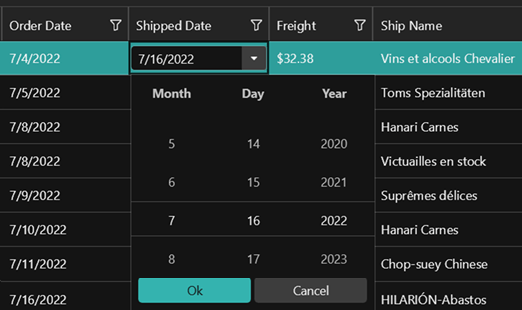
</code></pre><p>Further details are covered in the associated documentation article: <a target="_blank" href="https://docs.telerik.com/devtools/maui/controls/datagrid/theming-and-styles/style-selectors">.NET MAUI DataGrid Documentation - Style Selectors</a>.</p><p>For actual settings and considerations, let&rsquo;s take an example involving the display of Date values. While in WPF you need to manually specify a DatePicker editor, Telerik UI for .NET MAUI offers a nice ready-to-configure <a target="_blank" href="https://docs.telerik.com/devtools/maui/controls/datagrid/columns/column-types/date-column">DateColumn built-in implementation</a>, featuring a <a target="_blank" href="https://docs.telerik.com/devtools/maui/controls/datepicker/overview">RadDatePicker</a> control for value selection in edit mode.</p><p><strong>.NET MAUI XAML</strong></p><pre class=" language-xml"><code class="prism  language-xml"><span class="token tag"><span class="token tag"><span class="token punctuation">&lt;</span><span class="token namespace">telerik:</span>DataGridDateColumn</span> <span class="token attr-name">PropertyName</span><span class="token attr-value"><span class="token punctuation">=</span><span class="token punctuation">"</span>Established<span class="token punctuation">"</span></span> <span class="token attr-name">HeaderText</span><span class="token attr-value"><span class="token punctuation">=</span><span class="token punctuation">"</span>Date Established<span class="token punctuation">"</span></span> 
                           <span class="token attr-name">CellContentFormat</span><span class="token attr-value"><span class="token punctuation">=</span><span class="token punctuation">"</span>{}{0: ddd-d-MMM-yyyy}<span class="token punctuation">"</span></span><span class="token punctuation">&gt;</span></span> 
<span class="token tag"><span class="token tag"><span class="token punctuation">&lt;/</span><span class="token namespace">telerik:</span>DataGridDateColumn</span><span class="token punctuation">&gt;</span></span> 
</code></pre><p>While the CellContentFormat uses the format string provided by the framework by default, you could add custom options as explained in the <a target="_blank" href="https://docs.microsoft.com/en-us/dotnet/standard/base-types/standard-date-and-time-format-strings">Standard Date and Time Formatting</a> and <a target="_blank" href="https://docs.microsoft.com/en-us/dotnet/standard/base-types/custom-date-and-time-format-strings">Custom Date and Time Formatting</a> articles. And you can find more on how to utilize the <a target="_blank" href="https://docs.telerik.com/devtools/maui/globalization-localization">Telerik .NET MAUI localization and globalization features here</a>.</p><h2 id="theming--challenges---support-resources">Theming Challenges &amp; Support Resources</h2><p>One key challenge in this migration is verifying that any existing WPF visuals will be rendered in the same, if not better, way in your .NET MAUI app across different platforms. It is worth mentioning the component suite adds value not only through controls but also by utilizing icons, scaffolding and other rich styling options, including a platform theme with light and dark variants. These resources can provide more details:</p><ul><li><a target="_blank" href="https://docs.telerik.com/devtools/maui/font-icons/overview">Font Icons - Telerik UI for .NET MAUI</a></li><li><a target="_blank" href="https://docs.telerik.com/devtools/maui/styling-and-themes/overview">Theming Overview - Telerik UI for .NET MAUI</a></li><li><a target="_blank" href="https://docs.telerik.com/devtools/maui/installation/vs-integration/overview">Visual Studio Integration Overview</a></li><li><a target="_blank" href="https://docs.telerik.com/devtools/maui/installation/vs-code-integration/overview">Visual Studio Code Integration</a></li></ul><p>Telerik UI for .NET MAUI comes with a built-in theme that controls the <a target="_blank" href="https://docs.telerik.com/devtools/maui/styling-and-themes/customize-the-component-styles">visual appearance of the components</a>, including colors, borders, backgrounds, size, layout, position and font size. The theme also offers multiple color variations to choose from. The next image shows an example of the basic differences and similarities between the <a target="_blank" href="https://docs.telerik.com/devtools/maui/styling-and-themes/overview#swatch">Purple and Purple Dark swatch</a> (variation) when applied to AutoComplete control.</p><p><img src="https://d585tldpucybw.cloudfront.net/sfimages/default-source/blogs/2025/2025-05/maui-autocomplete.jpg?sfvrsn=141614b_2" alt="Telerik .NET MAUI AutoComplete with applied theme, Picture" /></p><p>Like the WPF suite, you have control over customizing the styles of specific controls or collections of controls, and you can <a target="_blank" href="https://docs.telerik.com/devtools/maui/styling-and-themes/customize-the-component-styles">modify the control-specific theme resources</a>.</p><p>Exploring different theming options, you can get an idea on how the bound column would look like with the Telerik Turquoise Dark configured:</p><p><img src="https://d585tldpucybw.cloudfront.net/sfimages/default-source/blogs/2025/2025-05/maui-datagrid-bound-column-dark.png?sfvrsn=4eb4e5a2_3" alt=".NET MAUI datagrid bound column Telerik Turquoise Dark" /></p><p>The <a target="_blank" href="https://docs.telerik.com/devtools/maui/demos-and-sample-apps/controls-showcase-app">Telerik .NET MAUI ControlsSamples App</a> offers a convenient way to compare the built-in theme swatches. Just go to the Theming example of each of the various components and use the Change Theme button to switch between the theme swatches.</p><p>The <a target="_blank" href="https://www.youtube.com/@telerik">ProgressTelerik channel on YouTube</a> offers more video resources on <a target="_blank" href="https://www.youtube.com/watch?v=XxUvA4fKHzU&amp;ab_channel=ProgressTelerik">Mastering the DataGrid</a>.</p><h2 id="built-in-page-templates">Built-in Page Templates</h2><p>To further enhance productivity, the Telerik UI for .<a target="_blank" href="https://docs.telerik.com/devtools/maui/installation/vs-integration/scaffoldings">NET MAUI Visual Studio extension lets you scaffold</a> an app page (screen). This allows you to quickly add predefined pages and define control parameters through the UI. To display a scaffolded screen in your app, simply specify the page&rsquo;s namespace and set the screen directly inside the xaml file.</p><h2 id="working-with-dоcuments">Working with Documents</h2><p>The built-in <a target="_blank" href="https://docs.telerik.com/devtools/maui/controls/richtexteditor/overview">RichTextEditor</a> and <a target="_blank" href="https://docs.telerik.com/devtools/maui/controls/pdfviewer/overview">PDFViewer</a> can display documents directly. Another benefit provided when using a library such as Telerik UI for .NET MAUI is the additional tooling such as the <a target="_blank" href="https://www.telerik.com/document-processing-libraries">Telerik Document Processing Libraries</a> that facilitate associated tasks such as required manipulation of the most used flow, fixed and spreadsheet document formats for .NET applications without relying on third party software (MS Office, Adobe Acrobat).</p><p><img src="https://d585tldpucybw.cloudfront.net/sfimages/default-source/blogs/2025/2025-05/supported-programs.png?sfvrsn=39ffa622_2" alt="MS Office and Adobe programs whose formats are supported - pdf, xlsx, docx, html, csv, rtf, txt, zip" /></p><p>Migrating and modernizing existing applications to keep up with new business directives and to satisfy the complex demands of today&rsquo;s bring-your-own-device (BYOD) environment is a challenging task that involves extensive investigation and careful planning.</p><p>Partnering with a reliable, knowledgeable technology partner such as Progress Telerik can make the task easier and simplify this process by providing a single source for UI tooling, developer-centric documentation and practical demo resources. We prioritize our customers&rsquo; user experience and security, building our products are on a strong foundation to better safeguard their data and operations. Plus, our enterprise-level support expedites the development of secure, <a target="_blank" href="https://www.progress.com/trust-center">compliant</a> as well as <a target="_blank" href="https://www.telerik.com/accessibility">accessible</a> applications.</p><hr /><p>Explore the full <a target="_blank" href="https://www.telerik.com/devcraft">Telerik DevCraft suite</a>, which includes Telerik UI for WPF and UI for .NET MAUI.</p><p><a href="https://www.telerik.com/try/devcraft-ultimate" target="_blank" class="Btn">Try Now</a></p><img src="https://feeds.telerik.com/link/23063/17035120.gif" height="1" width="1"/>]]></content>
  </entry>
  <entry>
    <id>urn:uuid:0d5e9865-a654-4ca9-aa56-561f9096ab65</id>
    <title type="text">Considerations When Porting a WPF App to .NET MAUI</title>
    <summary type="text">See how WPF and .NET MAUI compare and what to be aware of if you’re going to migrate to .NET MAUI.</summary>
    <published>2024-11-06T09:15:00Z</published>
    <updated>2026-04-16T09:12:41Z</updated>
    <author>
      <name>Dimitrina Petrova </name>
    </author>
    <link rel="alternate" href="https://feeds.telerik.com/link/23063/16876806/considerations-when-porting-wpf-app-net-maui"/>
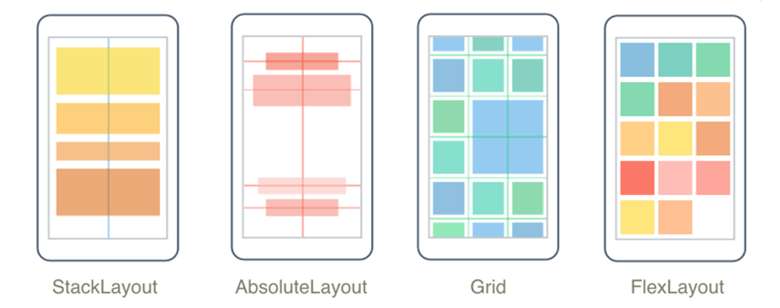
    <content type="text"><![CDATA[<p><span class="featured">See how WPF and .NET MAUI compare and what to be aware of if you&rsquo;re going to migrate to .NET MAUI.</span></p><p>When starting a new application, a development team needs to carefully consider which framework is best suited to the project&rsquo;s overall requirements.</p><p>While they share some similarities, frameworks differ significantly in terms of architecture, platform support, UI development paradigms, etc. As an example, Microsoft&rsquo;s .NET Framework offers WPF targeted to Windows Desktop development or a more flexible option in .NET MAUI that enables developing a single project targeting a wide range of mobile and desktop devices with the added benefit of sharing code with web apps and services.</p><p>This matter must be well addressed and investigated before proceeding with implementation.</p><p>For a deeper review of how to make a better decision based on the business perspective and the background and learning curve in mind, see our blog post on <a target="_blank" href="https://www.telerik.com/blogs/wpf-net-maui-how-choose">WPF or .NET MAUI&mdash;How to Choose</a>.</p><h2 id="the-why-true-cross-platform-app--macos-support">The Why: True Cross-Platform App | macOS Support</h2><p>.NET MAUI, the multi-platform app UI for .NET, builds on top of the cross-platform layer for you, and in addition it provides cross-platform access to APIs directly in those native platforms. It allows the developer to use the architectural pattern of preference (MVU, MVVM or none) and this can simplify the UI development process.</p><p>Once you&rsquo;ve made the decision on how to proceed, there are certain things to preface before you get started with actual migrating.</p><p>First, you should analyze your existing WPF project and look at all the dependencies. That includes class libraries and third-party control libraries that you are using. If those libraries are from Progress Telerik, then you surely are familiar with our way of distribution.</p><p>Topics to consider when modernizing an app from WPF to .NET MAUI include:</p><h2 id="starting-out-create-fresh-.net-maui-app-project--move-assets-over">Starting Out: Create Fresh .NET MAUI App Project | Move Assets Over</h2><p>To make sure you have a running .NET MAUI application, follow the step-by-step guidance on <a target="_blank" href="https://learn.microsoft.com/en-us/windows/apps/windows-dotnet-maui/walkthrough-first-app">building your first cross-platform app on Windows</a>. Further details on the system requirements and available settings are listed in the <a target="_blank" href="https://docs.microsoft.com/en-us/dotnet/maui/get-started/installation">Microsoft .NET MAUI documentation</a>.</p><p>Then, to proceed with using our third-party libraries, make sure to check the different <a target="_blank" href="https://docs.telerik.com/devtools/maui/installation/approaches">Telerik UI for .NET MAUI Installation Approaches</a> and explore the <a target="_blank" href="https://docs.telerik.com/devtools/maui/installation/download-product-files">Available Product Files and Assemblies</a> as well. Installing Telerik UI for .NET MAUI with NuGet would work both for Windows and macOS machines. Alternatively, you could download an .msi installer for Windows or a .pkg for macOS.</p><p>Benefiting from the <a target="_blank" href="https://docs.telerik.com/devtools/maui/installation/windows/vs-template">Telerik .NET MAUI App and Telerik .NET MAUI Blank App</a> project templates, you can quickly create an application that is pre-configured to use Telerik UI for .NET MAUI.</p><h2 id="understand-differences-layouts--multi-windows--.net-apis--deployments">Understand Differences: Layouts | Multi-windows | .NET APIs | Deployments</h2><p>While WPF is designed for dynamic, visual appealing desktop applications targeting Windows, the base layouts in .NET MAUI are slightly different from WPF, but most perform the same functions you are already familiar with in WPF.</p><p>In both cases the layouts are built using XAML and custom controls or layouts can be developed using C#.</p><p>For example, instead of a StackPanel in WPF, you use a StackLayout in .NET MAUI. I would suggest you take a look at the .NET MAUI documentation before porting the code directly: <a target="_blank" href="https://learn.microsoft.com/en-us/dotnet/maui/user-interface/layouts/?view=net-maui-7.0">Layouts - .NET MAUI | Microsoft Learn</a>.</p><p><img src="https://d585tldpucybw.cloudfront.net/sfimages/default-source/blogs/2024/2024-11/maui-layout-options.png?sfvrsn=32a6ac7_2" alt="StackLayout, Absolute Layout, Grid, FlexLayout" /></p><p>.NET MAUI is excellent for building <strong>cross-platform applications that run on almost any platform as</strong> the MAUI layouts also use XAML and C#, but they are more optimized for multi-device compatibility, automatically adapting to various screen sizes and orientations.</p><p>While WPF natively supports managing <strong>multiple windows</strong> as a straightforward task, .NET MAUI allows creating multiple windows only on platforms that support it, and the concept of multi-windows is limited on mobile platforms that might be constrained by platform-specific behaviors.</p><p>.NET MAUI has a good integration with the .NET ecosystem. It includes platform-specific APIs through dependency injection and handlers, allowing developers to access native APIs for the various platforms within a shared codebase. Further, handlers can be customized to amplify the appearance and behavior of a cross-platform control beyond the customization that&rsquo;s possible through the control&rsquo;s API. Since WPF covers Windows-only, it can take full advantage of all the Windows OS-specific APIs without worrying about cross-platform limitations&mdash;those can be still adjusted.</p><p>As it comes to <strong>deployment</strong>, WPF apps rely on Windows-specific technologies that can&rsquo;t run on other platforms without virtual environments. The apps are typically distributed as .exe files.</p><p>.NET MAUI apps can be deployed using app stores or via direct installers, or as unpacked exe. Blazor Hybrid apps are also supported, allowing a combination of web-based and native UI technologies.</p><h2 id="xaml-differences-namespaces--ui-differences">XAML Differences: Namespaces | UI Differences</h2><p>Why XAML? To separate user interface definition from code and allow you to port UI to different environments (Windows desktop, Windows store, iOS, etc.).</p><p>Both frameworks use XAML for defining the user interface and styling which allows the creation of rich, declarative UI.</p><p>On top of that, .NET MAUI supports more unified XAML syntax across platforms and offers a native look and feel with Windows 11 styling by default. Plus, to support a concise and platform-agnostic way to create UI components, .NET MAUI introduces a fluent API &ldquo;MAUI markup.&rdquo;</p><p>More on XAML in .NET MAUI vs. XAML in WPF/WinUI:</p><ul><li>Some control names are different while the same types of controls exist.</li><li>Some property names are different while used to set the same action.</li><li>XAML works well with the Model-View-ViewModel (MVVM) pattern.</li><li>Markup extensions are supported enhancing the flexibility.</li><li>Mimics with greater visual clarity the parent-child hierarchy.</li></ul><p>While XAML isn&rsquo;t mandatory for a .NET MAUI app, it&rsquo;s the preferred method for UI development due to its conciseness and robust tooling support. Additionally, <a target="_blank" href="https://www.telerik.com/maui-ui">Telerik UI for .NET MAUI</a> suggests theming support and other features are upcoming, as listed on the official <a target="_blank" href="https://www.telerik.com/support/whats-new/maui-ui/roadmap">roadmap</a>.</p><p>.NET MAUI pages would have a similar structure to WPF windows or user controls. For example, this is how a sample view with the respective <a target="_blank" href="https://learn.microsoft.com/en-us/dotnet/maui/xaml/namespaces/?view=net-maui-8.0">XAML namespaces</a> would look like for a .NET MAUI project:</p><pre class=" language-xml"><code class="prism  language-xml">_&lt;ContentView xmlns="http://schemas.microsoft.com/dotnet/2021/maui"_
  _xmlns:x="http://schemas.microsoft.com/winfx/2009/xaml"_
  _xmlns:telerik=_[_http://schemas.telerik.com/2022/xaml/maui_](http://schemas.telerik.com/2022/xaml/maui)  _&hellip;./&gt;_
</code></pre><p>The third namespace above defines the Telerik toolkit. This is how a similar code would look like in a WPF project:</p><pre class=" language-xml"><code class="prism  language-xml"><span class="token tag"><span class="token tag"><span class="token punctuation">&lt;</span>Window</span> <span class="token attr-name">xmlns</span><span class="token attr-value"><span class="token punctuation">=</span><span class="token punctuation">"</span>http://schemas.microsoft.com/winfx/2006/xaml/presentation<span class="token punctuation">"</span></span>
  <span class="token attr-name"><span class="token namespace">xmlns:</span>x</span><span class="token attr-value"><span class="token punctuation">=</span><span class="token punctuation">"</span>http://schemas.microsoft.com/winfx/2006/xaml<span class="token punctuation">"</span></span>
  <span class="token attr-name"><span class="token namespace">xmlns:</span>telerik</span><span class="token attr-value"><span class="token punctuation">=</span>[http://schemas.telerik.com/2008/xaml/presentation](http://schemas.telerik.com/2008/xaml/presentation)</span> <span class="token attr-name">&hellip;</span> <span class="token punctuation">/&gt;</span></span>
</code></pre><h2 id="interactivity-mouse-pointers--event-handling--i-commands">Interactivity: Mouse Pointers | Event Handling I Commands</h2><p>WPF provides deep integration with the mouse as the primary input device, providing rich support for capturing and manipulating mouse input that empowers flexible event handling.</p><p>In .NET MAUI, this ability is more generalized, as touch and gesture handling take precedence on mobile platforms.</p><p>.NET MAUI must abstract away the differences between platforms where event handling would be more straightforward but less flexible.</p><p>As a result, <strong>WPF</strong> offers advanced and specialized system for handling mouse events, whereas <strong>.NET MAUI</strong> abstracts input handling to work across multiple platforms, with less focus on mouse input and more focus on general input methods like touch and gestures. For instance, in .NET MAUI mouse events (<code class="inline-code">MouseEnter</code>, <code class="inline-code">MouseLeave</code>) are mostly relevant to desktop platforms, whereas touch events (<code class="inline-code">Tapped</code>, <code class="inline-code">Swiped</code>) are more relevant to mobile.</p><p>Both WPF and .NET MAUI follow a similar model for basic event handling, but there are differences in syntax and available events due to platform-specific considerations.</p><p>Let&rsquo;s see a simple example with a Button in WPF:</p><pre class=" language-xml"><code class="prism  language-xml">
<span class="token tag"><span class="token tag"><span class="token punctuation">&lt;</span>Button</span> <span class="token attr-name">Content</span><span class="token attr-value"><span class="token punctuation">=</span><span class="token punctuation">"</span>Click Me<span class="token punctuation">"</span></span> <span class="token attr-name">Click</span><span class="token attr-value"><span class="token punctuation">=</span><span class="token punctuation">"</span>Button_Click<span class="token punctuation">"</span></span><span class="token punctuation">/&gt;</span></span>
private void Button_Click(object sender, RoutedEventArgs e)
{
  MessageBox.Show("Button Clicked!");
}
</code></pre><p>The same code in .NET MAUI would look like:</p><pre class=" language-xml"><code class="prism  language-xml"><span class="token tag"><span class="token tag"><span class="token punctuation">&lt;</span>Button</span> <span class="token attr-name">Text</span><span class="token attr-value"><span class="token punctuation">=</span><span class="token punctuation">"</span>Click Me<span class="token punctuation">"</span></span> <span class="token attr-name">Clicked</span><span class="token attr-value"><span class="token punctuation">=</span><span class="token punctuation">"</span>Button_Clicked<span class="token punctuation">"</span></span><span class="token punctuation">/&gt;</span></span>
private void Button_Clicked(object sender, EventArgs e)
{
  DisplayAlert("Alert", "Button Clicked!", "OK");
}
</code></pre><p>It is worth mentioning that WPF uses the <code class="inline-code">RoutedEventArgs</code> class, which supports WPF&rsquo;s routed events, while <strong>.NET MAUI</strong> generally uses the standard <code class="inline-code">EventArgs</code> class for basic events that are handled directly at the source but provides platform-specific event arguments for more advanced scenarios.</p><p>In .NET MAUI, commanding is also available, and it&rsquo;s very similar to WPF. For example, you can use <code class="inline-code">ICommand</code> with a binding in XAML.</p><pre class=" language-csharp"><code class="prism  language-csharp">public ICommand MyCommand { get; }
public MyViewModel()
{
  MyCommand = new Command(ExecuteMyCommand);
}
</code></pre><p>Further, the framework supports all the modern .NET features such as <a target="_blank" href="https://learn.microsoft.com/en-us/dotnet/maui/xaml/hot-reload"><strong>hot reload</strong></a><strong>,</strong> <a target="_blank" href="https://learn.microsoft.com/en-us/dotnet/maui/fundamentals/data-binding"><strong>data binding</strong></a> and <strong>MVU (Model-View-Update)</strong> architecture, which allows for better code reuse across platforms.</p><h2 id="reuse-resources-shared-images--xaml-styles--templates">Reuse Resources: Shared Images | XAML Styles + Templates</h2><p>Reusing resources between WPF and .NET MAUI involves sharing common components or other resources while maintaining flexibility for platform-specific details. To share those efficiently, you can create a common <a target="_blank" href="https://learn.microsoft.com/en-us/dotnet/maui/fundamentals/resource-dictionaries?view=net-maui-8.0">XAML resource dictionary</a> that both can reference (for styles, brushes, colors, templates, converters and other visual resources).</p><p>Even though WPF and .NET MAUI use different mechanisms to handle assets and images, you can organize shared images to be referenced when needed.</p><p>Naturally, the controls on .NET MAUI are automatically reacting with the accessibility settings changed by the end user to assure dynamic font sizes. Further, you can also use <a target="_blank" href="https://learn.microsoft.com/en-us/dotnet/maui/fundamentals/controltemplate">ControlTemplates</a> and <a target="_blank" href="https://learn.microsoft.com/en-us/dotnet/maui/fundamentals/datatemplate">DataTemplates</a> to retain the same UI flexibility as WPF.</p><p>For more information about using images, check out the topic on <a target="_blank" href="https://learn.microsoft.com/en-us/dotnet/maui/user-interface/images/images?view=net-maui-8.0">Add images to a .NET MAUI app project</a>.</p><p>For advanced scenarios, you can explore the <a target="_blank" href="https://docs.telerik.com/devtools/maui/controls/imageeditor/getting-started">Telerik ImageEditor control for MAUI</a> and the respective <a target="_blank" href="https://docs.telerik.com/devtools/wpf/controls/radimageeditor/features/radimageeditorui">Telerik ImageEditor for WPF</a>.</p><h2 id="reuse-business-logic-isolate-c-code-as-libraries--dependencies">Reuse Business Logic: Isolate C# Code as Libraries | Dependencies</h2><p>Reusing code from a WPF app can be a good strategy when migrating and it largely depends on how well-separated your business logic is from the UI. It would be easier if you&rsquo;ve followed a clean separation of concerns (the MVVM pattern).</p><p>For example, you may use interfaces to decouple platform specific implementation. We could consider the code into the following main categories:</p><ul><li><strong>Business Logic</strong>: Domain logic that handles operations based on your app&rsquo;s rules.</li><li><strong>Data Access</strong>: Code that interacts with the database or file system.</li><li><strong>Services</strong>: APIs, third-party integrations, etc.</li><li><strong>Models</strong>: Data transfer objects (DTOs) or view models.</li></ul><p>Then, so that the class library is compatible with both WPF and .NET MAUI, you have to move your core logic to a new class library and make sure to remove or abstract any dependencies on UI components.</p><p>If you need to target an older .NET Framework version of WPF, then you can consider refactoring the business logic into .NET Standard; otherwise, use .NET 6/7/8/9 so your code will run on both WPF and .NET MAUI. The goal would be to structure your code to separate the domain logic from the UI so that it can be shared across different platforms. This means to also refactor any code that directly interacts with WPF-specific namespaces (e.g., <code class="inline-code">System.Windows.Controls</code>, <code class="inline-code">System.Windows.Media</code>, etc.).</p><p>For a reference, the following topic describes all <a target="_blank" href="https://docs.telerik.com/devtools/wpf/common-information/installation-installing-dependencies-wpf">controls dependencies for Telerik UI for WPF</a>.</p><p>For a detailed explanation of using the MVVM pattern in .NET MAUI, refer to <a target="_blank" href="https://learn.microsoft.com/en-us/dotnet/architecture/maui/mvvm">Model-View-ViewModel (MVVM)</a> in <a target="_blank" href="https://learn.microsoft.com/en-us/dotnet/architecture/maui/">Enterprise Application Patterns using .NET MAUI</a>.</p><h2 id="updated-ecosystem-windows-vs-.net-maui-toolkits--cross-platform-nugets">Updated Ecosystem: Windows vs .NET MAUI Toolkits | Cross-Platform NuGets</h2><p>While the Windows toolkit extends the Windows ecosystem with additional controls, helpers and extensions, the <strong>.NET MAUI Community Toolkit</strong> is specifically designed for <strong>cross-platform applications</strong> and provides a set of utilities, extensions and UI components intended to work seamlessly across all platforms supported with minimal platform-specific adjustments.</p><p>To start using .NET MAUI, you should install <a target="_blank" href="https://www.nuget.org/packages/Microsoft.Maui.Controls/">Microsoft.Maui.Controls</a> (corresponding to Systems.Windows.Controls for WPF). There are various other packages available, for example <a target="_blank" href="https://learn.microsoft.com/en-us/dotnet/communitytoolkit/maui/get-started?tabs=CommunityToolkitMaui">CommunityToolkit.Mvvm</a> provides support for MVVM pattern and simplifies the command implementation with attributes, the <a target="_blank" href="https://www.nuget.org/packages/Microsoft.Maui.Graphics/">Microsoft.Maui.Graphics</a> package contains a collection of graphics and drawing APIs.</p><p>In case you are migrating from Xamarin.Forms, you should check the <a target="_blank" href="https://www.nuget.org/packages/Microsoft.Maui.Controls.Compatibility/#readme-body-tab">Microsoft.Maui.Controls.Compatibility</a> package that contains a collection of APIs and views.</p><p>Once you&rsquo;ve set up the base, the  <a href="https://docs.telerik.com/devtools/maui/installation/nuget/overview" target="_blank">Telerik UI for .NET MAUI Toolbox extension</a> can facilitate adding our third-party controls to your .NET MAUI application.</p><h2 id="updated-telerik-ui-wpf-vs-.net-maui--differences-in-namespaces">Updated Telerik UI: WPF vs .NET MAUI | Differences in Namespaces</h2><p>As a vendor of components, we do follow the naming standards set by Microsoft. Although <strong>WPF and .NET MAUI</strong> development has a lot in common, there are differences in the namespaces because WPF is a Windows-specific framework introduced years ago, whereas MAUI is newly designed to best serve cross-platform development.</p><p>Starting with the core UI namespaces, System.Windows in WPF would correspond to <a target="_blank" href="https://learn.microsoft.com/en-us/dotnet/api/microsoft.maui?view=net-maui-8.0">Microsoft.Maui</a>. For a full list, you can refer to the <a target="_blank" href="https://learn.microsoft.com/en-us/dotnet/api/?view=net-maui-8.0">.NET MAUI API reference version 8</a>.</p><p>To look at specific namespaces of the Telerik library, <a target="_blank" href="https://docs.telerik.com/devtools/wpf/api/telerik.windows.controls">Telerik.Windows.Controls</a> in WPF corresponds to <a target="_blank" href="https://docs.telerik.com/devtools/maui/api/telerik.maui.controls">Telerik.Maui.Controls</a>. <a target="_blank" href="https://docs.telerik.com/devtools/wpf/api/telerik.windows.controls.data">Following the pattern, you can extend it to Telerik.Windows.Controls.Data - Telerik UI for WPF</a> that maps to <a target="_blank" href="https://docs.telerik.com/devtools/maui/api/telerik.maui.controls.data">Telerik.Maui.Controls.Data - Telerik UI for .NET MAUI</a>.</p><p>As it follows naturally, <a target="_blank" href="https://docs.telerik.com/devtools/wpf/api/telerik.windows.data">Telerik.Windows.Data</a> in WPF would correspond to <a target="_blank" href="https://docs.telerik.com/devtools/maui/api/telerik.maui.data">Telerik.Maui.Data</a>. You can explore the entire <a target="_blank" href="https://docs.telerik.com/devtools/maui/api/">API reference section</a> that contains a list and descriptions of all publicly available classes, methods and properties of the Telerik UI for .NET MAUI.</p><p>There may be some naming differences&mdash;for example <a target="_blank" href="https://docs.telerik.com/devtools/maui/api/telerik.maui.controls.notifypropertychangedbase">Class NotifyPropertyChangedBase - Telerik UI for .NET MAUI</a> corresponds to <a target="_blank" href="https://docs.telerik.com/devtools/wpf/api/telerik.windows.controls.viewmodelbase">Class ViewModelBase - Telerik UI for WPF.</a></p><p>You can use Telerik UI for .NET MAUI on Windows and macOS. Depending on the operation system you are using and on the preferred way to work with the product, the suite can be installed in the following ways:</p><ul><li><a target="_blank" href="https://docs.telerik.com/devtools/maui/installation/approaches#msi-file-installation">(Windows) MSI file installation</a></li><li><a target="_blank" href="https://docs.telerik.com/devtools/maui/installation/approaches#pkg-file-installation">(macOS) PKG file installation</a></li><li><a target="_blank" href="https://docs.telerik.com/devtools/maui/installation/approaches#nuget-installation">(Windows &amp; macOS) NuGet installation</a></li></ul><p>Installing Telerik UI for .NET MAUI with NuGet would work for both Windows and MacOS machines.</p><p><img src="https://d585tldpucybw.cloudfront.net/sfimages/default-source/blogs/2024/2024-11/telerik-maui-controls-packages.png?sfvrsn=f12fe54b_2" alt="Code and SDK browser for Telerik Maui controls" /></p><p>The Telerik.UI.for.Maui NuGet package supports the latest .NET, and automatically restores the required packages depending on the .NET version you are using in your project.</p><p>Although there is not a one-to-one API mapping from Telerik UI for WPF to Telerik UI for .NET MAUI, the controls share similar APIs with slight changes because of the differences between the frameworks.</p><h2 id="summary">Summary</h2><p>Both WPF and .NET MAUI frameworks offer a lot of possibilities to achieve a good-looking UI that can be easily customized to meet business expectations.</p><p>You can find further examples on how to reuse code in the Styling and Customization section in the blog on <a target="_blank" href="https://www.telerik.com/blogs/wpf-net-maui-how-choose">WPF or .NET MAUI&mdash;How to Choose</a>.</p><p>A great workshop to check out is the one on <a target="_blank" href="https://www.telerik.com/videos/modernization-through-migration-a-.net-maui-workshop">Modernization Through Migration</a>. Plus, Progress Telerik UI for .NET MAUI offers a comprehensive <a target="_blank" href="https://learn.telerik.com/learn/course/external/view/elearning/61/telerik-ui-for-net-maui">getting started video curriculum</a> available to both active trial users and active license holders in <a target="_blank" href="https://learn.telerik.com/learn">Virtual Classroom</a>.</p><p>Make sure to also go through other practical details on how to <a target="_blank" href="https://www.telerik.com/blogs/transform-wpf-app-cross-platform-net-maui">Transform a WPF App to Cross-Platform with .NET MAUI</a>.</p><p>Don&rsquo;t forget you can try both UI for WPF and UI for .NET MAUI in the <a target="_blank" href="https://www.telerik.com/devcraft">Telerik DevCraft</a> suite. It comes with a free 30-day trial.</p><p><a target="_blank" href="https://www.telerik.com/try/devcraft-ultimate" class="Btn">Try Now</a></p><img src="https://feeds.telerik.com/link/23063/16876806.gif" height="1" width="1"/>]]></content>
  </entry>
  <entry>
    <id>urn:uuid:faae8eb4-c281-4788-8953-d5abdcb22682</id>
    <title type="text">WPF or .NET MAUI—How to Choose</title>
    <summary type="text">Creating a desktop application and need to decide between the long-time reliable WPF and the up-and-coming cross-platform .NET MAUI? This post will help you explore the features that matter.</summary>
    <published>2024-04-25T07:34:55Z</published>
    <updated>2026-04-16T09:12:41Z</updated>
    <author>
      <name>Rossitza Fakalieva </name>
    </author>
    <link rel="alternate" href="https://feeds.telerik.com/link/23063/16664365/wpf-net-maui-how-choose"/>
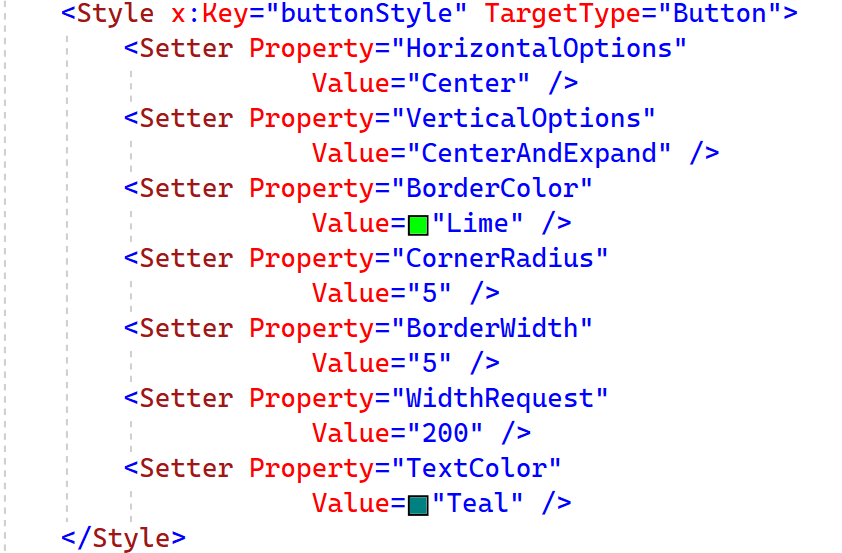
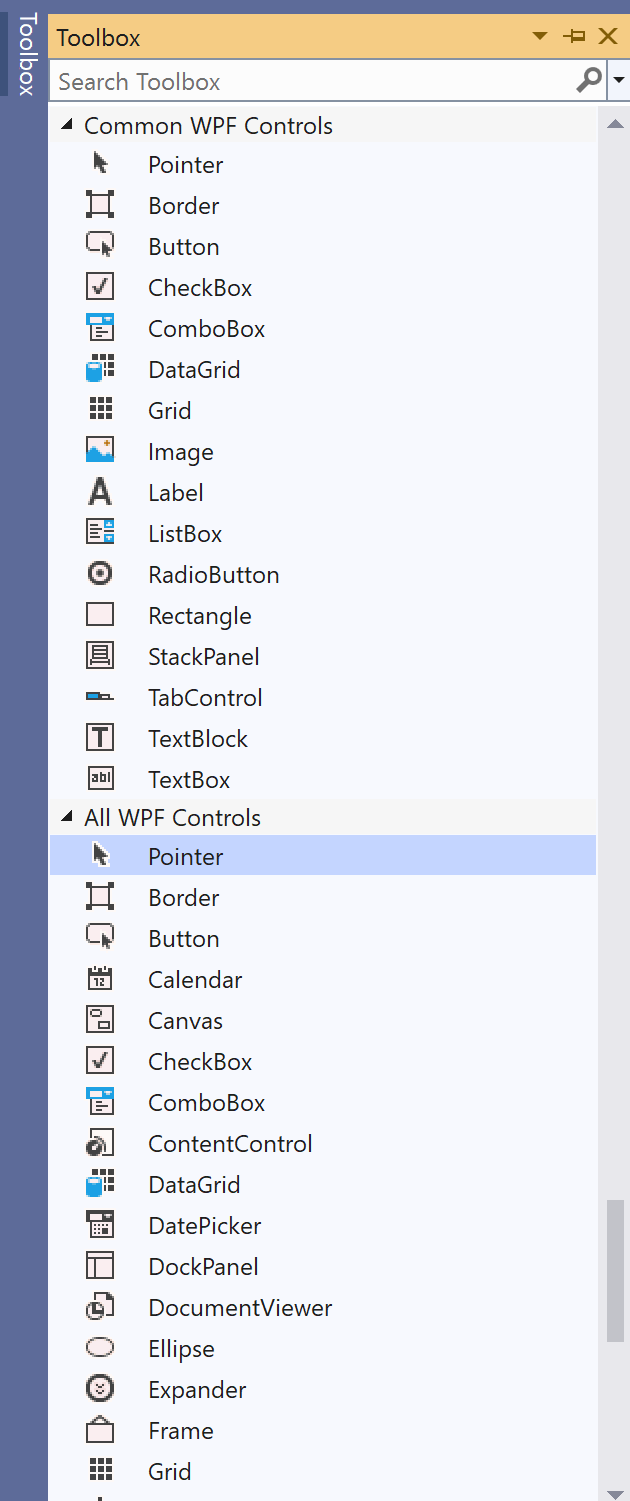
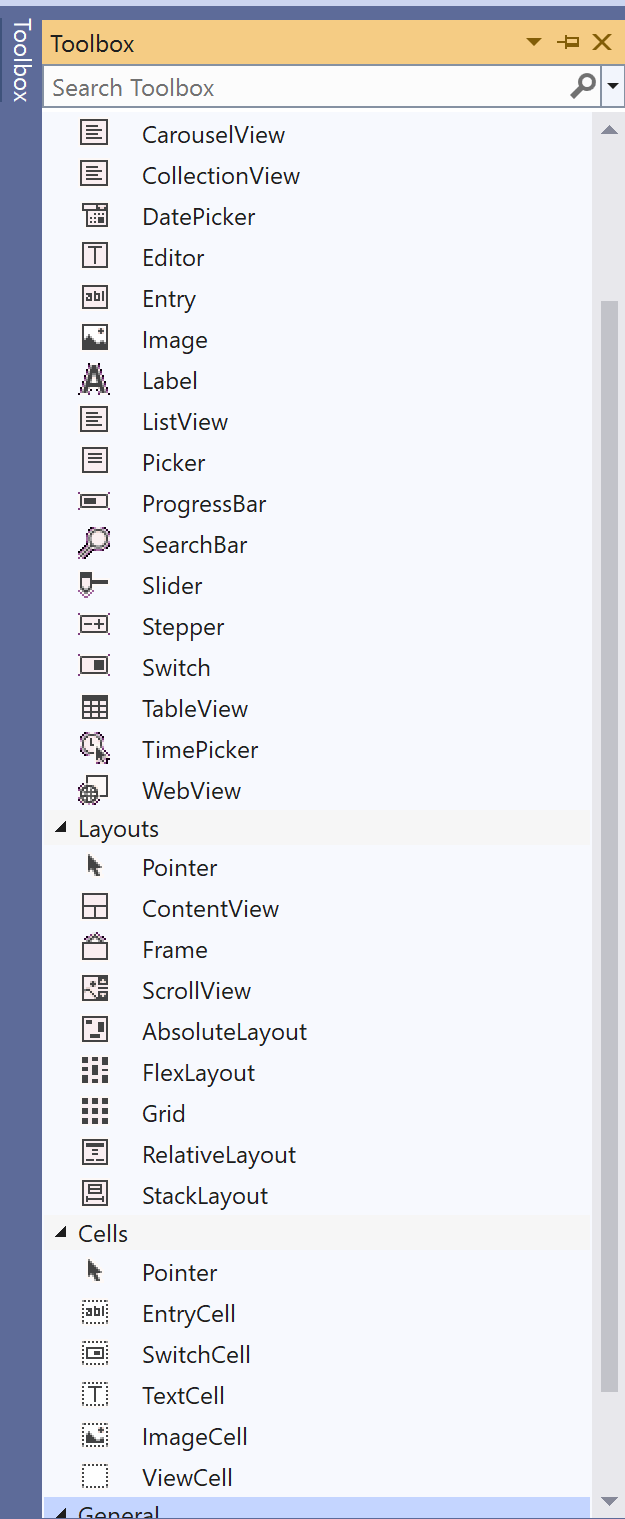
    <content type="text"><![CDATA[<p><span class="featured">Creating a desktop application and need to decide between the long-time reliable WPF and the up-and-coming cross-platform .NET MAUI? This post will help you explore the features that matter.</span></p><p>What technology to use is a question that should be considered before starting any new application. It&rsquo;s even more relevant nowadays when starting a new desktop app, as .NET offers several solutions for a .NET developer to create such. In this post, we will focus on WPF and .NET MAUI and how to choose between them.</p><p>We will consider the following criteria:</p><ul><li>Targeted OS</li><li>Future plans for the application</li><li>Developer background</li><li>Customization ability</li><li>AI capabilities</li><li>Deployment options</li><li>State of the framework</li></ul><h2 id="targeted-os">Targeted OS</h2><p>This is perhaps the first thing to consider when you have to make such a decision, as it is one of the major differences between the two frameworks.</p><p>Windows Presentation Foundation (WPF) is a UI framework for Windows-based desktop applications. While WPF is a Windows-only framework, .NET Multi-platform App UI (.NET MAUI) is designed to be cross-platform and target Windows, macOS and mobile devices working with iOS and Android.</p><p>So if you need to target both macOS and Windows for your desktop app and reach more end users, .NET MAUI gives you this.</p><p>On the other hand, if you want to target Windows only, WPF is designed exactly for this job. WPF is also the choice if you need to target versions of Windows older than Windows 10.</p><h2 id="future-plans-for-the-application">Future Plans for the Application</h2><p>If your answer to the previous question is yes, your current goal is Windows only&mdash;stop and think again about future plans. Take into consideration whether the business need will push you to add a mobile version soon.</p><p>In this case, .NET MAUI is a viable solution as it wins here with source code reusability. Developers can reuse code and easily update apps across different platforms.</p><h2 id="background">Background</h2><p>When creating a new desktop application and choosing the right toolset and framework, it is important to have the background and learning curve in mind.</p><p>If you are familiar with WinForms or have experience with web development and do not have experience with any XAML technology, .NET MAUI may seem more attainable for you with the abilities of CSS, dependency injection and others. On the other side, .NET MAUI does not offer Visual Studio Designer, typical for other .NET frameworks like WinForms, ASP.NET or WPF.</p><p>If you are familiar with WinUI or Xamarin, note that the XAML language is almost the same for .NET MAUI and learning it will be straightforward. .NET MAUI XAML is actually the <a target="_blank" href="https://learn.microsoft.com/en-us/dotnet/desktop/xaml-services/xaml-2009-language-features">2009 XAML Specification</a>.</p><p>However, if your experience is with Silverlight XAML, which follows 2006 XAML Specification, you will have no issue with WPF, but you will meet some differences with .NET MAUI. I have listed several of these differences in another <a target="_blank" href="https://www.telerik.com/blogs/transform-wpf-app-cross-platform-net-maui">.NET MAUI vs. WPF</a> post.</p><h2 id="styling-and-customization-ability">Styling and Customization Ability</h2><p><img src="https://d585tldpucybw.cloudfront.net/sfimages/default-source/blogs/2024/2024-04/customize-wpf-net-maui.png?sfvrsn=89d1df5_2" alt="Customized .NET MAUI app and customized WPF app" /></p><p>A good-looking UI is very important for any application, right? </p><p>The good news is that both frameworks offer a lot of possibilities to achieve this, such as Implicit, Explicit,Global Styling and Theming.</p><p>The image above illustrates how a style can be applied to change the default look of a button in both frameworks. (Find the code for any of the platforms in the specific section.)</p><h3 id="wpf">WPF</h3><p><img src="https://d585tldpucybw.cloudfront.net/sfimages/default-source/blogs/2024/2024-04/wpf-style-button-xaml-1.png?sfvrsn=7efaf0c0_2" alt="Style settings in xaml for WPF" /></p><p><img src="https://d585tldpucybw.cloudfront.net/sfimages/default-source/blogs/2024/2024-04/wpf-style-button-xaml-2.png?sfvrsn=fb33153e_2" alt="Button settings in XAML for WPF" /></p><p>One major difference between the two frameworks is the default look on Windows. While WPF is expired from older versions of Windows OS, .NET MAUI UI creates a WinUI app when targeting Windows. This means that your .NET MAUI app will provide the same user experience on Windows as Windows 11 fluent apps.</p><p>Of course, both can be customized. My personal vote here goes for WPF as I find the approach of customization simpler&mdash;you rely on XAML. On the other hand, .NET MAUI offers several approaches. This is powerful but may add an additional layer of complexity.</p><p>WPF MVVM patterns offer clear separation between the UI (the View), the application logic (the ViewModel) and the root data (the Model).</p><p>On top of that, Progress <a target="_blank" href="https://www.telerik.com/products/wpf/overview.aspx">Telerik UI for WPF</a> also offers more than 20 ready-to-use <a target="_blank" href="https://www.telerik.com/products/wpf/overview.aspx#professional-looking-themes">themes</a> that you can use directly or personalize with <a target="_blank" href="https://www.telerik.com/wpf/color-theme-generator">Telerik Color Generator</a>.</p><p>Another important thing to notice is that WPF offers Visual Studio drag-drop designer, while such is not available for .NET MAUI.</p><h3 id="net-maui">.NET MAUI</h3><p>.NET MAUI UI offers a native look and feel by default&mdash;Windows 11 styling on Windows. The UI can be also customized in several ways:</p><ul><li>Using XAML</li><li>Using CSS, although it&rsquo;s not possible to fully style a .NET MAUI app using CSS; however, XAML styles can be used to supplement CSS</li><li>Using Handlers (read more here: <a target="_blank" href="https://www.telerik.com/blogs/details/xamarin-renderers-net-maui-handlers">Xamarin Renderers to .NET MAUI Handlers</a>)</li></ul><p>The XAML code to style a button, for example, looks like this:</p><p><img src="https://d585tldpucybw.cloudfront.net/sfimages/default-source/blogs/2024/2024-04/net-maui-style-button-xaml-1.png?sfvrsn=3f52f3b5_2" width="500" alt="Style settings in XAML for maui" /></p><p><img src="https://d585tldpucybw.cloudfront.net/sfimages/default-source/blogs/2024/2024-04/net-maui-style-button-xaml-2.png?sfvrsn=42f0524c_2" alt="button settings in xaml for maui" /></p><p>One more thing to notice is the Dark and Light support and the skinning mechanism that the platform offers. <a href="https://www.telerik.com/maui-ui" target="_blank">Telerik UI for .NET MAUI</a> also has theming support on their <a target="_blank" href="https://www.telerik.com/support/whats-new/maui-ui/roadmap">roadmap</a>.</p><h2 id="ai-capabilities">AI Capabilities</h2><p>Both platforms, as part of .NET family, can have integration with ML.NET when AI features like image recognition, text classification and others are needed.</p><p>Telerik UI also offers <a href="https://www.telerik.com/conversational-ui" target="_blank">Conversational UI</a> and is planning a <a target="_blank" href="https://www.telerik.com/support/whats-new/maui-ui/roadmap">AI Prompt</a> component for both platforms to give one more tool to .NET devs for building modern apps.</p><h2 id="deployment-options">Deployment Options</h2><h3 id="wpf-1">WPF</h3><p>WPF has multiple deployment options, including:</p><ul><li>XCopy deployment.</li><li>Windows Installer deployment to produce exe, msi or msix. You can also deploy the application on the Microsoft Store once you package it as MSIX.</li><li>ClickOnce deployment, which enables web-style application deployment for non-web applications. (<a target="_blank" href="https://learn.microsoft.com/en-us/dotnet/desktop/wpf/app-development/deploying-a-wpf-application-wpf?view=netframeworkdesktop-4.8#clickonce-deployment">Learn more.</a>)</li></ul><h3 id="net-maui-1">.NET MAUI</h3><p>.NET MAUI apps are configured through a single-project system for managing features across platforms, including settings for deployment per platform. For Windows, we can rely on two options&mdash;an MSIX app package (known as a packaged app) or creating an executable file (known as an unpackaged app).</p><h2 id="state-of-the-framework">State of the Framework</h2><h3 id="wpf-2">WPF</h3><p><img src="https://d585tldpucybw.cloudfront.net/sfimages/default-source/blogs/2024/2024-04/wpf-toolbox.png?sfvrsn=edd0501d_2" width="450" alt="WPF Toolbox list" /></p><p>Microsoft developed WPF in 2006 and it remains an essential part of the .NET Framework. So it is very mature and has a lot of resources, articles and courses available.</p><p>Tooling is also complete with Hot Reload support, VS Designer, Microsoft UI Automation support and a rich UI toolbox.</p><p>The Telerik UI suite also adds 160+ components that save time when you need complex UI, like <a target="_blank" href="https://docs.telerik.com/devtools/wpf/controls/radscheduleview/overview">Scheduling</a>, <a target="_blank" href="https://docs.telerik.com/devtools/wpf/controls/radgridview/overview2">DataGrid</a> or <a target="_blank" href="https://docs.telerik.com/devtools/wpf/controls/radchartview/overview">Charts</a>. You can find a <a target="_blank" href="https://docs.telerik.com/devtools/wpf/introduction">full list of components here</a>.</p><p>Microsoft and Telerik are still adding functionality to keep WPF up to date with the latest .NET capabilities. One of the interesting things in <a target="_blank" href="https://github.com/dotnet/wpf/blob/main/roadmap.md">Microsoft&rsquo;s roadmap</a> is Windows 11 theming, while Telerik UI will add new components like an <a target="_blank" href="https://www.telerik.com/support/whats-new/wpf/roadmap">AI prompt</a>.</p><h3 id="net-maui-2">.NET MAUI</h3><p><img src="https://d585tldpucybw.cloudfront.net/sfimages/default-source/blogs/2024/2024-04/net-maui-toolbox.png?sfvrsn=11bf5c8b_2" width="450" alt=".NET MAUI toolbox list" /></p><p>.NET MAUI is a 3-year-old framework and the desktop features are still being developed. However, they are one of the main goals of Microsoft as well as improving the tooling. See more details in the <a target="_blank" href="https://github.com/dotnet/maui/wiki/Roadmap">.NET MAUI roadmap here</a>.</p><p>Some of the <a target="_blank" href="https://devblogs.microsoft.com/dotnet/5-dotnet-maui-desktop-features">.NET MAUI desktop capabilities</a> added recently are:</p><ul><li>Multi-windows support</li><li>Context Menu</li><li>Tooltip</li><li>Menu</li><li>Pointer gestures</li></ul><p>On top of that, <a href="https://www.telerik.com/maui-ui" target="_blank">Telerik UI for .NET MAUI</a> is also another tool that you can rely on to build powerful desktop applications with 60+ components, AI and theming capabilities <a target="_blank" href="https://www.telerik.com/support/whats-new/maui-ui/roadmap">planned</a>.</p><h2 id="conclusion">Conclusion</h2><p>It is great that nowadays .NET developers have more than one stable solution for building desktop applications. If you have already made your choice, you can share it in the comments.</p><p>And no matter what your choice, <a href="https://www.telerik.com/devcraft" target="_blank">Telerik UI DevCraft</a> is here to support you with both <a href="https://www.telerik.com/products/wpf/overview.aspx" target="_blank">Telerik UI for WPF</a> and <a href="https://www.telerik.com/maui-ui" target="_blank">Telerik UI for .NET MAUI</a> including all kinds of desktop components, a <a target="_blank" href="https://www.telerik.com/try/devcraft-ultimate">free trial</a>, tons of resources, <a href="https://www.telerik.com/support/demos" target="_blank">demos</a> and <a href="https://www.telerik.com437A71CA-B016-415D-AC02-E8794533591F" target="_blank">forums</a> where you can discuss any technology challenges you may have.</p><p><a target="_blank" href="https://www.telerik.com/try/devcraft-ultimate" class="Btn">Try DevCraft</a></p><img src="https://feeds.telerik.com/link/23063/16664365.gif" height="1" width="1"/>]]></content>
  </entry>
  <entry>
    <id>urn:uuid:d72b47a8-8855-44ba-8534-d213f8136147</id>
    <title type="text">Easier Date Range Selection in Your WPF Apps with the RadDateRangePicker</title>
    <summary type="text">The RadDateRangePicker, introduced with our latest release, revolutionizes date selection in WPF apps. Offering a sleek interface for effortlessly choosing start and end dates, it eliminates date juggling, enhances customization for a personalized look, and communicates easily through events.</summary>
    <published>2024-03-05T08:48:04Z</published>
    <updated>2026-04-16T09:12:41Z</updated>
    <author>
      <name>Maria Hadzhieva </name>
    </author>
    <link rel="alternate" href="https://feeds.telerik.com/link/23063/16601910/easier-date-range-selection-wpf-apps-raddaterangepicker"/>
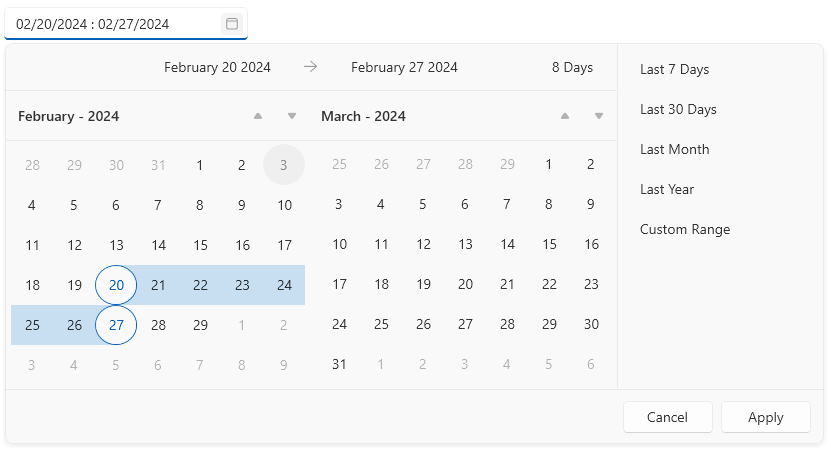
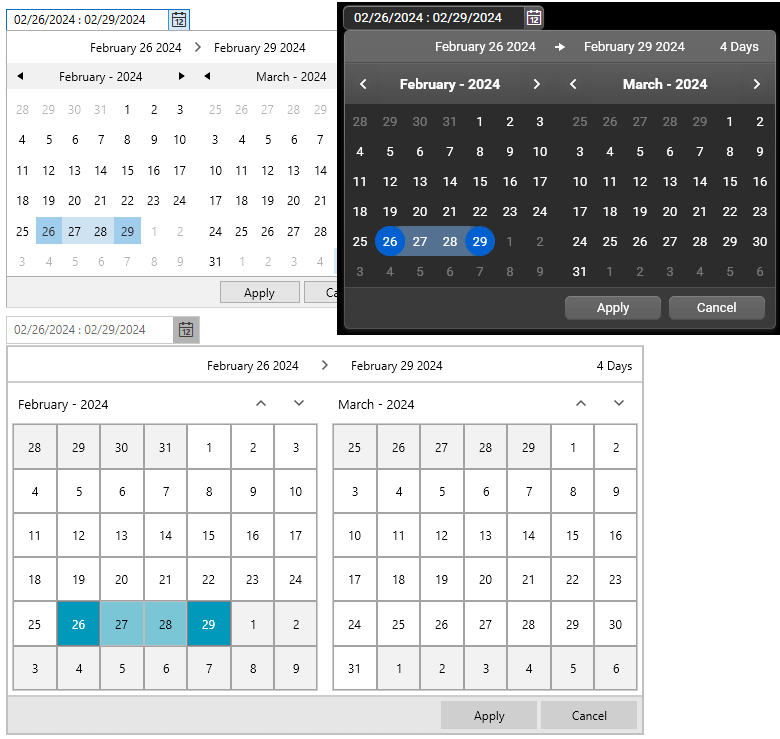
    <content type="text"><![CDATA[<p><span class="featured">The RadDateRangePicker revolutionizes date selection in WPF apps. Offering a sleek interface for effortlessly choosing start and end dates, it eliminates date juggling, enhances customization for a personalized look, and communicates easily through events.</span></p><p><img src="https://d585tldpucybw.cloudfront.net/sfimages/default-source/wpf-raddaterangepicker/raddaterangepicker.png?sfvrsn=8208df53_2" alt="" sf-size="100" /></p><p>Let&rsquo;s be real&mdash;when it comes to picking dates in your WPF app, the classic RadDatePicker from Progress&nbsp;<a href="https://www.telerik.com/products/wpf/overview.aspx" target="_blank">Telerik UI for WPF</a> has been holding down the fort. But if you&rsquo;re ready to take your date selection game to the next level, it&rsquo;s time to meet its cooler cousin&mdash;the <strong><a href="https://www.telerik.com/products/wpf/daterangepicker.aspx" target="_blank">RadDateRangePicker</a></strong>.</p><p>Here&rsquo;s why it&rsquo;s the superhero your app deserves:</p><ol><li><strong>One Picker, Double the Fun:</strong>
 <div>RadDateRangePicker is like having two RadDatePickers in one. Selecting a range is as easy as pie&mdash;just pick a start date and an end date, all in one sleek interface.<br /><br /></div></li><li><strong>No More Date Juggling:</strong>

 <div>Ever struggled with end dates that come before start dates? RadDateRangePicker has got your back. It&rsquo;s smart enough to prevent those head-scratching moments and keeps your date ranges in check.<br /><br /></div></li><li><strong>Lookin&rsquo; Good, Feelin&rsquo; Good:</strong>

 <div>Customize the look and feel to match your app&rsquo;s vibe. Play around with the colors, fonts and styles to give it your own unique touch. Your users will appreciate the personalized touch. </div></li></ol><h2>Setting the Stage</h2><p>Begin by preparing your project and adding references to these assemblies:</p><pre><code class="language-xml">Telerik.Windows.Controls
Telerik.Windows.Controls.Input
</code></pre><p>Now, let&rsquo;s shine the spotlight on RadDateRangePicker. Simply integrate it into your XAML like this:</p><pre><code class="language-xml">&lt;telerik:RadDateRangePicker /&gt;
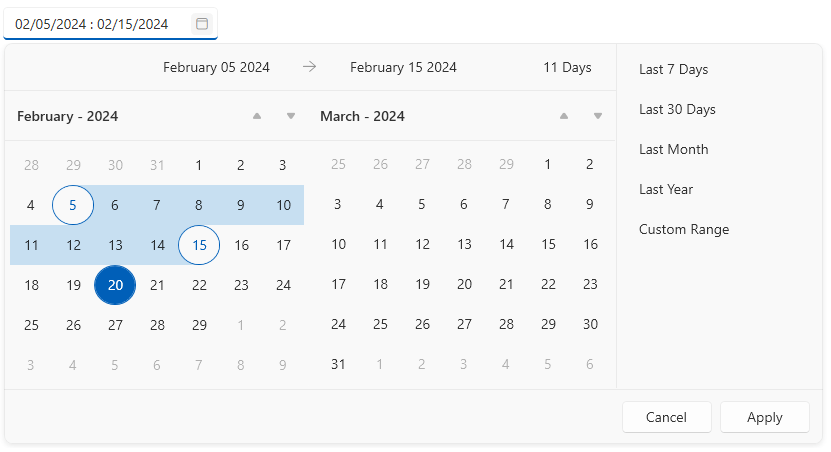
</code></pre><p>Need to set a specific date range? No problem:</p><pre><code class="language-xml">&lt;telerik:RadDateRangePicker StartDate="2024/2/05" EndDate="2024/2/15"/&gt;</code></pre><p><img src="https://d585tldpucybw.cloudfront.net/sfimages/default-source/wpf-raddaterangepicker/raddaterangepicker-wpf.png?sfvrsn=842b7c74_2" alt="" sf-size="100" /></p><h2>Razzle-Dazzle: Custom Ranges</h2><p>Predefined date spans add flair. Customize or discard them using CustomRangesLoadingEventArgs. Check this snippet:</p><pre><code class="language-csharp">private void RadDateRangePicker_CustomRangesLoading(object sender, CustomRangesLoadingEventArgs e)
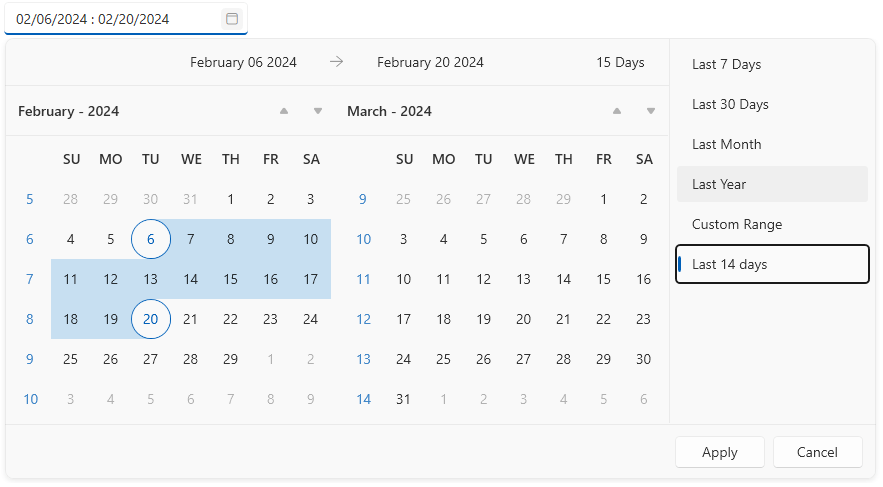
{
    // Add a new custom range
    var newRange = new CustomRange("Last 14 days")
    {
        StartDate = DateTime.Today.AddDays(-14),
        EndDate = DateTime.Today
    };
    e.CustomRanges.Add(newRange);
}
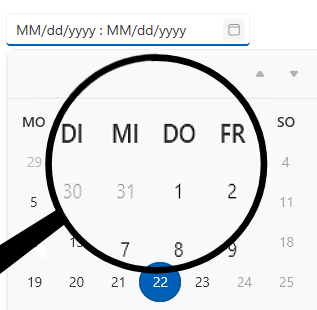
</code></pre><p><img src="https://d585tldpucybw.cloudfront.net/sfimages/default-source/wpf-raddaterangepicker/drp5.png?sfvrsn=c061a35f_2" alt="" sf-size="100" /></p><h2>Cultural Customization Toolkit</h2><p>Switching cultures and languages is a breeze:</p><pre><code class="language-csharp">this.dateRangePicker.Culture = new System.Globalization.CultureInfo("de-DE");</code></pre><p><img src="https://d585tldpucybw.cloudfront.net/sfimages/default-source/wpf-raddaterangepicker/drp-culture.png?sfvrsn=4aa652e0_1" alt="" sf-size="100" /></p><h2>Customize Your Week</h2><p>Change the game by tweaking the first day of the week, setting week rules and even blacking out dates:</p><pre><code class="language-xml">&lt;telerik:RadDateRangePicker x:Name="dateRangePicker" FirstDayOfWeek="Monday" AreWeekNamesVisible="True" IsDefaultRangesPanelVisible="False"/&gt;</code></pre><pre><code class="language-csharp">var weekends = new ObservableCollection&lt;DateTime&gt;();
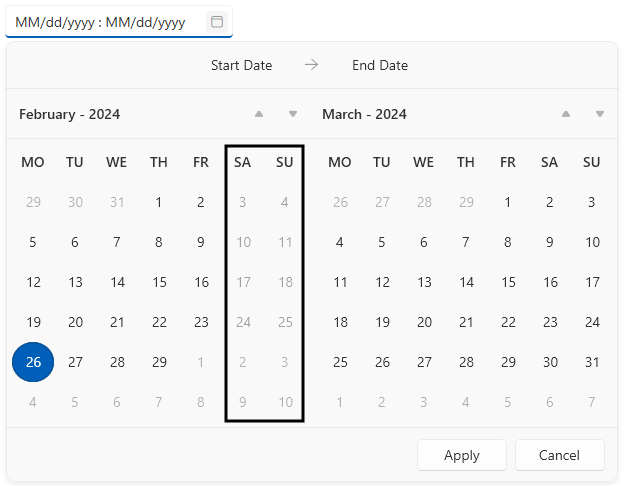
var daysInMonth = DateTime.DaysInMonth(DateTime.Today.Year, DateTime.Today.Month);
var startDate = new DateTime(DateTime.Today.Year, DateTime.Today.Month, 1);
for (int i = 0; i &lt; daysInMonth; i++)
{
    var currentDate = startDate.AddDays(i);
    if (currentDate.DayOfWeek == DayOfWeek.Saturday || currentDate.DayOfWeek == DayOfWeek.Sunday)
    {
        weekends.Add(currentDate);
    }
}
this.dateRangePicker.BlackoutDates = weekends;</code></pre><p><img src="https://d585tldpucybw.cloudfront.net/sfimages/default-source/wpf-raddaterangepicker/daterangepicker-blackout-dates.png?sfvrsn=d1f70cda_1" alt="" sf-size="100" /></p><h2>Dress to Impress: Appearance Tweaks</h2><p>Experiment with the look and feel:</p><ul><li>Defining what appears when no dates are selected.</li><li>Deciding whether to keep or remove the clear button.</li><li>Controlling the visibility of the top bar and header.</li><li>Choosing whether the custom ranges panel should be visible.</li></ul><p><img src="https://d585tldpucybw.cloudfront.net/sfimages/default-source/wpf-raddaterangepicker/daterangepicker-themes.png?sfvrsn=43ca448c_2" alt="" sf-size="100" /></p><p>Furthermore, choose one of our themes from the <a href="https://docs.telerik.com/devtools/wpf/styling-and-appearance/themes-suite/available-themes" target="_blank">WPF Themes Suite</a>&nbsp;to elevate the visual appeal of your RadDateRangePicker. Feel like experimenting with different looks? Go ahead and play around with colors using our <a href="https://demos.telerik.com/wpf/colorthemegenerator/">ColorThemeGenerator</a>.</p><p>If you have further question or just want more information, swing by our <a href="https://docs.telerik.com/devtools/wpf/controls/raddaterangepicker/getting-started" target="_blank">documentation</a>. We&rsquo;ve got the extra insights to help you out.</p><p>And there you have it! <strong>RadDateRangePicker </strong>is now your trusted date range companion. Dive in, enjoy the process and let date-handling be the highlight of your coding adventure!✨</p><h2>Feedback Welcome</h2><p>We value your thoughts and insights. It&rsquo;s time for feedback, and we&rsquo;re all ears! Whether you have suggestions, questions or just want to share your experience, we&rsquo;re here for it. Your feedback helps us improve and tailor our offerings to meet your needs better. Let&rsquo;s make things even better together&mdash;drop us a line and let your voice be heard! ️✨</p><p>And if you haven&rsquo;t given it a shot yet, don&rsquo;t wait another minute to try out the latest:</p><p><a href="https://www.telerik.com/products/wpf/overview.aspx" class="Btn" target="_blank" data-track-instance="2">Try Telerik UI for WPF</a></p><img src="https://feeds.telerik.com/link/23063/16601910.gif" height="1" width="1"/>]]></content>
  </entry>
  <entry>
    <id>urn:uuid:f66f08f1-36fe-4b39-81a3-3c571539df1b</id>
    <title type="text">Create Scalable Line-of-Business and Enterprise WPF Applications with Telerik UI</title>
    <summary type="text">WPF is often used for high-performance business applications with complex data needs. Telerik UI for WPF offers 160+ components, themes and line-of-business app examples to make it even better.</summary>
    <published>2023-12-21T15:52:03Z</published>
    <updated>2026-04-16T09:12:41Z</updated>
    <author>
      <name>Dimitrina Petrova </name>
    </author>
    <link rel="alternate" href="https://feeds.telerik.com/link/23063/16504868/create-scalable-line-business-enterprise-wpf-applications-telerik-ui"/>
    <content type="text"><![CDATA[<p><span class="featured">WPF is often used for high-performance business applications with complex data needs. Telerik UI for WPF offers 160+ components, themes and line-of-business app examples to make it even better.</span></p><p>When seeking reliable and established technology for the swift development of high-performance business applications, WPF consistently emerges as the right choice. No matter how much data you are dealing with, with Progress <a target="_blank" href="https://www.telerik.com/products/wpf/overview.aspx">Telerik UI for WPF</a>, interactive UI does not come at the cost of performance or flexibility.</p><p>Crafted to fulfill the most demanding needs, Telerik UI for WPF makes sure you get the finest in terms of variety, scope and design so you can create practical applications that leave a lasting impression on both end users and executives.</p><h2 id="building-blocks">Building Blocks</h2><p>In addition to the <a target="_blank" href="https://www.telerik.com/products/wpf/gridview.aspx">traditional, ultimate GridView control</a> that is well equipped to adapt to any scenario or user preference, we also develop and support a range of various components to ensure smooth implementation of business scenarios across manufacturing, finance, banking, healthcare, retail, automotive and other industries.</p><p>The Telerik WPF GridView is designed for <strong>optimal performance and dealing with huge datasets</strong>. In such complex cases, there are considerations to keep in mind when dealing with extensive data. Тhere are tweaks that can be applied to achieve top-tier performance, and these adjustments typically fall into the categories of reducing the UI complexity or reducing the amount of data being processed at a time.</p><p>Aiming at providing the best performance at large scale, we&rsquo;ve introduced a <a target="_blank" href="https://www.telerik.com/products/wpf/virtualgrid.aspx">VirtualGrid</a> as an alternative. In the GIF below, you can see an example of scrolling through more than a trillion cells in the VirtualGrid (a million millions!).</p><p><img src="https://d585tldpucybw.cloudfront.net/sfimages/default-source/blogs/2023/2023-12/trillion-data-cells-virtualgrid.gif?sfvrsn=1354a896_1" alt="Nine columns being scrolled and not a stutter step" /></p><p>Combining the VirtualGrid with the <a target="_blank" href="https://docs.telerik.com/devtools/wpf/controls/radchartview/overview">charting</a> capabilities (make sure to check the blog on how to <a target="_blank" href="https://www.telerik.com/blogs/reach-new-peaks-data-storytelling-wpf-chartview-histogram">Reach New Peaks in Your Data Storytelling with the WPF RadChartView Histogram</a>), with the <a target="_blank" href="https://www.telerik.com/products/wpf/spreadsheet.aspx">RadSpreadsheet</a>, with the <a target="_blank" href="https://www.telerik.com/products/wpf/scheduleview.aspx">Scheduling</a> options, with the powerful practical capabilities of the <a target="_blank" href="https://www.telerik.com/products/wpf/pivotgrid.aspx">RadPivot</a>&mdash;it can serve and benefit every business case.</p><p><img src="https://d585tldpucybw.cloudfront.net/sfimages/default-source/blogs/2023/2023-12/160-wpf-ui-controls.png?sfvrsn=d150fa4c_1" alt="160+ WPF UI controls, featured applications" /></p><p>Professional visualizations and good performance are vital when it comes to creating quality applications. Those remain a top priority, consistently ranking as one of the most significant concerns for both developers and managers. As you may expect, nowadays users have a strong dislike for slow and laggy applications and would prefer to use apps that meet modern performance standards.</p><p>To provide even better user experience, you can further explore the <a target="_blank" href="https://docs.telerik.com/devtools/wpf/common-information/touch-support">touch support</a> built in with Telerik UI for WPF and also consider using a <a target="_blank" href="https://docs.telerik.com/devtools/wpf/controls/radgridview/features/busy-indicator">busy indicator</a>. Plus, we offer excellent integration with the <a target="_blank" href="https://docs.telerik.com/devtools/wpf/controls/radgridview/paging/using-telerik-raddatapager">RadDataPager</a> to work with any large collections of data.</p><p>If your data involves complex structures with multiple levels of measures and dimensions with multiple layers of nesting, and you need row and column totals, then <a target="_blank" href="https://www.telerik.com/products/wpf/pivotgrid.aspx">RadPivotGrid</a> is at your disposal. This specialized component is built for the purpose of aggregation of extensive datasets in a tabular format and empowers users to dynamically add or remove measures and dimensions as required on the fly. The RadPivotGrid also offers powerful sorting and filtering capabilities.</p><h2 id="sample-business-applications">Sample Business Applications</h2><p>There are several applications we provide (including the source code) for you to get a better idea of complex applications combining the most popular components like <a target="_blank" href="https://www.telerik.com/products/wpf/gridview.aspx">RadGridView</a>, <a target="_blank" href="https://www.telerik.com/products/wpf/chartview.aspx">RadChartView</a>, <a target="_blank" href="https://www.telerik.com/products/wpf/scheduleview.aspx">RadScheduleView</a>, <a target="_blank" href="https://www.telerik.com/products/wpf/map.aspx">RadMap</a>, <a target="_blank" href="https://www.telerik.com/products/wpf/combobox.aspx">RadComboBox</a>, etc.</p><h3 id="crm-application">CRM Application</h3><p><img src="https://d585tldpucybw.cloudfront.net/sfimages/default-source/blogs/2023/2023-12/crm-application.png?sfvrsn=d37a0774_1" alt="Dashboard showing contacts, activities, etc." /></p><p>The powerful <a target="_blank" href="https://demos.telerik.com/wpf/crm/">Customer Relationship Management (CRM) Application</a> showcases an attractive UI and real-time responsiveness while dealing with extensive sets of data. The application facilitates the convenient visualization of contacts, opportunities and activities that are integral to the daily operations of sales teams.</p><h3 id="outlook-inspired-app">Outlook Inspired App</h3><p><img src="https://d585tldpucybw.cloudfront.net/sfimages/default-source/blogs/2023/2023-12/outlook-inspired-app.png?sfvrsn=7ecd6058_1" alt="Mail and calendar windows, with sortable results grouped by fields of your choice" /></p><p>The <a target="_blank" href="http://demos.telerik.com/wpf/outlookinspiredapp">Outlook Inspired App</a> is a functional Outlook-inspired sample application that mimics the look, feel and behavior of Microsoft Outlook, combining both the email and calendar functionalities. The sample app covers one of the most common application scenarios WPF developers face.</p><h3 id="sales-manager-dashboard">Sales Manager Dashboard</h3><p>The <a target="_blank" href="https://demos.telerik.com/wpf/salesmanagerdashboard/">Sales Manager Dashboard</a> uses modern UI theming and real-time customization to ensure end-user value for any sales team. It utilizes the charting, RadProgressBar and RadGridView to get the sales breakdown across products, countries and financial periods.</p><h3 id="executive-dashboard">Executive Dashboard</h3><p><img src="https://d585tldpucybw.cloudfront.net/sfimages/default-source/blogs/2023/2023-12/executive-dashboard.jpg?sfvrsn=5365f743_1" alt="Executive Dashboard shows sales trends, sales by product, sales by country, and has styles open" /></p><p>The <a target="_blank" href="https://demos.telerik.com/wpf/executivedashboard/">Executive Dashboard</a> app allows users to follow sales trends across products, countries and quarters. Represent data in a convenient and user-friendly manner, enhanced with modern UI theming and the ability for real-time customization.</p><blockquote><p>Our MSIX installer will automatically install any missing dependencies. Then you will be able to run it locally.</p></blockquote><h2 id="visual-studio-templates">Visual Studio Templates</h2><p>To simplify the initial setup process and getting started experience, the <a target="_blank" href="https://docs.telerik.com/devtools/wpf/integration/visual-studio-extensions/for-wpf-vs-extensions-project-configuration"><strong>Project Configuration Wizard</strong></a> offers several pre-built <a target="_blank" href="https://docs.telerik.com/devtools/wpf/integration/visual-studio-templates#word-inspired-template"><strong>Visual Studio Templates</strong></a>. With just a few clicks, you can now begin creating Windows inspired applications.</p><p>Currently, you have the option to choose from the following Visual Studio templates:</p><ul><li><a target="_blank" href="https://docs.telerik.com/devtools/wpf/integration/visual-studio-templates#word-inspired-template">Word-Inspired Template</a></li><li><a target="_blank" href="https://docs.telerik.com/devtools/wpf/integration/visual-studio-templates#excel-inspired-template">Excel-Inspired Template</a></li><li><a target="_blank" href="https://docs.telerik.com/devtools/wpf/integration/visual-studio-templates#outlook-inspired-template">Outlook-Inspired Template</a></li><li><a target="_blank" href="https://docs.telerik.com/devtools/wpf/integration/visual-studio-templates#outlook-inspired-mail-template">Outlook-Inspired Mail Template</a></li><li><a target="_blank" href="https://docs.telerik.com/devtools/wpf/integration/visual-studio-templates#outlook-inspired-calendar-template">Outlook-Inspired Calendar Template</a></li></ul><p><img src="https://d585tldpucybw.cloudfront.net/sfimages/default-source/blogs/2023/2023-12/progress-configuration-wizard.png?sfvrsn=3c3384d9_1" alt="Progress Configuration Wizard showing options for project themes" /></p><p>The controls can be directly dragged/dropped from the <strong>Visual Studio Toolbox</strong>. To enable this under .NET, you will need to install Telerik UI for WPF NuGet Packages (<a href="https://docs.telerik.com/devtools/wpf/getting-started/installation/installation-installing-from-nuget-wpf" target="_blank">check details</a>).</p><p>Additionally, the Telerik UI controls introduce customized design-time support as using <a target="_blank" href="https://docs.telerik.com/devtools/wpf/common-information/smarttags-overview">smart tags</a>, design-time selection and also the standard control properties changing through the <strong>Visual Studio Designer.</strong></p><h2 id="theming-and-color-theme-generator">Theming and Color Theme Generator</h2><p>The UI for WPF suite comes with a <a target="_blank" href="https://docs.telerik.com/devtools/wpf/styling-and-appearance/themes-suite/available-themes">variety of predefined themes</a> to directly apply to your application. Some of the themes have a ThemePalette, allowing for different color variations to expand this variety even more.</p><p>For instance, the <a target="_blank" href="https://docs.telerik.com/devtools/wpf/styling-and-appearance/themes-suite/material#changing-palette-colors">Material Theme</a> comes with built-in elements that provide interaction feedback, with easy-to-customize colors and Material design drop shadows with beautiful and smooth transitions between the states.</p><p>The <a target="_blank" href="https://docs.telerik.com/devtools/wpf/styling-and-appearance/themes-suite/windows11">Windows 11 theme</a> comes with built-in Light and Dark color variations, Mica and Acrylic effects, switching variations based on the default OS app mode, an option to use the OS accent color and a lot more.</p><aside data-sf-ec-immutable=""><hr /><div class="row"><div class="col-4 u-normal-full u-small-mb0"><h4 class="u-fs20 u-fw5 u-lh125 u-mb0">Discover the WPF WOW&mdash;World of Windows 11 Theme</h4></div><div class="col-8"><p class="u-fs16 u-mb0"><a target="_blank" href="https://www.telerik.com/blogs/discover-wpf-wow-world-windows-11-new-theme">Read more about the Windows 11 theme</a> in Telerik UI for WPF.</p></div></div><hr class="u-mb3" /></aside><p><img src="https://d585tldpucybw.cloudfront.net/sfimages/default-source/blogs/2023/2023-12/wpf-windows-11-theme.gif?sfvrsn=a61a0d0e_1" alt="User explores the settings for Personalization - Colors. Choose your mode, default Windows mode light or dark, default app more light or dark" /></p><p>We offer the <a target="_blank" href="https://docs.telerik.com/devtools/wpf/styling-and-appearance/color-theme-generator">Color Theme Generator</a>&mdash;a tool for interactive theme palette customization with live preview. You can try different shades and tints and blend them as you wish. And when you&rsquo;re finished with the design experiment, you can export the outcome.</p><p>The Theme Generator enables you to tweak theme colors and immediately see the results. To make it easier to choose the right colors for your application, the tool provides a few predefined palettes for each of the themes. It can also be used to easily create custom palette settings.</p><p><img src="https://d585tldpucybw.cloudfront.net/sfimages/default-source/blogs/2023/2023-12/theme-generator.png?sfvrsn=bdde4e5f_1" alt="WPF Color Theme Generator with all kinds of color selection options" /></p><p>You can obtain the Color Theme Generator application from the <a target="_blank" href="https://demos.telerik.com/wpf/colorthemegenerator">WPF Color Theme Generator</a> page. Before choosing what theme to apply, you might find it useful to familiarize yourself with the <a target="_blank" href="https://docs.telerik.com/devtools/wpf/styling-and-appearance/styling-apperance-setting-a-theme-overview#what-is-a-theme">themes concept</a>.</p><p>To get an idea of the default appearance of a specific control in a certain theme, please view its corresponding &ldquo;Theming&rdquo; demo in the <a target="_blank" href="https://demos.telerik.com/wpf/">WPF Controls Examples application</a>.</p><h2 id="feature-demos--developer-examples">Feature Demos &amp; Developer Examples</h2><p>You can download the <a target="_blank" href="https://demos.telerik.com/wpf/">official demos application</a>, which showcases a variety of use cases highlighting the main features of each component. The full source code of the examples is also available for download in the <a target="_blank" href="https://www.telerik.com/account/downloads/product-download?product=RCWPF">Telerik UI for WPF download page</a> under Your Account.</p><p><img src="https://d585tldpucybw.cloudfront.net/sfimages/default-source/blogs/2023/2023-12/telerik-ui-wpf.png?sfvrsn=26fcfbb7_1" alt="telerik-ui-wpf" /></p><p>We wanted to provide developers with further practical examples of various popular use cases, so you can discover additional demos for the majority of the controls in the <a target="_blank" href="https://github.com/telerik/xaml-sdk/tree/master/">Telerik XAML SDK repository</a>. The examples illustrate many specific scenarios that might be helpful to get started.</p><p><img src="https://d585tldpucybw.cloudfront.net/sfimages/default-source/blogs/2023/2023-12/sdk-samles-browser-telerik-ui-wpf.png?sfvrsn=82924766_1" alt="SDK Samples browser for Progress Telerik UI for WPF" /></p><p>Why not also check the <a target="_blank" href="https://docs.telerik.com/devtools/wpf/developer-focused-examples/sdk-samples-browser">SDK Samples Browser</a> that provides a more convenient approach to exploring and executing the provided examples?</p><h2 id="wrap-up">Wrap-up</h2><p>Ensuring a positive user experience is of great significance to us, and we are continually striving for introducing enhancements. A core design principle we adhere to is making the appearance more personalized.</p><p>For even better customer experience for your clients, it is critical to maintain a responsive interface, so it is worth spending some time exploring the right features and following the best practices to configure performance optimization.</p><img src="https://feeds.telerik.com/link/23063/16504868.gif" height="1" width="1"/>]]></content>
  </entry>
  <entry>
    <id>urn:uuid:1c823289-b375-4908-b6de-6c5a0f2400c7</id>
    <title type="text">Level up Your UI with the New Telerik RadSvgImage Control for WPF</title>
    <summary type="text">The RadSvgImage component in Telerik UI for WPF empowers developers to seamlessly integrate vector-based graphics into their apps. Take a closer look!</summary>
    <published>2023-11-09T08:17:02Z</published>
    <updated>2026-04-16T09:12:41Z</updated>
    <author>
      <name>Maria Hadzhieva </name>
    </author>
    <link rel="alternate" href="https://feeds.telerik.com/link/23063/16437684/level-your-ui-new-telerik-radsvgimage-control-wpf"/>
    <content type="text"><![CDATA[<p><span class="featured">The RadSvgImage component in Telerik UI for WPF empowers developers to seamlessly integrate vector-based graphics into their apps. Take a closer look!</span></p><p>In the much-anticipated <a href="https://www.telerik.com/support/whats-new/wpf/release-history/ui-for-wpf-r3-2023" target="_blank">R3 2023 release</a>, Progress Telerik introduced the groundbreaking <a href="https://www.telerik.com/products/wpf/svgimage.aspx" target="_blank">RadSvgImage</a> control in <a target="_blank" href="https://www.telerik.com/products/wpf/overview.aspx">UI for WPF</a>. This innovative addition empowers developers to integrate vector-based graphics into their applications, elevating user experiences to a whole new level. </p><p>With the ability to scale images without sacrificing quality, the RadSvgImage control revolutionizes UI development in WPF. It&rsquo;s particularly invaluable for crafting high DPI applications, prioritizing user satisfaction. The cornerstone of this
    advancement lies in Scalable Vector Graphics (SVG), an XML-based format that allows graphics to adapt seamlessly to all DPI settings.</p><p><img src="https://d585tldpucybw.cloudfront.net/sfimages/default-source/.net-maui-scheduler/wpf-radsvgimage-control.png?sfvrsn=5ff699fb_1" alt="" sf-size="100" /></p><h2>Getting Started with RadSvgImage</h2><p>Adding RadSvgImage to your project is a piece of cake! Just include a reference to the <strong>Telerik.Windows.Controls</strong> assembly, and you&rsquo;re all set. It&rsquo;s that simple! Displaying an SVG image as a standalone component is a breeze,
    as you can set the UriSource property like so:</p><p><img src="https://d585tldpucybw.cloudfront.net/sfimages/default-source/.net-maui-scheduler/radsvgimage-as-stand-alone-control.png?sfvrsn=31615eda_1" alt="RadRadSvgImage as a stand alone component" sf-size="100" /></p><pre><code class="language-xml" style="background-color:transparent;color:inherit;font-size:inherit;text-align:inherit;text-transform:inherit;word-spacing:normal;caret-color:auto;white-space:inherit;">&lt;telerik:RadSvgImage UriSource="SVGIcon.svg" Width="128" Height="128"/&gt;</code></pre><p>Keep in mind that RadSvgImage does not have a default size. If it&rsquo;s placed in a panel that measures it with Infinity (e.g., in a StackPanel), you&rsquo;ll need to specify a size for the SVG image to display properly. <span style="font-family:'Segoe UI Emoji',sans-serif;">️</span></p><p>Want to spice things up? You can also roll with RadSvgImage as a markup extension, instead of setting it up as a separate component:</p><p><img src="https://d585tldpucybw.cloudfront.net/sfimages/default-source/.net-maui-scheduler/radsvgimage-as-a-standalone-control.png?sfvrsn=82c8df18_1" alt="RadRadSvgImage as a markup extension" sf-size="100" /></p><pre><code class="language-xml" style="background-color:transparent;color:inherit;font-size:inherit;text-align:inherit;text-transform:inherit;word-spacing:normal;caret-color:auto;white-space:inherit;">&lt;Image Source="{telerik:RadSvgImageSource Source='SVGImage.svg'}" 
       Width="128" 
       Height="128"/&gt;</code></pre><h2>Customizing Fill Colors</h2><p>Check it out! You can totally swap out the fill color of your SVG image by tweaking the <code class="inline-code">OverrideColor</code> property:</p><p><img src="https://d585tldpucybw.cloudfront.net/sfimages/default-source/.net-maui-scheduler/overridecolor-property-of-radsvgimage.gif?sfvrsn=9af39f44_1" alt="" sf-size="100" /></p><h2>Animations Made Easy</h2><p>The RadSvgImage control has built-in animation support, allowing you to bring your SVG images to life. To apply an animation, utilize the <code class="inline-code">animate</code>, <code class="inline-code">animateMotion</code> and <code class="inline-code">animateTransform</code> elements inside the SVG&rsquo;s XML.</p><p><img src="https://d585tldpucybw.cloudfront.net/sfimages/default-source/.net-maui-scheduler/radsvgimage-animation.gif?sfvrsn=2688fb8e_1" title="SVG animation" alt="SVG animation" sf-size="100" /></p><pre><code class="language-markup">&lt;g&gt;
   &lt;animateTransform attributeName="transform" attributeType="XML" type="rotate" from="0" to="360" begin="0s" dur="12s" /&gt;
   &lt;use xlink:href="https://www.telerik.com#minuteHand" /&gt;
&lt;/g&gt;
</code></pre><h2>Applying Brushes to Elements</h2><p>If you&rsquo;ve ever wanted to fill up your SVG images with a splash of color, you&rsquo;re in luck.&nbsp;All you need to do is dive into the <code class="inline-code">CustomBrushes </code>property. This little gem allows you to easily apply different
    hues to elements within your SVGs. It&rsquo;s like giving your graphics a personal touch! Just a heads up, the CustomBrushes property is a <code class="inline-code">Dictionary&lt;string, Brush&gt;</code>, which basically means it&rsquo;s a nifty tool
    for handling color variations.</p><p>Let&rsquo;s dive into an example, shall we?
</p><p>Say you have your SVG file ready. You can think of it as your canvas, waiting to come to life. Here&rsquo;s a snippet:</p><pre><code class="language-xml">&lt;svg width="200" height="200" viewBox="130 130 200 200" fill="none" xmlns="http://www.w3.org/2000/svg"
     xmlns:xlink="http://www.w3.org/1999/xlink" x="0px" y="0px"
     enable-background="new 0 0 512 512" xml:space="preserve"&gt;
    &lt;defs&gt;
        &lt;solidColor id="calendar-lines"/&gt;
        &lt;solidColor id="calendar-datebgr"/&gt;
        &lt;solidColor id="calendar-date"/&gt;
    &lt;/defs&gt;
    &lt;path d="M14.5,39.8 L112.2,39.8 M14.5,55.8 L112.2,55.8 M14.5,71.8 L112.2,71.8 M14.5,87.8 L112.2,87.8 M14.5,103.8 L112.2,103.8 M22.8,31.9 L22.8,109.1 M39.0,31.9 L39.0,109.1 M55.2,31.9 L55.2,109.1 M71.5,31.9 L71.5,109.1 M87.7,31.9 L87.7,109.1 M103.9,31.9 L103.9,109.1 M116.6,1 L11.1,1 C5.8,1 1.5,5.2 1.5,10.5 L1.5,114.5 C1.5,119.7 5.8,124 11.1,124 L116.6,124 C121.9,124 126.3,119.7 126.3,114.5 L126.3,10.5 C126.3,5.2 121.9,1 116.6,1 z M1.0,21 L125.7,21"
          fill="transparent"
          transform="translate(170,166)"
          stroke="url(#calendar-lines)" stroke-width="2" width="130" height="125" /&gt;
    &lt;rect x="224.977" y="222" width="32.4675" height="32" fill="url(#calendar-datebgr)"/&gt;
   &lt;path d="M246.145 230.268C245.383 231.664 244.664 233.048 243.987 234.419C243.31 235.782 242.696 237.153 242.146 238.532C241.596 239.912 241.118 241.304 240.711 242.709C240.305 244.105 239.992 245.536 239.772 247H236.687C236.89 245.697 237.178 244.397 237.55 243.103C237.931 241.799 238.375 240.5 238.883 239.205C239.391 237.902 239.958 236.594 240.584 235.282C241.219 233.97 241.892 232.646 242.603 231.309H233.983V228.795H246.145V230.268Z" 
         fill="url(#calendar-date)" stroke="transparent" stroke-width="0"/&gt;
&lt;/svg&gt;</code></pre><p>Now, you&rsquo;ll want to create a custom Dictionary collection to define your colors. </p><pre><code class="language-csharp">public class CustomDictionary : Dictionary&lt;string, Brush&gt; { } </code></pre><p>It&rsquo;s time to load up your custom Dictionary with some vibrant choices. Check this out:</p><pre><code class="language-xml">&lt;Grid.Resources&gt;
    &lt;local:CustomDictionary x:Key="CustomBrushesDictionary"&gt;
        &lt;SolidColorBrush x:Key="calendar-lines" Color="#08BAB7"/&gt;
        &lt;SolidColorBrush x:Key="calendar-datebgr" Color="#b708ba"/&gt;
        &lt;SolidColorBrush x:Key="calendar-date" Color="Black"/&gt;
    &lt;/local:CustomDictionary&gt;
&lt;/Grid.Resources&gt;</code></pre><p>And finally, let&rsquo;s bring it all together. Attach your RadSvgImage to the custom Dictionary using the <code class="inline-code">CustomBrushes</code> property. Watch your SVG image pop with personality!</p><pre><code class="language-xml"> &lt;Grid&gt;
     &lt;Grid.Resources&gt;
         &lt;local:CustomDictionary x:Key="CustomBrushesDictionary"&gt;
             &lt;SolidColorBrush x:Key="calendar-lines" Color="#08BAB7"/&gt;
             &lt;SolidColorBrush x:Key="calendar-datebgr" Color="#B708BA"/&gt;
             &lt;SolidColorBrush x:Key="calendar-date" Color="#FBFF00"/&gt;
         &lt;/local:CustomDictionary&gt;
     &lt;/Grid.Resources&gt;
     &lt;telerik:RadSvgImage UriSource="/Images/SvgImage.svg" CustomBrushes="{StaticResource CustomBrushesDictionary}" Width="128" Height="128"/&gt;
 &lt;/Grid&gt;</code></pre><p>Voila! Your RadSvgImage is now rocking custom colors and ready to shine. ✨</p><p><img src="https://d585tldpucybw.cloudfront.net/sfimages/default-source/svgimage/custom-brushesdbc4951c-0bdf-48ff-858b-df2bafc84b7b.png?sfvrsn=dae7a515_1" style="margin:30px;" alt="Custom Brushes" sf-size="100" /></p><h2>A Visual Comparison: SVG vs. PNG</h2><p>The example below with RadGridView features two GridViewImageColumns, one using an SVG image and the other a PNG image. The difference is striking. While the PNG images are a little bit blurry, the SVG column retains its crisp clarity.</p><p><img src="https://d585tldpucybw.cloudfront.net/sfimages/default-source/.net-maui-scheduler/png-vs-svg.png?sfvrsn=2335e6d9_1" alt="" sf-size="100" /></p><h2>Conclusion</h2><p>In summary, RadSvgImage control offers a versatile and powerful solution for seamlessly integrating high-quality vector graphics into your applications. Its flexibility, coupled with features like customizable colors and built-in animation support, opens
    up a world of possibilities for creating stunning user interfaces.&nbsp;&nbsp;In case you need more information about it, be sure to check the <a href="https://docs.telerik.com/devtools/wpf/controls/radsvgimage/getting-started" target="_blank">documentation</a>,
 too.
</p><p>Be sure to visit our newly rebranded WPF demos for a deeper dive into the capabilities of RadControls, including a lot of examples showcasing the potential of SVG and other controls. Explore a wide range of scenarios and discover how RadControls can revolutionize
    your application development. From SVG integration to a host of other powerful features, these demos provide an invaluable resource for unlocking the full potential of your projects. Head over now and experience the future of UI development firsthand!</p><p><a href="https://demos.telerik.com/wpf/" target="_blank"><img src="https://d585tldpucybw.cloudfront.net/sfimages/default-source/svgimage/wpf-desktop-examples.png?sfvrsn=c9feecb3_1" alt="" sf-size="100" /></a></p><p><a href="https://demos.telerik.com/wpf/" target="_blank" class="Btn">Check Out the Demos</a></p><p>Also, don&rsquo;t miss out on the <a href="https://docs.telerik.com/devtools/wpf/styling-and-appearance/color-theme-generator" target="_blank">Color Theme Generator</a>. It&rsquo;s a fantastic tool that allows you to preview all
    controls with different themes and colors, giving you a quick and easy way to find the perfect look for your application.&nbsp;</p><p><a href="https://www.telerik.com/products/wpf/overview.aspx" target="_blank">Try it out today</a> and elevate your application&rsquo;s visual experience!</p><img src="https://feeds.telerik.com/link/23063/16437684.gif" height="1" width="1"/>]]></content>
  </entry>
  <entry>
    <id>urn:uuid:b7833a36-4d3f-41cc-91d3-800aa0865377</id>
    <title type="text">Elevate Your Application’s Visual Experience with Compact Mode in the WPF Windows 11 Theme</title>
    <summary type="text">With the R2 2023 release, we are excited to announce a game-changing addition to our WPF Windows 11 theme that will elevate your user experience—the new high-density (or Compact) layout option. Themes are instrumental in enhancing the overall user experience, breathing life into the user interface and reflecting your product’s branding and style.</summary>
    <published>2023-08-03T07:41:06Z</published>
    <updated>2026-04-16T09:12:41Z</updated>
    <author>
      <name>Maria Hadzhieva </name>
    </author>
    <link rel="alternate" href="https://feeds.telerik.com/link/23063/16280998/elevate-application-visual-experience-compact-mode-wpf-windows-11-theme"/>
    <content type="text"><![CDATA[<p><span class="featured">With the recent <a href="https://www.telerik.com/blogs/r2-2023-telerik-desktop-mobile-release" target="_blank">R2 2023 release</a>, we are excited to announce a game-changing addition to our Windows 11 theme that will elevate your user experience&mdash;the new high-density (or Compact) layout option. </span></p><p><img src="https://d585tldpucybw.cloudfront.net/sfimages/default-source/10x/overview.png?sfvrsn=4e557803_1" alt="" sf-size="31531" /></p><p>Themes are instrumental in enhancing the overall user experience, breathing life into the user interface, and reflecting your product&rsquo;s branding and style.
</p><p>Last year, after we launched the <a href="https://www.telerik.com/blogs/discover-wpf-wow-world-windows-11-new-theme" target="_blank">Windows 11 theme</a>&nbsp;for Progress&nbsp;<a href="https://www.telerik.com/products/wpf/overview.aspx" target="_blank">Telerik UI for WPF</a>, we heard from many of you who were looking for a sleeker and more compact design. Instead of creating an entirely new
    theme, we decided to optimize the use of existing resources by utilizing all the colors from the current theme. And let me tell you, the result is truly impressive.</p><p>In this blog post, I will introduce to you the <code class="inline-code">Windows11ThemeSizeHelper</code>, a revolutionary way for the Windows 11 theme that empowers you to take your WPF application to new heights of visual appeal and customization. </p><h2>Understanding the Windows11ThemeSizeHelper </h2><p>Let&rsquo;s dive into the world of the <code class="inline-code">Windows11ThemeSizeHelper</code>. This powerful and innovative helper is specifically designed for our <a href="https://docs.telerik.com/devtools/wpf/styling-and-appearance/themes-suite/windows11" target="_blank">Windows 11 theme</a>. Its primary function is to switch between two distinct layouts using the <code class="inline-code">IsInCompactMode</code> property. By leveraging this property, the helper combines various
    resources, adapting the sizes to provide larger dimensions tailored for Windows 11 Standard, and effortlessly transitioning to more compact dimensions for Windows 11 Compact. </p><h3>Easy Implementation </h3><p>Integrating themes into your applications can be challenging for the developers sometimes. That&rsquo;s why we&rsquo;ve made it our mission to create a streamlined and straightforward process. With just one line of code, you&rsquo;ll be able to apply
    Windows 11 Compact Mode and witness an instant transformation in the look and feel of your entire application: </p><pre><code class="language-csharp">Windows11ThemeSizeHelper.Helper.IsInCompactMode = true;</code></pre><h3>Customizing the Dimensions</h3><p>But wait, there&rsquo;s more! I thought it would be nice of me to also show you a way of customizing the dimensions of the Windows 11 theme. Let&rsquo;s consider a practical example where we create two StackPanels&mdash;one using the Standard Windows11
    layout and another where we&rsquo;ll modify specific resources within the StackPanel scope. The possibilities for customization are truly endless!</p><pre><code class="language-xml">&lt;StackPanel Orientation="Horizontal"&gt;
    &lt;telerik:GroupBox Header="Windows11" HorizontalAlignment="Left" Width="350"&gt;
        &lt;StackPanel&gt;
            &lt;telerik:RadButton Content="Button"/&gt;
            &lt;telerik:RadListBox Margin="0 8"&gt;
                &lt;telerik:RadListBoxItem&gt;Item 1&lt;/telerik:RadListBoxItem&gt;
                &lt;telerik:RadListBoxItem&gt;Item 2&lt;/telerik:RadListBoxItem&gt;
                &lt;telerik:RadListBoxItem&gt;Item 3&lt;/telerik:RadListBoxItem&gt;
            &lt;/telerik:RadListBox&gt;
            &lt;telerik:RadWatermarkTextBox Text="WatermarkTextBox"/&gt;
        &lt;/StackPanel&gt;
    &lt;/telerik:GroupBox&gt;
    &lt;telerik:GroupBox Header="Windows11 Customized" HorizontalAlignment="Left" Width="350" Margin="8 0 0 0"&gt;
        &lt;StackPanel&gt;
            &lt;StackPanel.Resources&gt;
                &lt;!-- Customized Windows 11 resources with ThemeSizeHelper  --&gt;
                &lt;sys:Double x:Key="{x:Static telerik:Windows11ResourceKey.DefaultControlMinHeight}"&gt;25&lt;/sys:Double&gt;
                &lt;sys:Double x:Key="{x:Static telerik:Windows11ResourceKey.DefaultItemMinHeight}"&gt;24&lt;/sys:Double&gt;
                &lt;sys:Double x:Key="{x:Static telerik:Windows11ResourceKey.FontSize}"&gt;13&lt;/sys:Double&gt;
                &lt;Thickness  x:Key="{x:Static telerik:Windows11ResourceKey.DefaultControlPadding}"&gt;8 0&lt;/Thickness&gt;
                &lt;Thickness  x:Key="{x:Static telerik:Windows11ResourceKey.NestedButtonMargin}"&gt;0 0 8 0&lt;/Thickness&gt;
                &lt;Thickness  x:Key="{x:Static telerik:Windows11ResourceKey.InputPadding}"&gt;4 1 4 1&lt;/Thickness&gt;
            &lt;/StackPanel.Resources&gt;
            &lt;telerik:RadButton Content="Button"/&gt;
            &lt;telerik:RadListBox Margin="0 8" &gt;
                &lt;telerik:RadListBoxItem&gt;Item 1&lt;/telerik:RadListBoxItem&gt;
                &lt;telerik:RadListBoxItem&gt;Item 2&lt;/telerik:RadListBoxItem&gt;
                &lt;telerik:RadListBoxItem&gt;Item 3&lt;/telerik:RadListBoxItem&gt;
            &lt;/telerik:RadListBox&gt;
            &lt;telerik:RadWatermarkTextBox Text="WatermarkTextBox"/&gt;
        &lt;/StackPanel&gt;
    &lt;/telerik:GroupBox&gt;
&lt;/StackPanel&gt;</code><br /></pre><p>And voil&agrave;! Feast your eyes on the result:</p><p><img src="https://d585tldpucybw.cloudfront.net/sfimages/default-source/10x/customize-windows-11-resources-.png?sfvrsn=13f6683c_1" alt="" /></p><h3>Finding the Resources Values</h3><p>Now, you might be wondering where to find the desired resource values. Look no further! Simply navigate to the <code class="inline-code">Windows11ThemeSizeHelper</code> class in the <code class="inline-code">Telerik.Windows.Controls.dll</code> assembly.
    In this file, you&rsquo;ll discover the resource names corresponding to the Windows 11 Standard and Compact themes.</p><p><img src="https://d585tldpucybw.cloudfront.net/sfimages/default-source/10x/windows11-sizehelper-location.png?sfvrsn=78a1fb51_1" alt="" sf-size="510904" /></p><p>Alternatively, you can download the resource files from the <a href="https://github.com/telerik/xaml-sdk/tree/master/Theming/PaletteResourcesExtractor" target="_blank">PaletteResourcesExtractor</a> SDK example.</p><p>Don&rsquo;t miss out! Head over to our online documentation, where you can find everything you need to know about the captivating <a href="https://docs.telerik.com/devtools/wpf/styling-and-appearance/themes-suite/windows11#windows-11-compact-mode" target="_blank">Windows 11</a> theme.</p><h2>Revitalize Your App&rsquo;s Appearance</h2><p>Check out our awesome <a href="https://docs.telerik.com/devtools/wpf/styling-and-appearance/themes-suite/color-theme-generator?_ga=2.166640382.1112889155.1687152681-947951100.1596434710&amp;_gl=1*ih6qb7*_ga*OTQ3OTUxMTAwLjE1OTY0MzQ3MTA.*_ga_9JSNBCSF54*MTY4NzI3MTUzMi40NDUuMS4xNjg3MjcyMjgxLjIyLjAuMA.." target="_blank">Color Theme Generator</a>! It&rsquo;s a super cool tool that lets you play around with different colors and customize your theme palette in real time. You can try out all sorts of shades, mix and match them
    however you like, and see the changes instantly. And the best part? Once you&rsquo;re done experimenting and creating the perfect look, you can simply export it and make it yours. It&rsquo;s your chance to unleash your creativity and make your theme
    truly unique.</p><h2>Conclusion </h2><p>The Windows 11 Compact mode holds out an entire world of opportunities to modernize your WPF applications. It simplifies the process of integrating visually captivating themes, offers customization options to align with your branding, and saves development
    time. </p><p>Try out the latest version of <a href="https://www.telerik.com/products/wpf/overview.aspx" target="_blank">Telerik UI for WPF</a> to see what I am talking about!</p><p><a href="https://www.telerik.com/try/ui-for-wpf" target="_blank" class="Btn">Try Now</a></p><p>Once you do, you will not need to thank me! Just enjoy it and keep elevating the look and feel of your application, engaging the end users with stunning visuals, and leaving a lasting impression. </p><p>And don&rsquo;t forget to stay tuned for more exciting updates and features as we continue to enhance your WPF development journey. </p><p>Happy theming!  <br /></p><img src="https://feeds.telerik.com/link/23063/16280998.gif" height="1" width="1"/>]]></content>
  </entry>
  <entry>
    <id>urn:uuid:e0965d7b-d9bf-4df7-8a05-7bc5d0bfd53d</id>
    <title type="text">What to Know When Porting a WPF App to .NET MAUI Blazor Hybrid</title>
    <summary type="text">Your WPF app can gain more users if you make it cross-platform, but what’s the best way to do that—with .NET MAUI or Blazor Hybrid? Here are the steps involved if the results show Blazor Hybrid.</summary>
    <published>2023-06-14T14:37:02Z</published>
    <updated>2026-04-16T09:12:41Z</updated>
    <author>
      <name>Rossitza Fakalieva </name>
    </author>
    <link rel="alternate" href="https://feeds.telerik.com/link/23063/16190317/what-know-when-porting-wpf-app-net-maui-blazor-hybrid"/>
    <content type="text"><![CDATA[<p><span class="featured">Your WPF app can gain more users if you make it cross-platform, but what&rsquo;s the best way to do that&mdash;with .NET MAUI or <a href="https://www.telerik.com/blazor-ui/blazor-hybrid">Blazor Hybrid</a>? Here are the steps involved if the results show Blazor Hybrid.</span></p><p>In the previous <a href="https://www.telerik.com/blogs/transform-wpf-app-cross-platform-net-maui" target="_blank">.NET MAUI vs. WPF</a> post, we had a look at our choices that Microsoft gives us to transform a WPF app to cross-platform. We talked
    about the most important differences between WPF and .NET MAUI.</p><p>Today we will review another interesting topic&mdash;how we can transform our WPF app to a cross-platform app using <a href="https://www.telerik.com/blazor-ui/blazor-hybrid">Hybrid Blazor apps.</a></p><p>You can take this simple test to choose the best technology stack for your needs:</p><p><a target="_blank" href="https://d585tldpucybw.cloudfront.net/sfimages/default-source/blogs/2023/2023-05/wpf-to-maui-or-blazor-flow-chart-ritm0204651.png?sfvrsn=dd63c19e_5"><img src="https://d585tldpucybw.cloudfront.net/sfimages/default-source/blogs/2023/2023-05/wpf-to-maui-or-blazor-flow-chart-ritm0204651.png?sfvrsn=dd63c19e_5" alt="Is look/feel important? Love XAML? Have all needed UI? .NET MAUI for native look, XAML that can reuse UI, using Telerik UI for .NET MAUI. Blazor Hybrid for standardized UI, CSS + HTML, UI components from Telerik UI for Blazor" sf-size="55520" /></a></p><p>So if your result for this little quiz leads you to Blazor Hybrid, this is the post for you!</p><p>What situations might that be?</p><ul><li>The first case is for using such an approach is if we want our app to have a unified UI, to write the code at once but we need all desktop features, like file access system, camera settings, etc.</li><li>Another situation is when we already ported our code to .NET MAUI, but we need a component that Blazor ecosystem has to offer, such as Telerik Pivot or Telerik ScheduleView, for example, or another of the powerful components from <a href="https://www.telerik.com/blazor-ui" target="_blank">Telerik UI for Blazor</a>.</li></ul><h2 id="scenario-1">Scenario 1</h2><p><strong>Unified UI</strong></p><p>The best choice here is to create a new <strong>Hybrid Blazor app using Microsoft VS Templates</strong>.</p><p>With .NET 7, you can choose between WPF Hybrid Blazor or .NET MAUI Blazor, and which one to choose depends which OS you need to target.</p><p>In this series, we are focused on the cross-platform experience, so .NET MAUI Hybrid Blazor app is our choice.</p><p>Visual Studio directly creates a Blazor app wrapped in the .NET MAUI project structure.</p><h2 id="scenario-2">Scenario 2</h2><p><strong>We have a great MAUI/WPF app but we need a component that only the Blazor ecosystem has to offer.</strong></p><p>For example, if you need to use Scheduling functionality in .NET MAUI, then you can look into the rich <a href="https://www.telerik.com/blazor-ui" target="_blank">Telerik UI for Blazor</a> suite.</p><p>In this case, our .NET MAUI app is already created and we need to follow the steps below to add the Blazor part or you can again create a blank MAUI Hybrid app and copy the needed files from there.</p><p><strong>1. Add the Razor SDK, Microsoft.NET.Sdk.Razor to your project by editing its first line of the CSPROJ project file:</strong></p><pre class=" language-razor"><code class="prism  language-razor">&lt;Project Sdk="Microsoft.NET.Sdk.Razor"&gt;  
</code></pre><p><strong>2. Add the root <a href="https://learn.microsoft.com/en-us/aspnet/core/blazor/components/" target="_blank">Razor component</a> for the app to the project ака Main.razor page:</strong></p><p>A razor component is a page containing the UI for your needs. It is the place to write your code when working with Blazor.</p><p><a href="https://d585tldpucybw.cloudfront.net/sfimages/default-source/blogs/2023/2023-05/main-razor.png?sfvrsn=a07dc955_3" target="_blank"><img src="https://d585tldpucybw.cloudfront.net/sfimages/default-source/blogs/2023/2023-05/main-razor.png?sfvrsn=a07dc955_3" /></a></p><p><strong>3. Add your <a href="https://learn.microsoft.com/en-us/aspnet/core/blazor/components/" target="_blank">Razor components</a> to project folders named Pages and Shared.</strong></p><p>For example, the code that I will use to add the Scheduler is placed in the Pages folder:</p><pre class=" language-razor"><code class="prism  language-razor">@Page "/"
@Using Telerik.Blazor.Components.Scheduler.Models;
 &lt;Telerikscheduler Data="@Appointments" @Bind-Date="@Startdate" Height="600px" @Bind-View="@Currview"
                
                  Allowcreate="True" Allowdelete="True" Allowupdate="True"
                  Confirmdelete="True"
                
                &gt;
    &lt;Schedulerviews&gt;
        &lt;Schedulerdayview Starttime="@Daystart" Endtime="@Dayend" Workdaystart="@Workdaystart" Workdayend="@Workdayend" /&gt;
        &lt;Schedulerweekview Starttime="@Daystart" Endtime="@Dayend" Workdaystart="@Workdaystart" Workdayend="@Workdayend" /&gt;
        &lt;Schedulermultidayview Starttime="@Daystart" Endtime="@Dayend" Workdaystart="@Workdaystart" Workdayend="@Workdayend" Numberofdays="10" /&gt;
        &lt;Schedulermonthview&gt;&lt;/Schedulermonthview&gt;
        &lt;Schedulertimelineview Starttime="@Daystart" Endtime="@Dayend" Workdaystart="@Workdaystart" Workdayend="@Workdayend" /&gt;
    &lt;/Schedulerviews&gt;
&lt;/Telerikscheduler&gt;
 
@code {
    IEnumerable&lt;Appointment&gt; Appointments = new List&lt;Appointment&gt;();
    public DateTime StartDate { get; set; } = new DateTime(2021, 6, 21);
    public SchedulerView CurrView { get; set; } = SchedulerView.Week;
 
    //the time portions are important
    public DateTime DayStart { get; set; } = new DateTime(2000, 1, 1, 8, 0, 0);
    public DateTime DayEnd { get; set; } = new DateTime(2000, 1, 1, 20, 0, 0);
    public DateTime WorkDayStart { get; set; } = new DateTime(2000, 1, 1, 9, 0, 0);
    public DateTime WorkDayEnd { get; set; } = new DateTime(2000, 1, 1, 17, 0, 0);
 
    protected override void OnInitialized()
    {
        LoadData();
    }
    private void LoadData()
    {
       Appointments = appointmentService.GetAppointments();
    }
}
</code></pre><p><a href="https://d585tldpucybw.cloudfront.net/sfimages/default-source/blogs/2023/2023-05/index-razor.png?sfvrsn=1685cda0_3" target="_blank"><img src="https://d585tldpucybw.cloudfront.net/sfimages/default-source/blogs/2023/2023-05/index-razor.png?sfvrsn=1685cda0_3" alt="" /></a></p><p><strong>4. Add your static web assets to a project folder named wwwroot (things like favicon, fonts, etc.).</strong></p><p><strong>5. Add any optional _Imports.razor files to your project. This means list here the additional libraries that you will use.</strong></p><p>Here, to use Telerik UI for Blazor, the following code should be added:</p><pre class=" language-razor"><code class="prism  language-razor">@using Telerik.Blazor
@using Telerik.Blazor.Components
@using Telerik.FontIcons
@using Telerik.SvgIcons

&lt;ContentPage xmlns="http://schemas.microsoft.com/dotnet/2021/maui"
             xmlns:x="http://schemas.microsoft.com/winfx/2009/xaml"
             xmlns:local="clr-namespace:MyBlazorApp"
             x:Class="MyBlazorApp.MainPage"&gt;

    &lt;BlazorWebView HostPage="wwwroot/index.html"&gt;
        &lt;BlazorWebView.RootComponents&gt;
            &lt;RootComponent Selector="#app" ComponentType="{x:Type local:Main}" /&gt;
        &lt;/BlazorWebView.RootComponents&gt;
    &lt;/BlazorWebView&gt;

&lt;/ContentPage&gt;
</code></pre><p><strong>6. Modify the CreateMauiApp method of your MauiProgram class to register the <a href="https://learn.microsoft.com/en-us/dotnet/api/microsoft.aspnetcore.components.webview.maui.blazorwebview" target="_blank">BlazorWebView</a> control for use in your app.</strong></p><p>To do this, on the IServiceCollection object, call the AddMauiBlazorWebView method to add component web view services to the services collection:</p><pre class=" language-csharp"><code class="prism  language-csharp"><span class="token keyword">public</span> <span class="token keyword">static</span> <span class="token keyword">class</span> <span class="token class-name">MauiProgram</span>
<span class="token punctuation">{</span>
    <span class="token keyword">public</span> <span class="token keyword">static</span> MauiApp <span class="token function">CreateMauiApp</span><span class="token punctuation">(</span><span class="token punctuation">)</span>
    <span class="token punctuation">{</span>
        <span class="token keyword">var</span> builder <span class="token operator">=</span> MauiApp<span class="token punctuation">.</span><span class="token function">CreateBuilder</span><span class="token punctuation">(</span><span class="token punctuation">)</span><span class="token punctuation">;</span>
        builder
            <span class="token punctuation">.</span><span class="token generic-method function">UseMauiApp<span class="token punctuation">&lt;</span>App<span class="token punctuation">&gt;</span></span><span class="token punctuation">(</span><span class="token punctuation">)</span>
            <span class="token punctuation">.</span><span class="token function">ConfigureFonts</span><span class="token punctuation">(</span>fonts <span class="token operator">=</span><span class="token operator">&gt;</span>
            <span class="token punctuation">{</span>
                fonts<span class="token punctuation">.</span><span class="token function">AddFont</span><span class="token punctuation">(</span><span class="token string">"OpenSans-Regular.ttf"</span><span class="token punctuation">,</span> <span class="token string">"OpenSansRegular"</span><span class="token punctuation">)</span><span class="token punctuation">;</span>
            <span class="token punctuation">}</span><span class="token punctuation">)</span><span class="token punctuation">;</span>

        builder<span class="token punctuation">.</span>Services<span class="token punctuation">.</span><span class="token function">AddMauiBlazorWebView</span><span class="token punctuation">(</span><span class="token punctuation">)</span><span class="token punctuation">;</span>
<span class="token preprocessor property">#<span class="token directive keyword">if</span> DEBUG</span>
        builder<span class="token punctuation">.</span>Services<span class="token punctuation">.</span><span class="token function">AddMauiBlazorWebViewDeveloperTools</span><span class="token punctuation">(</span><span class="token punctuation">)</span><span class="token punctuation">;</span>
<span class="token preprocessor property">#<span class="token directive keyword">endif</span></span>
        <span class="token comment">// Register any app services on the IServiceCollection object</span>
        <span class="token comment">// e.g. builder.Services.AddSingleton&lt;WeatherForecastService&gt;();</span>

        <span class="token keyword">return</span> builder<span class="token punctuation">.</span><span class="token function">Build</span><span class="token punctuation">(</span><span class="token punctuation">)</span><span class="token punctuation">;</span>
    <span class="token punctuation">}</span>
<span class="token punctuation">}</span>
</code></pre><p>And when the BlazorWebView is added and your .NET MAUI app becomes a .NET MAUI Blazor Hybrid app, it is time to add Telerik ScheduleView. The steps to do that are:</p><ol><li><p>Add Telerik libraries by following the link: <a href="https://www.telerik.com/try/ui-for-blazor" target="_blank">Download Telerik UI for Blazor</a></p></li><li><p>Add the Telerik client assets by adding these two lines in the <code class="inline-code">&lt;head&gt;</code> tag of wwroot/index.html:</p></li></ol><pre class=" language-html"><code class="prism  language-html"><span class="token tag"><span class="token tag"><span class="token punctuation">&lt;</span>link</span> <span class="token attr-name">rel</span><span class="token attr-value"><span class="token punctuation">=</span><span class="token punctuation">"</span>stylesheet<span class="token punctuation">"</span></span> <span class="token attr-name">href</span><span class="token attr-value"><span class="token punctuation">=</span><span class="token punctuation">"</span>_content/Telerik.UI.for.Blazor/css/kendo-theme-default/all.css<span class="token punctuation">"</span></span> <span class="token punctuation">/&gt;</span></span>
<span class="token tag"><span class="token tag"><span class="token punctuation">&lt;</span>script</span> <span class="token attr-name">src</span><span class="token attr-value"><span class="token punctuation">=</span><span class="token punctuation">"</span>_content/Telerik.UI.for.Blazor/js/telerik-blazor.js<span class="token punctuation">"</span></span> <span class="token attr-name">defer</span><span class="token punctuation">&gt;</span></span><span class="token script language-javascript"></span><span class="token tag"><span class="token tag"><span class="token punctuation">&lt;/</span>script</span><span class="token punctuation">&gt;</span></span>
</code></pre><ol start="3"><li>Include @using statements in the _imports.razor file:</li></ol><pre class=" language-razor"><code class="prism  language-razor">@using Telerik.Blazor
@using Telerik.Blazor.Components
@using Telerik.FontIcons
@using Telerik.SvgIcons
</code></pre><ol start="4"><li>Add the TelerikRootComponent in Main.razor page:</li></ol><pre class=" language-razor"><code class="prism  language-razor">&lt;TelerikRootComponent&gt;
    &lt;Router AppAssembly="@typeof(Main).Assembly"&gt;
        &lt;Found Context="routeData"&gt;
            &lt;RouteView RouteData="@routeData" DefaultLayout="@typeof(MainLayout)" /&gt;
            &lt;FocusOnNavigate RouteData="@routeData" Selector="h1" /&gt;
        &lt;/Found&gt;
        &lt;NotFound&gt;
            &lt;LayoutView Layout="@typeof(MainLayout)"&gt;
                &lt;p role="alert"&gt;Sorry, there's nothing at this address.&lt;/p&gt;
            &lt;/LayoutView&gt;
        &lt;/NotFound&gt;
    &lt;/Router&gt;
&lt;/TelerikRootComponent&gt;
</code></pre><ol start="5"><li>Register the Telerik Services by modifying once the <code class="inline-code">CreateMauiApp()</code> method:</li></ol><pre class=" language-razor"><code class="prism  language-razor">// register the Telerik services  
builder.Services.AddTelerikBlazor();
</code></pre><p>And then if you followed all of the steps above, you should be able to see Telerik UI as part of your .NET MAUI project. The .NET MAUI project in my case contains also a .NET <a href="https://docs.telerik.com/devtools/maui/controls/listview/overview" target="_blank">MAUI ListView</a> on the left, and the BlazorWebView on the right:</p><pre class=" language-xml"><code class="prism  language-xml"><span class="token prolog">&lt;?xml version="1.0" encoding="utf-8" ?&gt;</span>
<span class="token tag"><span class="token tag"><span class="token punctuation">&lt;</span>ContentPage</span> <span class="token attr-name">xmlns</span><span class="token attr-value"><span class="token punctuation">=</span><span class="token punctuation">"</span>http://schemas.microsoft.com/dotnet/2021/maui<span class="token punctuation">"</span></span>
             <span class="token attr-name"><span class="token namespace">xmlns:</span>x</span><span class="token attr-value"><span class="token punctuation">=</span><span class="token punctuation">"</span>http://schemas.microsoft.com/winfx/2009/xaml<span class="token punctuation">"</span></span>
             <span class="token attr-name"><span class="token namespace">xmlns:</span>local</span><span class="token attr-value"><span class="token punctuation">=</span><span class="token punctuation">"</span>clr-namespace:MauiHybridBlazor<span class="token punctuation">"</span></span>
             <span class="token attr-name"><span class="token namespace">x:</span>Class</span><span class="token attr-value"><span class="token punctuation">=</span><span class="token punctuation">"</span>MauiHybridBlazor.MainPage<span class="token punctuation">"</span></span>
             <span class="token attr-name">BackgroundColor</span><span class="token attr-value"><span class="token punctuation">=</span><span class="token punctuation">"</span>{DynamicResource PageBackgroundColor}<span class="token punctuation">"</span></span><span class="token punctuation">&gt;</span></span>
    <span class="token tag"><span class="token tag"><span class="token punctuation">&lt;</span>Grid</span><span class="token punctuation">&gt;</span></span>
        <span class="token tag"><span class="token tag"><span class="token punctuation">&lt;</span>Grid.RowDefinitions</span><span class="token punctuation">&gt;</span></span>
            <span class="token tag"><span class="token tag"><span class="token punctuation">&lt;</span>RowDefinition</span> <span class="token attr-name">Height</span><span class="token attr-value"><span class="token punctuation">=</span><span class="token punctuation">"</span>10<span class="token punctuation">"</span></span><span class="token punctuation">/&gt;</span></span>
            <span class="token tag"><span class="token tag"><span class="token punctuation">&lt;</span>RowDefinition</span> <span class="token attr-name">Height</span><span class="token attr-value"><span class="token punctuation">=</span><span class="token punctuation">"</span>*<span class="token punctuation">"</span></span><span class="token punctuation">/&gt;</span></span>
            <span class="token tag"><span class="token tag"><span class="token punctuation">&lt;</span>RowDefinition</span> <span class="token attr-name">Height</span><span class="token attr-value"><span class="token punctuation">=</span><span class="token punctuation">"</span>Auto<span class="token punctuation">"</span></span><span class="token punctuation">/&gt;</span></span>
      
        <span class="token tag"><span class="token tag"><span class="token punctuation">&lt;/</span>Grid.RowDefinitions</span><span class="token punctuation">&gt;</span></span>
        <span class="token tag"><span class="token tag"><span class="token punctuation">&lt;</span>Grid.ColumnDefinitions</span><span class="token punctuation">&gt;</span></span>
            <span class="token tag"><span class="token tag"><span class="token punctuation">&lt;</span>ColumnDefinition</span> <span class="token attr-name">Width</span><span class="token attr-value"><span class="token punctuation">=</span><span class="token punctuation">"</span>300<span class="token punctuation">"</span></span> <span class="token punctuation">/&gt;</span></span>
            <span class="token tag"><span class="token tag"><span class="token punctuation">&lt;</span>ColumnDefinition</span> <span class="token attr-name">Width</span><span class="token attr-value"><span class="token punctuation">=</span><span class="token punctuation">"</span>*<span class="token punctuation">"</span></span> <span class="token punctuation">/&gt;</span></span>
        <span class="token tag"><span class="token tag"><span class="token punctuation">&lt;/</span>Grid.ColumnDefinitions</span><span class="token punctuation">&gt;</span></span>
        <span class="token tag"><span class="token tag"><span class="token punctuation">&lt;</span>ProgressBar</span>
            <span class="token attr-name"><span class="token namespace">x:</span>Name</span><span class="token attr-value"><span class="token punctuation">=</span><span class="token punctuation">"</span>isRefreshingControl<span class="token punctuation">"</span></span>
        <span class="token punctuation">/&gt;</span></span>
 
        <span class="token tag"><span class="token tag"><span class="token punctuation">&lt;</span>ListView</span> 
            <span class="token attr-name"><span class="token namespace">x:</span>Name</span><span class="token attr-value"><span class="token punctuation">=</span><span class="token punctuation">"</span>itemListControl<span class="token punctuation">"</span></span>
            <span class="token attr-name">Grid.Row</span><span class="token attr-value"><span class="token punctuation">=</span><span class="token punctuation">"</span>1<span class="token punctuation">"</span></span>
            <span class="token attr-name">Margin</span><span class="token attr-value"><span class="token punctuation">=</span><span class="token punctuation">"</span>10<span class="token punctuation">"</span></span>  
        <span class="token punctuation">&gt;</span></span>
            <span class="token tag"><span class="token tag"><span class="token punctuation">&lt;</span>ListView.ItemTemplate</span><span class="token punctuation">&gt;</span></span>
                <span class="token tag"><span class="token tag"><span class="token punctuation">&lt;</span>DataTemplate</span><span class="token punctuation">&gt;</span></span>
                    <span class="token tag"><span class="token tag"><span class="token punctuation">&lt;</span>ViewCell</span><span class="token punctuation">&gt;</span></span>
                        <span class="token tag"><span class="token tag"><span class="token punctuation">&lt;</span>HorizontalStackLayout</span>   <span class="token attr-name">HorizontalOptions</span><span class="token attr-value"><span class="token punctuation">=</span><span class="token punctuation">"</span>Center<span class="token punctuation">"</span></span>  <span class="token attr-name">VerticalOptions</span><span class="token attr-value"><span class="token punctuation">=</span><span class="token punctuation">"</span>Center<span class="token punctuation">"</span></span> <span class="token punctuation">&gt;</span></span>
                            <span class="token tag"><span class="token tag"><span class="token punctuation">&lt;</span>CheckBox</span> <span class="token attr-name">Margin</span><span class="token attr-value"><span class="token punctuation">=</span><span class="token punctuation">"</span>1<span class="token punctuation">"</span></span>    <span class="token attr-name">Color</span><span class="token attr-value"><span class="token punctuation">=</span><span class="token punctuation">"</span>Black<span class="token punctuation">"</span></span>  <span class="token punctuation">/&gt;</span></span>
                            <span class="token tag"><span class="token tag"><span class="token punctuation">&lt;</span>Label</span> <span class="token attr-name">Text</span><span class="token attr-value"><span class="token punctuation">=</span><span class="token punctuation">"</span>{Binding}<span class="token punctuation">"</span></span> <span class="token attr-name">VerticalOptions</span><span class="token attr-value"><span class="token punctuation">=</span><span class="token punctuation">"</span>Center<span class="token punctuation">"</span></span><span class="token punctuation">/&gt;</span></span>
                        <span class="token tag"><span class="token tag"><span class="token punctuation">&lt;/</span>HorizontalStackLayout</span><span class="token punctuation">&gt;</span></span>
                    <span class="token tag"><span class="token tag"><span class="token punctuation">&lt;/</span>ViewCell</span><span class="token punctuation">&gt;</span></span>
 
                <span class="token tag"><span class="token tag"><span class="token punctuation">&lt;/</span>DataTemplate</span><span class="token punctuation">&gt;</span></span>
            <span class="token tag"><span class="token tag"><span class="token punctuation">&lt;/</span>ListView.ItemTemplate</span><span class="token punctuation">&gt;</span></span>
        <span class="token tag"><span class="token tag"><span class="token punctuation">&lt;/</span>ListView</span><span class="token punctuation">&gt;</span></span>

    &hellip;........
        <span class="token tag"><span class="token tag"><span class="token punctuation">&lt;</span>BlazorWebView</span>  <span class="token attr-name">Grid.Column</span><span class="token attr-value"><span class="token punctuation">=</span><span class="token punctuation">"</span>1<span class="token punctuation">"</span></span> <span class="token attr-name">Grid.RowSpan</span><span class="token attr-value"><span class="token punctuation">=</span><span class="token punctuation">"</span>3<span class="token punctuation">"</span></span> <span class="token attr-name"><span class="token namespace">x:</span>Name</span><span class="token attr-value"><span class="token punctuation">=</span><span class="token punctuation">"</span>blazorWebView<span class="token punctuation">"</span></span> <span class="token attr-name">HostPage</span><span class="token attr-value"><span class="token punctuation">=</span><span class="token punctuation">"</span>wwwroot/index.html<span class="token punctuation">"</span></span><span class="token punctuation">&gt;</span></span>
            <span class="token tag"><span class="token tag"><span class="token punctuation">&lt;</span>BlazorWebView.RootComponents</span><span class="token punctuation">&gt;</span></span>
                <span class="token tag"><span class="token tag"><span class="token punctuation">&lt;</span>RootComponent</span> <span class="token attr-name">Selector</span><span class="token attr-value"><span class="token punctuation">=</span><span class="token punctuation">"</span>#app<span class="token punctuation">"</span></span> <span class="token attr-name">ComponentType</span><span class="token attr-value"><span class="token punctuation">=</span><span class="token punctuation">"</span>{x:Type local:Main}<span class="token punctuation">"</span></span> <span class="token punctuation">/&gt;</span></span>
            <span class="token tag"><span class="token tag"><span class="token punctuation">&lt;/</span>BlazorWebView.RootComponents</span><span class="token punctuation">&gt;</span></span>
        <span class="token tag"><span class="token tag"><span class="token punctuation">&lt;/</span>BlazorWebView</span><span class="token punctuation">&gt;</span></span>
    <span class="token tag"><span class="token tag"><span class="token punctuation">&lt;/</span>Grid</span><span class="token punctuation">&gt;</span></span>
<span class="token tag"><span class="token tag"><span class="token punctuation">&lt;/</span>ContentPage</span><span class="token punctuation">&gt;</span></span>
</code></pre><p><a href="https://d585tldpucybw.cloudfront.net/sfimages/default-source/blogs/2023/2023-05/maui-blazor-hybrid-app.png?sfvrsn=4625282e_3" target="_blank"><img src="https://d585tldpucybw.cloudfront.net/sfimages/default-source/blogs/2023/2023-05/maui-blazor-hybrid-app.png?sfvrsn=4625282e_3" /></a></p><h2 id="conclusion">Conclusion</h2><p>The .NET world is more powerful than ever and now you can choose between mobile, web and desktop .NET frameworks and mix them to implement the best solution for your users.</p><p>Whatever your choice is, you are also covered with Telerik UI and <a href="https://www.telerik.com/try/devcraft-ultimate" target="_blank">Telerik DevCraft</a>, with more than 1,000 additional UI components, templates, themes
    and a lot of resources so you can improve your development time and deliver a great UI at the same time. <a href="https://www.telerik.com/try/devcraft-ultimate" target="_blank">Download it now</a> and share your experience
    with us.</p><hr /><p>If you want to learn more about Blazor with .NET MAUI, check out the <strong>new free ebook: </strong><a href="https://www.telerik.com/campaigns/blazor/ebook-blazor-hybrid" target="_blank"><strong>Blazor Hybrid and Web in One Solution</strong></a> by our Principal Developer Advocate and Microsoft MVP Ed Charbeneau and <a href="https://www.telerik.com/blazor-ui/blazor-hybrid">visit the new Blazor Hybrid page.&nbsp;</a></p><img src="https://feeds.telerik.com/link/23063/16190317.gif" height="1" width="1"/>]]></content>
  </entry>
  <entry>
    <id>urn:uuid:77ac3bf1-c1c7-41c7-bc12-f1a07c8da832</id>
    <title type="text">Transform a WPF App to Cross-Platform with .NET MAUI</title>
    <summary type="text">Your WPF app can gain more users if you make it cross-platform, but what’s the best way to do that—with .NET MAUI or Blazor Hybrid? Take a quick test, and learn the steps involved if the results show .NET MAUI.</summary>
    <published>2023-06-08T14:13:01Z</published>
    <updated>2026-04-16T09:12:41Z</updated>
    <author>
      <name>Rossitza Fakalieva </name>
    </author>
    <link rel="alternate" href="https://feeds.telerik.com/link/23063/16176945/transform-wpf-app-cross-platform-net-maui"/>
    <content type="text"><![CDATA[<p><span class="featured">Your WPF app can gain more users if you make it cross-platform, but what&rsquo;s the best way to do that&mdash;with .NET MAUI or Blazor Hybrid? Take a quick test, and learn the steps involved if the results show .NET MAUI.</span></p><p>If you have a great WPF app, perhaps your main target users are those using Windows OS. However, the usage of Android, iOS and macOS devices continues to increase and they are now a very important part of our ecosystem.</p><p>For reference, we can take a look at the data in Wikipedia: <a href="https://en.wikipedia.org/wiki/Usage_share_of_operating_systems#Web_clients" target="_blank">Usage share of operating systems - Wikipedia</a>.</p><p>Until recently, to reach all these users was not easy&mdash;you would write four different apps if you needed to rely on a native look and feel for the user experience or to choose the web stack and access the users via browsers. Let&rsquo;s be honest,
    all of these options required learning different technologies and going outside the .NET world.</p><p>But now, the .NET family is so big and we can use it to extend and modernize our desktop application to reach the sky (or, in other words, Linux, iOS, macOS and Android ).</p><p>How? Let&rsquo;s take a look at the most modern children in the family&mdash;<strong>.NET MAUI</strong> and <strong>.NET Blazor</strong>. Both are a great choice to consider when thinking how to bring our desktop app to new territories.</p><h2 id="which-one-to-use">Which One to Use?</h2><p>Please take this simple test and choose the technology stack for your needs:</p><p><a target="_blank" href="https://d585tldpucybw.cloudfront.net/?sfvrsn=dd63c19e_5"><img src="https://d585tldpucybw.cloudfront.net/?sfvrsn=dd63c19e_5" alt="Is look/feel important? Love XAML? Have all needed UI? .NET MAUI for native look, XAML that can reuse UI, using Telerik UI for .NET MAUI. Blazor Hybrid for standardized UI, CSS + HTML, UI components from Telerik UI for Blazor" sf-size="55520" /></a></p><p>So, if the result led you to using .NET MAUI, keep reading to the end of this post. If the results led you to using a<a href="https://www.telerik.com/blazor-ui/blazor-hybrid" target="_blank"> Blazor Hybrid app</a>, this is a great option too and <a href="https://www.telerik.com/blogs/what-know-when-porting-wpf-app-net-maui-blazor-hybrid" target="_blank">we will look into it in the next post</a>. </p><h2 id="net-maui-xaml-vs.-wpf-xaml">.NET MAUI XAML vs. WPF XAML</h2><p>.NET MAUI is a cross-platform XAML-based technology, so if you have a strong WPF experience, you will have a quick learning process, but still prepare to meet some differences.</p><p>XAML is a great invention and I personally like it a lot. However, still there is no XAML standard, which makes things complicated when we are talking about unification and migration.</p><p>With .NET MAUI, we can reuse our XAML and C# skillset and bring our Windows desktop app to more devices by
    moving it piece by piece.</p><p>.NET MAUI XAML is actually the <a href="https://learn.microsoft.com/en-us/dotnet/desktop/xaml-services/xaml-2009-language-features" target="_blank">2009 XAML Specification</a>, the same as another member of .NET family&mdash;WinUI.
    So if you are already familiar with WinUI, you are familiar with big part of MAUI XAML. However, if your experience is with Silverlight/WPF XAML, which follows 2006 XAML Specification, you will meet some differences. I listed below the most interesting
    to start with:</p><h3 id="using-text">Using Text</h3><p>Here the well-known Label still exists, but not the <strong>TextBox</strong> component. In .NET MAUI, we use <strong>Entry</strong> for short text and the <strong>Editor</strong> component for multiple lines. Progress <a href="https://www.telerik.com/maui-ui" target="_blank">Telerik UI for .NET MAUI</a>&rsquo;s <a href="https://www.telerik.com/maui-ui/entry" target="_blank">RadEntry</a> is also a great component when we are talking about text with some features that you may need, such as built-in <a href="https://docs.telerik.com/devtools/maui/controls/entry/validation" target="_blank">Validation</a>.</p><p><strong>Foreground</strong> is also replaced with the <strong>TextColor</strong> property.</p><h3 id="using-borders">Using Borders</h3><p>While in WPF, we have built-in properties of the <em>FrameworkElement</em> objects Buttons, Labels, TextBox, etc. to use the <em>BorderThickness</em>, <em>CornerRadius</em>. In .NET MAUI, we have to use a container control that draws a border, background
    or both around another control. Here we can use the <a href="https://learn.microsoft.com/en-us/dotnet/maui/user-interface/controls/border?view=net-maui-7.0" target="_blank">.NET MAUI Border</a> component, where we need to use
    its <em>StokeShape</em> property to define the shape and corner radius or <a href="https://docs.telerik.com/devtools/maui/controls/border/overview" target="_blank">Telerik Border</a> component which exposes directly the well-known
    properties for a WPF dev&mdash;<em>CornerRadius</em> and <em>BorderThickness</em>.</p><h3 id="heightwidth-vs.-requestheightrequestwidth">Height/Width vs. RequestHeight/RequestWidth</h3><p>In WPF we can rely on Height and Width properties of the FrameWorkElement class, while in .NET MAUI the framework offers us HeightRequest and WidthRequest instead, which are properties of the VisualElement class. These properties will call the GetSizeRequest,
    which will in turn modify the final size the element receives during a layout cycle.</p><h3 id="layouts">Layouts</h3><p>The base layouts in .NET MAUI are also different from WPF and I suggest you take a look at the .NET MAUI documentation before porting the code directly: <a href="https://learn.microsoft.com/en-us/dotnet/maui/user-interface/layouts/?view=net-maui-7.0" target="_blank">Layouts - .NET MAUI | Microsoft Learn</a>.</p><p>Note that every .NET Multi-platform App UI control that derives from View (this includes views and layouts) has <em>HorizontalOptions</em> and <em>VerticalOptions</em> properties, of type <em>LayoutOptions</em>, and these are your new best friends when
    positioning the elements.</p><p>For example, use it to position a Label inside a StackPanel:</p><pre class=" language-xml"><code class="prism  language-xml"><span class="token tag"><span class="token tag"><span class="token punctuation">&lt;</span>HorizontalStackLayout</span>  <span class="token attr-name">HorizontalOptions</span><span class="token attr-value"><span class="token punctuation">=</span><span class="token punctuation">"</span>Center<span class="token punctuation">"</span></span>  
  <span class="token attr-name">Margin</span><span class="token attr-value"><span class="token punctuation">=</span><span class="token punctuation">"</span>0, 20, 0, 20<span class="token punctuation">"</span></span><span class="token punctuation">&gt;</span></span>  
    <span class="token tag"><span class="token tag"><span class="token punctuation">&lt;</span>Label</span>  <span class="token attr-name">Text</span><span class="token attr-value"><span class="token punctuation">=</span><span class="token punctuation">"</span>Searching... <span class="token punctuation">"</span></span>  
    <span class="token attr-name">FontSize</span><span class="token attr-value"><span class="token punctuation">=</span><span class="token punctuation">"</span>16<span class="token punctuation">"</span></span>  
    <span class="token attr-name">TextColor</span><span class="token attr-value"><span class="token punctuation">=</span><span class="token punctuation">"</span>#8E8E93<span class="token punctuation">"</span></span><span class="token punctuation">/&gt;</span></span>
<span class="token tag"><span class="token tag"><span class="token punctuation">&lt;/</span>HorizontalStackLayout</span><span class="token punctuation">/&gt;</span></span>
</code></pre><p>I am listing here the common alternatives of the most used layouts from WPF:</p><table style="text-align:left;border-width:1px;border-style:dotted;border-color:#bdbdba;border-collapse:collapse;"><thead><tr><th style="width:50%;text-align:left;vertical-align:middle;border-width:1px;border-style:dotted;border-color:#bdbdba;padding:5px;margin:5px;" data-role="resizable"><strong>WPF</strong></th><th style="width:50%;text-align:left;vertical-align:middle;border-width:1px;border-style:dotted;border-color:#bdbdba;padding:5px;margin:5px;"><strong>.NET MAUI</strong></th></tr></thead><tbody><tr><td style="width:50%;text-align:left;vertical-align:middle;border-width:1px;border-style:dotted;border-color:#bdbdba;padding:5px;margin:5px;">Canvas</td><td style="width:50%;text-align:left;vertical-align:middle;border-width:1px;border-style:dotted;border-color:#bdbdba;padding:5px;margin:5px;">X</td></tr><tr><td style="width:50%;text-align:left;vertical-align:middle;border-width:1px;border-style:dotted;border-color:#bdbdba;padding:5px;margin:5px;">DockPanel</td><td style="width:50%;text-align:left;vertical-align:middle;border-width:1px;border-style:dotted;border-color:#bdbdba;padding:5px;margin:5px;">Telerik DockLayout: <a href="https://docs.telerik.com/devtools/maui/controls/docklayout/overview" target="_blank">.NET MAUI DockLayout Documentation - Overview - Telerik UI for .NET MAUI</a></td></tr><tr><td style="width:50%;text-align:left;vertical-align:middle;border-width:1px;border-style:dotted;border-color:#bdbdba;padding:5px;margin:5px;">Grid</td><td style="width:50%;text-align:left;vertical-align:middle;border-width:1px;border-style:dotted;border-color:#bdbdba;padding:5px;margin:5px;">Grid &ndash; some properties are different</td></tr><tr><td style="width:50%;text-align:left;vertical-align:middle;border-width:1px;border-style:dotted;border-color:#bdbdba;padding:5px;margin:5px;">StackPanel</td><td style="width:50%;text-align:left;vertical-align:middle;border-width:1px;border-style:dotted;border-color:#bdbdba;padding:5px;margin:5px;">StackPanel, VerticalStackPanel, HorizontalStackPanel</td></tr><tr><td style="width:50%;text-align:left;vertical-align:middle;border-width:1px;border-style:dotted;border-color:#bdbdba;padding:5px;margin:5px;">VirtualizingPanel</td><td style="width:50%;text-align:left;vertical-align:middle;border-width:1px;border-style:dotted;border-color:#bdbdba;padding:5px;margin:5px;">X &ndash; not a direct alternative for now</td></tr><tr><td style="width:50%;text-align:left;vertical-align:middle;border-width:1px;border-style:dotted;border-color:#bdbdba;padding:5px;margin:5px;">WrapPanel</td><td style="width:50%;text-align:left;vertical-align:middle;border-width:1px;border-style:dotted;border-color:#bdbdba;padding:5px;margin:5px;">FlexLayout/ Telerik WrapLayout: <a href="https://docs.telerik.com/devtools/maui/controls/wraplayout/overview" target="_blank">.NET MAUI WrapLayout Documentation - RadWrapLayout Overview - Telerik UI for .NET MAUI</a></td></tr></tbody></table><br /><p>The ScrollViewer component is also not available, but you can rely on ScrollView to achieve scrolling functionality. Read more about its API in the documentation: <a href="https://learn.microsoft.com/en-us/dotnet/maui/user-interface/controls/scrollview?view=net-maui-7.0" target="_blank">ScrollView - .NET MAUI | Microsoft Learn</a>.</p><h3 id="using-windows">Using Windows</h3><p>.NET MAUI is a successor of the mobile Xamarin framework where windows are not very used. That is why, by default, the base class of the XAML pages is not <strong>Window</strong>, but <strong>ContentPage</strong>. ContentPages are used to achieve the
    navigation in a .NET MAUI app, so the root window of the app uses them to change its content. So when you migrate WPF pages, change the base class to ContentPage.</p><p>Also, there are some &ldquo;tricky&rdquo; moments when we want to manipulate the window. For example, to change its size. Here is simple code for how to do that in App.xaml:</p><pre class=" language-csharp"><code class="prism  language-csharp"><span class="token keyword">public</span> <span class="token keyword">partial</span> <span class="token keyword">class</span> <span class="token class-name">App</span> <span class="token punctuation">:</span> Application
<span class="token punctuation">{</span>
    <span class="token keyword">const</span> <span class="token keyword">int</span> WindowWidth <span class="token operator">=</span> <span class="token number">450</span><span class="token punctuation">;</span>
    <span class="token keyword">const</span> <span class="token keyword">int</span> WindowHeight <span class="token operator">=</span> <span class="token number">800</span><span class="token punctuation">;</span>
 
    <span class="token keyword">public</span> <span class="token function">App</span><span class="token punctuation">(</span><span class="token punctuation">)</span>
    <span class="token punctuation">{</span>
        <span class="token function">InitializeComponent</span><span class="token punctuation">(</span><span class="token punctuation">)</span><span class="token punctuation">;</span>
 
        Microsoft<span class="token punctuation">.</span>Maui<span class="token punctuation">.</span>Handlers<span class="token punctuation">.</span>WindowHandler<span class="token punctuation">.</span>Mapper<span class="token punctuation">.</span><span class="token function">AppendToMapping</span><span class="token punctuation">(</span><span class="token function">nameof</span><span class="token punctuation">(</span>IWindow<span class="token punctuation">)</span><span class="token punctuation">,</span> <span class="token punctuation">(</span>handler<span class="token punctuation">,</span> view<span class="token punctuation">)</span> <span class="token operator">=</span><span class="token operator">&gt;</span>
        <span class="token punctuation">{</span>
<span class="token preprocessor property">#<span class="token directive keyword">if</span> WINDOWS</span>
                handler<span class="token punctuation">.</span>PlatformView<span class="token punctuation">.</span><span class="token function">Activate</span><span class="token punctuation">(</span><span class="token punctuation">)</span><span class="token punctuation">;</span>
 
                IntPtr windowHandle <span class="token operator">=</span> WinRT<span class="token punctuation">.</span>Interop<span class="token punctuation">.</span>WindowNative<span class="token punctuation">.</span><span class="token function">GetWindowHandle</span><span class="token punctuation">(</span>handler<span class="token punctuation">.</span>PlatformView<span class="token punctuation">)</span><span class="token punctuation">;</span>
                AppWindow appWindow <span class="token operator">=</span> AppWindow<span class="token punctuation">.</span><span class="token function">GetFromWindowId</span><span class="token punctuation">(</span>Win32Interop<span class="token punctuation">.</span><span class="token function">GetWindowIdFromWindow</span><span class="token punctuation">(</span>windowHandle<span class="token punctuation">)</span><span class="token punctuation">)</span><span class="token punctuation">;</span>
 
                appWindow<span class="token punctuation">.</span><span class="token function">Resize</span><span class="token punctuation">(</span><span class="token keyword">new</span> <span class="token class-name">SizeInt32</span><span class="token punctuation">(</span>WindowWidth<span class="token punctuation">,</span> WindowHeight<span class="token punctuation">)</span><span class="token punctuation">)</span><span class="token punctuation">;</span>
<span class="token preprocessor property">#<span class="token directive keyword">endif</span></span>
        <span class="token punctuation">}</span><span class="token punctuation">)</span><span class="token punctuation">;</span>
        MainPage <span class="token operator">=</span> <span class="token keyword">new</span> <span class="token class-name">AppShell</span><span class="token punctuation">(</span><span class="token punctuation">)</span><span class="token punctuation">;</span>
<span class="token punctuation">}</span>
</code></pre><p><img src="https://d585tldpucybw.cloudfront.net/sfimages/default-source/blogs/2023/2023-04/window-size.png?sfvrsn=8c076bb9_3" alt="code from above" /></p><p>Another way is to override the App&rsquo;s <a href="https://learn.microsoft.com/en-us/dotnet/maui/fundamentals/windows?view=net-maui-7.0#Create%20a%20Window" target="_blank">CreateWindow</a> method, but only with versions .NET
    7 and above.</p><pre class=" language-csharp"><code class="prism  language-csharp"><span class="token keyword">protected</span> <span class="token keyword">override</span> Window <span class="token function">CreateWindow</span><span class="token punctuation">(</span>IActivationState activationState<span class="token punctuation">)</span>  
&ensp;&ensp;&ensp;&ensp;&ensp;&ensp;<span class="token punctuation">{</span>  
&ensp;&ensp;&ensp;&ensp;&ensp;&ensp;  <span class="token keyword">var</span> window <span class="token operator">=</span> <span class="token keyword">base</span><span class="token punctuation">.</span><span class="token function">CreateWindow</span><span class="token punctuation">(</span>activationState<span class="token punctuation">)</span><span class="token punctuation">;</span>  
&ensp;&ensp;&ensp;&ensp;&ensp;&ensp;  window<span class="token punctuation">.</span>MinimumHeight <span class="token operator">=</span> <span class="token number">600</span><span class="token punctuation">;</span> <span class="token comment">// set minimal window height  </span>
&ensp;&ensp;&ensp;&ensp;&ensp;&ensp;  window<span class="token punctuation">.</span>MinimumWidth <span class="token operator">=</span> <span class="token number">800</span><span class="token punctuation">;</span> <span class="token comment">// set minimal window width  </span>
&ensp;&ensp;&ensp;&ensp;&ensp;&ensp;  <span class="token keyword">return</span> window<span class="token punctuation">;</span>  
&ensp;&ensp;&ensp;&ensp;&ensp;&ensp;<span class="token punctuation">}</span>
</code></pre><p>With .NET 7, we can use multi windows. This can be achieved by creating a Window object and opening it using the OpenWindow method on the Application object.</p><pre class=" language-csharp"><code class="prism  language-csharp">Window secondWindow <span class="token operator">=</span> <span class="token keyword">new</span> <span class="token class-name">Window</span><span class="token punctuation">(</span><span class="token keyword">new</span> <span class="token class-name">MyPage</span><span class="token punctuation">(</span><span class="token punctuation">)</span><span class="token punctuation">)</span><span class="token punctuation">;</span>  
Application<span class="token punctuation">.</span>Current<span class="token punctuation">.</span><span class="token function">OpenWindow</span><span class="token punctuation">(</span>secondWindow<span class="token punctuation">)</span><span class="token punctuation">;</span>  
</code></pre><p>Note that multi-window support works on Android and Windows without additional configuration. However, additional configuration is required on iPadOS and Mac Catalyst. Read more about how to set it up in the Microsoft documentation here: <a href="https://learn.microsoft.com/en-us/dotnet/maui/fundamentals/windows?view=net-maui-7.0#multi-window-support" target="_blank">.NET MAUI windows - .NET MAUI | Microsoft Learn</a>.</p><h3 id="events">Events</h3><p>The naming convention for events is also a little bit different. But basically adding &ldquo;ed&rdquo; to the existing WPF events should do the trick.</p><p><em>Example:</em> <code class="inline-code">Button.Click</code> is now <code class="inline-code">Button.Clicked</code>.</p><p>Another interesting thing to point out are the key-events. They are not exposed directly. However, most of the UI components have their events that fire when the focus is lost or the text is changed, and you can subscribe to them to do your job.</p><p>For example, you can subscribe to Completed event which is fired when Enter is read into the Entry:</p><pre class=" language-csharp"><code class="prism  language-csharp">MyEntry<span class="token punctuation">.</span>Completed <span class="token operator">+</span><span class="token operator">=</span> MyEntry_Completed<span class="token punctuation">;</span>  
  
<span class="token keyword">private</span> <span class="token keyword">void</span> <span class="token function">MyEntry_Completed</span><span class="token punctuation">(</span><span class="token keyword">object</span> sender<span class="token punctuation">,</span> EventArgs e<span class="token punctuation">)</span>  
<span class="token punctuation">{</span>  
  <span class="token comment">/// your code here  </span>
<span class="token punctuation">}</span>
</code></pre><p>Another way is to access the native windows component and attach the event:</p><p>To do that, you can obtain the <a href="https://learn.microsoft.com/en-us/uwp/api/windows.ui.xaml.uielement?view=winrt-22621" target="_blank">UIElement</a> on which the key-press events should be detected from <a href="https://learn.microsoft.com/en-us/dotnet/api/microsoft.maui.handlers.viewhandler.platformview?view=net-maui-7.0#microsoft-maui-handlers-viewhandler-platformview" target="_blank">Handler.PlatformView</a>. And then you can hook up the native events.</p><pre class=" language-csharp"><code class="prism  language-csharp"><span class="token keyword">var</span> handler <span class="token operator">=</span> mauiView<span class="token punctuation">.</span>Handler<span class="token punctuation">;</span>
  
UIElement<span class="token operator">?</span> nativeView <span class="token operator">=</span> handler<span class="token operator">?</span><span class="token punctuation">.</span>PlatformView <span class="token keyword">as</span> UIElement<span class="token punctuation">;</span>  
<span class="token keyword">if</span> <span class="token punctuation">(</span>nativeView <span class="token operator">!=</span> <span class="token keyword">null</span><span class="token punctuation">)</span>  
<span class="token punctuation">{</span>  
  nativeView<span class="token punctuation">.</span>KeyDown <span class="token operator">+</span><span class="token operator">=</span> <span class="token keyword">this</span><span class="token punctuation">.</span>PlatformView_KeyDown<span class="token punctuation">;</span>  
  nativeView<span class="token punctuation">.</span>KeyUp <span class="token operator">+</span><span class="token operator">=</span> <span class="token keyword">this</span><span class="token punctuation">.</span>PlatformView_KeyUp<span class="token punctuation">;</span>  
  nativeView<span class="token punctuation">.</span>PreviewKeyDown <span class="token operator">+</span><span class="token operator">=</span> <span class="token keyword">this</span><span class="token punctuation">.</span>PlatformView_PreviewKeyDown<span class="token punctuation">;</span>  
<span class="token punctuation">}</span>
</code></pre><h3 id="images--resources">Images &amp; Resources</h3><p>This is one of the great features of .NET MAUI&mdash;a common shared folder where you can put the images, use the MAUIImage build action and directly access them in the code without worrying about where exactly they are:</p><p>For example, if you place add.png to the image folder, you can access it from a button by its short name:</p><p><img src="https://d585tldpucybw.cloudfront.net/sfimages/default-source/blogs/2023/2023-04/image-short-name.png?sfvrsn=103535ae_3" alt="" /></p><h3 id="customization">Customization</h3><p>Another important thing that you should know is how to customize UI or behavior per platform. You can use two major approaches:</p><ol><li>Write platform-specific code and use the <code class="inline-code">#if</code> directives in C#:</li></ol><pre class=" language-csharp"><code class="prism  language-csharp"><span class="token preprocessor property">#<span class="token directive keyword">if</span> ANDROID  using Android.Content;</span>
<span class="token keyword">using</span> Android<span class="token punctuation">.</span>Views<span class="token punctuation">;</span>
  <span class="token keyword">using</span> Android<span class="token punctuation">.</span>Runtime<span class="token punctuation">;</span>
<span class="token preprocessor property">#<span class="token directive keyword">elif</span> IOS  using UIKit;</span>
  <span class="token preprocessor property">#<span class="token directive keyword">endif</span>  </span>
</code></pre><p>For more information, see<a href="https://learn.microsoft.com/en-us/dotnet/maui/platform-integration/invoke-platform-code?view=net-maui-7.0" target="_blank">.NET MAUI invoking platform code - .NET MAUI | Microsoft Learn</a>.</p><p>Or the <code class="inline-code">OnPlatform</code> property in XAML:</p><pre class=" language-xml"><code class="prism  language-xml"><span class="token tag"><span class="token tag"><span class="token punctuation">&lt;</span>ContentPage</span> <span class="token attr-name">xmlns</span><span class="token attr-value"><span class="token punctuation">=</span><span class="token punctuation">"</span>http://schemas.microsoft.com/dotnet/2021/maui<span class="token punctuation">"</span></span>  <span class="token attr-name"><span class="token namespace">xmlns:</span>x</span><span class="token attr-value"><span class="token punctuation">=</span><span class="token punctuation">"</span>http://schemas.microsoft.com/winfx/2009/xaml<span class="token punctuation">"</span></span>  <span class="token attr-name"><span class="token namespace">x:</span>Class</span><span class="token attr-value"><span class="token punctuation">=</span><span class="token punctuation">"</span>...<span class="token punctuation">"</span></span><span class="token punctuation">&gt;</span></span>
  <span class="token tag"><span class="token tag"><span class="token punctuation">&lt;</span>ContentPage.Padding</span><span class="token punctuation">&gt;</span></span>
    <span class="token tag"><span class="token tag"><span class="token punctuation">&lt;</span>OnPlatform</span> <span class="token attr-name"><span class="token namespace">x:</span>TypeArguments</span><span class="token attr-value"><span class="token punctuation">=</span><span class="token punctuation">"</span>Thickness<span class="token punctuation">"</span></span><span class="token punctuation">&gt;</span></span>
      <span class="token tag"><span class="token tag"><span class="token punctuation">&lt;</span>On</span> <span class="token attr-name">Platform</span><span class="token attr-value"><span class="token punctuation">=</span><span class="token punctuation">"</span>iOS, Android<span class="token punctuation">"</span></span>  <span class="token attr-name">Value</span><span class="token attr-value"><span class="token punctuation">=</span><span class="token punctuation">"</span>10, 20, 20, 10<span class="token punctuation">"</span></span> <span class="token punctuation">/&gt;</span></span>
    <span class="token tag"><span class="token tag"><span class="token punctuation">&lt;/</span>OnPlatform</span><span class="token punctuation">&gt;</span></span>
  <span class="token tag"><span class="token tag"><span class="token punctuation">&lt;/</span>ContentPage.Padding</span><span class="token punctuation">&gt;</span></span>
<span class="token tag"><span class="token tag"><span class="token punctuation">&lt;/</span>ContentPage</span><span class="token punctuation">&gt;</span></span>
</code></pre><p>For more information, see <a href="https://learn.microsoft.com/en-us/dotnet/maui/xaml/markup-extensions/consume?view=net-maui-7.0#onplatform-markup-extension" target="_blank">OnPlatform Markup Extension</a>.</p><ol start="2"><li>Use the new mechanism in .NET MAUI&mdash;handlers. For handlers, you can <a href="https://www.telerik.com/blogs/part-4-how-to-migrate-xamarin-forms-renderers-dotnet-maui-handlers" target="_blank">read more in one of our previous posts</a>.</li></ol><h3 id="accessibility">Accessibility</h3><p>Another very important topic for modern apps is accessibility. In WPF, we have a lot of tools to achieve that. One of them is the <em>AutomationPeer</em> class. In .NET MAUI, we will use semantic properties to make our app accessible. Read more about
    semantic properties here: <a href="https://learn.microsoft.com/en-us/dotnet/maui/fundamentals/accessibility?view=net-maui-7.0" target="_blank">Build accessible apps with semantic properties - .NET MAUI | Microsoft Learn</a>.</p><h2 id="conclusion">Conclusion</h2><p>Migration of a WPF application is not a trivial task, but it is worth it as <a href="https://www.telerik.com/blogs/part-1-should-we-migrate-xamarin-forms-dotnet-maui-when" target="_blank">.NET MAUI gives us a lot of possibilities and supported platforms</a>.</p><p>The framework is rich with resources and functionality, but if you are missing something no matter whether it is a resource or a component, Telerik is here to help. Browse the <a href="https://docs.telerik.com/devtools/maui/introduction" target="_blank">Telerik UI for .NET MAUI documentation</a> and <a href="https://www.telerik.com/try/ui-for-maui?_ga=2.212966484.1553538944.1681710428-605972329.1670942742&amp;_gl=1*xwcd9o*_ga*NjA1OTcyMzI5LjE2NzA5NDI3NDI.*_ga_9JSNBCSF54*MTY4MTcxMDQyOS42OS4xLjE2ODE3MTMzOTguNjAuMC4w" target="_blank">download Telerik UI for .NET MAUI</a> to boost your development process.</p><p>And if our small test above showed you that <a href="https://www.telerik.com/blazor-ui/blazor-hybrid">Hybrid Blazor</a> app is better for your need&mdash;check out the next post: <a href="https://www.telerik.com/blogs/what-know-when-porting-wpf-app-net-maui-blazor-hybrid" target="_blank">What to Know When Porting a WPF App to .NET MAUI Blazor Hybrid</a>.</p><img src="https://feeds.telerik.com/link/23063/16176945.gif" height="1" width="1"/>]]></content>
  </entry>
  <entry>
    <id>urn:uuid:35a66f19-70a7-46f3-9d29-c5e988c7cfcf</id>
    <title type="text">What’s New in R2 2023 with Telerik Desktop and Mobile Components</title>
    <summary type="text">Get ready for the latest update on our Progress Telerik products for mobile and desktop as we unveil the highly anticipated R2 2023 release.</summary>
    <published>2023-06-07T13:49:37Z</published>
    <updated>2026-04-16T09:12:41Z</updated>
    <author>
      <name>Yoan Krumov </name>
    </author>
    <link rel="alternate" href="https://feeds.telerik.com/link/23063/16170992/r2-2023-telerik-desktop-mobile-release"/>
    <content type="text"><![CDATA[<p><span class="featured">Get ready for the latest update on our Progress Telerik products for mobile and desktop as we unveil the highly anticipated R2 2023 release.</span></p><p>We are thrilled to share the exciting features and improvements that await you in R2 2023 from our Progress Telerik mobile and desktop UI component libraries. So, sit back, relax and keep reading to stay in the loop!</p><ul><li><a href="https://www.telerik.com#telerik-ui-for-.net-maui" data-sf-ec-immutable="">Telerik UI for .NET MAUI</a></li><li><a href="https://www.telerik.com#telerik-ui-for-wpf" data-sf-ec-immutable="">Telerik UI for WPF</a></li><li><a href="https://www.telerik.com#telerik-ui-for-winforms" data-sf-ec-immutable="">Telerik UI for WinForms</a></li><li><a href="https://www.telerik.com#telerik-ui-for-winui" data-sf-ec-immutable="">Telerik UI for WinUI</a></li><li><a href="https://www.telerik.com#telerik-ui-for-xamarin" data-sf-ec-immutable="">Telerik UI for Xamarin</a></li><li><a href="https://www.telerik.com#telerik-document-processing-libraries" data-sf-ec-immutable="">Telerik Document Processing Libraries</a></li><li><a href="https://www.telerik.com#join-us-for-release-webinar-and-more" data-sf-ec-immutable="">Details for webinar June 8</a></li></ul><h2 id="telerik-ui-for-.net-maui">Telerik UI for .NET MAUI</h2><p>Prepare for an exhilarating update in R2 2023 as Telerik UI for .NET MAUI unveils a series of exciting enhancements. I am thrilled to introduce six brand-new controls: Calendar, PDF Viewer, Chat, SlideView, RichTextEditor and TreeView, each designed to
    empower your app development journey. In addition, we have taken steps to refine and enrich our powerful DataGrid control, unlocking even more possibilities. Let&rsquo;s have a sneak peek at the most interesting stuff we have for you in this release.</p><h3 id="calendar">Calendar</h3><p>The new addition to the UI for .NET MAUI family is the Calendar component. It allows you to select single or multiple dates by navigating easily between decades, years and months. The control is culture-aware by providing globalization support. It
    also provides support for scrolling and navigation, blackout dates and much more.</p><p><img src="https://d585tldpucybw.cloudfront.net/sfimages/default-source/blogs/2023/2023-06/maui-calendar.gif?sfvrsn=7c6b8120_3" alt="A monthly overview shows dots for reminders, stars for birthdays. Clicking on the date opens the details. Arrows allow easy flipping between months" /></p><p>Here is a list of the main features of the control:</p><ul><li><strong>Different display modes</strong>: Calendar features year, month, decade and century display modes.</li><li><strong>Date Ranges</strong>: Restrict the visible/selectable dates in the Calendar by utilizing MinDate and MaxDate properties.</li><li><strong>Different selection modes</strong>: The component provides different types of selection&mdash;Single, Multiple, Range or disabling the selection.</li><li><strong>Buttons for navigation in the current view</strong>: You can easily navigate in the current view by using the buttons in the calendar header.</li><li><strong>Hide the names</strong> of the display days in month view.</li><li><strong>Format the header text</strong> for the corresponding view.</li><li><strong>Templates support</strong>: For customizing the days, months, years and decades in the corresponding views.</li><li><strong>Commands support</strong>: For navigating in the current view or between the views.</li><li><strong>Styling API</strong>: You can style the Calendar border, header border and text, navigation buttons and the content of the corresponding view.</li></ul><p>For more information on getting started with the Telerik UI for <a href="https://docs.telerik.com/devtools/maui/controls/calendar/overview" target="_blank">.NET MAUI Calendar control, visit the documentation</a>.</p><h3 id="pdf-viewer-component">PDF Viewer Component</h3><p>One of the highly requested components for our UI for .NET MAUI suite was the PDF viewer. I am happy to share that it is now available with our latest release. This component empowers the users of your application to directly open and view PDF
    documents within their mobile or desktop app, eliminating the need for any external software installation or switching between different applications. You can visualize PDF documents that include images, shapes, different colors, ordered and
    bulleted lists and more.
</p><p><img src="https://d585tldpucybw.cloudfront.net/sfimages/default-source/blogs/2023/2023-06/maui-pdf-viewer.png?sfvrsn=d623d07b_3" alt="PDF Viewer shows options for full screen, zoom in and out, page" /></p><p>Here are some of the key features to look for:</p><ul><li><strong>Various document source options</strong>: You can load the PDF document from a stream, from a file added as an embedded resource or a file located on the device, etc.</li><li><strong>Zooming functionality</strong>: The component provides an option for zooming in and zooming out the content of the document.</li><li><strong>Commands support</strong>: The PDF Viewer component offers support for a variety of commands, such as ZoomIn, ZoomOut, NavigateTo (NextPage, PreviousPage, Page) and FitToWidth.</li><li><strong>Single page</strong> and <strong>Continuous Scrolling</strong> <strong>support:</strong> You can choose between two layout modes that allow the document to be scrolled in the viewer.</li><li><strong>Flexible styling API</strong>: You can easily style the toolbar per your requirements.</li></ul><p>For more information on getting started with the <a href="https://docs.telerik.com/devtools/maui/controls/pdfviewer/overview" target="_blank">PDF Viewer control, visit the documentation</a>.</p><h3 id="chat-component-conversational-ui">Chat Component (Conversational UI)</h3><p>The Chat control in Telerik UI for .NET MAUI empowers you to build contemporary chat experiences in your .NET MAUI apps. It smoothly integrates with popular chatbot frameworks and effortlessly facilitates peer-to-peer conversations.</p><p><img sf-custom-thumbnail="true" src="https://d585tldpucybw.cloudfront.net/sfimages/default-source/blogs/2023/2023-06/chatroom.jpg?sfvrsn=6860052e_3" width="300" alt="A chatroom with avatars and text backgrounds in different colors" sf-constrain-proportions="true" /></p><p>The component offers a diverse range of customizable message formats like cards, pickers and suggestions. It also enables you to effortlessly replace forms with an instinctive conversational UI. You can modify messages and cards to include
    text, images and other elements or incorporate details such as message timestamps, sender/recipient names, avatars and much more.</p><p><img sf-custom-thumbnail="true" src="https://d585tldpucybw.cloudfront.net/sfimages/default-source/blogs/2023/2023-06/chatbot.png?sfvrsn=d8b2eade_3" width="300" alt="A travel assistant chatbot asks what kind of vacation the user is interested in and when they want it to start, bringing up a calendar for date selection" sf-constrain-proportions="true" /></p><p>For more information on getting started with the Telerik UI for .NET MAUI <a href="http://docs.telerik.com/devtools/maui/controls/chat/overview" target="_blank">Chat control, visit the  documentation</a>.</p><h3 id="slideview-component">SlideView Component</h3><p>The new SlideView component provides a visually appealing and interactive way to present information or showcase visual content. Whether your goal is to create an image gallery or improve navigation within your .NET MAUI application, the
    SlideView component offers a comprehensive set of features and customizable options to fulfill your requirements.</p><p><img src="https://d585tldpucybw.cloudfront.net/sfimages/default-source/blogs/2023/2023-06/maui-slideview.png?sfvrsn=2dabacd_3" alt="slideview shows a large image of a salad in a carousel. The text below says Salad Recipes, with more text below that." /></p><p>Here are some of the key features to look for:</p><ul><li><strong>Item Template</strong>: Allows you to present the data in the views in the most suitable way for your scenario.</li><li><strong>Control Template support</strong>: You can change the appearance of the SlideView component through a Control Template.</li><li><strong>Customizable indicators and slide buttons</strong>: The SlideView allows you to customize the appearance of the indicators and slide buttons.</li><li><strong>Commands support</strong></li><li><strong>UI virtualization</strong></li></ul><p>For more information on getting started with the <a href="https://docs.telerik.com/devtools/maui/controls/slideview/overview" target="_blank">Telerik UI for .NET MAUI SlideView control, visit the documentation</a>.</p><h3 id="rich-text-editor-component">Rich Text Editor Component</h3><p>The Telerik UI for .NET MAUI RichTextEditor control empowers users to generate rich textual content using a comprehensive array of tools. These tools simplify the creation, editing and formatting of text, paragraphs, lists, hyperlinks
    and various other elements.
</p><p><img src="https://d585tldpucybw.cloudfront.net/sfimages/default-source/blogs/2023/2023-06/maui-rich-text-editor.png?sfvrsn=d48c1471_3" alt="Rich text editor shows an email with text styling and an image" /></p><p>The Telerik UI for .NET MAUI RichTextEditor control comes with a multitude of editing capabilities, including:</p><ul><li>Text formatting, such as bold, italic, underline and strikethrough</li><li>Font manipulations, such as size, family and color</li><li>Text selection</li><li>Hyperlink manipulations such as creating, editing and removing hyperlinks</li><li>Read-only state that does not allow text editing</li><li>Copy/Paste/Undo/Redo editing actions</li></ul><p>It also has an integrated ToolBar, which effortlessly connects to the commonly used commands provided by the control.</p><p>For more information on getting started, visit the <a href="https://docs.telerik.com/devtools/maui/controls/richtexteditor/overview" target="_blank">Telerik UI for .NET MAUI RichTextEditor control documentation</a>.</p><h3 id="treeview">TreeView</h3><p>The new TreeView component in UI for .NET MAUI allows you to visually represent hierarchical data in a collapsible and expandable tree structure. It provides users with an intuitive way to navigate and explore complex information,
    such as folder structures, organizational charts or category hierarchies.</p><p><img src="https://d585tldpucybw.cloudfront.net/sfimages/default-source/blogs/2023/2023-06/maui-treeview.png?sfvrsn=8434b940_3" alt="An email inbox has four nested folders under Inbox. Work items is one of these folders, and there are two emails inside it." /></p><p>Here are some of the key features to look for:</p><ul><li>Hierarchical navigation</li><li>Expand/Collapse items</li><li>Commands support</li><li>CheckBox support</li><li>UI virtualization</li><li>Single and multiple selection modes</li><li>Empty template support</li><li>Flexible styling API</li></ul><p>For more information on getting started, visit the&nbsp;<a href="https://docs.telerik.com/devtools/maui/controls/treeview/overview" target="_blank">Telerik UI for .NET MAUI TreeView control documentation</a>.</p><h3 id="datagrid-empty-template-support">DataGrid Empty Template Support</h3><p>The Telerik UI for .NET <a href="https://docs.telerik.com/devtools/maui/controls/datagrid/overview" target="_blank">MAUI DataGrid</a> control introduces the Empty Template functionality. This feature enables you to inform your end users when the control has no data to display.</p><p><img src="https://d585tldpucybw.cloudfront.net/sfimages/default-source/blogs/2023/2023-06/maui-datagrid-empty-template.png?sfvrsn=99aca9ad_3" alt="DataGrid empty template shows an illustration of a file folder with nothing inside and a question mark" /></p><h3 id="datagrid-datatable-support">DataGrid DataTable support</h3><p>You can bind your .NET MAUI DataGrid to a DataTable and have access to all the cool features. You can add, remove, select, edit item(s) and update DataGrid&rsquo;s ItemsSource. You can also perform commands and operations like
    filtering, sorting, grouping and selection.
</p><h3 id="net-6--.net-8-support">.NET 6 &amp; .NET 8 Support</h3><p>As you may be aware, Microsoft officially discontinued .NET 6 support for .NET MAUI back in May. We are announcing that our plans align with this change, and we will be ending our support for .NET MAUI in .NET 6 in November&mdash;this
    should give you extra time to get off .NET 6 and onto .NET 7/8.</p><p>This transition marks an exciting milestone as we prepare to welcome the arrival of .NET 8, which will bring a host of new features and enhancements. Rest assured that during this period, we are actively working to ensure a
    seamless transition and guarantee an official and robust support system for .NET 8, which we will be ready to launch alongside its official release.</p><h3 id="check-out-the-detailed-release-notes">Check out the Detailed Release Notes</h3><p>To get an overview of all the latest components, features and improvements we&rsquo;ve made, check out the release notes for the product: <a href="https://www.telerik.com/support/whats-new/maui-ui/release-history/telerik-ui-for-net-maui-(version-5-2-0)" target="_blank">Telerik UI for .NET MAUI (Release Notes)</a>.</p><h2 id="telerik-ui-for-wpf">Telerik UI for WPF</h2><h3 id="radslideview-and-radpipspager-components">RadSlideView and RadPipsPager components</h3><p><strong>RadSlideView</strong> is a flexible navigation control that allows you to slide between different views, thus providing an interactive navigation. With it, you can build a gallery display to show your images and content
    efficiently.</p><p><img src="https://d585tldpucybw.cloudfront.net/sfimages/default-source/blogs/2023/2023-06/radslideview.png?sfvrsn=ded0a6ee_3" alt="A large image with arrows on either side. The image is labeled &#39;content&#39; and the arrows are labeled &#39;navigation buttons&#39;" /></p><p><strong>RadPipsPager</strong> lets the user navigate a linearly paginated collection using glyphs also known as pips.</p><p><img src="https://d585tldpucybw.cloudfront.net/sfimages/default-source/blogs/2023/2023-06/radpipspager.png?sfvrsn=ffa7404f_3" alt="Pips are large dots. The selected pip is blue rather than black. the navigation buttons are left and right arrows." /></p><p>The two controls work seamlessly with one another to enhance the navigation experience in your applications.</p><img src="https://d585tldpucybw.cloudfront.net/sfimages/default-source/10x/pipspager_integration-with-slideview-(scrolling-pips).gif?sfvrsn=307bf102_1" alt="The image, left and right arrows, and pips showing this image is the first of five" sf-size="100" /><p>They also share some of their main features:</p><ul><li><strong>Navigation</strong>: The controls allow you to navigate through the data either in a loop or from end to end.</li><li><strong>Orientation</strong>: They can be oriented vertically or horizontally.</li><li><strong>Customizing navigation buttons</strong>: The navigation buttons can be easily customized.</li></ul><p>You can find more information about the new components in their respective documentation sections:</p><ul><li><a href="https://docs.telerik.com/devtools/wpf/controls/radslideview/overview" target="_blank">RadSlideView</a></li><li><a href="https://docs.telerik.com/devtools/wpf/controls/radpipspager/overview" target="_blank">RadPipsPager</a></li></ul><h3 id="windows-11-compact-theme">Windows 11 Compact Theme</h3><p><img src="https://d585tldpucybw.cloudfront.net/sfimages/default-source/blogs/2023/2023-06/compact-vs-standard.png?sfvrsn=723f3104_3" alt="Compact vs. Standard theme comparison shows button styles, table or grid styles, and menu styles" /></p><p>Get ready to elevate your app&rsquo;s aesthetics and create a masterpiece with the most innovative addition to the R2 2023 Release&mdash;a new, high-density (or compact) layout option for the Windows 11 theme. Designed for
    information rich UI and similar specialized scenarios, this new theme mode brings a stunning and sleek look to your WPF apps.</p><p>While functionality and behavior have not changed and remain consistent across the two size and density options, the default heights and offsets have been updated for all controls to support both density options.</p><p>For more information on getting started with our latest theme, visit the <a href="https://docs.telerik.com/devtools/wpf/styling-and-appearance/themes-suite/windows11#windows-11-compact-mode" target="_blank">Telerik UI for WPF theme documentation</a>.</p><h3 id="raddocking-move-panes-between-multiple-docking-instances">RadDocking: Move Panes Between Multiple Docking Instances</h3><p>No more moving pane restrictions between docking instances. Users can now create a group of dockings in which moving and docking panes are not limited, no matter if dockings are nested or side by side. This enables powerful
    UI rearrangement abilities in applications with multiple dockings in a single view.</p><p><img src="https://d585tldpucybw.cloudfront.net/sfimages/default-source/10x/movepanesbetweendоckings5.gif?sfvrsn=df624480_1" alt="Four panes are visible: meeting agenda, tabbed financial report/project proposal, tabbed sales department/review notes, and tabbed project meeting/resultant assistant" sf-size="100" /></p><p>For more information on getting started with this powerful feature, visit the <a href="https://docs.telerik.com/devtools/wpf/controls/raddocking/features/drag-and-drop#moving-panes-between-raddocking-instances" target="_blank">Telerik UI for WPF RadDocking documentation</a>.</p><h3 id="syntaxeditor-search-ui-enhancements">SyntaxEditor: Search UI Enhancements</h3><p>To better cover well-known scenarios in text or code editing from VisualStudio or NotePad++, we added more search options in the search panel. <strong>MatchCase</strong>, <strong>MatchWholeWord</strong> and <strong>Regex</strong> settings will give your users the powerful search experience they expect.</p><p><img src="https://d585tldpucybw.cloudfront.net/sfimages/default-source/blogs/2023/2023-06/search-ui.png?sfvrsn=67594153_3" alt="On a coding screen, the search window is up. It has a search, a replace field, and buttons for next/previous, find all, replace, replace all, match case, match whole word, and regular expression" /></p><h3 id="radpivotgrid-localdatasourceprovider-hierarchies">RadPivotGrid LocalDataSourceProvider Hierarchies</h3><p>The LocalDataSourceProvider now allows you to display nested properties of the objects in its ItemsSource in a hierarchy similar to how DateTime properties are visualized in the RadPivotFieldList.</p><p><img src="https://d585tldpucybw.cloudfront.net/sfimages/default-source/blogs/2023/2023-06/nested-datasource.png?sfvrsn=fdd4c364_3" alt="Selection window for choose fields to add to report has nested files" /></p><p>Nested properties can be utilized to create a report in the same manner as non-nested ones.</p><p><img src="https://d585tldpucybw.cloudfront.net/sfimages/default-source/blogs/2023/2023-06/nested-hierarchy-datasource.png?sfvrsn=617a70b1_3" alt="More of the folders from above are opened, revealing more hierarchies" /></p><p>You can enable this functionality by setting the new <strong>EnableHierarchy</strong> property of the LocalDataSourceProvider to <strong>True</strong>. Then you will be able to provide a nested property path as the PropertyName
    of a group description.</p><pre><code class="language-xml">&lt;pivot:LocalDataSourceProvider x:Key="dataProvider" EnableHierarchy="True"&gt;         
       &lt;pivot:LocalDataSourceProvider.RowGroupDescriptions&gt;
              &lt;pivot:PropertyGroupDescription PropertyName="Customer.Company.Industry" /&gt;
              &lt;pivot:PropertyGroupDescription PropertyName="Promotion" /&gt;
      &lt;/pivot:LocalDataSourceProvider.RowGroupDescriptions&gt;
&lt;/pivot:LocalDataSourceProvider&gt;</code></pre><p>To see this in action, check out the <strong>PivotFieldList</strong> demo in the <a href="https://demos.telerik.com/wpf/?_ga=2.220795672.1831998515.1685431128-1241877747.1661502490&amp;_gl=1*1jl079y*_ga*MTI0MTg3Nzc0Ny4xNjYxNTAyNDkw*_ga_9JSNBCSF54*MTY4NTUyOTU0Ni41MzUuMS4xNjg1NTMyNzc3LjQ4LjAuMA.." target="_blank">WPF Examples application</a>.</p><p>Here is also a list of other popular features we updated for you in this release:</p><ul><li><strong>TreeView</strong>: <a href="https://docs.telerik.com/devtools/wpf/controls/radtreeview/features/feautres-treeviewitem-selection#performing-selection-on-the-mouseleftbuttonup-event" target="_blank">Ability to perform selection on mouse up</a></li><li><strong>GridView</strong>: <a href="https://docs.telerik.com/devtools/wpf/controls/radgridview/features/search-as-you-type#searchmode" target="_blank">ExactMatch functionality in search-as-you-type feature</a></li><li><strong>PropertyGrid</strong>: <a href="https://docs.telerik.com/devtools/wpf/controls/radpropertygrid/features/nested-properties#specifying-the-propertydefinition-auto-generating-mode" target="_blank">Allow searching for property fields that are not expanded initially</a></li></ul><h3 id="support-for-.net-8-preview">Support for .NET 8 Preview</h3><p>We are excited to announce that we are extending our support to include the preview versions of .NET 8. While .NET 8 is still in the preview phase, we understand the eagerness to explore its capabilities. We have thoroughly
    tested our components and have made sure they are compatible with the latest preview releases.</p><h2 id="telerik-ui-for-winforms">Telerik UI for WinForms</h2><p>The R2 2023 release comes with a brand-new Heat Map control, a dark Visual Studio 2022 theme, modernized Scheduler appointments, LineNumbering in the RichTextEditor and a ton of other improvements.</p><h3 id="heat-map">Heat Map</h3><p>RadHeatMap is here to help you visualize numeric data in a meaningful and straightforward way. It uses a two-dimensional layout with indicative colors to represent data. Each entity is represented by a colored rectangle
    and the applied color maps to the magnitude of its numeric value. At a glimpse, you can spot trends and easily compare different data items.</p><p><img src="https://d585tldpucybw.cloudfront.net/sfimages/default-source/blogs/2023/2023-06/heatmap.png?sfvrsn=3d77f1ac_6" alt="A table with countries and years has shades of yellow and green to serve as a heatmap" /></p><p>The component comes with many features like intuitive API, databinding, unbound mode, different colorizers, labels, selection, tooltips and screentips, and custom painting.</p><p>For more information on getting started with the HeatMap control, visit the <a href="https://docs.telerik.com/devtools/winforms/controls/heatmap/overview" target="_blank">WinForms HeatMap documentation</a>.</p><h3 id="visual-studio-2022-dark-theme">Visual Studio 2022 Dark Theme</h3><p>Yet another member of our family of dark themes is coming. We are expanding this collection because we know that many of you are fans of the <em>dark side</em>. As its name suggests, the theme is inspired by Visual
    Studio 2022 and its dark mode.</p><p><img src="https://d585tldpucybw.cloudfront.net/sfimages/default-source/blogs/2023/2023-06/vs-22-dark-mode.png?sfvrsn=e6db00e9_3" alt="VS 2022 dark mode" /></p><p>For more information on getting started with our latest theme, visit the <a href="https://docs.telerik.com/devtools/winforms/styling-and-appearance/themes-style" target="_blank">Telerik UI for WinForms themes documentation</a>.</p><h3 id="scheduler-appointment-styles">Scheduler Appointment Styles</h3><p>We&rsquo;ve always strived to create modern components and designs. It was about time for the RadScheduler look to completely change. New appointment styles are coming to RadScheduler&mdash;they are fresh, bold
    and modern. The styles vary from one theme to another, matching its general look and feel.</p><p><img src="https://d585tldpucybw.cloudfront.net/sfimages/default-source/blogs/2023/2023-06/scheduler-appointments.png?sfvrsn=1208f24b_3" alt="A colorful scheduler shows appointments for the week" /></p><h3 id="line-numbering-in-richtexteditor">Line Numbering in RichTextEditor</h3><p>RadRichTextEditor has a new handy feature&mdash;line numbers. The numbers are displayed at the beginning of each line and, if needed, can work independently in different paragraphs, sections or pages. They are quite
    popular in legal documents, scripts or medical records.
</p><p><img src="https://d585tldpucybw.cloudfront.net/sfimages/default-source/blogs/2023/2023-06/line-numbering.png?sfvrsn=2bc3e86c_3" alt="An editor with code example shows line numbering" /></p><p>For more information on getting started with this powerful feature, visit the <a href="https://docs.telerik.com/devtools/winforms/controls/richtexteditor/features/line-numbering" target="_blank">WinForms Line Numbering in RichTextEditor documentation</a>.</p><h3 id="support-for-.net-8-preview-1">Support for .NET 8 Preview</h3><p>.NET 8 is still in preview but it&rsquo;s getting increasingly stable. We&rsquo;ve also played with this new runtime and so far, could not isolate issues with the components. If you are adventurous enough or
    want to experiment, Telerik UI for WinForms has you covered.</p><h3 id="other-improvements">Other Improvements</h3><p>Besides the highlights above, the 2023 R2 release comes with plenty of other enhancements. I will name just a few that will improve your Telerik UI for WinForms experience:</p><ul><li>Major performance gains in our Visual Studio extensions. Now we are using new APIs allowing us to offload the UI thread. This is an ongoing effort, so expect more in this regard with our next releases.</li><li>We&rsquo;ve decided to update our distribution with assemblies that are digitally signed. So, if you need those, now you can download them straight from your <a href="https://www.telerik.com/account/" target="_blank">Telerik account</a>.</li><li>Many fixes and improvements related to importing, printing and copying documents inside the RadRichTextEditor control.</li></ul><h2 id="telerik-ui-for-winui">Telerik UI for WinUI</h2><h3 id="new-timebar-component">New TimeBar Component</h3><p>RadTimeBar is a time-bound DataVisualization control. Its chief purpose is to allow lightweight scrolling and navigation through large periods of time. Additionally, the control exposes intuitive API which allows
    for both declarative and programmatic manipulation of the control.</p><img src="https://d585tldpucybw.cloudfront.net/sfimages/default-source/10x/timebar_overview-770-px.png?sfvrsn=37af7000_1" alt="Timebar with scrollbar and detailed view" sf-size="100" /><p>The component provides the following features:</p><ul><li><strong>Intervals</strong>: The control allows you to define the available intervals that will be visualized when you zoom in/out on the control.</li><li><strong>Selection</strong>: A time interval can be easily selected via the mouse or by setting a couple of properties of the control.</li><li><strong>Special slots</strong>: This feature can be used to highlight different time intervals in the control.</li><li><strong>Custom intervals and formats</strong>: The intervals can be customized by implementing a couple of interfaces. This way you can modify the intervals and the date-time formats used to define the appearance
        of the periods.</li><li><strong>Localization</strong>: As all controls in the suite, the RadTimeBar supports several languages. The strings that are localized are the date labels (month, week, etc.).</li></ul><p>For more information on getting started, <a href="https://docs.telerik.com/devtools/winui/controls/radtimebar/overview" target="_blank">visit the Telerik UI for WinUI TimeBar control documentation</a>.</p><h2 id="telerik-ui-for-xamarin">Telerik UI for Xamarin</h2><p>In the R2 2023 release, our main focus revolved around Telerik UI for .NET MAUI. However, we are delighted to share that we fulfilled one of the most highly requested features for our Xamarin&rsquo;s DataGrid
    component.</p><h3 id="xamarin-datagrid-enchantment-empty-template-support">Xamarin DataGrid Enchantment: Empty Template Support</h3><p><img sf-custom-thumbnail="true" src="https://d585tldpucybw.cloudfront.net/sfimages/default-source/blogs/2023/2023-06/datagrid-empty-template.png?sfvrsn=bf255248_3" width="450" alt="DataGrid empty template shows an illustration of a file folder with nothing inside and a question mark" sf-constrain-proportions="true" /></p><p>This powerful addition allows you to effectively communicate with end-users when the DataGrid control contains no data to display. By utilizing the Empty Template feature, you can provide informative and
    visually appealing messages (or even images!), enhancing the user experience and ensuring clarity.</p><h2 id="telerik-document-processing-libraries">Telerik Document Processing Libraries</h2><p>With the highly anticipated R2 2023 release, we are thrilled to present a plethora of enhancements that span the entire suite. Let&rsquo;s dive into the highlights of the <a href="https://www.telerik.com/document-processing-libraries" target="_blank">Telerik Document Processing Libraries</a>, where exciting improvements await:</p><h3 id="new-pdfprocessing-improvements-multiple-image-related-enhancements">New PDFProcessing Improvements: Multiple Image-Related Enhancements</h3><p>In the latest update, the PDF Processing library introduces a valuable addition: an image compression setting. This setting empowers you to define the desired compression level when exporting images.
    You now have the flexibility to choose between Default, None and FlateDecode compression options, ensuring optimal output quality.</p><p>Moreover, we are pleased to announce a new default implementation for the ImageUtils&rsquo; JpegImageConverter and ImagePropertiesResolver, leveraging the powerful capabilities of the SkiaSharp library.</p><h3 id="new-spreadstreamprocessing-improvements-support-for-importing-rich-text-as-plain-text">New SpreadStreamProcessing Improvements: Support for Importing Rich Text as Plain Text</h3><p>Now, you have the ability to import rich text and seamlessly extract it as plain text, eliminating any formatting elements. This enhancement simplifies your data processing workflows, allowing you
    to focus solely on the textual content. Say goodbye to complex formatting concerns and embrace the ease of extracting and working with plain text using the SpreadStreamProcessing library.</p><h3 id="document-processing-libraries-fixes-and-quality-improvements">Document Processing Libraries: Fixes and Quality Improvements</h3><p>In the R2 2023 release, the Document Processing team prioritized an extensive range of bug fixes, aiming to deliver a higher level of quality for the library and enhance overall performance.
    There were 20+ bug fixes in the PDF Processing library alone.</p><h2 id="join-us-for-release-webinar-and-more">Join Us for Release Webinar (and More)</h2><h3 id="progress-telerik-.net-web-desktop--mobile-products-r2-2023-release-webinar--june-8">Progress Telerik .NET Web, Desktop &amp; Mobile Products R2 2023 Release Webinar | June 8</h3><p><a href="https://www.telerik.com/campaigns/telerik-r2-2023-release-webinar-web-desktop-mobile-and-cross-platform-products" target="_blank"><img src="https://d585tldpucybw.cloudfront.net/sfimages/default-source/blogs/2023/2023-04/telerik-dev-webinar-r2.png?sfvrsn=6ea4b1c3_3" alt="" /></a></p><p>Discover all updates across Telerik <a href="https://www.telerik.com/blazor-ui" target="_blank">UI for Blazor</a>,
 <a href="https://www.telerik.com/aspnet-core-ui" target="_blank">UI for ASP.NET Core</a>, <a href="https://www.telerik.com/aspnet-mvc" target="_blank">UI for ASP.NET MVC</a>,
 <a href="https://www.telerik.com/products/aspnet-ajax.aspx" target="_blank">UI for ASP.NET AJAX</a>,
 <a href="https://www.telerik.com/products/wpf/overview.aspx" target="_blank">UI for WPF</a>, <a href="https://www.telerik.com/products/winforms.aspx" target="_blank">UI for WinForms</a>,
 <a href="https://www.telerik.com/winui" target="_blank">UI for WinUI</a>, <a href="https://www.telerik.com/maui-ui" target="_blank">UI for .NET MAUI</a> and <a href="https://www.telerik.com/xamarin-ui" target="_blank">UI for Xamarin</a> and
 <a href="https://www.telerik.com/themebuilder" target="_blank">ThemeBuilder</a>.
</p><p><a href="https://www.telerik.com/campaigns/telerik-r2-2023-release-webinar-web-desktop-mobile-and-cross-platform-products" class="Btn" target="_blank">Save Your Seat</a></p><h3 id="join-us-on-twitch">Join Us on Twitch</h3><p>Join the  <a href="https://www.telerik.com/codeitlive" target="_blank">Livestream Release Party</a> on release
    day, June 7, 11 a.m. &ndash; 12:30 p.m. ET to hear the release news and hang out with dev friends.</p><p>The live webinars and Twitch sessions are a great opportunity for you to ask questions before and during the webinars. We&rsquo;ll be waiting to hear from you on Twitter&mdash;just use the <strong>#heyTelerik</strong> and <strong>#heyKendoUI</strong> hashtags. Another great option is the live chat during our release session on&nbsp;<strong><a href="https://www.twitch.tv/codeitlive%22%20/t%20%22_blank" target="_blank">CodeItLive</a>, our Twitch channel</strong>.<br /></p><img src="https://feeds.telerik.com/link/23063/16170992.gif" height="1" width="1"/>]]></content>
  </entry>
  <entry>
    <id>urn:uuid:871f52a4-2be4-4e9b-a8b4-8b61bf343579</id>
    <title type="text">Reach New Peaks in Your Data Storytelling with the WPF ChartView Histogram</title>
    <summary type="text">Visualize your data using the Telerik UI for WPF RadChartView Histograms and ScatterRangeBarSeries.</summary>
    <published>2023-04-19T14:21:00Z</published>
    <updated>2026-04-16T09:12:41Z</updated>
    <author>
      <name>Martin Ivanov </name>
    </author>
    <link rel="alternate" href="https://feeds.telerik.com/link/23063/16080881/reach-new-peaks-data-storytelling-wpf-chartview-histogram"/>
    <content type="text"><![CDATA[<p><span class="featured">We are going to talk about data visualization where you can clearly see where the data peaks. So. Let&rsquo;s begin.</span></p><p>We collect data to analyze everything from the weather, through the stock exchange and all the way to your gaming sessions. Reading the tens or hundreds of pieces of data manually and understanding the story they tell is a tiresome task, and definitely
    not an optimal solution.</p><p>The Progress&nbsp;<a target="_blank" href="https://www.telerik.com/products/wpf/overview.aspx">Telerik UI for WPF</a> RadChartView control comes in handy in these situations
    because it allows you to generate beautifully drawn chart visualizations&mdash;points, bars, lines and more. The charting suite is not the focus on the today&rsquo;s topic, but it is an important piece of it. Let&rsquo;s not waste any more time and
    get to the main character of this story&mdash;the new
    <strong>histogram </strong>visualization.</p><h2>What is a Histogram?</h2><p>A histogram is consecutive bars chart where each bar&rsquo;s width has a meaning on the horizontal axis. Most commonly, the histogram plot is used to show a frequency distribution. </p><p>The difference between a standard bar chart and a histogram is that the bar chart uses categories, compared to the histogram where each bar&rsquo;s width has a numeric range.</p><p><img src="https://d585tldpucybw.cloudfront.net/sfimages/default-source/2017-06/scatterrangebarseries-with-charthistogramsource.png?sfvrsn=7d35a6cd_1" alt="Picture showing RadChartView&#39;s ScatterRangeBarSeries for WPF" sf-size="100" /></p><h2><br />Quit Talking and Start Coding</h2><p>&hellip; almost. Just let me add few extra words on what Telerik offers. </p><p>The wind of the <a href="https://www.telerik.com/blogs/r1-2023-telerik-desktop-mobile-release" target="_blank">UI for WPF R1 2023</a> release brought a new visualization comrade to the <a href="https://docs.telerik.com/devtools/wpf/controls/radchartview/overview" target="_blank">RadChartView for WPF</a> components suite&mdash;the <strong>ScatterRangeBarSeries</strong>. This series type allows you to create bars that have a numeric range on both axes&mdash;horizontal and vertical. But
    most importantly in our case, it allows us to create histogram charts.</p><p>The <a href="https://docs.telerik.com/devtools/wpf/controls/radchartview/series/cartesianchart-series/bar-series/scatterrangebarseries" target="_blank">ScatterRangeBarSeries help documentation</a> will guide you on how to set up
    the range bars plot, but the easiest way to get started here is to utilize the <a href="https://docs.telerik.com/devtools/wpf/controls/radchartview/series/cartesianchart-series/bar-series/histogram" target="_blank">ChartHistogramSource</a>.
 &nbsp;
</p><p>The next example demonstrates how to set up a collection of numbers and assign a ChartHistogramSource as the ItemsSource of ScatterRangeBarSeries element. </p><p>Just a brief tip before we begin. If this is your first touch with Telerik UI for WPF, you can pause here and set up a project following the <a href="https://docs.telerik.com/devtools/wpf/getting-started/first-steps" target="_blank">getting started tutorial</a> in the help docs. After that, I assume the next lines of code are going to be a bit easier for testing.</p><pre><code class="language-xml">&lt;Grid&gt;
&lt;telerik:ChartHistogramSource x:Name="histogramSource" Interval="3"/&gt;
&lt;telerik:RadCartesianChart Palette="Windows11"&gt;
&lt;telerik:RadCartesianChart.Grid&gt;
&lt;telerik:CartesianChartGrid MajorLinesVisibility="XY"/&gt;
&lt;/telerik:RadCartesianChart.Grid&gt;
&lt;telerik:RadCartesianChart.VerticalAxis&gt;
&lt;telerik:LinearAxis /&gt;
&lt;/telerik:RadCartesianChart.VerticalAxis&gt;
&lt;telerik:RadCartesianChart.HorizontalAxis&gt;
&lt;telerik:LinearAxis MajorStep="{Binding ElementName=histogramSource, Path=ActualInterval}"
Maximum="24"/&gt;
&lt;/telerik:RadCartesianChart.HorizontalAxis&gt;
&lt;telerik:ScatterRangeBarSeries ItemsSource="{Binding ElementName=histogramSource}"/&gt;
&lt;/telerik:RadCartesianChart&gt;
&lt;/Grid&gt;</code></pre><pre><code class="language-csharp">public MainWindow()
{            
InitializeComponent();
var rnd = new Random(123456);
var caseResolutionTimes = new ObservableCollection&lt;double&gt;();
for (int resolutionTime = 0; resolutionTime &lt;= 24; resolutionTime++)
{
int randomNumberOfCases = resolutionTime &lt;= 8 || resolutionTime &gt;= 15 ? rnd.Next(1, 5) : rnd.Next(1, 12); 
for (int k = 0; k &lt; randomNumberOfCases; k++)
{
caseResolutionTimes.Add(resolutionTime);
}
   
}
this.histogramSource.ItemsSource = caseResolutionTimes;
}
</code></pre><p><img src="https://d585tldpucybw.cloudfront.net/sfimages/default-source/2017-06/getting-started-example-with-scatterrangebarseries-and-charthistogramsource.png?sfvrsn=52078287_1" alt="Picture showing the getting started example of RadChartView&#39;s ScatterRangeBarSeries for WPF" sf-size="100" /></p><p>And oh, the magic! </p><p>In case the Interval property is not set, the bins interval is calculated automagically. This happens thanks to the Scott&rsquo;s Normal Reference Rule formula. </p><p>Want to learn about the other histogram-related features? Then, stay with me in the next lines of this blog.&nbsp;</p><h2>Swap the Axes</h2><p>Maybe the standard vertical bars are not enough for you, and you desire to shake up the visualization a bit? Then, change the orientation of the bars. This is done via the <strong>Orientation </strong><strong>property </strong>of <strong>ChartHistogramSource</strong>.
 Setting it to Vertical will apply the interval values on the vertical axis, thus orienting the bars horizontally.</p><pre><code class="language-xml">&lt;telerik:ChartHistogramSource x:Name="histogramSource" Orientation="Vertical"&gt;</code></pre><p><img src="https://d585tldpucybw.cloudfront.net/sfimages/default-source/2017-06/scatterrangebarseries-and-charthistogramsource-using-vertical-orientation.png?sfvrsn=ae958d75_1" alt="Picture showing RadChartView&#39;s ScatterRangeBarSeries with bars placed on the vertical axis" sf-size="100" /></p><h2>Aggregate Functions</h2><p>If you need to adjust the result of each bar, instead of just counting the records in it, then the <a href="https://docs.telerik.com/devtools/wpf/controls/radchartview/series/cartesianchart-series/bar-series/histogram#changing-the-aggregate-function" target="_blank">aggregate functions</a> come in handy. You can choose between a set of built-in functions, like average, min, max, sum and more. Replacing the function requires overriding the <strong>GetValueAggregateFunction </strong><strong>method </strong>of
 <strong>ChartHistogramSource</strong>.</p><pre><code class="language-csharp">public class CustomChartHistogramSource : ChartHistogramSource 
{ 
        protected override ChartAggregateFunction GetValueAggregateFunction() 
        { 
                return new ChartAverageFunction(); 
        } 
} 
</code></pre><h2>Different Sized Histograms</h2><p>A bit niche scenario, but in case you need it, Telerik provides. For this scenario you can&rsquo;t&nbsp;use the ChartHistogramSource, but with slightly more effort you can adjust the ScatterRangeBarSeries. I won&rsquo;t go into details here, but in a nutshell,
    you can manually set all the <a href="https://docs.telerik.com/devtools/wpf/controls/radchartview/getting-started/data-point" target="_blank">ScatterRangeDataPoint</a> properties manually. This approach can be explored in the
    <strong>Histogram </strong><strong>example </strong>of the <a href="https://demos.telerik.com/wpf/" target="_blank">Telerik WPF Demos application</a>.</p><p><img src="https://d585tldpucybw.cloudfront.net/sfimages/default-source/2017-06/histogram-with-different-sized-bars.png?sfvrsn=75533d46_1" alt="Picture showing RadChartView&#39;s ScatterRangeBarSeries for WPF and different sized bars" sf-size="100" /></p><h2>Share Your Thoughts</h2><p>I am afraid that we need to part ways here. I hope the new visualization component is going to do a good service to you. Give it a try and in case you come up with any feedback, please feel free to share it in the comments below. Or visit the <a href="https://feedback.telerik.com/wpf" target="_blank">Telerik UI for WPF Feedback Portal</a>&nbsp;where you can post new suggestions.</p><p><a href="https://www.telerik.com/products/wpf/overview.aspx" class="Btn" target="_blank">Get the Latest UI for WPF</a></p><img src="https://feeds.telerik.com/link/23063/16080881.gif" height="1" width="1"/>]]></content>
  </entry>
  <entry>
    <id>urn:uuid:439a8d99-ed43-4e11-a88c-8c90189a9b0c</id>
    <title type="text">Navigate Smarter with the New WPF OfficeNavigationBar</title>
    <summary type="text">Need a fancy navigation bar for your WPF apps? And want it to resemble the well-known and daily-used one from your Microsoft Outlook app? Look no more because the R1 2023 release has a fresh arrival for you! Greet the newest star in the UI for WPF galaxy—the RadOfficeNavigationBar component.</summary>
    <published>2023-01-31T15:09:02Z</published>
    <updated>2026-04-16T09:12:41Z</updated>
    <author>
      <name>Maria Hadzhieva </name>
    </author>
    <link rel="alternate" href="https://feeds.telerik.com/link/23063/15946494/navigate-smarter-with-the-new-wpf-officenavigationbar"/>
    <content type="text"><![CDATA[<p><span class="featured">Need a fancy navigation bar for your WPF apps? And want it to resemble the well-known and daily-used one from your Microsoft Outlook app? Look no more&mdash;the RadOfficeNavigationBar component is her for you!</span></p><p>The <a href="https://www.telerik.com/blogs/r1-2023-telerik-desktop-mobile-release" target="_blank">R1 2023 release</a> has a fresh arrival in the Progress <a target="_blank" href="https://www.telerik.com/products/wpf/overview.aspx">Telerik UI for WPF</a> galaxy&mdash;the <a href="https://www.telerik.com/products/wpf/officenavigationbar.aspx" target="_blank">RadOfficeNavigationBar</a> component.</p><p>If I were to create a brief definition for a navbar, it would go this way: </p><p style="margin-left:30px;">A navigation bar that allows for creating intuitive navigation for any WPF app and that features clickable navigation items, each of which provides the ability to invoke a particular functionality and displays a fully customizable Peek Popup with useful
    information.
</p><p>And if I were to create the perfect look for it and show it to you, it would go this way:</p><p><img src="https://d585tldpucybw.cloudfront.net/sfimages/default-source/2017-06/radofficenavigationbar.png?sfvrsn=7b8a3967_1" alt="Navigation options has maximum number of visible items set to 4, display in this order..." sf-size="100" /></p><h2>Mission Intuitive Navigation</h2><p>I already mentioned &ldquo;intuitive navigation&rdquo; and here is why. It is essential to the success of any application as it helps the end user find any information in a quick and easy manner. Such navigation leads to improved user satisfaction and
    increases willingness to use the app further. </p><p>Well, that is where the RadOfficeNavigationBar comes in handy. So, let&rsquo;s get to know it in detail together!</p><h2>Compact or Not?
</h2><p>First and foremost, I believe that there is a need to introduce you to the possible modes you can choose between to specify how items are visualized. </p><p>There is a <strong>Default</strong> mode which displays the items as text only. And there is an option for a compact one with icons only, which is enabled by the <strong>IsInCompactMode</strong> property. When this mode is selected, the RadOfficeNavigationBar
    will use the specified values of <strong>CompactContent</strong>, <strong>CompactContentTemplate</strong> and <strong>CompactContentTemplateSelector</strong> properties of each RadOfficeNavigationBarItem element.</p><p><img src="https://d585tldpucybw.cloudfront.net/sfimages/default-source/2017-06/display-modes.png?sfvrsn=716fc9b0_1" alt="The default version shows words Mail, Calendar, People Notes, ..., while the compact version has icons." sf-size="100" /></p><p>But hey, what about reaching the next level with a more complex structure?<br />Let&rsquo;s experiment with the <strong>ContentTemplate</strong> together:</p><pre><code class="language-xml">&lt;telerik:RadOfficeNavigationBar HorizontalAlignment="Left" HorizontalContentAlignment="Left" Background="White"&gt;
    &lt;telerik:RadOfficeNavigationBarItem Content="Mail"&gt;
        &lt;telerik:RadOfficeNavigationBarItem.ContentTemplate&gt;
            &lt;DataTemplate&gt;
                &lt;StackPanel Orientation="Horizontal"&gt;
                    &lt;telerik:RadGlyph Glyph="&amp;#xe809;" Foreground="#9A59B5"/&gt;
                    &lt;TextBlock Text="{Binding}" Foreground="#8D44AD" Margin="5 0 0 0"/&gt;
                &lt;/StackPanel&gt;
            &lt;/DataTemplate&gt;
        &lt;/telerik:RadOfficeNavigationBarItem.ContentTemplate&gt;
    &lt;/telerik:RadOfficeNavigationBarItem&gt;
    &lt;telerik:RadOfficeNavigationBarItem Content="Calendar"&gt;
        &lt;telerik:RadOfficeNavigationBarItem.ContentTemplate&gt;
            &lt;DataTemplate&gt;
                &lt;StackPanel Orientation="Horizontal"&gt;
                    &lt;telerik:RadGlyph Glyph="&amp;#xe63f;" Foreground="#3598DB"/&gt;
                    &lt;TextBlock Text="{Binding}" Foreground="#297FB8" Margin="5 0 0 0"/&gt;
                &lt;/StackPanel&gt;
            &lt;/DataTemplate&gt;
        &lt;/telerik:RadOfficeNavigationBarItem.ContentTemplate&gt;
    &lt;/telerik:RadOfficeNavigationBarItem&gt;
    &lt;telerik:RadOfficeNavigationBarItem Content="Contacts"&gt;
        &lt;telerik:RadOfficeNavigationBarItem.ContentTemplate&gt;
            &lt;DataTemplate&gt;
                &lt;StackPanel Orientation="Horizontal"&gt;
                    &lt;telerik:RadGlyph Glyph="&amp;#xe801;" Foreground="#2DCC70"/&gt;
                    &lt;TextBlock Text="{Binding}" Foreground="#27AE61" Margin="5 0 0 0"/&gt;
                &lt;/StackPanel&gt;
            &lt;/DataTemplate&gt;
        &lt;/telerik:RadOfficeNavigationBarItem.ContentTemplate&gt;
    &lt;/telerik:RadOfficeNavigationBarItem&gt;
&lt;/telerik:RadOfficeNavigationBar&gt;
</code></pre><p>Here is the result:</p><p><img src="https://d585tldpucybw.cloudfront.net/sfimages/default-source/2017-06/custom-display-mode.png?sfvrsn=d577d8bf_1" alt="Mail, Calendar, and Contacts each has an icon and pages are different colors - purple, blue, green" sf-size="100" /></p><h2>Preview Available with Peek Callout</h2><p>Proceeding with the cool stuff, the office navigation bar can display a Peek Callout popup preview window. And it is certainly ready to serve a variety of needs.</p><p>The popup appears when the user is hovering over an office navigation bar item. It lets you display the content of your choice&mdash;simply anything that you desire could be shown&mdash;the magic happens with <strong>PeekPopupContent</strong>, <strong>PeekPopupContentTemplate</strong> and <strong>PeekPopupContentTemplateSelector</strong> properties. If you want to benefit from all of this, you just need to enable it by setting the <strong>IsPeekPopupEnabled</strong> property to True.</p><p>Check out the <a href="https://docs.telerik.com/devtools/wpf/controls/radofficenavigationbar/peek-popup" target="_blank">Peek Popup</a> section of the control&rsquo;s online documentation for tips and tricks around popup adjustments.</p><p><img src="https://d585tldpucybw.cloudfront.net/sfimages/default-source/2017-06/peekpopup-window.png?sfvrsn=9a035f84_1" alt="Hovering over the calendar icon brings up a popup preview of the calendar." sf-size="100" /></p><p>As the popup is using <a href="https://docs.telerik.com/devtools/wpf/controls/radcallout/overview" target="_blank">RadCallout</a> you have all its features, too! Yep, this totally means freedom for creating a variety of different
    shapes and looks of popups and adjusting each detail until you achieve the perfect Peek Callout layout through the <strong>PeekPopupStyle</strong>. Oh, I almost forgot the <strong>PeekPopupShowDelay</strong> and <strong>PeekPopupCloseDelay </strong>props,
 which I believe are self-explanatory.</p><h2>The Three Dots
</h2><p>Noticed the three dots? No more wondering what clicking them does &hellip; It opens the navigation options dialog. Here you can choose the mode of the control&mdash;Compact or Default, how many items you wish to display, as well as their display order.
    Once finished, make sure to click OK to confirm it all. </p><p><img src="https://d585tldpucybw.cloudfront.net/sfimages/default-source/2017-06/navigation-dialog.png?sfvrsn=55f65f39_1" alt="Navigation options has maximum number of visible items set to 4, display in this order..." sf-size="100" /></p><h2>Overflowing
</h2><p>Having too many items is tough. The need to fit them in a small app space&mdash;even tougher. But hey, don&rsquo;t worry! The RadOfficeNavigationBar&rsquo;s Overflow menu is here to save the day&mdash;it will help you control the visible items in the
    navbar and the order in which they appear.</p><p><img src="https://d585tldpucybw.cloudfront.net/sfimages/default-source/2017-06/overflow-menu.png?sfvrsn=1196777f_1" alt="Navbar has five icons, and hovering on the three dots shows navigation options, folders, and shortcuts" sf-size="100" /></p><h2>Reordering
</h2><p>Let&rsquo;s talk some arrangements. I know you&rsquo;re wondering whether and how you can change the order the items are arranged without using the Navigation Options dialog. And the answer is yes. Here, the <strong>IsDragReorderEnabled </strong>property
 will do the trick. Switching it on is almost enough. The other important thing is to set the <strong>DragDropManager.AllowCapturedDrag </strong>attached property for each RadOfficeNavigationBarItem element. </p><pre><code class="language-xml">&lt;telerik:RadOfficeNavigationBar x:Name="radOfficeNavigationBar" IsDragReorderEnabled="True" Grid.Row="3" Margin="30" HorizontalAlignment="Left" HorizontalContentAlignment="left"&gt;
    &lt;telerik:RadOfficeNavigationBar.ItemContainerStyle&gt;
        &lt;!--Set BasedOn property if NoXaml assemblies are used: BasedOn="{StaticResource RadOfficeNavigationBarItemStyle}"--&gt;
        &lt;Style TargetType="telerik:RadOfficeNavigationBarItem"&gt;
            &lt;Setter Property="telerik:DragDropManager.AllowCapturedDrag" Value="True"/&gt;
            &lt;Setter Property="MinWidth" Value="50"/&gt;
        &lt;/Style&gt;
    &lt;/telerik:RadOfficeNavigationBar.ItemContainerStyle&gt;
    &lt;telerik:RadOfficeNavigationBar.Items&gt;
        &lt;telerik:RadOfficeNavigationBarItem Content="Mail "/&gt;
        &lt;telerik:RadOfficeNavigationBarItem Content="Calendar "/&gt;
        &lt;telerik:RadOfficeNavigationBarItem Content="People"/&gt;
        &lt;telerik:RadOfficeNavigationBarItem Content="Notes"/&gt;
        &lt;telerik:RadOfficeNavigationBarItem Content="Tasks"/&gt;
    &lt;/telerik:RadOfficeNavigationBar.Items&gt;
&lt;/telerik:RadOfficeNavigationBar&gt;</code></pre><p><img src="https://d585tldpucybw.cloudfront.net/sfimages/default-source/2017-06/radofficenavigationbar-draganddrop.gif?sfvrsn=10177423_1" alt="User clicks and drags Mail to reorder it in the navbar and then Notes" sf-size="100" /></p><h2>Skin Changing</h2><p>Um, no, the office nav bar is not a snake, but it can have as many different skins as one, lol. The RadOfficeNavigaion comes with the full variety of the
    <a href="https://docs.telerik.com/devtools/wpf/styling-and-appearance/themes-suite/common-styling-appearance-list-of-themes?_ga=2.194527085.1736424043.1673852903-947951100.1596434710&amp;_gl=1*18r13my*_ga*OTQ3OTUxMTAwLjE1OTY0MzQ3MTA.*_ga_9JSNBCSF54*MTY3Mzk2NjIzMi4xNTIuMC4xNjczOTY2MjMyLjYwLjAuMA.." target="_blank">UI for the WPF Themes Suite</a>. Don&rsquo;t be afraid to experiment with different colors by using our
    <a href="https://demos.telerik.com/wpf/colorthemegenerator/?_ga=2.229463772.1736424043.1673852903-947951100.1596434710&amp;_gl=1*ummhfc*_ga*OTQ3OTUxMTAwLjE1OTY0MzQ3MTA.*_ga_9JSNBCSF54*MTY3Mzk2NjIzMi4xNTIuMS4xNjczOTY2MjM2LjU2LjAuMA.." target="_blank">ColorThemeGenerator</a> as well.</p><h2>Alliance Greatness
</h2><p>Do you know that the RadOfficeNavigationBar and the RadNavigationView form a great alliance? The nav bar is simply a great complement to the nav view&rsquo;s bottom nav panel. Shall we see how this looks?</p><p><img src="https://d585tldpucybw.cloudfront.net/sfimages/default-source/2017-06/officenavigationbar.gif?sfvrsn=3a6f8620_1" alt="Clicking on the navbar&#39;s Discover, I was there, Explore brings up different photos. Then under the three dots, the user opens navigation options and clicks on Favorite photos, which brings up another photo. The user opens navigation options again and sets it to allow for 5 visible items, adding Favorite Photos and Need to Know to the navbar" sf-size="100" /></p><h2>Time for Feedback</h2><p>Your opinion matters! So, share your thoughts about our new RadOfficeNavigationBar control in the comments below. Or visit the 
    <a href="https://feedback.telerik.com/wpf" target="_blank">Telerik UI for WPF Feedback Portal</a> and let us know if you have any suggestions or if you need any particular features.
</p><p>And in case you haven&rsquo;t already done so, do not wait another minute to try out the latest:</p><p><a href="https://www.telerik.com/products/wpf/overview.aspx" class="Btn" target="_blank">Try Telerik UI for WPF</a></p><img src="https://feeds.telerik.com/link/23063/15946494.gif" height="1" width="1"/>]]></content>
  </entry>
  <entry>
    <id>urn:uuid:ffe59532-dc5a-41f1-83ba-a90cea4391ec</id>
    <title type="text">What’s New in Telerik Desktop &amp; Mobile with R1 2023</title>
    <summary type="text">We're excited to share about our R1 2023 release update for our Progress Telerik products for mobile and desktop. Keep reading!</summary>
    <published>2023-01-18T15:41:44Z</published>
    <updated>2026-04-16T09:12:41Z</updated>
    <author>
      <name>Yoan Krumov </name>
    </author>
    <link rel="alternate" href="https://feeds.telerik.com/link/23063/15911272/r1-2023-telerik-desktop-mobile-release"/>
    <content type="text"><![CDATA[<p><span class="featured">We&rsquo;re excited to share about our R1 2023 release update for our Progress Telerik products for mobile and desktop. Keep reading!</span></p><h2 id="telerik-ui-for-winforms">Telerik UI for WinForms</h2><p>Hey, hey, hey! WinForms is here! With the R1 2023 release, our <a target="_blank" href="https://www.telerik.com/products/winforms.aspx">Telerik UI for WinForms</a> suite
    grows stronger&mdash;from two new controls and a new theme to new functionalities. We are also happy to share that with this official release of Telerik UI for WinForms, .NET 7 is fully supported. Cool, right?</p><p>Now, let&rsquo;s bring more light to the new goodies which come with R1 2023 release. With the current release, the team targets one of the most important obstacles every developer must overcome: designing a functional interface.</p><p>We will start with the new controls, which I think will bring a smile to your face.</p><h3 id="windows-11-theme">Windows 11 Theme</h3><p>New year, new controls, new look. To be up to date with the latest fashion trends and to look shiny as hell, let&rsquo;s welcome <strong>Windows 11</strong> theme to the <strong>Telerik UI for WinForms</strong> suite. To see how cool it looks, you can
    check it out in our Theme Viewer tool, where you can also see all other themes included in Telerik UI for WinForms package.</p><p><img src="https://d585tldpucybw.cloudfront.net/sfimages/default-source/blogs/2023/2023-01/windows11-theme.png?sfvrsn=ead74639_3" title="Windows 11 Theme" alt="Windows 11 Theme with schedule view and grid view"></p><h3 id="toolbarform">ToolbarForm</h3><p>Saving space in large applications is crucial for being user-friendly and staying competitive in the market. The <a href="http://docs.telerik.com/devtools/wpf/controls/radtoolbar/getting-started" target="_blank">RadToolbarForm</a> extends its non-client area and allows adding various UI elements: buttons, dropdown menus, text boxes and more. The title bar is separated into three sections which can be populated with different controls per your requirements. You can use this
    form to create modern apps like Visual Studio, Microsoft Word or Excel, Outlook, etc.</p><p><img src="https://d585tldpucybw.cloudfront.net/sfimages/default-source/blogs/2023/2023-01/toolbarform_intro.png?sfvrsn=cbe6d74c_3" title="ToolbarForm" alt="ToolbarForm"></p><h3 id="taskbarbutton">TaskbarButton</h3><p>Let me share a secret with you. You can use the taskbar for more than seeing your apps and checking the time.</p><p>The RadTaskbarButton component allows you to interact with the <a href="https://learn.microsoft.com/en-us/windows/win32/uxguide/winenv-taskbar" target="_blank">Windows Taskbar</a> and gives developers the proper API to define the
    style for their application&rsquo;s taskbar button.</p><p>By utilizing the taskbar, you can give the end user a shortcut to your application&rsquo;s internal commands or show a loading indicator when the application is loading or a long running task is currently in progress.</p><p>There are other functionalities like showing a badge on the taskbar icon to show the current status of the application, modifying the jump list by adding shortcuts to other related applications, etc.</p><p>These functionalities are only part of the API which you can use. I think you know where you can read more about them, but still I will give you a hint: In our <a href="https://docs.telerik.com/devtools/winforms/controls/taskbar-button/getting-started" target="_blank">RadTaskbarButton Online Documentation</a>.</p><p><img src="https://d585tldpucybw.cloudfront.net/sfimages/default-source/blogs/2023/2023-01/taskbar-button.png?sfvrsn=6eb815e7_3" title="Taskbar Button" alt="Taskbar Button"></p><p>Don&rsquo;t leave your taskbar application icon hanging on the screen like you don&rsquo;t know what to do with it. Show them that they are wrong!</p><p>If you think that is all, let us check some of the other perks.</p><h3 id="syntaxeditor-word-wrapping">SyntaxEditor: Word Wrapping</h3><p>SyntaxEditor control is a great text editor tool which provides built-in syntax highlighting and code editing experience for popular languages. What was missing so far was word wrapping functionality. What is a text editor without word-wrap?</p><p>This release, we add this functionality to the control. When the feature is enabled, the horizontal scroll bar is removed, and all the text is horizontally fit in the available space.</p><p>We have also included an additional margin that holds the icons and can be removed if needed. I&rsquo;m sure you have seen this view mode in many editors and IDEs, so I hope it will make your WinForms applications which use our RadSyntaxEditor more useful
    and user friendly.</p><p><img src="https://d585tldpucybw.cloudfront.net/sfimages/default-source/blogs/2023/2023-01/syntaxeditor_wordwrap.png?sfvrsn=18aef4d3_3" title="Word Wrap" alt="The text editor show where lines have been wrapped rather than being horizontally scrolled"></p><p>To see how to use this functionality, please check the <a href="http://docs.telerik.com/devtools/winforms/controls/syntax-editor/features/word-wrap" target="_blank">Word Wrap</a> article from the SyntaxEditor help documentation.</p><h3 id="net-7-support">.NET 7 Support</h3><p>During the last year, we&rsquo;ve implemented and shipped support for the various preview versions of .NET 7. With this release, we are shipping support for the official version of .NET 7. This is the first major release which fully supports .NET
    7.
</p><p>Also, we have removed the .NET 5 support with the .NET 7 introduction, so please consider upgrading your .NET 5 applications to newer .NET. With the R1 2023 release, DLLs targeting .NET 5 will not be available for download from your account nor the
    NuGet package for .NET 5.</p><h3 id="revamped-icons">Revamped Icons</h3><p>The new release and the new theme brought a new glyph font&mdash;the <strong>TelerikFluentIcons</strong>. It contains a similar set of icons to the TelerikWebUI but with a different visual appearance to better match the Windows 11 iconography. The
    glyphs have been redesigned to embrace a softer geometry and more modern metaphors.</p><h2 id="winui">WinUI</h2><p>Find out what&rsquo;s new in <a href="https://www.telerik.com/winui" target="_blank">Telerik UI for WinUI</a> 2.4.0!</p><h3 id="calculator">Calculator</h3><p><img src="https://d585tldpucybw.cloudfront.net/sfimages/default-source/blogs/2023/2023-01/calculator.png?sfvrsn=62bba16f_3" alt="Clean looking calculator app"></p><p>Announcing the brand-new <strong>Calculator</strong> control for WinUI! I guess there is no need to explain in detail what Calculator is?! However, let&rsquo;s say couple words about it. <strong>RadCalculator</strong> is a useful component that enables
    your users to perform calculations directly in the WinUI application, without navigating to a different app. The control has an easy-to-use interface providing all basic calculations such as addition, subtraction, multiplication and division,
    as well as some more complicated ones&mdash;reciprocal, square root, negate. Furthermore, all the Memory and Clear features are exposed as well.</p><p>Check out the key features below:</p><ul><li><strong>Basic calculations</strong> &mdash; addition, subtraction, multiplication, division</li><li><strong>Additional calculations</strong> &mdash; negate, square root, reciprocal</li><li><strong>Memory functionality</strong></li><li><strong>Clear entry, clear all, delete functionality</strong></li><li><strong>Customized functions</strong></li><li><strong>UI automation support</strong></li></ul><p>For more information about the control, make sure to check out the <a href="https://docs.telerik.com/devtools/winui/controls/radcalculator/overview" target="_blank">Calculator section</a> in our online help documentation.</p><h3 id="calculatorpicker">CalculatorPicker</h3><p><img src="https://d585tldpucybw.cloudfront.net/sfimages/default-source/blogs/2023/2023-01/calculatorpicker.png?sfvrsn=2596c64_3" alt="CalculatorPicker shows a calculator popover on a grid, where one of the columns includes a button to make calculations"></p><p><strong>RadCalculatorPicker</strong> is an additional component that provides a quick way to show and use <strong>RadCalculator</strong> in scenarios where saving space is important. One very useful use case would be to use the Calculator as editor
    of the cell value of DataGrid (as seen in the screenshot above). I&rsquo;m sure you will make good use of it! For more details, check out the <a href="https://docs.telerik.com/devtools/winui/controls/radcalculator/calculatorpicker" target="_blank">CalculatorPicker</a> article in our help documentation.</p><h3 id="net-6-and-windows-app-sdk-1.2-support">.NET 6 and Windows App Sdk 1.2 Support</h3><p>With this release we are removing the .NET 5 support and adding .NET 6 with Windows App SDK 1.2 support. So, if you are still on .NET 5, make sure to migrate to .NET 6. And if you have any issues with migration, do not hesitate to contact us.
    
</p><h3 id="check-out-the-detailed-release-notes">Check out the Detailed Release Notes</h3><p>We have a lot more! To get an overview of all the latest features and improvements we&rsquo;ve made, check out the <a href="https://www.telerik.com/support/whats-new/winui/release-history" target="_blank">Telerik UI for WinUI (Release Notes)</a>.</p><h2 id="telerik-ui-for-wpf">Telerik UI for WPF</h2><p>Let&rsquo;s take a look at what&rsquo;s new in <a href="https://www.telerik.com/products/wpf/overview.aspx" target="_blank">Telerik UI for WPF</a> with R1 2023.
</p><h3 id="officenavigationbar">OfficeNavigationBar</h3><p><img src="https://d585tldpucybw.cloudfront.net/sfimages/default-source/blogs/2023/2023-01/officenavigationbar.png?sfvrsn=2128ee52_3" title="OfficeNavigationBar" alt="Navigation bar has envelope icon, calendar icon, people icon, documents icon, more. Calendar is open with calendar and my agenda views"></p><p>Our brand new <strong>OfficeNavigationBar</strong> component is inspired by the MS Outlook Navigation Bar. It allows you to easily navigate between different views and offers the ability to quicky access a minimalistic subset of a view within
    a popup window.
</p><p>Here are some of the features it provides:</p><ul><li><strong>DisplayModes</strong> &ndash; compact or full mode</li><li><strong>Navigation Options Window</strong> &ndash; allows controlling the order and maximum number of visible items, switching between display modes</li><li><strong>Peek Window</strong> &ndash; displays a callout over the selected item (or item under mouse) which can host additional info or UserControls (views) associated with the item</li></ul><p>For more information about the control, make sure to check out <a href="https://docs.telerik.com/devtools/wpf/controls/radofficenavigationbar/overview" target="_blank">its online help docs</a>.</p><h3 id="map-vector-tiles-support">Map: Vector Tiles Support</h3><p><img src="https://d585tldpucybw.cloudfront.net/sfimages/default-source/blogs/2023/2023-01/map_vector.png?sfvrsn=cb0a3b6c_3" alt="Map of NYC"></p><p>We are glad to announce that the most voted Map feature in the latest years&mdash;<a href="https://docs.telerik.com/devtools/wpf/controls/radmap/features/providers/vectortileproviders" target="_blank">support for vector tiles</a>&mdash;is
 now here!</p><p>Vector data consists of mainly geometry and text definitions which is rendered on the client. All data is separated in layers and every layer can be styled with style definition located in JSON file referenced in your application. This brings
    a new level of flexibility and customization options, allowing users to create various map appearances.</p><p>The new map feature consists of several new providers allowing connection to online vector tile services or rendering local vector data:</p><ul><li><a href="https://docs.telerik.com/devtools/wpf/controls/radmap/features/providers/mapboxprovider" target="_blank"><strong>MapBoxMapProvider</strong></a> &ndash; connects to online MapBox vector tile service via access
        token
    </li><li><a href="https://docs.telerik.com/devtools/wpf/controls/radmap/features/providers/vectortileproviders#loading-mbtiles" target="_blank"><strong>MbTilesMapProvider</strong></a> &ndash; renders local <strong>mbtiles data</strong> (sql archives which may contain both vector and raster tile layers)</li><li><a href="https://docs.telerik.com/devtools/wpf/controls/radmap/features/providers/vectortileproviders#loading-pbf-or-mvt-data" target="_blank"><strong>UriVectorTileMapProvider</strong></a> &ndash; renders data from
        local <strong>pbf</strong>/<strong>mvt</strong> vector tile files</li><li><strong>VectorTileMapProvider</strong>, <strong>VectorTileMapSource</strong>, <strong>IMapStreamProvider</strong> &ndash; base public classes / interfaces for developing custom vector providers</li></ul><p>Vector tiles are generally a great opportunity to enrich, customize and provide a modern look to your mapping applications, so we would love to hear any feedback you may have on the matter. Please drop us a line about how it goes when you integrate
    them.
</p><h3 id="scheduleview-improve-performance-with-a-lot-of-resources">ScheduleView: Improve Performance with a Lot of Resources</h3><p>This release, we added a highly requested improvement in the rendering of the resource group headers. They are now virtualized, and this enables a smooth user experience, especially when resources come in hundreds or thousands.</p><p><img src="https://d585tldpucybw.cloudfront.net/sfimages/default-source/blogs/2023/2023-01/schedulew_resources.gif?sfvrsn=73c15537_3" alt="User scrolls through several resources in the displayed days and times"></p><p>You can enable the feature by setting the <strong>IsGroupHeadersVirtualizationEnabled</strong> property to true.</p><p>Previously such heavy UI resulted in thousands of UI elements rendered on load, but now only the resources, special slots and appointments visible in the viewport are generated, allowing smoother scrolling experience.</p><p>To get into more details regarding this feature, you can visit its <a href="https://docs.telerik.com/devtools/wpf/controls/radscheduleview/ui-virtualization" target="_blank">documentation article</a>.</p><h3 id="richtextbox-new-selection-mode">RichTextBox: New Selection Mode</h3><p>The new selection mode allows you to select whole words similarly to Microsoft Word. It can be enabled by setting the <a href="https://docs.telerik.com/devtools/wpf/controls/radrichtextbox/features/selection#advanced-selection-mode" target="_blank"><strong>IsAdvancedSelectionEnabled</strong></a> property. The following GIF shows how this works.</p><p><img src="https://d585tldpucybw.cloudfront.net/sfimages/default-source/blogs/2023/2023-01/richtextbox_selection.gif?sfvrsn=b3c376e1_3" alt="In Telerik Editor, a user holds mouse button at start of sentence and drags it across the sentence. The words are added to the highlighted selection as the mouse crosses them"></p><h3 id="pivotgrid-load-data-from-olap-cube-on-demand-lazy-loading">PivotGrid: Load Data from OLAP Cube on Demand (Lazy Loading)</h3><p><img src="https://d585tldpucybw.cloudfront.net/sfimages/default-source/blogs/2023/2023-01/pivot_load_ondemand.gif?sfvrsn=1e293172_3" alt="When a user clicks to expand sections on a PivotGrid, a loading icon shows it&#39;s being populated"></p><p>The new load on demand feature will increase the performance of your OLAP-based PivotGrid scenarios. It allows you to fetch the needed data only when the associated group gets expanded.</p><p>By default, the <strong>OLAP</strong> data providers (<strong><code>XmlaDataProvider</code></strong> and <strong><code>AdomdDataProvider</code></strong>) will pre-load all the data from the associated cube and display it in the <strong>PivotGrid</strong>.
 To change this behavior, set the <strong><a href="https://docs.telerik.com/devtools/wpf/controls/radpivotgrid/features/olap-providers/load-on-demand" target="_blank"><code>EnableLoadOnDemand</code></a></strong> property
    of the data provider to <code>true</code>.</p><h3 id="chartview-create-histogram-charts-with-scatterrangebarseries-and-charthistogramsource">ChartView: Create Histogram Charts with ScatterRangeBarSeries and ChartHistogramSource</h3><p><img src="https://d585tldpucybw.cloudfront.net/sfimages/default-source/blogs/2023/2023-01/histogram.png?sfvrsn=e5be5a42_3" alt="Histogram of the number of arrivals in the last 24 hours"></p><p>With the new <a href="https://docs.telerik.com/devtools/wpf/controls/radchartview/series/cartesianchart-series/bar-series/scatterrangebarseries" target="_blank">ScatterRangeBarSeries</a> and the <a href="https://docs.telerik.com/devtools/wpf/controls/radchartview/series/cartesianchart-series/bar-series/histogram" target="_blank">ChartHistogramSource</a>, you can now create histogram charts. These types of charts are generally used to visualize continuous data, measured in two directions (values). It is, however, just a use case
    of the ScatterRangeBarSeries which can handle non-continuous data sets too. Here is a quick set up of a sample scatter range bar chart:</p><p>First, we give some data via <strong>ScatterBarInfo</strong> instances:</p><pre class=" language-csharp"><code class="prism  language-csharp"><span class="token keyword">public</span> <span class="token function">MyUserControl</span><span class="token punctuation">(</span><span class="token punctuation">)</span>  
<span class="token punctuation">{</span>  
    <span class="token function">InitializeComponent</span><span class="token punctuation">(</span><span class="token punctuation">)</span><span class="token punctuation">;</span>   
 
    <span class="token keyword">var</span> source <span class="token operator">=</span> <span class="token keyword">new</span> <span class="token class-name">ObservableCollection</span><span class="token operator">&lt;</span>ScatterBarInfo<span class="token operator">&gt;</span><span class="token punctuation">(</span><span class="token punctuation">)</span><span class="token punctuation">;</span> 
    source<span class="token punctuation">.</span><span class="token function">Add</span><span class="token punctuation">(</span><span class="token keyword">new</span> <span class="token class-name">ScatterBarInfo</span><span class="token punctuation">(</span><span class="token number">0</span><span class="token punctuation">,</span> <span class="token number">4</span><span class="token punctuation">,</span> <span class="token number">8</span><span class="token punctuation">,</span> <span class="token number">10</span><span class="token punctuation">)</span><span class="token punctuation">)</span><span class="token punctuation">;</span> 
    source<span class="token punctuation">.</span><span class="token function">Add</span><span class="token punctuation">(</span><span class="token keyword">new</span> <span class="token class-name">ScatterBarInfo</span><span class="token punctuation">(</span><span class="token number">6</span><span class="token punctuation">,</span> <span class="token number">10</span><span class="token punctuation">,</span> <span class="token number">1</span><span class="token punctuation">,</span> <span class="token number">6</span><span class="token punctuation">)</span><span class="token punctuation">)</span><span class="token punctuation">;</span> 
    source<span class="token punctuation">.</span><span class="token function">Add</span><span class="token punctuation">(</span><span class="token keyword">new</span> <span class="token class-name">ScatterBarInfo</span><span class="token punctuation">(</span><span class="token number">1</span><span class="token punctuation">,</span> <span class="token number">1.5</span><span class="token punctuation">,</span> <span class="token number">1</span><span class="token punctuation">,</span> <span class="token number">6.5</span><span class="token punctuation">)</span><span class="token punctuation">)</span><span class="token punctuation">;</span> 
    source<span class="token punctuation">.</span><span class="token function">Add</span><span class="token punctuation">(</span><span class="token keyword">new</span> <span class="token class-name">ScatterBarInfo</span><span class="token punctuation">(</span><span class="token number">3</span><span class="token punctuation">,</span> <span class="token number">3.5</span><span class="token punctuation">,</span> <span class="token number">4</span><span class="token punctuation">,</span> <span class="token number">5</span><span class="token punctuation">)</span><span class="token punctuation">)</span><span class="token punctuation">;</span> 
    source<span class="token punctuation">.</span><span class="token function">Add</span><span class="token punctuation">(</span><span class="token keyword">new</span> <span class="token class-name">ScatterBarInfo</span><span class="token punctuation">(</span><span class="token number">8</span><span class="token punctuation">,</span> <span class="token number">11</span><span class="token punctuation">,</span> <span class="token number">7</span><span class="token punctuation">,</span> <span class="token number">11</span><span class="token punctuation">)</span><span class="token punctuation">)</span><span class="token punctuation">;</span> 
    <span class="token keyword">this</span><span class="token punctuation">.</span>scatterRangeBarSeries<span class="token punctuation">.</span>ItemsSource <span class="token operator">=</span> source<span class="token punctuation">;</span>  
<span class="token punctuation">}</span>
</code></pre><p>Then we bind the data via four major range-definition properties:</p><pre class=" language-csharp"><code class="prism  language-csharp"><span class="token operator">&lt;</span>telerik<span class="token punctuation">:</span>ScatterRangeBarSeries x<span class="token punctuation">:</span>Name<span class="token operator">=</span><span class="token string">"scatterRangeBarSeries"</span>  
                  HorizontalLowBinding<span class="token operator">=</span><span class="token string">"HorizontalLow"</span>  
                               HorizontalHighBinding<span class="token operator">=</span><span class="token string">"HorizontalHigh"</span> 
                               VerticalLowBinding<span class="token operator">=</span><span class="token string">"VerticalLow"</span> 
                               VerticalHighBinding<span class="token operator">=</span><span class="token string">"VerticalHigh"</span> 
               ItemsSource<span class="token operator">=</span><span class="token string">"{Binding}"</span> <span class="token operator">/</span><span class="token operator">&gt;</span> 
</code></pre><p><img src="https://d585tldpucybw.cloudfront.net/sfimages/default-source/blogs/2023/2023-01/chartscatterrangebarseries.png?sfvrsn=d96fb90c_3" alt="Scatter chart has different shaped and colored rectangles"></p><p>Please follow the <a href="https://docs.telerik.com/devtools/wpf/controls/radchartview/series/cartesianchart-series/bar-series/scatterrangebarseries#data-binding" target="_blank">databinding help section</a> to get into
    more details on how to populate the scatter range bars with data in a MVVM way.</p><h3 id="end-of-.net-5-support">End of .NET 5 Support</h3><p>As you may know, since May 2022&nbsp;<a href="https://dotnet.microsoft.com/en-us/platform/support/policy/dotnet-core" target="_blank">.NET 5 is out of Microsoft support</a>. Being up to date with the current technology
    trends, from this release on, we will no longer support .NET 5. This includes assemblies, NuGet packages VS extensions. We generally encourage you to switch your apps to .NET 6 and .NET 7 (you know <a href="https://www.telerik.com/blogs/day-0-support-dotnet-7-across-telerik-libraries-tools" target="_blank">we have Day-Zero, support for .Net7</a>, right ?) in the near future.</p><p>However, if this sounds pressing to you, you can consider using .NET Core 3.1 which we will still ship for several releases (until .NET 8 is released).</p><h3 id="other-features">Other Features</h3><ul><li><strong>Common</strong>: Added <a href="https://docs.telerik.com/devtools/wpf/common-information/validation-error-template?_ga=2.169661793.195846615.1673857624-1435640060.1450266816&amp;_gl=1*boeksb*_ga*MTQzNTY0MDA2MC4xNDUwMjY2ODE2*_ga_9JSNBCSF54*MTY3Mzg4MTM2OS4yOTIuMS4xNjczODgzODI5LjQ4LjAuMA..#display-modes" target="_blank">ValidationErrorTemplateHelper.DisplayMode</a> supporting different kind of visualizations of the error message.</li><li><strong>ChartView:</strong> <a href="https://docs.telerik.com/devtools/wpf/controls/radchartview/features/empty-content#hiding-the-empty-content-message" target="_blank">Added API</a> for showing empty content between
        the axis when there is no data.</li><li><strong>ComboBox:</strong> Added <a href="https://docs.telerik.com/devtools/wpf/controls/radcombobox/features/autocomplete#select-partial-matches" target="_blank">option</a> to select partial matches.</li><li><strong>Diagrams:</strong> Exposed <a href="https://docs.telerik.com/devtools/wpf/controls/raddiagram/features/global-settings" target="_blank">constant</a> to control minimum distance for which snapping next to shapes
        is enabled during connection manipulation.
    </li><li><strong>GridView</strong>: Added <a href="https://docs.telerik.com/devtools/wpf/controls/radgridview/styles-and-templates/styling-a-row?_ga=2.127372298.602048131.1673854081-1754131690.1626945106&amp;_gl=1*1dkscj5*_ga*MTc1NDEzMTY5MC4xNjI2OTQ1MTA2*_ga_9JSNBCSF54*MTY3Mzg2NjMxMS4yODAuMS4xNjczODg0MzU5LjU2LjAuMA..#setting-radgridviews-rowstyle-and-alternaterowstyle" target="_blank">GridViewAlternateRowStyle</a> which can be used for setting an alternating row background.</li><li><strong>GridView:</strong> Implemented an option to change the default number of distinct values shown by setting the <a href="https://docs.telerik.com/devtools/wpf/controls/radgridview/filtering/customizing-distinct-values" target="_blank">DefaultDistinctValuesCount</a> property.</li><li><strong>RichTextBox:</strong> Introduced support for East Asian Font attribute when exporting Run fonts.</li><li><strong>TabControl:</strong> Added <a href="https://docs.telerik.com/devtools/wpf/controls/radtabcontrol/features/controlling-behavior#overflow-mode" target="_blank">option</a> to allow inverting the scroll direction
        when using the mouse wheel over the tab strip panel.</li></ul><h3 id="check-out-the-detailed-release-notes-1">Check out the Detailed Release Notes</h3><p>We have a lot more! To get an overview of all the latest features and improvements we&rsquo;ve made, check out the release notes for the products below:</p><p><a href="https://www.telerik.com/support/whats-new/wpf/release-history" target="_blank">Telerik UI for WPF (Release Notes)</a><br><a href="https://www.telerik.com/support/whats-new/silverlight/release-history" target="_blank">Telerik UI for Silverlight (Release Notes)</a></p><h2 id="telerik-document-processing-libraries">Telerik Document Processing Libraries</h2><p>The R1 2023 release brings numerous improvements across the entire suite. Here are some of the highlights of the <a href="https://www.telerik.com/document-processing-libraries" target="_blank">Telerik Document Processing Libraries</a>:</p><h3 id="new-encryption-mode-supported-in-radpdfprocessing-library">New Encryption Mode Supported in RadPdfProcessing Library</h3><p>We have added support for the Encryption Algorithm 5 with AES-256, which was one of the most demanded features. Here are the currently supported algorithms:</p><ul><li>Supported encryption algorithms for <strong>import</strong> : RC4 (V2), AES-128 (AESV2), AES-256 (AESV3)</li><li>Supported encryption algorithms for <strong>export</strong>: RC4 (V2), AES-256 (AESV3)</li></ul><p>The encryption algorithm is controlled by the <strong>EncryptionType</strong> property of the export settings. Detailed information is available here: <a href="https://docs.telerik.com/devtools/document-processing/libraries/radpdfprocessing/formats-and-conversion/pdf/pdfformatprovider/settings#isencrypted" target="_blank">Export settings</a>.</p><h3 id="new-search-api-in-the-radpdfprocessing-library">New Search API in the RadPdfProcessing Library</h3><p>The new search API allows to search for a specific text in the PDF files. It has many methods that allow you to customize the search criteria and even search with regular expressions. The search result returns the page and the location of the
    searched text. Here is a small example that shows this:</p><pre class=" language-csharp"><code class="prism  language-csharp"><span class="token keyword">var</span> search <span class="token operator">=</span>  <span class="token keyword">new</span>  <span class="token class-name">TextSearch</span><span class="token punctuation">(</span>document<span class="token punctuation">)</span><span class="token punctuation">;</span>
<span class="token keyword">var</span> result <span class="token operator">=</span> search<span class="token punctuation">.</span><span class="token function">FindAll</span><span class="token punctuation">(</span><span class="token string">"Lorem"</span><span class="token punctuation">,</span>  TextSearchOptions<span class="token punctuation">.</span>Default<span class="token punctuation">)</span><span class="token punctuation">;</span>
</code></pre><p>Detailed information about this functionality is available in our documentation: <a href="https://docs.telerik.com/devtools/document-processing/libraries/radpdfprocessing/features/search" target="_blank">Search</a>.</p><h3 id="new-fields-in-radwordsprocessing">New Fields in RadWordsProcessing</h3><p>We have added table of contents fields TOC and TC, which allow you to dynamically add a table of contents to your documents using various switches.</p><p>The table of authorities fields&mdash;TOA and TA&mdash;are now supported as well. These fields allow you to add a table of authorities to your document.</p><p>In order to make the TOC and TOA fields work, we have added the <a href="https://docs.telerik.com/devtools/document-processing/libraries/radwordsprocessing/concepts/fields/sequence-field" target="_blank">Sequence field</a> as well.</p><p>Our demo application now has an example of these fields.</p><p><img src="https://d585tldpucybw.cloudfront.net/sfimages/default-source/blogs/2023/2023-01/r1_blog_demo.png?sfvrsn=cab5e7ee_3" alt="App example with TOC and TOA"></p><p>You can see all supported fields in our documentation as well: <a href="https://docs.telerik.com/devtools/document-processing/libraries/radwordsprocessing/concepts/fields/fields" target="_blank">Fields Overview</a>.</p><h2 id="telerik-ui-for-.net-maui">Telerik UI for .NET MAUI</h2><p>R1 2023 brings exciting updates to <a href="https://www.telerik.com/maui-ui" target="_blank">Telerik UI for .NET MAUI</a>, including five brand-new controls&mdash;ToolBar,
    ImageEditor, SignaturePad, ProgressBar and Accordion. We&rsquo;ve also added some enhancements to our powerful DataGrid control. Let&rsquo;s have a sneak peek at the most interesting stuff we have for you in this release.</p><h3 id="new-.net-maui-toolbar-control">New .NET MAUI ToolBar Control</h3><p>In today&rsquo;s world of mobile and desktop apps, it&rsquo;s important to have a clear and easy-to-use navigation system. That&rsquo;s why we&rsquo;re excited to introduce our new Toolbar component for .NET MAUI! This powerful and versatile
    component allows you to easily create a sleek and professional navigation experience for your app. It can mimic the functionality and behavior of the Visual Studio toolbar with its Strip and Overflow areas.</p><p><img src="https://d585tldpucybw.cloudfront.net/sfimages/default-source/blogs/2023/2023-01/toolbar_firstlook.gif?sfvrsn=cc87c7be_3" alt="In an email app, the topbar has user profile image, send, save as draft, archive message, priority, and it is horizontally scrollable"></p><p>Here are some of the key features you get in the new ToolBar control:</p><ul><li><strong>Rich collection of toolbar items:</strong> navigation button, split button, slider, listpicker, radio buttons and more.</li><li>Support for adding text and image to the toolbar item.</li><li><strong>Horizontal or vertical orientation</strong>: RadToolbar supports both horizontal and vertical orientation.</li><li><strong>Overflow menu</strong>: when the toolbar items cannot fit in the available space, an overflow button is displayed. The items are added in the overflow menu. You can display them using the different modes of the overflow menu.
    </li><li>Panning and scrolling through the Toolbar items.</li><li>Options to separate the toolbar items through UI element part of the toolbar items&mdash;SeparatorToolbarItem.</li><li>Options to group the toolbar items.</li></ul><p>Visit our product documentation for more information on getting started with the <a href="https://docs.telerik.com/devtools/maui/controls/accordion/overview" target="_blank">Telerik UI for .NET MAUI ToolBar control</a>.</p><h3 id="net-maui-imageeditor">.NET MAUI ImageEditor</h3><p>You can now easily visualize and edit images in different file formats in your mobile and desktop application with our new ImageEditor control for .NET MAUI. The component comes with convenient image interactions such as zoom and pan,
    flip and rotate, resize and crop.</p><p>It is also packed with a variety of filters which allows you to perform various color adjustments to the image such as adjusting the Hue, Saturation, Brightness and Contrast. If your users are unhappy with an image interaction or the
    set of interactions, they can go back and forth because the ImageEditor has History support.</p><p><img src="https://d585tldpucybw.cloudfront.net/sfimages/default-source/blogs/2023/2023-01/imageeditor.gif?sfvrsn=fd6f9cb9_3" alt="ImageEditor shows image of a person taking a picture with a camera"></p><p>Here are some of the key features you get in the new ImageEditor:</p><ul><li><strong>Importing and exporting images:</strong> The control allows you to import different image formats such as JPEG, PNG, GIF, BMP, and export images in JPEG, PNG, GIF, BMP formats.</li><li><strong>Various image source options:</strong> Load images from a Stream, File (as embedded resource, or image located on the device) and URI.</li><li><strong>Support for undo/redo and reset:</strong> RadImageEditor has a history stack with the changes applied to the image. This means that you can reverse and re-apply actions.</li><li><strong>Support for Interactive Pan and Zoom:</strong> The control has built-in pan and zoom functionality that will help you interact with the image and display it in a convenient way.</li><li><strong>Built-in Toolbar:</strong> the control comes with a ready-to-use toolbar pre-populated with all the items needed to manipulate images.</li><li><strong>Custom Toolbar:</strong> RadImageEditor&rsquo;s Toolbar can be fully customized. You could populate the toolbar with the ToolbarItems needed for editing the image.</li><li><strong>Commands support:</strong> The control provides built-in commands and interactive commands. In addition, there are Toolbar commands.</li><li><strong>Support for Image Transformations:</strong><br>&nbsp;&nbsp;&nbsp;&nbsp;&nbsp;◦ Crop<br>&nbsp;&nbsp;&nbsp;&nbsp;&nbsp;◦ Resize<br>&nbsp;&nbsp;&nbsp;&nbsp;&nbsp;◦ Rotate&mdash;Left and Right<br>&nbsp;&nbsp;&nbsp;&nbsp;&nbsp;◦
 Flip&mdash;Horizontal and Vertical</li><li><strong>Built-in Filters:</strong><br>&nbsp;&nbsp;&nbsp;&nbsp;&nbsp;◦ Hue<br>&nbsp;&nbsp;&nbsp;&nbsp;&nbsp;◦ Saturation<br>&nbsp;&nbsp;&nbsp;&nbsp;&nbsp;◦ Brightness<br>&nbsp;&nbsp;&nbsp;&nbsp;&nbsp;◦ Contrast
        <br>&nbsp;&nbsp;&nbsp;&nbsp;&nbsp;◦ Blur<br>&nbsp;&nbsp;&nbsp;&nbsp;&nbsp;◦ Sharpen
    </li></ul><p>Visit our product documentation for more information on getting started with the <a href="https://docs.telerik.com/devtools/maui/controls/accordion/overview" target="_blank">Telerik UI for .NET MAUI ImageEditor control</a>.</p><h3 id="new-signaturepad-control-for-.net-maui">New SignaturePad Control for .NET MAUI</h3><p>The Telerik SignaturePad control for .NET MAUI is a user-friendly component that allows you to capture and save signatures within your native mobile and desktop applications.</p><p>Upon interacting with it, the component displays the signature path, ensuring that your end user feels a natural pen effect. You can easily customize signature&rsquo;s stroke and color and save the signature as PNG or JPEG.</p><p><img src="https://d585tldpucybw.cloudfront.net/sfimages/default-source/blogs/2023/2023-01/signaturepad-overview.png?sfvrsn=40331ba_3" alt="Draw your signature below with a box for signing"></p><p>Here are some of the key features of the SignaturePad control:</p><ul><li>Configure the stroke thickness and stroke color of the signature to achieve the desired look.</li><li>Exhaustive number of events that are raised when a new stroke is started, completed and an event fired when the surface is cleared.</li><li>Commands Support: Easily clear the signature from the surface using the exposed command.</li></ul><p>Visit our product documentation for more information on getting started with the <a href="https://docs.telerik.com/devtools/maui/controls/accordion/overview" target="_blank">Telerik UI for .NET MAUI SignaturePad control</a>.</p><h3 id="radprogressbar-for-.net-maui">RadProgressBar for .NET MAUI</h3><p>If you need to indicate the progress of a long-running operation in your desktop or mobile application, then our RadProgressBar comes in handy. It can also show multiple forms of progress, such as data loading or a multi-step
    user action, in which you can visualize how much has been completed and what remains.</p><p><img src="https://d585tldpucybw.cloudfront.net/sfimages/default-source/blogs/2023/2023-01/net-maui-progressbar-control-overview.gif?sfvrsn=10b0fdd_3" style="border:.5px solid black;" width="400" alt="A restaurant app has a progress bar for &#39;placing your order&#39; that fills and then has a button for &#39;place another order&#39;" sf-size="32941"></p><p>Here are some of the key features you get in the new ProgressBar component:</p><ul><li><strong>Value and Progress:</strong> Used to set and report the progress of a task inside the ProgressBar control.</li><li><strong>Value range:</strong> Define value ranges by setting the minimum and maximum values.</li><li><strong>Different value display modes:</strong> The label that shows the current state of the progress can be set to absolute value, percent, text or fully hidden.</li><li><strong>Segments support:</strong> RadProgressBar can be divided in segments.</li><li><strong>Indeterminate mode support:</strong> A mode that displays an animation indicating an unspecified amount of waiting time.</li><li><strong>Different animations:</strong> You can apply different animation easing and animation duration while changing the value of the ProgressBar.</li><li><strong>Flexible styling API:</strong> For customizing the progress fill, track fill, indeterminate fill, label text color, font size and more.</li></ul><p>Please visit our product documentation for more information on getting started with the <a href="https://docs.telerik.com/devtools/maui/controls/accordion/overview" target="_blank">Telerik UI for .NET MAUI ProgressBar</a> control.</p><h3 id="ui-for-.net-maui-accordion">UI for .NET MAUI Accordion</h3><p>RadAccordion is a powerful and versatile component that allows you to easily organize and present large amounts of content in a small space. With its intuitive and user-friendly interface, you can quickly and easily expand
    and collapse sections to view the information you need.</p><p><img src="https://d585tldpucybw.cloudfront.net/sfimages/default-source/blogs/2023/2023-01/accordion_gif.gif?sfvrsn=3f220b5b_3" width="400" alt="In a mobile financial app, the user clicks through different institution names, each time expanding a description and collapsing the previous selection"></p><ul><li><strong>Collapsed/expanded states:</strong> RadAccordion consists of AccordionItems that can host any content. The end users could show or hide this content by interacting with the headers of the control.</li><li><strong>Collapse All Items:</strong> You can allow your app users to collapse all items of the RadAccordion.</li><li><strong>Highly customizable items:</strong> You have full control over the visual appearance of the Accordion items&mdash;you can customize the border style of each item, the border style of items&rsquo; headers, as well
        as the indicator text, font, size, location and color.</li><li><strong>Animation while expanding/collapsing:</strong> RadAccordion provides slick customizable animation played while the expandable content is expanded/collapsed.</li></ul><p>Visit our product documentation for more information on getting started with the <a href="https://docs.telerik.com/devtools/maui/controls/accordion/overview" target="_blank">Telerik UI for .NET MAUI Accordion control</a>.</p><h3 id="new-feature-in-datagrid—frozen-columns">New Feature in DataGrid&mdash;Frozen Columns</h3><p>This powerful feature allows you to &ldquo;freeze&rdquo; or &ldquo;pin&rdquo; certain columns of your DataGrid so that they remain visible and in place even as the user scrolls through the rest of the columns. This is particularly
    useful when working with large and complex datasets, as it allows users to easily reference important information while scrolling through the rest of the data.</p><p><img src="https://d585tldpucybw.cloudfront.net/sfimages/default-source/blogs/2023/2023-01/datagrid_frozencolumns.gif?sfvrsn=b691349f_3" alt="User can select multiple columns to freeze"></p><h2 id="telerik-ui-for-xamarin">Telerik UI for Xamarin</h2><p>With R1 2023 our main focus was on Telerik UI for .NET MAUI; however, we were able to deliver two of the most requested features for <a href="https://www.telerik.com/xamarin-ui" target="_blank">UI for Xamarin</a>.</p><h3 id="xamarin-datagrid-enchantment-support-for-scrolling-to-a-specific-item">Xamarin DataGrid Enchantment: Support for Scrolling to a Specific Item</h3><p>Our DataGrid for Xamarin just got a new API that enables you to programmatically scroll a DataGrid so that a specific item is visible on the screen, thus bringing a smoother user experience into your Telerik UI for Xamarin
    app.
</p><p>Here is an example of how to scroll to the last item in the DataGrid by using the new ScrollItemIntoView method (the code executes on a button click):</p><pre class=" language-csharp"><code class="prism  language-csharp"><span class="token keyword">private</span> <span class="token keyword">void</span> <span class="token function">Button_Clicked</span><span class="token punctuation">(</span><span class="token keyword">object</span> sender<span class="token punctuation">,</span> System<span class="token punctuation">.</span>EventArgs e<span class="token punctuation">)</span>
<span class="token punctuation">{</span>
    <span class="token keyword">var</span> item <span class="token operator">=</span> <span class="token keyword">this</span><span class="token punctuation">.</span>vm<span class="token punctuation">.</span>Clubs<span class="token punctuation">[</span><span class="token keyword">this</span><span class="token punctuation">.</span>vm<span class="token punctuation">.</span>Clubs<span class="token punctuation">.</span>Count <span class="token operator">-</span> <span class="token number">1</span><span class="token punctuation">]</span><span class="token punctuation">;</span>
    <span class="token keyword">this</span><span class="token punctuation">.</span>grid<span class="token punctuation">.</span><span class="token function">ScrollItemIntoView</span><span class="token punctuation">(</span>item<span class="token punctuation">)</span><span class="token punctuation">;</span>
<span class="token punctuation">}</span>
</code></pre><p><img src="https://d585tldpucybw.cloudfront.net/sfimages/default-source/blogs/2023/2023-01/datagrid-scroll-item-into-view.gif?sfvrsn=6f4a3433_3" alt="Scroll to last item button jumps the list to the bottom item"></p><p>Visit our product documentation for more information on the <a href="https://testdocs.telerik.com/devtools/xamarin/controls/datagrid/scrolling#programmatic-scrolling" target="_blank">Telerik UI for Xamarin DataGrid control ScrollItemIntoView method</a>.</p><h3 id="new-functionality-in-our-sidedrawer-component-for-xamarin">New Functionality in our SideDrawer Component for Xamarin</h3><p>By default, the SideDrawer Drawer Content area closes when user clicks/taps outside of it. With R1 2023, you can control that behavior by setting using the TapOutsideToClose boolean property. Its default value is True,
    but when setting it to False, the drawer content area of the component remains open if the end user taps/clicks outside of it and the main content area remains active. Here is it in action:</p><p><img src="https://d585tldpucybw.cloudfront.net/sfimages/default-source/blogs/2023/2023-01/sidedrawer-main-content-active.gif?sfvrsn=ca555f0b_3" alt="Button tallying clicks is slid to the right when the hamburger menu is opened, and it can still be clicked"></p><p>Visit our product documentation for more information on the <a href="https://docs.telerik.com/devtools/xamarin/controls/sidedrawer/sidedrawer-features-properties" target="_blank">Telerik UI for Xamarin SideDrawer control TapOutsideToClose property</a>.</p><h2 id="try-them-out--share-your-feedback">Try Them Out &amp; Share Your Feedback</h2><p>Head over to the <a href="https://www.telerik.com/download" target="_blank">Telerik page</a> and download a free trial. If you
    are an active license holder you can grab the latest and greatest from the &ldquo;<a href="https://www.telerik.com/account/downloads" target="_blank">Your Account</a>&rdquo; page or update
    your NuGet package reference to the latest version directly in your .NET solutions.</p><p>Share your thoughts with us on our <a href="https://www.telerik.com/support/feedback" target="_blank">feedback portal</a> and help
    us shape the future of Telerik UI!</p><h2 id="release-webinar">Join Us for Release Webinar (and More)</h2><h3 id="progress-telerik-.net-web-desktop--mobile-products-r1-2023-release-webinar--january-26">Progress Telerik .NET Web, Desktop &amp; Mobile Products R1 2023 Release Webinar | January 26</h3><p><a href="https://www.telerik.com/campaigns/telerik-r1-2023-release-webinar-web-desktop-mobile-products" target="_blank"><img src="https://d585tldpucybw.cloudfront.net/sfimages/default-source/blogs/2023/2023-01/telerik_blog-inline_image_1200x628.png?sfvrsn=21e2eec7_3" alt="" sf-size="39421"></a></p><p>Discover all updates across Telerik <a href="https://www.telerik.com/blazor-ui" target="_blank">UI for Blazor</a>,
 <a href="https://www.telerik.com/aspnet-core-ui" target="_blank">UI for ASP.NET Core</a>, <a href="https://www.telerik.com/aspnet-mvc" target="_blank">UI for ASP.NET MVC</a>, <a href="https://www.telerik.com/products/aspnet-ajax.aspx" target="_blank">UI for ASP.NET AJAX</a>,
 <a href="https://www.telerik.com/products/wpf/overview.aspx" target="_blank">UI for WPF</a>, <a href="https://www.telerik.com/products/winforms.aspx" target="_blank">UI for WinForms</a>, <a href="https://www.telerik.com/winui" target="_blank">UI for WinUI</a>,
 <a href="https://www.telerik.com/maui-ui" target="_blank">UI for .NET MAUI</a> and <a href="https://www.telerik.com/xamarin-ui" target="_blank">UI for Xamarin</a> and <a href="https://www.telerik.com/themebuilder" target="_blank">ThemeBuilder</a>.
</p><p><a href="https://www.telerik.com/campaigns/telerik-r1-2023-release-webinar-web-desktop-mobile-products" class="Btn" target="_blank">Save Your Seat</a></p><h3 id="join-us-on-twitch">Join Us on Twitch</h3><p><a href="https://www.telerik.com/codeitlive" target="_blank"><img src="https://d585tldpucybw.cloudfront.net/sfimages/default-source/blogs/2023/2023-01/fb_li_telerikfiddlerkendoui_1200x628a1cf29e1-b319-453f-9a32-164642ddc274.png?sfvrsn=675e050b_3" alt="" sf-size="40757"></a></p><p>If you can&rsquo;t wait until the webinar to unpack the new release, join the <a href="https://www.telerik.com/codeitlive" target="_blank">Livestream Release Party</a> on January 19, 10 a.m. &ndash; 11:30 a.m. ET to hear the release highlights across the entire Progress Developer Tools portfolio and hang out with friends.</p><p>And for those of you who will be at NDC London on January 25-27, you are welcome at the Progress booth where we can talk about all product developments and the latest release.</p><h3 id="progress-kendo-ui-r1-2023-release-webinar--january-31">Progress Kendo UI R1 2023 Release Webinar | January 31</h3><p><a href="https://www.telerik.com/campaigns/kendo-ui-r1-2023-release-webinar" target="_blank"><img src="https://d585tldpucybw.cloudfront.net/sfimages/default-source/blogs/2023/2023-01/kendo-ui-kendoka_blog-inline_image_1200x628.png?sfvrsn=ad1e18e0_3" alt="" sf-size="34452"></a></p><p>Discover all updates across <a href="https://www.telerik.com/kendo-react-ui" target="_blank">KendoReact</a> and Kendo UI for
    <a href="https://www.telerik.com/kendo-angular-ui" target="_blank">Angular</a>,
 <a href="https://www.telerik.com/kendo-vue-ui" target="_blank">Vue</a> and <a href="https://www.telerik.com/kendo-jquery-ui" target="_blank">jQuery</a>, as well as ThemeBuilder.
</p><p><a href="https://www.telerik.com/campaigns/kendo-ui-r1-2023-release-webinar" class="Btn" target="_blank">Save Your Seat</a></p><h3 id="progress-telerik-reporting-mocking-and-debugging-tools-r1-2023-release-webinar--february-2">Progress Telerik Reporting, Mocking and Debugging Tools R1 2023 Release Webinar | February 2</h3><p><a href="https://www.telerik.com/campaigns/telerik-r1-2023-release-webinar-reporting-fiddler-and-justmock" target="_blank"><img src="https://d585tldpucybw.cloudfront.net/sfimages/default-source/blogs/2023/2023-01/telerik_fiddler_blog-inline_image_1200x628.png?sfvrsn=ffd9ae47_3" alt="" sf-size="42920"></a></p><p>Discover all updates across Telerik <a href="https://www.telerik.com/products/reporting.aspx" target="_blank">Reporting</a>,
 <a href="https://www.telerik.com/products/mocking.aspx" target="_blank">JustMock</a>, <a href="https://www.telerik.com/fiddler/fiddler-everywhere" target="_blank">Fiddler Everywhere</a> and <a href="https://www.telerik.com/fiddler-jam" target="_blank">Fiddler Jam</a>.
</p><p><a href="https://www.telerik.com/campaigns/telerik-r1-2023-release-webinar-reporting-fiddler-and-justmock" class="Btn" target="_blank">Save Your Seat</a></p><img src="https://feeds.telerik.com/link/23063/15911272.gif" height="1" width="1"/>]]></content>
  </entry>
  <entry>
    <id>urn:uuid:f0d9f8ed-6ab0-4f70-8ad4-6f2f1ef52a80</id>
    <title type="text">Ready for a Round With the New CircularProgressBar</title>
    <summary type="text">Tracking of progress just got fancier with the new CircularProgressBar for WPF. Easy to be put into practice. Packed up with a lot of perks.</summary>
    <published>2022-10-05T07:33:05Z</published>
    <updated>2026-04-16T09:12:41Z</updated>
    <author>
      <name>Viktoria Grozdancheva </name>
    </author>
    <link rel="alternate" href="https://feeds.telerik.com/link/23063/15683636/ready-round-new-circularprogressbar"/>
    <content type="text"><![CDATA[<p><span class="featured">Tracking of progress just got fancier with the new CircularProgressBar for WPF. Easy to be put into practice. Packed up with a lot of perks.</span></p><p>I am glad you landed on this blog. But first &hellip; coffee! Grab yourselves a cup, and I&rsquo;ll grab mine.</p><p><img src="https://d585tldpucybw.cloudfront.net/sfimages/default-source/circularprogressbar/circularcoffeeprogressbar.gif?sfvrsn=e9835cf5_1" title="CircularCoffeeProgressBar" alt="CircularCoffeeProgressBar shows a top-down illustrated cup of coffee with foam art, and a progress bar filling around the circle of the mug from bottom of handle at the right, clockwise to the top of the handle. In the handle is the percentage, which grows as the circle bar progresses." sf-size="100" /></p><p>If the time you are reading my blog post is around wine or beer o&rsquo;clock, do not worry&mdash;just make sure you got the right complement to it. Ready? </p><p>OK, now we are good to dive into the latest addition to the UI for WPF suite&mdash;the CircularProgressBar. It is part of the <a href="https://www.telerik.com/blogs/r3-2022-telerik-desktop-mobile-release" target="_blank">R3 2022 Release</a>,
 but I am quite sure you can find it in the making of my ☕ cup above.</p><h2>Indicate the Purpose of Indicators</h2><p>Progress indicators express an unspecified wait time or display the length of a process. They inform users about the status of ongoing processes, be it loading an app, submitting a form or saving updates.</p><p>The two most popular types of progress indicators are linear and circular. And I assume you already figured the circular is the one we will be talking about today. Not only because it is cooler, but also because it is our fresh arrival.</p><p>The RadCircularProgressBar is designed to display the progress along a circular track in a clockwise direction. Let us put it into practice and then jump to its perks.</p><h2>Put It Into Practice</h2><p>I promise this will be brief.</p><p>The only thing you will need to take care of in advance is a fresh WPF app and a reference to the <strong>Telerik.Windows.Controls</strong> assembly. I bet you can do the rest with your eyes shut:</p><pre><code class="language-xml">&lt;telerik:RadCircularProgressBar Value="0.27" /&gt;</code></pre><p>Of course, you can do this in code-behind, too:</p><pre><code class="language-csharp">RadCircularProgressBar cpb = new RadCircularProgressBar() { Value = 0.27 };</code></pre><p>The result will be the same:</p><img src="https://d585tldpucybw.cloudfront.net/sfimages/default-source/circularprogressbar/circularprogressbargettingstarted.png?sfvrsn=f8b53f38_1" title="CircularProgressBar Getting Started" alt="CircularProgressBarGettingStarted shows a gray circle with 27% of it changed to blue" sf-size="100" /><h2>Progress With the CircularProgressBar</h2><p>We learned that a circular progress bar is used to visualize the progress of work or an operation, now let&rsquo;s check the ways of showing the different progress states.</p><h3>Determinate</h3><p>Determinate circular indicators fill the circular track with color, as the indicator moves from 0 to 360 degrees. They display how long a process will take and are recommended to be used when the process completion rate can be detected. The image from
    the previous section is an example of this state.</p><h3>Indeterminate</h3><p>Indeterminate circular indicators circle along the track. They express an unspecified amount of wait time and are recommended to be used when the progress isn&rsquo;t detectable, or if it&rsquo;s not necessary to indicate how long an activity will take.</p><p>This mode can be activated by setting the <strong>IsIndeterminate</strong> property of the RadCircularProgressBar to True. It is animated and comes with the ability to determine the ratio of the progress indicator with the help of the <strong>IndeterminateIndicatorRatio</strong> property, as well as to customize the indeterminate animation. Learn how to do it in the <a href="https://docs.telerik.com/devtools/wpf/controls/radcircularprogressbar/animation-customization" target="_blank">following section</a> of the online documentation. In the meantime, I will show you how the control looks by default while operating in this mode.</p><p><img src="https://d585tldpucybw.cloudfront.net/sfimages/default-source/circularprogressbar/indeterminatecircularprogressbar.gif?sfvrsn=dbff692c_1" title="Indeterminate CircularProgressBar" alt="IndeterminateCircularProgressBar shows a gray circle with a blue section circling around it" sf-size="100" /></p><h3>Segmented</h3><p>RadCircularProgressBar allows you to split the progress track into multiple segments. Here, the <strong>Segments</strong> property determines the amount. And you are also empowered to control the density of the segments through the <strong>SegmentsDensity</strong> property. Oh, one more cool thing you can do is to round them by setting the <strong>UseRoundedSegments</strong> property.</p><p>Here is the look of a segmented circular progress bar&mdash;5 rounded segments with density of 0.75:</p><p><img src="https://d585tldpucybw.cloudfront.net/sfimages/default-source/circularprogressbar/segmentedcircularprogressbar.png?sfvrsn=ea58047f_1" title="SegmentedCircularProgressBar" alt="SegmentedCircularProgressBar instead of being a continuous circle has 5 segments. The first is blue. The second, the blue continues partway, and then the rest of that segment and the rest of the circle are gray" sf-size="100" /></p><p>Hm, I already touched the customization capabilities of the component, but did not fully cover them. Or maybe I kept the even cooler stuff for the next section? Let&rsquo;s find out.</p><h2>Discover More Perks</h2><p>The following picture pretty much says it all, but we will examine it together. I know you like what you see, but to save you some time and wondering how it&rsquo;s all made, be sure to check the CircularProgressBar samples in the <a href="https://demos.telerik.com/wpf/" target="_blank">demos application</a>.</p><p><img src="https://d585tldpucybw.cloudfront.net/sfimages/default-source/circularprogressbar/circularprogressbarcustomcontent.png?sfvrsn=a44c8f09_1" title="CircularProgressBar Custom Content" alt="CircularProgressBarCustomContent shows four styles of the circular bar - two nested circles for a fitness activity tracker, a gradated pie chart called rainbow loader, an arc with green at the left gradating to orange and then red on the right for a weather app, and a buffering and play progress circle around a pause button with fastforward and rewind controls for a Now Playing app" sf-size="100" /></p><h3>Customizable Content</h3><p>The circular progress bar component can become complex enough through its content. Observe the above image&mdash;another circular progress indicator can be placed in the content area, or a button, or &hellip; well, simply anything meaningful for your
    needs.
</p><h3>Color Ranges</h3><p>Ranges with different colors can be defined, and they can be a gradient, too. How? <a href="https://docs.telerik.com/devtools/wpf/controls/radcircularprogressbar/color-ranges" target="_blank">This way</a>.</p><h3>Secondary Progress Indicator</h3><p>The CircularProgressBar allows for visualizing an additional progress indicator useful in scenarios where the primary indicator depends on the progress of the secondary one. The end user can visualize both the primary and secondary tasks&rsquo; progress
    simultaneously. To enable this perk, you need to set the <strong>SecondaryValue</strong> property. There is a separate color for the secondary progress, too, controlled by the <strong>SecondaryIndicatorFill</strong> property. Check the bottom right
    part of the previous image.</p><h3>Radiuses and Angles</h3><p>Don&rsquo;t be scared, you will not need any protractors or advanced math skills. </p><p>Having the visual structure of the circular progress bar in mind, just know that you can tune the inner and outer radiuses of the indicator and track parts, as well as the start and end angles of the component.</p><p><img src="https://d585tldpucybw.cloudfront.net/sfimages/default-source/circularprogressbar/circularprogressbarvisualstructure.png?sfvrsn=f43b8343_1" title="CircularProgressBarVisualStructure" alt="CircularProgressBarVisualStructure labels the elements of the circular progress bar. Content is the percentage written in the middle of the circle. Progress Track is the whole circle. Segment is a chunk of the circle. Progress Indicator is where the gray has turned blue with progress." sf-size="100" /></p><p>I really enjoy using the Configurator demo of the control. See what I did with it:</p><p><img src="https://d585tldpucybw.cloudfront.net/sfimages/default-source/circularprogressbar/circularprogressbarradiuses2cde9fce-a080-4c7c-b91d-41e4168aaa85.png?sfvrsn=155df8d9_1" title="CircularProgressBar Radiuses" alt="CircularProgressBar Radiuses shows many examples of how the circles and the progress can be styled, including nested circles, progress as a thinner weight circle inside the track or a thicker weight overtaking the track, filling hash marks around the circle more like a spedometer, and a pie chart filling in" sf-size="100" /></p><p>The above image demonstrates my experiments with the radiuses of the track and the indicator. And the next one&mdash;the different combinations of start and end angles.</p><p><img src="https://d585tldpucybw.cloudfront.net/sfimages/default-source/circularprogressbar/circularprogressbarangles.png?sfvrsn=84562aa7_1" title="CircularProgressBar Angles" alt="CircularProgressBarAngles shows three circle bars that form only an arc and not a complete circle. Start angle 230, end angle 490 has the gap at the bottom. Start angle 70, end angle 360 has a gap at the upper right. Start angle 0, end angle 260 has a gap at the upper left." sf-size="100" /></p><h2>Reach the Next Level</h2><p>This is a specially dedicated section to encourage you to free your minds and experiment with this awesome component. I am certain that the circular progress bar can help your next WPF piece become a <em>master</em>piece. You can integrate it with the
    other types of progress bars we offer (e.g., the <a href="https://www.telerik.com/blogs/get-started-stepprogressbar-telerik-ui-wpf" target="_blank">StepProgressBar</a>) or any other member from the UI for WPF Suite.</p><p>Sometimes it&rsquo;s hard to find the starting point, but here is what I did. I thought of what I am doing right now&mdash;writing a blogpost. What is my blog showcasing&mdash;the circular progress bar control. And I came up with the idea of creating
    a super simple dashboard (without a single chart or gauge!) representing both things. Look at it. </p><p><img src="https://d585tldpucybw.cloudfront.net/sfimages/default-source/circularprogressbar/myblogsdashboard.gif?sfvrsn=7e38f6a2_1" title="My Blogs Dashboard" alt="MyBlogsDashboard shows a dashboard with Viktoria&#39;s name and profile image, the year and count of number of psots written, totaling 23. Then animated circle progress bars show blogs by year, new features, new controls, telerik themes" sf-size="100" /></p><h2>Take a Minute for Feedback</h2><p>Thank you for taking the time to read my blog! I hope you enjoyed it and have a minute to drop your thoughts and impressions in the comment section below or head to the <a href="https://feedback.telerik.com/wpf" target="_blank">Feedback Portal</a> for WPF.</p><p>Also, do not miss the chance to check the other goodies from the <a href="https://www.telerik.com/blogs/r3-2022-telerik-desktop-mobile-release" target="_blank">Telerik Desktop &amp; Mobile R3 2022 Release</a> and be sure to try
    out the latest:</p><p><a href="https://www.telerik.com/products/wpf/overview.aspx" class="Btn" target="_blank">Telerik UI for WPF</a></p><img src="https://feeds.telerik.com/link/23063/15683636.gif" height="1" width="1"/>]]></content>
  </entry>
  <entry>
    <id>urn:uuid:53477106-2554-4712-b6aa-4811356e459b</id>
    <title type="text">What’s New in Telerik Desktop &amp; Mobile With R3 2022</title>
    <summary type="text">Telerik Mobile and Desktop products offer expanded .NET 7 support, improved Document Processing Library features, and new components!</summary>
    <published>2022-09-14T14:58:06Z</published>
    <updated>2026-04-16T09:12:41Z</updated>
    <author>
      <name>Yoan Krumov </name>
    </author>
    <link rel="alternate" href="https://feeds.telerik.com/link/23063/15640814/r3-2022-telerik-desktop-mobile-release"/>
    <content type="text"><![CDATA[<p><span class="featured">Telerik Mobile and Desktop products offer expanded .NET 7 support, improved Document Processing Library features and new components!</span></p><p>As with every release, we are eager to share what the new updates are, so let&rsquo;s jump right in! Hop to your favorite section:
</p><ul><li><a href="https://www.telerik.com#telerik-ui-for-winui" data-sf-ec-immutable="">Telerik UI for WinUI</a></li><li><a href="https://www.telerik.com#telerik-ui-for-wpf" data-sf-ec-immutable="">Telerik UI for WPF</a></li><li><a href="https://www.telerik.com#telerik-ui-for-winforms" data-sf-ec-immutable="">Telerik UI for WinForms</a></li><li><a href="https://www.telerik.com#telerik-document-processing-libraries" data-sf-ec-immutable="">Telerik Document Processing Libraries</a></li><li><a href="https://www.telerik.com#telerik-ui-for-net-maui" data-sf-ec-immutable="">Telerik UI for .NET MAUI</a></li><li><a href="https://www.telerik.com#telerik-ui-for-xamarin" data-sf-ec-immutable="">Telerik UI for Xamarin</a></li><li><a href="https://www.telerik.com#telerik-net-web-desktop-mobile-products-webinar" data-sf-ec-immutable="">Terlerik .NET Web, Desktop &amp; Mobile Webinar &amp; Twitch Sessions</a></li></ul><h2 id="telerik-ui-for-winui">What&rsquo;s New in Telerik UI for WinUI 2.2.0</h2><h3 id="propertygrid">PropertyGrid</h3><p><img src="https://d585tldpucybw.cloudfront.net/sfimages/default-source/blogs/2022/2022-09/propertygrid.png?sfvrsn=75e1a662_3" title="PropertyGrid" alt="PropertyGrid" /></p><p>Announcing the <strong>RadPropertyGrid</strong> component for WinUI! The control provides an easy and versatile approach to processing data objects&rsquo; properties. Utilizing its auto-generation features and the intuitive custom editor capabilities,
    users will be able either to display data in a way that best fits their needs or modify it with minimal effort.</p><p><strong>RadPropertyGrid</strong> can be bound to an item with just a single line of code, and you may start exploring or editing its properties. The proper editor controls are auto-generated&mdash;text fields for string properties, CheckBoxes for Boolean,
    DateTimePickers for dates, etc. In addition, PropertyGrid allows flexible manual setting and customization of editors and their layout via the standard WinUI styling and templating mechanisms. It is highly customizable, allowing the user to modify
    the default look in an easy and intuitive manner.</p><p>Check out the key features below:</p><ul><li><strong>Automatic property generation</strong>&nbsp;&ndash; the control generates fields to read/write all public properties of the target object</li><li><strong>Built-in property editors</strong> &ndash; predefined editors UI for the different data types</li><li><strong>Nested properties support</strong></li><li><strong>Customizable property fields</strong> &ndash; customize the property definitions and the corresponding data editors</li><li><strong>Keyboard support</strong></li><li><strong>Grouping</strong></li><li><strong>Filtering</strong></li><li><strong>Data validation</strong></li></ul><p>For more information about the control, make sure to check out the <a href="https://docs.telerik.com/devtools/winui/controls/radpropertygrid/overview" target="_blank">PropertyGrid section</a> in our online help documentation.</p><h3 id="collectioneditor--collectioneditorpicker">CollectionEditor &amp; CollectionEditorPicker</h3><p><img src="https://d585tldpucybw.cloudfront.net/sfimages/default-source/blogs/2022/2022-09/collectioneditor.png?sfvrsn=8ddfaf2b_3" title="CollectionEditor" alt="CollectionEditor" /></p><p><strong>RadCollectionEditor</strong> and <strong>RadCollectionEditorPicker</strong> are two small components used to visualize the items in a collection and generate editors for each property using the built-in PropertyGrid component. You can use
        the ItemTemplate of the control to specify how the items from the collection should appear. The difference between them is that the <strong>CollectionEditorPicker</strong> uses a dropdown to display the <strong>CollectionEditor</strong>.</p><p>For more details, check out the <a href="https://docs.telerik.com/devtools/winui/controls/radcollectioneditor/overview" target="_blank">CollectionEditor section</a> in our help documentation.</p><h3 id="collectionnavigator">CollectionNavigator</h3><p><img src="https://d585tldpucybw.cloudfront.net/sfimages/default-source/blogs/2022/2022-09/collectionnavigator.png?sfvrsn=a8119512_3" title="CollectionNavigator" alt="CollectionNavigator" /></p><p><strong>RadCollectionNavigator</strong> is the next new control this release. A light component that provides seamless navigation and editing of a collection, it provides built-in customizable commands, predefined customizable buttons and more. For
        more details, make sure to check out the <a href="https://docs.telerik.com/devtools/winui/controls/radcollectionnavigator/overview" target="_blank">CollectionNavigator</a> section from our online help documentation.</p><h3 id="datagrid-export">DataGrid: Export</h3><p><img src="https://d585tldpucybw.cloudfront.net/sfimages/default-source/blogs/2022/2022-09/datagrid-export.png?sfvrsn=6aca6e65_3" title="DataGrid-Export" alt="DataGrid-Export" /></p><p>Our DataGrid gets export support&mdash;thanks to the Telerik <a href="https://www.telerik.com/document-processing-libraries" target="_blank">Document Processing Libraries</a> that are included in the WinUI distribution. The new functionality provides methods to export the current dataset displayed in the control. You can export in a synchronous or an async manner, modify the exported data and the final document.
            Currently the built-in export supports the following formats:</p><ul><li><strong>XLS</strong></li><li><strong>XLSX</strong></li><li><strong>PDF</strong></li><li><strong>CSV</strong></li></ul><p>Hope this feature will be useful. For more details, check out the <a href="https://docs.telerik.com/devtools/winui/controls/raddatagrid/export/overview" target="_blank">Export section</a> from our DataGrid documentation.</p><h3 id="ribbonview--other-updated-windows-11-appearance">RibbonView &amp; Other: Updated Windows 11 Appearance</h3><p><img src="https://d585tldpucybw.cloudfront.net/sfimages/default-source/blogs/2022/2022-09/ribbonview-light.png?sfvrsn=c9c4660d_3" title="RibbonView-Light" alt="RibbonView-Light" /></p><p><img src="https://d585tldpucybw.cloudfront.net/sfimages/default-source/blogs/2022/2022-09/ribbonview-dark.png?sfvrsn=909eba37_3" title="RibbonView-Dark" alt="RibbonView-Dark" /></p><p>In this release, we did many improvements in the default styles of many controls to provide a better Windows 11 look and feel. Now I want to focus on the <a href="https://docs.telerik.com/devtools/winui/controls/radribbonview/overview" target="_blank">RibbonView</a> control&mdash;we completely redesigned it to resemble the <a href="https://support.microsoft.com/en-us/office/the-new-look-of-office-a6cdf19a-b2bd-4be1-9515-d74a37aa59bf" target="_blank">new Office 365 Experience</a>!
 It looks totally awesome and I&rsquo;m sure it will improve the overall appearance of your modern WinUI application. </p><p><img src="https://d585tldpucybw.cloudfront.net/sfimages/default-source/blogs/2022/2022-09/winui-examples.png?sfvrsn=f7cf2042_3" title="WinUI-Examples" alt="WinUI-Examples" /></p><p>Make sure to check out the controls in our refreshed <a href="https://demos.telerik.com/winui/" target="_blank">WinUI examples application</a> and play around with them.</p><h3 id="other-features">Other Features</h3><ul><li><strong>SideDrawer</strong>: Added <a href="https://docs.telerik.com/devtools/winui/controls/radsidedrawer/events" target="_blank">DrawerOpening and DrawerClosing</a></li><li><strong>SideDrawer</strong>: Introduced <a href="https://docs.telerik.com/devtools/winui/controls/radsidedrawer/key-properties" target="_blank">IsOpen property</a></li></ul><h3 id="check-out-the-detailed-release-notes">Check Out the Detailed Release Notes</h3><p>We have a lot more! To get an overview of all the latest features and improvements we&rsquo;ve made, check out the release notes for the products below:</p><p><a href="https://www.telerik.com/support/whats-new/winui/release-history" target="_blank">Telerik UI for WinUI (Release Notes)</a></p><h3 id="share-your-feedback">Share Your Feedback</h3><ul><li><strong>Get in touch by email</strong> &ndash; drop us a line, for anything related to product or just to say hi at <a href="https://www.telerik.commailto:TelerikWinUI@progress.com" target="_blank">TelerikWinUI@progress.com</a></li><li><a href="https://feedback.telerik.com/winui" target="_blank"><strong>Feedback Portal</strong></a> &ndash; share any feature request (or bug reports) that you might have</li><li><a href="https://www.telerik.com/forums/winui" target="_blank"><strong>Telerik Forums</strong></a> &ndash; if you need any technical assistance with the product, let us know and we will help</li></ul><h3 id="get-the-bits">Get the Bits</h3><p>Don&rsquo;t wait&mdash;try out the latest:</p><p><a href="https://www.telerik.com/winui" class="Btn" target="_blank">Telerik UI for WinUI</a></p><p><em>In case you missed it, here are some of the updates from our <a href="https://www.telerik.com/blogs/telerik-kendo-ui-june-2022-update#whats-new-in-r2-2022-sp-for-telerik-ui-for-winui-2.1.0" target="_blank">previous release</a>.</em></p><h2 id="telerik-ui-for-wpf">What&rsquo;s New in Telerik UI for WPF With R3 2022</h2><h3 id="circularprogressbar">CircularProgressBar</h3><p><img src="https://d585tldpucybw.cloudfront.net/sfimages/default-source/blogs/2022/2022-09/circularprogressbar.png?sfvrsn=32c5ec1d_3" title="CircularProgressBar" alt="CircularProgressBar" /></p><p>Announcing our brand-new WPF <strong>CircularProgressBar</strong> component. <strong>CircularProgressBar</strong> is a control that will allow your customers to track the progress of different tasks in a circular manner. It provides many
                    customization options that will allow you to achieve a lot of different scenarios. You have probably seen such components in many different places&mdash;from health tracking smartphone applications to automatic coffee machines. 
                    Now you can easily plug it in your Telerik WPF application as well!</p><p>Check out the list of the major features of the control below:</p><ul><li><strong>Segments</strong>&nbsp;&ndash; CircularProgressBar can be split into numerous segments to indicate different types of progress.</li><li><strong>Color Ranges</strong>&nbsp;&ndash; CircularProgressBar supports defining ranges with different colors.</li><li><strong>Determinate and indeterminate states</strong>&nbsp;&ndash; The determinate state shows a specific amount of the progress. The indeterminate one plays an animation of the circular progress.</li><li><strong>Customizable content</strong>&nbsp;&ndash; CircularProgressBar supports complex implementation for the content of its progress.</li><li><strong>Radius manipulation</strong>&nbsp;&ndash; The control allows you to customize the indicator and track inner and outer radiuses.</li><li><strong>Angles</strong>&nbsp;&ndash; You can control the beginning and ending angles of the component for a more customized appearance.</li><li><strong>Secondary progress indicator</strong>&nbsp;&ndash; CircularProgressBar allows you to visualize an additional progress indicator.</li><li><strong>Indeterminate animation customization</strong>&nbsp;&ndash; You can modify the played animation when CircularProgressBar is in an indeterminate state.</li></ul><p>I hope this control will be useful in various types of applications. For more information, check out our online <a href="https://docs.telerik.com/devtools/wpf/controls/radcircularprogressbar/overview" target="_blank">CircularProgressBar help documentation</a>.</p><h3 id="pivotgrid-configuring-pivotgrid-without-pivotfieldlist">PivotGrid: Configuring PivotGrid Without PivotFieldList</h3><p><img src="https://d585tldpucybw.cloudfront.net/sfimages/default-source/blogs/2022/2022-09/pivot-inlinefieldlist.png?sfvrsn=4f6640ba_3" title="Pivot-InlineFieldList" alt="Pivot-InlineFieldList" /></p><p>The most desired PivotGrid feature is finally here! It allows using the control without the additional <strong>PivotFieldList</strong> control. The new functionality provides support of all existing PivotFieldList features&mdash;directly
                        accessible trough the UI of <strong>RadPivotGrid</strong>. Your customers will be able to filter, sort, modify the descriptions and more through the built-in dropdown menus, dialogs and buttons. The feature can be enabled by simply
                        setting the attached
                        <strong>FieldListBehavior.ShowInline</strong> property as shown below:</p><pre><code>&lt;pivot:RadPivotGrid  x:Name="pivotGrid"  pivot:FieldListBehavior.ShowInline="True"  /&gt;  
</code></pre><p>For more details, make sure to check out the <a href="https://docs.telerik.com/devtools/wpf/controls/radpivotgrid/features/inline-pivotfieldlist" target="_blank">Inline PivotFieldList</a> section from our online
                        help documentation.</p><h3 id="syntaxeditor-word-wrapping">SyntaxEditor: Word Wrapping</h3><p><img src="https://d585tldpucybw.cloudfront.net/sfimages/default-source/blogs/2022/2022-09/syntaxeditor-wordwrap.png?sfvrsn=3f9fdaf1_3" title="Syntax Editor- Word Wrap" alt="SyntaxEditor-WordWrap" /></p><p>A new cool feature for the <strong>SyntaxEditor&nbsp;</strong>is&nbsp;<strong>Word Wrapping</strong>! When the feature is enabled, the horizontal scroll bar is removed and all the text is horizontally fit in the available space. We
                        have also included an additional
                        <a href="https://docs.telerik.com/devtools/wpf/controls/radsyntaxeditor/features/margins" target="_blank">margin</a> that holds the icons and can be removed if needed. I&rsquo;m sure you have seen this view
                        mode in many editors and IDEs, so I hope it will make your WPF applications more useful and user friendly.</p><p>For more info, check out the <a href="https://docs.telerik.com/devtools/wpf/controls/radsyntaxeditor/features/wordwrap" target="_blank">Word Wrap article</a> from the SyntaxEditor help documentation.</p><h3 id="chartview-errorbar-series">ChartView: ErrorBar Series</h3><p><img src="https://d585tldpucybw.cloudfront.net/sfimages/default-source/blogs/2022/2022-09/chart-errorbarseries.png?sfvrsn=6d282099_3" title="Chart-ErrorBarSeries" alt="Chart-ErrorBarSeries" /></p><p>We are adding a new <strong>ChartView</strong> series this release&mdash;<strong>ErrorBar</strong> <strong>Series</strong>! This type of series visualizes its data points using error bar shapes. The error bar shape allows you to
                            display an error or uncertainty in the plotted data. The shape consists of a single line with caps at the two ends. An additional marker that shows the expected measure can be displayed too. </p><p>For more information about all of the setup and customization options of the new series, please check out the <a href="https://docs.telerik.com/devtools/wpf/controls/radchartview/series/cartesianchart-series/bar-series/errorbarseries" target="_blank">ErrorBar Series</a> article from the ChartView help documentation.</p><h3 id="latest-.net-7-preview-support">Latest .NET 7 Preview Support</h3><p>As always, we are up to date with the latest technology trends, and we are happy to announce that Telerik UI for WPF provides support for the latest <a href="https://devblogs.microsoft.com/dotnet/announcing-dotnet-7-preview-7/" target="_blank"><strong>.NET 7 Preview 7</strong></a>. The .NET 7 Preview binaries can be found in a separate zip archive in your account&mdash;download it and give it a try! They will be included in
                            the NuGet packages and in full distribution once .NET 7 becomes official. Also we plan to remove the .NET 5 support with the .NET 7 introduction, so please consider upgrading your .NET 5 applications to newer .NET. (If such
                            a change somehow affects your plans, please contact us and share more details.)</p><h3 id="ribbonview-new-windows11-theme-appearance">RibbonView: New Windows11 Theme Appearance</h3><p><img src="https://d585tldpucybw.cloudfront.net/sfimages/default-source/blogs/2022/2022-09/ribbonview-win11.png?sfvrsn=63911e37_3" title="RibbonView - Win 11" alt="Ribbon View- Win 11" /></p><p>We improved the default <strong>RibbonView</strong> styling for the <strong>Windows 11 theme</strong> in order to resemble the <a href="https://support.microsoft.com/en-us/office/the-new-look-of-office-a6cdf19a-b2bd-4be1-9515-d74a37aa59bf" target="_blank">new Office 365 Experience</a>. Looks nice, doesn&rsquo;t it? </p><p>If you want to see the theme in action, make sure to play around with our <a href="https://demos.telerik.com/wpf/colorthemegenerator/" target="_blank">Color Theme Generator for WPF</a> app! For more details
                            about all the features of the Windows 11 theme, please check out <a href="https://docs.telerik.com/devtools/wpf/styling-and-appearance/themes-suite/windows11" target="_blank">this help article</a>.</p><h3 id="richtextbox-line-numbering">RichTextBox: Line Numbering</h3><p><img src="https://d585tldpucybw.cloudfront.net/sfimages/default-source/blogs/2022/2022-09/rtb-linenumbering.png?sfvrsn=f614404d_3" title="RichTextBox-LineNumbering" alt="RichTextBox-LineNumbering" /></p><p>The latest <strong>RichTextBox</strong> feature enables you to display the appropriate number beside each line of text&mdash;this is useful for specific types of content, such as scripts, legal or medical documents. Through
                                the intuitive API of this feature, you will be able to easily control how the numbering appears. You can change the initial number, the increment number, the distance between the numbering and the document content, and
                                when the numbering should restart. For more information, check out the <a href="https://docs.telerik.com/devtools/wpf/controls/radrichtextbox/features/line-numbering" target="_blank">Line Numbering</a> help article.</p><h3 id="spreadsheet-repeat-specific-rows-or-columns-on-every-printed-page">Spreadsheet: Repeat Specific Rows or Columns on Every Printed Page</h3><p><img src="https://d585tldpucybw.cloudfront.net/sfimages/default-source/blogs/2022/2022-09/spreadsheet-repeatrowscolumns.png?sfvrsn=672d5937_3" title="Spreadsheet-RepeatRowsColumns" alt="Spreadsheet-RepeatRowsColumns" /></p><p>This new <strong>Spreadsheet</strong> functionality allows you to specify a row or a column that will be repeated on every printed page. This functionality is useful when you need to print or export to PDF data spanning multiple
                                pages and still allows the users to see the important information on the top/left side for better orientation. For more details, check out the <a href="https://docs.telerik.com/devtools/wpf/controls/radspreadsheet/features/ui-printing#print-titles" target="_blank">Printing section</a> of our Spreadsheet documentation.</p><h3 id="other-features-1">Other Features</h3><ul><li><strong>SyntaxEditor:</strong> FontWeight and FontStyle of the <a href="https://docs.telerik.com/devtools/wpf/controls/radsyntaxeditor/features/taggers/word-taggers#textformatdefinition" target="_blank">highlighted words</a></li><li><strong>VirtualGrid:</strong> FontWeight and FontStyle of the <a href="https://docs.telerik.com/devtools/wpf/controls/radvirtualgrid/styling-and-appearance/conditional-styling" target="_blank">cells</a></li><li><strong>RibbonWindow:</strong> Windows 11 Theme acrylic effect now can be enabled on all Windows 11 version, not only on the preview ones</li></ul><h3 id="check-out-the-detailed-release-notes-1">Check Out the Detailed Release Notes</h3><p>We have a lot more! To get an overview of all the latest features and improvements we&rsquo;ve made, check out the release notes for the products below:</p><p><a href="https://www.telerik.com/support/whats-new/wpf/release-history" target="_blank">Telerik UI for WPF (Release Notes)</a><br /><a href="https://www.telerik.com/support/whats-new/silverlight/release-history" target="_blank">Telerik UI for Silverlight (Release Notes)</a></p><h3 id="share-your-feedback-1">Share Your Feedback</h3><p>Feel free to drop us a comment below sharing your thoughts. Or visit our Feedback Portals about UI for <a href="https://feedback.telerik.com/wpf" target="_blank">WPF</a>, <a href="https://feedback.telerik.com/silverlight" target="_blank">Silverlight</a> and <a href="https://feedback.telerik.com/document-processing" target="_blank">Document Processing Libraries</a> and let us know if you have
                                any suggestions or if you need any particular features/controls.</p><p>Try out the latest:</p><p><a href="https://www.telerik.com/products/wpf/overview.aspx" class="Btn" target="_blank">Telerik UI for WPF</a>
 <a href="https://www.telerik.com/products/silverlight/overview.aspx" class="Btn" target="_blank">Telerik UI for Silverlight</a></p><p><em>In case you missed it, here are some of the updates from our <a href="https://www.telerik.com/blogs/r2-2022-telerik-desktop-mobile-release#Telerik-UI-for-WPF" target="_blank">last major release</a> and <a href="https://www.telerik.com/blogs/telerik-kendo-ui-june-2022-update#whats-new-in-r2-2022-sp-for-telerik-ui-for-wpf" target="_blank">previous Service Pack</a>.</em></p><h2 id="telerik-ui-for-winforms">What&rsquo;s New in Telerik UI for WinForms With R3 2022</h2><h3 id="spreadsheet-charts">Spreadsheet Charts</h3><p>Hold up? Is that true? Yes, you read it right. Charts are coming to RadSpreadsheet control for Telerik WinForms. What could be a better improvement than visualizing your data beyond the RadSpreadsheet grid? Adding charts
                                    to a workbook can help you identify important statistics and trends in your data that may not be obvious when only looking at numbers. With RadSpreadsheet you can show charts as well as add, remove and manipulate chart
                                    objects in your spreadsheet documents.
                                </p><p><img src="https://d585tldpucybw.cloudfront.net/sfimages/default-source/blogs/2022/2022-09/spreadsheet-charts.gif?sfvrsn=5aec3baa_3" title="spreadsheet-charts" alt="spreadsheet-charts" /></p><h3 id="supported-chart-types">Supported Chart Types</h3><p>Different chart types give you the flexibility that your data requires. From Bar to Line, from Point to Bubble, from Pie to Area, show your users that you care. The Spreadsheet component for WinForms supports more than
                                    a dozen different types of charts allowing you to visualize categorical data, numerical data, time series data and more. You can get familiar with all supported types in the <a href="https://docs.telerik.com/devtools/winforms/controls/spreadsheet/features/ui-charts" target="_blank">RadSpreadsheet Charts</a> help article.</p><h3 id="splash-screen">Splash Screen</h3><p>What could be better to notify the end user that something big is loading than showing a splash screen form? Our newest reinforcement to the Telerik UI for the WinForms suite is here. Splash Screen allows you to display
                                    a Telerik themed control that notifies the user that the program is loading. You can customize the image of the splash screen, its animations and loading process visualization per your requirement.</p><p><img src="https://d585tldpucybw.cloudfront.net/sfimages/default-source/blogs/2022/2022-09/splash-intro.gif?sfvrsn=e6e4c11f_3" title="splash-intro" alt="splash-intro" /></p><h3 id="overlay-and-flyout-screens">Overlay and Flyout Screens</h3><p>If you want something more to sample, just to say &ldquo;give me a second to set up the data,&rdquo; we have just the things for you. Overlay and Flyout Screens will fit perfectly in a case where you want to dim the content
                                    and show the end users to be patient.&nbsp;<span style="background-color:transparent;color:inherit;font-family:inherit;font-size:inherit;text-align:inherit;text-transform:inherit;white-space:inherit;word-spacing:normal;caret-color:auto;"></span><span style="background-color:transparent;color:inherit;font-family:inherit;font-size:inherit;text-align:inherit;text-transform:inherit;white-space:inherit;word-spacing:normal;caret-color:auto;">You could use the Overlay Screen to show only the loading indicator. However, there could be a case where you want to notify the user that he needs to reenter his credentials to continue working on the application.
                                        In this case, Flyout Screen is what you need. The Flyout can be used to display some content over the application or be used as an interactive control. The screen can be customized in a way that you can place input
                                        controls in it, while the Overlay does not accept such customization.</span>
 </p><p><strong>Overlay</strong></p><p><img src="https://d585tldpucybw.cloudfront.net/sfimages/default-source/blogs/2022/2022-09/overlay-gif.gif?sfvrsn=82b241dd_3" title="overlay" alt="overlay" /></p><p><strong>Flyout</strong></p><p><img src="https://d585tldpucybw.cloudfront.net/sfimages/default-source/blogs/2022/2022-09/flyout-gif.gif?sfvrsn=478352a_3" title="flyout" alt="flyout" /></p><h3 id="changes-to-distribution">Changes to Distribution</h3><p>As of R3 2022 in Telerik UI for WinForms, the .NET 2.0 distribution is removed. From this release, the suite offers .NET 4.8 distribution. With this release, you not only get the .NET Framework projects of the Telerik source
                                    code, but .NET Core projects as well.</p><h3 id="bug-fixes--improvements">Bug Fixes &amp; Improvements</h3><p>Our development team managed to fix/improve more than ONE HUNDRED bugs reported by our customers. We always listen to feedback and try to produce the top-notch controls on the market.</p><p>Share your feedback with us in the <a href="https://feedback.telerik.com/winforms" target="_blank"><strong>Feedback Portal</strong></a>!</p><h3 id="get-the-bits">Get the Bits</h3><p>Don&rsquo;t wait&mdash;try out the latest:</p><p><a href="https://www.telerik.com/winforms" class="Btn" target="_blank">Telerik UI for WinForms</a></p><h2 id="telerik-document-processing-libraries">What&rsquo;s New in Telerik Document Processing Libraries With R3 2022</h2><h3 id="pdfprocessing">PdfProcessing</h3><p><a href="https://docs.telerik.com/devtools/document-processing/libraries/radpdfprocessing/formats-and-conversion/convert-to-image/using-image-format-provider" target="_blank"><strong>Export PDF pages to images</strong></a>:
 We have added the ability to convert the pages of a PDF document to images. This feature uses the <a href="https://docs.microsoft.com/en-us/xamarin/xamarin-forms/user-interface/graphics/skiasharp/" target="_blank">SkiaSharp</a> library. It will work with the .NET Standard version and does not depend on any Windows libraries.</p><h3 id="wordsprocessing">WordsProcessing</h3><p><strong>Page Numbering Fields</strong>: <a href="https://docs.telerik.com/devtools/document-processing/libraries/radwordsprocessing/concepts/fields/page-field" target="_blank">PAGE</a>, <a href="https://docs.telerik.com/devtools/document-processing/libraries/radwordsprocessing/concepts/fields/pageref-field" target="_blank">PAGEREF</a>, <a href="https://docs.telerik.com/devtools/document-processing/libraries/radwordsprocessing/concepts/fields/numpages-fields" target="_blank">NUMPAGES</a>,
 <a href="https://docs.telerik.com/devtools/document-processing/libraries/radwordsprocessing/concepts/fields/sectionpages-field" target="_blank">SECTIONPAGES</a>&nbsp;and <a href="https://docs.telerik.com/devtools/document-processing/libraries/radwordsprocessing/concepts/fields/section" target="_blank">SECTION</a> fields are now supported in our library. These are commonly used fields for inserting page numbering. We have added the ability to update the field values as well.</p><p><a href="https://docs.telerik.com/devtools/document-processing/libraries/radwordsprocessing/model/shapes/shapes" target="_blank"><strong>Shapes support</strong></a>: With this release, we have enabled
                                    users to preserve the shapes when importing and exporting a DOCX document. We will continue working on extending the functionality to allow you to insert and manipulate these objects in the next releases.</p><h3 id="spreadstreamprocessing">SpreadStreamProcessing</h3><p><a href="https://docs.telerik.com/devtools/document-processing/libraries/radspreadstreamprocessing/import" target="_blank"><strong>SpreadStreamProcessing Import</strong></a>: We have added support
                                    for reading XLSX and CSV files. This functionality allows you to easily get the data from large files without loading the entire document in the memory. It has great performance as well.</p><h3 id="spreadprocessing">SpreadProcessing</h3><p><a href="https://docs.telerik.com/devtools/document-processing/libraries/radspreadprocessing/features/worksheetpagesetup#repeating-rowscolumns" target="_blank"><strong>Repeat specific rows or columns on every printed page</strong></a>:
 This feature allows you to specify a row or a column that will be repeated on every printed page.</p><h2 id="telerik-ui-for-net-maui">What&rsquo;s New in Telerik UI for .NET MAUI With R3 2022</h2><p>Aloha, and welcome to another Telerik UI for .NET MAUI release! In addition to the mandatory support for the latest version of .NET MAUI, we are now shipping three brand-new controls as part of our growing Telerik UI for
                                    .NET MAUI suite&mdash;DataForm, AutoComplete and Expander components! We&rsquo;ve also added many enhancements to our powerful DataGrid control. Let&rsquo;s have a sneak peek at the most interesting stuff we have for
                                    you in this release.</p><h3 id="latest-.net-maui--visual-studio-2022-support">Latest .NET MAUI &amp; Visual Studio 2022 Support</h3><p>We follow the Microsoft release cadence closely and have consistently offered early support for all new .NET MAUI versions&mdash;including Day-Zero support when the framework was released in General Availability. Since
                                    then, cross-platform developers have been able to use Telerik UI for .NET MAUI, the most comprehensive cross-platform development UI library on the market, together with the latest .NET MAUI features and fixes: an unbeatable
                                    combination.
                                </p><p>Moreover, with .NET MAUI tooling getting formal support in Visual Studio 2022 17.3, Telerik UI for .NET MAUI is now also tightly integrated with the latest VS version. Developers can also take advantage of dedicated Visual
                                    Studio Extensions with <a href="https://docs.telerik.com/devtools/maui/installation/windows/visualstudio-extensions#using-the-telerik-net-maui-app-project-templates" target="_blank">.NET MAUI templates for project creation</a> and a <a href="https://docs.telerik.com/devtools/maui/installation/windows/toolbox-support" target="_blank">UI Toolbox</a>.</p><h3 id="net-maui-dataform">.NET MAUI DataForm</h3><p>I&rsquo;d like to introduce you to the new <strong>DataForm</strong> control in <strong>Telerik UI for .NET MAUI</strong>. This powerful control helps you to automatically create a form for collecting or editing data. For
                                    example, using the <strong>RadDataForm</strong>, you can easily create form-over-data UI for both mobile and desktop, like these:</p><p><strong>Desktop:</strong></p><p><img src="https://d585tldpucybw.cloudfront.net/sfimages/default-source/blogs/2022/2022-09/dataform-firstlook-desktop.png?sfvrsn=a9ff5ddd_3" title=".NET MAUI DataForm" alt=".NET MAUI DataForm" /></p><p><strong>Mobile:</strong></p><p><img sf-custom-thumbnail="true" src="https://d585tldpucybw.cloudfront.net/sfimages/default-source/blogs/2022/2022-09/dataform-mobile-customization.png?sfvrsn=d45a0616_3" title="dataform-mobile-customization" width="400" alt=".NET MAUI DataForm in mobile layout shows a form with fields for name, username, phone, etc. Each field has an icon, title and helper text" sf-constrain-proportions="true" /></p><p>The component supports different commit modes, allowing you to commit property values one by one or to commit the whole form at once. It&rsquo;s also very easy to add validation to your forms and group UI elements to make
                                    large forms more manageable.</p><p>With the DataForm control, you can not only build the needed UI by using the rich set of editors that are provided out of the box, but you can easily customize those forms through the flexible styling API.</p><p>Here are some of the key features you get in the new DataForm:</p><ul><li><strong>Built-in editors:</strong> The DataForm provides a set of built-in editors for the available primitive types such as numeric, string, boolean, enumerations, DateTime and TimeSpan. The control detects the types
                                        of the data object&rsquo;s properties and automatically displays the appropriate editor.</li><li><strong>Validation support:</strong> You can use the built-in validation support that gives you full control over the data collected through the control.</li><li><strong>Commit modes:</strong> DataForm provides editing support with three types of commit modes to determine when the edited value should be synchronized with the business object.</li><li><strong>Grouping support:</strong> This allows you to easily group the form&rsquo;s editors.</li><li><strong>Data Annotations support:</strong> You can decorate the data models using Data Annotations attributes which specify validation conditions to be applied to a specific field in the DataForm. You can use different
                                        annotations like Requires, DataType, Display, RegularExpression and more.</li><li><strong>Different layouts:</strong> You can arrange the editors and the groups by using different layouts such as stack, grid and more.</li><li><strong>Commands support:</strong> You can execute your validation logic or commit/cancel all pending changes in the form by using the built-in commands for these actions.</li></ul><p>Visit our product documentation for more information on getting started with the <a href="https://docs.telerik.com/devtools/maui/controls/dataform/getting-started" target="_blank">Telerik UI for .NET MAUI DataForm control</a>.</p><h3 id="autocomplete-joins-the-family">AutoComplete Joins the Family</h3><p>The AutoComplete component is a popular control for various mobile and desktop applications and use cases. Especially useful when you have to display a long, predefined list to choose from, such as a list of airports
                                        or a list of known recipients. Your app users expect this in modern apps, and now you can deliver it out of the box.</p><p><img src="https://d585tldpucybw.cloudfront.net/sfimages/default-source/blogs/2022/2022-09//autocomplete" alt="autocomplete in each Android, iOS, Windows, macOS" title="Autocomplete" /></p><p>Some of the main features of the .NET MAUI AutoComplete are:</p><ul><li><strong>Tokens support:</strong> You can enable the users of your application to search for and select several items from the source of the AutoComplete. These items appear as tokens that can easily be deselected
                                            using their close button.</li><li><strong>Filtering options:</strong> You can define the filtering behavior to display all the matches that either &ldquo;StartsWith&rdquo; or &ldquo;Contains&rdquo; the typed symbols.</li><li><strong>Different suggest modes support:</strong> RadAutoComplete exposes three different modes (Suggest, Append, SuggestAppend) for providing suggestions.</li><li><strong>Placeholder:</strong> This is used to give guidance to the end user on what should be entered in the text input.</li><li><strong>NoResults message:</strong> NoResults message appears in the popup used for the list of suggestions whenever the control cannot find any matching items. Read more about this <a href="https://docs.telerik.com/devtools/maui/controls/autocomplete/configuration#no-results-message" target="_blank">here</a>.</li><li><strong>Visualized text formatting:</strong> You can modify the displayed details of the selected item by using DisplayTextFormatter property of AutoComplete.</li><li><strong>Custom templates:</strong> If any of the default templates do not fit a particular scenario, you can easily define a custom template.</li><li><strong>Highlight customization:</strong> This gives you the ability to highlight the text inside the custom template.</li><li><strong>Nested properties support:</strong> This allows binding of a complex object to the RadAutoComplete&rsquo;s TextSearchPath property.</li></ul><p>Visit our product documentation for more information on getting started with the <a href="https://docs.telerik.com/devtools/maui/controls/autocomplete/overview" target="_blank">Telerik UI for .NET MAUI AutoComplete control</a>.</p><h3 id="net-maui-expander">.NET MAUI Expander</h3><p>RadExpander is a flexible control that helps you save space and achieve easier navigation through your app. You can place the Expander anywhere on your page and embed any content inside the dropdown area. The Expander
                                            control also gives you control over its ExpandDirection to let you adjust the control as per your custom layout.</p><p><img src="https://d585tldpucybw.cloudfront.net/sfimages/default-source/blogs/2022/2022-09//MAUI_Expander-control-770" alt=".NET MAUI Expander - six cards show small profile pic, name, role (all are sales person) and an amount" title=".NET MAUI Expander" /></p><p>Here are some of the features the Expander control ships with:</p><ul><li><strong>Collapsed and Expanded States:</strong> The control hosts the content in an expandable container that can be easily expanded/collapsed by tapping on its header.</li><li><strong>Animation:</strong> The RadExpander control provides a property that allows you to enable or disable the animation when the content is collapsed/expanded. If you want to enable/disable the animation,
                                                you need to use the IsAnimationEnabled property.</li><li><strong>Customization Options:</strong> The rich API for customization of the Expander component allows you to customize the visual appearance of the control in a variety of ways. You can manipulate the Animation&rsquo;s
                                                duration and easing, the header of the control and its border styles.</li></ul><p>Visit our product documentation for more information on getting started with the <a href="https://docs.telerik.com/devtools/maui/controls/expander/overview" target="_blank">Telerik UI for .NET MAUI Expander control</a>.</p><h3 id="datagrid-just-got-a-new-grouping-ui">DataGrid Just Got a New Grouping UI</h3><p>With our latest release, our powerful DataGrid component has evolved. The new enchantment is the so-called Grouping UI.</p><p><img src="https://d585tldpucybw.cloudfront.net/sfimages/default-source/blogs/2022/2022-09//MAUI_DataGrid-Grouping-UI-770" alt=".NET MAUI DataGrid Grouping UI - GroupBy Ship Country" title=".NET MAUI DataGrid Grouping UI" /></p><p>This area is called the DataGridServicePanel and allows the user to drag and drop column headers into the panel in order to group the data in the RadDataGrid at runtime.</p><p>The user is not limited to group just a single column&mdash;they are allowed to drag several columns into the panel, or rearrange the grouping. Grouping in this manner gives the user power to control how they
                                                want to view the data and reduces the coding part for the developer.</p><p>If you want to restrict the user from grouping the data or limit the grouping to certain columns, you can do it by using DataGrid&rsquo;s intuitive API for that.</p><p>More information about this feature can be found in <a href="https://docs.telerik.com/devtools/maui/controls/datagrid/overview" target="_blank">DataGrid&rsquo;s product documentation</a>.</p><h3 id="datagrid-footers">DataGrid Footers</h3><p><strong>Column Footers</strong><br />The new addition to the DataGrid control&mdash;the Column Footers functionality&mdash;allows you to display additional information which applies to the columns in a specific
                                                    row placed at the bottom of the control. This row consists of individual footer cells for each column. It is of type object, so you are not limited to just using plain text in it.</p><p><img src="https://d585tldpucybw.cloudfront.net/sfimages/default-source/blogs/2022/2022-09//MAUI_DataGridColumnFooters-770" alt="DataGrid Column Footers - at the bottom of a grid, there is a footer under the Name column with 'business representative'; 'phone' column has 'business contact', country has 'country'" title="DataGrid Column Footers " data-sf-ec-immutable="
                                                " /></p><p>By default, column footers are hidden, so if you want to make them visible you have to set the DataGrid&rsquo;s <strong>ShowColumnFooters</strong> property to <strong>True</strong>.</p><p>More information about this feature can be found in DataGrid&rsquo;s product documentation.</p><p><strong>Group Footers</strong><br />DataGrid exposes the Group Footers feature, which provides the option to render a footer under each group in the data grid component. Group footers contain footer cells
                                                    that correspond to data columns and can display group summaries.</p><p>This footer row is also hidden by default. If you want to take advantage of this feature, you will have to enable it by setting the <strong>ShowGroupFooters</strong> property of the DataGrid to True.</p><p>More information about this feature can be found in&nbsp;<a href="https://docs.telerik.com/devtools/maui/controls/datagrid/overview" target="_blank" style="background-color:#ffffff;">DataGrid&rsquo;s product documentation</a>.</p><h3 id="datagrid-aggregate-functions ">DataGrid Aggregate Functions</h3><p>There are situations when displaying numbers in the DataGrid in which users would like to be able to see the results from aggregate calculations at the bottom of the DataGrid&rsquo;s groups or columns.
                                                        Now, this can be easily achieved with the new addition to the DataGrid control&mdash;aggregate functions support. It allows you to display aggregated information for the data in the column&rsquo;s
                                                        footer, in the group&rsquo;s header or in the group&rsquo;s footer.<br /></p><p><strong>DataGrid</strong> offers built-in support for the most popular aggregate functions: <strong>Average</strong>, <strong>Count</strong>, <strong>Sum</strong>, <strong>Min</strong>, <strong>Max</strong> and
                                                        <strong>Count.</strong> All you need to do is to add a <strong>PropertyAggregateDescriptors</strong> into DataGrid&rsquo;s <strong>AggregateDescriptors</strong> with the needed function:</p><pre class=" language-xml
                                                "><code class="prism language-xml "><span class="token tag "><span class="token tag "><span class="token punctuation ">&lt;</span><span class="token namespace ">telerikGrid:</span>RadDataGrid</span><span class="token punctuation ">&gt;</span></span>
  <span class="token tag "><span class="token tag "><span class="token punctuation ">&lt;</span><span class="token namespace ">telerikGrid:</span>RadDataGrid.AggregateDescriptors</span><span class="token punctuation ">&gt;</span></span>
    <span class="token tag "><span class="token tag "><span class="token punctuation ">&lt;</span><span class="token namespace ">telerikCore:</span>PropertyAggregateDescriptor</span>  <span class="token attr-name ">PropertyName</span><span class="token
                                                attr-value "><span class="token punctuation ">=</span><span class="token punctuation ">"</span>Points<span class="token punctuation">"</span></span> <span class="token attr-name">Function</span><span class="token attr-value"><span class="token punctuation">=</span>
                                            <span class="token punctuation">"</span>Average<span class="token punctuation">"</span></span><span class="token punctuation">/&gt;</span></span>
                                                <span class="token tag"><span class="token tag"><span class="token punctuation">&lt;/</span><span class="token namespace">telerikGrid:</span>RadDataGrid.AggregateDescriptors</span><span class="token punctuation">&gt;</span></span>
                                                <span class="token tag"><span class="token tag"><span class="token punctuation">&lt;/</span><span class="token namespace">telerikGrid:</span>RadDataGrid</span><span class="token punctuation">&gt;</span></span>
                                                </code>
                                                        </pre><p>If you have a more complex scenario, you are also covered&mdash;there is an option for creating a custom aggregate function by using a <strong>DelegateAggregateDescriptor</strong>.</p><p>More information about this feature can be found in DataGrid&rsquo;s product documentation.</p><h3 id="sign-up-for-a-trial">Sign Up for a Trial</h3><p>If you&rsquo;re interested in starting to play with .NET MAUI, or if you&rsquo;re already actively working with .NET MAUI to develop applications, I encourage you to check out Telerik UI for .NET
                                                            MAUI.
                                                        </p><p>To get the bits, you just need to sign up for our free 30-day trial, which gives you access to the components as well as our legendary technical support. Head to the <a href="https://www.telerik.com/maui-ui" target="_blank">Telerik UI for .NET MAUI</a> overview page or click the button below and sign up for
                                                            a trial today!</p><p><a href="https://www.telerik.com/try/ui-for-maui" target="_blank" class="Btn">Try Telerik UI For .NET MAUI</a></p><h3 id="share-your-feedback-2">Share Your Feedback</h3><p>Please share your feedback, ideas and suggestions, either by commenting below or by visiting our <a href="https://feedback.telerik.com/maui" target="_blank">Feedback Portal</a> about <a href="https://www.telerik.com/maui-ui" target="_blank">Telerik UI for .NET MAUI</a>. Let us know if
                                                            you have any suggestions and submit your features/controls requests.</p><h2 id="telerik-ui-for-xamarin">What&rsquo;s New in Telerik UI for Xamarin With R3 2022</h2><h3 id="xamarin-datagrid-aggregates">Xamarin DataGrid Aggregates</h3><p>With the new aggregate functions in the Xamarin DataGrid, you can display aggregated information for the data in the group&rsquo;s header, or in the group/column&rsquo;s footer.</p><p><img src="https://d585tldpucybw.cloudfront.net/sfimages/default-source/blogs/2022/2022-09//Xamarin_DataGrid_AggregateSupport" alt="Xamarin DataGrid Aggregate Support" title="Xamarin DataGrid Aggregate Support" /></p><p>The new feature comes with built-in support for the most popular aggregate functions: <strong>Average</strong>, <strong>Count</strong>, <strong>Sum</strong>, <strong>Min</strong>, <strong>Max</strong> and
                                                            <strong>Count.</strong> You can easily set up the aggregates by adding <strong>PropertyAggregateDescriptors</strong> into DataGrid&rsquo;s <strong>AggregateDescriptors</strong> with the desired
                                                            function:
                                                        </p><pre class=" language-xml"><code class="prism  language-xml"><span class="token tag"><span class="token tag"><span class="token punctuation">&lt;</span><span class="token namespace">telerikGrid:</span>RadDataGrid</span><span class="token punctuation">&gt;</span></span>
  <span class="token tag"><span class="token tag"><span class="token punctuation">&lt;</span><span class="token namespace">telerikGrid:</span>RadDataGrid.AggregateDescriptors</span><span class="token punctuation">&gt;</span></span>
    <span class="token tag"><span class="token tag"><span class="token punctuation">&lt;</span><span class="token namespace">telerikCore:</span>PropertyAggregateDescriptor</span>  <span class="token attr-name">PropertyName</span><span class="token attr-value"><span class="token punctuation">=</span><span class="token punctuation">"</span>Points<span class="token punctuation">"</span></span>  <span class="token attr-name">Function</span><span class="token attr-value"><span class="token punctuation">=</span><span class="token punctuation">"</span>Average<span class="token punctuation">"</span></span><span class="token punctuation">/&gt;</span></span>
  <span class="token tag"><span class="token tag"><span class="token punctuation">&lt;/</span><span class="token namespace">telerikGrid:</span>RadDataGrid.AggregateDescriptors</span><span class="token punctuation">&gt;</span></span>
<span class="token tag"><span class="token tag"><span class="token punctuation">&lt;/</span><span class="token namespace">telerikGrid:</span>RadDataGrid</span><span class="token punctuation">&gt;</span></span>
</code></pre><p>The aggregates also support multiple types of complex scenarios through the extensibility point for defining a custom descriptor&mdash;<strong>DelegateAggregateDescriptor</strong>.</p><p>Visit our product documentation for more information on the <a href="https://docs.telerik.com/devtools/xamarin/controls/datagrid/aggregates/overview" target="_blank">Telerik UI for Xamarin Data Grid control and Aggregates</a>.</p><h3 id="xamarin-datagrid-column-footers">Xamarin DataGrid Column Footers</h3><p>The new addition to the DataGrid control&mdash;the Column Footers functionality&mdash;allows you to display additional information which applies to the columns in a specific row placed at the
                                                                bottom of the control. This row consists of individual footer cells for each column. It is of type object, so you are not limited to just using plain text in it.</p><p><img src="https://d585tldpucybw.cloudfront.net/sfimages/default-source/blogs/2022/2022-09//Xamarin_DataGrid_Footer-770" alt="Xamarin DataGrid Column Footers - at the bottom of the column for 'sales' the footer reads 'representative name'" title="Xamarin DataGrid Column Footers" /></p><p>By default, column footers are hidden, so if you want to make them visible, you have to set the DataGrid&rsquo;s <strong>ShowColumnFooters</strong> property to <strong>True</strong>.</p><p>Visit our product documentation for more information on the <a href="https://docs.telerik.com/devtools/xamarin/controls/datagrid/columns/columns-footer" target="_blank">Telerik UI for Xamarin Data Grid control and Column Footers</a>.</p><h3 id="xamarin-datagrid-group-footers">Xamarin DataGrid Group Footers</h3><p>With the current release, you have the ability to render a footer under each group inside the DataGrid component. The footer cells correspond to data columns and you can use them to display
                                                                    group summaries.
                                                                </p><p>All you need to do to use this functionality is set the DataGrid.ShowGroupFooters property to true.</p><p>Visit our product documentation for more information on getting started with the <a href="https://docs.telerik.com/devtools/xamarin/controls/datagrid/getting-started" target="_blank">Telerik UI for Xamarin Data Grid control</a>.</p><h3 id="new-islooping-property-now-available-for-all-xamarin-date-and-time-pickers">New IsLooping Property Now Available for All Xamarin Date and Time Pickers</h3><p>With the latest release of Telerik UI for Xamarin, you can easily stop the looping functionality in the Date, Time, DateTime, Time and TimeSpan Pickers using just a single property&mdash;IsLooping.
                                                                    When IsLooping is True, which is by default, the items of each spinner can loop infinitely unless that spinner is restricted to show only a subset of the available values.</p><p><strong>Picker with disabled looping &nbsp;</strong>&nbsp;&nbsp;&nbsp;&nbsp;&nbsp;&nbsp;&nbsp;&nbsp;&nbsp;&nbsp;&nbsp;&nbsp;&nbsp;&nbsp;&nbsp;&nbsp;&nbsp;&nbsp;&nbsp;&nbsp;&nbsp;&nbsp;
 <strong>Picker with enabled looping</strong><br /><img sf-custom-thumbnail="true" src="https://d585tldpucybw.cloudfront.net/sfimages/default-source/blogs/2022/2022-09/no-infinite-looping-datepicker.gif?sfvrsn=c82953d4_3" sf-constrain-proportions="true" width="315" alt="" sf-size="175722" />&nbsp;&nbsp;&nbsp;&nbsp;<img sf-custom-thumbnail="true" src="https://d585tldpucybw.cloudfront.net/sfimages/default-source/blogs/2022/2022-09/picker-islooping.gif?sfvrsn=e816b18f_3" sf-constrain-proportions="true" width="317" alt="" sf-size="216534" /><strong><img src="https://d585tldpucybw.cloudfront.net/sfimages/default-source/blogs/2022/2022-09/" alt="" /></strong><img src="https://d585tldpucybw.cloudfront.net/sfimages/default-source/blogs/2022/2022-09/" alt="" /></p><p>Visit our product documentation for more information on the <a href="https://docs.telerik.com/devtools/xamarin/controls/datepicker/date-picker-key-features#islooping-property" target="_blank">Telerik UI for Xamarin DatePicker control IsLooping property</a>.</p><h3 id="sign-up-for-a-trial">Get the Latest &amp; Let Us Know Your Feedback</h3><p>Please share your feedback, ideas and suggestions, either by commenting below or by visiting our <a href="https://feedback.telerik.com/xamarin" target="_blank">Feedback Portal</a> about
                                                                    <a href="https://www.telerik.com/xamarin-ui?_ga=2.178034465.587391747.1662994466-1226047811.1616427309" target="_blank">Telerik UI for Xamarin</a>.</p><p>Don&rsquo;t hesitate to check out the latest:</p><p><a href="https://www.telerik.com/xamarin-ui?_ga=2.178034465.587391747.1662994466-1226047811.1616427309" class="Btn" target="_blank">Try Telerik UI For Xamarin</a></p><h2 id="telerik-net-web-desktop-mobile-products-webinar">Telerik .NET Web, Desktop &amp; Mobile Products Webinar &amp; Twitch Session</h2><p><a href="https://www.telerik.com/campaigns/telerik-r3-2022-release-webinar-web-desktop-mobile-products" target="_blank"><img src="https://d585tldpucybw.cloudfront.net/sfimages/default-source/blogs/2022/2022-09/telerik_blog-inline_image_1200x628.png?sfvrsn=9214f6db_3" alt="Telerik .NET Web, Desktop & Mobile Products R3 2022 Webinar" /></a></p><p><strong>Wednesday, September 21, 2022 | 11:00 a.m. &ndash; 1:00 p.m. ET</strong><br />Discover all updates across Telerik UI for Blazor, UI for ASP.NET Core, UI for ASP.NET MVC, UI for ASP.NET
                                                                    AJAX, UI for WPF, UI for WinForms, UI for WinUI, UI for Xamarin and UI for .NET MAUI.</p><p><a href="https://www.telerik.com/campaigns/telerik-r3-2022-release-webinar-web-desktop-mobile-products" class="Btn" target="_blank">Save Your Seat</a></p><h3 id="join-us-on-twitch-today">Join Us on Twitch Today</h3><p><strong>Live from Devreach&rsquo;22 @ Progress360</strong>: Join the <a href="https://twitch.tv/codeitlive" target="_blank"><strong>live community session</strong></a> from the Progress360 Streaming Studio on <strong>September 14 from 10 a.m. &ndash; 11:30 a.m. ET</strong> to hear the release highlights and celebrate the DevReach spirit with us at our
                                                                    Livestream Release Party.</p><h3 id="and-the-best-part-about-the-release-webinars">And the Best Part About the Release Webinars?</h3><p>The live webinars and Twitch sessions are a great opportunity for you to ask questions before and during the webinars. We&rsquo;ll be waiting to hear from you on Twitter&mdash;just use the
                                                                    <strong>#heyTelerik</strong> and <strong>#heyKendoUI</strong> hashtags.
 </p><p>Another great option is the live chat during our release session on <a href="https://www.twitch.tv/codeitlive%22%20/t%20%22_blank" target="_blank"><strong>CodeItLive</strong></a><strong>, our Twitch channel</strong>.</p><img src="https://feeds.telerik.com/link/23063/15640814.gif" height="1" width="1"/>]]></content>
  </entry>
</feed>