<?xml version="1.0" encoding="UTF-8"?>
<?xml-stylesheet type="text/xsl" media="screen" href="/~files/atom-premium.xsl"?>
                                                                                                                                                                                                                                                                                                                                                                                                                                                                                                                                             
<feed xmlns="http://www.w3.org/2005/Atom" xmlns:feedpress="https://feed.press/xmlns" xmlns:media="http://search.yahoo.com/mrss/" xmlns:podcast="https://podcastindex.org/namespace/1.0">
  <feedpress:locale>en</feedpress:locale>
  <link rel="hub" href="https://feedpress.superfeedr.com/"/>
  <logo>https://static.feedpress.com/logo/telerik-blogs-desktop-uwp-61851d0f1ad29.jpg</logo>
  <title type="text">Telerik Blogs | Desktop | UWP</title>
  <subtitle type="text">The official blog of Progress Telerik - expert articles and tutorials for developers.</subtitle>
  <id>uuid:f5b6224a-67d4-4fb8-971c-30715ee47126;id=4378</id>
  <updated>2026-04-11T12:20:16Z</updated>
  <category term="Telerik Developer Network"/>
  <contributor>
    <name>Atanas Popatanasov </name>
  </contributor>
  <contributor>
    <name>Sam Basu </name>
  </contributor>
  <contributor>
    <name>John Bristowe </name>
  </contributor>
  <contributor>
    <name>Dobrin Grancharov </name>
  </contributor>
  <contributor>
    <name>Daniel Jacobson </name>
  </contributor>
  <contributor>
    <name>Clint Rutkas </name>
  </contributor>
  <contributor>
    <name>Ed Charbeneau </name>
  </contributor>
  <contributor>
    <name>Nikolay Diyanov </name>
  </contributor>
  <link rel="alternate" href="https://www.telerik.com/"/>
  <link rel="self" type="application/atom+xml" href="https://feeds.telerik.com/blogs/desktop-uwp"/>
  <entry>
    <id>urn:uuid:fff4baa5-9ec8-4b3f-adda-4eee954b14f7</id>
    <title type="text">Getting Started with XAML Islands: Hosting a UWP Control in WPF and WinForms Apps</title>
    <summary type="text">Let's take a more detailed look into the functionality of XAML Islands, and the UWP wrappers (WebView, InkCanvas and the WindowsXamlHost) it provides. We will see how native UWP bindings can be created from within the WPF world.</summary>
    <published>2018-12-06T21:53:03Z</published>
    <updated>2026-04-11T12:20:16Z</updated>
    <author>
      <name>Atanas Popatanasov </name>
    </author>
    <link rel="alternate" href="https://feeds.telerik.com/link/23061/15057533/getting-started-xaml-islands-hosting-uwp-control-in-wpf-winforms-apps"/>
    <content type="text"><![CDATA[<p><span class="featured">No, XAML Islands is not an exotic vacation spot, but in some ways it's even more exciting. This new functionality for .NET desktop developers&nbsp;from Microsoft&nbsp;aims to modernize classic WPF, WinForms and Win32 apps. Let's dive in.</span></p>
<p>
In this blog series, we will walk you through what XAML Islands is, what it&rsquo;s good for and how can you use it in your applications. In the <a href="https://www.telerik.com/blogs/uwp-wpf-winforms-desktop-app-to-the-new-millennium-with-xaml-islands">previous article</a>, we briefly talked about the history behind the implementation of the XAML islands, what it is, key functionalities &amp; API, what's available for use now, as well as what you can expect in the near future.</p>
<p>
Today's focus will be on: <strong>Hosting a UWP WebView, InkCanvas, MapControl and establishing native UWP Bindings in a WPF and Windows Forms application</strong>. Let's dive in and take a in-depth look into the available wrappers (WebView, InkCanvas and the WindowsXamlHost) and how native UWP bindings could be created from within the WPF and WinForms worlds.</p>
<h2>WebView, InkCanvas and WindowsXamlHost Wrappers</h2>
<p>Building a custom wrapper for a specific UWP control could be a time-consuming job. For that reason some of the most used UWP controls are wrapped for you and can be used out of the box. The currently wrapped controls are WebView, InkCanvas, InkToolBar, MediaPlayerElement and the MapControl.</p>
<div>
<blockquote><em>NOTE: You need to have the latest version of Windows (1809) <em>installed&nbsp;</em>in order to be able to use XAML Islands.</em></blockquote></div>
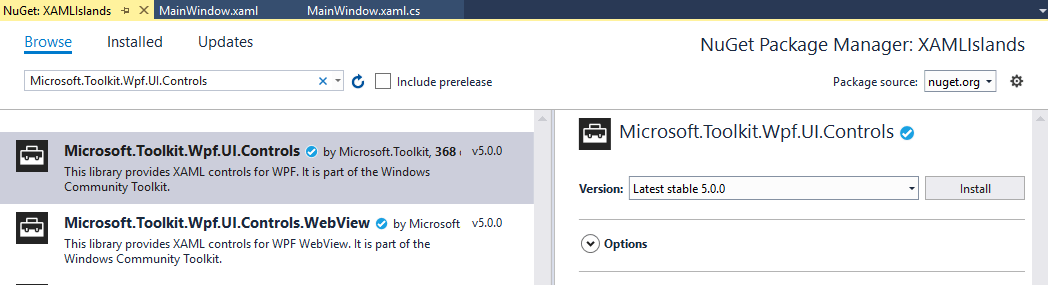
<p>In order to use these controls first you need to add a reference to the Microsoft.Toolkit.Wpf.UI.Controls Nuget package for WPF and to the Microsoft.Toolkit.Forms.UI.Controls for Windows Forms.</p>
<div>
</div>
<p><img src="https://d585tldpucybw.cloudfront.net/sfimages/default-source/default-album/xaml_islands_nuget.png?sfvrsn=8283d8d4_1" data-displaymode="Original" alt="XAML_Islands_nuget" title="XAML_Islands_nuget" style="vertical-align: middle;"></p>
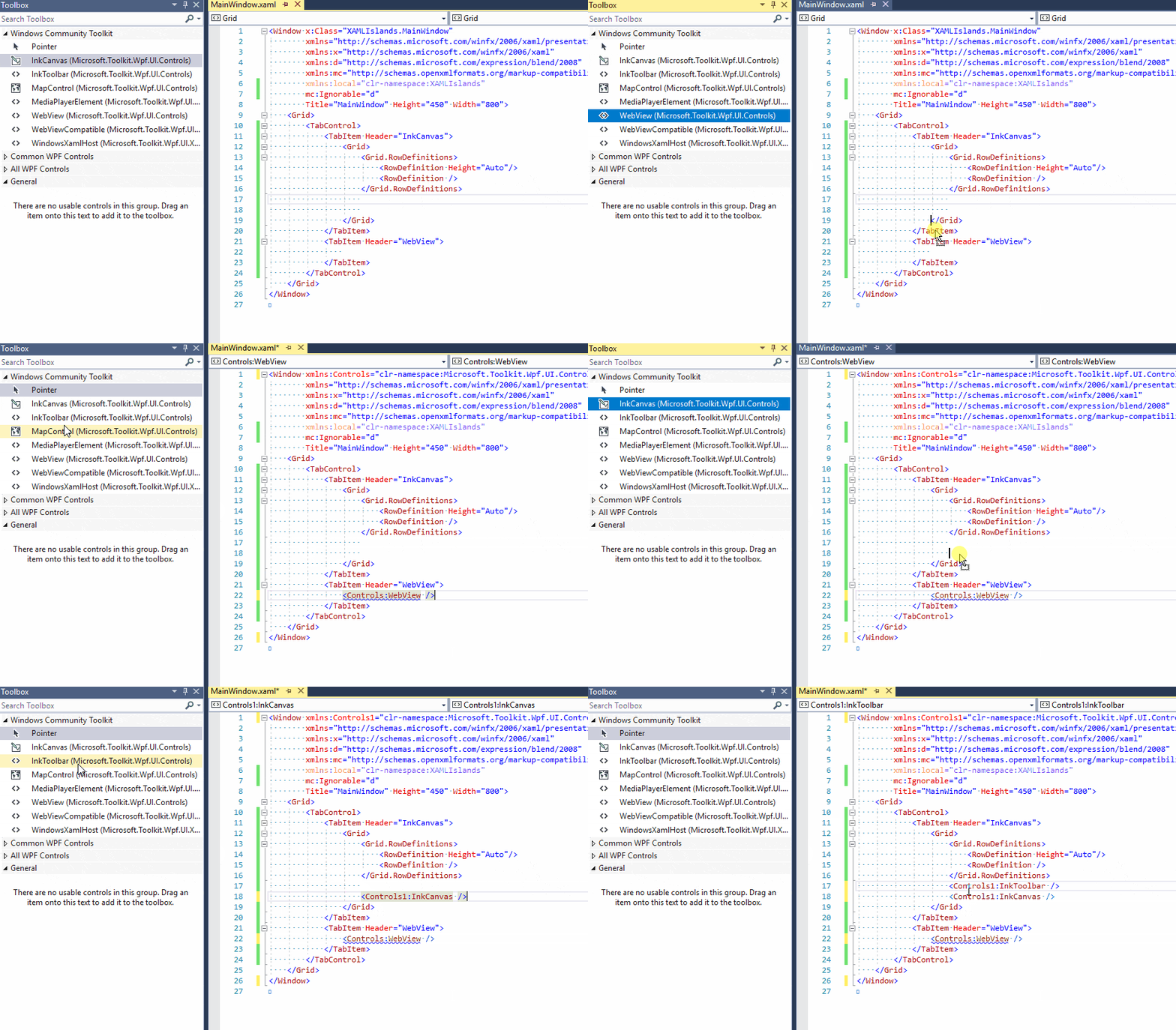
<p>After the package is added you can head out and open the Visual Studio toolbox &ndash; the wrapped controls should be visualized there. You can simply drag and drop them inside your application and use them as any other WPF/WinForms control.</p>
<p>
For example we can add InkCanvas and WebView:</p>
<div>
<p><img src="https://d585tldpucybw.cloudfront.net/sfimages/default-source/default-album/xi_dd.gif?sfvrsn=47320091_1" data-displaymode="Original" alt="WebView_InkCanvas_Toolbox" title="WebView_InkCanvas_Toolbox" style="vertical-align: middle;"></p>
<p>The properties and methods of the WebView and the InkCanvas are exposed as well and can be used directly:</p>
<pre> <code class="lang-csharp">&lt;TabControl&gt;<br>
&nbsp; &nbsp; &lt;TabItem Header="InkCanvas"&gt;<br>
&nbsp; &nbsp; &nbsp; &nbsp; &lt;Grid&gt;<br>
&nbsp; &nbsp; &nbsp; &nbsp; &nbsp; &nbsp; &lt;Grid.RowDefinitions&gt;<br>
&nbsp; &nbsp; &nbsp; &nbsp; &nbsp; &nbsp; &nbsp; &nbsp; &lt;RowDefinition Height="Auto"/&gt;<br>
&nbsp; &nbsp; &nbsp; &nbsp; &nbsp; &nbsp; &nbsp; &nbsp; &lt;RowDefinition Height="*"/&gt;<br>
&nbsp; &nbsp; &nbsp; &nbsp; &nbsp; &nbsp; &lt;/Grid.RowDefinitions&gt;<br>
&nbsp; &nbsp; &nbsp; &nbsp; &nbsp; &nbsp; &lt;Controls1:InkToolbar TargetInkCanvas="{x:Reference Name=inkCanvas}"/&gt;<br>
&nbsp; &nbsp; &nbsp; &nbsp; &nbsp; &nbsp; &lt;Controls1:InkCanvas Grid.Row="1" x:Name="inkCanvas" /&gt;<br>
&nbsp; &nbsp; &nbsp; &nbsp; &lt;/Grid&gt;<br>
&nbsp; &nbsp; &lt;/TabItem&gt;<br>
&nbsp; &nbsp; &lt;TabItem Header="WebView"&gt;<br>
&nbsp; &nbsp; &nbsp; &nbsp; &lt;Controls:WebView Source="https://www.telerik.com"/&gt;<br>
&nbsp; &nbsp; &lt;/TabItem&gt;<br>
&lt;/TabControl&gt;<p>&nbsp;</p>
</code></pre>
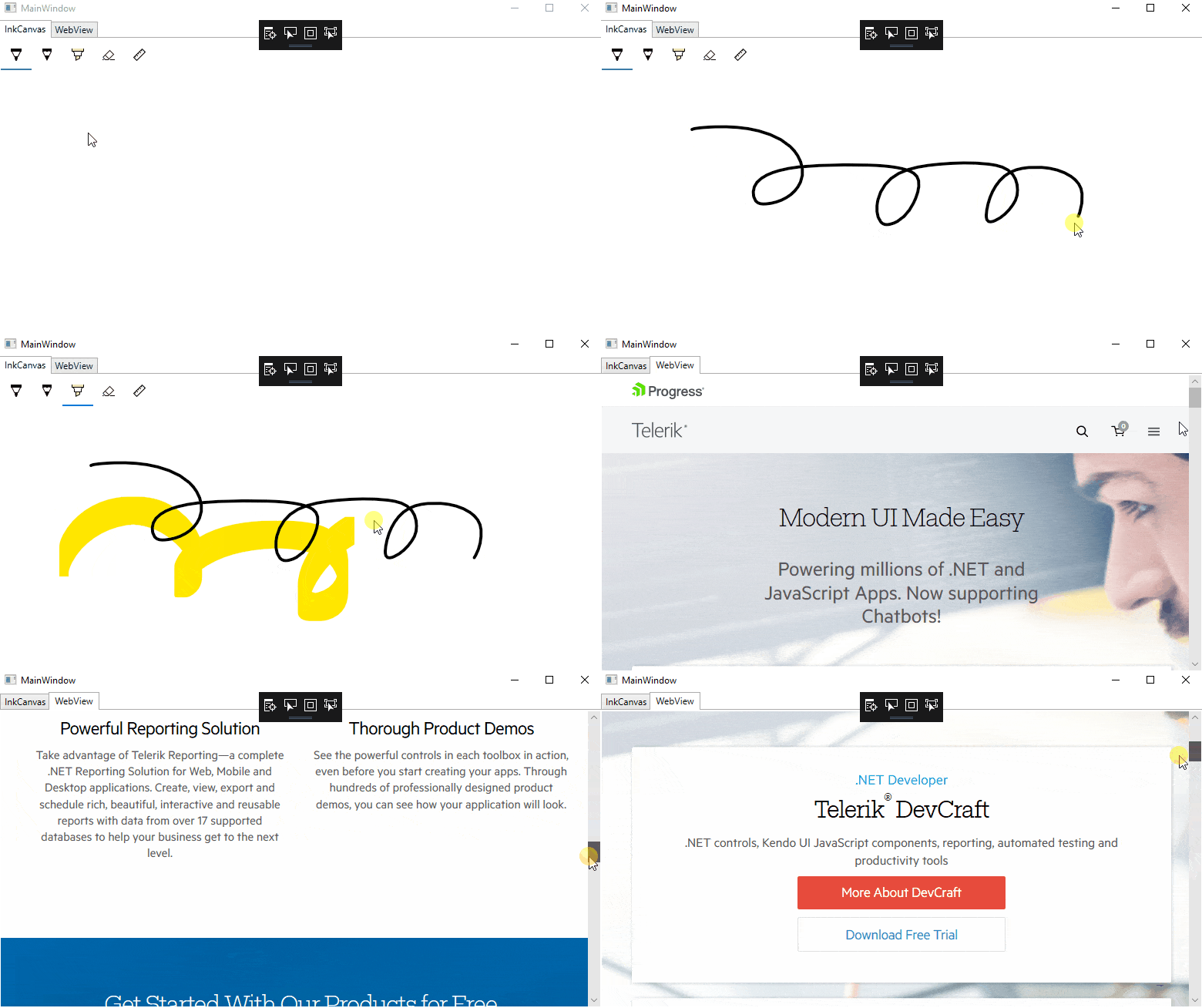
<p>And the result should look like this:</p>
<div>
<img src="https://d585tldpucybw.cloudfront.net/sfimages/default-source/default-album/xi_dd_2.gif?sfvrsn=8a9b616e_1" data-displaymode="Original" alt="WebVIew and InkCanvas" title="WebVIew and InkCanvas" style="vertical-align: middle;"></div>
<h2>How to Wrap Other UWP Controls?</h2>
<p>For every other control that is not wrapped out of the box, you can use the WindowsXamlHost and visualize it in WPF.&nbsp;</p>
<p>
First you need to add the following namespace in XAML in order to be able to use the WindowsXamlHost:</p>
<pre> <code class="lang-csharp">xmlns:XamlHost="clr-namespace:Microsoft.Toolkit.Wpf.UI.XamlHost;assembly=Microsoft.Toolkit.Wpf.UI.XamlHost"</code></pre>
<div>
<p>
After the namespace is added the WindowsXamlHost can be declared. Using the InitialTypeName of the host you need to specify the exact type of the control you want to initialize. For example, here is how you can show a pure native UWP Button:</p>
<pre><code class="lang-csharp">&lt;XamlHost:WindowsXamlHost InitialTypeName="Windows.UI.Xaml.Controls.Button" /&gt;</code></pre>
<div>
<blockquote><em>NOTE: In order to be able to reference the Windows 10 APIs in your WPF/WinForms application please, make sure you have added <a href="https://docs.microsoft.com/en-us/windows/uwp/porting/desktop-to-uwp-enhance#first-set-up-your-project">the needed references</a>.</em></blockquote></div>
<p>Using <code>ChildChanged</code> you can access the Button in code behind and play with it. The <code>ChildChanged</code> event guarantees the Button is completely loaded:</p>
<pre> <code class="lang-csharp">&lt;XamlHost:WindowsXamlHost x:Name="xamlHost" InitialTypeName="Windows.UI.Xaml.Controls.Button" ChildChanged="WindowsXamlHost_ChildChanged"/&gt;</code></pre>
<p>
And in the code-behind:</p>
<pre> <code class="lang-csharp">private void WindowsXamlHost_ChildChanged(object sender, System.EventArgs e)<br>
{<br>
&nbsp; &nbsp; var host = (WindowsXamlHost)sender;<br>
&nbsp; &nbsp; var button = host.Child as Windows.UI.Xaml.Controls.Button;<br>
&nbsp; &nbsp; button.Content = "I am UWP Button";<br>
}</code></pre>
<p>
This is just a simple example of initializing a UWP Button in WPF using the host. You can declare even more complex UI and assign them as a Child to the WindowsXamlHost:</p>
<pre> <code class="lang-csharp">...<br>
global::Windows.UI.Xaml.Hosting.WindowsXamlManager.InitializeForCurrentThread();<br>
&nbsp;<br>
var uwpGrid = new Grid();<br>
uwpGrid.Margin = new Windows.UI.Xaml.Thickness(12, 20, 12, 14);<br>
uwpGrid.RowDefinitions.Add(new RowDefinition());<br>
uwpGrid.RowDefinitions.Add(new RowDefinition() { Height = Windows.UI.Xaml.GridLength.Auto });<br>
&nbsp;<br>
var map = new MapControl();<br>
&nbsp;<br>
var sliderGrid = new Grid();<br>
Grid.SetRow(sliderGrid, 1);<br>
sliderGrid.Margin = new Windows.UI.Xaml.Thickness(12);<br>
&nbsp;<br>
var sliderPanel = new StackPanel();<br>
vqr zoomSlider = new Slider();<br>
zoomSlider.Minimum = 1;<br>
zoomSlider.Maximum = 20;<br>
zoomSlider.Header = "Zoom Level";<br>
zoomSlider.Value = 17.5;<br>
sliderPanel.Children.Add(zoomSlider);<br>
&nbsp;<br>
var headingSlider = new Slider();<br>
headingSlider.Minimum = 0;<br>
headingSlider.Maximum = 360;<br>
headingSlider.Header = "Heading";<br>
headingSlider.Value = 0;<br>
sliderPanel.Children.Add(headingSlider);<br>
&nbsp;<br>
var desiredPitchSlider = new Slider();<br>
desiredPitchSlider.Minimum = 0;<br>
desiredPitchSlider.Maximum = 64;<br>
desiredPitchSlider.Header = "Desired Pitch";<br>
desiredPitchSlider.Value = 32;<br>
sliderPanel.Children.Add(desiredPitchSlider);<br>
sliderGrid.Children.Add(sliderPanel);<br>
&nbsp;<br>
uwpGrid.Children.Add(this.map);<br>
uwpGrid.Children.Add(sliderGrid);<br>
this.xamlHost.Child = uwpGrid;<br>
...</code></pre>
</div>
</div>
<p>
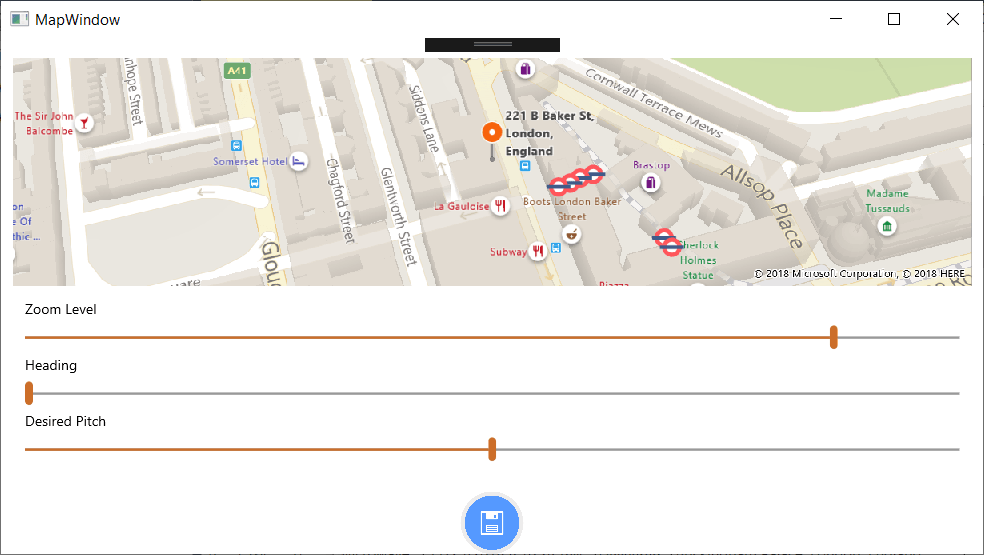
And the final result should be:
</p>
<p><img src="https://d585tldpucybw.cloudfront.net/sfimages/default-source/default-album/map.png?sfvrsn=706ed2c2_1" data-displaymode="Original" alt="UWPMap" title="UWPMap" style="vertical-align: middle;"></p>
<h2>Host UWP Controls in Windows Forms</h2>
<p>
Similarly to WPF, you can wrap any native UWP control and visualize it in Windows Forms.</p>
<p>
First you need to add the Microsoft.Toolkit.Forms.UI.Controls Nuget package. Like in WPF, you should be able to see the wrapped UWP controls in your Toolbox.</p>
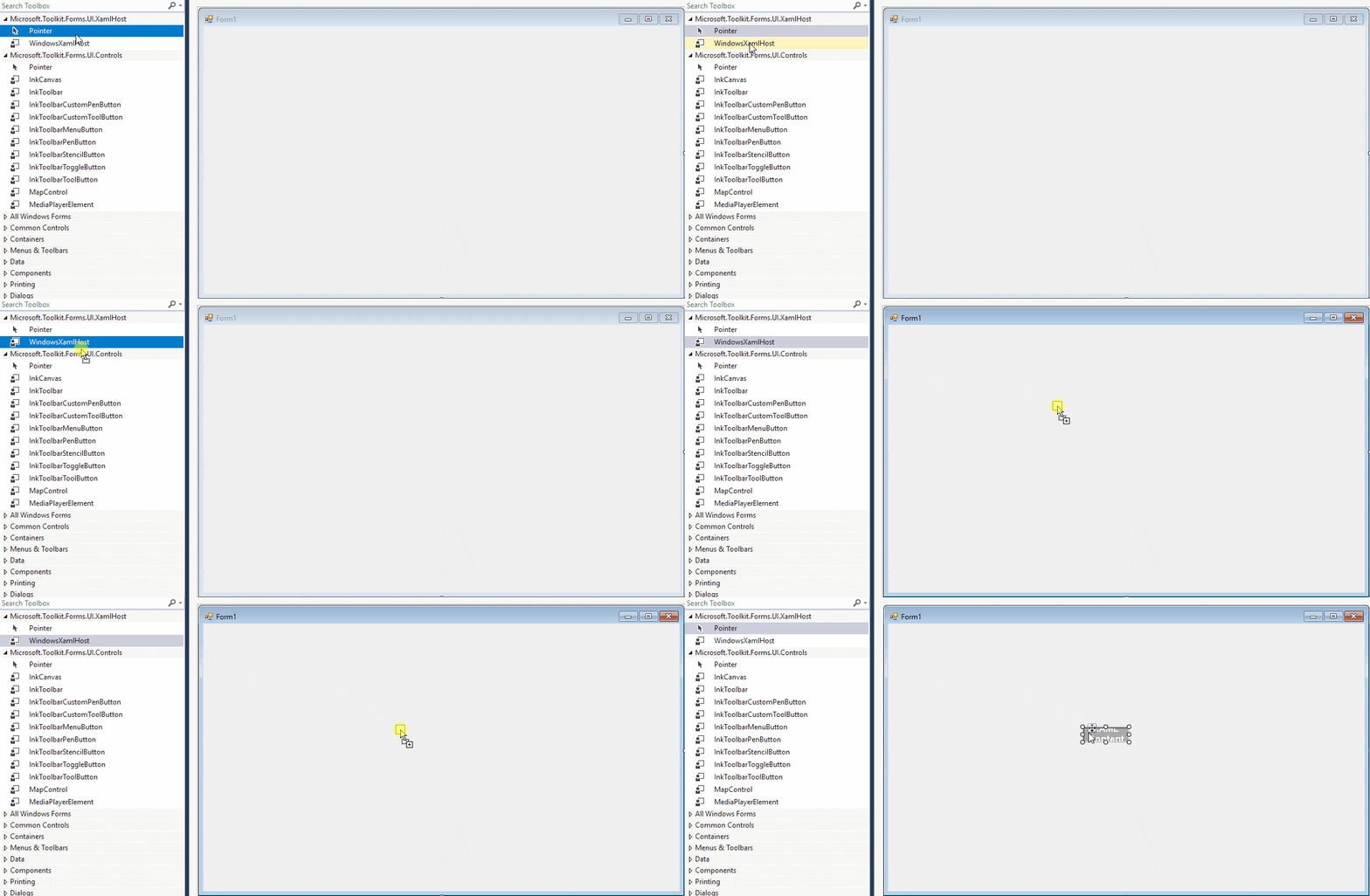
<p>With a simple drag and drop the desired control can be placed and used in your application.</p>
<p>
For example here is how a UWP Button can be created in the WinForms world:</p>
<p><img src="https://d585tldpucybw.cloudfront.net/sfimages/default-source/default-album/winforms_xamlislands.gif?sfvrsn=dff0d8f_1" data-displaymode="Original" alt="WinForms_XamlIslands" title="WinForms_XamlIslands" style="vertical-align: middle;"></p>
<p>
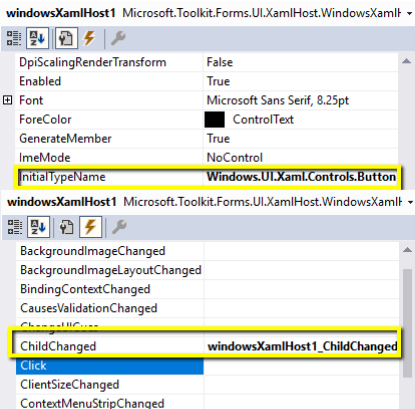
And in code behind using the <code>ChildChanged</code> event you can set the desired properties to the Button:</p>
<img src="https://d585tldpucybw.cloudfront.net/sfimages/default-source/default-album/xamlislands_winforms.png?sfvrsn=c929995c_1" data-displaymode="Original" alt="XAMLIslands_WinForms" title="XAMLIslands_WinForms">
<pre> <code class="lang-csharp">private void windowsXamlHost1_ChildChanged(object sender, EventArgs e)<br>
{<br>
&nbsp; &nbsp; var host = (WindowsXamlHost)sender;<br>
&nbsp; &nbsp; var button = host.Child as Windows.UI.Xaml.Controls.Button;<br>
&nbsp; &nbsp; button.Content = "I am UWP Button called from Windows Forms :)";<br>
}</code></pre>
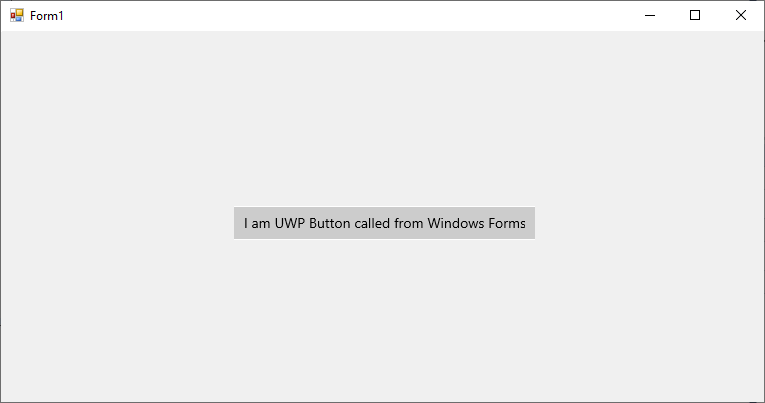
<p>The final result should look like this:</p>
<p><img src="https://d585tldpucybw.cloudfront.net/sfimages/default-source/default-album/2018-11-27_1141.png?sfvrsn=6a76e1a5_1" data-displaymode="Original" alt="WinForms_XAMLIslands" title="WinForms_XAMLIslands" style="vertical-align: middle;"></p>
<h2>Using Bindings with the XAML Islands</h2>
<p>One of the most useful features of XAML is Bindings. Because the Child of the WindowsXamlHost is running on the same process and on the exact same thread, just like with WPF and Windows Forms, you can establish bindings for your native UWP control without any concerns.</p>
<p>
For example, lets create a simple ViewModel class:</p>
<pre><code class="lang-csharp">public class ViewModel : INotifyPropertyChanged<br>
{<br>
&nbsp; &nbsp; private string uwpBtnContent;<br>
&nbsp;<br>
&nbsp; &nbsp; public ViewModel()<br>
&nbsp; &nbsp; {<br>
&nbsp; &nbsp; &nbsp; &nbsp; this.UwpBtnContent = "I am set from the ViewModel";<br>
&nbsp; &nbsp; }<br>
&nbsp;<br>
&nbsp; &nbsp; public string UwpBtnContent<br>
&nbsp; &nbsp; {<br>
&nbsp; &nbsp; &nbsp; &nbsp; get<br>
&nbsp; &nbsp; &nbsp; &nbsp; {<br>
&nbsp; &nbsp; &nbsp; &nbsp; &nbsp; &nbsp; return this.uwpBtnContent;<br>
&nbsp; &nbsp; &nbsp; &nbsp; }<br>
&nbsp; &nbsp; &nbsp; &nbsp; set<br>
&nbsp; &nbsp; &nbsp; &nbsp; {<br>
&nbsp; &nbsp; &nbsp; &nbsp; &nbsp; &nbsp; if (this.uwpBtnContent != value)<br>
&nbsp; &nbsp; &nbsp; &nbsp; &nbsp; &nbsp; {<br>
&nbsp; &nbsp; &nbsp; &nbsp; &nbsp; &nbsp; &nbsp; &nbsp; this.uwpBtnContent = value;<br>
&nbsp; &nbsp; &nbsp; &nbsp; &nbsp; &nbsp; &nbsp; &nbsp; this.NotifyPropertyChanged(nameof(UwpBtnContent));<br>
&nbsp; &nbsp; &nbsp; &nbsp; &nbsp; &nbsp; }<br>
&nbsp; &nbsp; &nbsp; &nbsp; }<br>
&nbsp; &nbsp; }<br>
&nbsp;<br>
&nbsp; &nbsp; public event PropertyChangedEventHandler PropertyChanged;<br>
&nbsp;<br>
&nbsp; &nbsp; private void NotifyPropertyChanged([CallerMemberName] string propertyName = "")<br>
&nbsp; &nbsp; {<br>
&nbsp; &nbsp; &nbsp; &nbsp; PropertyChanged?.Invoke(this, new PropertyChangedEventArgs(propertyName));<br>
&nbsp; &nbsp; }<br>
}</code></pre>
<p>After that inside the <code>ChildChanged</code> event we can create the following binding for the Content property of the Button:</p>
<pre> <code class="lang-csharp">private void WindowsXamlHost_ChildChanged(object sender, System.EventArgs e)<br>
{<br>
&nbsp; &nbsp; var host = (WindowsXamlHost)sender;<br>
&nbsp; &nbsp; var button = host.Child as Windows.UI.Xaml.Controls.Button;<br>
&nbsp; &nbsp; button.SetBinding(<br>
&nbsp; &nbsp; &nbsp; &nbsp; Windows.UI.Xaml.Controls.Button.ContentProperty,<br>
&nbsp; &nbsp; &nbsp; &nbsp; new Windows.UI.Xaml.Data.Binding()<br>
&nbsp; &nbsp; &nbsp; &nbsp; {<br>
&nbsp; &nbsp; &nbsp; &nbsp; &nbsp; &nbsp; Path = new Windows.UI.Xaml.PropertyPath("UwpBtnContent"),<br>
&nbsp; &nbsp; &nbsp; &nbsp; &nbsp; &nbsp; Source = new ViewModel()<br>
&nbsp; &nbsp; &nbsp; &nbsp; });<br>
}</code></pre>
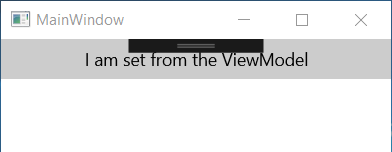
<p>The result should look like this:</p>
<p>
</p>
<p><img src="https://d585tldpucybw.cloudfront.net/sfimages/default-source/default-album/2018-11-25_2229.png?sfvrsn=5d4677e7_1" data-displaymode="Original" alt="Binding" title="Binding" style="vertical-align: middle;"></p>
<h2>Limitations</h2>
<p>As the XAML Islands is still in preview it has a few limitations. Here are some of them:</p>
<ul>
    <li>The Wrapped controls are not properly responding to changes in DPI and scale</li>
    <li>Accessibility tools do not work&nbsp;seamlessly across the application and hosted controls</li>
</ul>
<p>You can find a complete list with more information about the other limitations of XAML Islands&nbsp;<a href="https://docs.microsoft.com/en-us/windows/uwp/xaml-platform/xaml-host-controls#limitations">here</a>.</p>
<h2>Closing Words</h2>
<p>
Being a desktop developer has never been so exciting. Bringing a native look and feel to your WPF and WinForms application using XAML Islands is another great functionality introduced by Microsoft. I am excited to see how XAML Islands develops, and for all the new functionalities that I believe are coming to us as developers in the future.
</p>
<p>
Do not hesitate and give XAML Islands a try right now. Believe me you won't regret it. You might also be interested in checking out our <a href="https://www.telerik.com/products/wpf/overview.aspx">WPF</a>, <a href="https://www.telerik.com/products/winforms.aspx">WinForms</a>&nbsp;and <a href="https://www.telerik.com/universal-windows-platform-ui">UWP</a>&nbsp;suites, which are in lock step with everything new from XAML Islands to <a href="https://www.telerik.com/blogs/how-to-update-wpf-winforms-app-to-dotnet-core-3">.NET Core 3.0</a>.</p>
<p>
Thanks and Happy coding. </p>
<p>
P.S. In the 3rd and final blog of the series, we are going to focus on styling and customizations and in particular, how to create Fluent Design-inspired WPF and WinForms applications.</p>
<p><strong>Recommended Articles:</strong></p>
<ul>
    <li><strong>&nbsp;</strong><a href="https://www.telerik.com/blogs/uwp-wpf-winforms-desktop-app-to-the-new-millennium-with-xaml-islands">Is That UWP, WPF or WinForms: Bring Your Desktop App to the New Millennium with XAML Islands</a></li>
    <li><a href="https://www.telerik.com/blogs/how-to-update-wpf-winforms-app-to-dotnet-core-3">Bring Your WPF and WinForms Apps to .NET Core 3 with Telerik UI for WPF and WinForms</a></li>
</ul>
<div></div><img src="https://feeds.telerik.com/link/23061/15057533.gif" height="1" width="1"/>]]></content>
  </entry>
  <entry>
    <id>urn:uuid:b58a3554-2da0-40ba-ae4a-43c3db0ff4cd</id>
    <title type="text">Why XAML? Why Now?</title>
    <summary type="text">XAML has stood the test of time and remains a flexible UI definition language. This article explores the app platforms that XAML powers today and looks ahead at what might be in store for future.</summary>
    <published>2018-10-29T16:43:25Z</published>
    <updated>2026-04-11T12:20:16Z</updated>
    <author>
      <name>Sam Basu </name>
    </author>
    <link rel="alternate" href="https://feeds.telerik.com/link/23061/15057534/why-xaml-why-now"/>
    <content type="text"><![CDATA[<p class="featured">XAML has stood the test of time and remains a flexible UI definition language. This article explores the app platforms that XAML powers today and looks ahead at what might be in store for future.</p>
<p>XAML is dead. No wait - Long live XAML. XAML (Extensible Application Markup Language) started life as a simple thin UI markup layer, but has had a surprisingly eventful history. Developers on Microsoft's technology stack have been witnesses to XAML&rsquo;s phenomenal rise as well as its teetering on the edge of life support.</p>
<p>Turns out, XAML may be much loved or much hated, but has clearly stood the test of time. Over years, no one team at Microsoft owned XAML - it was meant to be a descriptive markup UI language to define visual trees for apps. So, several technologies adopted XAML and gave it character and unique dialects. Today, XAML stands strong powering various app platforms, sports rich tooling support and potentially has a very bright future. This article explores what XAML can power today with an eye out for what the future holds in store.</p>
<h2 id="desktop">Desktop</h2>
<h3 id="windows-presentation-foundation-wpf">Windows Presentation Foundation (WPF)</h3>
<p><img src="https://www.telerik.com/sfimages/default-source/blogs/2018/2018-10/wpf.png" alt=""></p>
<p>The holy grail of Desktop development on Windows today is still <a href="https://docs.microsoft.com/en-us/dotnet/framework/wpf/getting-started/introduction-to-wpf-in-vs">WPF</a> - which is where XAML started life. Over the years, XAML has always been the UI layer for WPF apps and has enjoyed rich tooling support. One might argue that much of XAML&rsquo;s feature richness and ease of use stems from WPF. Both Microsoft and the developer community stepped up to make XAML/C# development a wonderful experience for developers. With code intellisense and design tools like Blend, the UI definition layer for WPF apps continues to be the gold standard for XAML development.</p>
<h3 id="universal-windows-platform">Universal Windows Platform</h3>
<p><img src="https://www.telerik.com/sfimages/default-source/blogs/2018/2018-10/uwp.png" alt=""></p>
<p>Starting from Windows 8 and after several iterations, Microsoft finally landed on <a href="https://docs.microsoft.com/en-us/windows/uwp/get-started/universal-application-platform-guide">UWP</a> - the de facto way of building forward-looking apps for Windows. And sure enough, the UI layer is powered by XAML, albeit a slightly different dialect than WPF uses. XAML powering UWP apps is a big deal for developers comfortable with the markup language - primarily because of UWP&rsquo;s reach. UWP can power apps on every modern Windows device, from tablets, laptops and desktops to XBoxes, Surface Hubs and the HoloLens. Developers get to define their UI in XAML and it simply works across all form factors. </p>
<p>While this sounds magical, the reality takes a bit of work to adjust layouts with a fluid UI for various device sizes - but it is all XAML under the covers. And UWP&rsquo;s device flexibility means XAML sports rich features like responsive layouts, advanced touch support and inking capabilities.</p>
<h2 id="mobile">Mobile</h2>
<h3 id="xamarin.forms">Xamarin.Forms</h3>
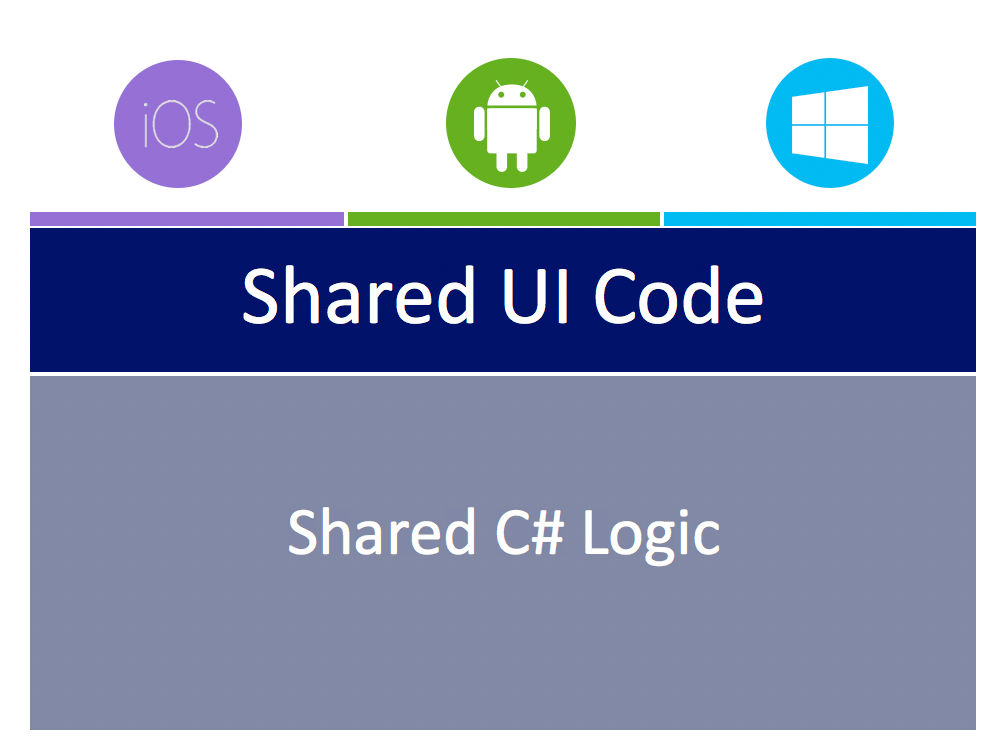
<p>Being able to reach all Windows devices with XAML was nice, but no one lives in a platform silo. For mobile form factors, iOS/Android rule - .NET developers needed a bridge to carry their skills cross platform. Enter <a href="https://docs.microsoft.com/en-us/xamarin/xamarin-forms/">Xamarin.Forms</a>. With a shared abstracted UI layer, developers can share not only business logic but UI definition as well - all towards building truly native cross-platform apps. And the choice for abstracted UI definition? Yep, XAML - a special dialect of it catered for mobile app development.</p>
<p><img src="https://www.telerik.com/sfimages/default-source/blogs/2018/2018-10/XamarinForms.png" alt=""></p>
<p>Xamarin.Forms XAML did something wonderful - relieving .NET developers from having to learn the intricacies of native platform UI. Developers get to define the UI visual tree in XAML and the runtime turns around to render corresponding native UI components on each platform. Modern Xamarin.Forms development provides rich tooling for XAML development - like Forms Previewer, Inspector and Profiler.</p>
<h3 id="uno">Uno</h3>
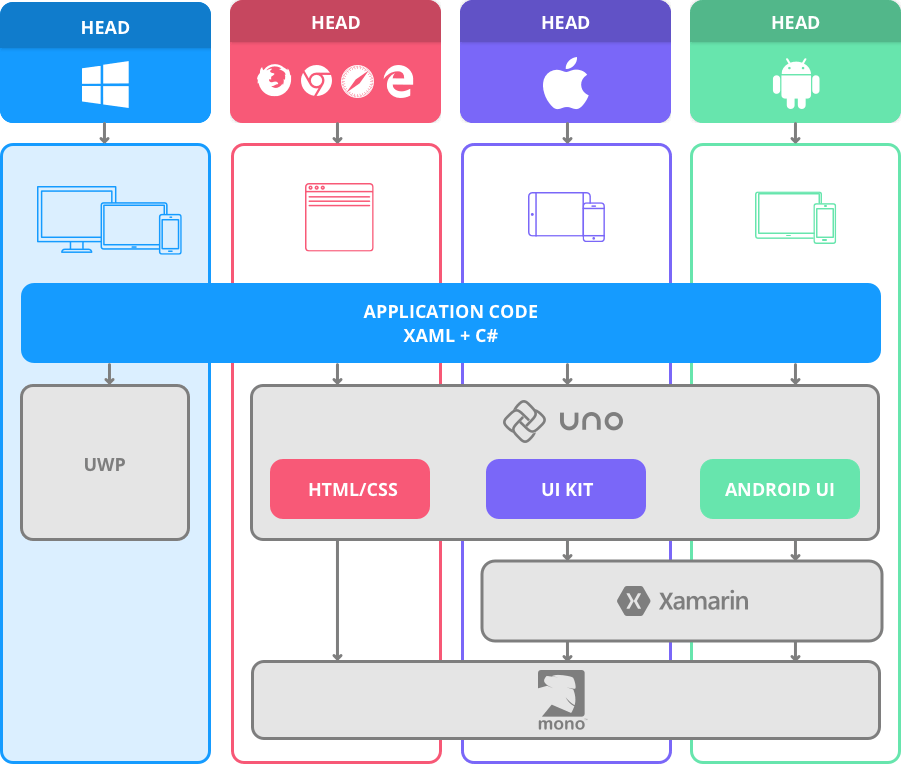
<p>Is Xamarin.Forms XAML not quite your cup of tea? Turns out, a few smart folks from Montreal Canada are with you - and they love UWP XAML. Enter <a href="https://platform.uno/">Uno</a> - now an open source UI abstraction library that creates bridges to iOS and Android from XAML. Uno&rsquo;s application runtime is powered by Mono and Xamarin - developers simply get to use UWP XAML, instead of the Xamarin.Forms head. This was no small effort since the corresponding native UI is being rendered on each platform. It's all worth it just for the love of UWP XAML.</p>
<p><img src="https://www.telerik.com/sfimages/default-source/blogs/2018/2018-10/Uno.png" alt=""></p>
<h3 id="nativescript">NativeScript</h3>
<p>A lot of enterprises that have traditionally had a full .NET technology stack, now power their web app frontends with SPA frameworks - like Angular, React or Vue. Most modern .NET developers aren&rsquo;t shy about writing JavaScript, CSS and HTML. And if web technologies are what&rsquo;s powering your apps, then JavaScript Native apps are rather enticing as a mobile strategy. Developers get to reuse web technologies to power truly native cross-platform mobile apps - and potentially share code between web and mobile.</p>
<p><img src="https://www.telerik.com/sfimages/default-source/blogs/2018/2018-10/NativeScriptLogos.png" alt=""></p>
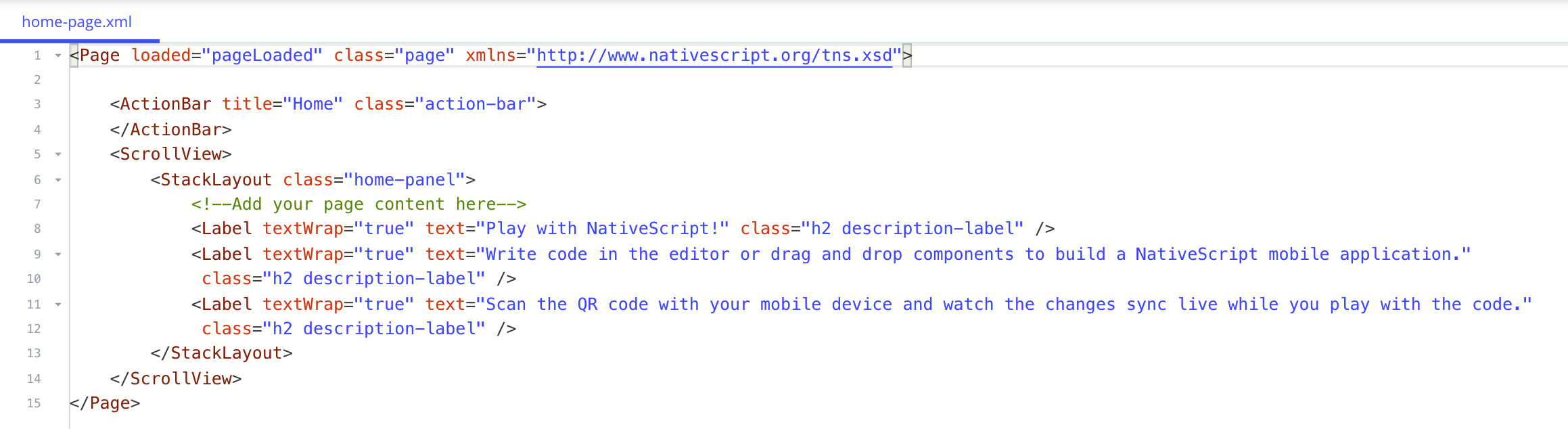
<p><a href="https://www.nativescript.org/">NativeScript</a> is an open source framework for building JS Native mobile apps. Developers get to write straight up JavaScript or TypeScript with Angular for the app&rsquo;s business logic. And the abstracted UI layer is defined in XML - a JS bridge renders corresponding native UI at runtime. While officially XML, let&rsquo;s take a look at standard UI definitions in NativeScript - look familiar? Yup, that&rsquo;s almost XAML, and .NET developers with any XAML experience will be perfectly at home here.</p>
<p><img src="https://www.telerik.com/sfimages/default-source/blogs/2018/2018-10/NativeScriptXAML.png" alt=""></p>
<h2 id="web">Web</h2>
<img src="https://d585tldpucybw.cloudfront.net/sfimages/default-source/blogs/2018/2018-10/silverlight4d42cf5f8c874f399149351fa66033ea.png?sfvrsn=e54d6eeb_1&amp;MaxWidth=325&amp;MaxHeight=&amp;ScaleUp=false&amp;Quality=High&amp;Method=ResizeFitToAreaArguments&amp;Signature=67DEA073D9D95EB41758042C13977BFA39067953" alt="Microsoft Silverlight" data-method="ResizeFitToAreaArguments" data-customsizemethodproperties="{&quot;MaxWidth&quot;:&quot;325&quot;,&quot;MaxHeight&quot;:&quot;&quot;,&quot;ScaleUp&quot;:false,&quot;Quality&quot;:&quot;High&quot;}" data-displaymode="Custom" title="Microsoft Silverlight" style="float: right;">
<p>XAML powering apps on the web browser has had a checkered past. Understandably, .NET developers who did Silverlight are still hurt - it is never a good situation when technologies die and take down investments. The web has simply moved away from the Plugins model and Silverlight saw the writing on the wall. Folks who did Silverlight development though were actually quite fond of the developer experience - XAML/C# was beautiful in the browser and the rich tooling helped. There may be some longingness to see XAML back on the web - but done with better architecture.</p>
<h3 id="webassembly">WebAssembly</h3>
<img src="https://d585tldpucybw.cloudfront.net/sfimages/default-source/blogs/2018/2018-10/wasmlogo4832c37fb3854896b199c5142701fd3f.png?sfvrsn=e39b4771_1&amp;MaxWidth=325&amp;MaxHeight=&amp;ScaleUp=false&amp;Quality=High&amp;Method=ResizeFitToAreaArguments&amp;Signature=E538A8E281332CDBDFA32FAB53D1453591C9CDB5" alt="WebAssembly" data-method="ResizeFitToAreaArguments" data-customsizemethodproperties="{&quot;MaxWidth&quot;:&quot;325&quot;,&quot;MaxHeight&quot;:&quot;&quot;,&quot;ScaleUp&quot;:false,&quot;Quality&quot;:&quot;High&quot;}" data-displaymode="Custom" title="WebAssembly" style="float: right;">
<p>Enter <a href="https://webassembly.org/">WebAssembly</a> - a low level instruction format that modern evergreen browsers can execute natively, just like JavaScript engines execute JS code. Being an open web standard, WebAssembly is enjoying support from big browser vendors, with promises of security and native execution speeds. The biggest draw of WebAssembly is the promise of compiling code written in higher level languages into stack-based instructions that browsers run natively - this <a href="https://www.telerik.com/blogs/goodbye-javascript-hello-webassembly">opens a lot of doors</a>.</p>
<h3 id="mono">Mono</h3>
<img src="https://d585tldpucybw.cloudfront.net/sfimages/default-source/blogs/2018/2018-10/monoc1dba5be8f3d4f75af22c6fb8938b335.png?sfvrsn=cb8284f9_1&amp;MaxWidth=325&amp;MaxHeight=&amp;ScaleUp=false&amp;Quality=High&amp;Method=ResizeFitToAreaArguments&amp;Signature=89229B53C7C19266E14E6D88B94E2A3D7969094D" alt="mono" data-method="ResizeFitToAreaArguments" data-customsizemethodproperties="{&quot;MaxWidth&quot;:&quot;325&quot;,&quot;MaxHeight&quot;:&quot;&quot;,&quot;ScaleUp&quot;:false,&quot;Quality&quot;:&quot;High&quot;}" data-displaymode="Custom" title="mono" style="float: right;">
<p><a href="https://www.mono-project.com/">Mono</a> has been around since the early days of the .NET Framework, as a popular port of .NET APIs to platforms outside of Windows. Over the years, Mono has matured to provide a large API surface area and .NET API mappings on other platforms like Mac/Linux, thus enabling .NET apps to step outside of Windows. Mono continues to power all of Xamarin - it is clearly the easiest way to take .NET code and run it on iOS/Android.</p>
<p>Turns out, folks at Mono are plenty smart and work is underway to bring <a href="https://www.mono-project.com/news/2017/08/09/hello-webassembly/">Mono to the WebAssembly platform</a>. This has the wonderful potential of compiling C# code down to WebAssembly that the browsers can execute natively, Hallelujah! This is exactly what&rsquo;s powering <a href="https://blazor.net/index.html">Blazor</a> - the experimental ASP.NET&nbsp;web framework promising to bring C# to the browser with Razor syntax. While the <a href="https://www.mono-project.com/news/2018/01/16/mono-static-webassembly-compilation/">present Mono support for WebAssembly</a> may be through Mono IL interpreter to run managed code at runtime, support for full static Ahead Of Time (AOT) compilation isn&rsquo;t far away. This should lead to excellent performance of C# code on the browser.</p>
<p><img src="https://www.telerik.com/sfimages/default-source/blogs/2018/2018-10/MonoWASM.png" alt=""></p>
<p>With C# coming to browser natively, it didn&rsquo;t take long for XAML afficianados to demand the UI abstraction layer back - this time, done through WebAssembly instead of using a Plugin. While experimental, it turns out both Xamarin.Forms and UWP XAML can already power web apps in the browser through WebAssembly.</p>
<p>Meet <a href="https://github.com/praeclarum/Ooui">Ooui</a> - a small cross-platform UI library that brings the simplicity of native UI development <a href="https://www.telerik.com/blogs/xamarin-forms-on-the-web">to the web</a>. Ooui.Forms provides Xamarin.Forms renderers for the web with a shadow DOM powering the front-end app - it can be hosted by itself or as a part of ASP.NET&nbsp;Core. There are several <a href="http://ooui.mecha.parts/">online samples</a> to play around with and see the fun of having XAML back in the browser. Also, Ooui.Wasm allows for packaging Xamarin.Forms apps with XAML UI markup into a WebAssembly runtime. It is nice to see a Xamarin.Forms apps, compiled statically and hosted on Amazon S3, <a href="https://s3.amazonaws.com/praeclarum.org/wasm/index.html">running purely as WebAssembly on the browser</a>.</p>
<p>Not to be left behind, UWP XAML also finds its way back in the browser - thanks to Uno. The experimental WebAssembly support looks polished, especially when trying things out in <a href="https://playground.platform.uno/">Uno&rsquo;s WebAssembly Playground</a>. Write, edit and see XAML running in browser natively - how magical.</p>
<h2 id="looking-ahead">Looking Ahead</h2>
<h3 id="mvvm-frameworks">MVVM Frameworks</h3>
<p><img src="https://www.telerik.com/sfimages/default-source/blogs/2018/2018-10/MVVM.png" alt=""></p>
<p>A big part of why .NET developers are fond of XAML development is the rich tooling and ease of maintaining large codebases. Model-View-ViewModel (MVVM) is a design pattern that works really well for XAML/C# development and there is plenty of help on this front. There are rich MVVM frameworks that have evolved over the years to support WPF/UWP platform development and now they have been customized to work for Xamarin.Forms as well. The open source .NET developer community really shines through with these MVVM frameworks - a lot of effort has gone into building feature richness and Visual Studio templates for each of the frameworks. Popular ones are <a href="http://www.mvvmlight.net/">MVVM Light</a>, <a href="https://github.com/PrismLibrary/Prism">Prism</a> and <a href="https://www.mvvmcross.com/">MVVM Cross</a>.</p>
<h3 id="xamarin.forms-heads">Xamarin.Forms Heads</h3>
<p><img src="https://www.telerik.com/sfimages/default-source/blogs/2018/2018-10/XFHeads.png" alt=""></p>
<p>An interesting set of developments for XAML developers is the increasing number of heads/backends for Xamarin.Forms - this simply increases the number of platforms supported and takes your code places. Xamarin.Forms is open source and the developer community is smart. The result is new Xamarin.Forms heads like MacOS, GTK Linux, WPF, Tizen and even the web - Xamarin.Forms apps are now starting to power so many platforms outside of just mobile. And the abstracted UI layer is your beloved XAML.</p>
<h3 id="marzipan">Marzipan</h3>
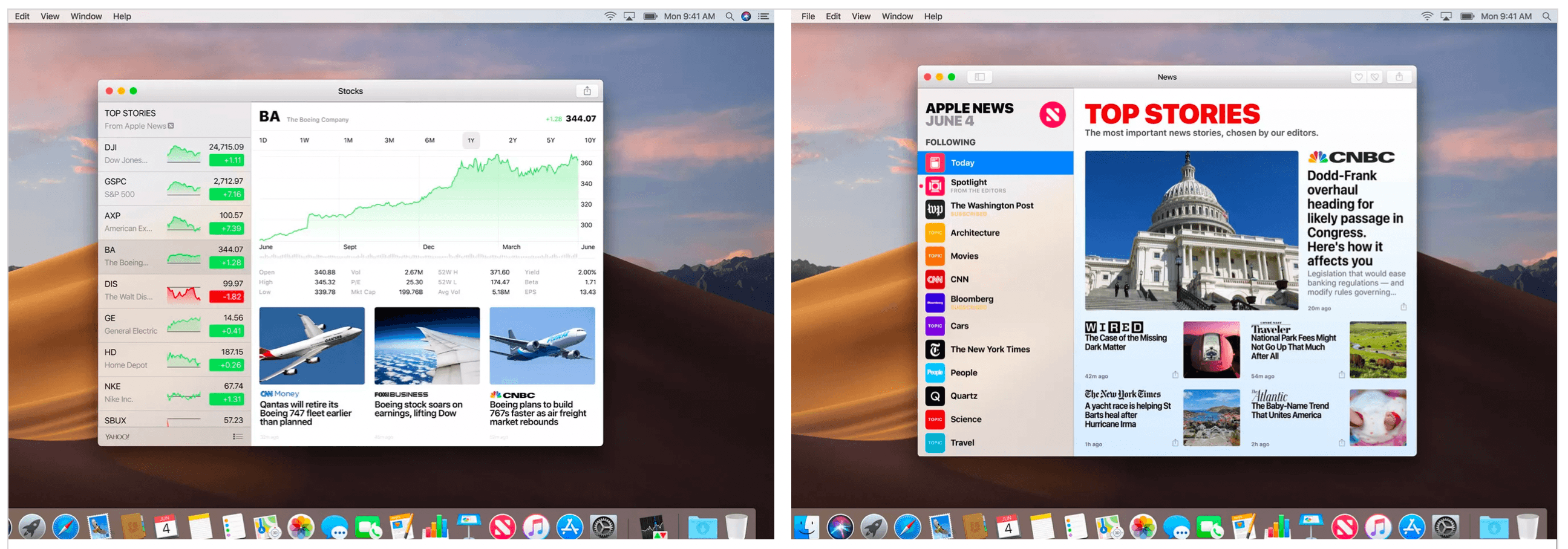
<p>Apple has been having an app gap problem - most developers build for iOS, but not much for the Mac AppStore. Their remedy is an internal project codenamed &lsquo;<a href="https://www.strv.com/blog/unlocking-marzipan-uikit-on-macos">Marzipan</a>&rsquo; - aimed for fruition some time in 2019. The goal is get iOS apps running on the Mac desktop through a mashup of UIKit and AppleKit - and there are several demos Apple has shown off already. Now this obviously has to be done carefully - there are implications when we take touch apps back to the desktop with mouse/keyboard.</p>
<p>So why should .NET/XAML developers care about Marzipan? Turns out, we&rsquo;re talking iOS apps running on Mac desktop with minimal changes. And the iOS apps can be written in Xamarin.Forms or Uno - this means XAML can officially power desktop apps on the Mac. Given XAML&rsquo;s richness to handle responsive layouts, one can argue that XAML developers should be able to port their iOS apps fairly easily to the Mac.</p>
<p><img src="https://www.telerik.com/sfimages/default-source/blogs/2018/2018-10/Marzipan.png" alt=""></p>
<h3 id="polished-ui">Polished UI</h3>
<p>Another reason for loving XAML/C# development is the rich ecosystem. Most professional apps need complex performant UI and developers need not reinvent the wheel - there is a lot of help. Enter <a href="https://www.telerik.com/">Progress Telerik</a> - your beloved .NET tooling across web, desktop and mobile.</p>
<p><img src="https://www.telerik.com/sfimages/default-source/blogs/2018/2018-10/Telerik.png" alt=""></p>
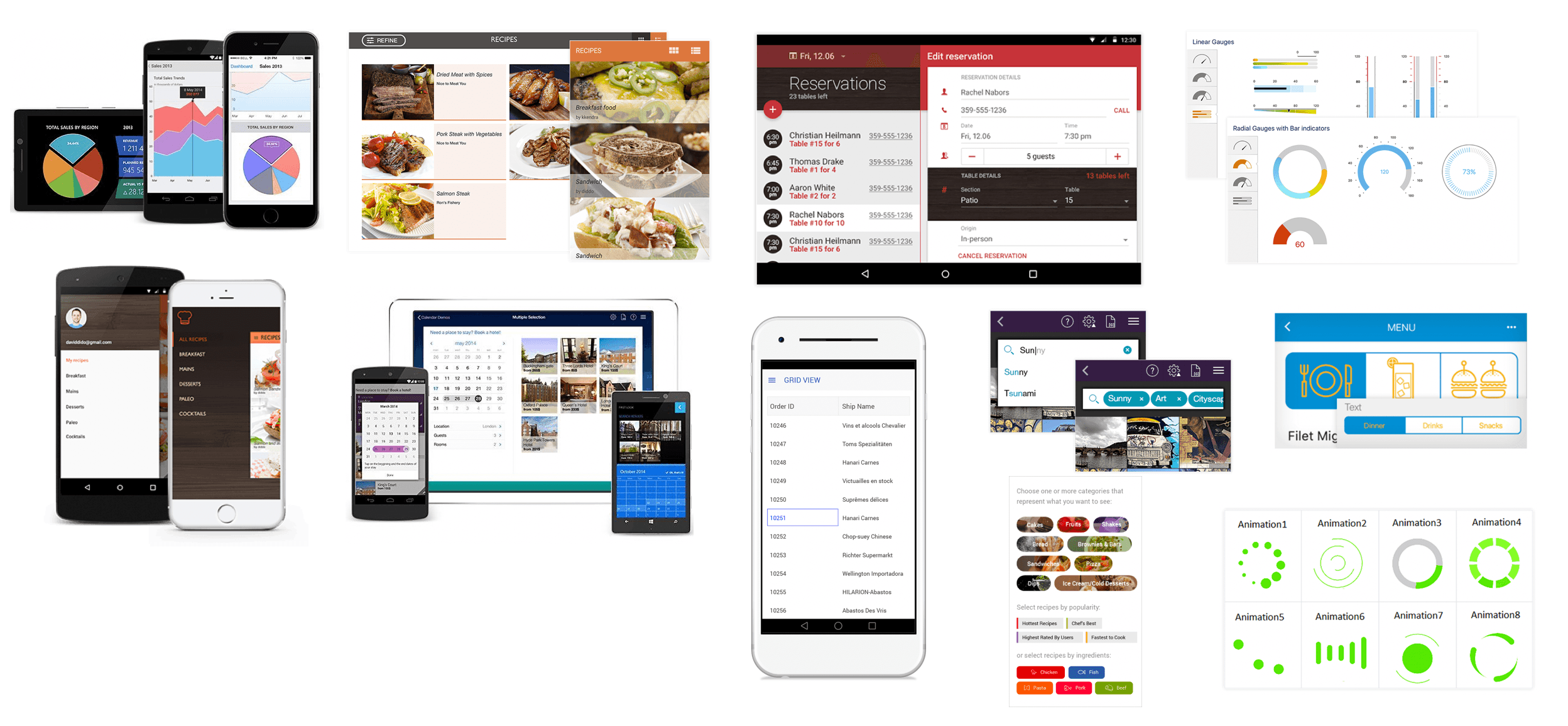
<p>Telerik offers multiple UI suites catering to different platforms for XAML developers. What&rsquo;s common are feature-rich UI controls, full MVVM support, consistent APIs and professional themes for styling. The engineering efforts behind each UI component shows in performance and pixel-perfect rendering - developers love complex UI that they can just drop in to light up apps. Popular controls include Grids, ListViews, various Charts/Graphs, Calendars, SideDrawers and myriads of other UI that is difficult to create by hand.</p>
<p>While <a href="https://www.telerik.com/products/wpf/overview.aspx">Telerik UI for WPF</a> provides powerful UI for desktop apps, <a href="https://www.telerik.com/xamarin-ui">Telerik UI for Xamarin</a> powers mobile apps across all platforms - and yes, all with XAML as the UI stack.</p>
<p><img src="https://www.telerik.com/sfimages/default-source/blogs/2018/2018-10/TelerikXamarin.png" alt=""></p>
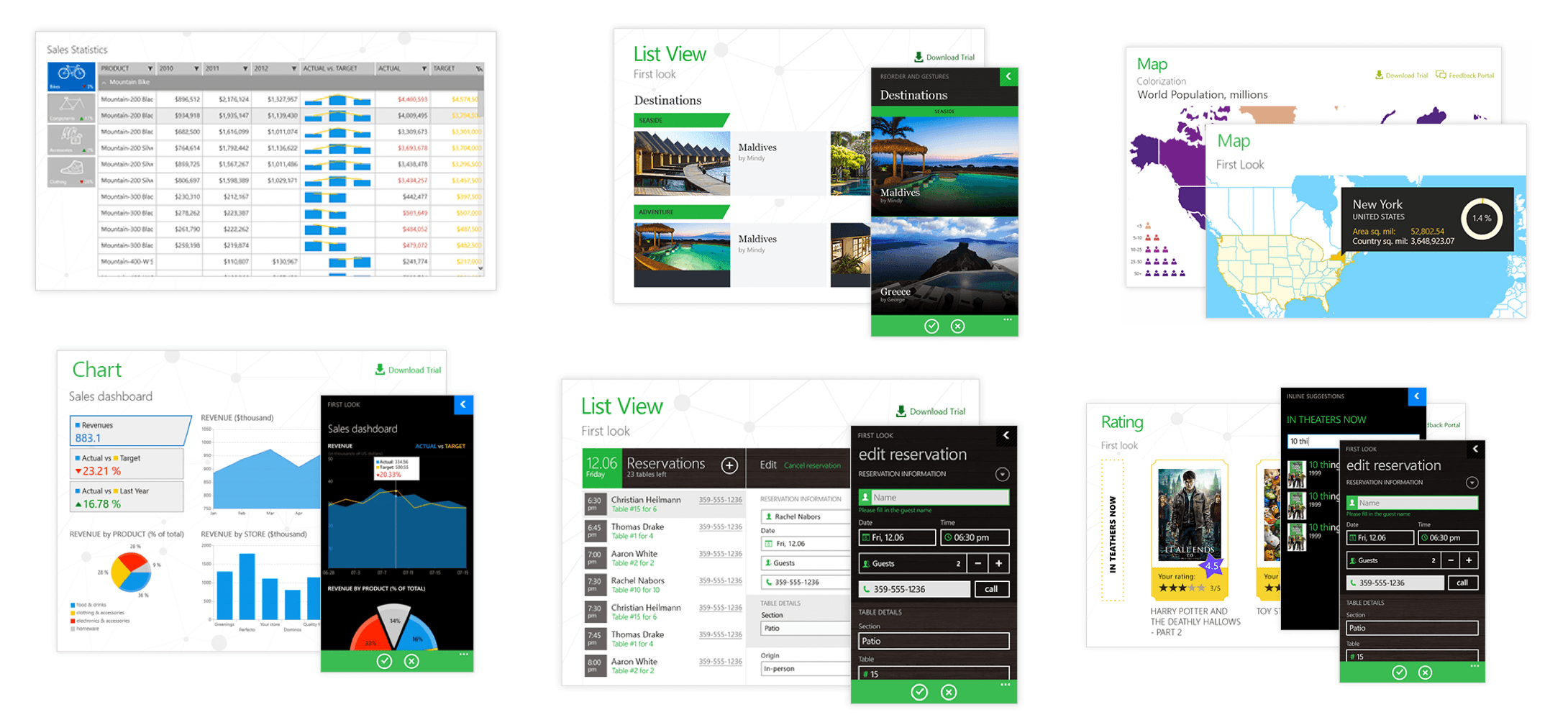
<p>While the modern web may have moved away from Plugins model, many enterprise Silverlight apps still power line of business workflows. To that end, <a href="https://www.telerik.com/products/silverlight/overview.aspx">Telerik UI for Silverlight</a> is there to help and sees continued feature investments. Building for Windows devices? <a href="https://www.telerik.com/universal-windows-platform-ui">Telerik UI for UWP</a> is there to help with polished performant UI - and entirely free and open source.</p>
<p><img src="https://www.telerik.com/sfimages/default-source/blogs/2018/2018-10/TelerikUWP.png" alt=""></p>
<h3 id="xaml-standard">XAML Standard</h3>
<p>As discussed, we have a few flavors of XAML now - WPF, UWP and Xamarin.Forms each talk slightly different dialects. This leads to a bit of fragmentation and some frustration for developers, mostly over annoying little differences and varying XAML namespaces. Wouldn&rsquo;t it be nice if all platforms spoke the same XAML?</p>
<p>That&rsquo;s exactly what <a href="https://developer.telerik.com/content-types/tutorials/xaml-standard-demystified/">XAML Standard</a> aims to do - unify all XAML dialects into a common language across WPF, UWP and Xamarin.Forms. The specifications for XAML Standard are being chalked up <a href="https://github.com/Microsoft/xaml-standard">out in the open</a> with developer community feedback and initial efforts aim to create aliases to smooth out XAML differences across platforms. However, XAML Standard has taken on a particularly difficult problem - the XAML across various platforms is often too focused on platform specifics. The road ahead is rough for XAML Standard, to say the least.</p>
<h2 id="unified-ui-stack">Unified UI Stack</h2>
<p>So clearly, XAML as the UI layer is much loved and has stood the test of time. XAML today powers several app platforms across desktop and mobile, and the experimental efforts are underway to bring XAML back to the web browser. Developers enjoy rich tooling for XAML development and a thriving community provides support.</p>
<p>However, one can also argue that there are mixed messages around XAML. There are multiple ways of building the XAML UI stack for mobile/desktop and true cross-platform solutions require a lot of work.&nbsp;Could there be a silver lining in the horizon?</p>
<p>Turns out, .NET Core updates have come in waves. .NET Core 1.x was all about taking the CLR cross-platform - so .NET apps could step outside of Windows. .NET Core 2.x stabilized the ship - most missing APIs were reinstated and web development tooling came of age. .NET Core 3 would be all about taking the benefits of .NET Core back to the desktop for WPF/WinForms apps. Could the .NET Core 4.0 wave see the cross-platform UI story be addressed?</p>
<p>Wouldn&rsquo;t it be nice if there was a uniform UI layer that was consistent and worked cross-platform for web/desktop/mobile? We can conjecture about the future, but XAML is likely the most obvious candidate to pull off the heist. Fingers crossed and cheers to the future!</p><img src="https://feeds.telerik.com/link/23061/15057534.gif" height="1" width="1"/>]]></content>
  </entry>
  <entry>
    <id>urn:uuid:9f45a9b4-bb76-44aa-9695-faab790e65b8</id>
    <title type="text">DayView Support, ListView Improvements in Telerik UI for UWP [New Release]</title>
    <summary type="text">Our latest official release of Telerik UI for UWP features DayView support for the Calendar, expand and collapse functionality for groups in the ListView controls and more.</summary>
    <published>2018-05-18T20:14:51Z</published>
    <updated>2026-04-11T12:20:16Z</updated>
    <author>
      <name>Atanas Popatanasov </name>
    </author>
    <link rel="alternate" href="https://feeds.telerik.com/link/23061/15057535/dayview-support-listview-improvements-telerik-ui-for-uwp-new-release"/>
    <content type="text"><![CDATA[<p><span class="featured">Our latest official release of Telerik UI for UWP features DayView support for the Calendar, expand and collapse functionality for groups in the ListView controls and more.</span></p>
<p>After the improvements introduced in the <strong><a href="https://www.telerik.com/blogs/rowdetails-support-in-the-ui-for-uwp-r3-2017-release">DataGrid </a></strong>and <strong><a href="https://www.telerik.com/blogs/radchart-and-radlistview-optimizations-in-ui-for-uwp-sp1">Chart </a></strong>controls in our last two releases, we put our focus on another major control of the <a href="https://www.telerik.com/universal-windows-platform-ui">UI for UWP</a>&nbsp;suite for the R2 2018 release &ndash; the <strong><a href="https://www.telerik.com/universal-windows-platform-ui/calendar" target="_blank">Calendar</a></strong>. </p>
<p>Let&rsquo;s dive into the new scheduling like functionality of the Calendar and the improvements made for the grouping behavior of the ListView.</p>
<h2 id="dayview-mode">Introducing DayView mode in the UWP Calendar</h2>
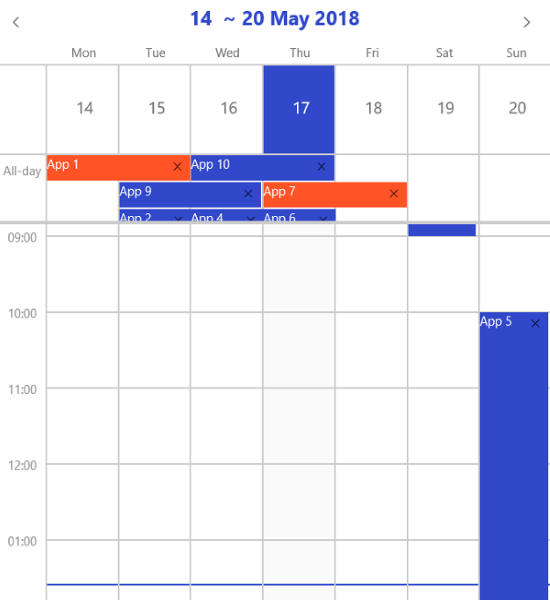
<p>The new DayView mode gives a great boost to the scheduling capabilities of the Calendar control of Telerik UI for UWP. Here are some of the supported features:</p>
<ul>
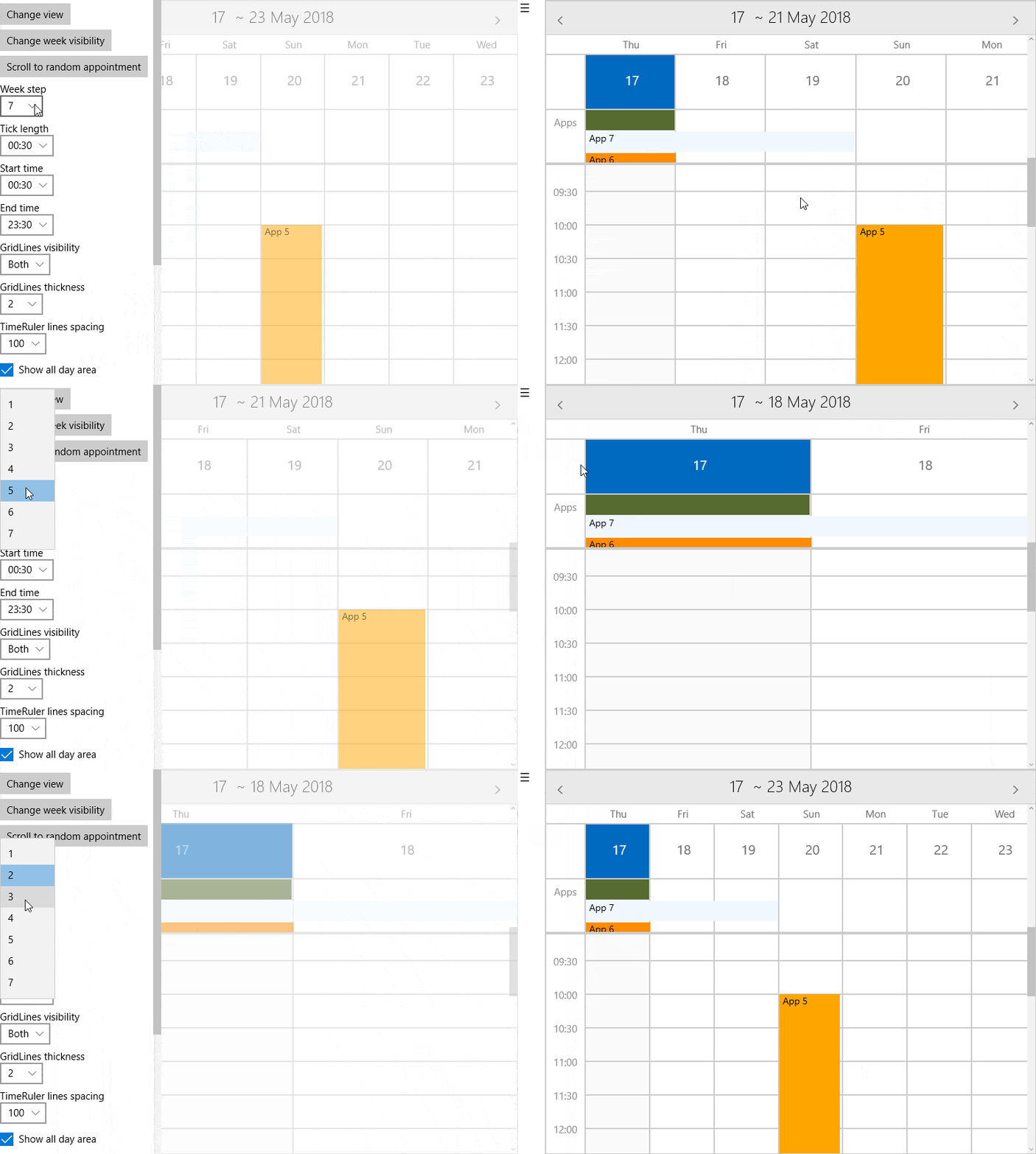
    <li>Visualization of between 1 and 7 days at once on the DayView area. Switching the number of days to be visualized is easy and straightforward using a single property.</li>
</ul>
<p><img src="https://d585tldpucybw.cloudfront.net/sfimages/default-source/default-album/weekstep.gif?sfvrsn=fc3ef242_1" data-displaymode="Original" alt="WeekStep" title="WeekStep" style="vertical-align: middle;"></p>
<ul>
    <li>All-day area for visualization of all-day appointments</li>
    <li>Convenient APIs to easily scroll to a desired appointment</li>
    <li>Current time indicator</li>
    <li>Adjustable start and end time of the day and the length between the slots</li>
    <li>Special slots support &ndash; you can easily customize every slot in a different way</li>
    <li>Convenient mouse navigation between the days</li>
    <li>Great customization options for the all-day area, time ruler area and more</li>
</ul>
<p><img src="https://d585tldpucybw.cloudfront.net/sfimages/default-source/default-album/2018-05-17_1335.png?sfvrsn=b744e1_1" data-displaymode="Original" alt="MultiDayViewCalendarCRUD" title="MultiDayViewCalendarCRUD" style="vertical-align: middle;"><br>
<br>
You can find these and many more scheduling capabilities using the new mode of the Calendar.</p>
<h2 id="listview-grouped-items">Expanding and Collapsing Grouped Items in the ListView</h2>
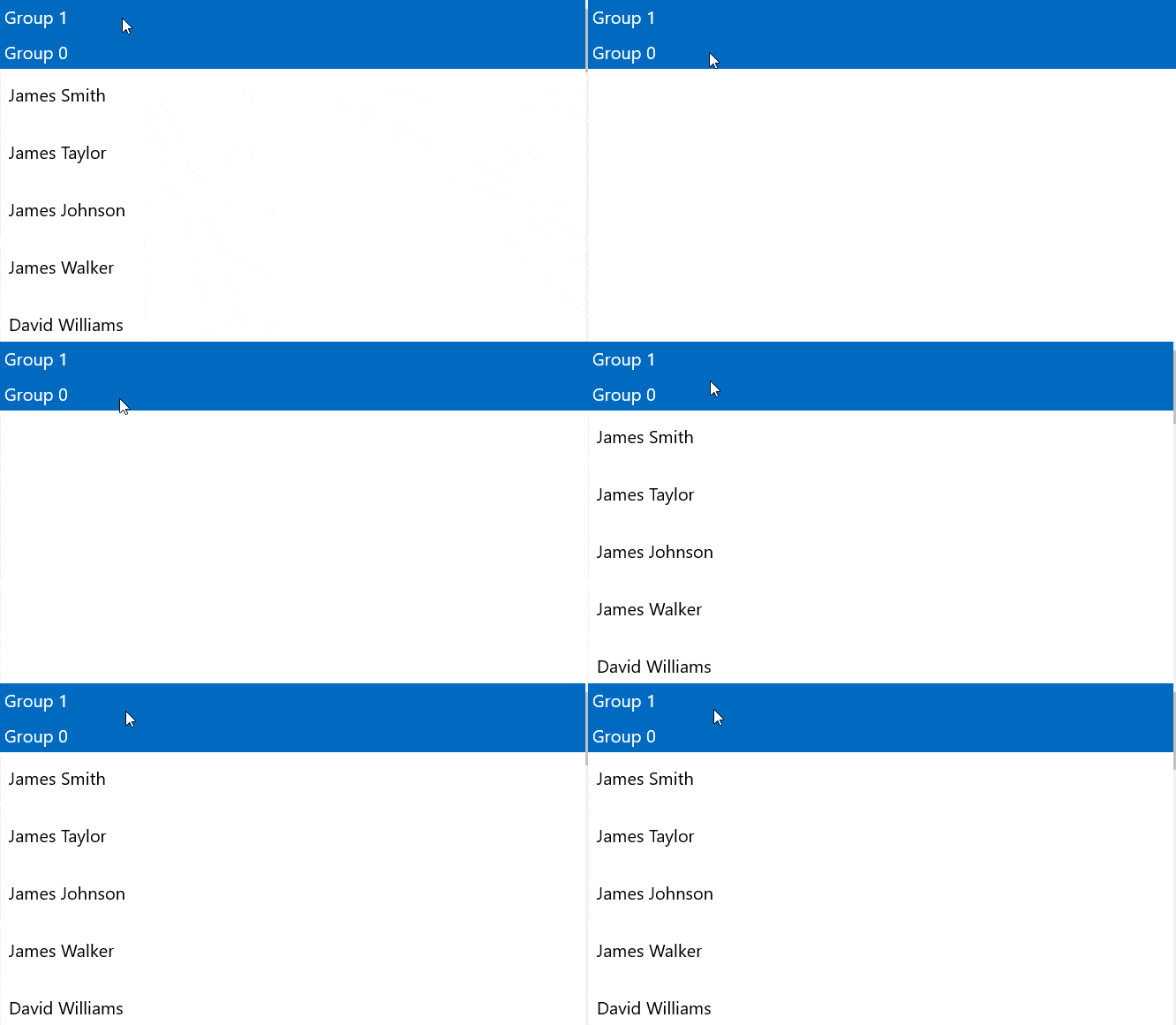
<p>Grouping is a major operation that can be performed on the source of the <strong>ListView</strong>. We have extended this functionality to provide the ability to easily collapse and expand the groups. This functionality is currently supported in <strong>StackLayoutDefinition </strong>and <strong>GridLayoutDefinition</strong>.&nbsp;<br>
<img src="https://d585tldpucybw.cloudfront.net/sfimages/default-source/default-album/listviewexpandcollapse.gif?sfvrsn=b1a4a9f1_1" data-displaymode="Original" alt="ListViewExpandCollapse" title="ListViewExpandCollapse" style="vertical-align: middle;"><br>
<br>
</p>
<h2 id="webinar">Watch the Webinars and Learn More</h2>
<p>On Wednesday, May 30 and Thursday, May 31 we hosted live webinars that covered&nbsp;<strong>Telerik&nbsp;</strong>and <strong>Kendo UI </strong>release updates and highlighted Conversational UI. To see what's new watch the recordings at the links below:</p>
<p><a href="https://www.telerik.com/campaigns/wb-may-2018-release-r2" class="Btn">Telerik R2 Release Webinar</a></p>
<p><a href="https://www.telerik.com/campaigns/kendo-ui/wb-may-2018-release-r2" class="Btn">Kendo UI R2 Release Webinar</a></p>
<h2>Share your Feedback</h2>
<p>Take a look at the <a href="https://github.com/telerik/UI-For-UWP">open source UI for UWP</a>&nbsp;project when you have a chance. There you can share your feedback or add your own contributions. We highly appreciate any contributions that will help us improve the controls, so please share your thoughts and ideas!</p><img src="https://feeds.telerik.com/link/23061/15057535.gif" height="1" width="1"/>]]></content>
  </entry>
  <entry>
    <id>urn:uuid:c3067752-0745-4a50-b8ca-d855db3d0b7f</id>
    <title type="text">Analyzing NEOs with Telerik UI for UWP</title>
    <summary type="text">Telerik UI for UWP can quickly create powerful visualizations from your data. Let's explore an example using Chart and Grid to analyze near-Earth objects in space.</summary>
    <published>2018-02-23T17:41:14Z</published>
    <updated>2026-04-11T12:20:16Z</updated>
    <author>
      <name>John Bristowe </name>
    </author>
    <link rel="alternate" href="https://feeds.telerik.com/link/23061/15057536/analyzing-neos-with-telerik-ui-for-uwp"/>
    <content type="text"><![CDATA[<p><span class="featured">Telerik UI for UWP can quickly create powerful visualizations from your data. Let's explore an example using Chart and Grid to analyze near-Earth objects in space.</span></p>
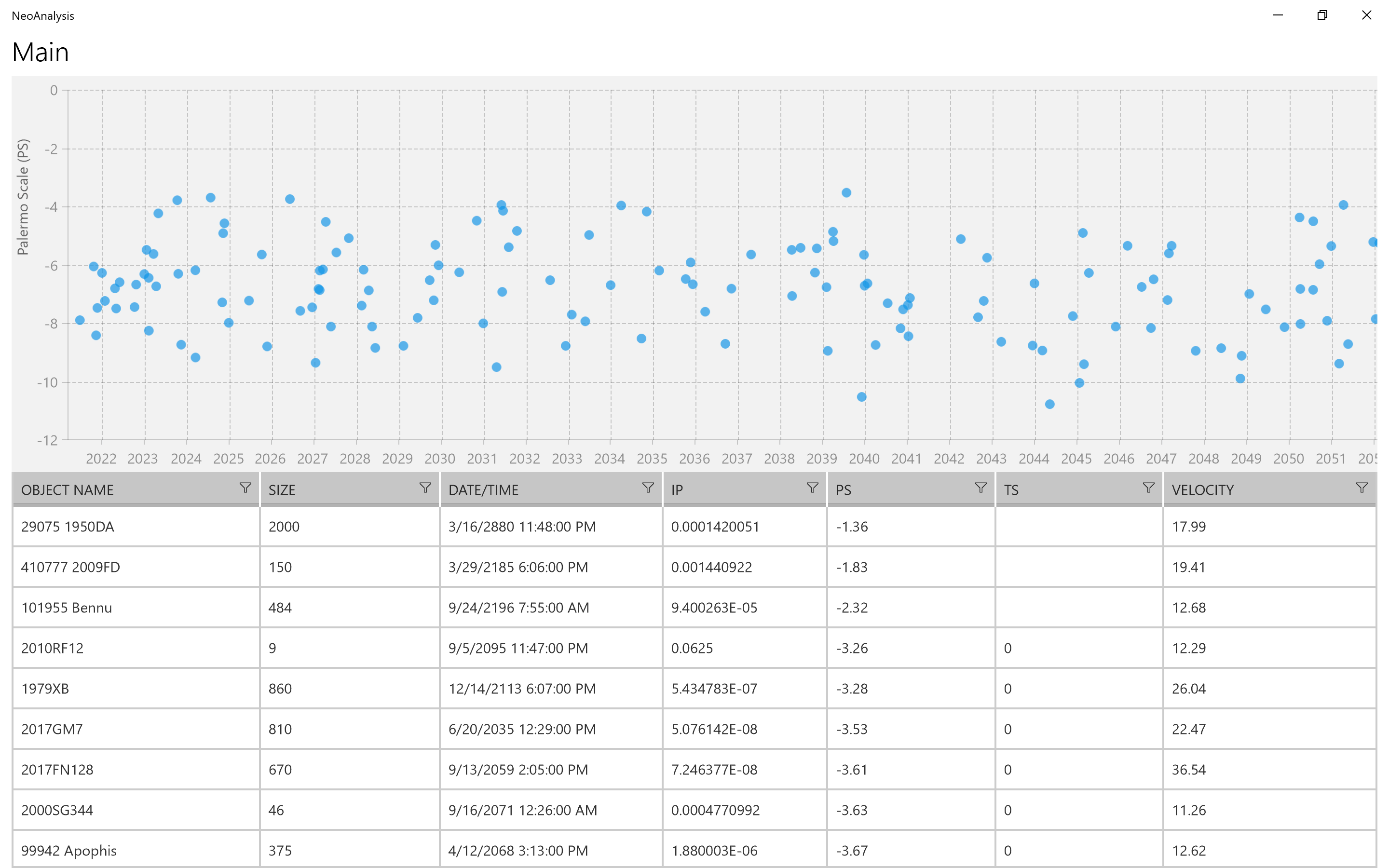
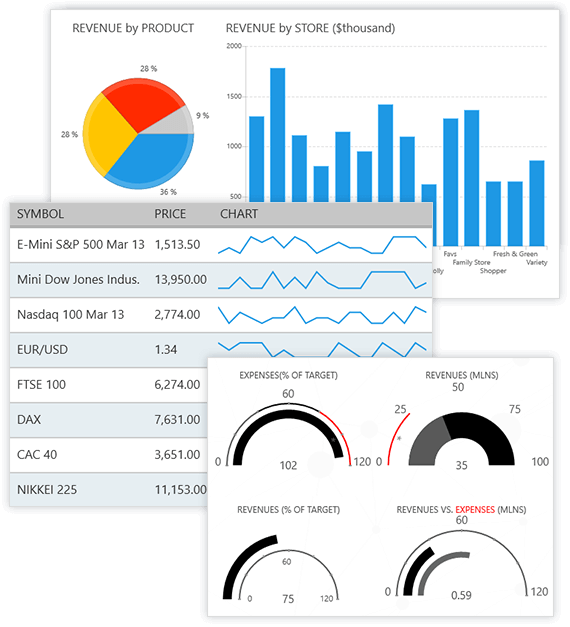
<p>In this blog post, you'll learn how to use the <a href="https://www.telerik.com/universal-windows-platform-ui/chart">Chart</a> and <a href="https://www.telerik.com/universal-windows-platform-ui/grid">Grid</a> controls in <a href="https://www.telerik.com/universal-windows-platform-ui">Telerik UI for UWP</a> to create rich visualizations and tables of large datasets.</p>
<p><img src="https://www.telerik.com/sfimages/default-source/blogs/2018/2018-02/neoanalysis-application.png" alt="NeoAnalysis Application"></p>
<h2 id="earthinabilliardroomofspaceobjects">Earth in a Billiard Room of Space Objects</h2>
<p>The Solar System has millions of objects in orbit around the Sun and its various planets &ndash; including Earth. These objects range in size. Many of them are small; measuring 10&ndash;100 meters in diameter. Others are much larger. For example, the largest known asteroid in our Solar System is <a href="https://en.wikipedia.org/wiki/Ceres_(dwarf_planet)">Ceres</a>; a whopping 974 kilometres (or 605 miles) in diameter. That's roughly the width of Montana. It's so big that it's classified as a minor planet.</p>
<p>There is a small but significant risk to Earth posed by these objects in space. Some of them are so massive and travel at such high velocities that a direct impact with would be catastrophic to life as we know it. This is why space agencies like NASA and volunteer groups around the world spend time identifying, classifying, and tracking these objects. The hope is that if a collision can be detected early enough then there would be sufficient time for us to devise a strategy to thwart it.</p>
<p>There's a special classification of objects in space known is a <a href="https://en.wikipedia.org/wiki/Near-Earth_object">near-Earth object</a> or NEO. This is the designation used for an asteroid or comet whose orbit can put it in close proximity to our planet. Any NEO that has an orbit that crosses Earth's and has a diameter greater than 140 metres is classified as a <a href="https://en.wikipedia.org/wiki/Potentially_hazardous_object">potentially hazardous object</a> (PHO).</p>
<p>
<img src="https://www.telerik.com/sfimages/default-source/blogs/2018/2018-02/potentially_hazardous_asteroids_2013.png" alt="Potentially Hazardous Objects in the Solar System, Source: NASA/JPL-Caltech" title="Potentially Hazardous Objects in the Solar System, Source: NASA/JPL-Caltech"><br>
<em>Source: NASA/JPL-Caltech</em>
</p>
<p>When you consider the risk we face here on Earth of the objects floating around us, the situation warrants our time and attention. For that reason, I thought it would be fun to perform some data analysis by building a UWP application with <strong>Telerik UI for UWP</strong>.</p>
<h2 id="beforewebegin">Before We Begin</h2>
<p>I'd recommend reading my article entitled, <a href="https://www.telerik.com/blogs/getting-started-with-telerik-ui-for-uwp">Getting Started with Telerik UI for UWP</a> if you're looking for a good primer on <strong>Telerik UI for UWP</strong>. It provides a detailed overview of the project, its goal, and a simple example that highlights the <strong>Chart</strong> and <strong>Grid</strong>.</p>
<p><img src="https://www.telerik.com/sfimages/default-source/blogs/2018/2018-02/getting-started-with-telerik-ui-for-uwp.png" alt="Getting Started with Telerik UI for UWP"></p>
<h2 id="analyzethistheresnotimetolose">Analyze This</h2>
<p>Let's see how to analyze the data on NEOs using the <strong>Chart</strong> and <strong>Grid</strong> controls in <strong>Telerik UI for UWP</strong>.</p>
<p><strong>Telerik UI for UWP</strong> is a suite of over 20 controls that help developers build UWP applications. It contains controls that address common UI requirements in line-of-business (LOB) applications, including data management, scheduling, navigation, and data visualization. The source code for these controls can be found on GitHub: <a href="https://github.com/telerik/ui-for-uwp">UI-for-UWP</a>.</p>
<p><img src="https://www.telerik.com/sfimages/default-source/blogs/2018/2018-02/telerik-ui-for-uwp.png" alt="Telerik UI for UWP"></p>
<p>One of the most effective ways to get a UWP project up and running is through <a href="https://github.com/Microsoft/WindowsTemplateStudio/">Windows Template Studio</a>. This extension for Visual Studio generates a project structure and source files through templates. It can be downloaded and installed into Visual Studio through the Visual Studio Marketplace: <a href="https://marketplace.visualstudio.com/items?itemName=WASTeamAccount.WindowsTemplateStudio">Windows Template Studio</a>.</p>
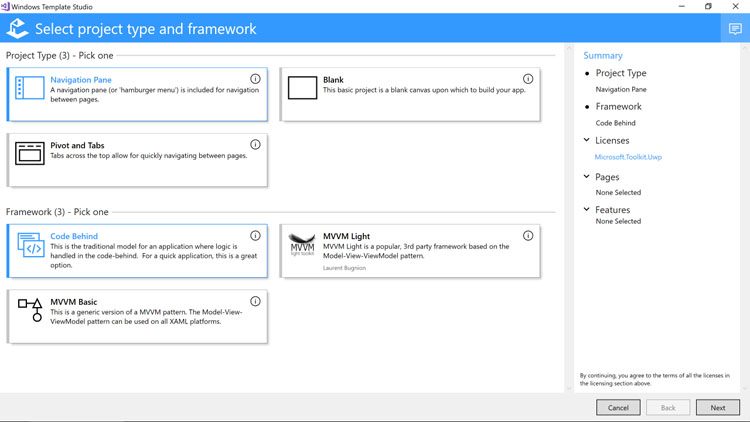
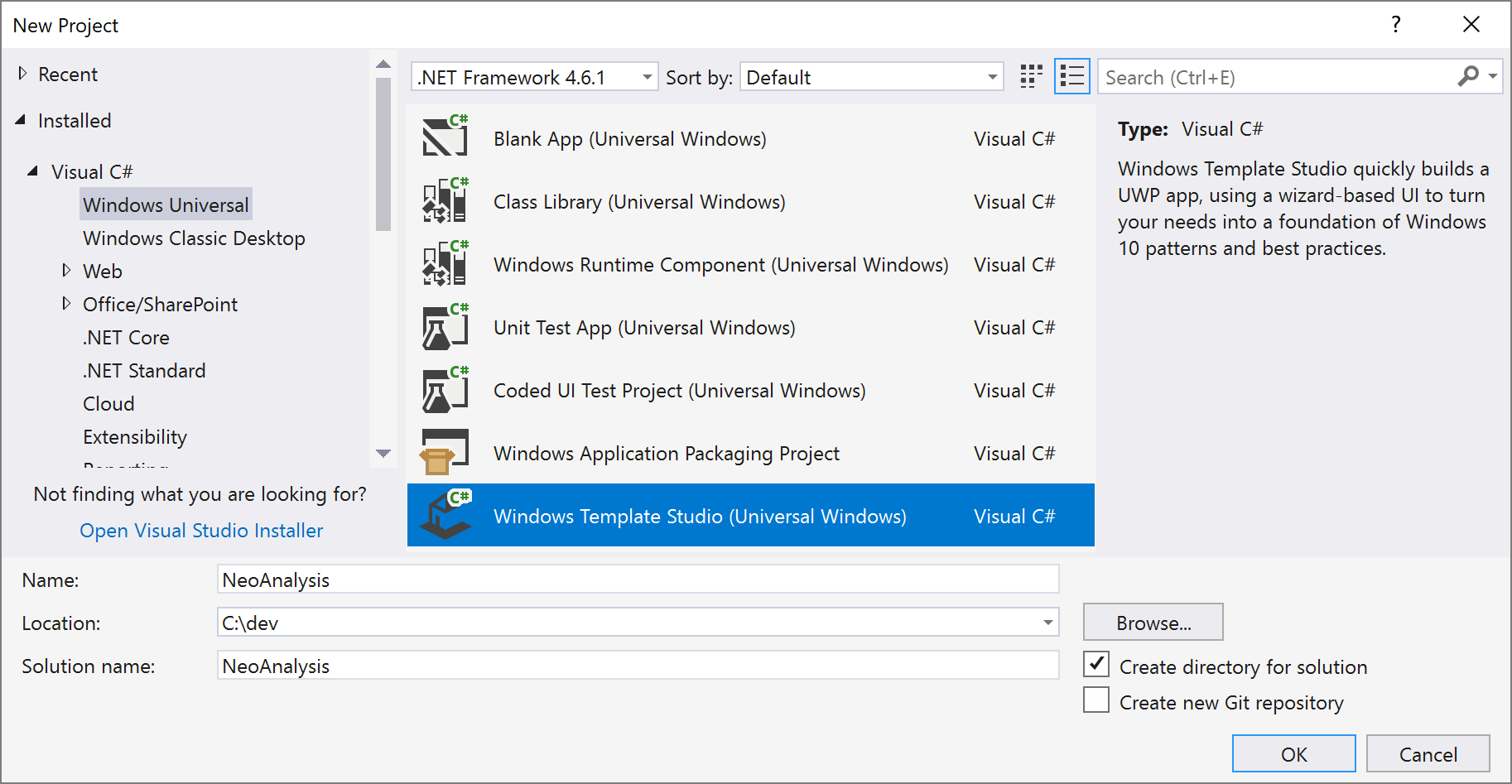
<p>I'll start by creating a new project in Visual Studio called "NeoAnalysis":</p>
<p><img src="https://www.telerik.com/sfimages/default-source/blogs/2018/2018-02/neo-analysis-1.png" alt=""></p>
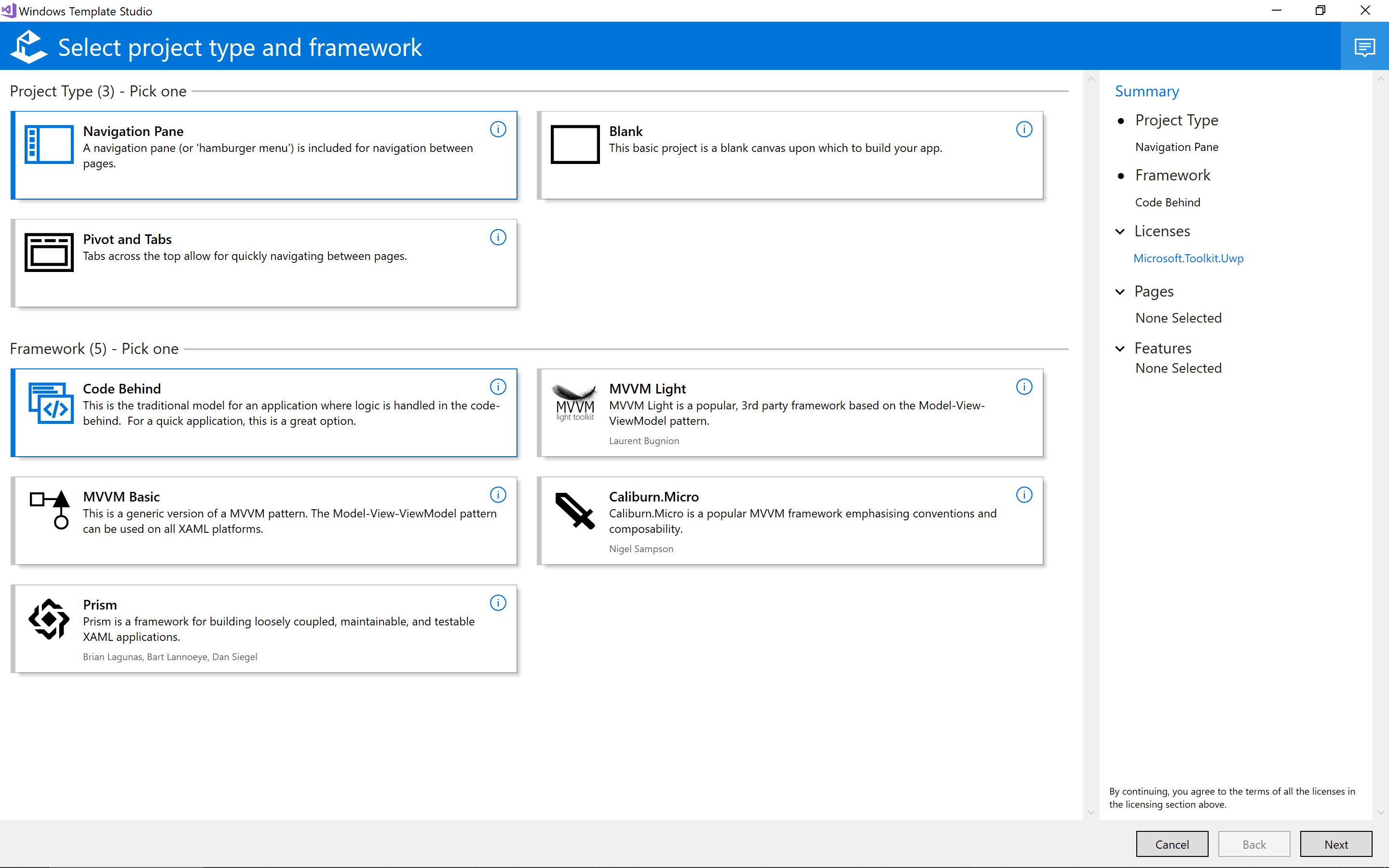
<p>Windows Template Studio will display a wizard that allows me to select various options to control what will be generated for my project:</p>
<p><img src="https://www.telerik.com/sfimages/default-source/blogs/2018/2018-02/neo-analysis-2.png" alt=""></p>
<p>For example, I can choose to generate a project that incorporates a navigation pane (also known as a hamburger menu) for the visual structure. This control enables users to navigate quickly between the views available in an application. Windows Template Studio also provides options for popular frameworks like <a href="https://github.com/lbugnion/mvvmlight">MVVM Light</a>, <a href="https://github.com/Caliburn-Micro/Caliburn.Micro">Caliburn.Micro</a>, and <a href="https://github.com/PrismLibrary/Prism">Prism</a>.</p>
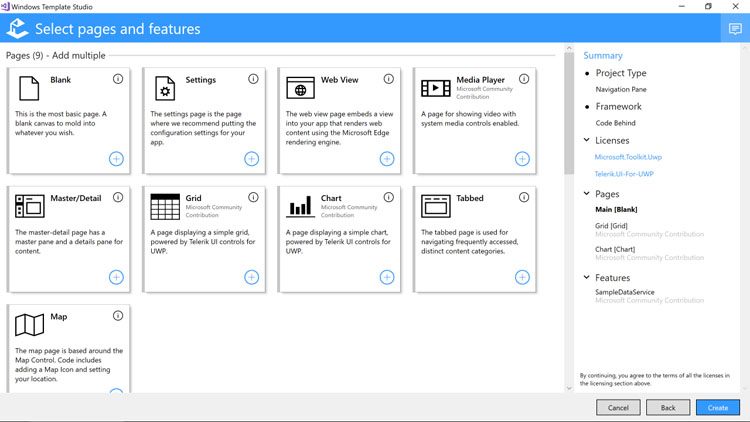
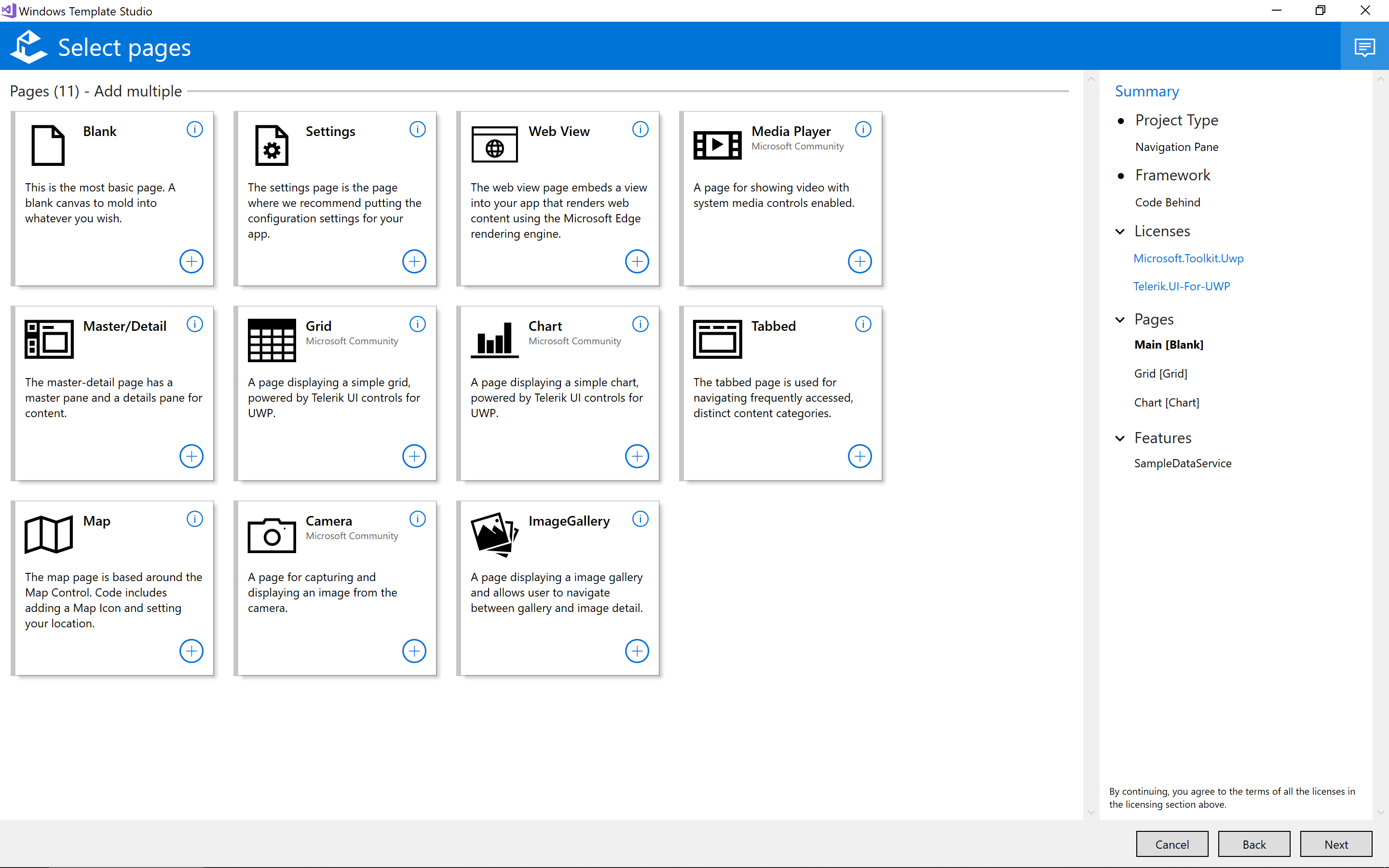
<p>Navigating to the next page of Windows Template Studio provides the option to control the kinds of pages I wish to generate for my UWP project. As an example, I can select the option to create pages for the <strong>Chart</strong> and <strong>Grid</strong> controls from <strong>Telerik UI for UWP</strong>:</p>
<p><img src="https://www.telerik.com/sfimages/default-source/blogs/2018/2018-02/neo-analysis-3.png" alt=""></p>
<p>Windows Template Studio will generate individual pages for each option you pick. These can be modified after the project is generated. For this example, I'll create a page that combines the <strong>Chart</strong> and <strong>Grid</strong> controls.</p>
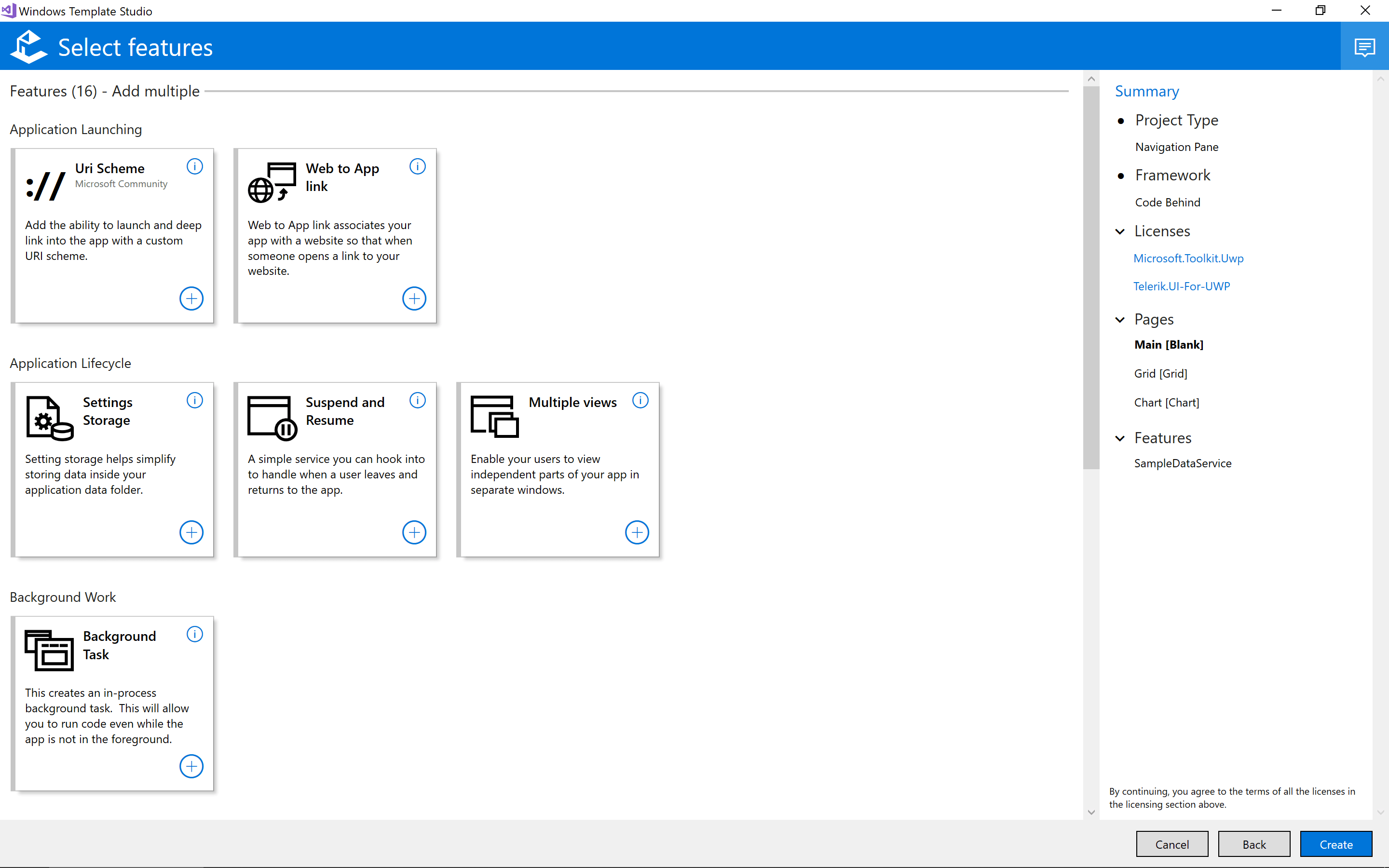
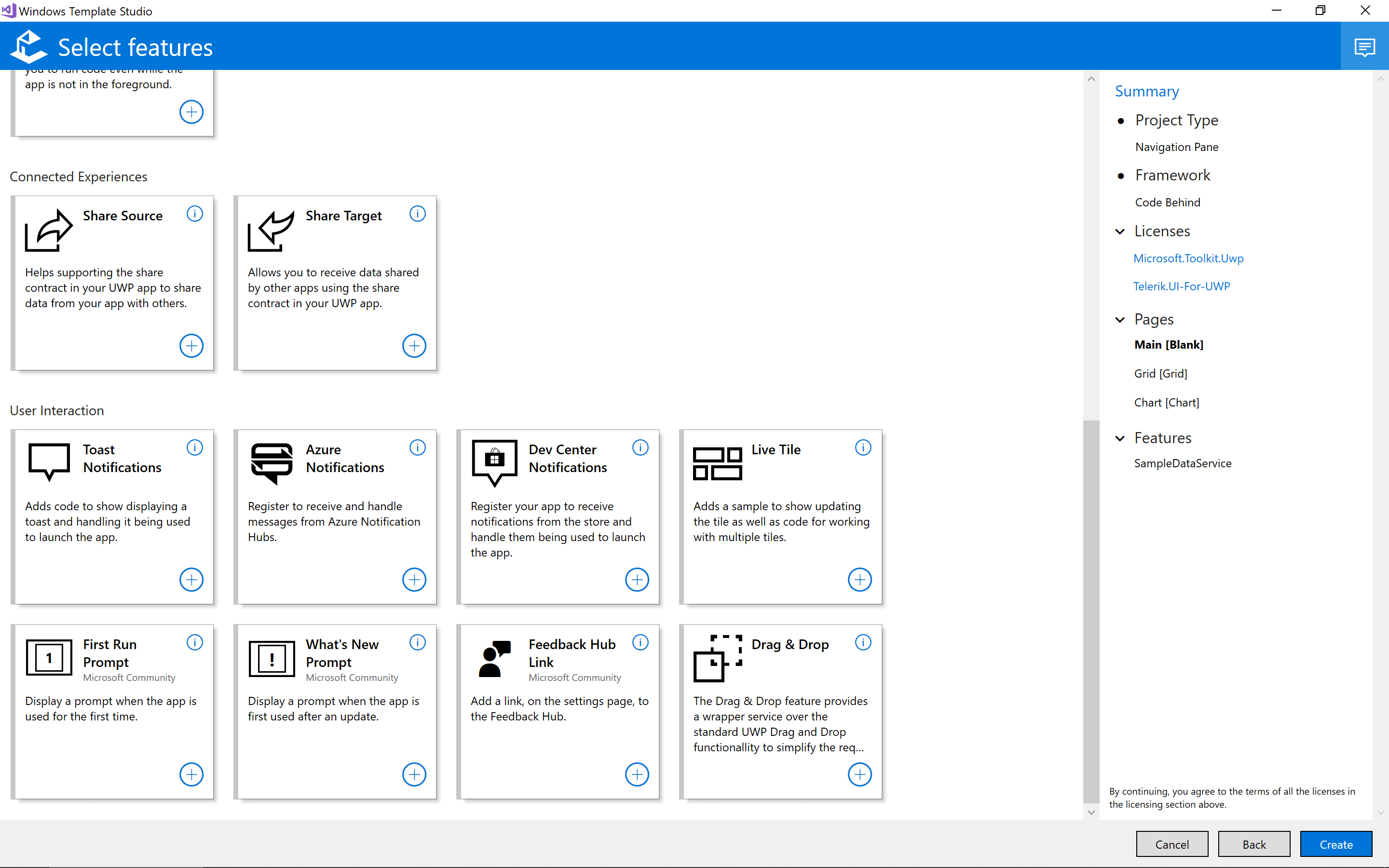
<p>After specifying the pages I wish to generate for my project, Windows Template Studio presents a set of features I may wish to integrate into my project:</p>
<p><img src="https://www.telerik.com/sfimages/default-source/blogs/2018/2018-02/neo-analysis-4.png" alt=""></p>
<p>There are numerous features from which to choose. These range from simple features like web-to-app linking to more advanced features like settings storage.</p>
<p><img src="https://www.telerik.com/sfimages/default-source/blogs/2018/2018-02/neo-analysis-5.png" alt=""></p>
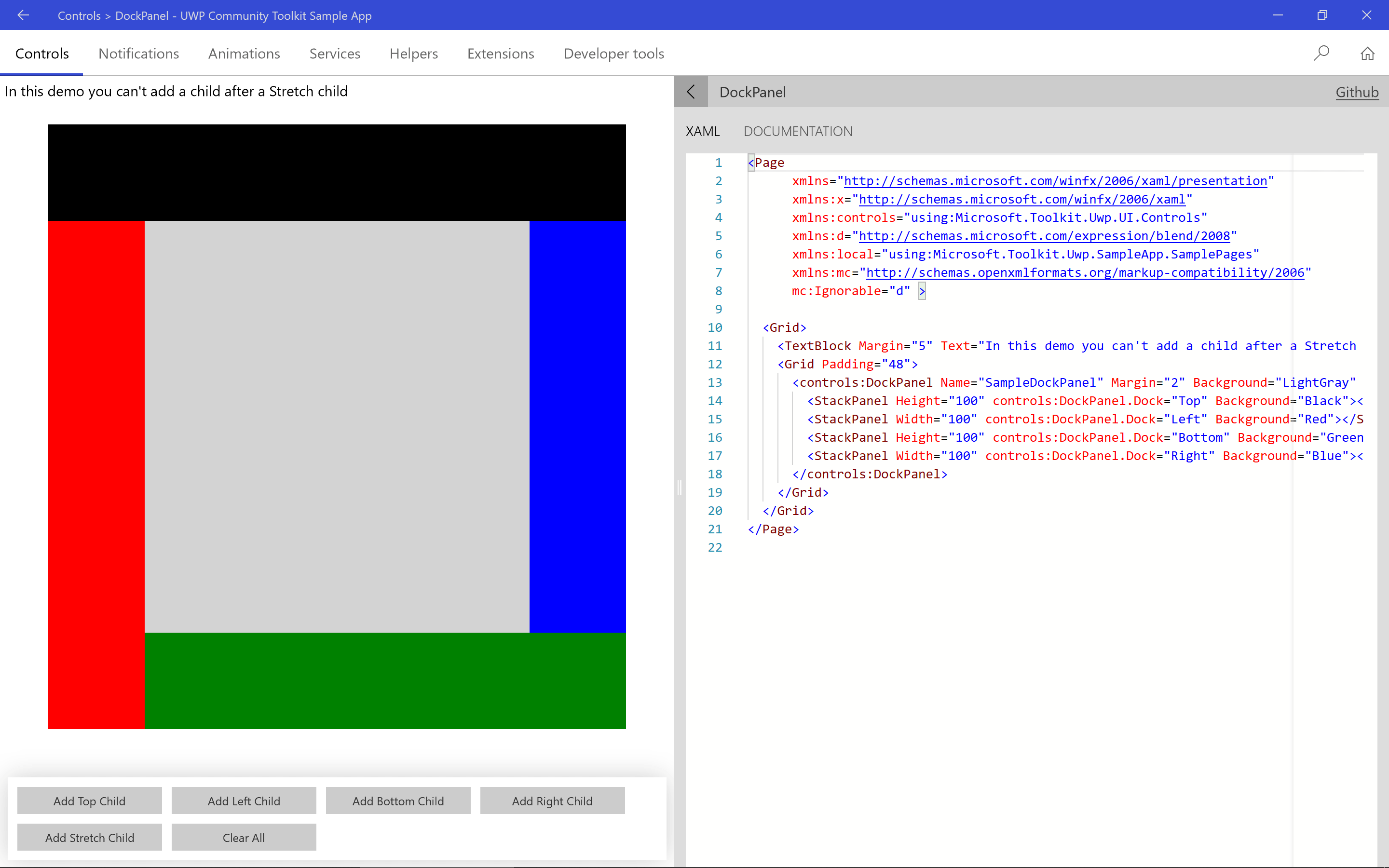
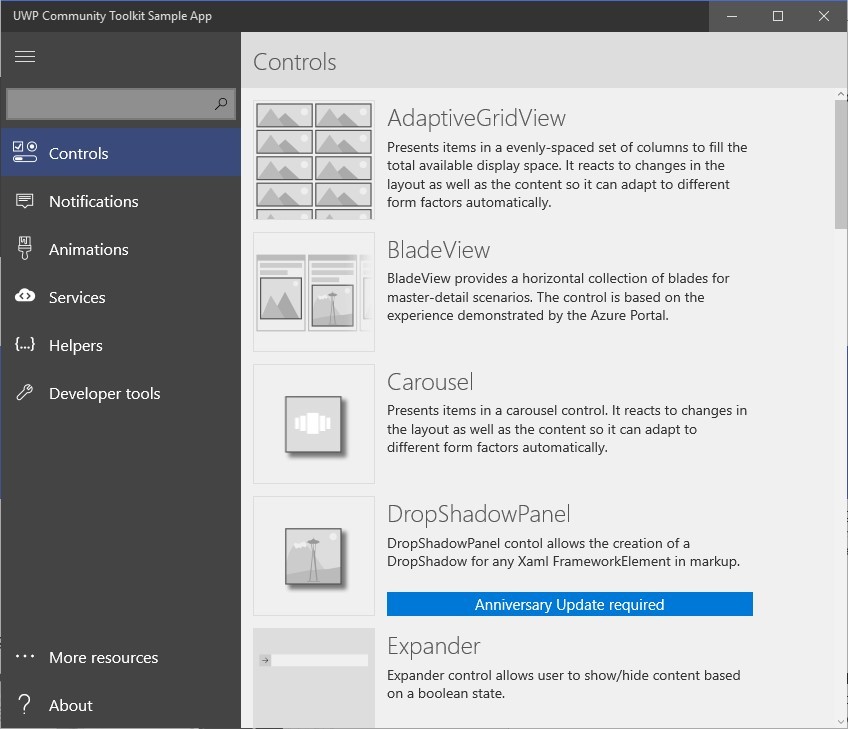
<p>The majority of the features are made available through the <a href="https://github.com/Microsoft/UWPCommunityToolkit">UWP Community Toolkit</a>. This is an essential library for developers building UWP applications. If you're curious to find out more about the UWP Community Toolkit, I'd recommend checking out the <a href="https://www.microsoft.com/store/p/uwp-community-toolkit-sample-app/9nblggh4tlcq">UWP Community Toolkit Sample App</a>, which is available through the Microsoft Store.</p>
<p><img src="https://www.telerik.com/sfimages/default-source/blogs/2018/2018-02/neo-analysis-6.png" alt=""></p>
<p>The UWP Community Toolkit Sample App provides a large set of examples and accompanying source code to help you get started.</p>
<h2 id="accessingneoobservationaldata">Accessing NEO Observational Data</h2>
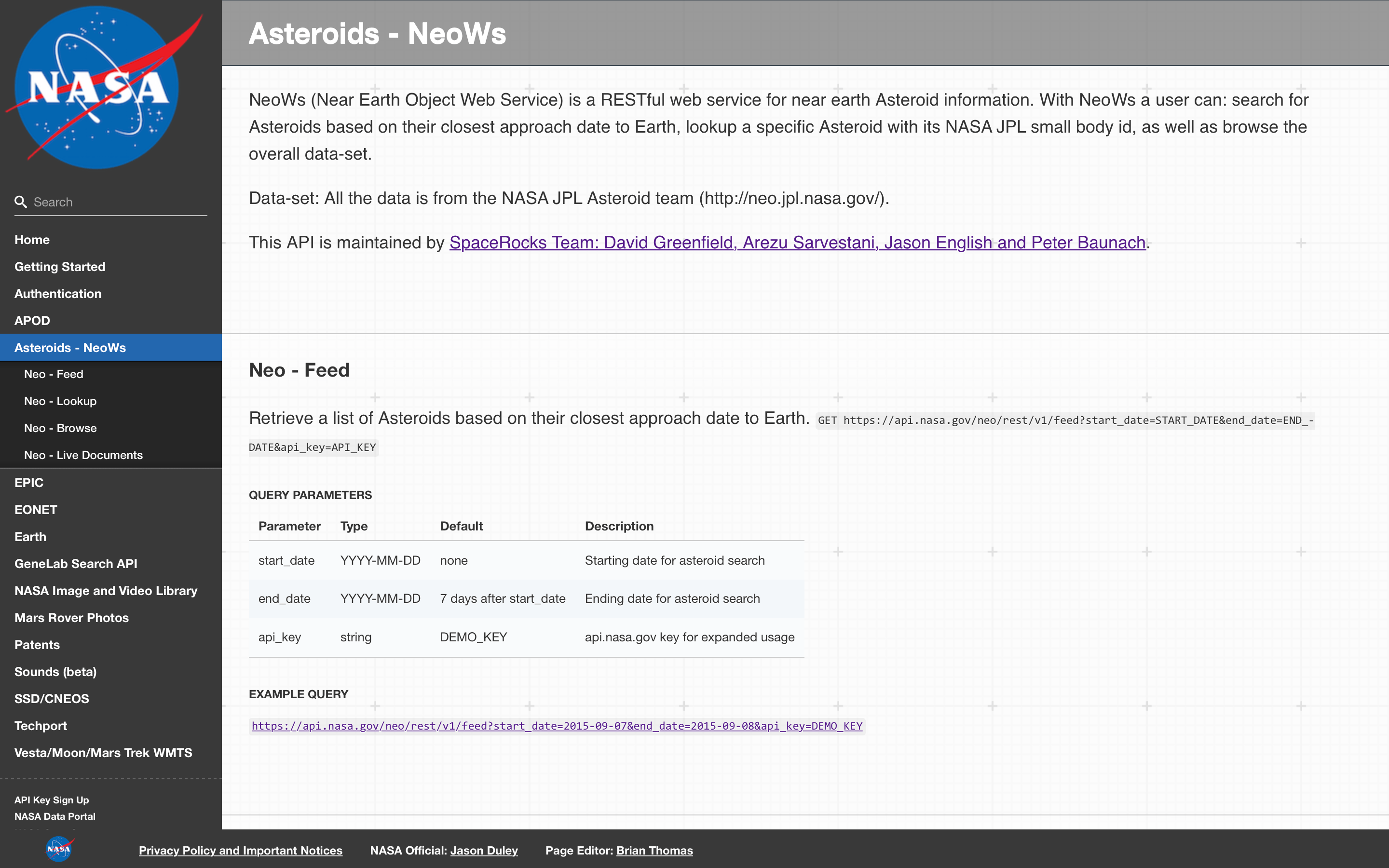
<p>After Windows Template Studio has generated my project, the next step is build a page that displays NEO-related data in a <strong>Chart</strong> and <strong>Grid</strong>. This data is available from numerous space agencies and organisations around the world. A good example is <a href="https://data.nasa.gov/">NASA's Open Data Portal</a>, which provides access to many datasets relating to Space Science, including the <a href="https://ssd.jpl.nasa.gov/sbdb.cgi">Small-Body Database</a> and <a href="https://cneos.jpl.nasa.gov/ca/">NEO Earth Close Approaches</a> from the Jet Propulsion Laboratory (JPL). NASA also provides an API for its NEO observational data. <a href="https://api.nasa.gov/api.html#NeoWS">NeoWs</a>, which stands for &ldquo;Near Earth Object Web Service,&rdquo; provides data on space objects near Earth.</p>
<p><img src="https://www.telerik.com/sfimages/default-source/blogs/2018/2018-02/neo-analysis-7.png" alt=""></p>
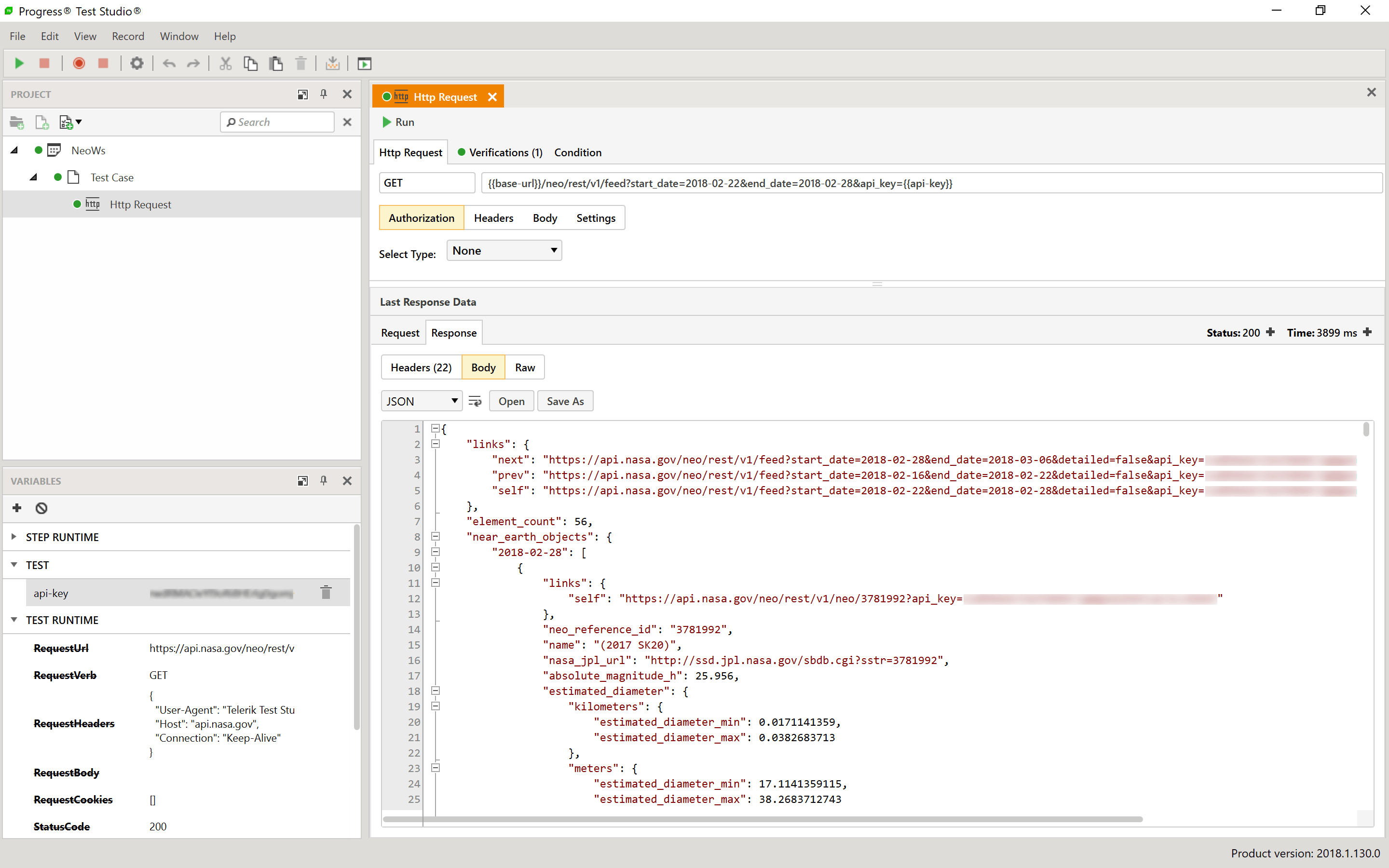
<p>These APIs provide detailed information about nearby objects and are relatively simple to use. For example, I can use the Feed operation to get a list of objects scheduled to be in close proximity to Earth over the next week (February 22&ndash;28, 2018). <a href="https://www.telerik.com/teststudio-apis">Progress Test Studio for APIs</a>&nbsp;makes this easy:</p>
<p><img src="https://www.telerik.com/sfimages/default-source/blogs/2018/2018-02/neo-analysis-8.png" alt=""></p>
<p>Before accessing this service endpoint, <a href="https://api.nasa.gov/index.html#apply-for-an-api-key">you will need to secure an API key from the NASA API portal</a>. This key must be provided for requests you make. In Progress Test Studio for APIs, I can define the service endpoint (<code>base-url</code>) and API key (<code>api-key</code>) as test-time variables in the request URL. This makes them easier to manage in my test project. I can also assert that certain conditions are met through the Verifications tab (i.e. HTTP 200 OK response).</p>
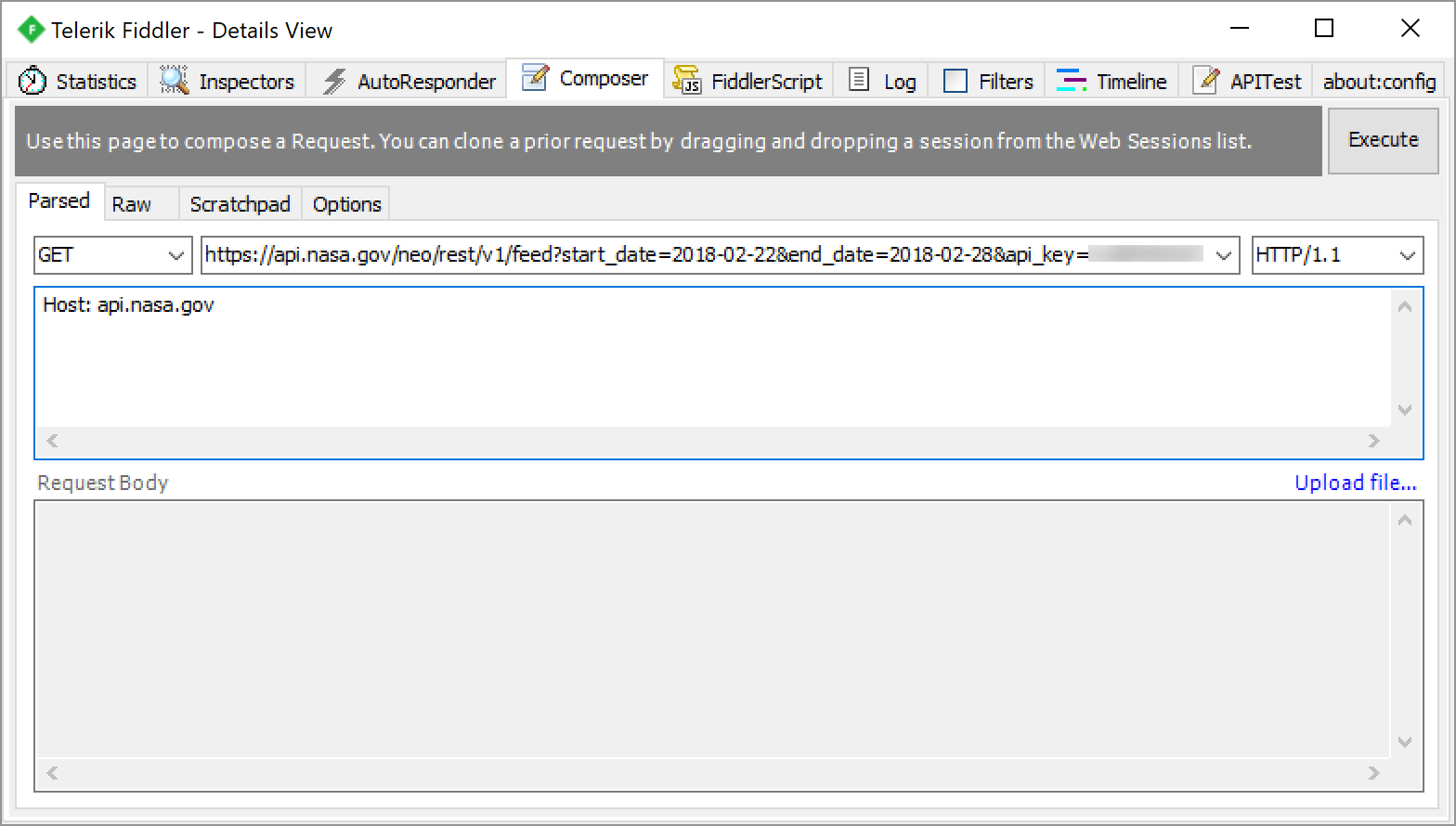
<p>Alternatively, I could use the Composer tab in <a href="https://www.telerik.com/fiddler">Telerik Fiddler</a> to create similar requests to test the service endpoint:</p>
<p><img src="https://www.telerik.com/sfimages/default-source/blogs/2018/2018-02/neo-analysis-9.png" alt=""></p>
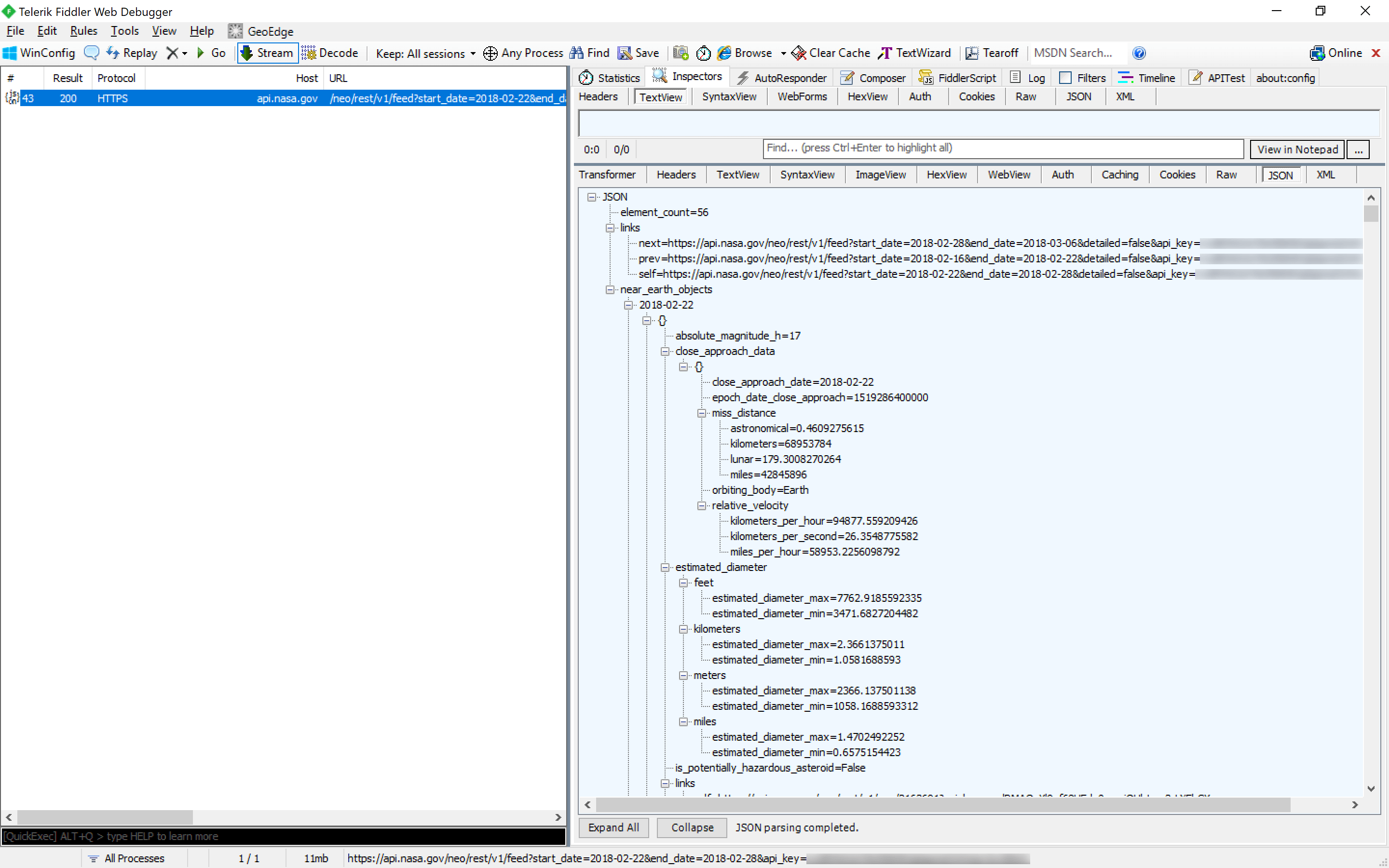
<p>And I can use the Inspectors tab to view the response:</p>
<p><img src="https://www.telerik.com/sfimages/default-source/blogs/2018/2018-02/neo-analysis-10.png" alt=""></p>
<p>Once I've understood how the service endpoint works, I can integrate it with my project through a proxy class and client libraries like <a href="https://github.com/restsharp/RestSharp">RestSharp</a>. For example, here's the code necessary to send a request to the Feed operation:</p>
<div class="reCodeBlock" style="border:solid 1px #7f9db9;width:;height:;overflow-y:auto;">
<div style=" background-color: #fff;"><span style="margin-left: 0px !important;"><code style="color: #069;font-weight: bold;">using</code> <code style="color: #000;">RestSharp;</code></span></div>
<div style=" background-color: #F8F8F8;"><span style="margin-left: 0px !important;"><code style="color: #069;font-weight: bold;">using</code> <code style="color: #000;">System;</code></span></div>
<div style=" background-color: #fff;"><span style="margin-left: 0px !important;">&nbsp;</span></div>
<div style=" background-color: #F8F8F8;"><span style="margin-left: 0px !important;"><code style="color: #000;">var client = </code><code style="color: #069;font-weight: bold;">new</code> <code style="color: #000;">RestClient(</code><code style="color: blue;">"<a href="https://api.nasa.gov">https://api.nasa.gov</a>"</code><code style="color: #000;">);</code></span></div>
<div style=" background-color: #fff;"><span style="margin-left: 0px !important;">&nbsp;</span></div>
<div style=" background-color: #F8F8F8;"><span style="margin-left: 0px !important;"><code style="color: #000;">var request = </code><code style="color: #069;font-weight: bold;">new</code> <code style="color: #000;">RestRequest();</code></span></div>
<div style=" background-color: #fff;"><span style="margin-left: 0px !important;"><code style="color: #000;">request.Resource = </code><code style="color: blue;">"neo/rest/v1/feed"</code><code style="color: #000;">;</code></span></div>
<div style=" background-color: #F8F8F8;"><span style="margin-left: 0px !important;">&nbsp;</span></div>
<div style=" background-color: #fff;"><span style="margin-left: 0px !important;"><code style="color: #000;">var startDate = DateTime.Now.Date;</code></span></div>
<div style=" background-color: #F8F8F8;"><span style="margin-left: 0px !important;"><code style="color: #000;">var endDate = startDate.AddDays(7);</code></span></div>
<div style=" background-color: #fff;"><span style="margin-left: 0px !important;"><code style="color: #000;">var apiKey = </code><code style="color: blue;">""</code><code style="color: #000;">; </code><code style="color: #008200;">// specify your API key here</code></span></div>
<div style=" background-color: #F8F8F8;"><span style="margin-left: 0px !important;">&nbsp;</span></div>
<div style=" background-color: #fff;"><span style="margin-left: 0px !important;"><code style="color: #000;">request.AddParameter(</code><code style="color: blue;">"start_date"</code><code style="color: #000;">, startDate.ToString(</code><code style="color: blue;">"yyyy-MM-dd"</code><code style="color: #000;">));</code></span></div>
<div style=" background-color: #F8F8F8;"><span style="margin-left: 0px !important;"><code style="color: #000;">request.AddParameter(</code><code style="color: blue;">"end_date"</code><code style="color: #000;">, endDate.ToString(</code><code style="color: blue;">"yyyy-MM-dd"</code><code style="color: #000;">));</code></span></div>
<div style=" background-color: #fff;"><span style="margin-left: 0px !important;"><code style="color: #000;">request.AddParameter(</code><code style="color: blue;">"api_key"</code><code style="color: #000;">, apiKey);</code></span></div>
<div style=" background-color: #F8F8F8;"><span style="margin-left: 0px !important;">&nbsp;</span></div>
<div style=" background-color: #fff;"><span style="margin-left: 0px !important;"><code style="color: #000;">IRestResponse response = client.Execute(request);</code></span></div>
</div>
<h2 id="buildingtheapplicationforneoanalysis">Building the Application for NEO Analysis</h2>
<p>Now that I have the access to the data relating to NEOs, the next step is to display it to the user. I'll start by modifying the main page of my application to incorporate the <strong>Chart</strong> and <strong>Grid</strong>:</p>
<div class="reCodeBlock" style="border:solid 1px #7f9db9;width:;height:;overflow-y:auto;">
<div style=" background-color: #fff;"><span style="margin-left: 0px !important;"><code style="color: #000;">&lt;</code><code style="color: #069;font-weight: bold;">Page</code></span></div>
<div style=" background-color: #F8F8F8;"><span style=" "><code style=" ">&nbsp;&nbsp;</code><span style="margin-left: 8px !important;"><code style="color: #000;">..</code></span></span></div>
<div style=" background-color: #fff;"><span style=" "><code style=" ">&nbsp;&nbsp;</code><span style="margin-left: 8px !important;"><code style="color: #808080;">xmlns:tc</code><code style="color: #000;">=</code><code style="color: blue;">"using:Telerik.UI.Xaml.Controls.Chart"</code></span></span></div>
<div style=" background-color: #F8F8F8;"><span style=" "><code style=" ">&nbsp;&nbsp;</code><span style="margin-left: 8px !important;"><code style="color: #808080;">xmlns:tg</code><code style="color: #000;">=</code><code style="color: blue;">"using:Telerik.UI.Xaml.Controls.Grid"</code><code style="color: #000;">&gt;</code></span></span></div>
<div style=" background-color: #fff;"><span style=" "><code style=" ">&nbsp;&nbsp;</code><span style="margin-left: 8px !important;"><code style="color: #000;">&lt;</code><code style="color: #069;font-weight: bold;">Grid</code><code style="color: #000;">&gt;</code></span></span></div>
<div style=" background-color: #F8F8F8;"><span style=" "><code style=" ">&nbsp;&nbsp;&nbsp;&nbsp;</code><span style="margin-left: 16px !important;"><code style="color: #000;">&lt;</code><code style="color: #069;font-weight: bold;">Grid.RowDefinitions</code><code style="color: #000;">&gt;</code></span></span></div>
<div style=" background-color: #fff;"><span style=" "><code style=" ">&nbsp;&nbsp;&nbsp;&nbsp;&nbsp;&nbsp;</code><span style="margin-left: 24px !important;"><code style="color: #000;">&lt;</code><code style="color: #069;font-weight: bold;">RowDefinition</code> <code style="color: #808080;">Height</code><code style="color: #000;">=</code><code style="color: blue;">"*"</code> <code style="color: #000;">/&gt;</code></span></span></div>
<div style=" background-color: #F8F8F8;"><span style=" "><code style=" ">&nbsp;&nbsp;&nbsp;&nbsp;&nbsp;&nbsp;</code><span style="margin-left: 24px !important;"><code style="color: #000;">&lt;</code><code style="color: #069;font-weight: bold;">RowDefinition</code> <code style="color: #808080;">Height</code><code style="color: #000;">=</code><code style="color: blue;">"*"</code> <code style="color: #000;">/&gt;</code></span></span></div>
<div style=" background-color: #fff;"><span style=" "><code style=" ">&nbsp;&nbsp;&nbsp;&nbsp;</code><span style="margin-left: 16px !important;"><code style="color: #000;">&lt;/</code><code style="color: #069;font-weight: bold;">Grid.RowDefinitions</code><code style="color: #000;">&gt;</code></span></span></div>
<div style=" background-color: #F8F8F8;"><span style=" "><code style=" ">&nbsp;&nbsp;&nbsp;&nbsp;</code><span style="margin-left: 16px !important;"><code style="color: #000;">&lt;</code><code style="color: #069;font-weight: bold;">tc:RadCartesianChart</code> <code style="color: #808080;">x:Name</code><code style="color: #000;">=</code><code style="color: blue;">"chart"</code> <code style="color: #808080;">Grid.Row</code><code style="color: #000;">=</code><code style="color: blue;">"0"</code><code style="color: #000;">&gt;</code></span></span></div>
<div style=" background-color: #fff;"><span style=" "><code style=" ">&nbsp;&nbsp;&nbsp;&nbsp;&nbsp;&nbsp;</code><span style="margin-left: 24px !important;"><code style="color: #008200;">&lt;!-- to be defined --&gt;</code></span></span></div>
<div style=" background-color: #F8F8F8;"><span style=" "><code style=" ">&nbsp;&nbsp;&nbsp;&nbsp;</code><span style="margin-left: 16px !important;"><code style="color: #000;">&lt;/</code><code style="color: #069;font-weight: bold;">tc:RadCartesianChart</code><code style="color: #000;">&gt;</code></span></span></div>
<div style=" background-color: #fff;"><span style=" "><code style=" ">&nbsp;&nbsp;&nbsp;&nbsp;</code><span style="margin-left: 16px !important;"><code style="color: #000;">&lt;</code><code style="color: #069;font-weight: bold;">tg:RadDataGrid</code> <code style="color: #808080;">x:Name</code><code style="color: #000;">=</code><code style="color: blue;">"grid"</code> <code style="color: #808080;">Grid.Row</code><code style="color: #000;">=</code><code style="color: blue;">"1"</code><code style="color: #000;">&gt;</code></span></span></div>
<div style=" background-color: #F8F8F8;"><span style=" "><code style=" ">&nbsp;&nbsp;&nbsp;&nbsp;&nbsp;&nbsp;</code><span style="margin-left: 24px !important;"><code style="color: #008200;">&lt;!-- to be defined --&gt;</code></span></span></div>
<div style=" background-color: #fff;"><span style=" "><code style=" ">&nbsp;&nbsp;&nbsp;&nbsp;</code><span style="margin-left: 16px !important;"><code style="color: #000;">&lt;/</code><code style="color: #069;font-weight: bold;">tg:RadDataGrid</code><code style="color: #000;">&gt;</code></span></span></div>
<div style=" background-color: #F8F8F8;"><span style=" "><code style=" ">&nbsp;&nbsp;</code><span style="margin-left: 8px !important;"><code style="color: #000;">&lt;/</code><code style="color: #069;font-weight: bold;">Grid</code><code style="color: #000;">&gt;</code></span></span></div>
<div style=" background-color: #fff;"><span style="margin-left: 0px !important;"><code style="color: #000;">&lt;/</code><code style="color: #069;font-weight: bold;">Page</code><code style="color: #000;">&gt;</code></span></div>
</div>
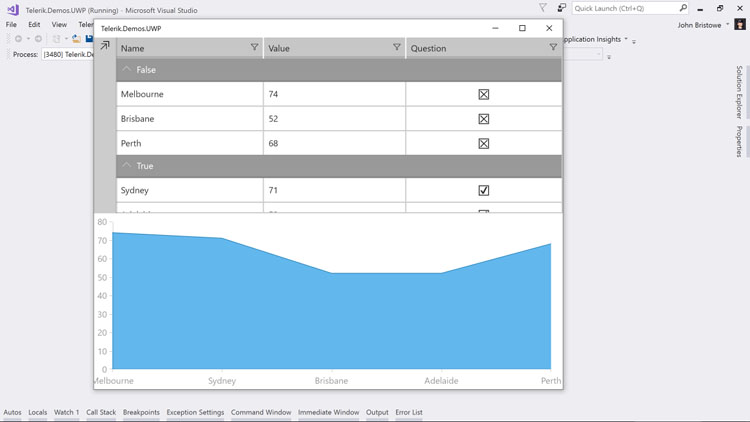
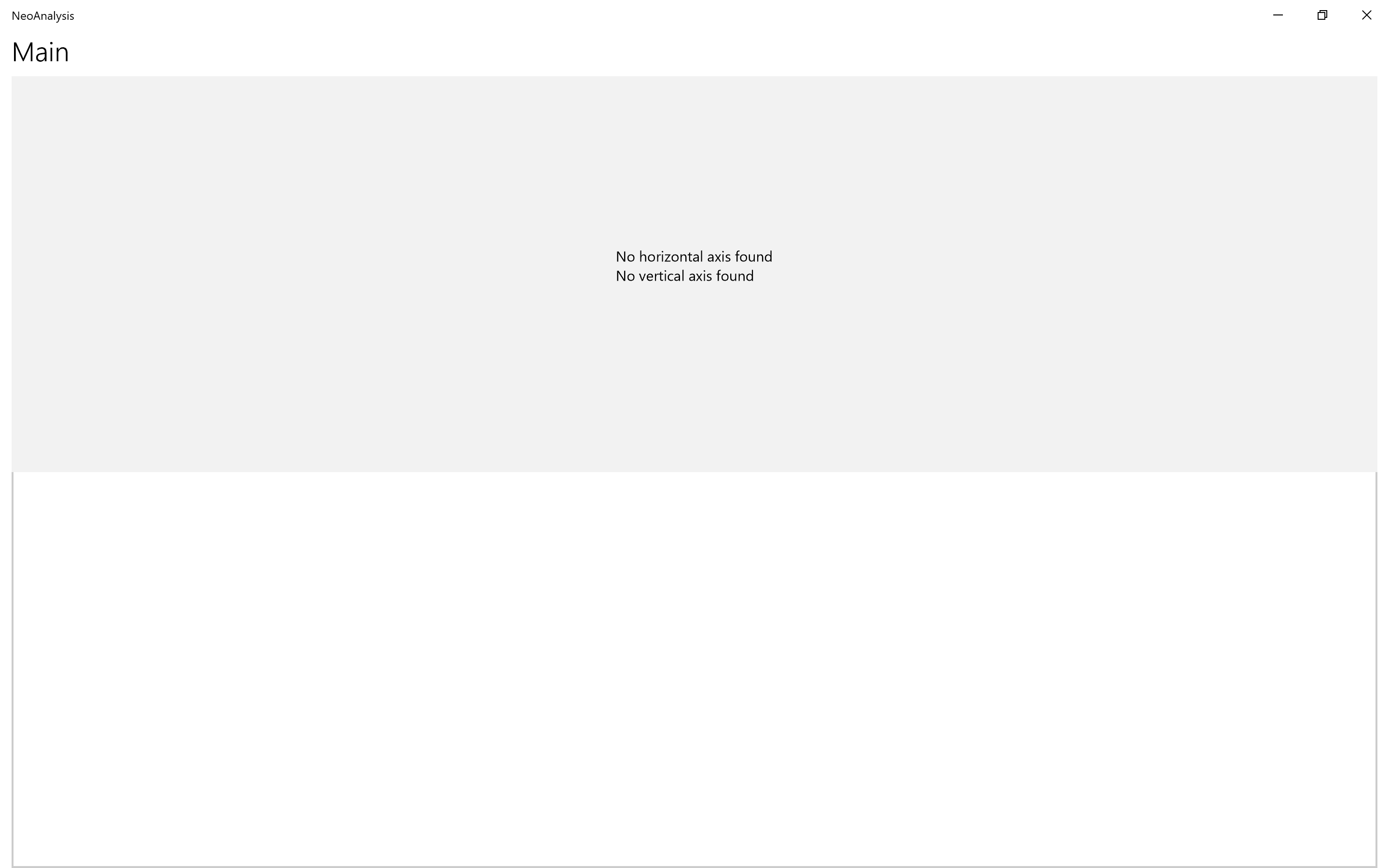
<p>Running this example displays my UWP application in the following state:</p>
<p><img src="https://www.telerik.com/sfimages/default-source/blogs/2018/2018-02/neo-analysis-11.png" alt=""></p>
<p>The next step is bind our controls to the underlying data for NEOs. I'll start by defining the columns of <strong>Grid</strong>:</p>
<div class="reCodeBlock" style="border:solid 1px #7f9db9;width:;height:;overflow-y:auto;">
<div style=" background-color: #fff;"><span style="margin-left: 0px !important;"><code style="color: #000;">&lt;</code><code style="color: #069;font-weight: bold;">Page</code></span></div>
<div style=" background-color: #F8F8F8;"><span style=" "><code style=" ">&nbsp;&nbsp;</code><span style="margin-left: 8px !important;"><code style="color: #000;">..&nbsp;&nbsp;&nbsp; </code></span></span></div>
<div style=" background-color: #fff;"><span style=" "><code style=" ">&nbsp;&nbsp;</code><span style="margin-left: 8px !important;"><code style="color: #808080;">xmlns:tc</code><code style="color: #000;">=</code><code style="color: blue;">"using:Telerik.UI.Xaml.Controls.Chart"</code></span></span></div>
<div style=" background-color: #F8F8F8;"><span style=" "><code style=" ">&nbsp;&nbsp;</code><span style="margin-left: 8px !important;"><code style="color: #808080;">xmlns:tg</code><code style="color: #000;">=</code><code style="color: blue;">"using:Telerik.UI.Xaml.Controls.Grid"</code><code style="color: #000;">&gt;</code></span></span></div>
<div style=" background-color: #fff;"><span style=" "><code style=" ">&nbsp;&nbsp;</code><span style="margin-left: 8px !important;"><code style="color: #000;">&lt;</code><code style="color: #069;font-weight: bold;">Grid</code><code style="color: #000;">&gt;</code></span></span></div>
<div style=" background-color: #F8F8F8;"><span style=" "><code style=" ">&nbsp;&nbsp;&nbsp;&nbsp;</code><span style="margin-left: 16px !important;"><code style="color: #000;">&lt;</code><code style="color: #069;font-weight: bold;">Grid.RowDefinitions</code><code style="color: #000;">&gt;</code></span></span></div>
<div style=" background-color: #fff;"><span style=" "><code style=" ">&nbsp;&nbsp;&nbsp;&nbsp;&nbsp;&nbsp;</code><span style="margin-left: 24px !important;"><code style="color: #000;">&lt;</code><code style="color: #069;font-weight: bold;">RowDefinition</code> <code style="color: #808080;">Height</code><code style="color: #000;">=</code><code style="color: blue;">"*"</code> <code style="color: #000;">/&gt;</code></span></span></div>
<div style=" background-color: #F8F8F8;"><span style=" "><code style=" ">&nbsp;&nbsp;&nbsp;&nbsp;&nbsp;&nbsp;</code><span style="margin-left: 24px !important;"><code style="color: #000;">&lt;</code><code style="color: #069;font-weight: bold;">RowDefinition</code> <code style="color: #808080;">Height</code><code style="color: #000;">=</code><code style="color: blue;">"*"</code> <code style="color: #000;">/&gt;</code></span></span></div>
<div style=" background-color: #fff;"><span style=" "><code style=" ">&nbsp;&nbsp;&nbsp;&nbsp;</code><span style="margin-left: 16px !important;"><code style="color: #000;">&lt;/</code><code style="color: #069;font-weight: bold;">Grid.RowDefinitions</code><code style="color: #000;">&gt;</code></span></span></div>
<div style=" background-color: #F8F8F8;"><span style=" "><code style=" ">&nbsp;&nbsp;&nbsp;&nbsp;</code><span style="margin-left: 16px !important;"><code style="color: #000;">&lt;</code><code style="color: #069;font-weight: bold;">tc:RadCartesianChart</code> <code style="color: #808080;">x:Name</code><code style="color: #000;">=</code><code style="color: blue;">"chart"</code> <code style="color: #808080;">Grid.Row</code><code style="color: #000;">=</code><code style="color: blue;">"0"</code><code style="color: #000;">&gt;</code></span></span></div>
<div style=" background-color: #fff;"><span style=" "><code style=" ">&nbsp;&nbsp;&nbsp;&nbsp;&nbsp;&nbsp;</code><span style="margin-left: 24px !important;"><code style="color: #008200;">&lt;!-- to be defined --&gt;</code></span></span></div>
<div style=" background-color: #F8F8F8;"><span style=" "><code style=" ">&nbsp;&nbsp;&nbsp;&nbsp;</code><span style="margin-left: 16px !important;"><code style="color: #000;">&lt;/</code><code style="color: #069;font-weight: bold;">tc:RadCartesianChart</code><code style="color: #000;">&gt;</code></span></span></div>
<div style=" background-color: #fff;"><span style=" "><code style=" ">&nbsp;&nbsp;&nbsp;&nbsp;</code><span style="margin-left: 16px !important;"><code style="color: #000;">&lt;</code><code style="color: #069;font-weight: bold;">tg:RadDataGrid</code> <code style="color: #808080;">x:Name</code><code style="color: #000;">=</code><code style="color: blue;">"grid"</code> <code style="color: #808080;">Grid.Row</code><code style="color: #000;">=</code><code style="color: blue;">"1"</code><code style="color: #000;">&gt;</code></span></span></div>
<div style=" background-color: #F8F8F8;"><span style=" "><code style=" ">&nbsp;&nbsp;&nbsp;&nbsp;&nbsp;&nbsp;</code><span style="margin-left: 24px !important;"><code style="color: #000;">&lt;</code><code style="color: #069;font-weight: bold;">tg:RadDataGrid.Columns</code><code style="color: #000;">&gt;</code></span></span></div>
<div style=" background-color: #fff;"><span style=" "><code style=" ">&nbsp;&nbsp;&nbsp;&nbsp;&nbsp;&nbsp;&nbsp;&nbsp;</code><span style="margin-left: 32px !important;"><code style="color: #000;">&lt;</code><code style="color: #069;font-weight: bold;">tg:DataGridTextColumn</code> <code style="color: #808080;">Header</code><code style="color: #000;">=</code><code style="color: blue;">"OBJECT NAME"</code> <code style="color: #808080;">PropertyName</code><code style="color: #000;">=</code><code style="color: blue;">"Name"</code> <code style="color: #000;">/&gt;</code></span></span></div>
<div style=" background-color: #F8F8F8;"><span style=" "><code style=" ">&nbsp;&nbsp;&nbsp;&nbsp;&nbsp;&nbsp;&nbsp;&nbsp;</code><span style="margin-left: 32px !important;"><code style="color: #000;">&lt;</code><code style="color: #069;font-weight: bold;">tg:DataGridNumericalColumn</code> <code style="color: #808080;">Header</code><code style="color: #000;">=</code><code style="color: blue;">"SIZE"</code> <code style="color: #808080;">PropertyName</code><code style="color: #000;">=</code><code style="color: blue;">"Size"</code> <code style="color: #000;">/&gt;</code></span></span></div>
<div style=" background-color: #fff;"><span style=" "><code style=" ">&nbsp;&nbsp;&nbsp;&nbsp;&nbsp;&nbsp;&nbsp;&nbsp;</code><span style="margin-left: 32px !important;"><code style="color: #000;">&lt;</code><code style="color: #069;font-weight: bold;">tg:DataGridDateColumn</code> <code style="color: #808080;">Header</code><code style="color: #000;">=</code><code style="color: blue;">"DATE/TIME"</code> <code style="color: #808080;">PropertyName</code><code style="color: #000;">=</code><code style="color: blue;">"CloseApproachDateTime"</code> <code style="color: #000;">/&gt;</code></span></span></div>
<div style=" background-color: #F8F8F8;"><span style=" "><code style=" ">&nbsp;&nbsp;&nbsp;&nbsp;&nbsp;&nbsp;&nbsp;&nbsp;</code><span style="margin-left: 32px !important;"><code style="color: #000;">&lt;</code><code style="color: #069;font-weight: bold;">tg:DataGridTextColumn</code> <code style="color: #808080;">Header</code><code style="color: #000;">=</code><code style="color: blue;">"IP"</code> <code style="color: #808080;">PropertyName</code><code style="color: #000;">=</code><code style="color: blue;">"IP"</code> <code style="color: #000;">/&gt;</code></span></span></div>
<div style=" background-color: #fff;"><span style=" "><code style=" ">&nbsp;&nbsp;&nbsp;&nbsp;&nbsp;&nbsp;&nbsp;&nbsp;</code><span style="margin-left: 32px !important;"><code style="color: #000;">&lt;</code><code style="color: #069;font-weight: bold;">tg:DataGridNumericalColumn</code> <code style="color: #808080;">Header</code><code style="color: #000;">=</code><code style="color: blue;">"PS"</code> <code style="color: #808080;">PropertyName</code><code style="color: #000;">=</code><code style="color: blue;">"PS"</code> <code style="color: #000;">/&gt;</code></span></span></div>
<div style=" background-color: #F8F8F8;"><span style=" "><code style=" ">&nbsp;&nbsp;&nbsp;&nbsp;&nbsp;&nbsp;&nbsp;&nbsp;</code><span style="margin-left: 32px !important;"><code style="color: #000;">&lt;</code><code style="color: #069;font-weight: bold;">tg:DataGridTextColumn</code> <code style="color: #808080;">Header</code><code style="color: #000;">=</code><code style="color: blue;">"TS"</code> <code style="color: #808080;">PropertyName</code><code style="color: #000;">=</code><code style="color: blue;">"TS"</code> <code style="color: #000;">/&gt;</code></span></span></div>
<div style=" background-color: #fff;"><span style=" "><code style=" ">&nbsp;&nbsp;&nbsp;&nbsp;&nbsp;&nbsp;&nbsp;&nbsp;</code><span style="margin-left: 32px !important;"><code style="color: #000;">&lt;</code><code style="color: #069;font-weight: bold;">tg:DataGridNumericalColumn</code> <code style="color: #808080;">Header</code><code style="color: #000;">=</code><code style="color: blue;">"VELOCITY"</code> <code style="color: #808080;">PropertyName</code><code style="color: #000;">=</code><code style="color: blue;">"Velocity"</code> <code style="color: #000;">/&gt;</code></span></span></div>
<div style=" background-color: #F8F8F8;"><span style=" "><code style=" ">&nbsp;&nbsp;&nbsp;&nbsp;&nbsp;&nbsp;</code><span style="margin-left: 24px !important;"><code style="color: #000;">&lt;/</code><code style="color: #069;font-weight: bold;">tg:RadDataGrid.Columns</code><code style="color: #000;">&gt;</code></span></span></div>
<div style=" background-color: #fff;"><span style=" "><code style=" ">&nbsp;&nbsp;&nbsp;&nbsp;</code><span style="margin-left: 16px !important;"><code style="color: #000;">&lt;/</code><code style="color: #069;font-weight: bold;">tg:RadDataGrid</code><code style="color: #000;">&gt;</code></span></span></div>
<div style=" background-color: #F8F8F8;"><span style=" "><code style=" ">&nbsp;&nbsp;</code><span style="margin-left: 8px !important;"><code style="color: #000;">&lt;/</code><code style="color: #069;font-weight: bold;">Grid</code><code style="color: #000;">&gt;</code></span></span></div>
<div style=" background-color: #fff;"><span style="margin-left: 0px !important;"><code style="color: #000;">&lt;/</code><code style="color: #069;font-weight: bold;">Page</code><code style="color: #000;">&gt;</code></span></div>
</div>
<p>In this XAML markup, I've defined columns for the <strong>Grid</strong> to display following properties of the NEOs:</p>
<ul>
    <li><strong>Name:</strong> the designation assigned to the NEO (i.e. <a href="https://ssd.jpl.nasa.gov/sbdb.cgi?sstr=1979xb">1979 XB</a>)</li>
    <li><strong>Size:</strong> the estimated diameter (m) of the NEO</li>
    <li><strong>Date/Time:</strong> the estimated date and time when the NEO is expected to be in close proximity to the Earth</li>
    <li><strong>IP:</strong> the probability of the NEO impacting the Earth (impact probability)</li>
    <li><strong>PS:</strong> value of <a href="https://en.wikipedia.org/wiki/Palermo_Technical_Impact_Hazard_Scale">Palermo Technical Impact Hazard Scale</a></li>
    <li><strong>TS:</strong> value of <a href="https://en.wikipedia.org/wiki/Torino_scale">Torino Scale</a></li>
    <li><strong>Velocity:</strong> the estimated velocity (in km/h) of the NEO</li>
</ul>
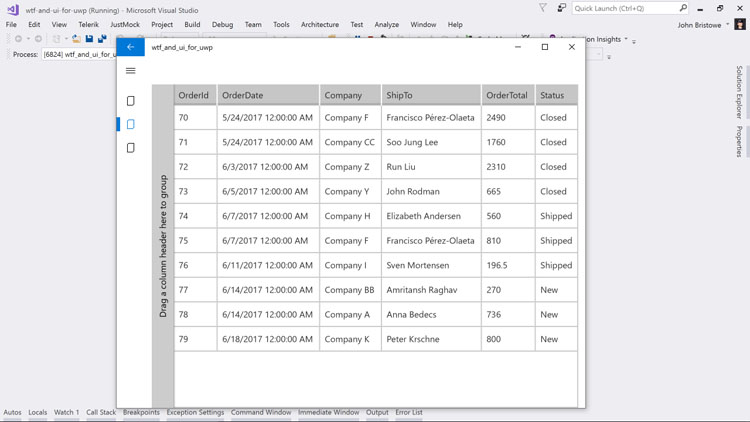
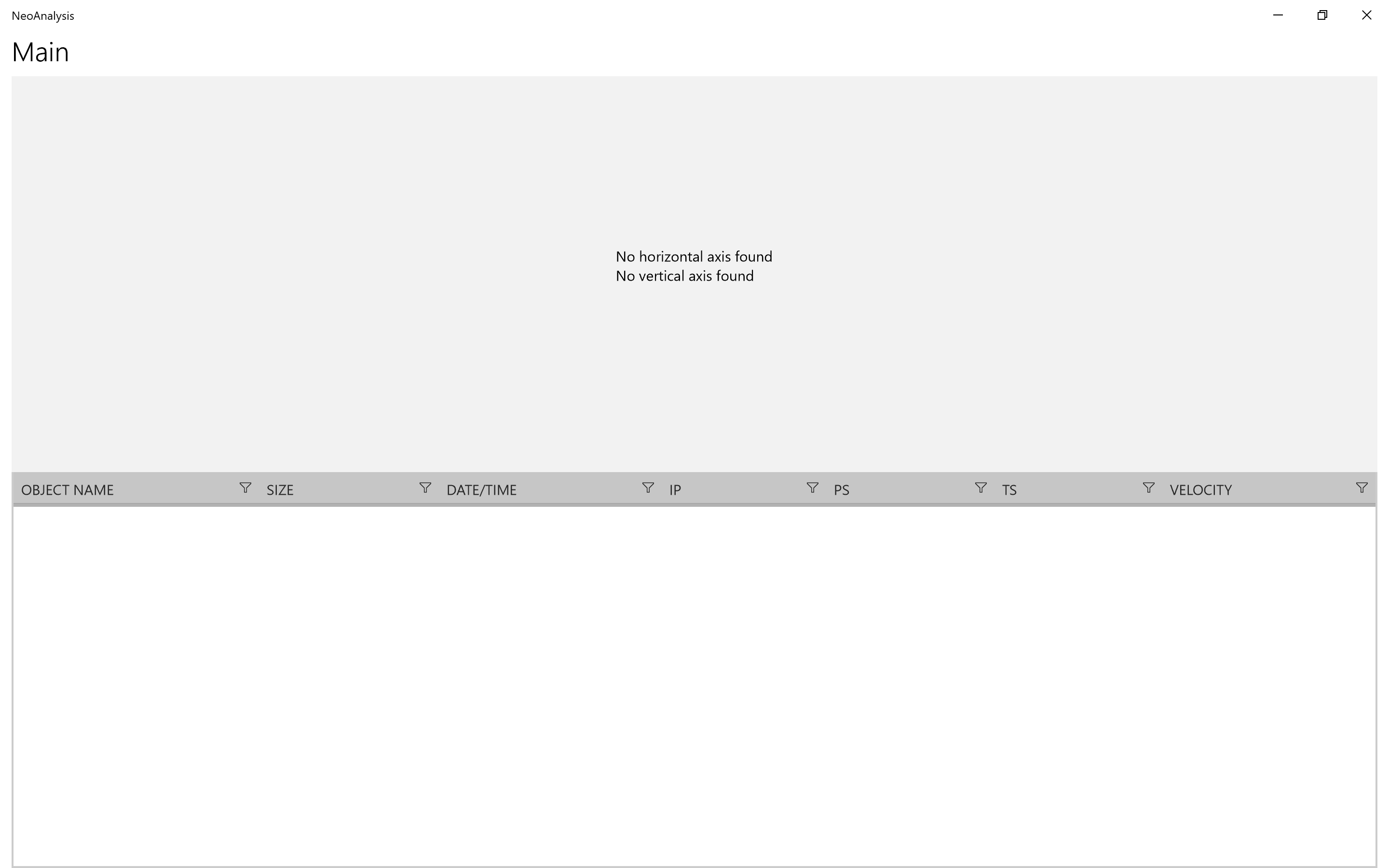
<p>Running this example displays an update to the user interface with the columns defined in the <strong>Grid</strong>:</p>
<p><img src="https://www.telerik.com/sfimages/default-source/blogs/2018/2018-02/neo-analysis-12.png" alt=""></p>
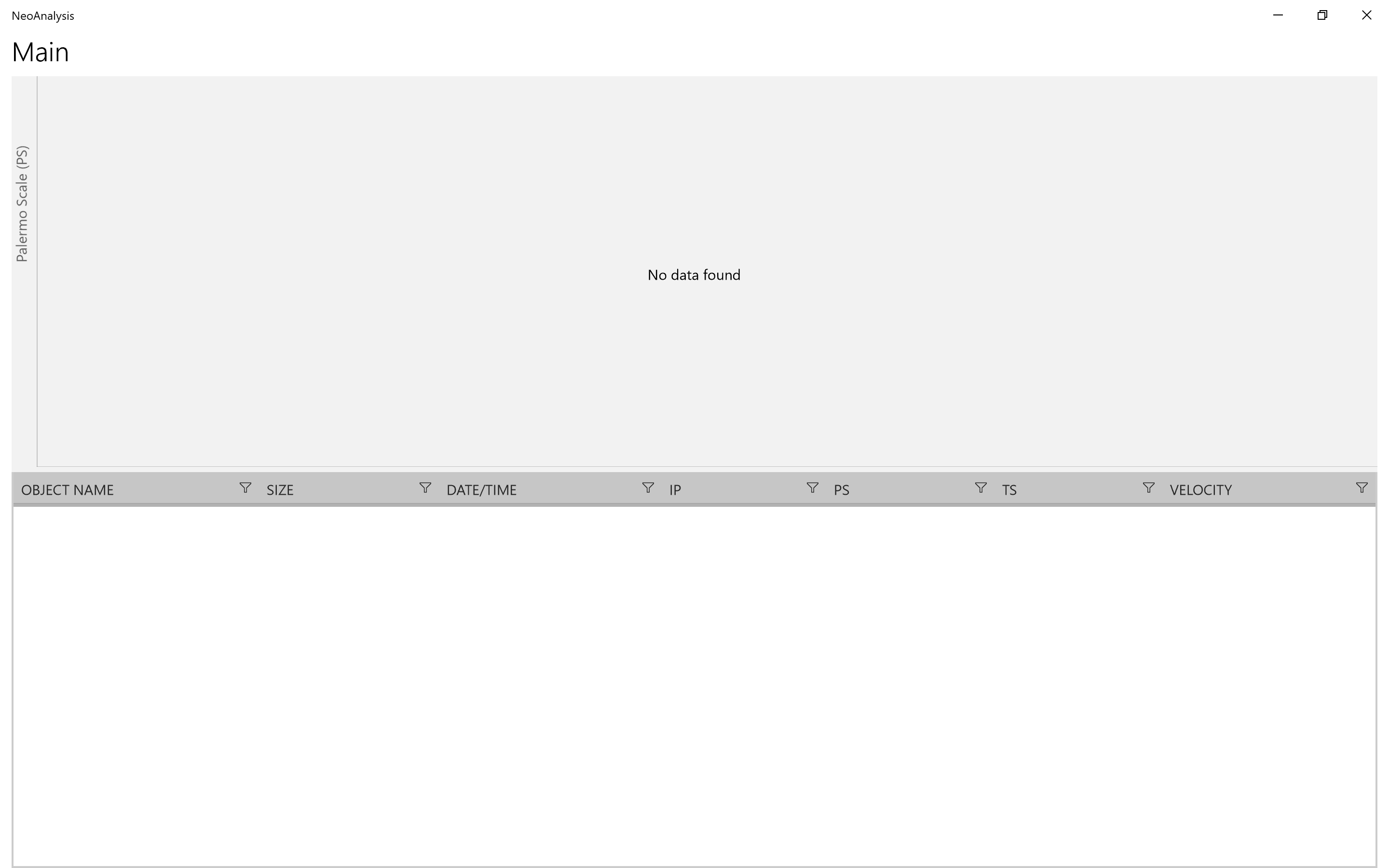
<p>I'll update this example to define a point series for the <strong>Chart</strong>. This will be used to plot the NEOs against its value for Palermo Technical Impact Hazard Scale. Thus, any points plotted at or near the top of the <strong>Chart</strong> will be NEOs that we'll have to keep a close eye on!</p>
<div class="reCodeBlock" style="border:solid 1px #7f9db9;width:;height:;overflow-y:auto;">
<div style=" background-color: #fff;"><span style="margin-left: 0px !important;"><code style="color: #000;">&lt;</code><code style="color: #069;font-weight: bold;">Page</code></span></div>
<div style=" background-color: #F8F8F8;"><span style=" "><code style=" ">&nbsp;&nbsp;</code><span style="margin-left: 8px !important;"><code style="color: #000;">..&nbsp;&nbsp;&nbsp; </code></span></span></div>
<div style=" background-color: #fff;"><span style=" "><code style=" ">&nbsp;&nbsp;</code><span style="margin-left: 8px !important;"><code style="color: #808080;">xmlns:tc</code><code style="color: #000;">=</code><code style="color: blue;">"using:Telerik.UI.Xaml.Controls.Chart"</code></span></span></div>
<div style=" background-color: #F8F8F8;"><span style=" "><code style=" ">&nbsp;&nbsp;</code><span style="margin-left: 8px !important;"><code style="color: #808080;">xmlns:tg</code><code style="color: #000;">=</code><code style="color: blue;">"using:Telerik.UI.Xaml.Controls.Grid"</code><code style="color: #000;">&gt;</code></span></span></div>
<div style=" background-color: #fff;"><span style=" "><code style=" ">&nbsp;&nbsp;</code><span style="margin-left: 8px !important;"><code style="color: #000;">&lt;</code><code style="color: #069;font-weight: bold;">Grid</code><code style="color: #000;">&gt;</code></span></span></div>
<div style=" background-color: #F8F8F8;"><span style=" "><code style=" ">&nbsp;&nbsp;&nbsp;&nbsp;</code><span style="margin-left: 16px !important;"><code style="color: #000;">&lt;</code><code style="color: #069;font-weight: bold;">Grid.RowDefinitions</code><code style="color: #000;">&gt;</code></span></span></div>
<div style=" background-color: #fff;"><span style=" "><code style=" ">&nbsp;&nbsp;&nbsp;&nbsp;&nbsp;&nbsp;</code><span style="margin-left: 24px !important;"><code style="color: #000;">&lt;</code><code style="color: #069;font-weight: bold;">RowDefinition</code> <code style="color: #808080;">Height</code><code style="color: #000;">=</code><code style="color: blue;">"*"</code> <code style="color: #000;">/&gt;</code></span></span></div>
<div style=" background-color: #F8F8F8;"><span style=" "><code style=" ">&nbsp;&nbsp;&nbsp;&nbsp;&nbsp;&nbsp;</code><span style="margin-left: 24px !important;"><code style="color: #000;">&lt;</code><code style="color: #069;font-weight: bold;">RowDefinition</code> <code style="color: #808080;">Height</code><code style="color: #000;">=</code><code style="color: blue;">"*"</code> <code style="color: #000;">/&gt;</code></span></span></div>
<div style=" background-color: #fff;"><span style=" "><code style=" ">&nbsp;&nbsp;&nbsp;&nbsp;</code><span style="margin-left: 16px !important;"><code style="color: #000;">&lt;/</code><code style="color: #069;font-weight: bold;">Grid.RowDefinitions</code><code style="color: #000;">&gt;</code></span></span></div>
<div style=" background-color: #F8F8F8;"><span style=" "><code style=" ">&nbsp;&nbsp;&nbsp;&nbsp;</code><span style="margin-left: 16px !important;"><code style="color: #000;">&lt;</code><code style="color: #069;font-weight: bold;">tc:RadCartesianChart</code> <code style="color: #808080;">x:Name</code><code style="color: #000;">=</code><code style="color: blue;">"chart"</code> <code style="color: #808080;">Grid.Row</code><code style="color: #000;">=</code><code style="color: blue;">"0"</code><code style="color: #000;">&gt;</code></span></span></div>
<div style=" background-color: #fff;"><span style=" "><code style=" ">&nbsp;&nbsp;&nbsp;&nbsp;</code><span style="margin-left: 16px !important;"><code style="color: #000;">&lt;</code><code style="color: #069;font-weight: bold;">tc:RadCartesianChart.VerticalAxis</code><code style="color: #000;">&gt;</code></span></span></div>
<div style=" background-color: #F8F8F8;"><span style=" "><code style=" ">&nbsp;&nbsp;&nbsp;&nbsp;&nbsp;&nbsp;</code><span style="margin-left: 24px !important;"><code style="color: #000;">&lt;</code><code style="color: #069;font-weight: bold;">tc:LinearAxis</code> <code style="color: #808080;">Title</code><code style="color: #000;">=</code><code style="color: blue;">"Palermo Scale (PS)"</code> <code style="color: #000;">/&gt;</code></span></span></div>
<div style=" background-color: #fff;"><span style=" "><code style=" ">&nbsp;&nbsp;&nbsp;&nbsp;</code><span style="margin-left: 16px !important;"><code style="color: #000;">&lt;/</code><code style="color: #069;font-weight: bold;">tc:RadCartesianChart.VerticalAxis</code><code style="color: #000;">&gt;</code></span></span></div>
<div style=" background-color: #F8F8F8;"><span style=" "><code style=" ">&nbsp;&nbsp;&nbsp;&nbsp;</code><span style="margin-left: 16px !important;"><code style="color: #000;">&lt;</code><code style="color: #069;font-weight: bold;">tc:RadCartesianChart.HorizontalAxis</code><code style="color: #000;">&gt;</code></span></span></div>
<div style=" background-color: #fff;"><span style=" "><code style=" ">&nbsp;&nbsp;&nbsp;&nbsp;&nbsp;&nbsp;</code><span style="margin-left: 24px !important;"><code style="color: #000;">&lt;</code><code style="color: #069;font-weight: bold;">tc:DateTimeContinuousAxis</code> <code style="color: #808080;">LabelFormat</code><code style="color: #000;">=</code><code style="color: blue;">"{}{0,0:yyyy}"</code> <code style="color: #808080;">MajorStep</code><code style="color: #000;">=</code><code style="color: blue;">"10"</code> <code style="color: #000;">/&gt;</code></span></span></div>
<div style=" background-color: #F8F8F8;"><span style=" "><code style=" ">&nbsp;&nbsp;&nbsp;&nbsp;</code><span style="margin-left: 16px !important;"><code style="color: #000;">&lt;/</code><code style="color: #069;font-weight: bold;">tc:RadCartesianChart.HorizontalAxis</code><code style="color: #000;">&gt;</code></span></span></div>
<div style=" background-color: #fff;"><span style=" "><code style=" ">&nbsp;&nbsp;&nbsp;&nbsp;</code><span style="margin-left: 16px !important;"><code style="color: #000;">&lt;</code><code style="color: #069;font-weight: bold;">tc:RadCartesianChart.Grid</code><code style="color: #000;">&gt;</code></span></span></div>
<div style=" background-color: #F8F8F8;"><span style=" "><code style=" ">&nbsp;&nbsp;&nbsp;&nbsp;&nbsp;&nbsp;</code><span style="margin-left: 24px !important;"><code style="color: #000;">&lt;</code><code style="color: #069;font-weight: bold;">tc:CartesianChartGrid</code> <code style="color: #808080;">MajorLinesVisibility</code><code style="color: #000;">=</code><code style="color: blue;">"XY"</code> <code style="color: #000;">/&gt;</code></span></span></div>
<div style=" background-color: #fff;"><span style=" "><code style=" ">&nbsp;&nbsp;&nbsp;&nbsp;</code><span style="margin-left: 16px !important;"><code style="color: #000;">&lt;/</code><code style="color: #069;font-weight: bold;">tc:RadCartesianChart.Grid</code><code style="color: #000;">&gt;</code></span></span></div>
<div style=" background-color: #F8F8F8;"><span style=" "><code style=" ">&nbsp;&nbsp;&nbsp;&nbsp;</code><span style="margin-left: 16px !important;"><code style="color: #000;">&lt;</code><code style="color: #069;font-weight: bold;">tc:PointSeries</code> <code style="color: #808080;">ItemsSource</code><code style="color: #000;">=</code><code style="color: blue;">"{Binding}"</code><code style="color: #000;">&gt;</code></span></span></div>
<div style=" background-color: #fff;"><span style=" "><code style=" ">&nbsp;&nbsp;&nbsp;&nbsp;&nbsp;&nbsp;</code><span style="margin-left: 24px !important;"><code style="color: #000;">&lt;</code><code style="color: #069;font-weight: bold;">tc:PointSeries.CategoryBinding</code><code style="color: #000;">&gt;</code></span></span></div>
<div style=" background-color: #F8F8F8;"><span style=" "><code style=" ">&nbsp;&nbsp;&nbsp;&nbsp;&nbsp;&nbsp;&nbsp;&nbsp;</code><span style="margin-left: 32px !important;"><code style="color: #000;">&lt;</code><code style="color: #069;font-weight: bold;">tc:PropertyNameDataPointBinding</code> <code style="color: #808080;">PropertyName</code><code style="color: #000;">=</code><code style="color: blue;">"CloseApproachDateTime"</code> <code style="color: #000;">/&gt;</code></span></span></div>
<div style=" background-color: #fff;"><span style=" "><code style=" ">&nbsp;&nbsp;&nbsp;&nbsp;&nbsp;&nbsp;&nbsp;&nbsp;</code><span style="margin-left: 32px !important;"><code style="color: #000;">&lt;/</code><code style="color: #069;font-weight: bold;">tc:PointSeries.CategoryBinding</code><code style="color: #000;">&gt;</code></span></span></div>
<div style=" background-color: #F8F8F8;"><span style=" "><code style=" ">&nbsp;&nbsp;&nbsp;&nbsp;&nbsp;&nbsp;&nbsp;&nbsp;</code><span style="margin-left: 32px !important;"><code style="color: #000;">&lt;</code><code style="color: #069;font-weight: bold;">tc:PointSeries.ValueBinding</code><code style="color: #000;">&gt;</code></span></span></div>
<div style=" background-color: #fff;"><span style=" "><code style=" ">&nbsp;&nbsp;&nbsp;&nbsp;&nbsp;&nbsp;&nbsp;&nbsp;&nbsp;&nbsp;</code><span style="margin-left: 40px !important;"><code style="color: #000;">&lt;</code><code style="color: #069;font-weight: bold;">tc:PropertyNameDataPointBinding</code> <code style="color: #808080;">PropertyName</code><code style="color: #000;">=</code><code style="color: blue;">"PS"</code> <code style="color: #000;">/&gt;</code></span></span></div>
<div style=" background-color: #F8F8F8;"><span style=" "><code style=" ">&nbsp;&nbsp;&nbsp;&nbsp;&nbsp;&nbsp;&nbsp;&nbsp;</code><span style="margin-left: 32px !important;"><code style="color: #000;">&lt;/</code><code style="color: #069;font-weight: bold;">tc:PointSeries.ValueBinding</code><code style="color: #000;">&gt;</code></span></span></div>
<div style=" background-color: #fff;"><span style=" "><code style=" ">&nbsp;&nbsp;&nbsp;&nbsp;&nbsp;&nbsp;</code><span style="margin-left: 24px !important;"><code style="color: #000;">&lt;/</code><code style="color: #069;font-weight: bold;">tc:PointSeries</code><code style="color: #000;">&gt;</code></span></span></div>
<div style=" background-color: #F8F8F8;"><span style=" "><code style=" ">&nbsp;&nbsp;&nbsp;&nbsp;</code><span style="margin-left: 16px !important;"><code style="color: #000;">&lt;/</code><code style="color: #069;font-weight: bold;">tc:RadCartesianChart</code><code style="color: #000;">&gt;</code></span></span></div>
<div style=" background-color: #fff;"><span style=" "><code style=" ">&nbsp;&nbsp;&nbsp;&nbsp;</code><span style="margin-left: 16px !important;"><code style="color: #000;">&lt;</code><code style="color: #069;font-weight: bold;">tg:RadDataGrid</code> <code style="color: #808080;">x:Name</code><code style="color: #000;">=</code><code style="color: blue;">"grid"</code> <code style="color: #808080;">Grid.Row</code><code style="color: #000;">=</code><code style="color: blue;">"1"</code><code style="color: #000;">&gt;</code></span></span></div>
<div style=" background-color: #F8F8F8;"><span style=" "><code style=" ">&nbsp;&nbsp;&nbsp;&nbsp;&nbsp;&nbsp;</code><span style="margin-left: 24px !important;"><code style="color: #008200;">&lt;!-- removed for brevity --&gt;</code></span></span></div>
<div style=" background-color: #fff;"><span style=" "><code style=" ">&nbsp;&nbsp;&nbsp;&nbsp;</code><span style="margin-left: 16px !important;"><code style="color: #000;">&lt;/</code><code style="color: #069;font-weight: bold;">tg:RadDataGrid</code><code style="color: #000;">&gt;</code></span></span></div>
<div style=" background-color: #F8F8F8;"><span style=" "><code style=" ">&nbsp;&nbsp;</code><span style="margin-left: 8px !important;"><code style="color: #000;">&lt;/</code><code style="color: #069;font-weight: bold;">Grid</code><code style="color: #000;">&gt;</code></span></span></div>
<div style=" background-color: #fff;"><span style="margin-left: 0px !important;"><code style="color: #000;">&lt;/</code><code style="color: #069;font-weight: bold;">Page</code><code style="color: #000;">&gt;</code></span></div>
</div>
<p>Running this example isn't terrible useful since we haven't bound either control to our underlying data:</p>
<p><img src="https://www.telerik.com/sfimages/default-source/blogs/2018/2018-02/neo-analysis-13.png" alt=""></p>
<h2 id="bringingitalltogether">Bringing it All Together</h2>
<p>I have one more thing left to do before I start analyzing the NEO-related data with <strong>Chart</strong> and <strong>Grid</strong>; I have to bind the underlying data to the controls. This is accomplished by populating the data context of the page with the data pertaining to NEOs. As I indicated earlier in this article, there are numerous sources available to find this data. For this example, I've created a local cache of the data from one such service in the form of a CSV file. I then used the popular libraryT&nbsp;<a href="https://joshclose.github.io/CsvHelper/">CsvHelper</a>&nbsp;to pull values out from this file and to populate an in-memory object collection representing the NEOs.</p>
<p>Here's what the application looks like with the data bound to the <strong>Chart</strong> and <strong>Grid</strong> on the main page:</p>
<p><img src="https://www.telerik.com/sfimages/default-source/blogs/2018/2018-02/neoanalysis-application.png" alt="NeoAnalysis Application"></p>
<p>The <strong>Chart</strong> has a number of built-in features that enable you to scroll and zoom through the data that's bound to it. Likewise, the <strong>Grid</strong> has a number of built-in features that enable you to filter and sort through thousands of items.</p>
<h2 id="neotrackeratmicrosoftbuild2017">NEO Tracker at Microsoft Build 2017</h2>
<p>If you attended Microsoft Build 2017 last year, you may have seen me build this application built on-stage with <a href="https://twitter.com/metulev">Nikola Metulev</a>. You can watch a replay of the session in case you missed it:</p>
<p><iframe src="https://channel9.msdn.com/Events/Build/2017/B8035/player" width="640" height="360" frameborder="0"></iframe></p>
<p>The focus of our session was to demonstrate how to build custom controls for UWP. However, we felt very creative; we ended up building a lot more than we originally anticipated. (I love it when this happens!)</p>
<h2 id="nextsteps">Next Steps</h2>
<p>I'd strongly recommend that you check out the tools cited in this article to help you build UWP applications. Specifically, <a href="https://github.com/Microsoft/WindowsTemplateStudio/">Windows Template Studio</a>, the <a href="https://github.com/Microsoft/UWPCommunityToolkit">UWP Community Toolkit</a>, and <a href="https://www.telerik.com/universal-windows-platform-ui">Telerik UI for UWP</a>. Also, take a moment to check out <a href="https://www.telerik.com/teststudio-apis">Progress Test Studio for APIs</a>. It's currently available as a Beta. We'd love for you to check it out!</p>
<p>If you're interested in learning more about UWP and the current state of .NET, please download our free whitepaper entitled, <a href="https://www.telerik.com/whitepapers/devcraft/the-state-of-.net-in-2018">The State of .NET in 2018</a>. It discusses the evolution of the .NET Framework (including UWP) and how its latest incarnation addresses the challenges presented by new cross-platform portable apps and the future-facing technologies developers are working on.</p><img src="https://feeds.telerik.com/link/23061/15057536.gif" height="1" width="1"/>]]></content>
  </entry>
  <entry>
    <id>urn:uuid:73159ce6-9526-46b6-b452-3c702f484389</id>
    <title type="text">Need a DataGrid for Your UWP App?</title>
    <summary type="text">DataGrids are critical in most business apps. Why reinvent the wheel when you can use the high-performing and open source Telerik UI for UWP DataGrid instead?</summary>
    <published>2017-10-05T16:08:38Z</published>
    <updated>2026-04-11T12:20:16Z</updated>
    <author>
      <name>Dobrin Grancharov </name>
    </author>
    <link rel="alternate" href="https://feeds.telerik.com/link/23061/15057537/need-a-datagrid-for-your-uwp-app"/>
    <content type="text"><![CDATA[<p><span class="featured">DataGrids are critical in most business apps. Why reinvent the wheel when you can use the high-performing and open source Telerik UI for UWP DataGrid instead?</span></p>
<p>Building a Windows 10 app using the Universal Windows Platform? Chances are you&rsquo;ll need a DataGrid for your application, and what a better choice than the highly-performant and feature rich DataGrid from the <a href="https://www.telerik.com/universal-windows-platform-ui">Telerik UI for UWP suite</a>, which is also open source and <a href="https://github.com/telerik/UI-For-UWP">available on GitHub</a>.</p>
<p>As we all know, Grids are the backbone of most line of business applications out there. They are also by far one of the hardest components to create in terms of development time, functionalities, customization, responsiveness and speed. </p>
<p>Developers need to be able to deliver large applications tailored to the needs of the business and following the project requirements on tight deadlines. This means quite often they must choose between building the component internally or using a third-party toolkit, which provides it out of the box. </p>
<p>But you already know all of this, right? So where am I going with this blog?</p>
<p>Well, let me cut to the chase. If you had the pleasure to attend this year&rsquo;s <a href="https://channel9.msdn.com/Events/Build/2017/KEY02">Microsoft Build Day 2 keynote</a>, either in person or virtually, you were probably thrilled by the announcement about XAML Standard 1.0. Abolade Gbadegesin (Architect for Project Rome) presented on the Microsoft team&rsquo;s work on improving the Pen capabilities and <a href="https://channel9.msdn.com/Events/Build/2017/KEY02">showcased them with the Telerik UI for UWP DataGrid on stage</a> (57:35).&nbsp; </p>
<p>So why should you choose the <a href="https://www.telerik.com/universal-windows-platform-ui/grid">Telerik UI for UWP DataGrid</a>? Well, for starters, if you missed it, as of February 2017 the whole Telerik UI for UWP suite <a href="https://www.telerik.com/blogs/telerik-ui-for-uwp-now-open-source">is open sourced</a>. Yes, this includes the DataGrid, meaning you are more than welcome to use it in your Windows 10 application. You can get the whole product package from GitHub and start using it right away. However, there is more to a component than its free availability.</p>
<h2>Telerik UI for UWP DataGrid&mdash;Benefits and Functionalities</h2>
<p><img border="0" width="607" height="320" src="https://d585tldpucybw.cloudfront.net/sfimages/default-source/blogs/2017/2017.10/grid-overview-image.png?sfvrsn=7fd6c79_1" data-displaymode="Original" alt="Telerik UI for UWP Grid Overview" title="Telerik UI for UWP Grid Overview"></p>
<p>The Telerik UI for UWP DataGrid is an extremely powerful component in terms of both speed and functionality. It has been built from the ground up to deliver maximum performance and a native look and feel to your Windows 10 app. It provides advanced UI virtualization for high performance making the grid fast, fluid and responsive and capable of processing huge amounts of data blazing fast. </p>
<p>In addition, the DataGrid offers the ability to customize columns, through templates for the different cell types, as well to manually or automatically adjust their width depending on the content they include. This comes quite handy when one of your columns includes cells with visualizations or long strings of data. On the other hand, for columns consisting of icons, up-down arrows signifying increase/decrease, or other smaller objects, they can be scaled down to a smaller size providing better visualization of all the data in a certain row.</p>
<p>Another key feature that our DataGrid offers is the ability to sort single and/or multiple columns in either ascending or descending values, resulting in users being able to sort data with a single tap on the column header. These not only includes alphabetical sorting, but also numbers, values (True/False) and duration.</p>
<p><img border="0" width="602" height="309" src="https://d585tldpucybw.cloudfront.net/sfimages/default-source/blogs/2017/2017.10/sorting-telerik-ui-for-uwp.gif?sfvrsn=928c5ddd_1" data-displaymode="Original" alt="Sorting Telerik UI for UWP" title="Sorting Telerik UI for UWP"></p>
<p>A well known and highly used functionality of any grid is the filter. With the filtering feature in the Telerik UI for UWP DataGrid your users will be able to filter ANY type of data, be it string, decimal, Boolean or date and time. There are also various filtering functionalities to further extend the capabilities of the control. For example, you can filter by:</p>
<ul style="list-style-type: disc;">
    <li>is/no equal/great/less than</li>
    <li>before and after</li>
    <li>Contains/StartsWith/EndsWith</li>
</ul>
<p>The rich API behind the control allows you to easily define the advanced filtering criteria through the code and suit it to the project requirements you are working with.</p>
<p>Here are a few other features that the component includes:</p>
<ul>
    <li>Cell or Row, Single or Multiple Selection</li>
    <li>Grid Filtering customization</li>
    <li>Grouping&mdash;users will be able to group data by simply moving a column header to the dedicated grouping panel</li>
</ul>
<p><img border="0" width="634" height="324" src="https://d585tldpucybw.cloudfront.net/sfimages/default-source/blogs/2017/2017.10/filter-telerik-ui-for-uwp.gif?sfvrsn=fec0b17c_1" data-displaymode="Original" alt="Filter Telerik UI for UWP" title="Filter Telerik UI for UWP"></p>
<h2>Verdict </h2>
<p>All and all, the <a href="https://www.telerik.com/universal-windows-platform-ui/grid">Telerik UI for UWP DataGrid</a> is a truly advanced component, which can serve you well in developing Windows 10 applications, while also cutting down your development time substantially.&nbsp; The extensive documentation will decrease your learning time and will get you running in a jiff. If you are interested in learning more on add a Grid to your current application, check out <a href="https://www.telerik.com/blogs/getting-started-with-telerik-ui-for-uwp">this blog post on Getting Started with Telerik UI for UWP</a>, where <a href="https://twitter.com/JohnBristowe?lang=en">John Bristowe</a> will guide you through creating an application and using the DataGrid and Chart components.</p>
<p>Should you require support during your development, check out our <a href="https://www.telerik.com/universal-windows-platform-ui">fully supported version Telerik UI for UWP</a> and <a href="https://www.telerik.com/download-trial-file/v2/ui-for-universal-windows-platform">test it out in a one-month free trial</a>.</p>
<p>Otherwise, get the full project and source code from <a href="https://github.com/telerik/UI-For-UWP">our GitHub repository</a> and you are welcome to star or fork our project. We love it when people mess with our code and find issues with it (or not ).</p>
<p>Happy coding!</p><img src="https://feeds.telerik.com/link/23061/15057537.gif" height="1" width="1"/>]]></content>
  </entry>
  <entry>
    <id>urn:uuid:e551b222-fe83-4e02-a165-7bc1bd198481</id>
    <title type="text">UI Controls for UWP: Building Windows Apps with Adaptive UI</title>
    <summary type="text">Learn how to use the open source Telerik UI for UWP to build highly-performant apps for all Windows 10, as well as IoT, Xbox and VR devices.</summary>
    <published>2017-08-31T20:50:05Z</published>
    <updated>2026-04-11T12:20:16Z</updated>
    <author>
      <name>Dobrin Grancharov </name>
    </author>
    <link rel="alternate" href="https://feeds.telerik.com/link/23061/15057538/ui-controls-for-uwp-building-windows-apps-with-adaptive-ui"/>
    <content type="text"><![CDATA[<p><span class="featured">In this episode of DevRadio, learn how to use the open source Telerik UI for the Universal Windows Platform (UWP) to build highly-performant applications for all Windows 10, as well as IoT, Xbox and VR devices.</span></p>
<p>Earlier this year, we announced that we were <a href="https://www.telerik.com/blogs/telerik-ui-for-uwp-now-open-source">open-sourcing the Telerik UI for UWP suite</a> to the wide developer community and especially for those interested in building Windows 10 apps. The project also recently <a href="https://www.telerik.com/blogs/progress-telerik-ui-for-uwp-joins-net-foundation">joined the .NET Foundation</a> and we couldn&rsquo;t be happier. We&rsquo;ve received amazing feedback from all of you in both of these initiatives and hope that this is yet another step in helping developers be more productive and feel like true .NET Ninjas <span style="font-family: Wingdings;">J</span>.</p>
<p>In this latest episode of Channel 9&rsquo;s DevRadio, <a href="https://twitter.com/jerrynixon?lang=en">Jerry Nixon</a> welcomes <a href="https://twitter.com/JohnBristowe">John Bristowe</a> and <a href="https://twitter.com/samidip">Sam Basu</a> to share what the <a href="https://www.telerik.com/universal-windows-platform-ui">Telerik UI for UWP</a> suite offers. They explore how the toolkit can aid developers in building highly-performant applications for Windows 10 based desktop, tablet and phone devices, as well as its implications for markets such as IoT, Xbox and VR. Some of the main topics they cover are:</p>
<ol>
    <li>What is Telerik UI for UWP?</li>
    <li>An overview of the Grid, Chart and DataForm controls</li>
    <li>Why is the suite &ldquo;special&rdquo;?</li>
    <li>How can you start off with Telerik UI for UWP?</li>
</ol>
<p>The guys also discuss the best practices in UI, building controls in-house, the state of UWP today, the UWP ecosystem and the Community Toolkit and what the XAML Standard means for UWP. </p>
<p>Check out the full video <a href="https://channel9.msdn.com/Blogs/DevRadio/DR1734">here on DevRadio</a>, or just watch below.</p>
<p><u>Related Resources</u></p>
<ul style="list-style-type: disc;">
    <li><a href="https://www.telerik.com/blogs/telerik-ui-for-uwp-now-open-source">Telerik UI for UWP is now open source</a></li>
    <li><a href="https://www.telerik.com/blogs/getting-started-with-telerik-ui-for-uwp">Getting Started with Telerik UI for UWP</a></li>
    <li><a href="https://www.telerik.com/blogs/toolkits-toolkits-toolkits">Toolkits, Toolkits, Toolkits</a></li>
</ul>
<p><u>Other important links</u></p>
<ul style="list-style-type: disc;">
    <li><a href="https://github.com/telerik/UI-For-UWP">Telerik UI for UWP GitHub repository</a></li>
    <li><a href="https://www.telerik.com/universal-windows-platform-ui">Telerik UI for UWP Product page</a></li>
    <li><a href="http://docs.telerik.com/devtools/universal-windows-platform/Introduction-uwp">Telerik UI for UWP Documentation</a> (<a href="https://github.com/telerik/uwp-docs">GitHub</a>)</li>
</ul>
<p>I want to introduce this video with a quote John gives on the show:</p>
<p> "<em>We are really good at drawing pixels to the screen and grids - that&rsquo;s our forte. We put all that stuff that we really know and love into these controls and made them available to the UWP audience..."</em></p>
<p>That's <a href="https://www.telerik.com/universal-windows-platform-ui">Telerik UI for UWP</a> in a nutshell. Enjoy!</p>
<p><iframe src="https://channel9.msdn.com/Blogs/DevRadio/DR1734/player" width="560" height="315" frameborder="0"></iframe></p>
<p>&nbsp;</p><img src="https://feeds.telerik.com/link/23061/15057538.gif" height="1" width="1"/>]]></content>
  </entry>
  <entry>
    <id>urn:uuid:9c774c36-d09d-46e6-b574-3e5c39b3735d</id>
    <title type="text">Telerik UI for UWP—Free and Updated XAML Controls</title>
    <summary type="text">In this guest post from the Windows Developers Blog, learn what's new in UI for UWP and check out some powerful ways to put the controls to work for you.</summary>
    <published>2017-08-28T19:20:28Z</published>
    <updated>2026-04-11T12:20:16Z</updated>
    <author>
      <name>Daniel Jacobson </name>
    </author>
    <link rel="alternate" href="https://feeds.telerik.com/link/23061/15057539/telerik-ui-for-uwp-free-and-updated-xaml-controls"/>
    <content type="text"><![CDATA[<p><span class="featured">In this guest post from the Windows Developers Blog, learn what's new in UI for UWP and check out some powerful ways to put the controls to work for you.</span></p>
<p>In case you missed it, <a href="https://www.telerik.com/universal-windows-platform-ui">Progress Telerik UI for Universal Windows Platform</a> by <a href="https://www.progress.com/">Progress</a> was released as <a href="https://www.telerik.com/blogs/telerik-ui-for-uwp-now-open-source">free and open-source</a> earlier this year. With more than 22 XAML controls, this news has made it easier than ever before to start building UWP apps. Rather than needing to rewrite many complex XAML controls spanning user scenarios across data management, data visualization, navigation and more, you can use Telerik&rsquo;s controls for free. To get right to it, check out <a href="https://blogs.msdn.microsoft.com/visualstudio/2017/05/30/telerik-ui-for-uwp-free-and-updated-xaml-controls/#howto">the Downloading and Using the Controls section in this blog post </a>. Not only that, if you need to make modifications to the code, you can simply fork their <a href="https://github.com/telerik/UI-For-UWP">GitHub repository</a> and work independently.</p>
<p>Telerik has recently demonstrated their continued investment in providing the best possible UWP developer experience by updating their controls packages to opt into the new Visual Studio 2017 design-time experiences for XAML controls from NuGet packages. Read below to see what&rsquo;s new and to learn how to try out the controls.</p>
<h2>Design Time Tooling for XAML Controls in NuGet Packages</h2>
<p>In the past, developers who consumed XAML controls from NuGet packages had limited design time tooling. To successfully use and discover the controls required hand editing the XAML file. With the latest version of <a href="https://www.visualstudio.com/downloads/">Visual Studio 2017</a>, we have introduced new features that controls authors can leverage to improve the design time experience for developers using their controls. Progress has partnered with us to update their Telerik UI for UWP controls packages to add Toolbox support to easily view and categorize their controls.</p>
<p><a target="_blank" href="https://msdnshared.blob.core.windows.net/media/2017/05/Telerik-UI-for-UWP-updated-UWP-controls-added-to-the-Toolbox.png"><img title="Updated UWP controls added to the Toolbox" alt="Updated UWP controls added to the Toolbox" src="https://msdnshared.blob.core.windows.net/media/2017/05/Telerik-UI-for-UWP-updated-UWP-controls-added-to-the-Toolbox.png" width="651" height="336"></a></p>
<p>As soon as you reference the NuGet package in your UWP application, these new controls will appear in the Toolbox for you to use in your application. You can use these controls just like any other Toolbox control, with drag and drop support on the design surface.</p>
<h2>Controls in Action</h2>
<p>If you want to learn how to use Telerik UI for UWP controls in your application, download and try out their <a href="https://www.microsoft.com/store/p/teleriktelerikuiforuwpexamples/9n3fgcz50qnl">sample application</a>. Not only is this a good way to see what the controls are capable of, but it acts as a learning tool with the code snippets available in the app itself.</p>
<p><a target="_blank" href="https://msdnshared.blob.core.windows.net/media/2017/05/Telerik-UI-for-UWP-Sample-application-to-learn-how-to-use-Teleriks-controls-in-your-application.png"><img title="Sample application to learn how to use Teleriks controls in your application" alt="Sample application to learn how to use Teleriks controls in your application" src="https://msdnshared.blob.core.windows.net/media/2017/05/Telerik-UI-for-UWP-Sample-application-to-learn-how-to-use-Teleriks-controls-in-your-application.png" width="651" height="487"></a><br>
<a></a></p>
<h2>Downloading and Using the Controls</h2>
<p>If you want to use Progress&rsquo; Telerik UI for UWP controls in your next UWP application, you can do the following to get the controls in your app.</p>
<ol>
    <li>Make sure you are on the latest version of Visual Studio 2017 for optimal design-time experiences: <a href="https://www.visualstudio.com/">https://www.visualstudio.com/</a></li>
    <li>In your UWP app, right click on the project&rsquo;s &ldquo;References&rdquo; node in the Solution Explorer and select &ldquo;Manage NuGet Packages&hellip;&rdquo;</li>
    <li>Search for &ldquo;Telerik.UI.for.UniversalWindowsPlatform&rdquo;</li>
    <li>Install the latest version of the package to get Toolbox support, and future updates</li>
    <li>Open a .xaml file and observe all the controls available in your Toolbox</li>
</ol>
<h2>Feedback!</h2>
<p>We&rsquo;re constantly trying to improve the developer experience for UWP developers. If you have any feedback for us as you build UWP applications in Visual Studio, please let us know by using the Visual Studio <a href="https://docs.microsoft.com/en-us/visualstudio/ide/how-to-report-a-problem-with-visual-studio-2017?utm_source=VSIDE-EndOfPost&amp;utm_medium=blogpost&amp;utm_campaign=build2017">Report a Problem</a> feature found in the top right corner of the Visual Studio Installer, or Visual Studio itself. You can track your feedback on the <a href="https://developercommunity.visualstudio.com/">developer community portal</a>. If you&rsquo;d like to provide a feature suggestion to the Visual Studio team, you can use the <a href="https://visualstudio.uservoice.com/forums/121579-visual-studio">Visual Studio User Voice</a>.</p>
<p>If you have any feedback specific to the Telerik controls, you can file an <a href="https://github.com/telerik/UI-For-UWP/issues">issue</a> on their GitHub repository.</p>
<p><em>Note: This article was originally published on the&nbsp;<a href="https://blogs.msdn.microsoft.com/visualstudio/2017/05/30/telerik-ui-for-uwp-free-and-updated-xaml-controls/">Windows Developer Blog</a>&nbsp;and is republished with permission.</em></p><img src="https://feeds.telerik.com/link/23061/15057539.gif" height="1" width="1"/>]]></content>
  </entry>
  <entry>
    <id>urn:uuid:e40fecd2-b109-4fe3-89cc-daada3a5097d</id>
    <title type="text">Progress Telerik UI for UWP Joins the .NET Foundation</title>
    <summary type="text">We’re pleased to announce that the Progress Telerik UI for UWP project will be joining the .NET Foundation.</summary>
    <published>2017-08-17T18:25:30Z</published>
    <updated>2026-04-11T12:20:16Z</updated>
    <author>
      <name>Dobrin Grancharov </name>
    </author>
    <link rel="alternate" href="https://feeds.telerik.com/link/23061/15057540/progress-telerik-ui-for-uwp-joins-net-foundation"/>
    <content type="text"><![CDATA[<p>We&rsquo;re pleased to announce that the Progress Telerik UI for UWP project will be joining the <a href="http://www.dotnetfoundation.org/">.NET Foundation</a>. The .NET Foundation is an open source organization dedicated to guiding the development of the .NET ecosystem, based on principles of openness, rapid innovation and community participation. As a huge investor in the .NET ecosystem, we&rsquo;re excited to begin contributing our code and expertise to this project.</p>
<h2>Why We are Joining the .NET Foundation</h2>
<p>Simple&mdash;we want to support the community. It&rsquo;s you who have made us what we are today, and this is one way we can give back (we have <a href="https://www.telerik.com/open">other open source projects</a> too). Our goal as always is to make your lives as developers easier. It&rsquo;s important to us to contribute to a strong .NET ecosystem, and when you&rsquo;re getting work done better and faster, we know we&rsquo;re doing our own jobs well.</p>
<h2>What this Means for You</h2>
<p>The <a href="https://www.telerik.com/universal-windows-platform-ui">Telerik UI for UWP</a> suite was <a href="https://www.telerik.com/blogs/telerik-ui-for-uwp-now-open-source">released to the community as open source</a> earlier this year, and the code will now be contributed to the .NET Foundation, to make it even more accessible and visible to the worldwide .NET Community. </p>
<p>Telerik UI for UWP components can be used for both personal and commercial Windows 10 applications, and includes complex controls such as Grid and Chart. Rather than reinventing the wheel, you can save time and take advantage of our open source solution completely for free. Not only that, but the full source code is available for you to review. We&rsquo;ve been developing .NET controls for a long time, and we hope that we can help the community learn the best practices that our developers have to offer.</p>
<p>The community of developers targeting Windows 10 and building UWP apps is constantly growing. One of the main advantages of open source projects has always been the ability to talk and discuss roadblocks with other professionals around the globe. Additionally, if you have any ideas and suggestions, feel free to contribute directly to the project on GitHub, guiding the future of the toolkit.</p>
<hr>
<p>As a matter of fact, the <strong>first 20 top contributors</strong> will be getting a special surprise by the .NET Foundation and Telerik teams&mdash;<strong>a limited edition T-shirt</strong>.</p>
<p><img src="https://d585tldpucybw.cloudfront.net/sfimages/default-source/blogs/2017/2017-08/t-shirt-mockup1-2-1.jpg?sfvrsn=6541f89d_1" data-displaymode="Original" alt="T-Shirt-Mockup1.2.1" title="T-Shirt-Mockup1.2.1"></p>
<p>To qualify as a top contributor, you must either:</p>
<ul>
    <li>Fix a bug</li>
    <li>Add new functionality</li>
    <li>Solve an issue that has <a href="https://github.com/telerik/UI-For-UWP/issues">already been submitted</a></li>
</ul>
<p>Afterwards, just <strong>tweet the link </strong>to your commit with<strong> #TelerikUIforUWP </strong>and<strong> @Telerik</strong>. We will review it and notify you over Twitter/GitHub if you scored one of the sweet shirts. Hurry up!</p>
<hr>
<p>For those who need a more formal level of assistance, enterprise-class support is available as well, guaranteeing you rapid and professional support directly from the developers who built the project. Anyone can get a free trial of our full support by simply downloading the trial <a href="https://www.telerik.com/universal-windows-platform-ui">from our website</a>.</p>
<h2>Learn More</h2>
<p>We&rsquo;re thrilled to join the .NET Foundation and to formalize our commitment to the open source future of .NET in this way. It&rsquo;s a future we strongly believe in, and one which we think will be awesome for developers, so we want to do our part. </p>
<p>Curious to learn more about the .NET Foundation, or even to get involved yourself? Check out their <a href="http://www.dotnetfoundation.org/">site</a> or dive into the <a href="http://forums.dotnetfoundation.org/">community forum</a>.</p>
<p>To find out more about UI for UWP, you can check it out and contribute on <a href="https://github.com/telerik/UI-For-UWP">GitHub</a>, or learn all about it <a href="https://www.telerik.com/universal-windows-platform-ui">here</a>. Lastly, if you want to start a new UWP project, check out this great tutorial by John Bristowe on <a href="https://www.telerik.com/blogs/getting-started-with-telerik-ui-for-uwp">Getting Started with Telerik UI for UWP</a>.</p>
<p>We can&rsquo;t wait to see all the great apps that will start popping up in the Windows Store!</p>
<p>Happy coding!</p><img src="https://feeds.telerik.com/link/23061/15057540.gif" height="1" width="1"/>]]></content>
  </entry>
  <entry>
    <id>urn:uuid:aeb1b38b-568d-4cd3-ba6b-3c1f3f0dca1f</id>
    <title type="text">Toolkits, Toolkits, Toolkits!</title>
    <summary type="text">Learn about two powerful open source tools you can use to build your UWP apps—UWP Community Toolkit and Telerik UI for UWP.</summary>
    <published>2017-08-15T20:09:13Z</published>
    <updated>2026-04-11T12:20:16Z</updated>
    <author>
      <name>Clint Rutkas </name>
    </author>
    <link rel="alternate" href="https://feeds.telerik.com/link/23061/15057541/toolkits-toolkits-toolkits"/>
    <content type="text"><![CDATA[<p><span class="featured">Learn about two powerful open source tools you can use to build your UWP apps&mdash;UWP Community Toolkit and Telerik UI for UWP.</span></p>
<p>As a UWP developer, you have many options to help build your application quickly and reliably. In fact, there are so many options that you may feel like you can choose only one. Luckily, that&rsquo;s not the case, and many toolkits complement each other in various ways.</p>
<p>Today, we&rsquo;ll talk about two open source toolkits:</p>
<ul>
    <li><a href="https://github.com/Microsoft/UWPCommunityToolkit">UWP Community Toolkit</a></li>
    <li><a href="https://github.com/telerik/UI-For-UWP">Telerik UI for UWP</a></li>
</ul>
<p>Both are open source, but each has different strengths. These two particular toolkits can bring tools and controls for a variety of application scenarios. Let&rsquo;s start by introducing the toolkits and how they can help.</p>
<h2 id="toc_1">UWP Community Toolkit</h2>
<p>The UWP Community Toolkit is the ultimate collaboration between Microsoft and the UWP developer community. With dozens of features such as helper functions, custom UI components, animations and app services, the UWP Community toolkit is a great time saver and can bring your application to the next level.</p>
<p><img src="https://d585tldpucybw.cloudfront.net/sfimages/default-source/blogs/2017/2017-08/uwp-community-toolkit.jpg?sfvrsn=4d5ae460_3" alt="UWP Community Toolkit" data-displaymode="Original" title="UWP Community Toolkit"></p>
<p>The toolkit has had 12 releases so far and is currently on v 1.4 (<a href="https://blogs.windows.com/buildingapps/2017/04/03/announcing-uwp-community-toolkit-1-4">released on April 3, 2017</a>). It has more than 80 contributors, with thousands of commits, and the community is constantly working on improvements. Conveniently, it&rsquo;s broken up into <a href="https://github.com/Microsoft/UWPCommunityToolkit#nuget-packages">several nuget packages</a> so you can pick and choose exactly what you need.</p>
<p>Examples of this toolkit&rsquo;s power can be found in the Services namespace, where you can easily interact with social media services with as little as two lines of code.</p>
<p><img src="https://d585tldpucybw.cloudfront.net/sfimages/default-source/blogs/2017/2017-08/uwp-community-toolkit-2.jpg?sfvrsn=e974295_3" alt="UWP Community Toolkit 2" data-displaymode="Original" title="UWP Community Toolkit 2"></p>
<p>Here&rsquo;s an example of getting a Twitter user&rsquo;s timeline:</p>
<div>
<pre><code class="language-csharp">TwitterService.Instance.Initialize("consumer-key", "consumer-secret", "callback-uri");
ListView.ItemsSource = await TwitterService.Instance.GetUserTimeLineAsync("user-screenname", 50);</code></pre>
</div>
<p>You can find a full demo application <a href="https://github.com/Microsoft/UWPCommunityToolkit/tree/dev/Microsoft.Toolkit.Uwp.SampleApp">here in the source code</a> or <a href="https://www.microsoft.com/store/apps/9nblggh4tlcq">here in the Windows Store</a>. Go <a href="https://github.com/Microsoft/UWPCommunityToolkit#features">here to see a full list of the available features</a> (controls, helpers, etc.) and <a href="http://docs.uwpcommunitytoolkit.com/">go here to find the documentation</a>.</p>
<h2 id="toc_2">Telerik UI for UWP</h2>
<p>Telerik UI for UWP, from Progress Software, is <a href="https://blogs.windows.com/buildingapps/2017/02/09/enterpriselob-controls-uwp-telerik-now-open-source/">a recently open sourced toolkit</a> that contains an amazing set of Line of Business (LOB) controls with which you can create native, business-focused, UWP applications. With controls such as <a href="https://www.telerik.com/universal-windows-platform-ui/grid">DataGrid</a> and <a href="https://www.telerik.com/universal-windows-platform-ui/listview">RadListView</a>, the Telerik UI provides the powerful sorting, grouping and editing experiences you might expect from a desktop application, as well as rich data visualization experiences with controls such as <a href="https://www.telerik.com/universal-windows-platform-ui/chart">Charts</a>, <a href="https://www.telerik.com/universal-windows-platform-ui/gauge">Gauges</a> and <a href="https://www.telerik.com/universal-windows-platform-ui/bulletgraph">BulletGraphs</a>.</p>
<p><img src="https://d585tldpucybw.cloudfront.net/sfimages/default-source/blogs/2017/2017-08/telerik-ui-for-uwp.png?sfvrsn=40f7bd31_3" alt="Telerik UI for UWP" data-displaymode="Original" title="Telerik UI for UWP"></p>
<p>We recommend you check out the <a href="https://github.com/Microsoft/Windows-appsample-customers-orders-database">Customer Database Example application here on GitHub</a> to see the DataGrid in action, as well as <a href="https://github.com/telerik/UI-For-UWP/tree/master/SDKExamples.UWP">the SDK Examples app here</a>. You can see a <a href="https://github.com/telerik/UI-For-UWP#available-ui-components-and-documentation-for-ui-for-uwp">full list of available controls here</a> and <a href="http://docs.telerik.com/devtools/universal-windows-platform/Introduction-uwp">find the documentation here</a> (if you&rsquo;re looking for a little extra help, Progress Software also offers professional support in the premium package).</p>
<p>An example of this toolkit&rsquo;s power is the RadDataGrid. With one line of code you get a bunch of out-of-the-box features like grouping, sorting and filtering.</p>
<p><img src="https://d585tldpucybw.cloudfront.net/sfimages/default-source/blogs/2017/2017-08/telerik-ui-for-uwp---raddatagrid.png?sfvrsn=56d0ee35_3" alt="Telerik UI for UWP - RadDataGrid" data-displaymode="Original" title="Telerik UI for UWP - RadDataGrid"></p>
<p>You can install UI for UWP in your application using <a href="https://www.nuget.org/packages/Telerik.UI.for.UniversalWindowsPlatform/">the nuget package</a> or <a href="https://github.com/telerik/UI-For-UWP#getting-started">build from the source</a> directly. If you would like to read more about why Progress Software open sourced Telerik UI for UWP, we recommend you check out <a href="https://www.telerik.com/blogs/telerik-ui-for-uwp-now-open-source">this great article</a>.</p>
<h2 id="toc_3">Contributing</h2>
<p>If you&rsquo;re a developer who likes contributing to GitHub repos and giving back to the community, or if you have ideas to make things better for other developers, both toolkits accept pull requests and each has its own contribution guidelines (<a href="https://github.com/Microsoft/UWPCommunityToolkit/blob/master/contributing.md">here</a> for UWP community toolkit and <a href="https://github.com/telerik/UI-For-UWP#how-to-contribute">here</a> for Telerik UI for UWP).</p>
<h2 id="toc_4">Wrapping up</h2>
<p>Both toolkits complement each other. You can use them side by side in your application to bring the user a delightful, yet powerful, experience in your UWP application. With dozens of UI controls, helpers, services and more, you can get your UWP app to market faster and with more confidence than ever. We look forward to seeing your UWP Community Toolkit and UI for UWP powered applications in the Windows Store!</p>
<h3 id="toc_5">Resources</h3>
<ul>
    <li><a href="https://github.com/Microsoft/UWPCommunityToolkit">UWP Community Toolkit GitHub Home</a></li>
    <li><a href="http://docs.uwpcommunitytoolkit.com/">UWP Community Toolkit documentation</a></li>
    <li><a href="https://github.com/telerik/UI-For-UWP">Telerik UI for UWP GitHub Home</a></li>
    <li><a href="http://docs.telerik.com/devtools/universal-windows-platform/Introduction-uwp">Telerik UI for UWP documentation</a></li>
    <li><a href="https://docs.microsoft.com/windows/uwp/get-started/get-set-up">Get started with the UWP SDK</a></li>
    <li><a href="https://blogs.windows.com/buildingapps/2017/06/22/windows-template-studio-1-1-released/#6gr70QOjuhmD3LGA.97">Windows Template Studio 1.1 released!</a></li>
</ul>
<em>Note: This article was originally published on the&nbsp;<a href="https://blogs.windows.com/buildingapps/2017/06/02/toolkits-toolkits-toolkits/#SEdhF4FWJVMUPoQM.97">Windows Developer Blog</a>&nbsp;and is republished with permission.</em><img src="https://feeds.telerik.com/link/23061/15057541.gif" height="1" width="1"/>]]></content>
  </entry>
  <entry>
    <id>urn:uuid:5e57812e-4cf1-4c6b-94b2-53246729d122</id>
    <title type="text">Getting Started with Telerik UI for UWP</title>
    <summary type="text">Looking to get started with Telerik UI for UWP? Take a deep dive into building apps with our free and open-source UI controls for Universal Windows Platform.</summary>
    <published>2017-08-02T15:10:54Z</published>
    <updated>2026-04-11T12:20:16Z</updated>
    <author>
      <name>John Bristowe </name>
    </author>
    <link rel="alternate" href="https://feeds.telerik.com/link/23061/15057542/getting-started-with-telerik-ui-for-uwp"/>
    <content type="text"><![CDATA[<p><span class="featured">Looking to get started with Telerik UI for UWP? Take a deep dive into building apps with our free and open-source UI controls for Universal Windows Platform.</span><br>
<br>
Have you heard of <a href="https://www.telerik.com/universal-windows-platform-ui">Telerik UI for UWP</a>? It's a suite of UI controls for <a href="https://en.wikipedia.org/wiki/Universal_Windows_Platform">Universal Windows Platform</a> (UWP). You can find the <a href="https://github.com/telerik/UI-For-UWP">source code</a> (Apache License v2.0) and the <a href="https://github.com/telerik/uwp-docs">documentation</a> on GitHub. What's more, we're now accepting pull requests and issues for bugs/feedback!</p>
<p><img src="https://d585tldpucybw.cloudfront.net/sfimages/default-source/blogs/2017/2017-08/ui-for-uwp-controls-in-action.jpg?sfvrsn=53fc6144_1" alt="UI for UWP controls in action" data-displaymode="Original" title="UI for UWP controls in action"></p>
<p>The suite contains controls that address common UI requirements in line-of-business (LOB) applications. These include data management (<a href="https://www.telerik.com/universal-windows-platform-ui/dataform">DataForm</a>), scheduling (<a href="https://www.telerik.com/universal-windows-platform-ui/calendar">Calendar</a>), navigation (<a href="https://www.telerik.com/universal-windows-platform-ui/radialmenu">RadialMenu</a>), data visualization (<a href="https://www.telerik.com/universal-windows-platform-ui/chart">Chart</a>), and more. Actually, the list itself is rather long. Have a look:</p>
<ul>
    <li><a href="https://www.telerik.com/universal-windows-platform-ui/autocompletebox">RadAutoCompleteBox</a></li>
    <li><a href="https://www.telerik.com/universal-windows-platform-ui/bulletgraph">RadBulletGraph</a></li>
    <li><a href="https://www.telerik.com/universal-windows-platform-ui/busyindicator">RadBusyIndicator</a></li>
    <li><a href="https://www.telerik.com/universal-windows-platform-ui/calendar">RadCalendar</a></li>
    <li><a href="https://www.telerik.com/universal-windows-platform-ui/chart">RadChart</a></li>
    <li><a href="https://www.telerik.com/universal-windows-platform-ui/databoundlistbox">RadDataBoundListBox</a></li>
    <li><a href="https://www.telerik.com/universal-windows-platform-ui/dataform">RadDataForm</a></li>
    <li><a href="https://www.telerik.com/universal-windows-platform-ui/grid">RadDataGrid</a></li>
    <li><a href="https://www.telerik.com/universal-windows-platform-ui/datepicker-and-timepicker">RadDatePicker and RadTimePicker</a></li>
    <li><a href="https://www.telerik.com/universal-windows-platform-ui/expander">RadExpander</a></li>
    <li><a href="https://www.telerik.com/universal-windows-platform-ui/gauge">RadGauge</a></li>
    <li><a href="https://www.telerik.com/universal-windows-platform-ui/hexview">RadHexView</a></li>
    <li><a href="https://www.telerik.com/universal-windows-platform-ui/hubtile">RadHubTile</a></li>
    <li><a href="https://www.telerik.com/universal-windows-platform-ui/listview">RadListView</a></li>
    <li><a href="https://www.telerik.com/universal-windows-platform-ui/loopinglist">RadLoopingList</a></li>
    <li><a href="https://www.telerik.com/universal-windows-platform-ui/map">RadMap</a></li>
    <li><a href="https://www.telerik.com/universal-windows-platform-ui/numericbox">RadNumericBox</a></li>
    <li><a href="https://www.telerik.com/universal-windows-platform-ui/pagination">RadPagination</a></li>
    <li><a href="https://www.telerik.com/universal-windows-platform-ui/radialmenu">RadRadialMenu</a></li>
    <li><a href="https://www.telerik.com/universal-windows-platform-ui/rangeslider">RadRangeSlider</a></li>
    <li><a href="https://www.telerik.com/universal-windows-platform-ui/rating">RadRating</a></li>
    <li><a href="https://www.telerik.com/universal-windows-platform-ui/sidedrawer">RadSideDrawer</a></li>
</ul>
<p>Not bad, eh?</p>
<p>In this article, I'll walk you through the source code and show you how to build an application using the <strong>Grid</strong> and <strong>Chart</strong> controls as an example.</p>
<h2 id="toc_1">Understanding the Repository Structure</h2>
<p><img src="https://d585tldpucybw.cloudfront.net/sfimages/default-source/blogs/2017/2017-08/ui-for-uwp-repository.jpg?sfvrsn=c40df7e0_1" alt="UI for UWP repository" data-displaymode="Original" title="UI for UWP repository"></p>
<p>The <a href="https://github.com/telerik/UI-For-UWP">source code for Telerik UI for UWP</a> is published on GitHub and is structured as follows:</p>
<ul>
    <li><code>BuildTools</code>: contains scripts and configs for building <strong>Telerik UI for UWP</strong> as a local NuGet package</li>
    <li><code>Controls</code>: contains source files for <strong>Telerik UI for UWP</strong></li>
    <li><code>Drawing.UWP/DrawingUWP</code>: Direct2D/C++ project used by the map component for rendering shapes</li>
    <li><code>SDKExamples.UWP</code>: contains over 190 examples of the <strong>Telerik UI for UWP</strong> control suite</li>
    <li><code>UnitTests/UAP.Tests</code>: contains unit tests for controls like the <strong>Chart</strong> and <strong>Grid</strong></li>
</ul>
<p>The repository has two solution files, <code>UWPControls.sln</code> and <code>UWPMap.sln</code>. These contain the source files of the control suite and map component. There's also a project file, <code>SDKExamples.UWP.csproj</code> that contains the SDK examples. I'd recommend walking through the XAML and C# source files. They contain many examples to help you understand how the controls operate.</p>
<h2 id="toc_2">Building from Source</h2>
<p>Before you start getting your hands dirty with <strong>Telerik UI for UWP</strong>, it's important that you have the <a href="https://docs.microsoft.com/en-au/windows/uwp/get-started/get-set-up">required software installed to build UWP applications</a>. If you don't, Visual Studio will get angry and take the ball home (so-to-speak). Please note that both <strong>Visual Studio 2015</strong> and <strong>Visual Studio 2017</strong> are supported. That stated, I'd recommend using <strong>Visual Studio 2017</strong> due to the <a href="https://blogs.windows.com/buildingapps/2017/03/07/visual-studio-2017-now-ready-windows-application-development-needs/">recent improvements that have been added to the IDE</a>. It's always best more fun on the latest and greatest anyway.</p>
<p>The easiest way to build the source of <strong>Telerik UI for UWP</strong> is to open the file, <code>UWPControls.sln</code> in Visual Studio and compile the solution from there. Under its default configuration, Visual Studio will restore the NuGet packages that are used by <strong>Telerik UI for UWP</strong> during this process. The same procedure should be followed for building the map component. This is located in the solution, <code>UWPMap.sln</code>. In both cases, assemblies (along with PDBs and compiled resource files) will be created in a folder labelled, <code>Binaries</code> after the build process completes.</p>
<h3 id="toc_3">A Note on Building the Source Code</h3>
<p>You may encounter an error when attempting to build the source with Visual Studio:</p>
<p><img src="https://d585tldpucybw.cloudfront.net/sfimages/default-source/blogs/2017/2017-08/build-error-nuget-ui-for-uwp.jpg?sfvrsn=78f018df_1" alt="Build error NuGet UI for UWP" data-displaymode="Original" title="Build error NuGet UI for UWP"></p>
<p>The following workaround will resolve this behaviour:</p>
<ol>
    <li>Before opening a solution/project, open the <strong>NuGet Package Manager Settings</strong></li>
    <li>Wait for the settings dialog to appear and click OK</li>
    <li>Open your solution/project and build it (NuGet will work until the next time Visual Studio is restarted)</li>
</ol>
<p>Credit to <strong>Hrvoje Matić</strong> for discovering this workaround, which was <a href="https://github.com/NuGet/Home/issues/3419#issuecomment-246667180">posted to the NuGet issues list back in September 2016</a>.</p>
<h2 id="toc_4">Using the Public NuGet Package</h2>
<p><strong>Telerik UI for UWP</strong> is available as a package on <a href="https://www.nuget.org/">NuGet</a> and can be incorporated into a new or existing product through Visual Studio:</p>
<p><img src="https://d585tldpucybw.cloudfront.net/sfimages/default-source/blogs/2017/2017-08/telerik-ui-for-uwp-on-nuget.jpg?sfvrsn=789c8a79_1" alt="Telerik UI for UWP on NuGet" data-displaymode="Original" title="Telerik UI for UWP on NuGet"></p>
<p>You can add this package to a project through the <strong>Package Manager Console</strong> or the <strong>Solution Explorer</strong>:</p>
<p><img src="https://d585tldpucybw.cloudfront.net/sfimages/default-source/blogs/2017/2017-08/ui-for-uwp-in-visual-studio.jpg?sfvrsn=4d78b11e_1" alt="UI for UWP in Visual Studio" data-displaymode="Original" title="UI for UWP in Visual Studio"></p>
<p>Once added, controls can be added and qualified in XAML pages through prefixes and namespaces. Here's an example using the <strong>RadialGauge</strong> control:</p>
<div>
<pre><code class="language-markup">&lt;Page xmlns:telerik="using:Telerik.UI.Xaml.Controls.DataVisualization"&gt;
  ...
  &lt;telerik:RadRadialGauge&gt;
    ...
  &lt;/telerik:RadRadialGauge&gt;
&lt;/Page&gt;</code></pre>
</div>
<h2 id="toc_5">Adding Telerik UI for UWP to Visual Studio Toolbox</h2>
<p>At the time of this writing, we don't have an installer to place the <strong>Telerik UI for UWP</strong> controls into the Visual Studio Toolbox. However, you can do this yourself by following these steps:</p>
<ol>
    <li>Add the <code>Telerik.UI.for.UniversalWindowsPlatform</code> NuGet package to your application</li>
    <li>Open any XAML page and navigate to the <strong>Toolbox</strong> window of Visual Studio (Ctrl+Alt+X)</li>
    <li>Right-click in a blank area and select, "Add Tab"</li>
    <li>Specify the tab to something meaningful (i.e. "Telerik UI for UWP")</li>
    <li>Right-click in this tab and select, "Choose Items&hellip;"</li>
    <li>Click the Browse button in the <strong>Choose Toolbox Items</strong> dialog and navigate to the following folder on your machine: <code>C:\Users\%USERNAME%\.nuget\packages\telerik.ui.for.universalwindowsplatform</code></li>
</ol>
<p>Choose the folder name matching the version you have installed (i.e. <code>1.0.0.4</code>), navigate to the <code>lib\uap10.0</code> sub-folder and select the following files:</p>
<ul>
    <li><code>Telerik.UI.Xaml.Chart.UWP.dll</code></li>
    <li><code>Telerik.UI.Xaml.Grid.UWP.dll</code></li>
    <li><code>Telerik.UI.Xaml.Input.UWP.dll</code></li>
    <li><code>Telerik.UI.Xaml.Primitives.UWP.dll</code></li>
    <li><code>Telerik.UI.Xaml.Map.UWP.dll</code> (located in the <code>x86</code>/<code>x64</code> sub-folder)</li>
</ul>
<p>Once added, these controls will be able in the <strong>Toolbox</strong> window of Visual Studio. This will allow you to drag &amp; drag them onto the visual design surface of the XAML pages in your UWP application.</p>
<h2 id="toc_6">Let's Build an Application</h2>
<p>Now, the fun begins: building an application that uses the <strong>Chart</strong> and <strong>Grid</strong> controls. These controls are well understood by developers so this is a good place to start.</p>
<p><img src="https://d585tldpucybw.cloudfront.net/sfimages/default-source/blogs/2017/2017-08/chart-in-ui-for-uwp.jpg?sfvrsn=1d123b69_1" alt="Chart in UI for UWP" data-displaymode="Original" title="Chart in UI for UWP"></p>
<p>The <strong>Chart</strong> control is versatile charting component that you can use to visualize data in many different ways. Here, I'm going to build an application that uses it to represent a set of arbitrary data.</p>
<p>I'll start by creating a new UWP application in Visual Studio and add the <strong>Telerik UI for UWP</strong> NuGet package to the solution:</p>
<p><img src="https://d585tldpucybw.cloudfront.net/sfimages/default-source/blogs/2017/2017-08/getting-started-uwp-1.jpg?sfvrsn=85e9a9cc_1" alt="Getting started UWP-1" data-displaymode="Original" title="Getting started UWP-1"></p>
<p>From here, I'll open up MainPage.xaml and add a <strong>RadCartesianChart</strong> element to the page:</p>
<div>
<pre><code class="language-markup">&lt;Page
  x:Class="Telerik.Demos.UWP.MainPage"
  xmlns="http://schemas.microsoft.com/winfx/2006/xaml/presentation"
  xmlns:x="http://schemas.microsoft.com/winfx/2006/xaml"
  xmlns:d="http://schemas.microsoft.com/expression/blend/2008"
  xmlns:mc="http://schemas.openxmlformats.org/markup-compatibility/2006"
  xmlns:telerik="using:Telerik.UI.Xaml.Controls.Chart"
  mc:Ignorable="d"&gt;
    &lt;Grid Background="{ThemeResource ApplicationPageBackgroundThemeBrush}"&gt;
      &lt;telerik:RadCartesianChart PaletteName="DefaultLight"&gt;
      &lt;/telerik:RadCartesianChart&gt;
    &lt;/Grid&gt;
&lt;/Page&gt;</code></pre>
</div>
<p>Running this application will display the chart with the following messages:</p>
<p><img src="https://d585tldpucybw.cloudfront.net/sfimages/default-source/blogs/2017/2017-08/getting-started-uwp-2.jpg?sfvrsn=b049d822_1" alt="Getting started UWP-2" data-displaymode="Original" title="Getting started UWP-2"></p>
<p>These messages are displayed by the <strong>Chart</strong> control if you don't define its horizontal and vertical axis. They are required (along with a series definition) to render the data that's associated with the chart at runtime. </p>
<p>The next task is to bind some underlying data and define the horizontal and vertical axis that will be used to display it. I'll define a model that will generate a collection of random values for Australian city names to which I can bind the chart:</p>
<div>
<pre><code class="language-csharp">public class City
{
  public string Name { get; set; }
  public double Value { get; set; }
}

public class CityManager
{
  private static Random random = new Random();
  private static string[] cityNames = new string[] { "Melbourne", "Sydney", "Brisbane", "Adelaide", "Perth" };

  public static List&lt;City&gt; GetCities()
  {
    List&lt;City&gt; cities = new List&lt;City&gt;();
    for (int i = 0; i &lt; cityNames.Length; i++)
    {
      cities.Add(new City() { Name = cityNames[i], Value = random.Next(50, 100) });
    }
    return cities;
  }
}</code></pre>
</div>
<p>Next, I'll add to the chart declaration to include the axis and a line series:</p>
<div>
<pre><code class="language-markup">&lt;Page
  x:Class="Telerik.Demos.UWP.MainPage"
    xmlns="http://schemas.microsoft.com/winfx/2006/xaml/presentation"
  xmlns:x="http://schemas.microsoft.com/winfx/2006/xaml"
  xmlns:d="http://schemas.microsoft.com/expression/blend/2008"
  xmlns:mc="http://schemas.openxmlformats.org/markup-compatibility/2006"
  xmlns:telerik="using:Telerik.UI.Xaml.Controls.Chart"
  mc:Ignorable="d"&gt;
    &lt;Grid Background="{ThemeResource ApplicationPageBackgroundThemeBrush}"&gt;
      &lt;telerik:RadCartesianChart PaletteName="DefaultLight"&gt;
        &lt;telerik:RadCartesianChart.HorizontalAxis&gt;
          &lt;telerik:CategoricalAxis /&gt;
        &lt;/telerik:RadCartesianChart.HorizontalAxis&gt;
        &lt;telerik:RadCartesianChart.VerticalAxis&gt;
          &lt;telerik:LinearAxis /&gt;
        &lt;/telerik:RadCartesianChart.VerticalAxis&gt;
        &lt;telerik:LineSeries ItemsSource="{Binding}"&gt;
          &lt;telerik:LineSeries.ValueBinding&gt;
            &lt;telerik:PropertyNameDataPointBinding PropertyName="Value"/&gt;
          &lt;/telerik:LineSeries.ValueBinding&gt;
          &lt;telerik:LineSeries.CategoryBinding&gt;
            &lt;telerik:PropertyNameDataPointBinding PropertyName="Name"/&gt;
          &lt;/telerik:LineSeries.CategoryBinding&gt;
        &lt;/telerik:LineSeries&gt;
      &lt;/telerik:RadCartesianChart&gt;
    &lt;/Grid&gt;
&lt;/Page&gt;</code></pre>
</div>
<p>In the XAML (above), I've defined a <strong>CategoricalAxis</strong> for the horizontal axis. This displays a range of categories whose values are displayed in the order defined by the underlying collection that's bound to the chart. The vertical axis uses a <strong>LinearAxis</strong> which represents a sequential list of numerical values. Other axis types for date/time values and logarithmic sequences are also supported. I've also indicated that I've like to generate a line chart based on the <strong>LineSeries</strong> that's declared. Notice that I've bound the value and category values to properties found on the <strong>City</strong> class I defined earlier. Other options to binding data are available, such as specifying the data points in the XAML directly:</p>
<div>
<pre><code class="language-markup">&lt;telerik:RadCartesianChart PaletteName="DefaultLight"&gt;
  &lt;telerik:RadCartesianChart.Series&gt;
    &lt;telerik:LineSeries&gt;
      &lt;telerik:LineSeries.DataPoints&gt;
        &lt;telerik:CategoricalDataPoint Category="Melbourne" Value="55" /&gt;
        &lt;telerik:CategoricalDataPoint Category="Sydney" Value="65" /&gt;
        &lt;telerik:CategoricalDataPoint Category="Brisbane" Value="93" /&gt;
        &lt;telerik:CategoricalDataPoint Category="Adelaide" Value="89" /&gt;
        &lt;telerik:CategoricalDataPoint Category="Perth" Value="77" /&gt;
      &lt;/telerik:LineSeries.DataPoints&gt;
    &lt;/telerik:LineSeries&gt;
  &lt;/telerik:RadCartesianChart.Series&gt;
  &lt;!-- markup removed for brevity --&gt;
&lt;/telerik:RadCartesianChart&gt;</code></pre>
</div>
<p>The final step is to bind the chart to the data that's generated by the <strong>CityManager</strong> class in the constructor of the page:</p>
<div>
<pre><code class="language-csharp">public sealed partial class MainPage : Page
{
  public MainPage()
  {
    this.InitializeComponent();
    this.DataContext = CityManager.GetCities();
  }
}</code></pre>
</div>
<p>Running this application will display the chart of the data that's randomly generated:</p>
<p><img src="https://d585tldpucybw.cloudfront.net/sfimages/default-source/blogs/2017/2017-08/getting-started-uwp-3.jpg?sfvrsn=fb8b5cc3_1" alt="Getting started UWP-3" data-displaymode="Original" title="Getting started UWP-3"></p>
<p>It's important to note that the <strong>Chart</strong> control is highly customizable. There are a number of properties that I can target that will modify the chart that's generated. For example, I can add the following XAML to my chart declaration to draw lines for the major axis points:</p>
<div>
<pre><code class="language-markup">&lt;telerik:RadCartesianChart PaletteName="DefaultLight"&gt;
  &lt;telerik:RadCartesianChart.Grid&gt;
    &lt;telerik:CartesianChartGrid MajorLinesVisibility="XY"/&gt;
  &lt;/telerik:RadCartesianChart.Grid&gt;
  &lt;!-- markup removed for brevity --&gt;
&lt;/telerik:RadCartesianChart&gt;</code></pre>
</div>
<p>This change will display the chart with the X and Y-axis major lines drawn:</p>
<p><img src="https://d585tldpucybw.cloudfront.net/sfimages/default-source/blogs/2017/2017-08/getting-started-uwp-4.jpg?sfvrsn=9e6370d_1" alt="Getting started UWP-4" data-displaymode="Original" title="Getting started UWP-4"></p>
<p>From here, you can modify the XAML used to generate a chart to display an area chart:</p>
<div>
<pre><code class="language-markup">&lt;telerik:RadCartesianChart PaletteName="DefaultLight"&gt;
  &lt;telerik:AreaSeries ItemsSource="{Binding}"&gt;
    &lt;telerik:AreaSeries.ValueBinding&gt;
      &lt;telerik:PropertyNameDataPointBinding PropertyName="Value"/&gt;
    &lt;/telerik:AreaSeries.ValueBinding&gt;
    &lt;telerik:AreaSeries.CategoryBinding&gt;
      &lt;telerik:PropertyNameDataPointBinding PropertyName="Name"/&gt;
    &lt;/telerik:AreaSeries.CategoryBinding&gt;
  &lt;/telerik:AreaSeries&gt;
  &lt;!-- markup removed for brevity --&gt;
&lt;/telerik:RadCartesianChart&gt;</code></pre>
</div>
<p>Running the application with this change will generate an area chart a different set of random data:</p>
<p><img src="https://d585tldpucybw.cloudfront.net/sfimages/default-source/blogs/2017/2017-08/getting-started-uwp-5.jpg?sfvrsn=6413cb9d_1" alt="Getting started UWP-5" data-displaymode="Original" title="Getting started UWP-5"></p>
<p>As you delve into the specifics of the <strong>Chart</strong> control from <strong>Telerik UI for UWP</strong>, you'll discover that it has many built-in features. You can read more about these <a href="http://docs.telerik.com/devtools/universal-windows-platform/controls/radchart/overview">features on the for the <strong>Chart</strong> control in our documentation</a>.</p>
<p>Now, let's see an example of the <strong>Grid</strong> in <strong>Telerik UI for UWP</strong> using the same underlying data.</p>
<p><img src="https://d585tldpucybw.cloudfront.net/sfimages/default-source/blogs/2017/2017-08/grid-in-ui-for-uwp.jpg?sfvrsn=73fce99e_1" alt="Grid in UI for UWP" data-displaymode="Original" title="Grid in UI for UWP"></p>
<p>The <strong>Grid</strong> control enables you to display and manipulate vast amounts of data in a control that's fast, fluid, and responsive. It's also highly customizable for operations like filtering, paging, sorting, and grouping. Let's see how to get a <strong>Grid</strong> control up and running in my existing UWP application.</p>
<p>I'll start by making a few modifications to the XAML I defined earlier:</p>
<div>
<pre><code class="language-markup">&lt;Page
  x:Class="Telerik.Demos.UWP.MainPage"
  xmlns="http://schemas.microsoft.com/winfx/2006/xaml/presentation"
  xmlns:x="http://schemas.microsoft.com/winfx/2006/xaml"
  xmlns:d="http://schemas.microsoft.com/expression/blend/2008"
  xmlns:mc="http://schemas.openxmlformats.org/markup-compatibility/2006"
  xmlns:telerikChart="using:Telerik.UI.Xaml.Controls.Chart"
  mc:Ignorable="d"&gt;
    &lt;Grid Background="{ThemeResource ApplicationPageBackgroundThemeBrush}"&gt;
      &lt;!-- added: column definitions for layout --&gt;
      &lt;Grid.RowDefinitions&gt;
        &lt;RowDefinition /&gt;
        &lt;RowDefinition /&gt;
      &lt;/Grid.RowDefinitions&gt;
      &lt;!-- I'll add the grid here --&gt;
      &lt;!-- added: specified column location --&gt;
      &lt;telerikChart:RadCartesianChart Grid.Row="1" PaletteName="DefaultLight"&gt;
        &lt;telerikChart:RadCartesianChart.HorizontalAxis&gt;
          &lt;telerikChart:CategoricalAxis /&gt;
        &lt;/telerikChart:RadCartesianChart.HorizontalAxis&gt;
        &lt;telerikChart:RadCartesianChart.VerticalAxis&gt;
          &lt;telerikChart:LinearAxis /&gt;
        &lt;/telerikChart:RadCartesianChart.VerticalAxis&gt;
        &lt;telerikChart:AreaSeries ItemsSource="{Binding}"&gt;
          &lt;telerikChart:AreaSeries.ValueBinding&gt;
            &lt;telerikChart:PropertyNameDataPointBinding PropertyName="Value"/&gt;
          &lt;/telerikChart:AreaSeries.ValueBinding&gt;
          &lt;telerikChart:AreaSeries.CategoryBinding&gt;
            &lt;telerikChart:PropertyNameDataPointBinding PropertyName="Name"/&gt;
          &lt;/telerikChart:AreaSeries.CategoryBinding&gt;
        &lt;/telerikChart:AreaSeries&gt;
      &lt;/telerikChart:RadCartesianChart&gt;
    &lt;/Grid&gt;
&lt;/Page&gt;</code></pre>
</div>
<p>In the XAML (above), I've made a couple of changes. First, I've changed the namespace prefix, <code>telerik</code> to <code>telerikChart</code>. I'll soon add another namespace for the <strong>Grid</strong> control and I want a better naming convention to identify my controls. And second, I've specified the layout of the grid used to contain my controls to include a couple of row definitions. Essentially, I want the <strong>Grid</strong> control to sit above the existing <strong>Chart</strong> control on my page.</p>
<p>Running this code displays our application with a modified layout:</p>
<p><img src="https://d585tldpucybw.cloudfront.net/sfimages/default-source/blogs/2017/2017-08/getting-started-uwp-6.jpg?sfvrsn=e8b11ff1_1" alt="Getting started UWP-6" data-displaymode="Original" title="Getting started UWP-6"></p>
<p>Now let's add the <strong>Grid</strong> control.</p>
<p>As it turns out, this is a pretty simple task:</p>
<div>
<pre><code class="language-markup">&lt;telerikGrid:RadDataGrid Grid.Row="0" ItemsSource="{Binding}"&gt;
&lt;/telerikGrid:RadDataGrid&gt;</code></pre>
</div>
<p>This is all that's required to add to our existing markup in order to have a <strong>Grid</strong> control added to our existing application. Here's how the page looks with this change:</p>
<div>
<pre><code class="language-markup">&lt;Page
  x:Class="Telerik.Demos.UWP.MainPage"
  xmlns="http://schemas.microsoft.com/winfx/2006/xaml/presentation"
  xmlns:x="http://schemas.microsoft.com/winfx/2006/xaml"
  xmlns:d="http://schemas.microsoft.com/expression/blend/2008"
  xmlns:mc="http://schemas.openxmlformats.org/markup-compatibility/2006"
  xmlns:telerikChart="using:Telerik.UI.Xaml.Controls.Chart"
  xmlns:telerikGrid="using:Telerik.UI.Xaml.Controls.Grid"
  mc:Ignorable="d"&gt;
    &lt;Grid Background="{ThemeResource ApplicationPageBackgroundThemeBrush}"&gt;
      &lt;Grid.RowDefinitions&gt;
        &lt;RowDefinition /&gt;
        &lt;RowDefinition /&gt;
      &lt;/Grid.RowDefinitions&gt;
      &lt;telerikGrid:RadDataGrid Grid.Row="0" ItemsSource="{Binding}"&gt;
      &lt;/telerikGrid:RadDataGrid&gt;
      &lt;telerikChart:RadCartesianChart Grid.Row="1" PaletteName="DefaultLight"&gt;
        &lt;telerikChart:RadCartesianChart.HorizontalAxis&gt;
          &lt;telerikChart:CategoricalAxis /&gt;
        &lt;/telerikChart:RadCartesianChart.HorizontalAxis&gt;
        &lt;telerikChart:RadCartesianChart.VerticalAxis&gt;
          &lt;telerikChart:LinearAxis /&gt;
        &lt;/telerikChart:RadCartesianChart.VerticalAxis&gt;
        &lt;telerikChart:AreaSeries ItemsSource="{Binding}"&gt;
          &lt;telerikChart:AreaSeries.ValueBinding&gt;
            &lt;telerikChart:PropertyNameDataPointBinding PropertyName="Value"/&gt;
          &lt;/telerikChart:AreaSeries.ValueBinding&gt;
          &lt;telerikChart:AreaSeries.CategoryBinding&gt;
            &lt;telerikChart:PropertyNameDataPointBinding PropertyName="Name"/&gt;
          &lt;/telerikChart:AreaSeries.CategoryBinding&gt;
        &lt;/telerikChart:AreaSeries&gt;
      &lt;/telerikChart:RadCartesianChart&gt;
    &lt;/Grid&gt;
&lt;/Page&gt;</code></pre>
</div>
<p>You can start to appreciate just how powerful these controls are when you run the application:</p>
<p><img src="https://d585tldpucybw.cloudfront.net/sfimages/default-source/blogs/2017/2017-08/getting-started-uwp-7.jpg?sfvrsn=2950ac75_1" alt="Getting started UWP-7" data-displaymode="Original" title="Getting started UWP-7"></p>
<p>By default, the <strong>Grid</strong> auto-generates the columns based on the object that it's bound to. This includes built-in filtering, which you can use to drill down into the data. Furthermore, the <strong>Grid</strong> control has grouping enabled by default. This allows me to combine rows that have equal column values. Let's modify the code that's used to generate this data to see how this works:</p>
<div>
<pre><code class="language-csharp">public class City
{
  public string Name { get; set; }
  public double Value { get; set; }
  public bool Question { get; set; }
}

public class CityManager
{
  private static Random random = new Random();
  private static string[] cityNames = new string[] { "Melbourne", "Sydney", "Brisbane", "Adelaide", "Perth" };

  public static List&lt;City&gt; GetCities()
  {
    List&lt;City&gt; cities = new List&lt;City&gt;();
    for (int i = 0; i &lt; cityNames.Length; i++)
    {
      cities.Add(new City()
      {
        Name = cityNames[i],
        Value = random.Next(50, 100),
        Question = random.Next(0, 2) == 0
      });
    }
    return cities;
  }
}</code></pre>
</div>
<p>Here, I've added a Boolean property to the <strong>City</strong> class that I've given an arbitrary name. Its value will be randomly generated to be either true or false. When we run our application, notice that this new property is automatically displayed by the <strong>Grid</strong> control:</p>
<p><img src="https://d585tldpucybw.cloudfront.net/sfimages/default-source/blogs/2017/2017-08/getting-started-uwp-8.jpg?sfvrsn=63ea5ba7_1" alt="Getting started UWP-8" data-displaymode="Original" title="Getting started UWP-8"></p>
<p>The <strong>Grid</strong> control knows that this new column's type is a Boolean so it also uses a checkbox to display its value. This is also reflected in the filter drop-down menu in the column header:</p>
<p><img src="https://d585tldpucybw.cloudfront.net/sfimages/default-source/blogs/2017/2017-08/getting-started-uwp-9.jpg?sfvrsn=17b91ebb_1" alt="Getting started UWP-9" data-displaymode="Original" title="Getting started UWP-9"></p>
<p>The <strong>Grid</strong> control has support built-in for primitives types (i.e. Boolean) for operations like filtering, sorting, and grouping. When binding to complex types, you can control how values are displayed and navigated through these operations as well. If left undefined, the <strong>Grid</strong> control will display the type name for complex types by default.</p>
<p>With grouping enabled by default, we can drag and drop a column header to the grouping area and have the rows grouped by the new property I've added:</p>
<p><img src="https://d585tldpucybw.cloudfront.net/sfimages/default-source/blogs/2017/2017-08/getting-started-uwp-10.jpg?sfvrsn=79d8901a_1" alt="Getting started UWP-10" data-displaymode="Original" title="Getting started UWP-10"></p>
<p>Even when grouping is enabled, operations such as paging, filtering, and sorting remain intact.</p>
<h2 id="toc_7">Using Telerik UI for UWP in Windows Template Studio</h2>
<p>As you've seen, incorporating Telerik UI for UWP into a UWP project is a manual process. Developers looking for a guided approach towards building applications with <strong>Telerik UI for UWP</strong> should check out <a href="https://aka.ms/wtsinstall">Windows Template Studio</a>:</p>
<img src="https://d585tldpucybw.cloudfront.net/sfimages/default-source/blogs/2017/2017-08/windows-template-studio23d20bb84c6d4be7b6abd2cf45eec55c.jpg?sfvrsn=50a9e5ed_1" data-displaymode="Original" alt="Windows Template Studio" title="Windows Template Studio"><br>
<br>
<p>This extension for Visual Studio will generate a UWP application through templates. The goal is to get you up and running quickly with a project structure and source files that can be modified afterward.</p>
<p>Recently, Windows Template Studio added templates for the <strong>Chart</strong> and <strong>Grid</strong> controls from Telerik UI for UWP:</p>
<p><img src="https://d585tldpucybw.cloudfront.net/sfimages/default-source/blogs/2017/2017-08/ui-for-uwp-in-wts.jpg?sfvrsn=782768b8_1" alt="UI for UWP in WTS" data-displaymode="Original" title="UI for UWP in WTS"></p>
<p>Selecting either of those controls will generate pages will the necessary XAML and code needed to display them:</p>
<p><img src="https://d585tldpucybw.cloudfront.net/sfimages/default-source/blogs/2017/2017-08/wts-ui-for-uwp-grid.jpg?sfvrsn=a050a93d_1" alt="WTS UI for UWP Grid" data-displaymode="Original" title="WTS UI for UWP Grid"></p>
<p><img src="https://d585tldpucybw.cloudfront.net/sfimages/default-source/blogs/2017/2017-08/wts-ui-for-uwp-chart.jpg?sfvrsn=3fa54d58_1" alt="WTS UI for UWP Chart" data-displaymode="Original" title="WTS UI for UWP Chart"></p>
<h2 id="toc_8">Wrapping Up</h2>
<p><a href="https://www.telerik.com/universal-windows-platform-ui">Telerik UI for UWP</a> provides a suite of powerful controls that you can use in your UWP applications. These controls address common UI requirements in line-of-business (LOB) applications. You can find the <a href="https://github.com/telerik/UI-For-UWP">source code</a> (Apache License v2.0) and the <a href="https://github.com/telerik/uwp-docs">documentation</a> on GitHub. </p>
<p>Getting started is easy. You can build the source code yourself or pull down the bits from NuGet. Once downloaded, controls like the <strong>Chart</strong> and <strong>Grid</strong> can be easily incorporated and bound to data from underlying sources.</p>
<p>If you have feedback, please let us know through the <a href="https://github.com/telerik/ui-for-uwp/issues">Telerik UI for UWP issues list on GitHub</a> or the <a href="https://feedback.telerik.com/Project/167">Telerik UI for UWP Feedback Portal</a>. In the meantime, I encourage you to check the controls, build a prototype, and/or start incorporating them into your UWP apps today!<br>
<br>
<span style="font-size: 11px;">Editor's Note: This post <a href="http://developer.telerik.com/content-types/tutorials/getting-started-with-telerik-ui-for-uwp/">originally appeared</a> on the&nbsp;<a href="http://developer.telerik.com/">Telerik Developer Network</a>. Check it out for other&nbsp;great content for developers.</span></p><img src="https://feeds.telerik.com/link/23061/15057542.gif" height="1" width="1"/>]]></content>
  </entry>
  <entry>
    <id>urn:uuid:5ec32e92-c333-48e5-9958-2aed70581b79</id>
    <title type="text">Telerik UI for UWP Now Open Source</title>
    <summary type="text">Telerik UI for UWP is now open source. Learn what that means for you, for our customers and for the future of .NET development on Windows 10.</summary>
    <published>2017-02-08T17:22:56Z</published>
    <updated>2026-04-11T12:20:16Z</updated>
    <author>
      <name>Dobrin Grancharov </name>
    </author>
    <link rel="alternate" href="https://feeds.telerik.com/link/23061/15057543/telerik-ui-for-uwp-now-open-source"/>
    <content type="text"><![CDATA[<span class="featured">Telerik UI for UWP is now open source. Learn what that means for you, for our customers and for the future of .NET development on Windows 10.<br>
</span>
<p>We are happy to announce that <a href="https://www.telerik.com/universal-windows-platform-ui">Telerik UI for Universal Windows Platform</a> by Progress is now free and open-source. Yes, you read that correctly! Telerik UI for UWP is now open sourced under the Apache Software License (ASLv2) and is available for download for FREE. The <a href="https://github.com/telerik/UI-For-UWP">UI for UWP repo on GitHub</a> is now available to the public.</p>
<h2>What is UI for UWP? </h2>
<p><img src="https://d585tldpucybw.cloudfront.net/sfimages/default-source/default-album/uwp-ui.png?sfvrsn=921ead99_1" data-displaymode="Original" alt="Telerik UI for UWP by Progress Overview" title="Telerik UI for UWP by Progress Overview"></p>
<p>UI for UWP is a suite of 20+ UI controls for developers building UWP applications. It includes a wide range of controls for various application scenarios, including data management, scheduling, layout, editing, navigation, data/geo visualization, and interactivity. Some of the most popular controls in UI for UWP are the <a href="https://www.telerik.com/universal-windows-platform-ui/grid">Grid</a>, <a href="https://www.telerik.com/universal-windows-platform-ui/chart">Chart</a>, <a href="https://www.telerik.com/universal-windows-platform-ui/dataform">DataForm</a> and <a href="https://www.telerik.com/universal-windows-platform-ui/listview">ListView</a>, which are used in the majority of line-of-business applications. These controls allow developers to build highly-performant applications for all Windows 10 devices&mdash;desktop, tablets and phones, as well as for IoT, Xbox and VR devices. Make sure to check the <a href="https://www.telerik.com/universal-windows-platform-ui">full list of available controls</a> in the package. </p>
<h2>Why would we do this?</h2>
<p>We have long believed&mdash;no&mdash;we know, that the Microsoft stack is the most productive developer platform on the planet. After a decade of making some of the most downloaded Visual Studio extensions and .NET controls ever, we have an unparalleled respect for what Microsoft has done for developers all over the world. </p>
<p>Windows 10 was introduced about a year and a half ago, and since then we've received numerous requests about delivering a UI solution targeting the broad range of Windows 10 devices. Over the last twelve months, Windows 10 has seen growing adoption among desktop users and is now the second most used OS in the world, making up <a href="https://www.netmarketshare.com/operating-system-market-share.aspx?qprid=10&amp;qpcustomd=0">about 25% of the market</a>. Even though Windows 7 is still the dominant operating system (it's on 1 out of 2 computers worldwide!), in just a year Windows 10 managed to solidify its runner-up position.</p>
<p>At Progress, we have a long history of investing in .NET as a platform, with products such as&nbsp;<a href="https://www.telerik.com/products/winforms.aspx">UI for WinForms</a>,&nbsp;<a href="https://www.telerik.com/products/wpf/overview.aspx">UI for WPF</a>,&nbsp;<a href="https://www.telerik.com/products/silverlight/overview.aspx">UI for Silverlight</a>,&nbsp;<a href="https://www.telerik.com/products/aspnet-ajax.aspx">UI for ASP.NET AJAX</a>&nbsp;and&nbsp;<a href="https://www.telerik.com/aspnet-mvc">UI for ASP.NET MVC</a>, and always being one of the first to support new Microsoft developer platforms, such as <a href="https://www.telerik.com/aspnet-core-ui">ASP.NET Core</a>.</p>
<p>With the emerging interest in Windows 10, it was only logical that we expand our product portfolio with UI for UWP. Telerik UI for UWP already powers many of the applications in the Windows Marketplace. In fact, Telerik UI is the most popular UI library among all Windows Marketplace apps today. So, these are widgets that have already been battle tested and proven in The Real World&trade;.</p>
<h2>Open Source at Progress</h2>
<p><img src="https://d585tldpucybw.cloudfront.net/sfimages/default-source/default-album/870x220_2.png?sfvrsn=56ecc8b7_1" data-displaymode="Original" alt="Telerik UI for UWP Open Source" title="Telerik UI for UWP Open Source"></p>
<h2><a></a></h2>
<p>Over more than 10 years we have invested a lot in .NET as a platform and the community around it.&nbsp; Thanks to the wide recognition by our customers, Telerik products have enjoyed tremendous success and become the leading UI tools in the world.</p>
<p>The world is evolving, though, and both Microsoft and Progress recognize that the future is becoming more open. Progress has been increasingly involved in <a href="https://www.telerik.com/open">creating and contributing to open source projects</a>, from <a href="https://www.telerik.com/open">Kendo UI Core</a>&nbsp;to <a href="https://www.nativescript.org/">NativeScript</a> and even the .NET decompliation engine behind <a href="https://www.telerik.com/products/justcode.aspx">JustCode</a>. Microsoft has also been increasing its participation in open source, with obvious projects like .NET Core and Xamarin. </p>
<p>Making UI for UWP open source is a strong statement from both Progress and Microsoft about the future of software development and developer tools. We're excited to lead the way into this future side-by-side with Microsoft.</p>
<h2>What happens to Telerik UI for UWP?</h2>
<p>Even though we are open-sourcing UI for UWP, you can still download a trial of the commercially-licensed suite from <a href="https://www.telerik.com/universal-windows-platform-ui">our website</a>. During the time of your trial, you can expect no less than the best support on the market, assisting you with your various questions and problems. </p>
<p>If you initially decide to go for the open-sourced version of UI for UWP, but later realize the need for support, you can be sure that we&rsquo;ve got your back! Simply <a href="https://www.telerik.com/universal-windows-platform-ui">download a supported trial of Telerik UI for Universal Windows Platform</a> and you will hear from our team. Our professional support remains a valuable service for teams and organizations that need that priority help.</p>
<h2>Live webinar with Progress and Microsoft on UI for UWP's controls and roadmap</h2>
<p>Following the announcement of the open-sourcing of UI for UWP,  developer advocate John Bristowe, alongside Tim Heuer (Principal Program Manager @ Microsoft), held a live hour-long webinar, on <strong>Wed, Feb 15<sup>th</sup> at 01:00 pm ET</strong>,  where the presented the UI for UWP suite. </p>
<p>What was covered in the webinar:</p>
<ul>
    <li>What the open-sourced version of UI for UWP includes</li>
    <li>A deep dive into the UI controls for UWP</li>
    <li>How developers can contribute to the open-source project</li>
</ul>
<p>
In case you couldn't attend, you can <a href="https://www.youtube.com/watch?v=R7dZ_UpqkPo">watch the full video of the webinar</a>.&nbsp;</p>
<strong>Update</strong>: Since going open source, Telerik UI for UWP has joined the .NET Foundation! This is exciting news, and you can <a href="https://www.telerik.com/blogs/progress-telerik-ui-for-uwp-joins-net-foundation">read all about it here</a>.<br><img src="https://feeds.telerik.com/link/23061/15057543.gif" height="1" width="1"/>]]></content>
  </entry>
  <entry>
    <id>urn:uuid:804feeb8-05f6-4050-9555-19b26fb9dd08</id>
    <title type="text">Into the Next Dimension</title>
    <summary type="text">Developers today need to pay attention to evolving platforms that will shape the future: Big Data, Machine Learning and Augmented Reality.</summary>
    <published>2016-08-29T15:35:00Z</published>
    <updated>2026-04-11T12:20:16Z</updated>
    <author>
      <name>Ed Charbeneau </name>
    </author>
    <link rel="alternate" href="https://feeds.telerik.com/link/23061/15057544/into-the-next-dimension"/>
    <content type="text"><![CDATA[<p><span class="featured">Developers today need to pay attention to evolving platforms that will shape the future: Big Data, Machine Learning and Augmented Reality.</span><br />
<br />
Are we headed into another dimension where data is the new frontier? I addressed this question in a session at <a href="http://m3conf.com">M3 Conference</a> called "Into the Next Dimension."<br />
<br />
Developers today need to pay attention to evolving platforms and the rapid rate at which they are expanding. I outlined three key technologies that will shape the future: Big Data, Machine Learning, and Augmented Reality.<br />
<br />
The session recording is available below along with some extended talking points that weren't covered in the presentation.<br />
<br />
<iframe width="670" height="376" src="https://www.youtube.com/embed/mBx1v82eC9o" frameborder="0"></iframe></p>
<h2>Visualizations with Kendo UI</h2>
<p>
Michelangelo said that "every block of stone has a statue inside it and it is the task of the sculptor to discover it." The same can be said for data&mdash;every bit of data has a story inside it and it is the task of developers building apps to reveal it. We do this through data visualizations, which is all about providing a view into the world of what the data is telling us.<br />
<br />
For some, the era of big data is just around the corner. For others, it's already here. The reality is that big data is coming whether your organization is ready or not. As this data is collected, it becomes increasingly important to understand it through tools that visualize it. That's where solutions like <a href="https://www.telerik.com/kendo-ui">Kendo UI</a> come in.<br />
<br />
Kendo UI provides a rich library of charts and graphs to help you visualize data in meaningful ways. In the article "<a href="http://developer.telerik.com/featured/6-rules-for-awesome-data-visualizations-with-kendo-ui/">6 Rules for Awesome Data Visualizations with Kendo UI</a>," John Bristowe talks about how Kendo UI provides a powerful foundation to create beautiful data visualizations and shares a list of tips in order to best take advantage of it.</p>
<h2>A Content First Digital Experience</h2>
<p>
There are products that call themselves content management systems (CMS), but in actuality many of these CMS's are document management systems. It's an important distinction that should be taken seriously in this digital age.<br />
<br />
As any good developer knows, there should be a clear separation between document, code, and data. With this separation, much more can be done with the data stored within the system.<br />
<br />
Take <a href="http://www.sitefinity.com/">Progress Sitefinity</a>, for example. Sitefinity is a content-first CMS where content is treated as data. By having a clear distinction between data and document, Sitefinity can do much more. In the article "<a href="http://developer.telerik.com/featured/create-mobile-apps-sitefinity-telerik-platform/">How to Create Mobile Apps with Sitefinity and Telerik Platform</a>", Peter Filipov explains how to use Sitefinity's data to drive a content-driven mobile application.</p>
<p>With the <a href="https://www.telerik.com/platform">Telerik Platform</a> and Sitefinity you can create fully-functional, content-driven applications without writing any code.</p>
<p>
In addition, the <a href="http://www.sitefinity.com/digital-experience-cloud">Sitefinity Digital Experience Cloud</a> utilizes data and predictive analytics to create a unified marketing command center that enables marketers to drive growth by understanding, and optimizing every customer&rsquo;s journey. This is an example of using customer data in a positive way to enhance user experience by providing the user with what they need. Just imagine having Siri/Cortana/Alexa working behind the scenes on behalf of the customer.</p>
<h2>Take Your UWP Apps to the Holographic World with Hololens</h2>
<p>
A unique property of the Microsoft HoloLens is that it can utilize 2D applications in a 3D space. These 2D applications are Universal Windows Platform (UWP) applications. Being able to run UWP applications on HoloLens means that developers can reuse existing code and skills to create apps that run not only on HoloLens but also on laptops, phones, tablets, XBox and more.<br />
<br />
On HoloLens the AirTap gesture is automatically mapped to click/touch gestures. Because of this feature, existing UWP components like those found in Telerik <a href="https://www.telerik.com/universal-windows-platform-ui">UI for UWP</a> simply work in the HoloLens as a 2D app. Visualize your data with variety of charts, gauges and bullet graphs or utilize HubTile, LoopingList and ListView, all of which cater to unique UWP UI paradigms.<br />
<br />
Stay tuned to Progress for more investments for UWP coming in the future.<br />
<br />
The below video demonstrates UWP app with Telerik UI.<br />
<br />
<iframe width="670" height="376" src="https://www.youtube.com/embed/IN3JSiwrTaE" frameborder="0"></iframe>
</p>
<h3>The Future Is Ours</h3>
<p>
Now more than ever, technology is rapidly evolving. No one knows what exactly the future of technology holds, but what is certain is that software developers have lots of options today and tomorrow. Getting involved with these technologies now will help secure a role in the process of building exciting things that were once considered science fiction.</p><img src="https://feeds.telerik.com/link/23061/15057544.gif" height="1" width="1"/>]]></content>
  </entry>
  <entry>
    <id>urn:uuid:f56fc97a-b76e-40e8-8285-ac7a06dd654b</id>
    <title type="text">UI for UWP is Officially Here, Bringing DataGrid Beta</title>
    <summary type="text">As a trusted .NET vendor, we've long been preparing for Windows 10, and now UI for Universal Windows Platform has officially graduated from Beta. Read on to learn about how you can use these powerful features in your app development.</summary>
    <published>2016-01-21T18:44:47Z</published>
    <updated>2026-04-11T12:20:16Z</updated>
    <author>
      <name>Nikolay Diyanov </name>
    </author>
    <link rel="alternate" href="https://feeds.telerik.com/link/23061/15057545/ui-for-uwp-is-officially-here-bringing-datagrid-beta"/>
    <content type="text"><![CDATA[<p dir="ltr"><em>As a trusted .NET vendor, we've long been preparing for Windows 10, and now the Telerik&reg;&nbsp;UI for Universal Windows Platform has officially graduated from Beta. Read on to learn about how you can use these powerful features in your Windows 10 app development.</em><br />
<br />
Windows 10 has already been here for about half an year and is showing a great adoption rate, <a href="http://www.businessinsider.com/windows-10-adoption-rate-vs-windows-7-windows-8-2015-10">breaking a record in the first month since its release</a>. As a result,&nbsp;<a href="https://www.netmarketshare.com/operating-system-market-share.aspx?qprid=10&amp;qpcustomd=0">Windows 10 now has about 10% of the Operating Systems market share</a>,&nbsp;which is quite good for an Operating System just half a year young. Windows 10 runs on a broad range of devices including phones, tablets, desktops and IoT (like Raspberry PI 2).<br />
<br />
Quite expectedly, as a trusted .NET component vendor, since the dawn of Windows 10 we've been getting requests about introducing a suite of controls dedicated to  Windows 10. Of course we were prepared for this, so soon after the Windows 10 release we published a CTP of UI for Universal Windows Platform&mdash;our suite of Windows 10 components. This was followed by a Beta version in mid-November. And here we are now&mdash;announcing the first official release of  UI for Universal Windows Platform!<br />
<br />
The <a href="https://www.telerik.com/universal-windows-platform-ui">UI for Universal Windows Platform</a> suite contains nearly all the controls you're used to from our suite for Windows 8.1, <a href="https://www.telerik.com/windows-universal-ui">UI for WU</a>. Namely, more than 20 great feature-rich and robust controls, including:</p>
<ul>
    <li>Chart<br />
    <a href="https://d585tldpucybw.cloudfront.net/sfimages/default-source/blogs/ui-for-uwp/uwp-chart.png?sfvrsn=cb2ed16e_2"></a><a href="https://d585tldpucybw.cloudfront.net/sfimages/default-source/blogs/ui-for-uwp/uwp-chart.png?sfvrsn=cb2ed16e_2"><img src="https://d585tldpucybw.cloudfront.net/sfimages/default-source/blogs/ui-for-uwp/uwp-chart.png?sfvrsn=cb2ed16e_2&amp;MaxWidth=450&amp;MaxHeight=&amp;ScaleUp=false&amp;Quality=High&amp;Method=ResizeFitToAreaArguments&amp;Signature=85012DC918E33DFEDCEB17A417A1AAE4A66CE02D" data-method="ResizeFitToAreaArguments" data-customsizemethodproperties="{'MaxWidth':'450','MaxHeight':'','ScaleUp':false,'Quality':'High'}" data-displaymode="Custom" alt="uwp-chart" title="uwp-chart" data-openoriginalimageonclick="true" /></a></li>
    <li>ListView<br />
    <a href="https://d585tldpucybw.cloudfront.net/sfimages/default-source/blogs/ui-for-uwp/uwp-listview.png?sfvrsn=8541f3f7_2"><img src="https://d585tldpucybw.cloudfront.net/sfimages/default-source/blogs/ui-for-uwp/uwp-listview.png?sfvrsn=8541f3f7_2&amp;MaxWidth=300&amp;MaxHeight=&amp;ScaleUp=false&amp;Quality=High&amp;Method=ResizeFitToAreaArguments&amp;Signature=D4ECEE08F44960971709CD58787D3487128AF6C1" data-method="ResizeFitToAreaArguments" data-customsizemethodproperties="{'MaxWidth':'300','MaxHeight':'','ScaleUp':false,'Quality':'High'}" data-displaymode="Custom" alt="uwp-listview" title="uwp-listview" data-openoriginalimageonclick="true" /></a></li>
    <li>Map<br />
    <a href="https://d585tldpucybw.cloudfront.net/sfimages/default-source/blogs/ui-for-uwp/uwp-map.png?sfvrsn=3a7c430a_2"><img src="https://d585tldpucybw.cloudfront.net/sfimages/default-source/blogs/ui-for-uwp/uwp-map.png?sfvrsn=3a7c430a_2&amp;MaxWidth=300&amp;MaxHeight=&amp;ScaleUp=false&amp;Quality=High&amp;Method=ResizeFitToAreaArguments&amp;Signature=F28C482AEB31AD0E6BF2A8C667C82DE10DA94632" data-method="ResizeFitToAreaArguments" data-customsizemethodproperties="{'MaxWidth':'300','MaxHeight':'','ScaleUp':false,'Quality':'High'}" data-displaymode="Custom" alt="uwp-map" title="uwp-map" data-openoriginalimageonclick="true" /></a></li>
    <li>SideDrawer<br />
    <a href="https://d585tldpucybw.cloudfront.net/sfimages/default-source/blogs/ui-for-uwp/uwp-sidedrawer.png?sfvrsn=90e6ddd6_5"></a><a href="https://d585tldpucybw.cloudfront.net/sfimages/default-source/blogs/ui-for-uwp/uwp-sidedrawer.png?sfvrsn=90e6ddd6_5"><img src="https://d585tldpucybw.cloudfront.net/sfimages/default-source/blogs/ui-for-uwp/uwp-sidedrawer.png?sfvrsn=90e6ddd6_5&amp;MaxWidth=300&amp;MaxHeight=&amp;ScaleUp=false&amp;Quality=High&amp;Method=ResizeFitToAreaArguments&amp;Signature=7876D4F07CFB0FA74B203F35A90E299AABFA4247" data-method="ResizeFitToAreaArguments" data-customsizemethodproperties="{'MaxWidth':'300','MaxHeight':'','ScaleUp':false,'Quality':'High'}" data-displaymode="Custom" alt="uwp-sidedrawer" title="uwp-sidedrawer" data-openoriginalimageonclick="true" /></a></li>
</ul>
<p dir="ltr">A new addition to UI for UWP as we debut the official release is a Beta of the DataGrid control, which has been optimized for the desktop and tablet form factor.</p>
<img src="https://d585tldpucybw.cloudfront.net/sfimages/default-source/blogs/ui-for-uwp/uwp-datagrid-beta.png?sfvrsn=414c5e1e_2" data-displaymode="Original" alt="uwp-datagrid-beta" title="uwp-datagrid-beta" />
<br />
<br />
<p dir="ltr">I am glad to inform you that the official release of the DataGrid will arrive as part of the Q2 2016 release due in the beginning of May. At that time we'll enhance the DataGrid for the phone form factor as well, making it a fully responsive control.<br />
<br />
<img src="https://d585tldpucybw.cloudfront.net/sfimages/default-source/blogs/ui-for-uwp/uwp-datagrid-roadmap.png?sfvrsn=3624b402_2" data-displaymode="Original" alt="uwp-datagrid-roadmap" title="uwp-datagrid-roadmap" /><br />
<br />
The UI for UWP comes in two versions&mdash;A Free Trial, and a Paid License:</p>
<h3 dir="ltr">Free Trial</h3>
<p dir="ltr"><strong>Core product</strong></p>
<p dir="ltr">With the Trial version you get a fully-functional copy of the product that occasionally displays a Trial message. You can start your Trial now and get the bits from <a href="https://www.telerik.com/download-trial-file?pid=RCUWP&amp;lict=1">here</a>.</p>
<p dir="ltr"><strong>Support</strong></p>
<p dir="ltr">With the Free Trial you get 30-day support in the form of <a href="https://www.telerik.com/forums/ui-for-universal-windows-platform">forum threads</a>&nbsp;or <a href="https://www.telerik.com/account/support-tickets">support tickets</a>, where you can expect a reply from us in 72 hours from the moment you post your question.</p>
<h3>Paid License</h3>
<strong>Core product</strong><br />
<br />
<p dir="ltr">In the Paid version you can expect all you had in the Trial version, but it is free from the Trial message.</p>
<p dir="ltr"><strong>Support</strong></p>
<p dir="ltr">Being a customer with a paid license you get access to <a href="https://www.telerik.com/forums/ui-for-universal-windows-platform">our forums</a>&nbsp;and <a href="https://www.telerik.com/account/support-tickets">support ticketing system</a>, where using the latter will allow you to get a reply from us in 24 hours from the moment you ask your question.</p>
<p dir="ltr"><strong>Pricing</strong></p>
<p dir="ltr">You can purchase  UI for UWP for $599, or if you are interested in more products from the Telerik portfolio, you may opt to buy a larger DevCraft license that will give you access and support to more than 20 products (depending on the tier). For more information, please check the <a href="https://www.telerik.com/purchase/universal-windows-platform">pricing page</a>.</p>
<p dir="ltr"><strong>Source Code</strong></p>
<p dir="ltr">As with the rest of our .NET products, the Paid license gives you access to the source code of the UI for UWP controls.</p>
<h3 dir="ltr">Demos</h3>
<p dir="ltr">A demo application of developer-friendly examples of the code, which you can easily reuse in your applications, will be available soon.</p>
<h3 dir="ltr">Documentation</h3>
<p dir="ltr">The features and API of UI for UWP follows those of UI for WU, so the documentation sets for these two products are stored within a single documentation site. You can explore those&nbsp;<a href="http://docs.telerik.com/windows-universal/UWP-Introduction">here</a>.</p>
<h3 dir="ltr">UI for WU vs. UI for UWP&mdash;The Difference in a Nutshell</h3>
<p dir="ltr">UI for Windows Universal is our suite dedicated to Windows 8.1 app development. Although the core of Windows 8.1 and Windows 10 is the same, the surface part is not, so it&rsquo;s not generally suitable for apps that should run on Windows 10. UI for Universal Windows Platform is the suite for developing Windows 10 apps, and these apps can&rsquo;t be run on Windows 8.1.</p>
<p dir="ltr">So, what are you waiting for?&nbsp;<a href="https://www.telerik.com/download-trial-file?pid=RCUWP&amp;lict=1">Go get a Trial</a> and start making your <a href="https://www.telerik.com/universal-windows-platform-ui">UI for UWP</a> apps now!</p>
<p dir="ltr">Happy coding!</p><img src="https://feeds.telerik.com/link/23061/15057545.gif" height="1" width="1"/>]]></content>
  </entry>
  <entry>
    <id>urn:uuid:687579d2-2b23-6767-8187-ff000040479b</id>
    <title type="text">Now is the time to Develop Windows Universal Apps!</title>
    <summary type="text">I&amp;#8217;d like to take a moment and time travel back to late 2010, when Windows Phone 7 officially launched. Microsoft developers everywhere were excited that they could reuse their existing skillset and begin to build native mobile applications. Not only were Microsoft developers happy, but so was Telerik. We had been working closely with Microsoft [&amp;#8230;]
The post Now is the time to Develop Windows Universal Apps! appeared first on Telerik Developer Network....</summary>
    <published>2014-08-14T16:15:22Z</published>
    <updated>2026-04-11T12:20:16Z</updated>
    <author>
      <name> </name>
    </author>
    <link rel="alternate" href="https://feeds.telerik.com/link/23061/15057546/Now-is-the-time-to-Develop-Windows-Universal-Apps-"/>
    <category term="Telerik Developer Network"/>
    <content type="text"><![CDATA[<p>I&#8217;d like to take a moment and time travel back to late 2010, when Windows Phone 7 officially launched. Microsoft developers everywhere were excited that they could reuse their existing skillset and begin to build native mobile applications. Not only were Microsoft developers happy, but so was Telerik. We had been working closely with Microsoft [&#8230;]</p> <p>The post <a rel="nofollow" href="http://developer.telerik.com/featured/now-time-develop-windows-universal-apps/">Now is the time to Develop Windows Universal Apps!</a> appeared first on <a rel="nofollow" href="http://developer.telerik.com">Telerik Developer Network</a>.</p>
<img src="https://feeds.telerik.com/link/23061/15057546.gif" height="1" width="1"/>]]></content>
  </entry>
</feed>